Page Functionality
This reference documents the pages of the Fluency web interface: what each page shows, and what each button, menu, and dialog does. The pages that follow cover the v2 interface, the portal served under /v2/ of a Fluency site (https://<name>.app.ingext.io/v2/), in the order of its navigation rail, so you can look one up by where it sits in the rail.
The classic v1 interface, served at the site's root, is documented in the last sub-section, Classic v1 interface, organized the way its menus are. Both interfaces sign in with the same account and work on the same site and the same data. They differ in layout and navigation; Finding a Page from the v1 Interface maps one onto the other.
This is the manual's user-interface reference layer. It describes each screen, button, and dialog as the product presents it. The task-oriented sections elsewhere in the manual (Data Collection, Platform, Search, Detections, Administration, and so on) explain why and how to do something. A page here links to the matching task guide where there is one.
The Navigation Rail
Every page except the Admin console shares the same navigation rail down the left edge of the screen. The rail opens collapsed, as a column of icons. Hover over an icon to see its name. Expand menu, near the bottom of the rail, widens the rail to show each name beside its icon, and Collapse menu narrows it again.
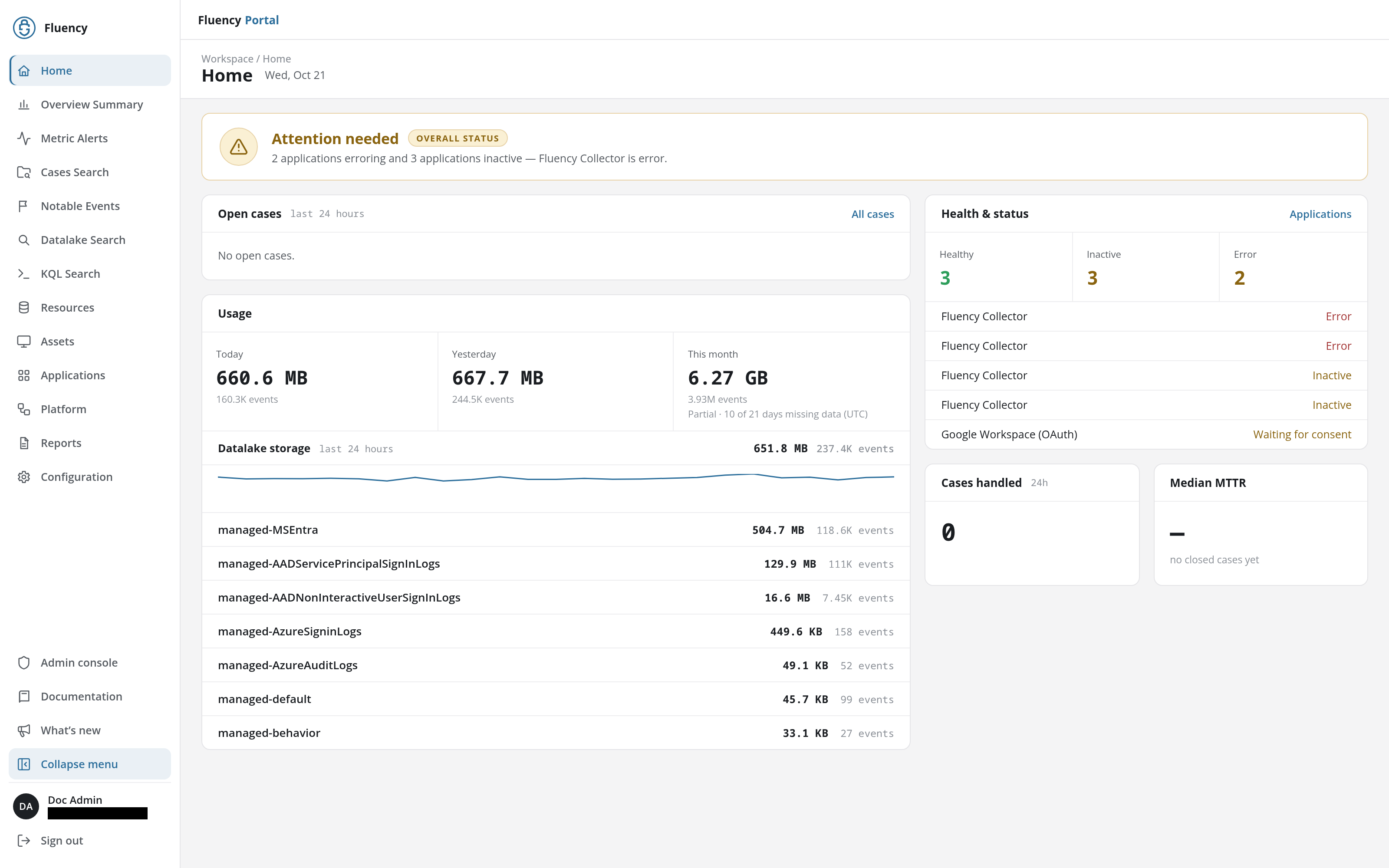
From top to bottom, the rail contains:
| Rail item | Page |
|---|---|
| Fluency logo | Returns to Home. |
| Home | Home: the landing dashboard after sign-in. |
| Overview Summary | Overview Summary: the account's behavior summaries, by severity and status. |
| Metric Alerts | Metric Alerts: alerts raised by platform metrics, such as an import source that stopped sending. |
| Cases Search | Cases Search: faceted search across case summaries. |
| Notable Events | Notable Events: faceted search across notable behavior events. |
| Datalake Search | Datalake Search: faceted search across all collected events. |
| KQL Search | KQL Search: KQL queries against the data lake, with their search history. |
| Resources | Resources: the users, applications, devices, and other entities that integrations have collected. |
| Assets | Assets: the assets registered or discovered from data ingress. |
| Applications | Applications: installed applications, each with its details, and the Application Catalog to install new ones from. |
| Platform | Platform: a live diagram of the data pipeline's sources, routers, and sinks. |
| Reports | Reports: the Event Ingress, Ticket Analysis, and Usage reports, and FPL report processors. |
| Configuration | Configuration: tenant configuration, from collectors and data lakes to processors and behavior rules. |
| Admin console | Admin console: users, API tokens, role-based access control, and audit and task logs. Shown only to users whose role gives access to the console; see Who Sees the Admin Console. |
| Documentation | Opens this manual. |
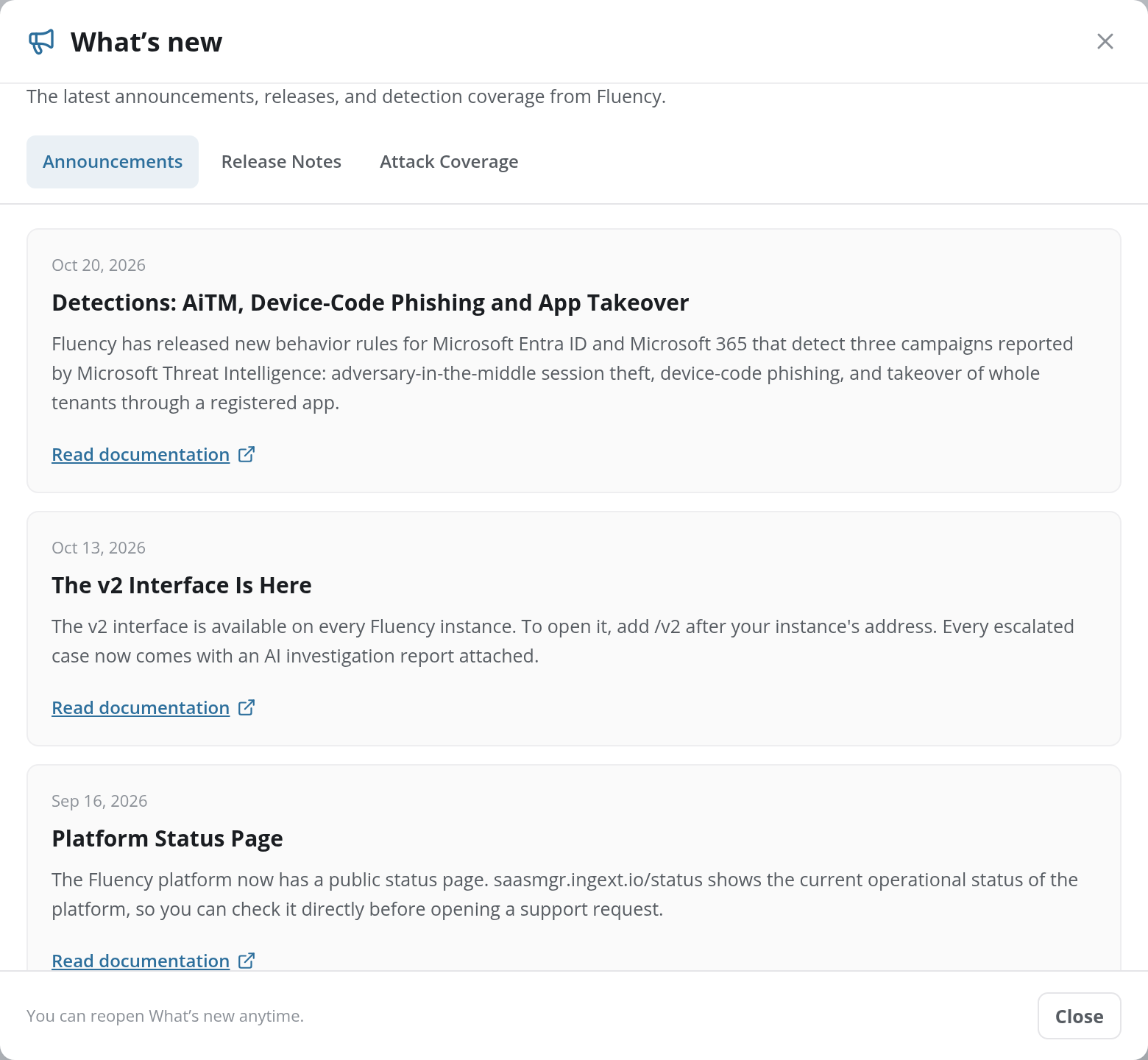
| What’s new | Opens the What’s new dialog: the latest announcements, release notes, and detection coverage from Fluency, on the tabs Announcements, Release Notes, and Attack Coverage. |
| Expand menu / Collapse menu | Widens or narrows the rail. |
| Account avatar | The signed-in user's initials, with their name and email when the rail is expanded. Opens Profile. |
| Sign out | Ends the session. |
Above the page, the top bar carries Fluency Portal, which also returns to Home.
Page Headers
Each page opens with a header that contains:
- A breadcrumb naming the area the page belongs to, such as Workspace / Home on the workspace pages or Admin · RBAC in the Admin console.
- The page title.
- A one-line description of what the page is for. Home shows today's date in its place, and Overview Summary, Metric Alerts and KQL Search have none.
- The page's own buttons, on the right, such as Refresh or Add User.
A sub-page reached from another page shows a Back to … link in place of the breadcrumb, which returns to the page the sub-page belongs to: Back to Configuration, Back to Applications, Back to Catalog, Back to Reports, Back to KQL Search, Back to Search History, Back to Collectors, Back to Processors, and Back to Behavior Rules.
Addresses With No Page
An address under /v2/ that matches no page opens Home rather than an error, so a mistyped or outdated link (/v2/datalake-search for Datalake Search, which lives at /v2/events) lands on Home. Two areas answer differently: an unknown /v2/configuration/<page> shows Page not found with This configuration page is unavailable., and an unknown /v2/admin/<page> shows Page not found. inside the Admin console.
Finding a Page from the v1 Interface
Most v1 pages have a counterpart in the v2 interface, often at a different place in the navigation:
Configuration → Search Facets has no page of its own in v1, where the facets are edited from Behavior Rules.
In this section
- Home: open cases, usage, data lake storage, and application health at a glance.
- Overview Summary, Behavior Summary, Metric Alerts, Cases Search, and Notable Events: reviewing detections and cases.
- Datalake Search and KQL Search with Search History: searching stored events.
- Resources and Assets: what integrations and collectors have discovered.
- Applications, Application Details, and the Application Catalog: installed applications, and installing new ones.
- Platform and Reports.
- Configuration: fourteen configuration pages, from Application Templates to Syslog Ports.
- Admin console: Users, API Tokens, Roles, API Policies, Data Policies, Audit Logs, Lake Tasks, Report Tasks, Archived Reports, and Investigation History.
- Profile: the signed-in user's own account.
- Classic v1 interface: the same reference for the classic v1 interface, from its navigation bar and menus to every page.
The screenshots in this reference were captured from a demonstration instance. The data shown (event counts, rules, applications, and so on) will differ from your environment, but the page layout and controls are the same.