Resources
The Resources page lists the integration resources collected into the account and lets you drill into each resource type to browse its records. The browser tab titles the page Resources Search.
Menu path: SIEM → Resources · URL path: /SIEM/resources
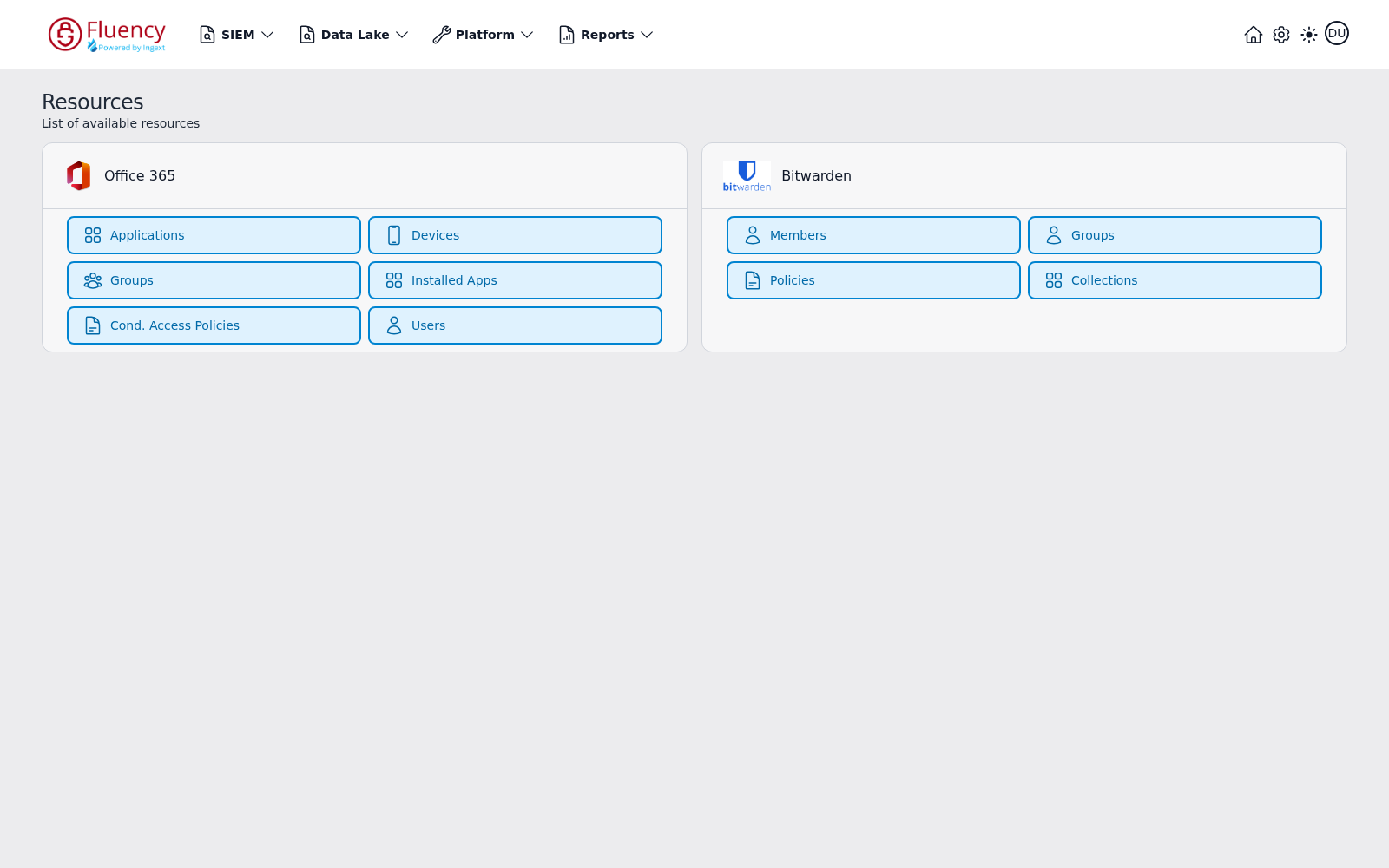
Page Layout
The page opens on a header in the upper-left corner with the page title Resources and the subtitle List of available resources, followed by a card for each integration that has contributed resources. In the example the account holds resources from Office 365 and Bitwarden.
When the account has no resources, the content area shows only a placeholder illustration and has no cards or controls.
Integration Cards
Each integration appears as a card headed by the integration's icon and name. The buttons inside the card are the resource types that integration provides; clicking one opens that resource type's list.
- Office 365: Applications, Devices, Groups, Installed Apps, Cond. Access Policies, Users.
- Bitwarden: Members, Groups, Policies, Collections.
The resource types offered differ by integration and by what the account has collected. Selecting a type that has no data loaded shows a Resource Load Failed message identifying the missing resource type.
An account with different integrations installed shows a different set of cards. Here the same page holds Office 365 and MS Defender:
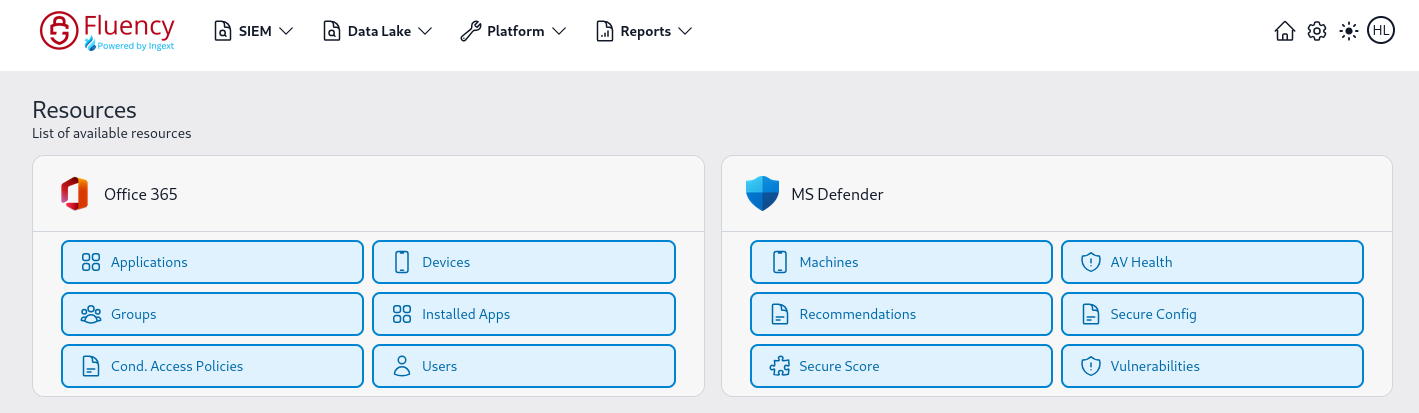
- MS Defender: Machines, AV Health, Recommendations, Secure Config, Secure Score, Vulnerabilities.
Each of the MS Defender types is backed by a different Defender for Endpoint endpoint, gated by a different Entra application permission, so a type can be missing here while the others are populated; see Microsoft Defender.
Resource List
Clicking a resource type opens its list at /SIEM/resources/<Integration>/<ResourceType>: for example Applications opens /SIEM/resources/O365/Applications. The list view replaces the integration cards with a searchable, filterable record browser. Loaded directly, a list URL for a resource type the account has no records of shows the plain Resources page instead: neither a list nor a Resource Load Failed message.
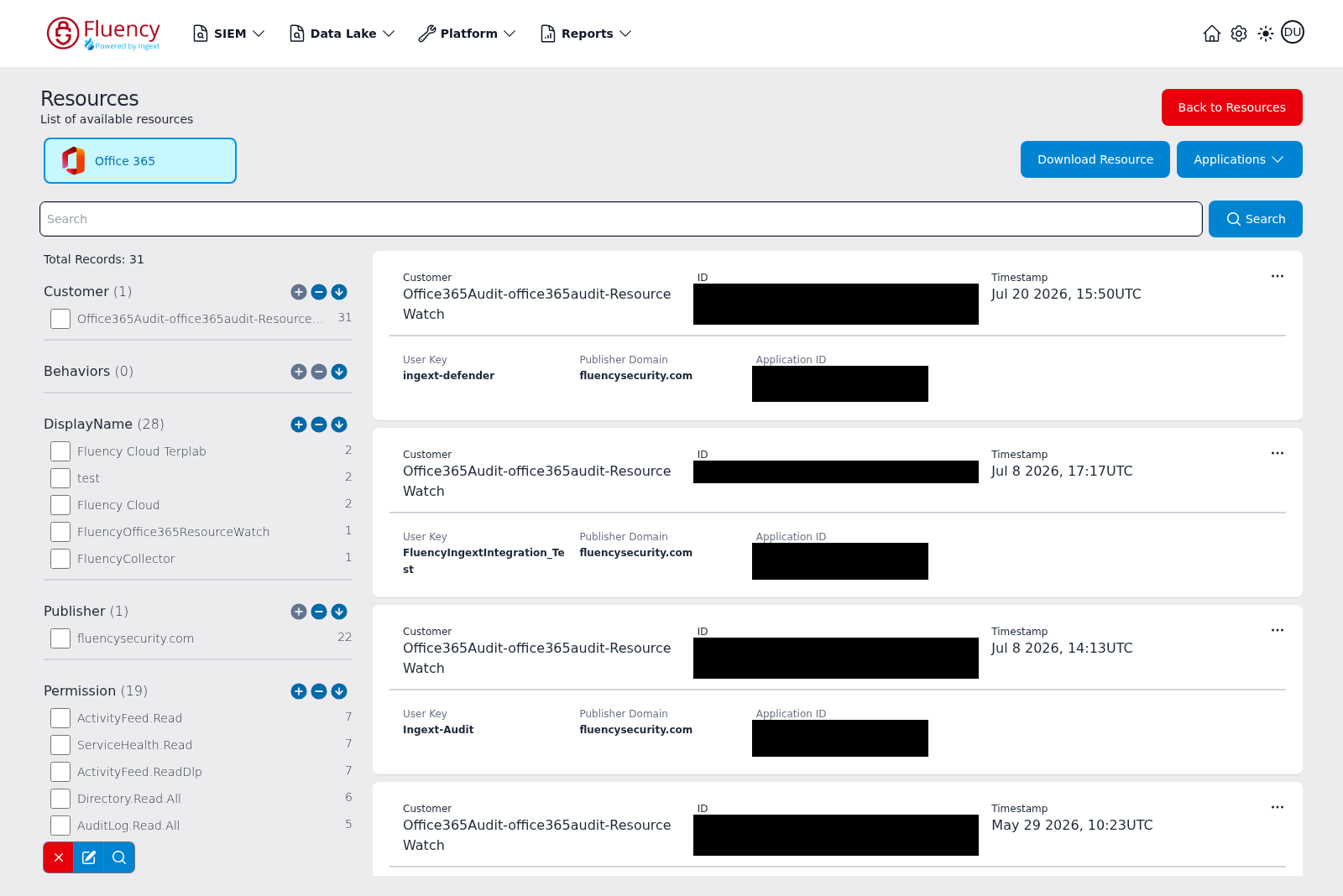
The list view has four regions:
- Header actions: a red Back to Resources button (upper-right) returns to the integration cards. Below it, a Download Resource button exports the current list and a resource-type drop-down (labeled with the current type, such as Applications) switches to another resource type within the same integration. The selected integration is shown as a highlighted chip in the upper-left.
- Search bar: a Search field with a Search button for filtering the records by text.
- Filter panel (left): a faceted filter. Total Records reports the count for the current type, and below it each field appears as a facet group (for Applications: Customer, Behaviors, DisplayName, Publisher, and Permission). Each value in a group shows how many records carry it, with a checkbox to filter by that value. Every group has controls to expand, collapse, and sort its listed values, and a row of small action icons at the bottom of the panel clears or applies the current selection.
- Record cards (right): one card per resource record, showing that resource type's fields. Application records show Customer, ID, and Timestamp across the top and User Key, Publisher Domain, and Application ID beneath. Each card has an options (...) button.
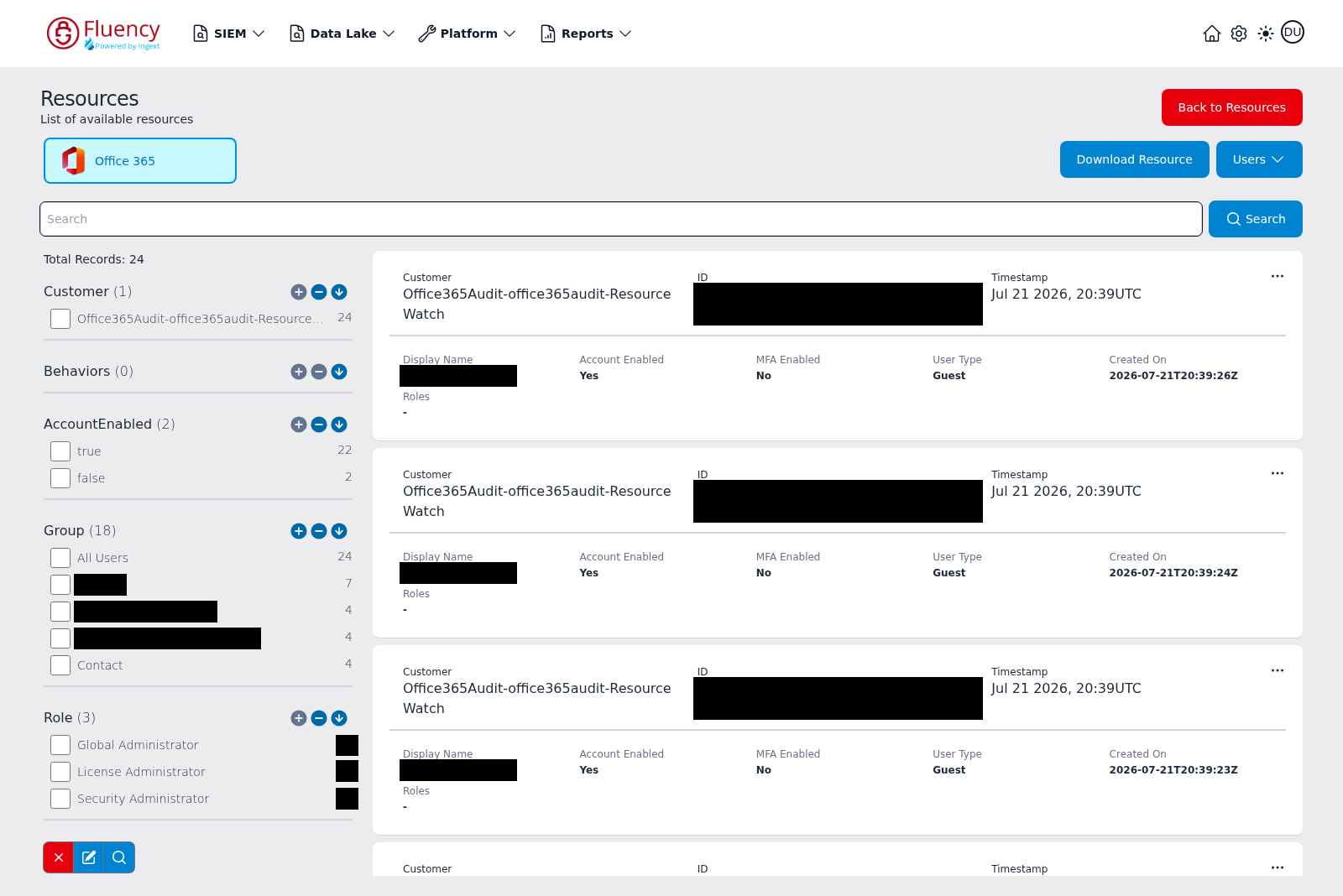
The fields and facets shown depend on the resource type. Switching the drop-down to Users, for example, lists user records with Display Name, Account Enabled, MFA Enabled, User Type, Created On, and Roles, and offers facets such as AccountEnabled, Group, and Role.
The facets change with the integration as well as the resource type. Bitwarden Members are described by an entirely different set (Customer, Name, Email, Status, UserId, TwoFactorEnabled, ResetPasswordEnrolled, and ExternalId) and the resource-type drop-down is labeled Members rather than Applications.
Empty Resource List
A resource type that has been set up but holds no records still opens its list view. Total Records reads 0, every facet group shows a count of (0) with no values beneath it, and the record area reads No data found:
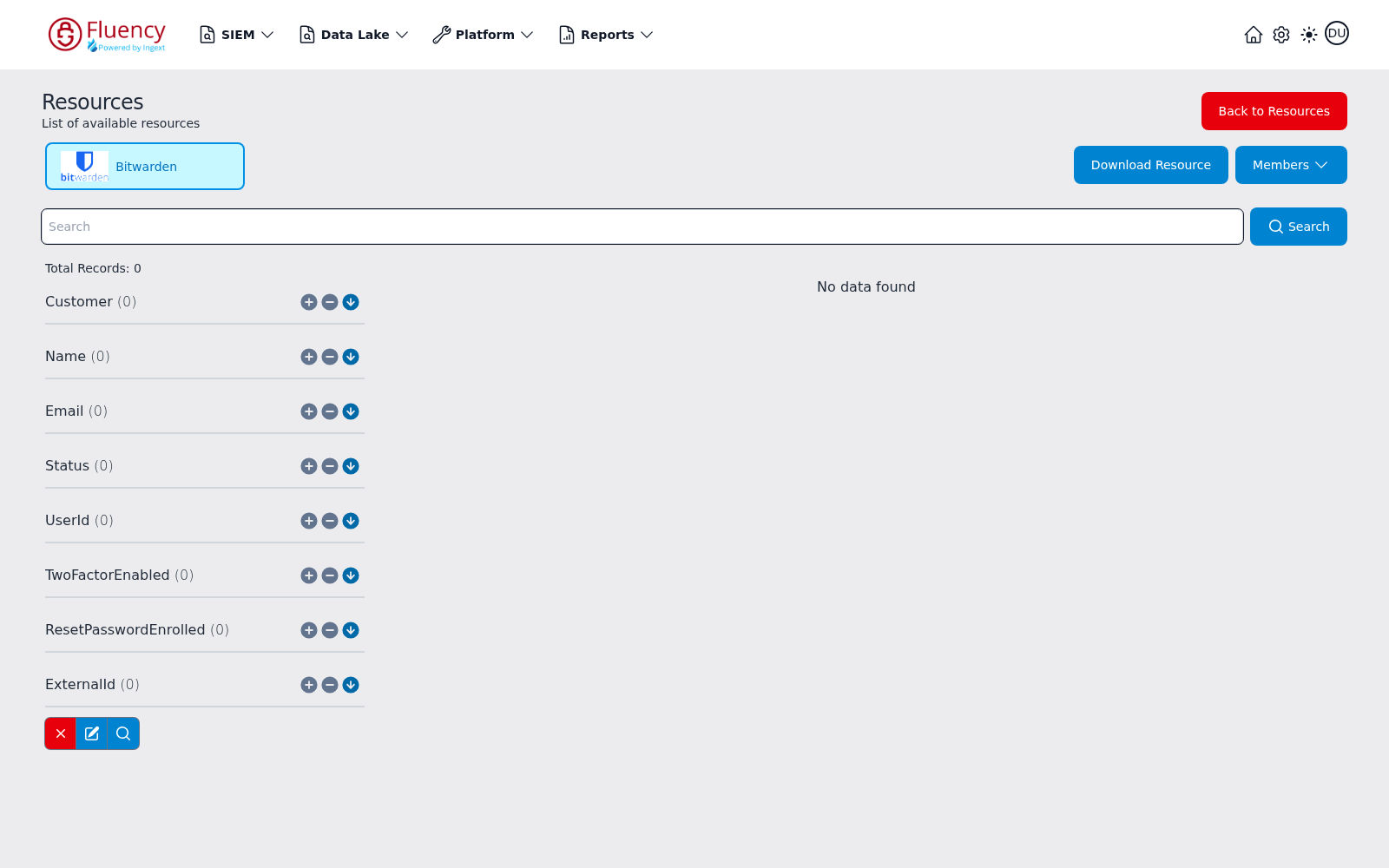
The search bar, facet controls, Download Resource button, and resource-type drop-down all remain available in this state. This is distinct from the Resource Load Failed message described above, which means the resource type itself has not been loaded.