Behavior Rules
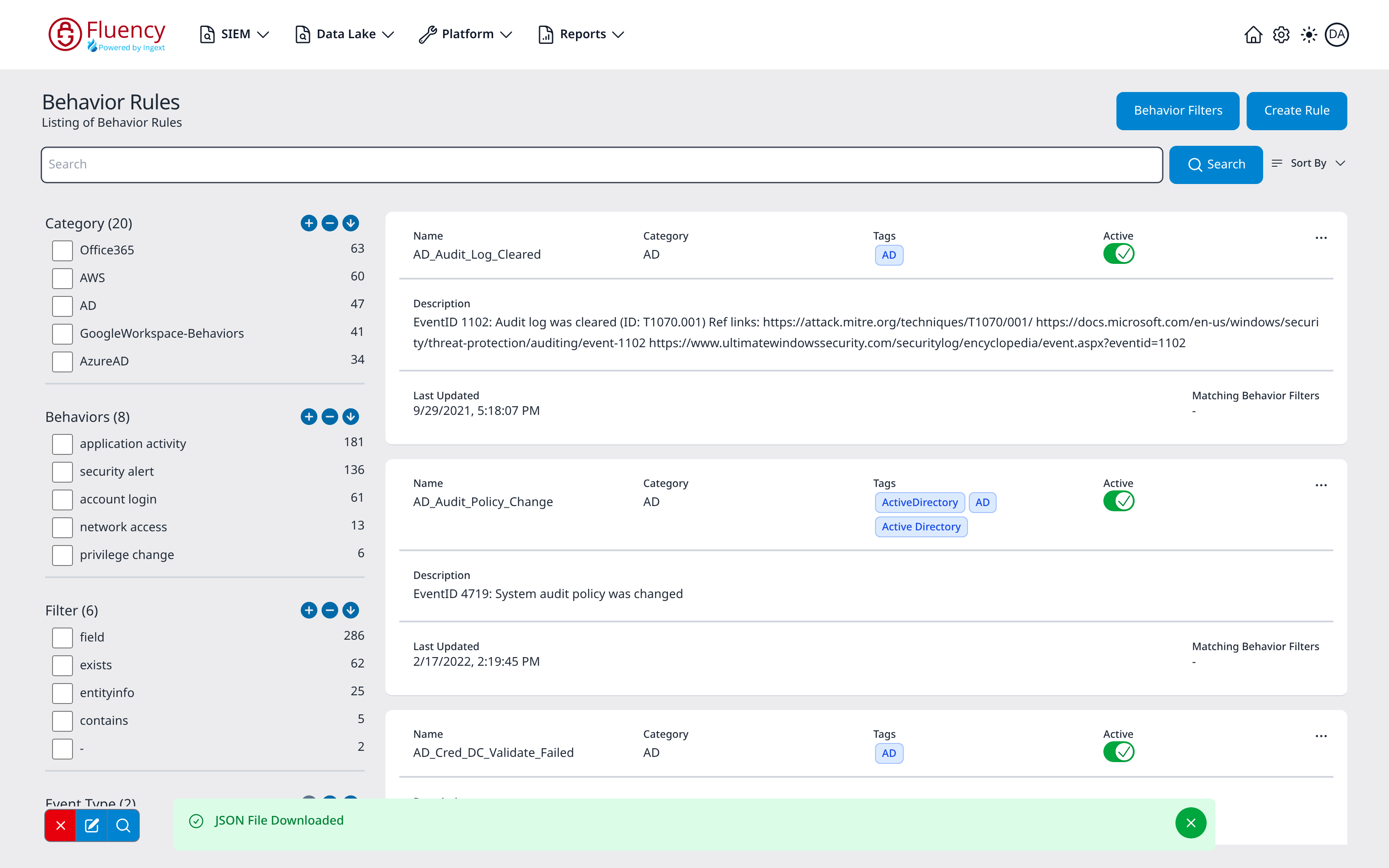
The Behavior Rules page lists the behavior detection rules in the account. From here you can search and facet the rule list, create or import rules, toggle rules on and off, and open each rule for viewing, cloning, or JSON export.
Menu path: SIEM → Behavior Rules · URL path: /SIEM/behaviorRules
Page Layout
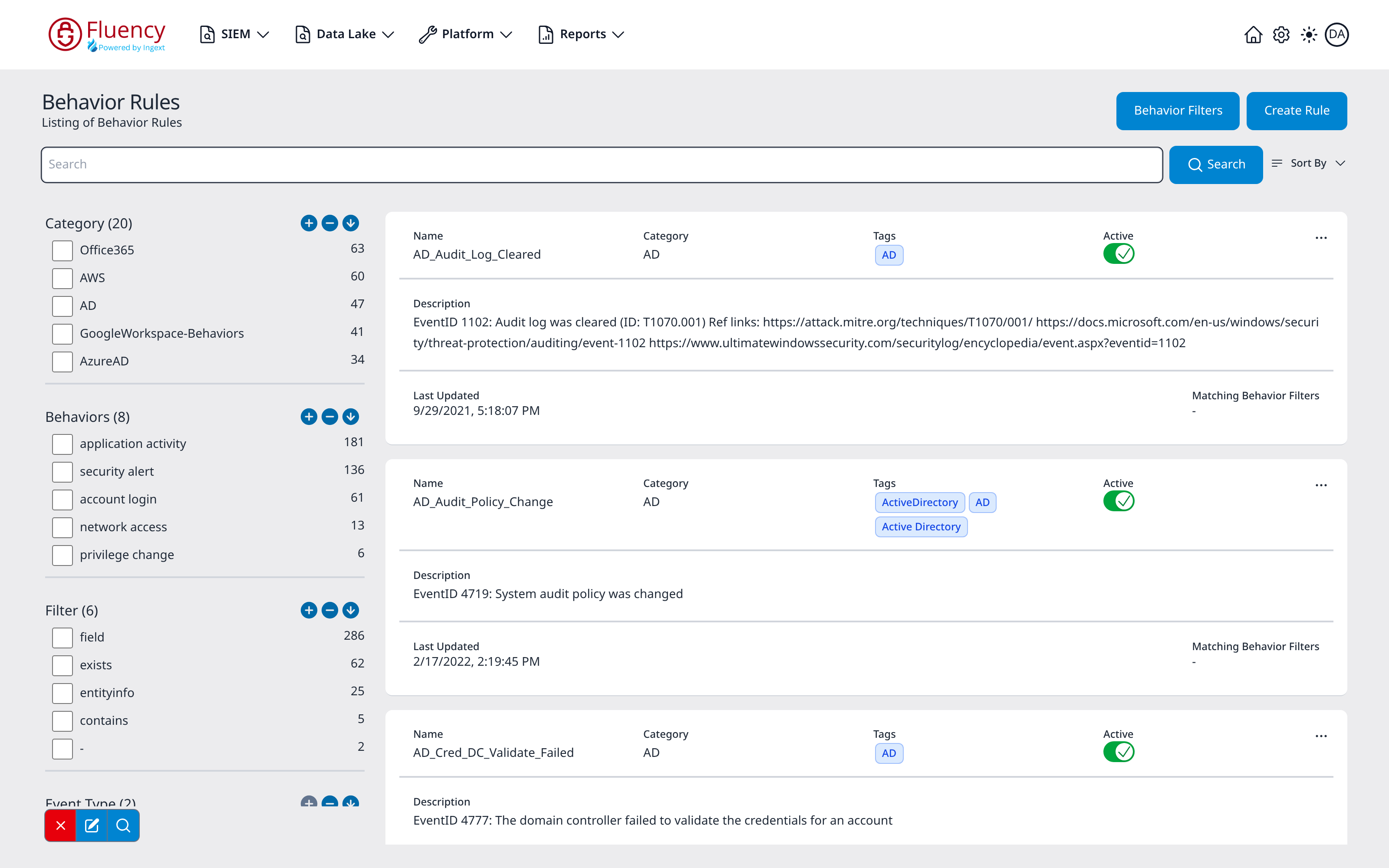
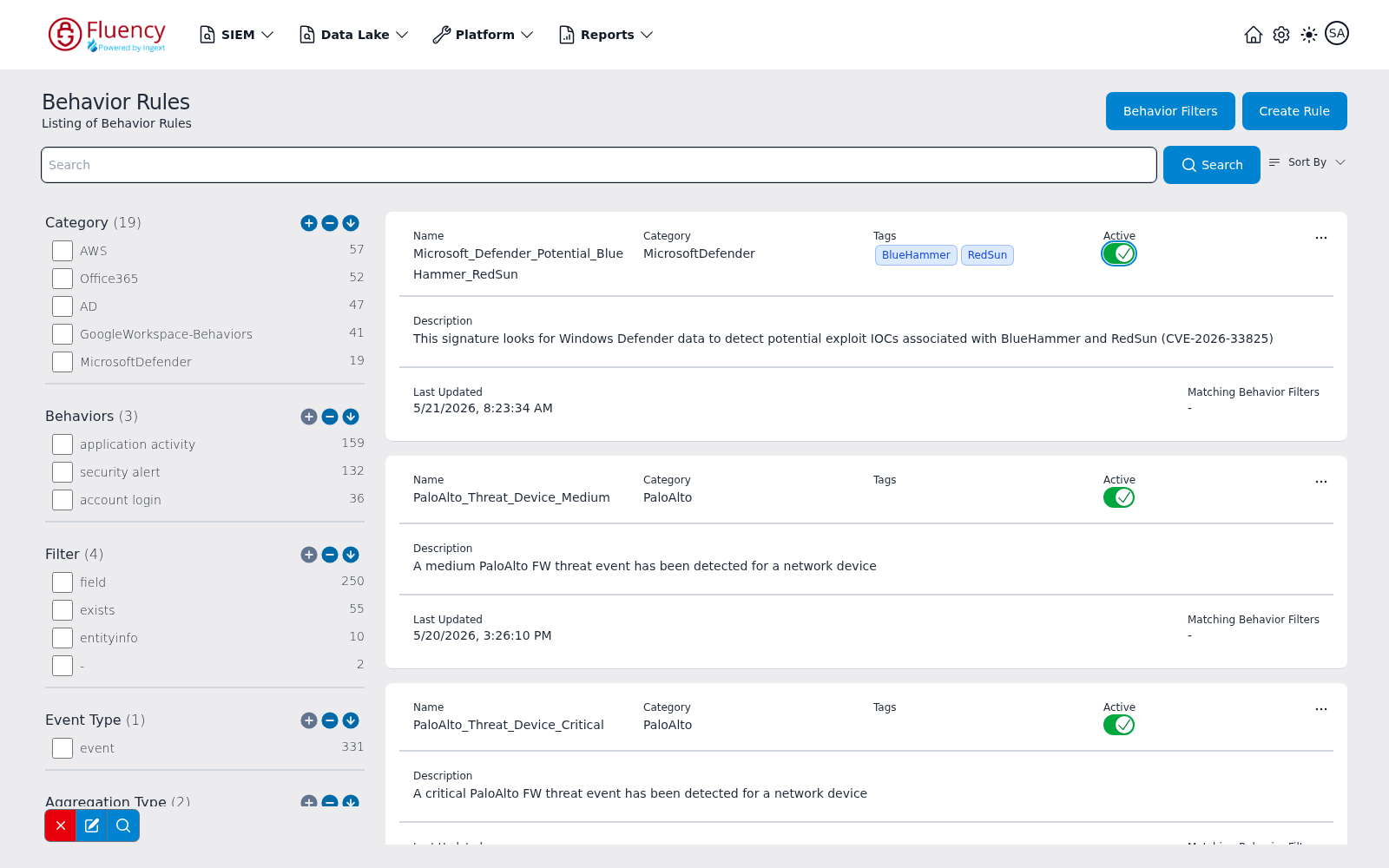
- Title bar: the page title Behavior Rules with the subtitle Listing of Behavior Rules on the left, and the Behavior Filters and Create Rule buttons on the right.
- Search bar: a full-width Search field with a Search button and a Sort By drop-down.
- Facet sidebar (left): collapsible groups of checkbox facets (Category, Behaviors, Filter, Event Type, Aggregation Type, Tags, Repository, Disabled) for narrowing the rule list, plus a small floating toolbar of facet actions pinned to the lower-left corner.
- Rule list (right): one card per rule showing its name, category, tags, active state, description, and update time, ten rules per page, with a paging footer beneath the cards.
Header Actions
Behavior Filters
Click Behavior Filters to navigate to the Behavior Filters page (/SIEM/behaviorFilters), which manages exceptions for behavior rules.
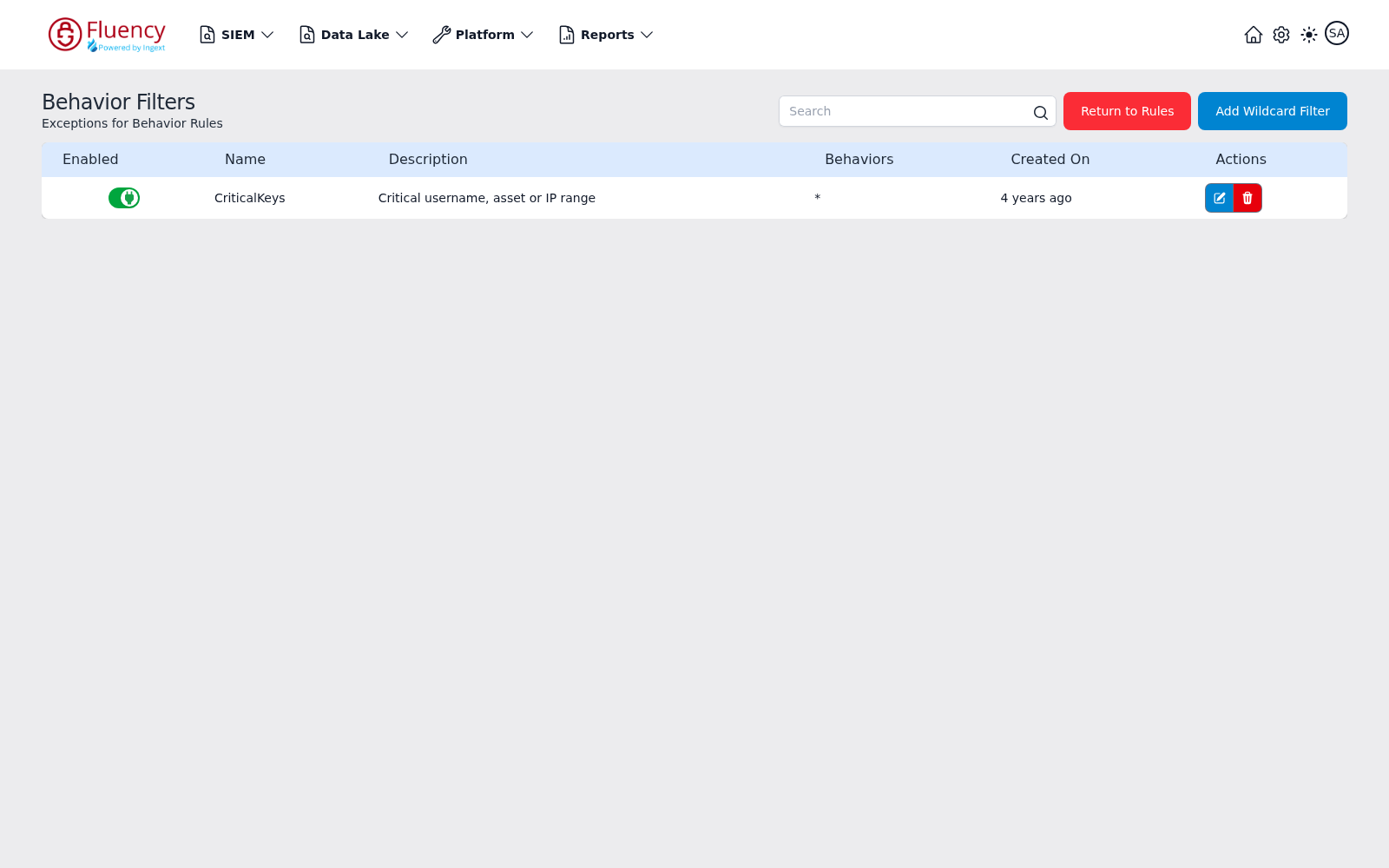
The destination page is titled Behavior Filters with the subtitle Exceptions for Behavior Rules and contains:
- A Search field for finding filters.
- A red Return to Rules button that navigates back to the Behavior Rules page.
- A blue Add Wildcard Filter button for creating a new filter (see Add Wildcard Filter).
- A table of filters with the columns Enabled (an on/off toggle), Name, Description, Behaviors (the behaviors the filter applies to; the example row shows
*), Created On, and Actions (a blue edit button and a red delete button per row).
Add Wildcard Filter
Add Wildcard Filter opens the Add Behavior Filter form (Enter the behavior filter information to add to the system.) in three sections:
- Filter Definition: Behavior Rule, Name (required), Description, the Action drop-down (set to Mask/Append Risks Only), and Match All.
- Behavior Risks: two multi-select lists, Append Risks and Mask Risks (Select Values).
- Search Criteria: a table of the filter's conditions, with Filter and Actions columns, and + Add Filter to add one.
Save creates the filter; Cancel closes the form.
Create Rule
Click Create Rule to open the Add Behavior Rule dialog, a three-step wizard whose steps are Bucket Definition, Selection Criteria, and Activity Performed.
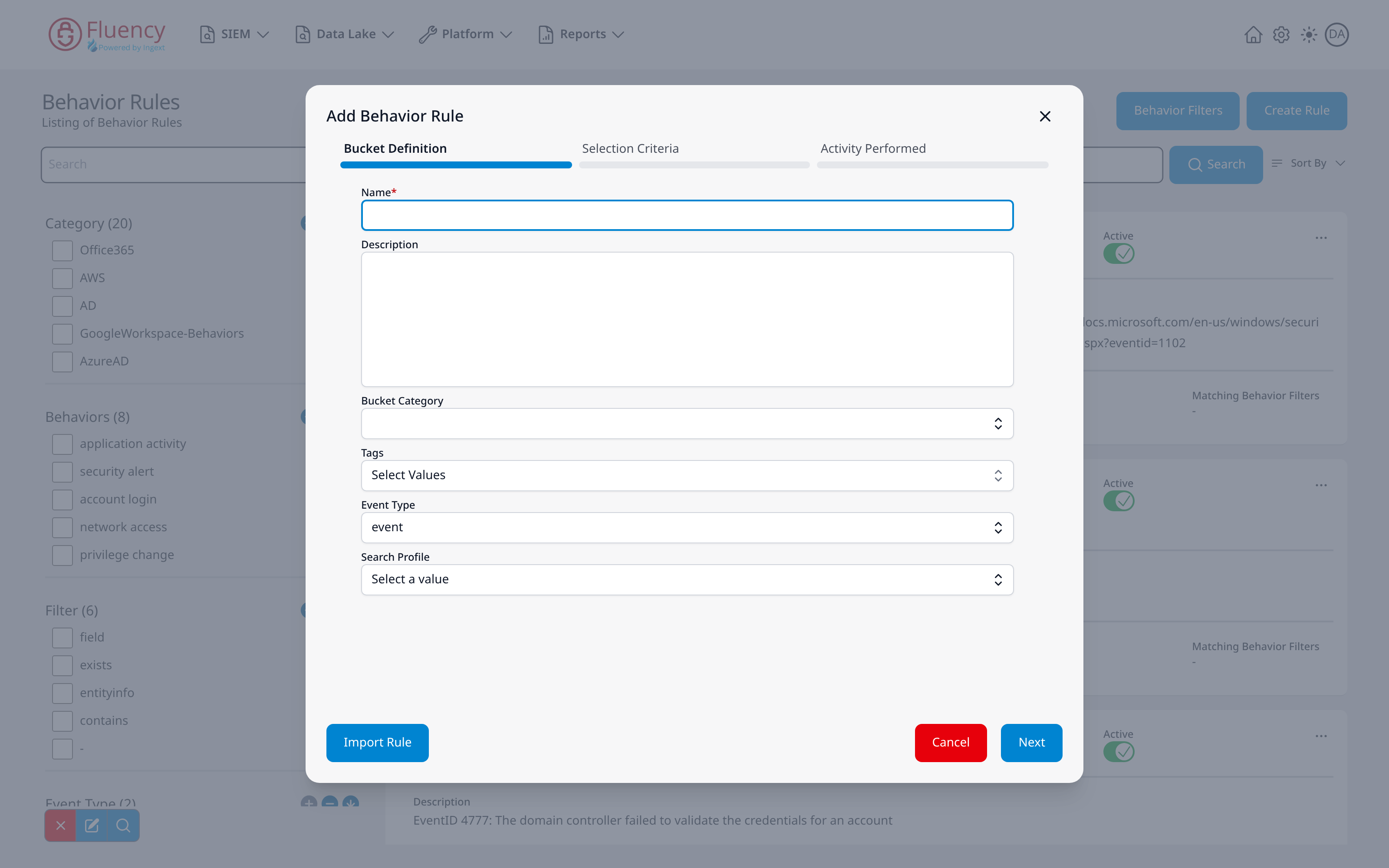
The first step, Bucket Definition, contains:
- Name: required text field.
- Description: multi-line text field.
- Bucket Category: drop-down selector.
- Tags: multi-select drop-down (Select Values).
- Event Type: drop-down, preset to event; the options are metaflow, event, and resource.
- Search Profile: drop-down (Select a value).
At the bottom of the dialog, Import Rule loads an existing rule definition instead of building one from scratch, Cancel closes the dialog, and Next advances to the next step. The X in the upper-right corner also closes the dialog.
Search and Sort
Type in the Search field and click Search to filter the rule list to matching rules. Clicking Search with an empty field simply reloads the full list.
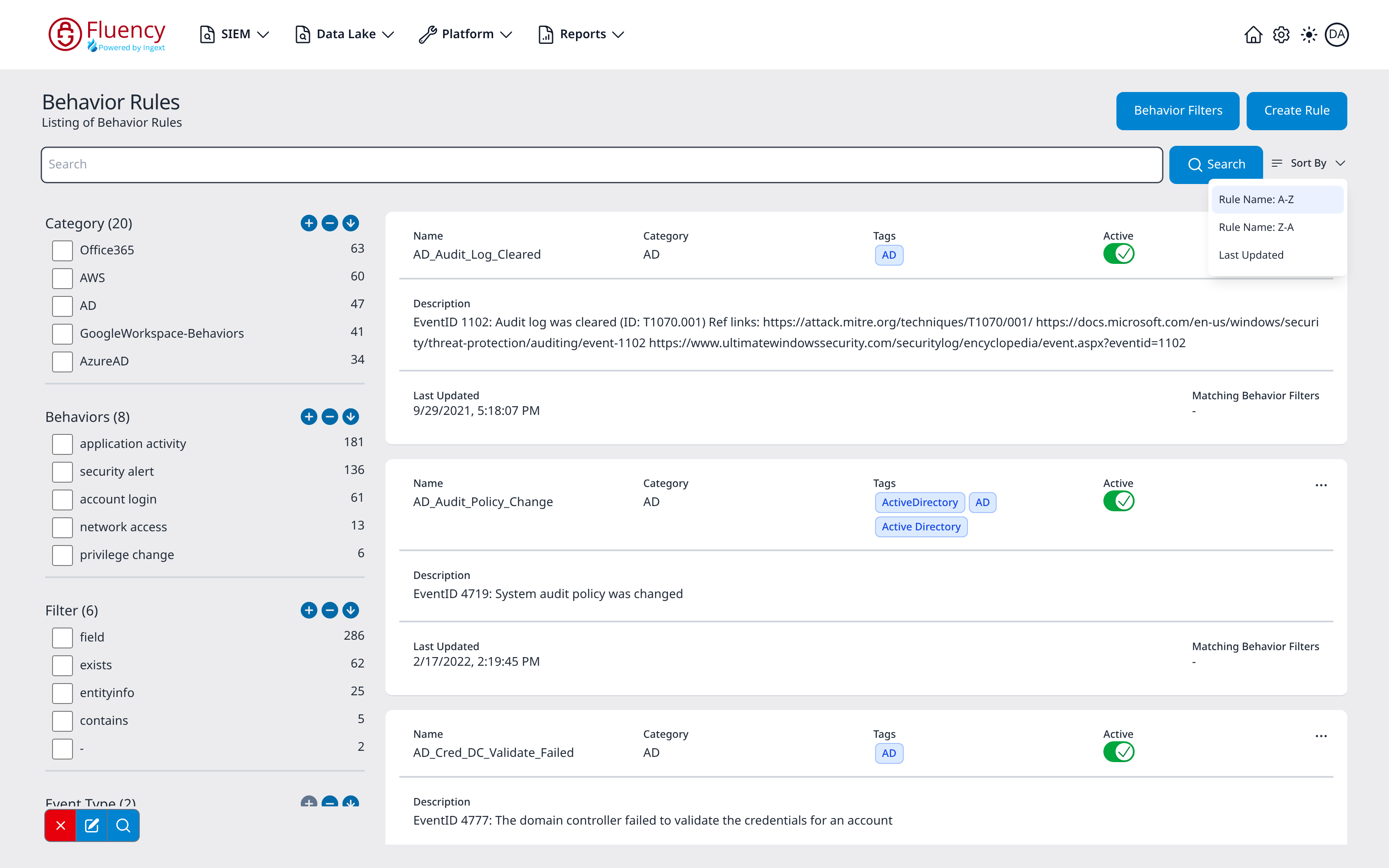
Sort By offers three options and reorders the list as soon as one is picked:
- Rule Name: A-Z: alphabetical by rule name; this matches the default order of the list.
- Rule Name: Z-A: reverse alphabetical.
- Last Updated: the most recently updated rules first.
Facet Sidebar
The left sidebar narrows the rule list by attribute. Each group (Category, Behaviors, Filter, Event Type, Aggregation Type, Tags, Repository, and Disabled) shows a checkbox per value with a count of matching rules beside it (for example, categories such as AWS, Office365, and AD; behaviors such as application activity, security alert, and account login; filter types such as field, exists, and entityinfo; Disabled values false and true). The groups follow the facets configured in the Search Facets dialog. Each group header also carries three small circular icon buttons (plus, minus, and down-arrow).
A floating toolbar pinned to the lower-left corner of the page holds three facet actions: a red X, a blue edit (pencil) icon, and a blue magnifier icon.
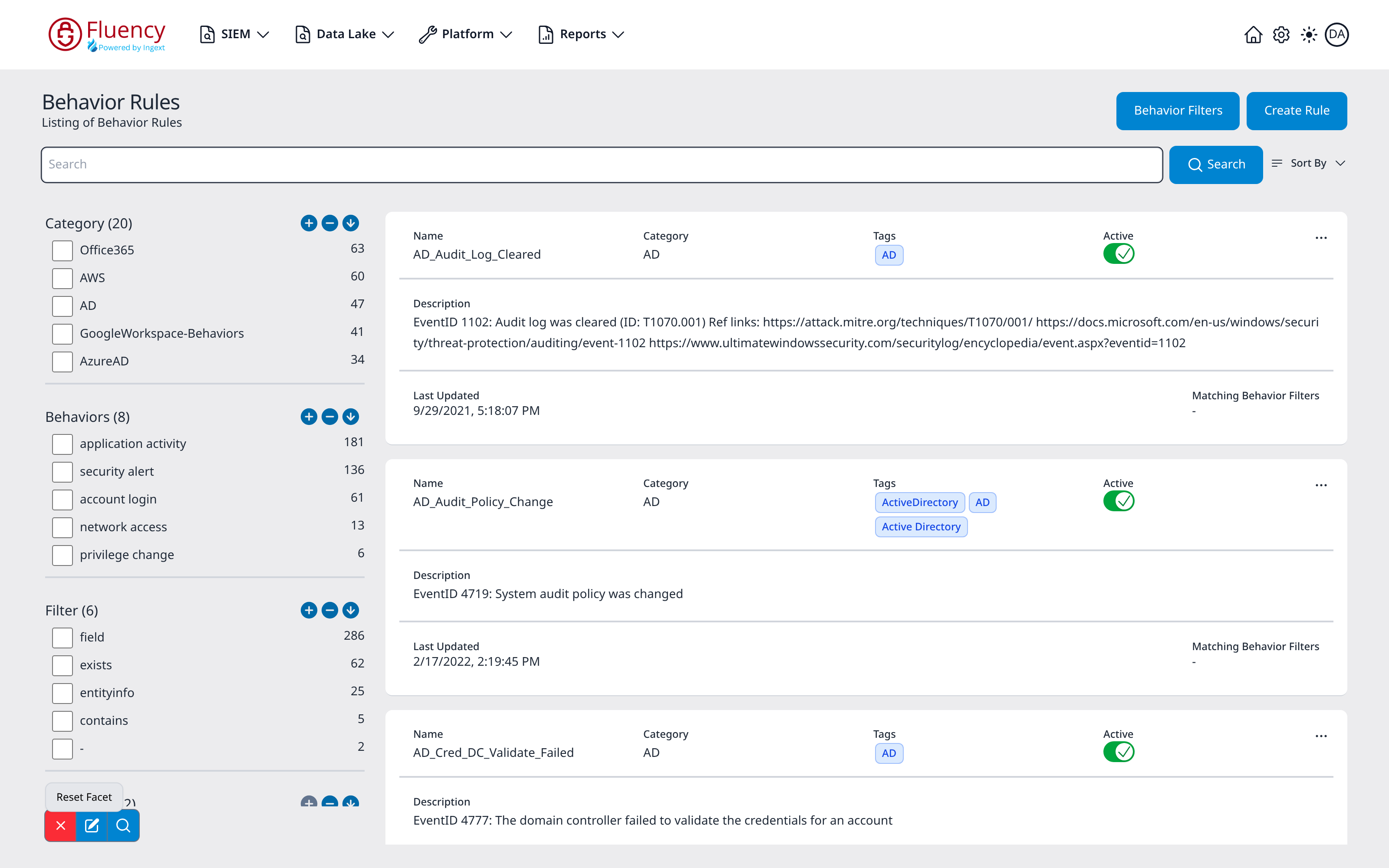
Reset Facet
The red X button is labeled Reset Facet (the tooltip shown below). Click it to clear the current facet selection.
Search Facets Editor
The edit (pencil) button opens the Search Facets dialog ("List of all event search facets."), which controls the facets available on this page.
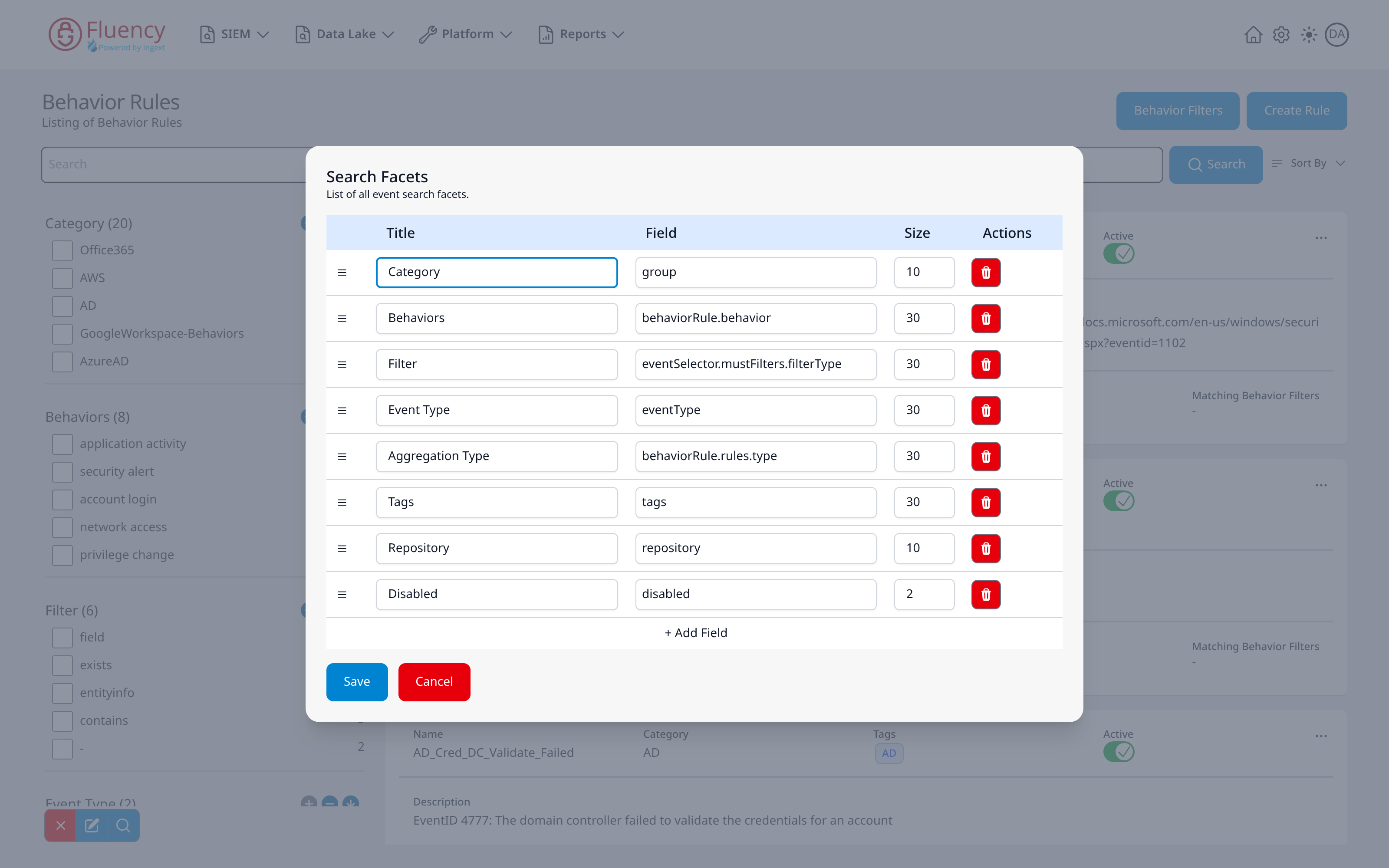
The dialog is a table with the columns Title, Field, Size, and Actions. Each row has a drag handle on the left for reordering and a red delete button under Actions. The configured facets in the example are:
- Category: field
group, size 10 - Behaviors: field
behaviorRule.behavior, size 30 - Filter: field
eventSelector.mustFilters.filterType, size 30 - Event Type: field
eventType, size 30 - Aggregation Type: field
behaviorRule.rules.type, size 30 - Tags: field
tags, size 30 - Repository: field
repository, size 10 - Disabled: field
disabled, size 2
Click + Add Field to append a new facet row. Save stores the changes; Cancel closes the dialog without saving.
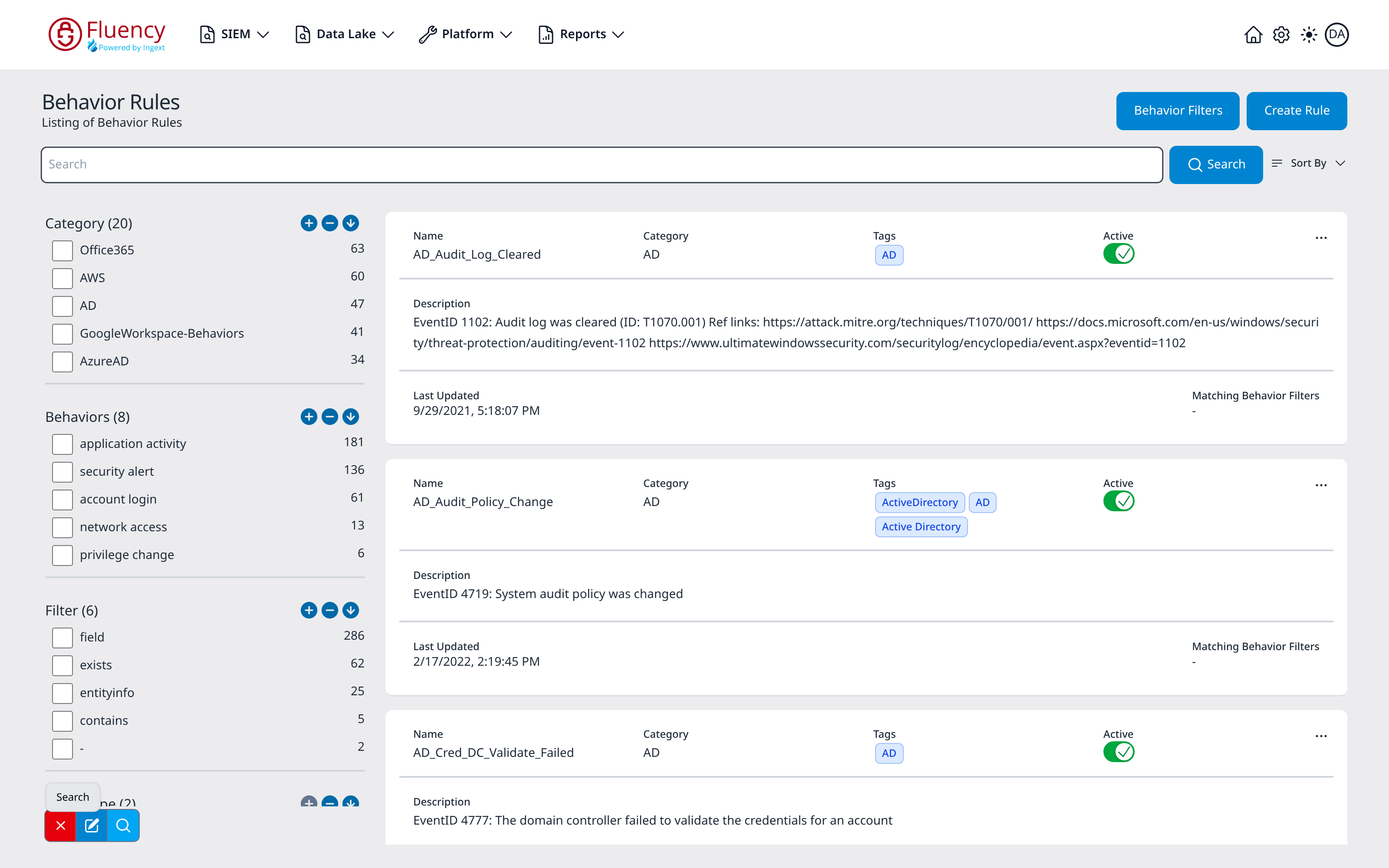
Search
The magnifier button is labeled Search (the tooltip shown below). Click it to run the search with the current facet selection.
Rule List
Each rule appears as a card with two rows:
- The top row shows Name, Category, Tags (as chips), an Active toggle, and a three-dot (...) actions button.
- The body shows the rule's Description, followed by Last Updated (date and time) and Matching Behavior Filters (a dash when no filters match).
The list shows ten rules per page. A footer beneath the cards reports the visible range (for example Showing 1 to 10 of 406 results) with previous and next arrows and numbered page buttons.
Active Toggle
Click the Active toggle to enable or disable a rule. An active rule shows a green toggle with a check mark; clicking it switches the rule off, shown as a red toggle with an X.
Rule Actions Menu
Click the three-dot (...) button at the right edge of a rule card to open its actions menu.
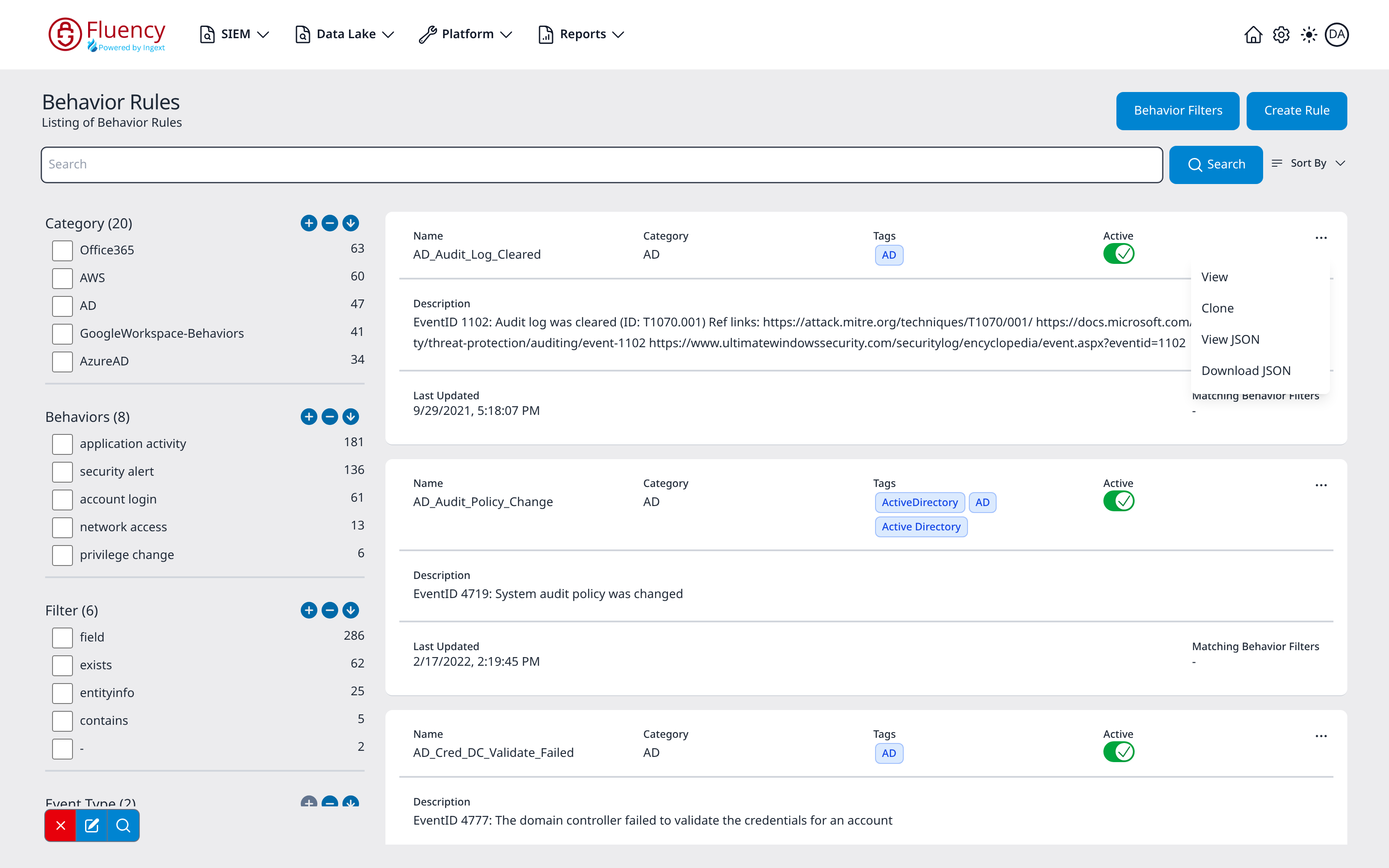
The menu contains four options: View, Clone, View JSON, and Download JSON. The same menu, and the same dialogs behind it, are available on every rule card.
View
View opens the Update Behavior Rule dialog, the same three-step wizard as Create Rule (Bucket Definition, Selection Criteria, Activity Performed) pre-filled with the selected rule.
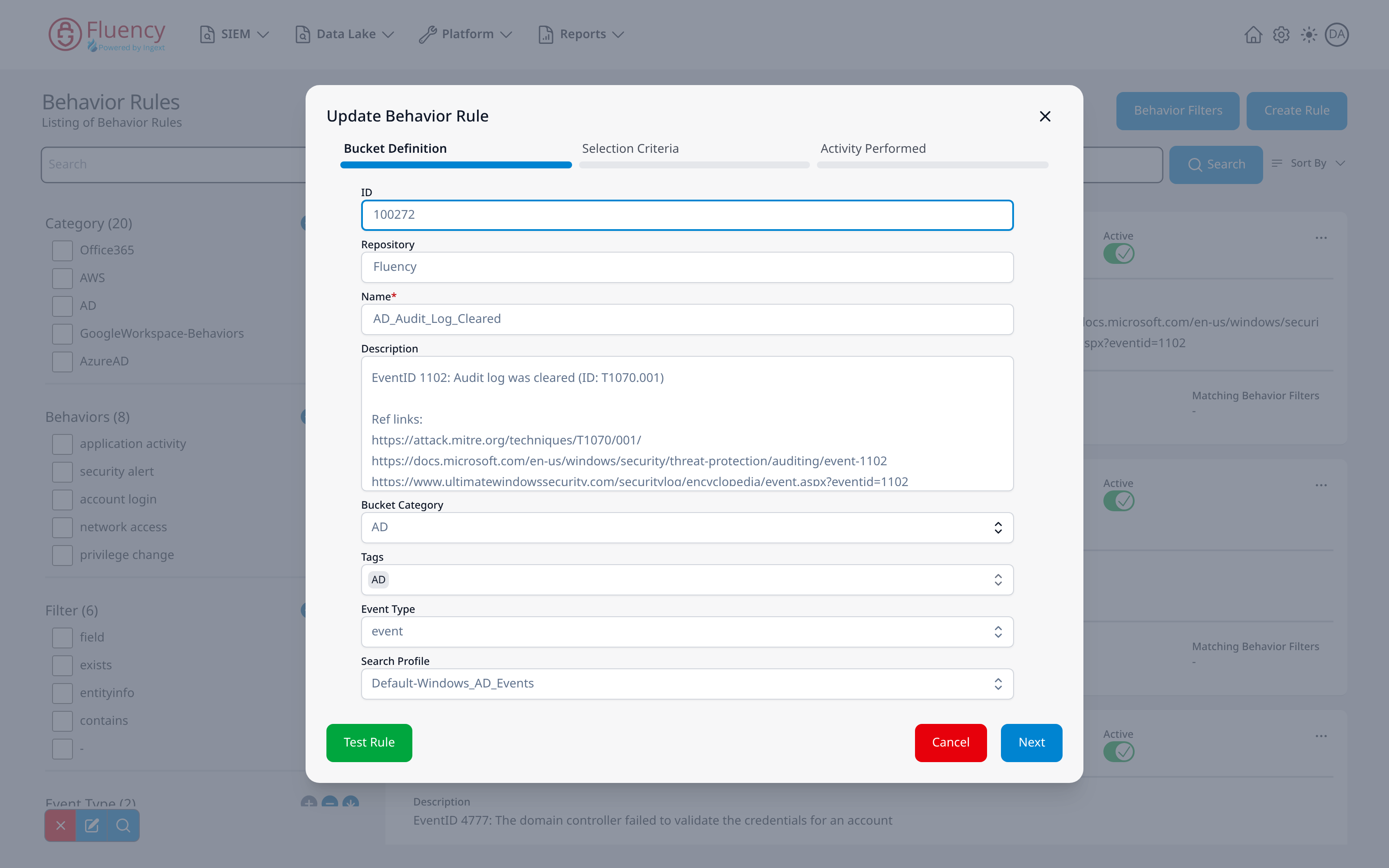
In addition to the fields of the create wizard, the Bucket Definition step here starts with the rule's ID and Repository, followed by the pre-filled Name, Description, Bucket Category, Tags, Event Type, and Search Profile. For the rule pictured, which comes from the Fluency repository, the ID, Repository, Name, and Description fields are read-only and the Tags, Event Type, and Search Profile selectors are disabled. The footer also differs: a green Test Rule button sits on the left, with Cancel and Next on the right.
Clone
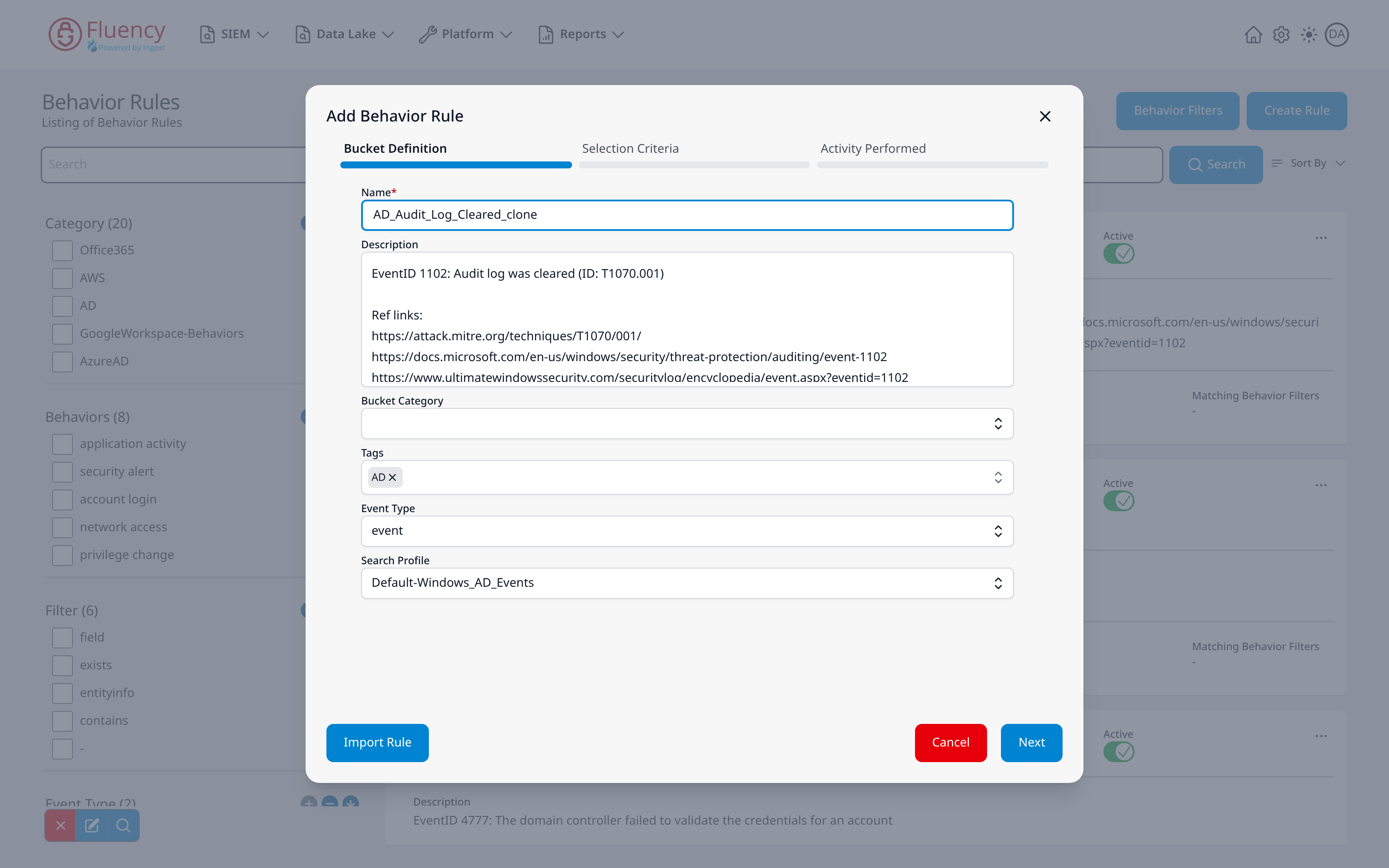
Clone opens the Add Behavior Rule dialog pre-filled from the source rule. The Name field holds the source rule's name with _clone appended, and the description, tags (shown as chips with an x to remove each one), event type, and search profile carry over; the Bucket Category selector starts empty. As with Create Rule, the footer holds Import Rule, Cancel, and Next.
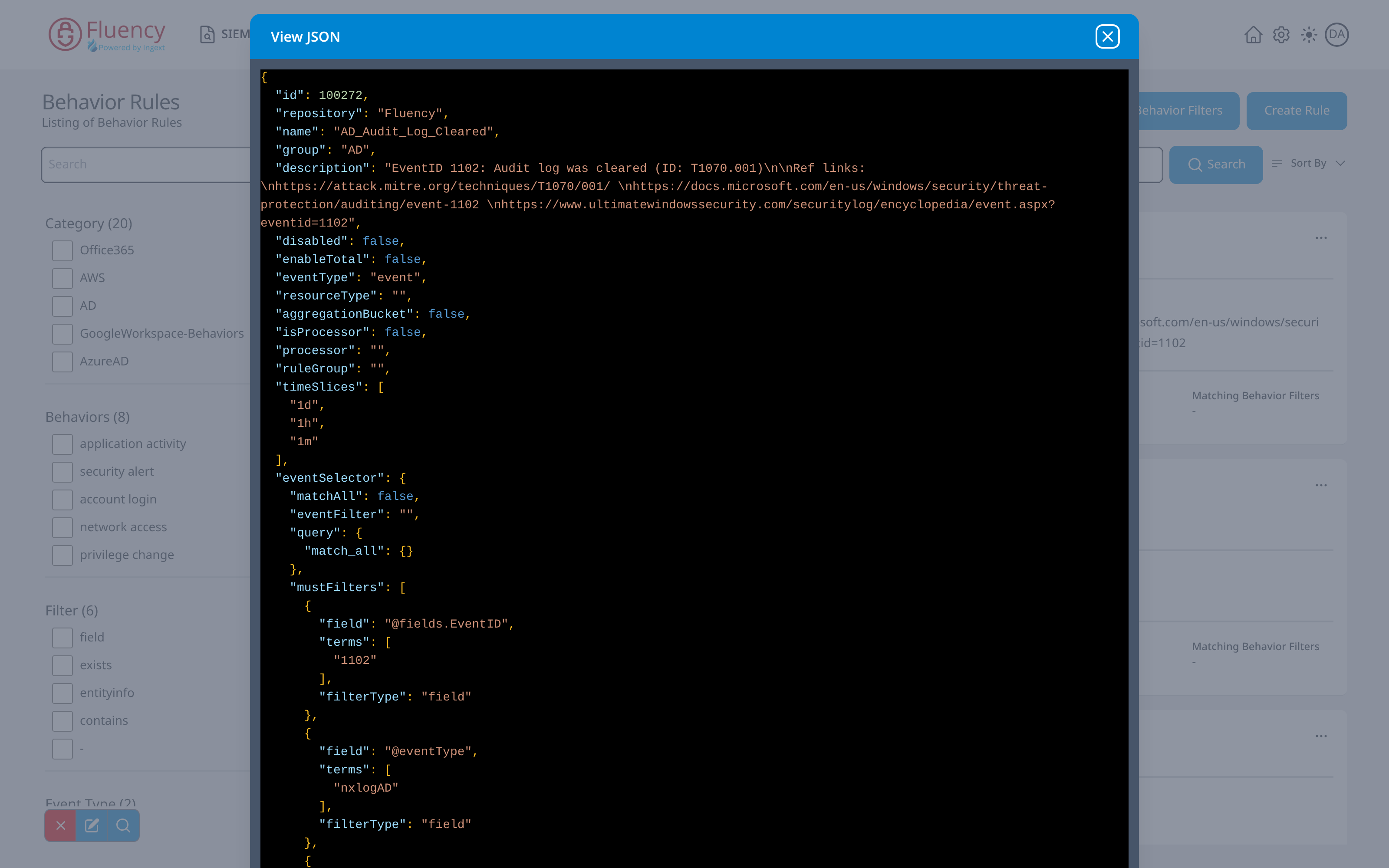
View JSON
View JSON opens a full-height View JSON dialog showing the rule's complete JSON definition, syntax-highlighted on a dark background: properties such as id, repository, name, group, description, disabled, eventType, timeSlices, and the eventSelector block with its query and filters. The X button in the blue title bar closes the dialog.
Download JSON
Download JSON saves the rule's JSON definition as a file immediately; no dialog opens. A green JSON File Downloaded toast appears across the bottom of the page to confirm the download; the X button at its right end dismisses it.