Report Scheduler
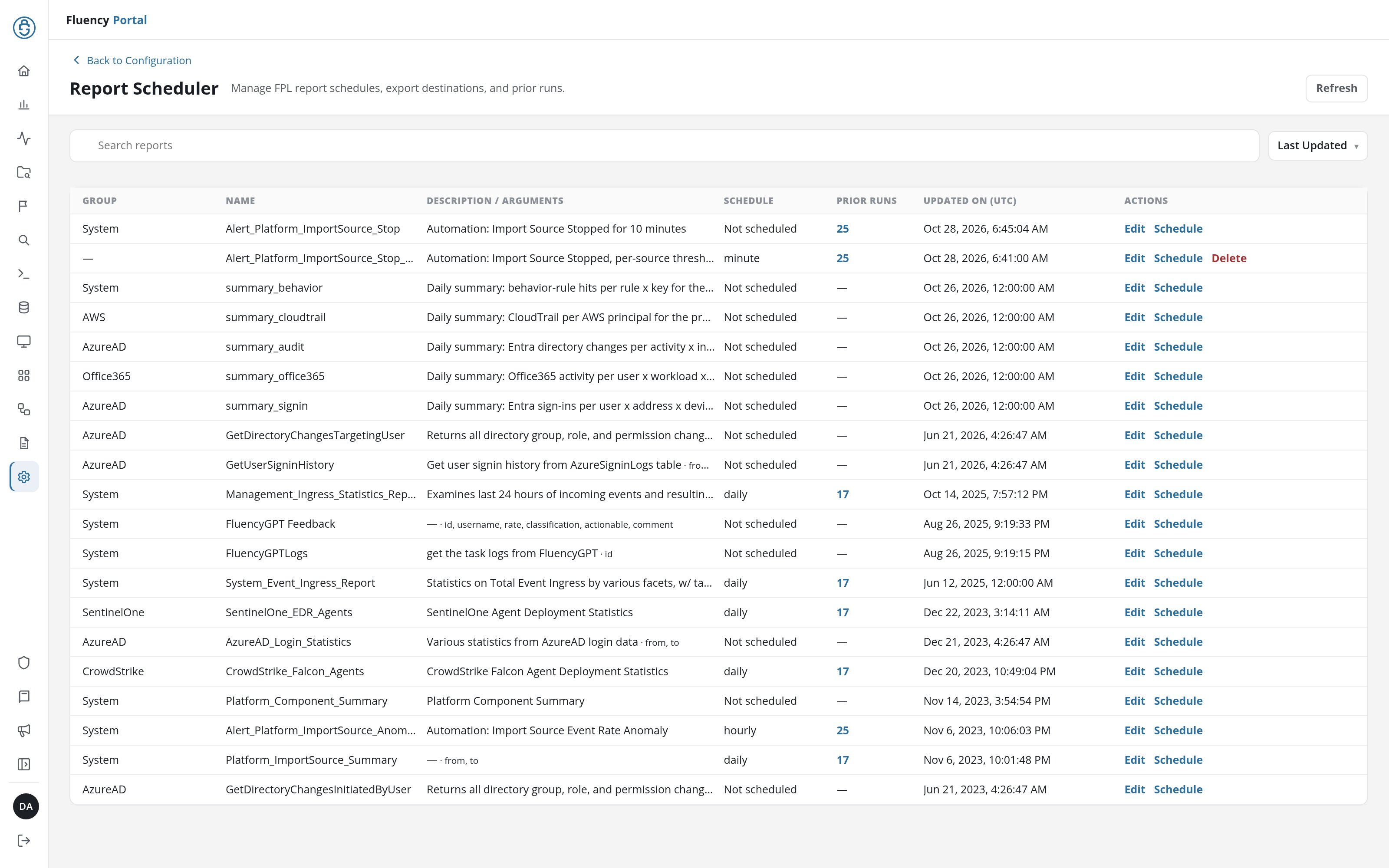
The Report Scheduler page lists the site's FPL reports with their schedules. Each row is one report, with its group, description and arguments, the interval it runs on, how many runs it has kept, and when it last changed. From here you can edit a report's description and FPL, set or clear its schedule, choose where its output is sent, turn on daily archiving, and open its prior runs.
Menu path: Configuration → Report Scheduler · URL path: /v2/configuration/report-scheduler
Task guide: Scheduling and Delivery
Page Layout
- Header: a Back to Configuration link above the title Report Scheduler and the subtitle Manage FPL report schedules, export destinations, and prior runs., with a Refresh button on the right that reloads the table.
- Toolbar: a search field with the placeholder Search reports, and a sort drop-down set to Last Updated.
- Report table: one row per report.
Search and Sort
Type in Search reports to narrow the table to the matching reports; when none matches, the table reads No matching reports. The sort drop-down orders the table by Last Updated (most recently changed first, the default), Report Name: A–Z, or Report Name: Z–A.
Report Table
| Column | Contents |
|---|---|
| Group | The report's group, such as System, AzureAD, or a product name; – when it has none. |
| Name | The report's name. |
| Description / Arguments | The report's description, followed by the names of the arguments it takes (for example · from, to, username); – when it has no description. |
| Schedule | The interval the report runs on (hourly, daily, weekly, or monthly, or minute for a report already set to run every few minutes), or Not scheduled. |
| Prior Runs | The number of runs kept for the report, as a link that opens the Prior Runs dialog; – when there are none. |
| Updated On (UTC) | When the report was last changed, in UTC. |
| Actions | Edit and Schedule on every row, and a red Delete on reports the site can remove. |
Delete asks for confirmation (Delete report "<name>"?) before it removes the report.
Edit
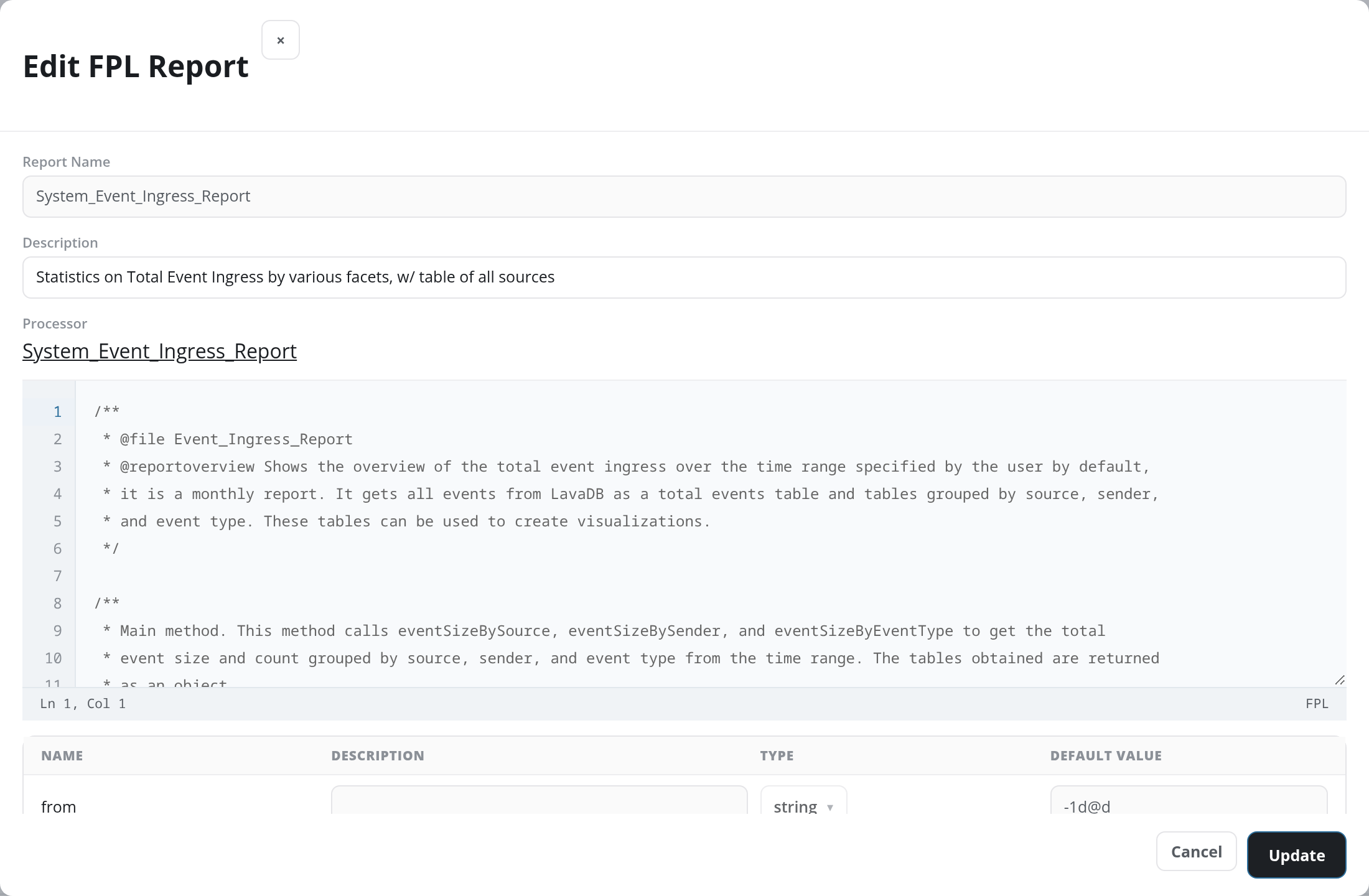
Edit opens the Edit FPL Report dialog:
- Report Name: the report's name, read-only.
- Description: the description shown in the table.
- Processor: on a report that runs a report processor, the processor's name, as a link that opens the processor on the FPL reports tab of Reports (
/v2/reports?kind=fpl&name=<processor>). A report without one has no Processor row. - The report's FPL code, in a code editor with line numbers and a status bar showing the cursor position (Ln 1, Col 1) and the language (FPL). On a report that runs a report processor the code is read-only: it is the processor's, and is changed in the report editor.
- On a report that takes arguments, a table of them below the editor: Name, an editable Description, a Type drop-down (such as string), and an editable Default Value (such as
-1d@dfor from).
Update saves the changes; Cancel or × closes the dialog without saving.
Schedule
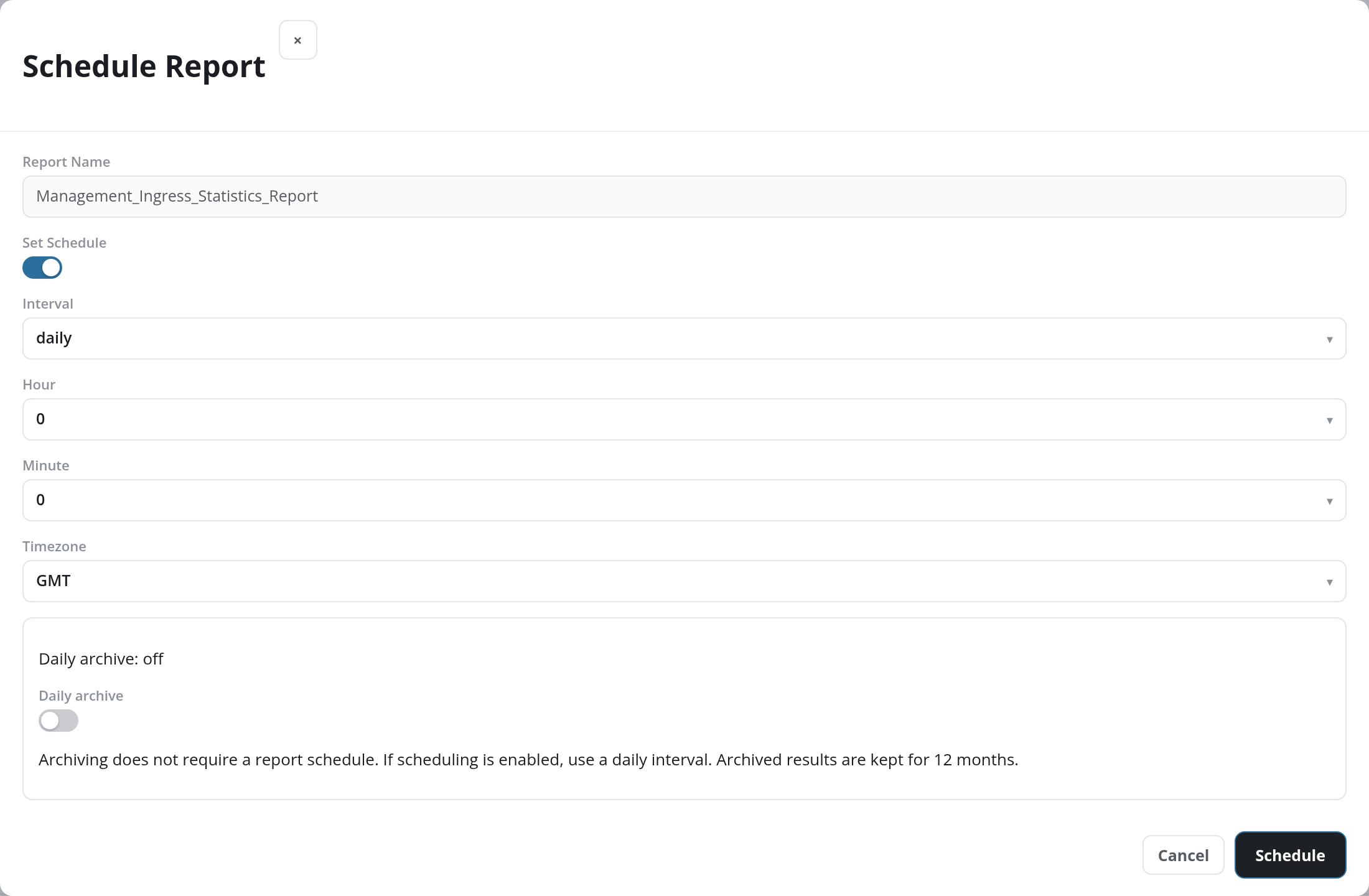
Schedule opens the Schedule Report dialog, which sets when the report runs and where its output goes:
-
Report Name: the report's name, read-only.
-
Set Schedule: a switch. Off, the report runs only when started by hand and the dialog shows nothing more than Daily archive. On, the fields below appear.
-
Interval: hourly, daily, weekly, or monthly; the drop-down shows the report's current interval. The fields after it depend on the interval:
Interval Fields hourly Minute: the minute past each hour, 0 to 59. daily Hour (0–23), Minute, and Timezone. weekly Weekday (starting on Sunday), Hour, Minute, and Timezone. monthly Day of the month, Hour, Minute, and Timezone. Timezone defaults to GMT and lists GMT, US and Canadian zones (such as America/New_York and Canada/Eastern), Europe/London, Europe/Berlin, Hongkong, and Asia/Kuala_Lumpur.
-
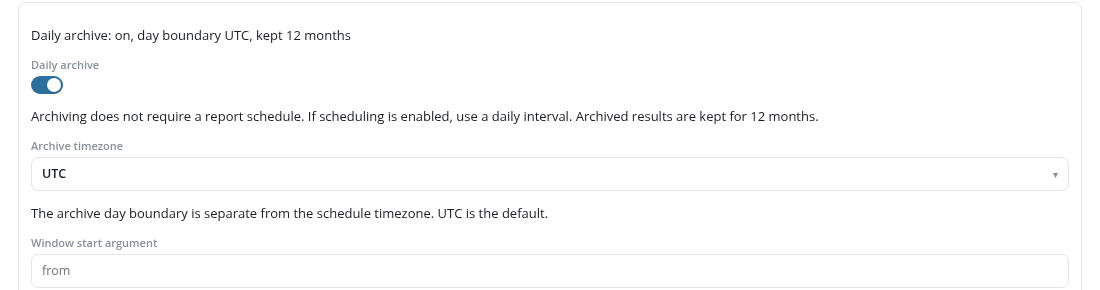
Daily archive: a box headed with its current state (such as Daily archive: off), holding the Daily archive switch and the note Archiving does not require a report schedule. If scheduling is enabled, use a daily interval. Archived results are kept for 12 months. Archiving works with Set Schedule on or off; a scheduled report that is archived must run daily. The archived runs are listed on Archived Reports. See Daily Archive for the fields the switch adds.
-
Exports, shown while Set Schedule is on: the Export destinations the report's output is sent to, picked from the Add… drop-down. It lists the site's notification endpoints by type and name, such as Email:BehaviorSummary_Export; each one picked shows as a chip with a × that removes it. The endpoints are set up on Notifications.
Schedule saves the schedule, the archive settings and the export destinations. Once they are saved, the dialog closes, a green notice reads Report schedule updated., and the row's Schedule and Updated On (UTC) show the change. Cancel or × closes the dialog without saving.
Daily Archive
Turning the Daily archive switch on changes the box's heading to Daily archive: on, day boundary <timezone>, kept 12 months and adds three fields below the note:
- Archive timezone: where each archived day starts and ends: UTC (the default), America/New_York, America/Chicago, America/Denver, America/Los_Angeles, Europe/London, Europe/Berlin, Asia/Singapore, Asia/Tokyo, or Australia/Sydney. Beneath it: The archive day boundary is separate from the schedule timezone. UTC is the default.
- Window start argument and Window end argument: the names of the report's arguments that receive each day's start and end, with the placeholders
fromandtoand the note Leave argument names empty to use from and to. The two names must differ, and the report must declare both.
With Set Schedule also on, the archive needs a daily interval. Turning the archive on while the interval is hourly clears Interval to Select…, and the list then offers only daily; Schedule with no interval chosen reports Scheduled archiving requires a daily interval. Select daily or turn off the report schedule.
Prior Runs
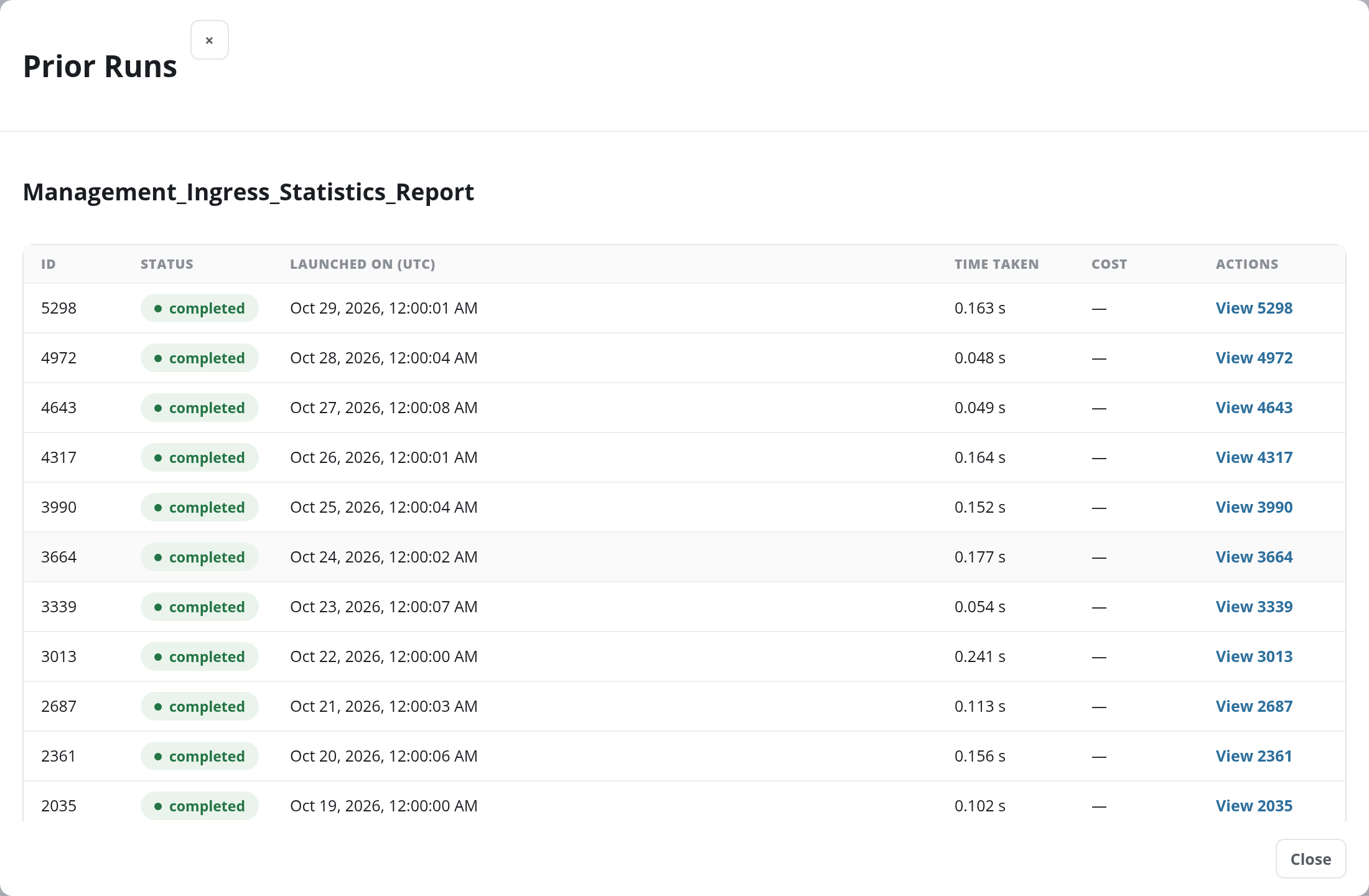
The number in the Prior Runs column opens the Prior Runs dialog, headed with the report's name. It lists the report's runs, newest first:
| Column | Contents |
|---|---|
| ID | The run's ID. |
| Status | The run's status, such as completed. |
| Launched On (UTC) | When the run started. |
| Time Taken | How long the run took, in milliseconds (for example 69ms). |
| Cost | The run's cost in dollars, or –. |
| Actions | View n: shows that run's output below the table, under Report run n, with a Refresh result button. |
Close or × closes the dialog.