Syslog Ports
The Syslog Ports page shows the tenant's cloud syslog endpoint: the listeners that receive syslog sent straight to Fluency over the internet, and which protocols they accept. These are the tenant's own listeners in the cloud; the syslog listeners on a collector appliance are configured from that collector's Collector Configuration instead.
Menu path: Configuration → Syslog Ports · URL path: /v2/configuration/syslog-ports
Task guide: Syslog Ports: pointing devices at the endpoint.
Page Layout
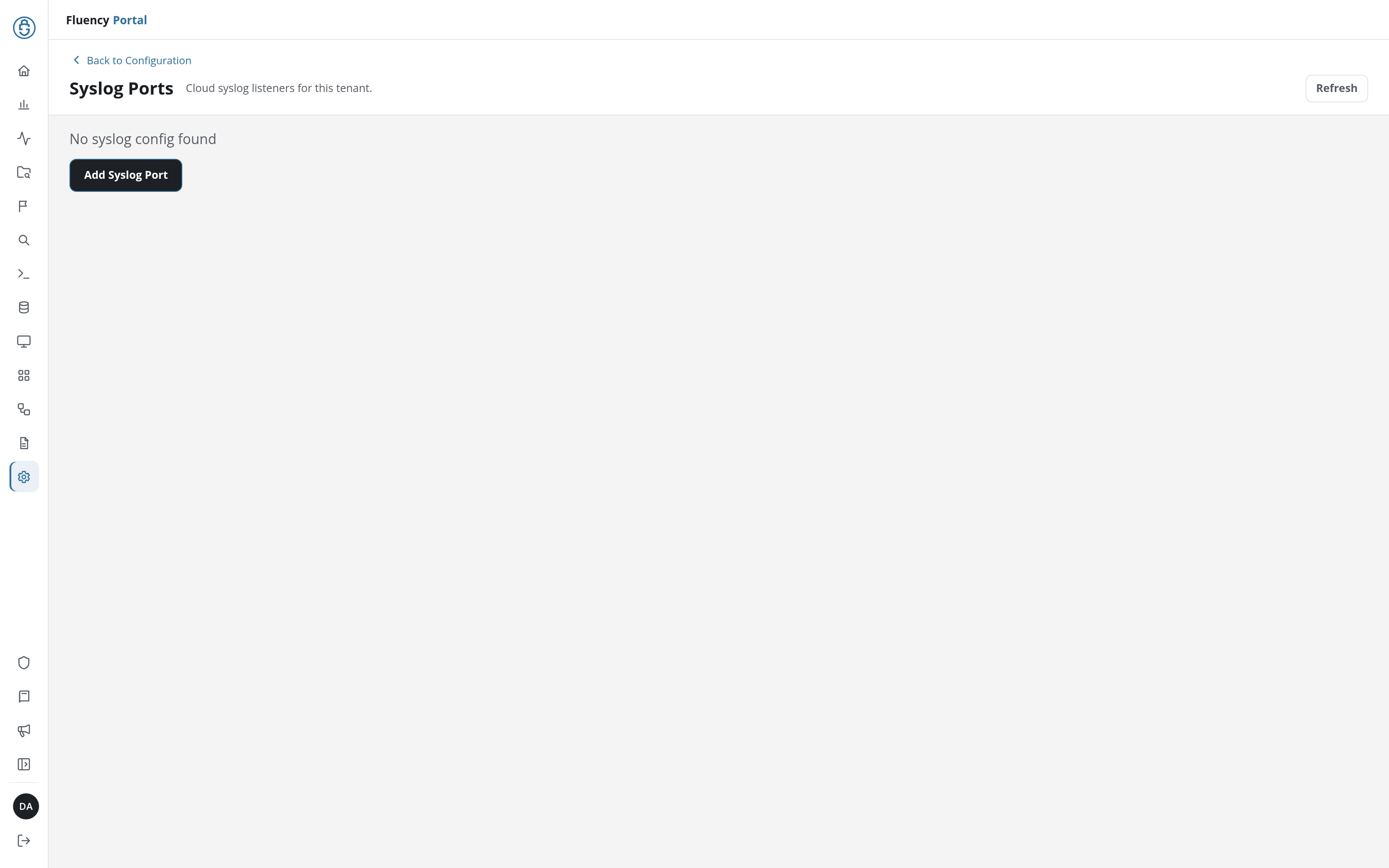
The header has a Back to Configuration link above the title Syslog Ports and the subtitle Cloud syslog listeners for this tenant, with a Refresh button on the right that reloads the configuration.
When the tenant has no syslog configuration, the body reads No syslog config found with an Add Syslog Port button beneath it, as above. Once a configuration exists, the body is the configured listener card instead, and Add Syslog Port is no longer offered.
Add Syslog Port
Click Add Syslog Port to open the Add Syslog Port dialog: Enable or disable syslog protocols for this configuration.
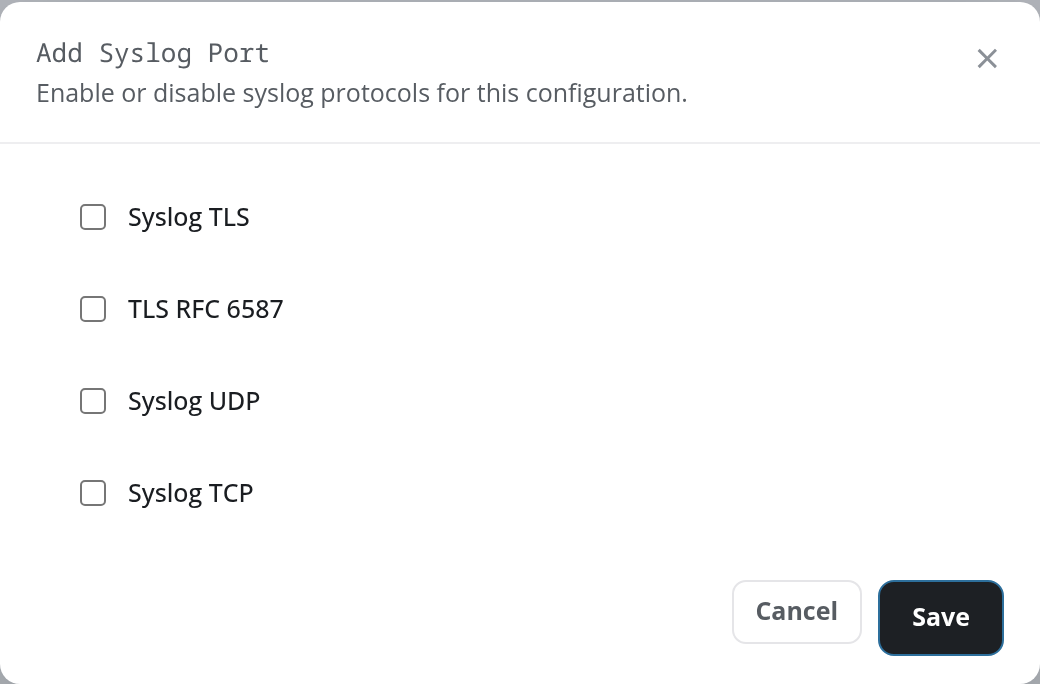
The dialog has one checkbox per protocol, all unticked when it opens:
- Syslog TLS: syslog over TLS.
- TLS RFC 6587: syslog over TLS with RFC 6587 message framing.
- Syslog UDP: plain syslog over UDP.
- Syslog TCP: plain syslog over TCP.
Tick the protocols the endpoint should accept, then click Save to create the configuration, or Cancel or × to close the dialog without saving. At least one protocol has to be ticked: Save with none shows At least one syslog port must be enabled before saving. in the dialog. A saved configuration shows the notice Syslog configuration registered successfully., and the page shows its card.
Configured Listeners
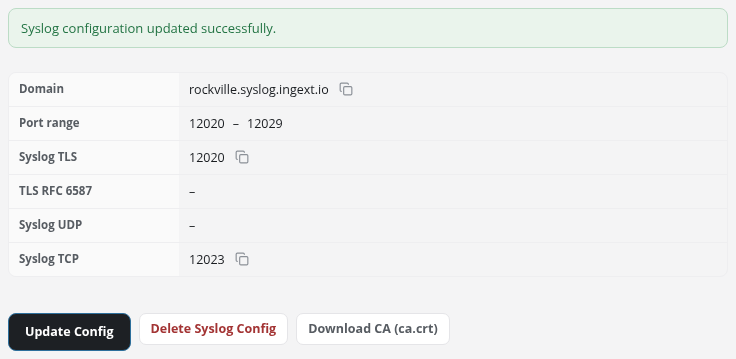
With a configuration in place, the page shows one card describing the endpoint, and three buttons beneath it.
| Row | Contents |
|---|---|
| Domain | The host name devices send to, with a copy button. |
| Port range | The block of ports allocated to this tenant's configuration. |
| Syslog TLS, TLS RFC 6587, Syslog UDP, Syslog TCP | One row per protocol: the port an enabled protocol listens on, within the range, with a copy button; a dash (–) for a protocol that is not enabled. |
A copy button copies its value to the clipboard and shows the notice Copied to clipboard.
Update Config
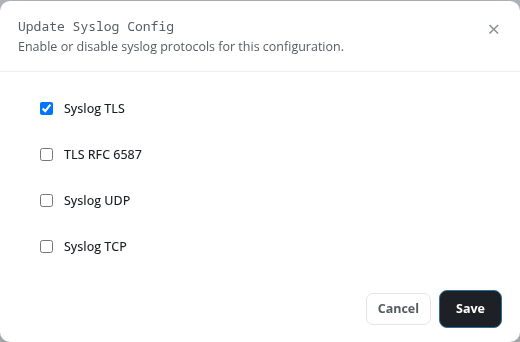
Update Config opens the Update Syslog Config dialog, the same checkboxes as Add Syslog Port with the protocols that are enabled already ticked. Tick or untick protocols and click Save; the same rule applies, so at least one protocol stays ticked. The change shows the notice Syslog configuration updated successfully., and the card shows the new ports.
Delete Syslog Config
Delete Syslog Config, in red, removes the tenant's syslog configuration. A Delete Syslog Config confirmation asks Are you sure you want to delete this syslog configuration permanently?; confirm it to delete the configuration, which shows the notice The syslog configuration has been removed. and returns the page to No syslog config found, or cancel to keep it.
Download CA (ca.crt)
Download CA (ca.crt) opens the CA bundle in a new browser tab, which downloads it as ca.crt. The file holds the public root certificates the endpoint's TLS certificate chains to (Amazon Root CA 1 to 4 and Starfield Services Root Certificate Authority - G2), for devices sending over Syslog TLS or TLS RFC 6587 that do not already trust them.