Collectors
The Collectors page lists the collectors that forward events into this account, with each collector's connection status and token. From here you can copy a collector's token, add a collector manually, delete one, or open the configuration of a connected collector.
Menu path: Configuration → Collectors · URL path: /v2/configuration/collectors
Task guide: Managing Collectors: adding and configuring a collector.
Page Layout
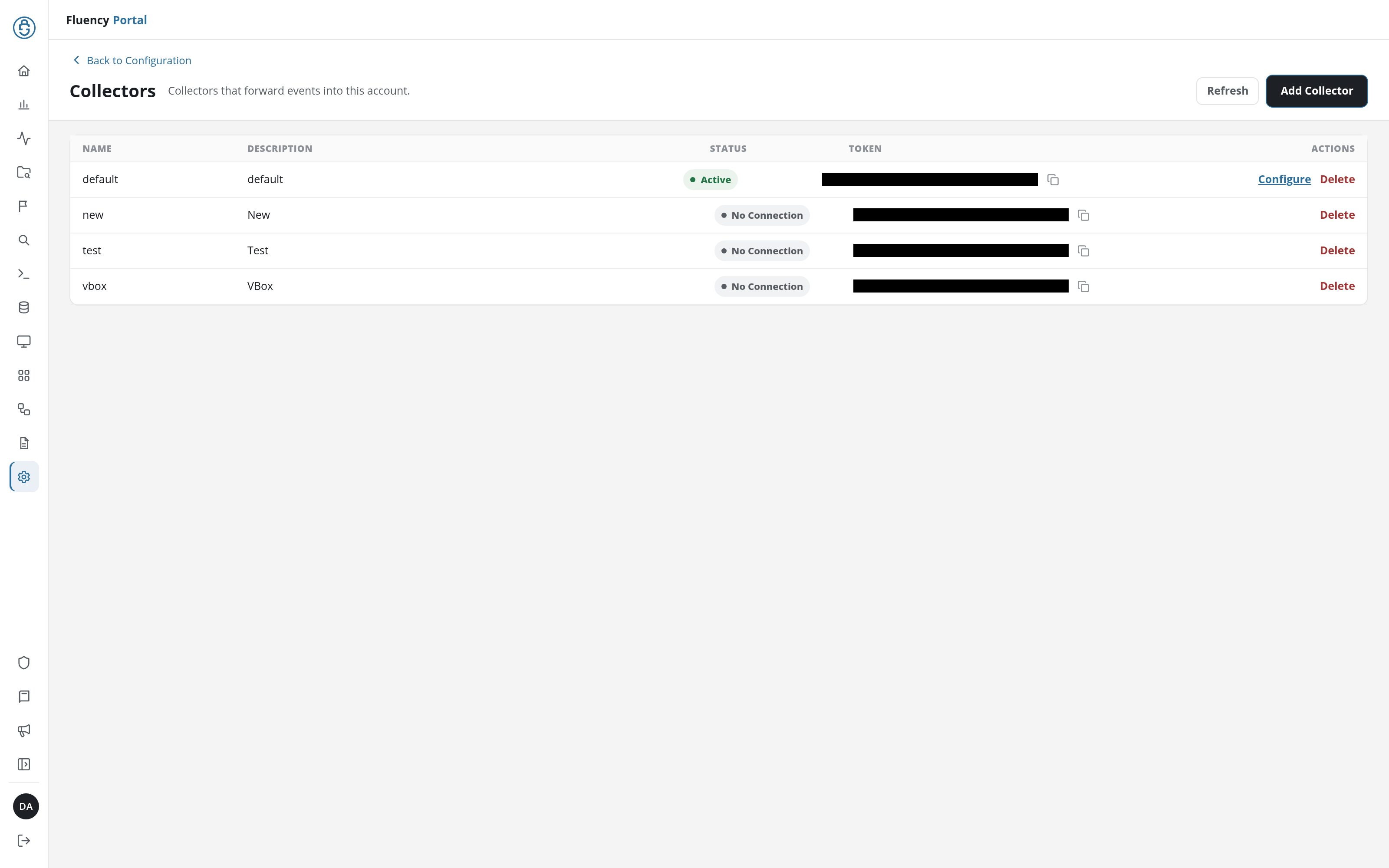
The header has a Back to Configuration link above the title Collectors and the subtitle Collectors that forward events into this account, with Refresh and Add Collector buttons on the right. Refresh reloads the table. Below the header, a table lists the account's collectors.
Collectors Table
| Column | Contents |
|---|---|
| Name | The collector's name. |
| Description | The collector's description. |
| Status | A badge for the collector's connection, from how long ago the appliance last checked in (see Status). |
| Token | The collector's unique token (the value the appliance registers with), followed by a Copy token button. |
| Actions | Configure (Active collectors only) and Delete. |
Status
| Badge | Meaning |
|---|---|
| Active (green) | The appliance has checked in within the last ten minutes. Only an Active collector offers Configure, and only its row opens the configuration when clicked. |
| Inactive, followed by the time since it last checked in, such as Inactive 25 minutes ago or Inactive 3 hours ago | The appliance has been silent for more than ten minutes but less than a day. |
| Disconnected (red) | The appliance has not checked in for a day or more. |
| No Connection (grey) | The appliance has never checked in, as with a collector just added. |
A collector named local is the platform's own cloud syslog server: it is listed as fluency-server (local), described as Cloud Syslog Server, and has no Delete; its configuration has the Syslog Ports and Network Settings tabs only.
Copy a Token
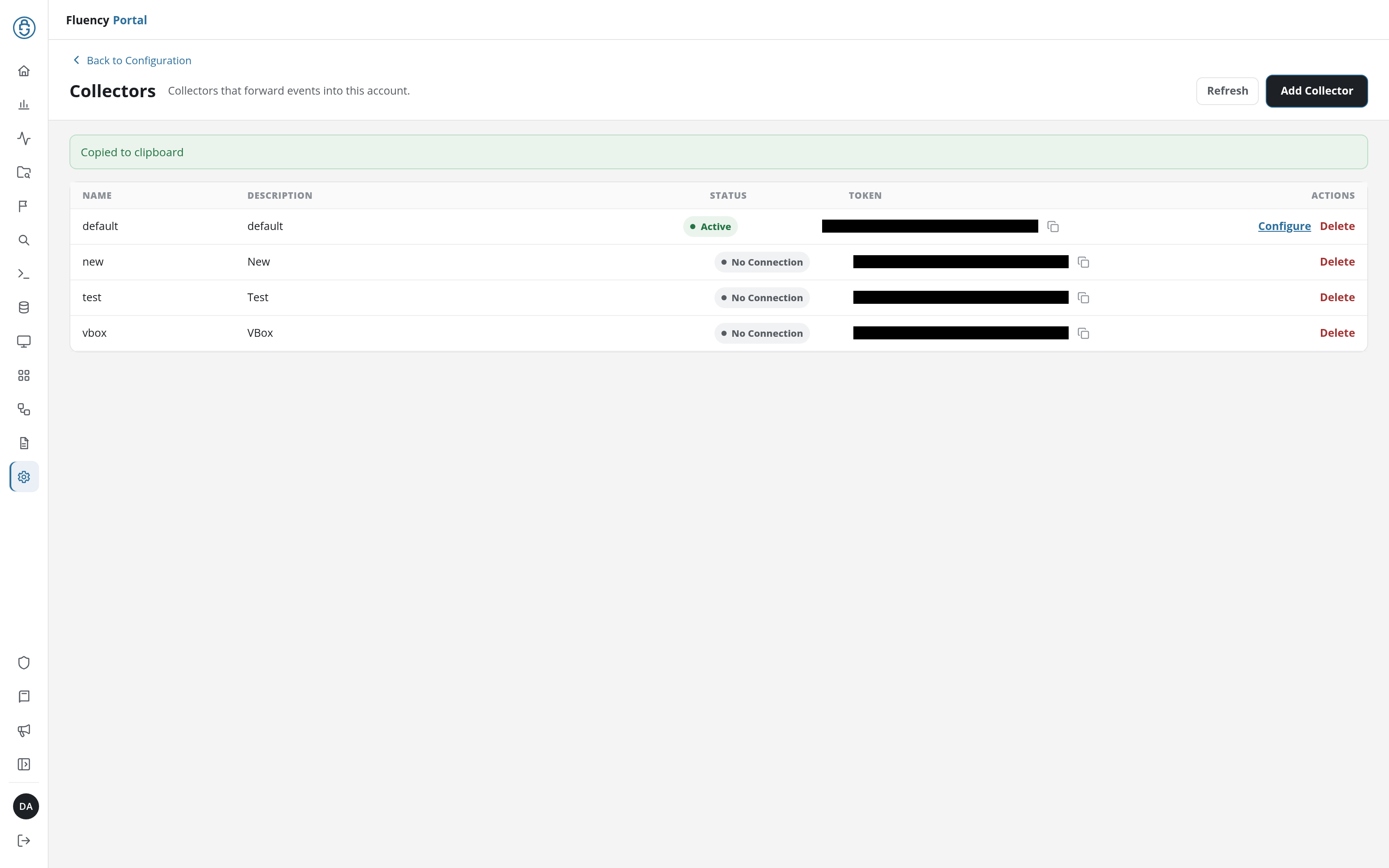
Click the copy button after a token to copy it to the clipboard. The button turns into a check mark, and a green Copied to clipboard notice appears above the table.
Delete a Collector
Delete, in red, removes the collector from the account. A Delete Collector confirmation names it (Are you sure you want to delete this collector, <name>?); confirm it to delete the collector, which shows the notice Collector deleted successfully, or cancel to keep it.
Add Collector
Click Add Collector to open the Add Collector dialog: Create a collector for this account.
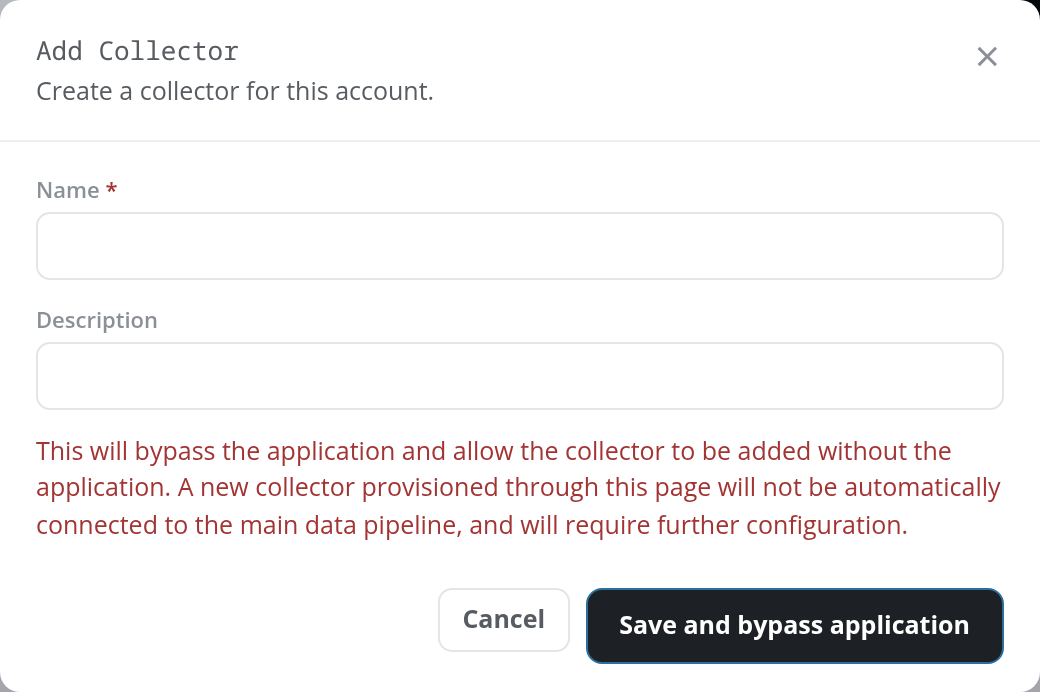
- Name (required)
- Description: optional.
A warning in red explains what this path skips: it adds the collector without its application, so a collector provisioned here is not connected to the main data pipeline automatically and needs further configuration. Installing the Fluency Collector application from Applications is the path that connects it.
Click Save and bypass application to create the collector anyway, or Cancel or × to close the dialog. Name left empty shows Name is required in the dialog, and a name another collector already has is refused. A created collector shows the notice Collector added successfully and joins the table with the status No Connection until its appliance registers with the token.
Collector Configuration
Configure (or a click anywhere on an Active collector's row) opens Collector Configuration for that appliance, at /v2/configuration/collectors/<collector name>. The header has a Back to Collectors link, the title Collector Configuration, the line Collector name: followed by the collector's name, and a Refresh button that reloads all three tabs. The body has three tabs:
- Syslog Ports (the tab it opens on): the syslog listeners running on the collector appliance, in a table with IP, Protocol, Port, Description, and Actions columns, and an Add Syslog Port button in the header, shown while this tab is selected. These are the appliance's own listeners, not the tenant's cloud syslog endpoint on Syslog Ports.
- Network Settings: the appliance's network interfaces, in a table with IP Address, Netmask, and NIC columns, followed by the Default IP Gateway and the Default Gateway NIC.
- Management: the appliance's diagnostics, starting with System Time (with a Refresh Status button, which reloads the tabs like Refresh) and System Logs, followed by CPU Info (the number of CPUs and their model), Disk Info (each filesystem's size, used and available space, and mount point), Memory Info (total, used, and free memory and swap), Process Info (the collector's running services, one line per process as
pslists them), Queues (the depth of the Upload Service and Netflow Input queues), and RPM (the installed package version of the Management Service, Collector Service, FSB Client, and Collector Sync Service). A Restart Collector button restarts the collector's services after a Restart Collector confirmation (Are you sure you want to restart the collector?), and a line beneath it gives the appliance's uptime.
Add Syslog Port
Add Syslog Port opens the Add Syslog Port Configuration dialog.
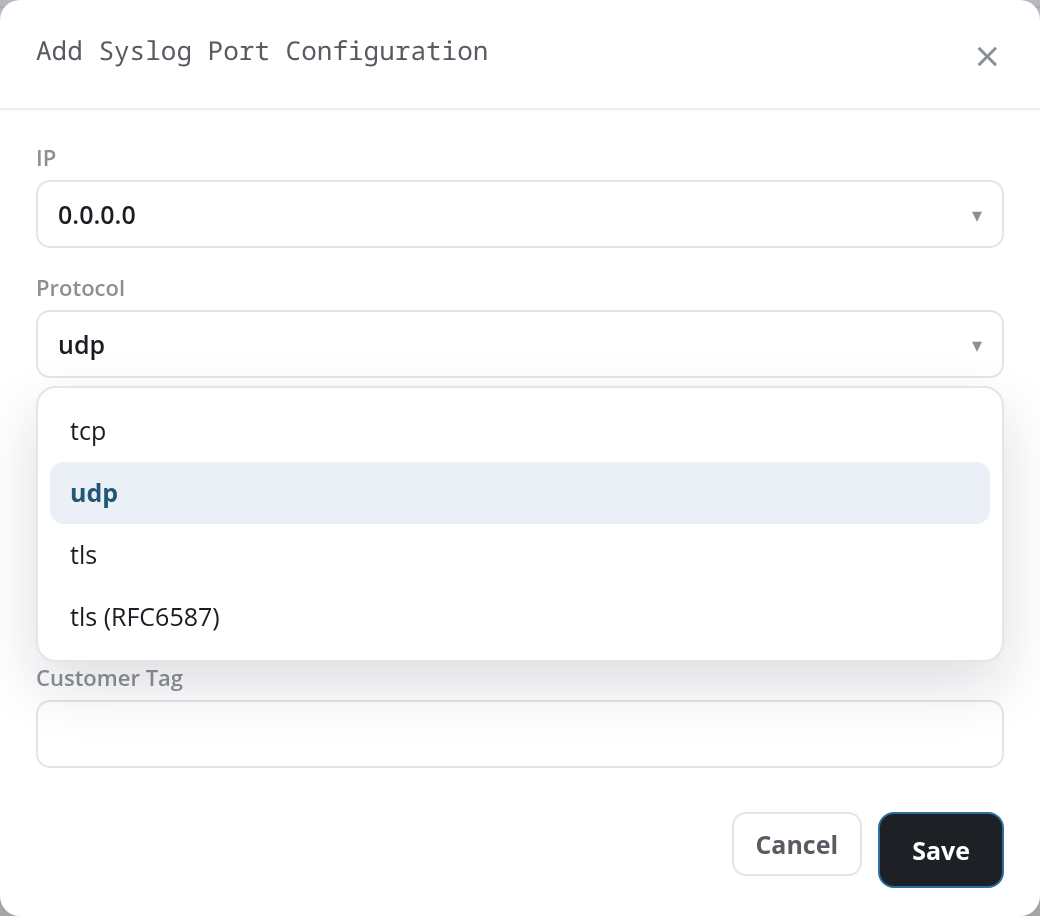
- IP: a drop-down of the addresses the listener can bind to, defaulting to
0.0.0.0(all interfaces). - Protocol: tcp, udp (the default), tls, or tls (RFC6587).
- Port: the listening port, prefilled with
514. - Description: free text identifying the listener.
- Customer Tag: an optional tag applied to records arriving on this port.
Click Save to add the listener, or Cancel or × to close the dialog. A saved listener shows the notice Syslog port saved successfully and joins the table.
Delete a Syslog Port
A listener's red Delete removes it after a Delete Syslog Port confirmation that names the protocol and port, such as Are you sure you want to delete the udp syslog port at 5514?; confirming it shows the notice Syslog port deleted successfully.