Schemas
The Schemas page lists the table schemas of the data lake: the definitions of the fields, and their types, that the data lake's indexes and KQL queries use for each kind of record. From here you can open a schema to view or edit its definition, create a schema, and delete one.
Menu path: Configuration → Schemas · URL path: /v2/configuration/schemas
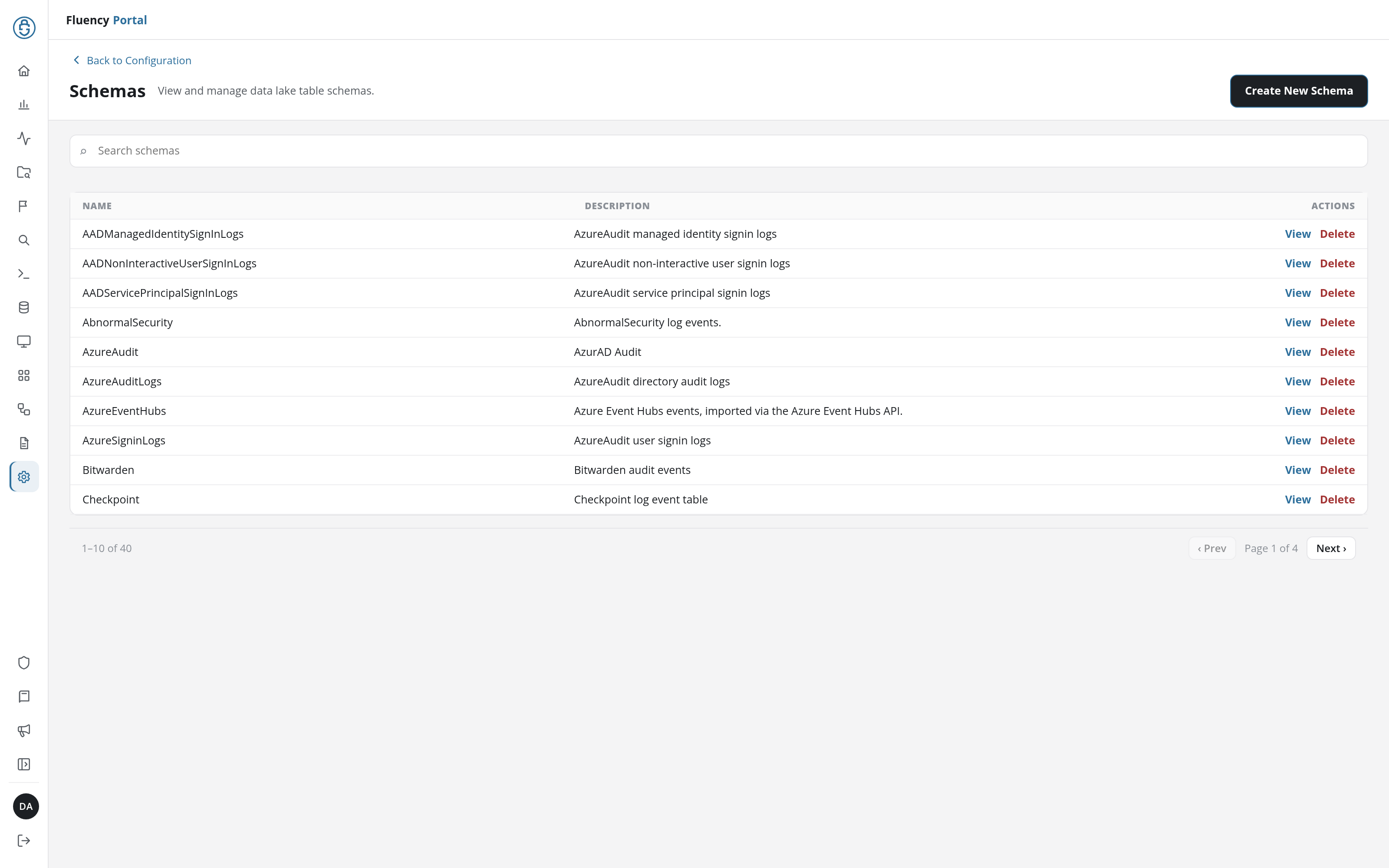
Page Layout
- Header: a Back to Configuration link above the title Schemas and the subtitle View and manage data lake table schemas., with the Create New Schema button on the right.
- Search field: Search schemas, which narrows the table to the matching schemas; with no match, the table reads No matching schemas.
- Schema table: ten schemas per page, with a footer giving the range shown (for example 1–10 of 40), the page number, and ‹ Prev / Next › buttons.
Schema Table
Each row is one schema:
- NAME: the schema's name, such as
AADNonInteractiveUserSignInLogs,AzureAudit, orBitwarden. - DESCRIPTION: what the schema's records are, for example AzureAudit user signin logs.
- ACTIONS: View opens the schema in the Editing Schema dialog, and Delete removes it.
View and Edit a Schema
A schema's View opens the Editing Schema dialog with the schema filled in.
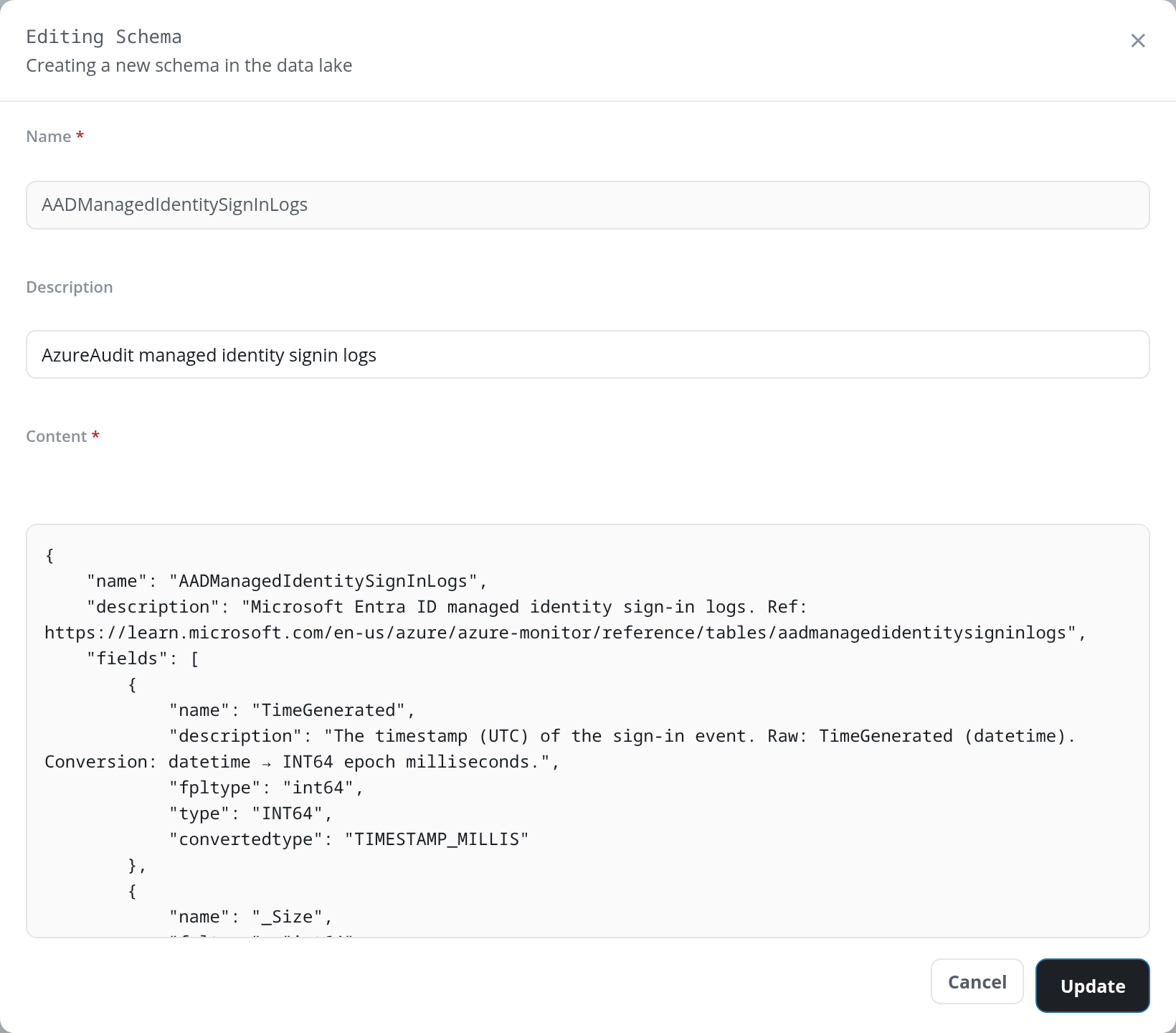
- Name: read-only.
- Description: editable. This is the text the table's DESCRIPTION column shows; it is kept apart from the
descriptioninside Content. - Content: required: the schema's JSON definition. It holds the schema's
nameanddescriptionand afieldslist, in which each field has aname, adescription, anfpltype(the field's type in FPL, such asint64), atype(its stored type, such asINT64), and, where the stored value is converted, aconvertedtype(such asTIMESTAMP_MILLIS).
The shipped schemas use more keys than these:
| Key | Level | What it holds |
|---|---|---|
dynamic | schema | A true / false flag. |
rootField | schema | The schema's root field, such as @bitwarden. |
aliases | schema | A list of aliases, each pairing a name (such as @behaviors) with a value (such as _behaviors). |
virtualTables | schema | The virtual tables defined over the schema's data, each with a name, a rootField, a description and a labelSelector (a key and a value). |
nullable | field | true for a field that can be null. |
logical_hint | field | A hint on how to read the stored value, such as kusto_dynamic_json on a field that holds a JSON document. |
fields | field | The sub-fields of a structured field, such as the key and value of a field of type MAP. |
Click Update to save the changes, or Cancel to close without saving. Content must still be valid JSON (Content is invalid JSON otherwise). Update asks for confirmation first (Confirm Schema Update: Are you sure you want to update the schema, <name>? This may affect indexes that rely on it.); once the schema is saved, the dialog closes and a green notice reads Schema <name> updated successfully.
Create New Schema
Click Create New Schema to open the Creating New Schema dialog: Creating a new schema in the data lake.
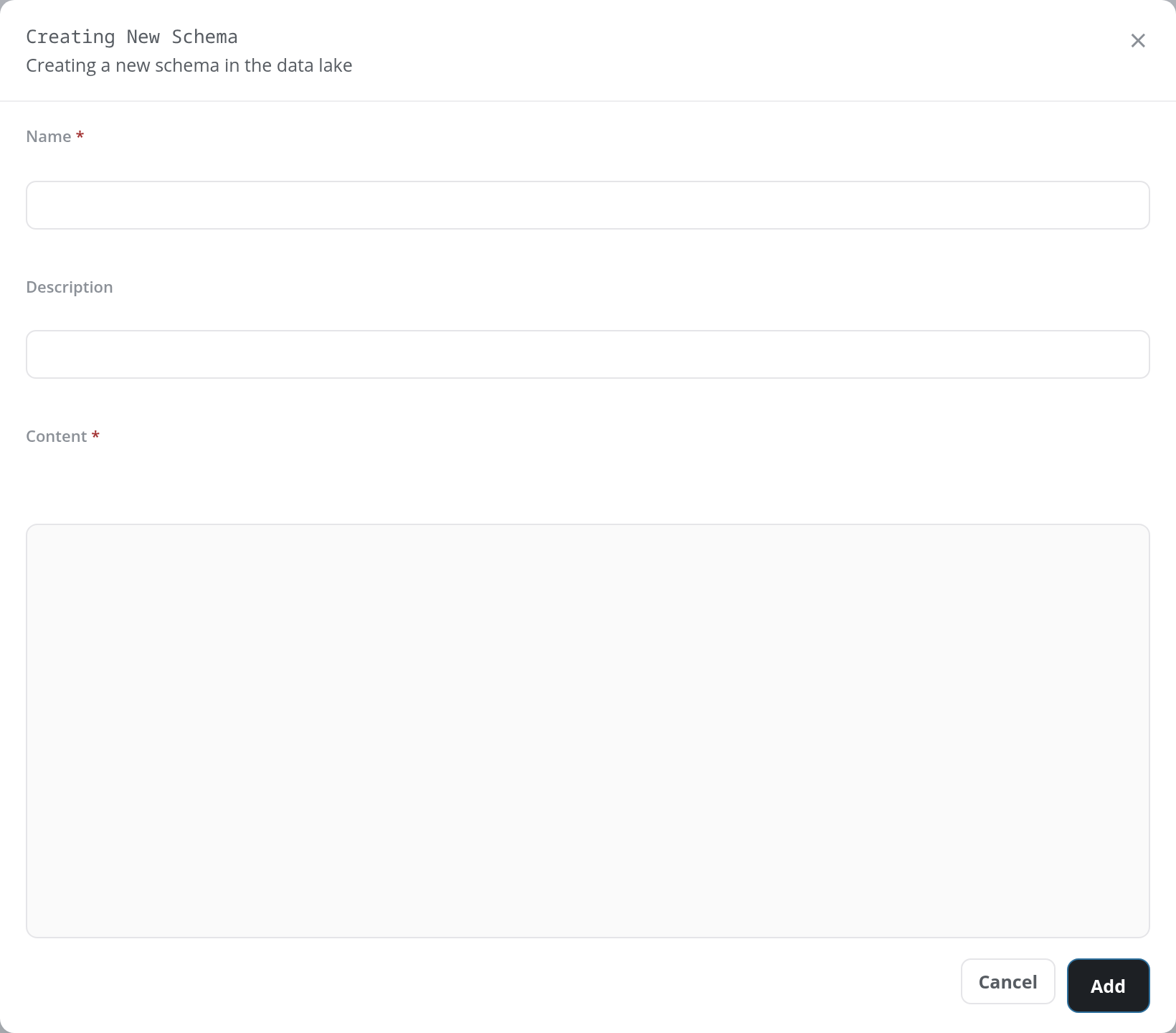
- Name: required.
- Description: optional.
- Content: required: the schema's JSON definition, in the same shape as an existing schema's (open one with View to see it).
Click Add to create the schema, or Cancel to close the dialog. Add checks the form and shows the first problem in red at the top of the dialog:
| Problem | Message |
|---|---|
| Name empty | Name is required |
| Content empty | Content is required |
| Content is not valid JSON | Content is invalid JSON |
| A schema of that name exists | failed to add schema: schema <name> already exists |
Once the schema is created, the dialog closes, the schema appears in the table, and a green notice reads Schema <name> added successfully.
Delete a Schema
A schema's Delete asks for confirmation (Confirm Delete Schema: Are you sure you want to delete the schema, <name>?) before it deletes the schema. A green notice then reads Schema <name> deleted successfully.