Behavior Summary
The Behavior Summary page shows one entity's behavior summary for one day: the case the platform built from the behavior rules that entity triggered that day. It gives the case's severity, score, and status, lists each triggered rule with its correlation alerts and the event's fields, and puts the day in context with a calendar of the entity's notable events and a rollup by event name.
Menu path: opened from a summary on Overview Summary, from Open case in a case's detail panel on Cases Search, or from an entity link on the Ticket Analysis Report · URL path: /v2/behavior-summary?id=%22<entity>%22&dayIndex=<YYYYMMDD> (the entity key in double quotes, which the address bar shows as %22)
Page Layout
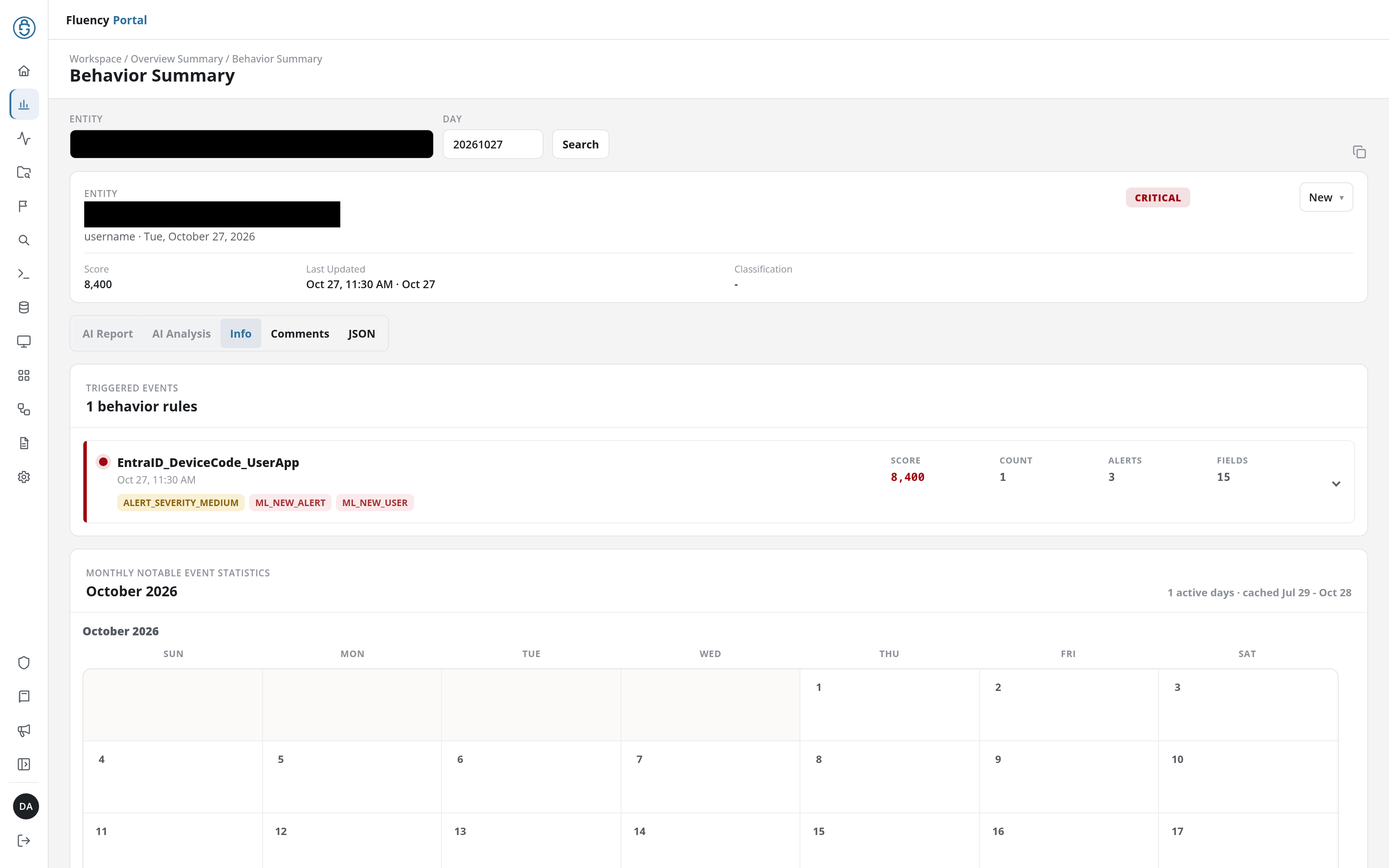
The breadcrumb reads Workspace / Overview Summary / Behavior Summary, above the title Behavior Summary. From top to bottom the page holds:
- Search bar: Entity (Search entity key) and Day (YYYYMMDD, today's date when the page is opened without one), with a Search button, and a Copy JSON button at the right end that copies the summary as JSON (it reads Copied once it has). The copy button is greyed out until a summary has loaded.
- Case header: the entity, its type and the day (for example username · Tue, October 27, 2026), the severity (such as CRITICAL), the status drop-down, and the Score, Last Updated, and Classification.
- Tabs: AI Report, AI Analysis, Info, Comments, and JSON. The page opens on Info; AI Report and AI Analysis are greyed out while the case has no AI report.
- Info: the triggered events, the monthly notable event statistics, and the behavior rollup.
Type another entity key or day and click Search to load that summary. The URL carries both, so a summary can be linked to directly.
Opened with no entity, the page shows only the search bar and Open a behavior summary from Overview Summary or search for an entity. An entity with no summary on the chosen day reads No events found for <entity> on <date>.
Status
The status drop-down in the case header shows the case's status, such as New; a case whose score is below the notification threshold shows -. Its options are New, Acknowledged, and Closed. Choosing Closed adds a Classification drop-down beside it, for recording how the case was resolved:
- True Positive - suspicious activity
- Benign Positive - suspicious but expected
- False Positive - incorrect alert logic
- False Positive - incorrect data
- False Positive
Triggered Events
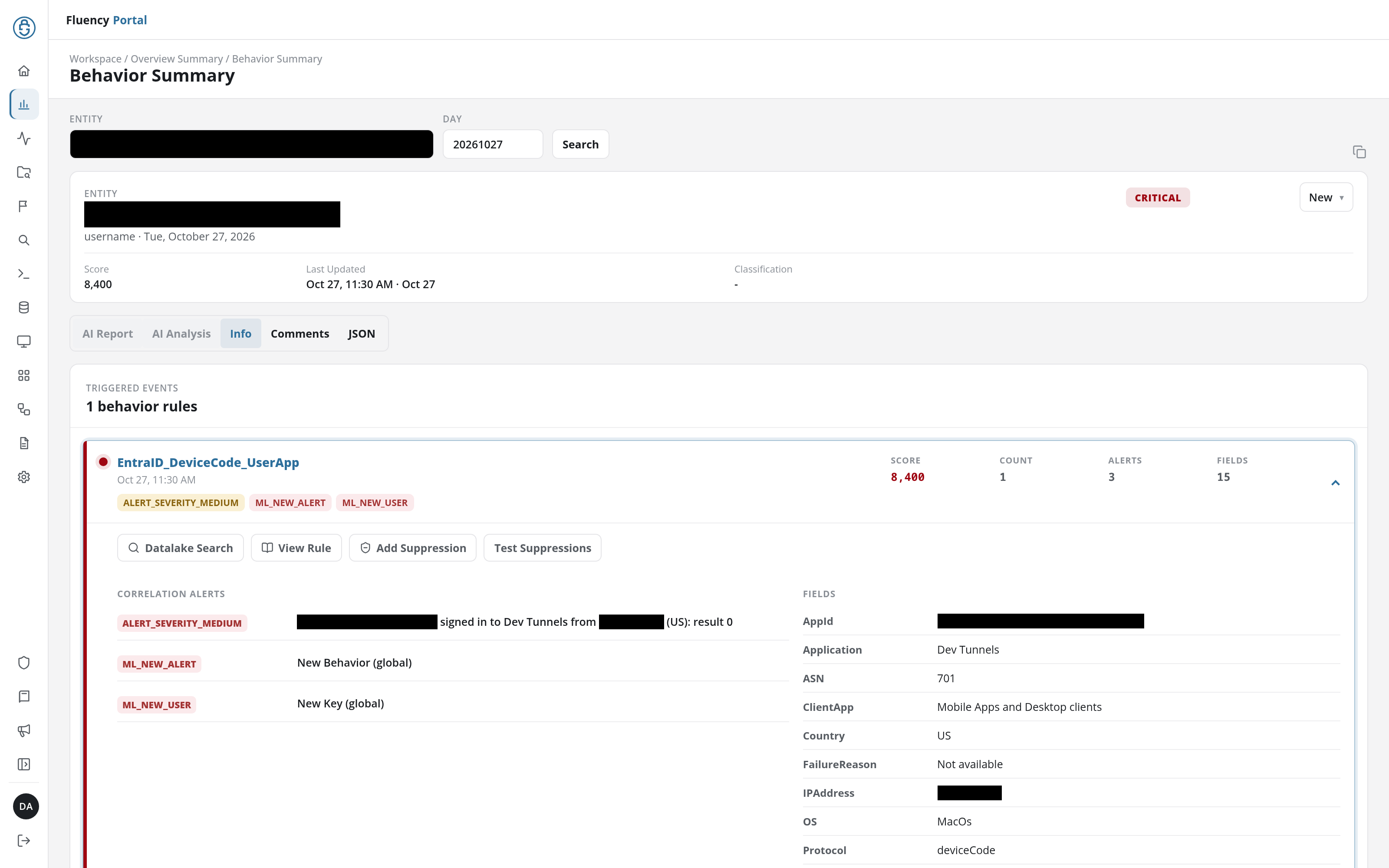
Headed Triggered Events with the count of behavior rules (1 behavior rules), this section lists each rule the entity triggered that day. A rule's row shows its name and time, a chip for each correlation alert it raised (such as ALERT_SEVERITY_MEDIUM or ML_NEW_USER), and its Score, Count, Alerts, and Fields. Click the row to expand it:
- Datalake Search, View Rule, Add Suppression, and Test Suppressions buttons.
- Correlation Alerts: each alert the rule raised, with its description (for example New Behavior (global)).
- Fields: the triggering event's fields and their values, such as Application, Country, and OS for a sign-in.
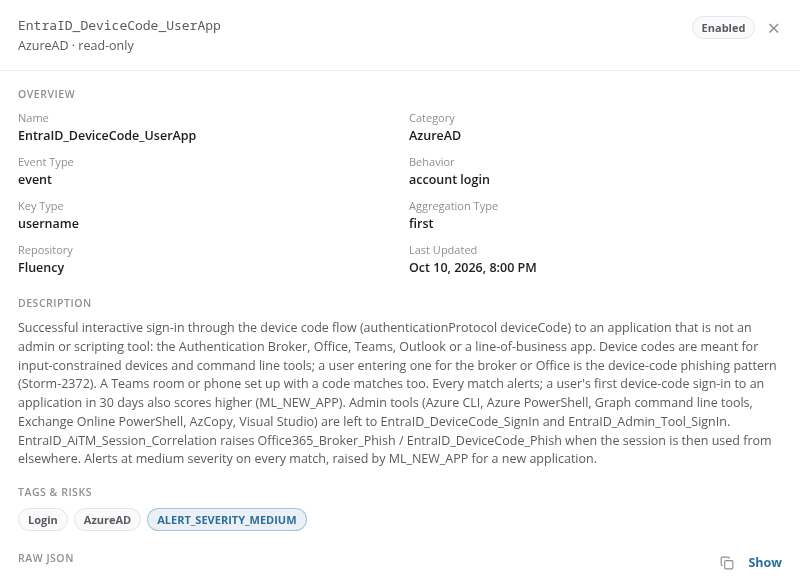
View Rule opens the behavior rule read-only, in a panel over the right of the page. Its header gives the rule's name, its category and read-only, and an Enabled badge for an active rule, with the × that closes the panel. Below are the rule's OVERVIEW (Name, Category, Event Type, Behavior, Key Type, Aggregation Type, Repository, and Last Updated), DESCRIPTION, TAGS & RISKS, and RAW JSON with Show and a copy button (Copy JSON). It is a shorter form of the rule detail panel on Behavior Rules: it has no on/off switch, no View Rule, Clone, or Download JSON buttons, and no MATCHING BEHAVIOR FILTERS.
Add Suppression opens the Add Behavior Filter dialog described under Add Wildcard Filter, with the rule filled in (read-only), the name set to <rule> - <entity>, the Action set to Discard Matching Event (the other option is Mask/Append Risks Only), and Match All ticked. Under SEARCH CRITERIA it lists one criterion per field of the event, starting with the key (key must be <entity>, then for example IPAddress must be <address>), each with Edit and Delete, followed by + Add Filter. With Discard Matching Event as the action, the dialog has no BEHAVIOR RISKS section. The dialog ends with Cancel and Save.
Test Suppressions opens the Test Suppressions dialog (Test an event against the current behavior filters.): the rule, the Key, and each of the event's fields, filled with the event's values and editable to test another event, with Close and Run Test. The result appears at the top of the dialog, as on Notable Events.
Monthly Notable Event Statistics
A calendar of the entity's notable events, one month per grid, headed with the month of the summary's day and n active days · cached <range>. A day with activity shows its score and its number of rules (8,400 · 1 rules); click it to load that day's summary.
Behavior Rollup
The last section, headed with the count of event names (1 event names), totals the entity's events by Event Name, with each one's Count and its Highest and Lowest score.
Comments and JSON
Comments holds the case's discussion, headed Discussion with its count, and reads No comments yet. until someone comments. JSON shows the summary's JSON, with a Copy JSON button and Hide.