Profile
The Profile page is where the signed-in user reviews their own account, changes their password, and sets their personal preferences for the portal: the interface theme, the text size, and whether the left rail stays expanded.
Menu path: account avatar (bottom of the rail) · URL path: /v2/profile
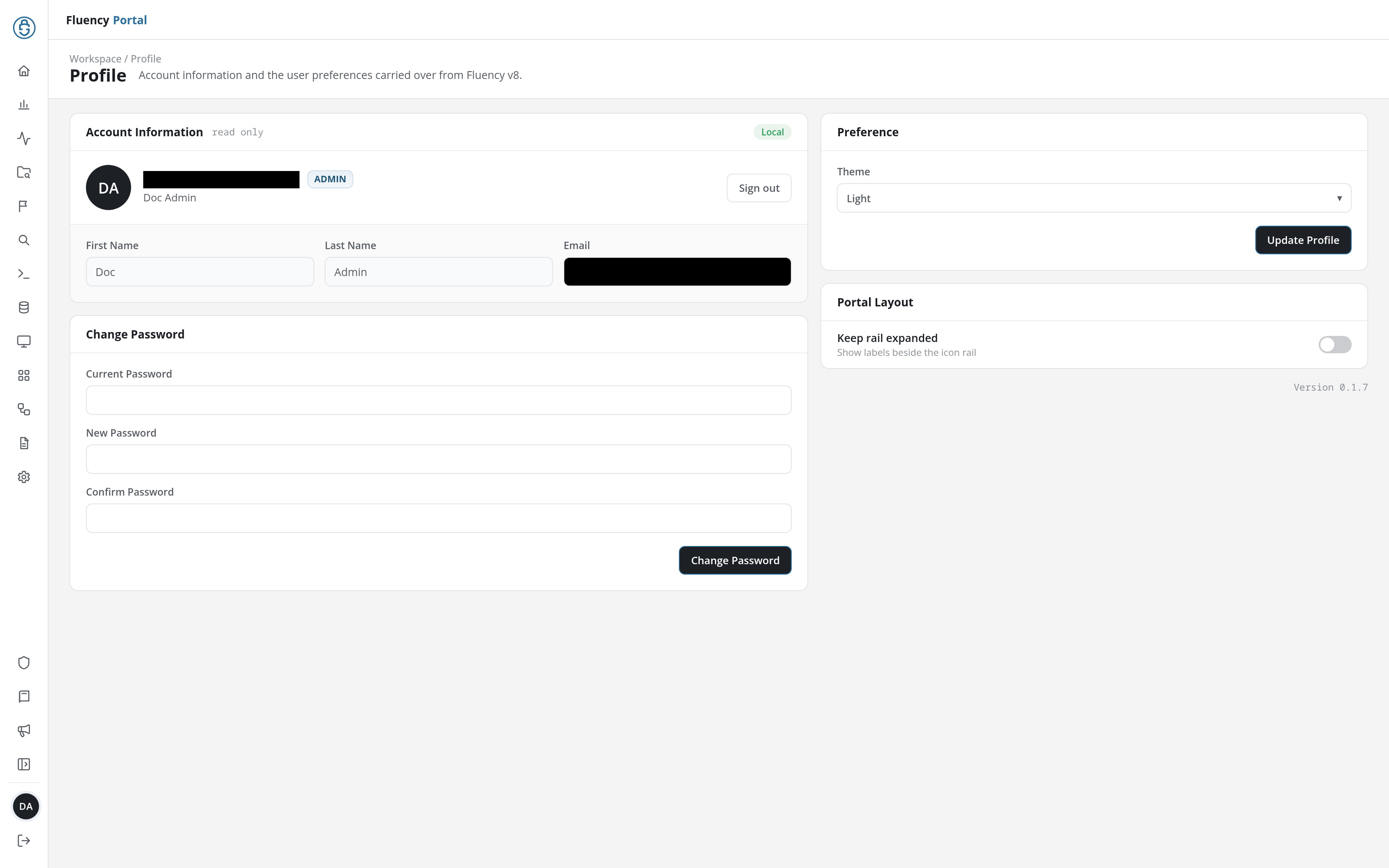
Page Layout
The breadcrumb reads Workspace / Profile, and the header shows the title Profile with the subtitle Account information and the user preferences carried over from Fluency v8. The page is arranged in two columns:
- Left: the Account Information card above the Change Password card.
- Right: the Preference card above the Portal Layout card, with the portal's version number (for example Version 0.1.4) beneath them.
Account Information
The card is marked read only: its details come from the user's account and are changed by an administrator on the Users page, not here. A badge in the card's upper-right corner shows how the user signs in: Local for a username and password.
- Identity row: the user's initials in a round avatar, their email address with a badge for each of their roles (for example ADMIN), and their full name beneath it.
- Sign out: a button at the right of the identity row that ends the session, the same as Sign out at the bottom of the rail.
- First Name, Last Name, Email: the account's details, shown as read-only fields.
Change Password
Three password fields and a button:
- Current Password: the password the user signs in with now.
- New Password: the password to change to.
- Confirm Password: the new password again.
Click Change Password to replace the current password with the new one. Clicked with the fields empty, it asks for the current password first: Please enter your current password.
Preference
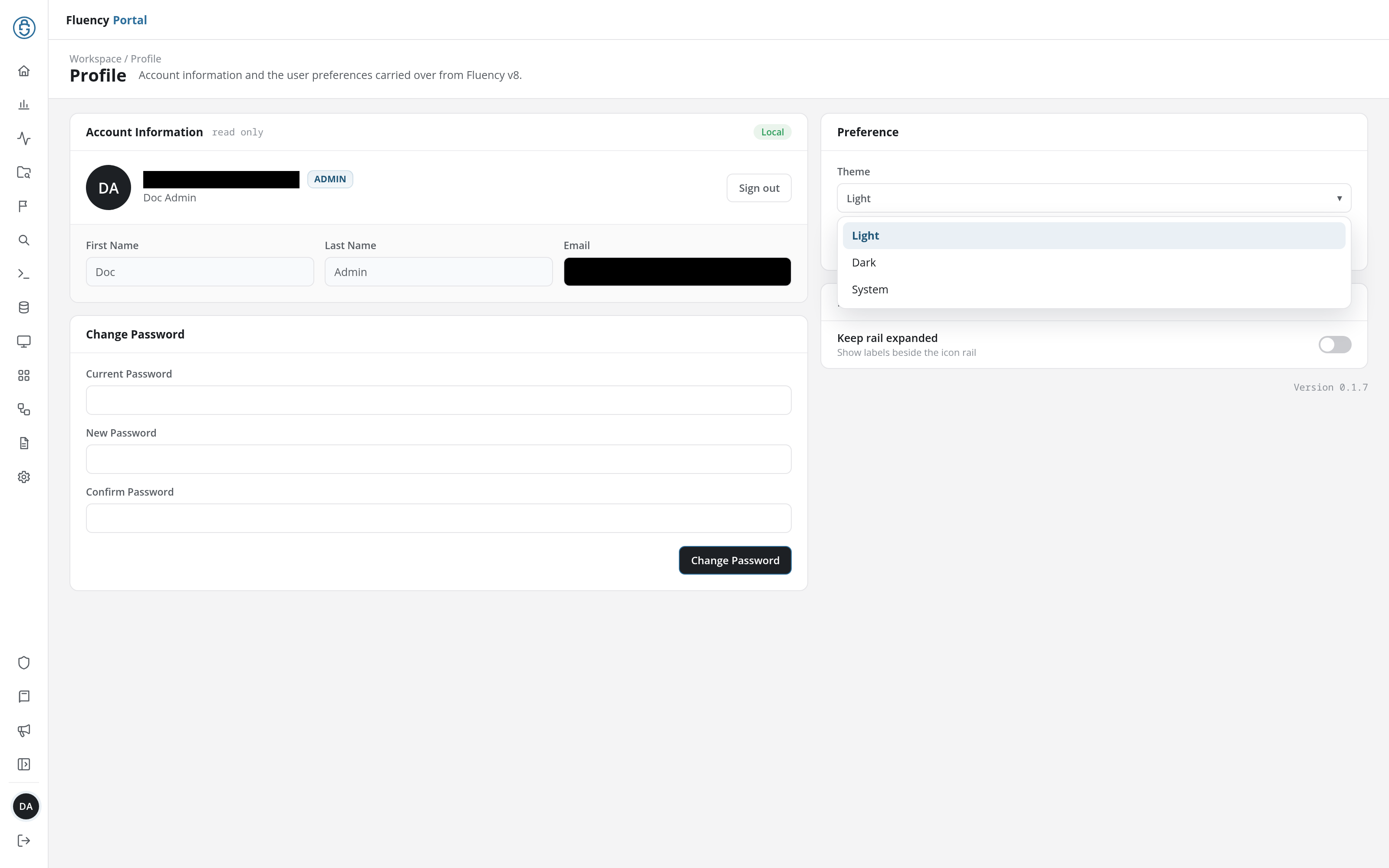
- Theme: a drop-down for the interface theme, with the options Light, Dark, and System (follow the operating system's light or dark setting).
- Text size: a drop-down for the size of the interface text, such as Normal (the default) or Large. The note beneath it reads Applies throughout the app after updating your profile.
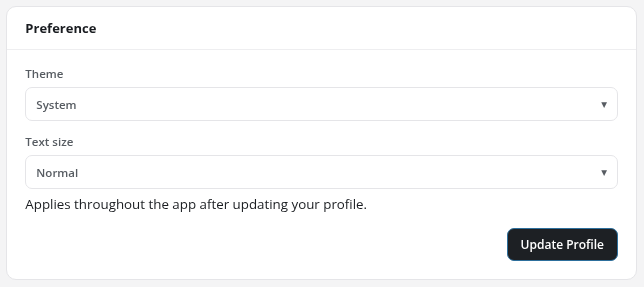
Click Update Profile beneath the drop-downs to save the chosen theme and text size to the user's profile. Both take effect at once, and a band above the cards reads Profile updated successfully.
Portal Layout
- Keep rail expanded: a switch, described as Show labels beside the icon rail. When it is on, the left rail shows each page's name beside its icon instead of the icons alone. The rail's own expand / collapse button at the bottom of the rail changes the same setting.