Investigation History
The Investigation History page lists the investigation searches that have been run against the account's data lake, with the status, cost, and duration of each run.
Menu path: Admin console → Management → Investigation History · URL path: /v2/admin/investigations
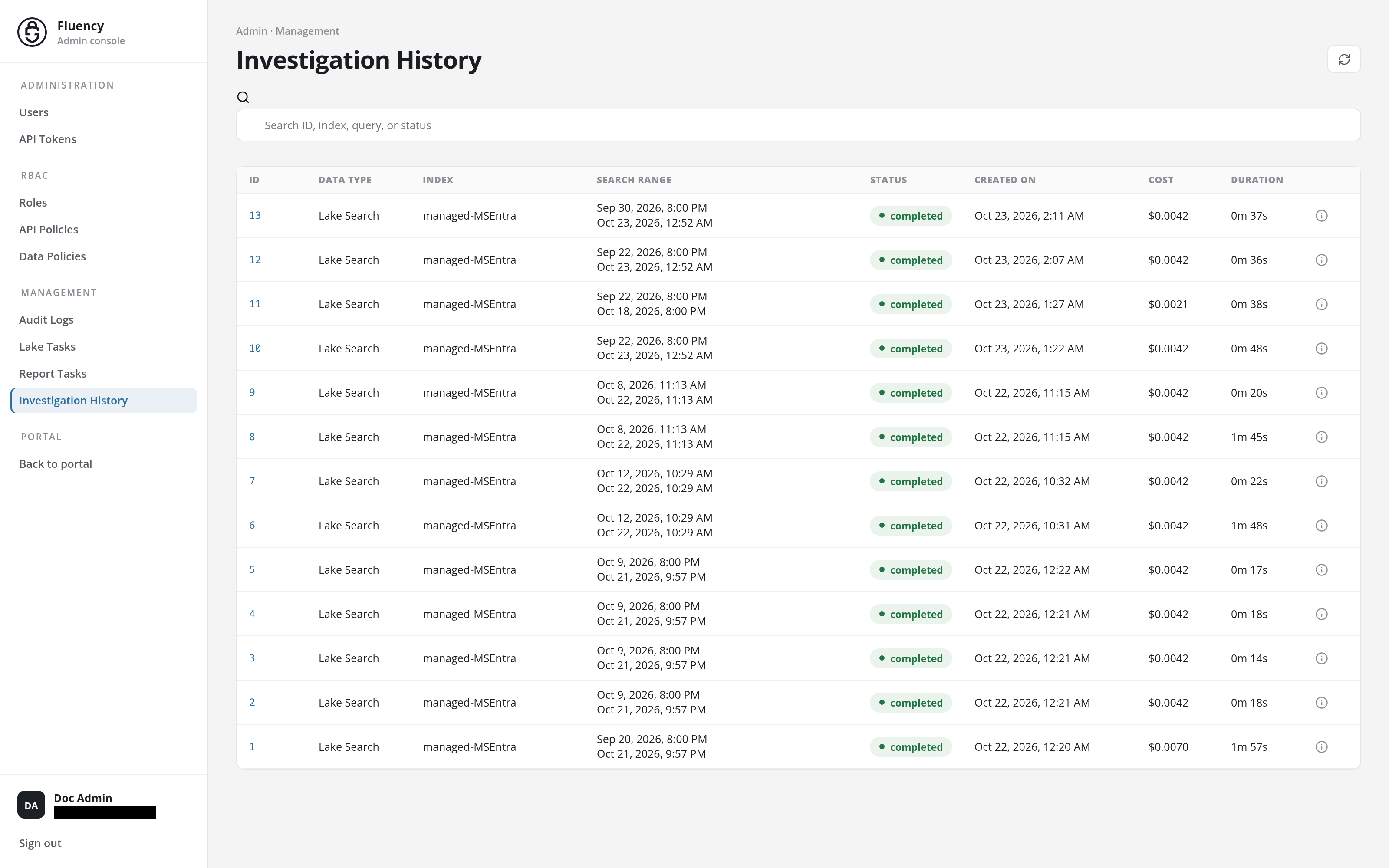
Page Layout
The page sits in the Admin console, with Investigation History highlighted under Management in the side navigation.
- Header: the breadcrumb Admin · Management, the title Investigation History, and a Refresh investigations button (a circular-arrows icon) in the upper-right corner.
- Search field: a full-width field with the placeholder Search ID, index, query, or status.
- Investigations table: one row per investigation run. When none have been run, the table reads No investigations yet.
Refresh Investigations
Click the circular-arrows button to reload the table, for example to pick up the status of a run still in progress.
Search
Type in the Search ID, index, query, or status field to narrow the table to the runs whose ID, index, query, or status matches.
Investigations Table
The table has eight headed columns and a ninth, unheaded one:
| Column | What it shows |
|---|---|
| ID | The identifier of the run, shown as a link. |
| Data Type | The data type the investigation searched, such as Lake Search. |
| Index | The data lake index the investigation searched. |
| Search Range | The time window the search covered: its start, with its end beneath it. |
| Status | The current status of the run, as a badge such as completed. |
| Created On | When the investigation was created. |
| Cost | The cost of the search. |
| Duration | How long the run took. |
| (unheaded) | An ⓘ button, View investigation n details, that opens the run's details. |
Investigation Details
The ⓘ button at the end of a row opens the run's details in a panel that slides in from the right edge of the page, over the table, titled Investigation #n:
- Status, Events searched, Hits, Cost, and Duration: the run's outcome.
- Query: the query the investigation ran.
- Raw JSON: the run's full record, hidden until you click Show (Hide folds it away again), with a Copy JSON button beside it.
The × in the panel's upper-right corner, Close details, closes it.