Users
The Users page lists the accounts that can sign in to this Fluency site, the roles each one holds, and how each one authenticates. It is the page the Admin console opens on. From here you can add a user, edit a user's details and roles, or delete a user.
Menu path: Admin console → Administration → Users · URL path: /v2/admin (also /v2/admin/users)
Task guide: Managing Users: who gets an account and what they can see.
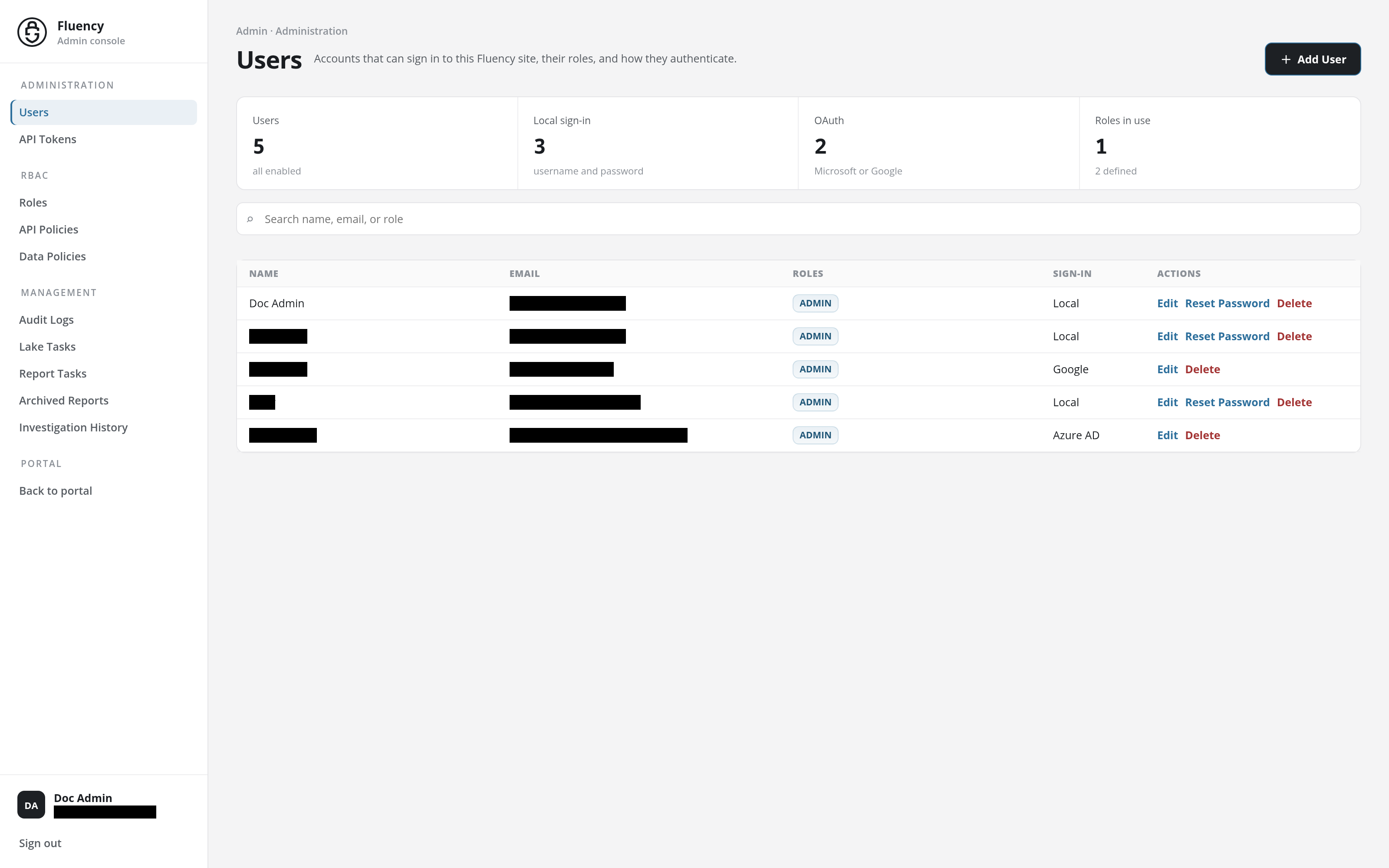
Page Layout
The breadcrumb reads Admin · Administration. The header shows the title Users with the subtitle Accounts that can sign in to this Fluency site, their roles, and how they authenticate., and the Add User button on the right. Below the header are, from top to bottom:
- A row of four summary tiles.
- A search field.
- The user table.
Summary Tiles
| Tile | What it counts |
|---|---|
| Users | Every account on the site. The caption beneath the number reports whether they are enabled, for example all enabled. |
| Local sign-in | Accounts that sign in with a username and password. |
| OAuth | Accounts that sign in through an identity provider: Microsoft or Google. |
| Roles in use | The number of roles assigned to at least one user; the caption gives the number of roles defined on the site, for example 2 defined. Roles are defined on Roles. |
Search
The field beneath the tiles, with the placeholder Search name, email, or role, narrows the table to the users whose name, email address, or role matches the text typed.
User Table
One row per user, with the columns:
- Name: the user's full name.
- Email: the user's email address.
- Roles: a badge for each role the user holds, for example ADMIN.
- Sign-In: how the user authenticates: Local for a username and password, or the OAuth provider's name, Google or Azure AD.
- Actions: Edit, which opens the Update User dialog for that user; Reset Password, for a user who signs in locally (see Reset Password); and Delete, which deletes the user (see Delete a User). A user who signs in through OAuth has only Edit and Delete.
The rows are sorted by name.
Add User
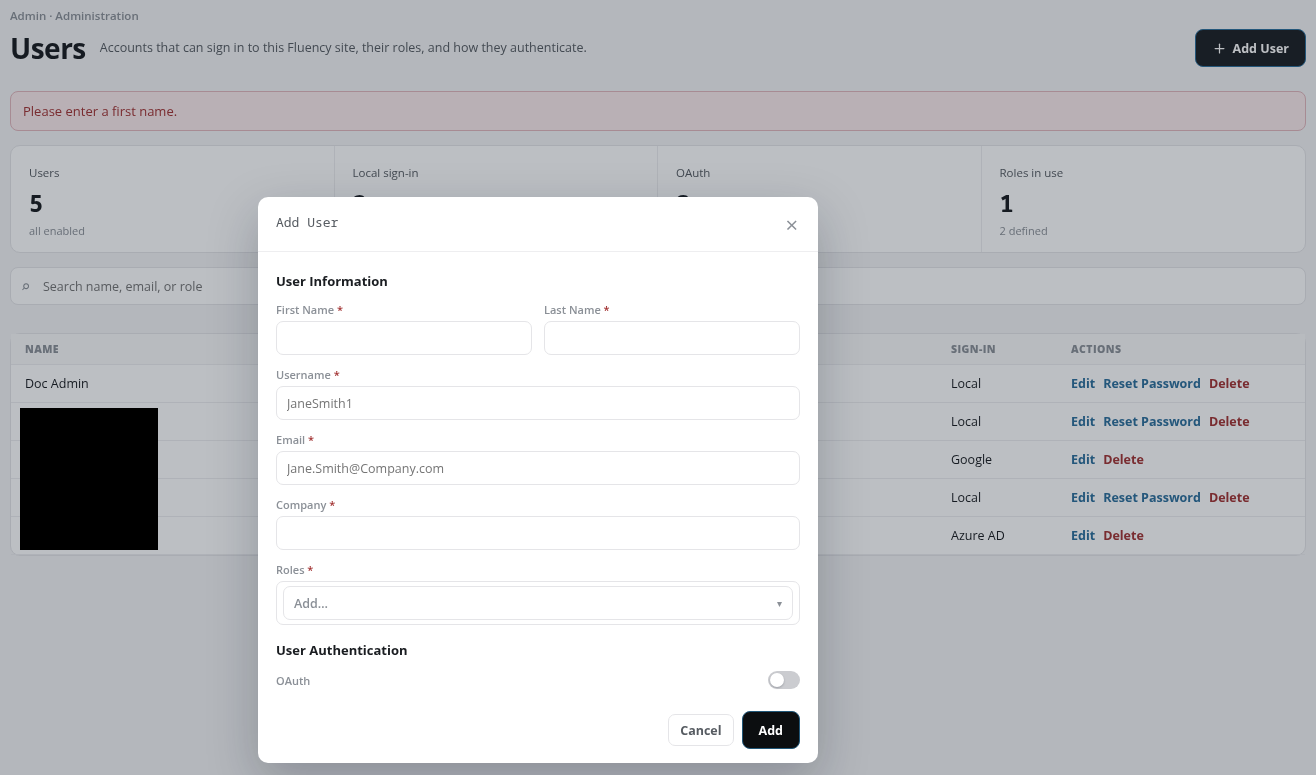
Click Add User to open the Add User dialog.
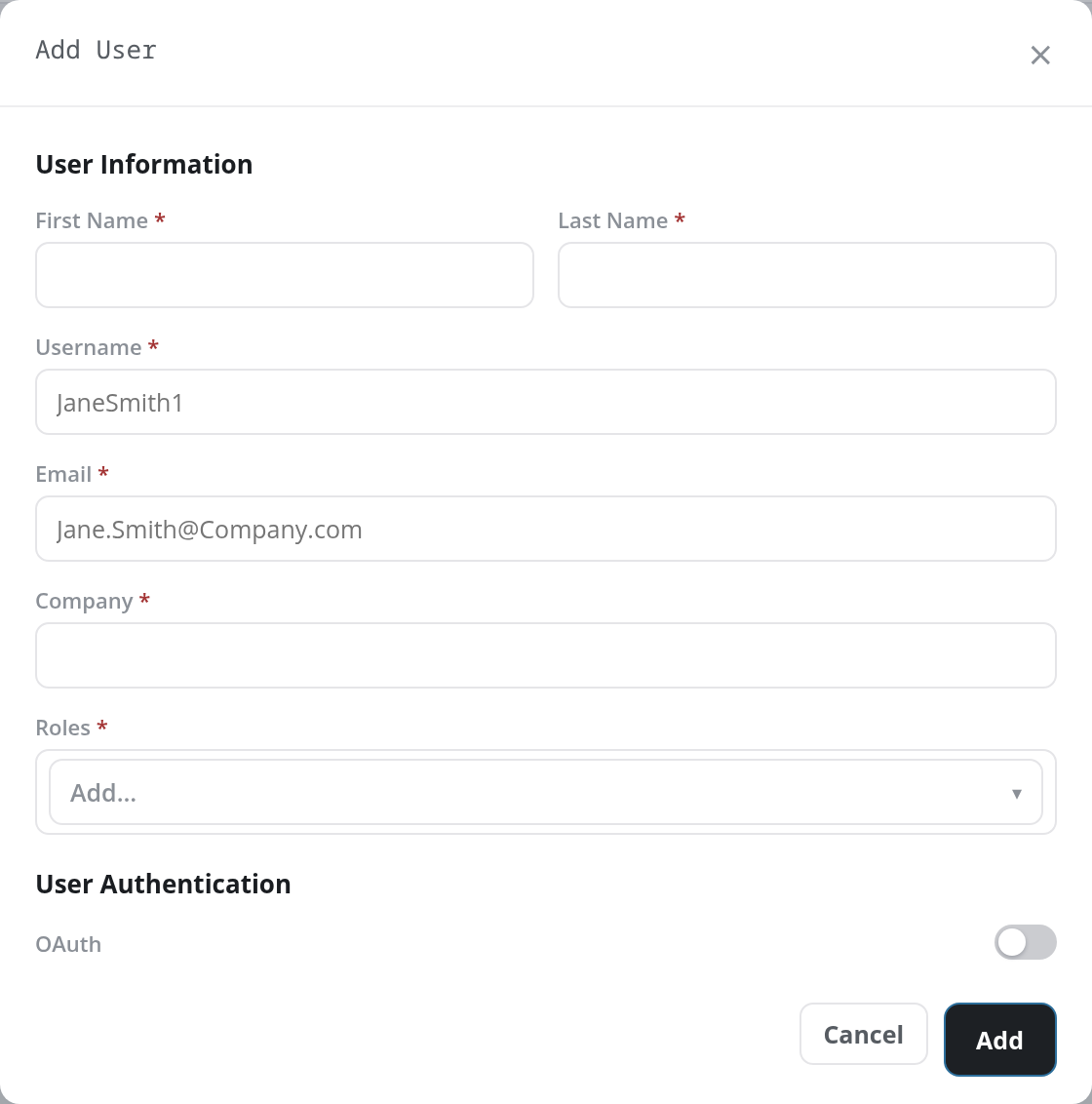
The dialog has two parts. User Information holds the account's details, all required:
- First Name and Last Name: side by side.
- Username: the name the user signs in with; the placeholder shows the form,
JaneSmith1. A username may contain a dot, such asmlee.northwind. - Email: the user's email address; the placeholder reads
Jane.Smith@Company.com. - Company: the organization the user belongs to.
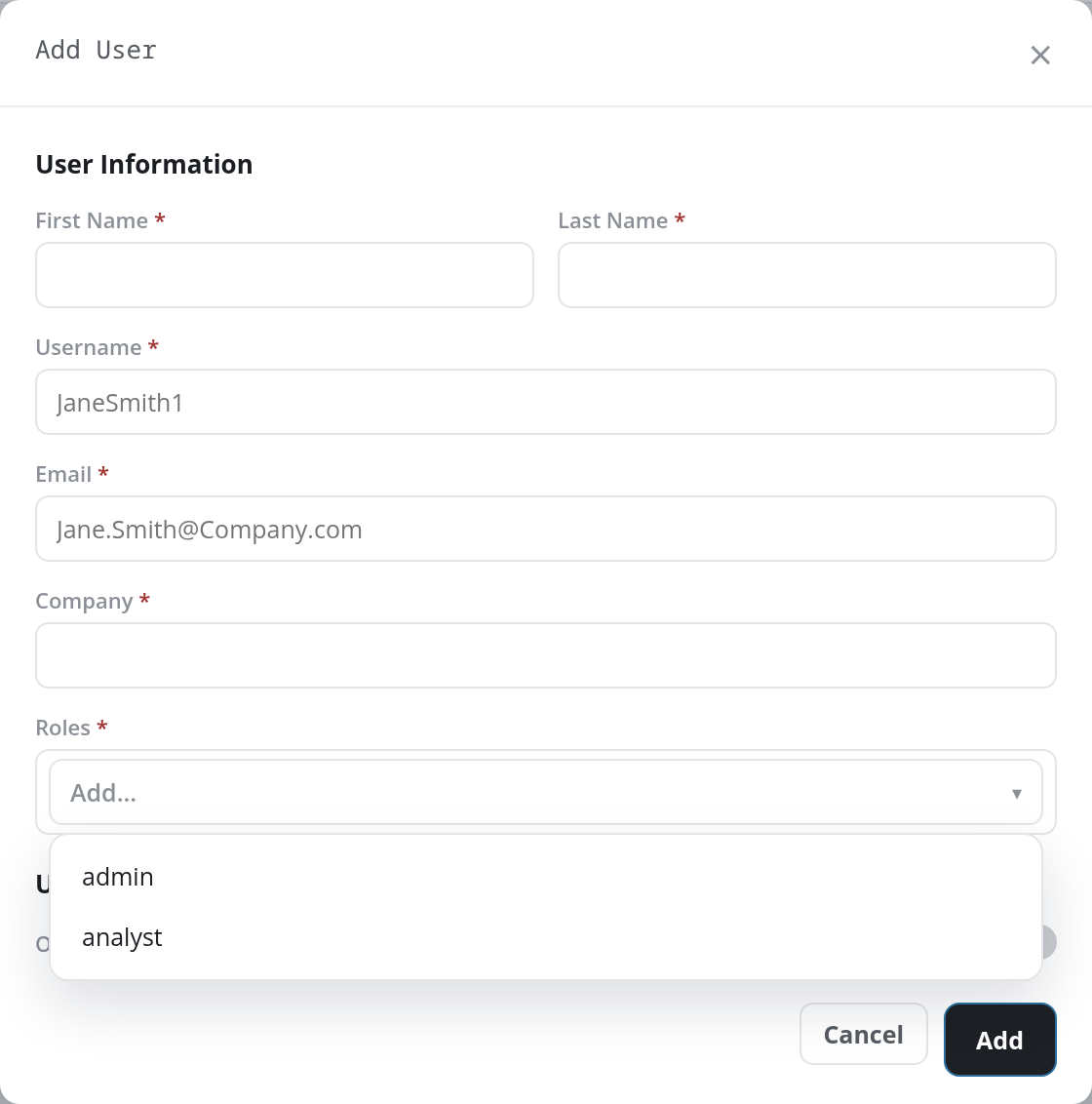
- Roles: a list of the roles defined on the site (for example admin and analyst, plus any roles added on Roles). Pick a role from the Add… drop-down to give it to the user; each chosen role appears as a chip with an × that removes it. A user can hold several roles. Once every role has been picked, the drop-down reads No more options and is disabled.
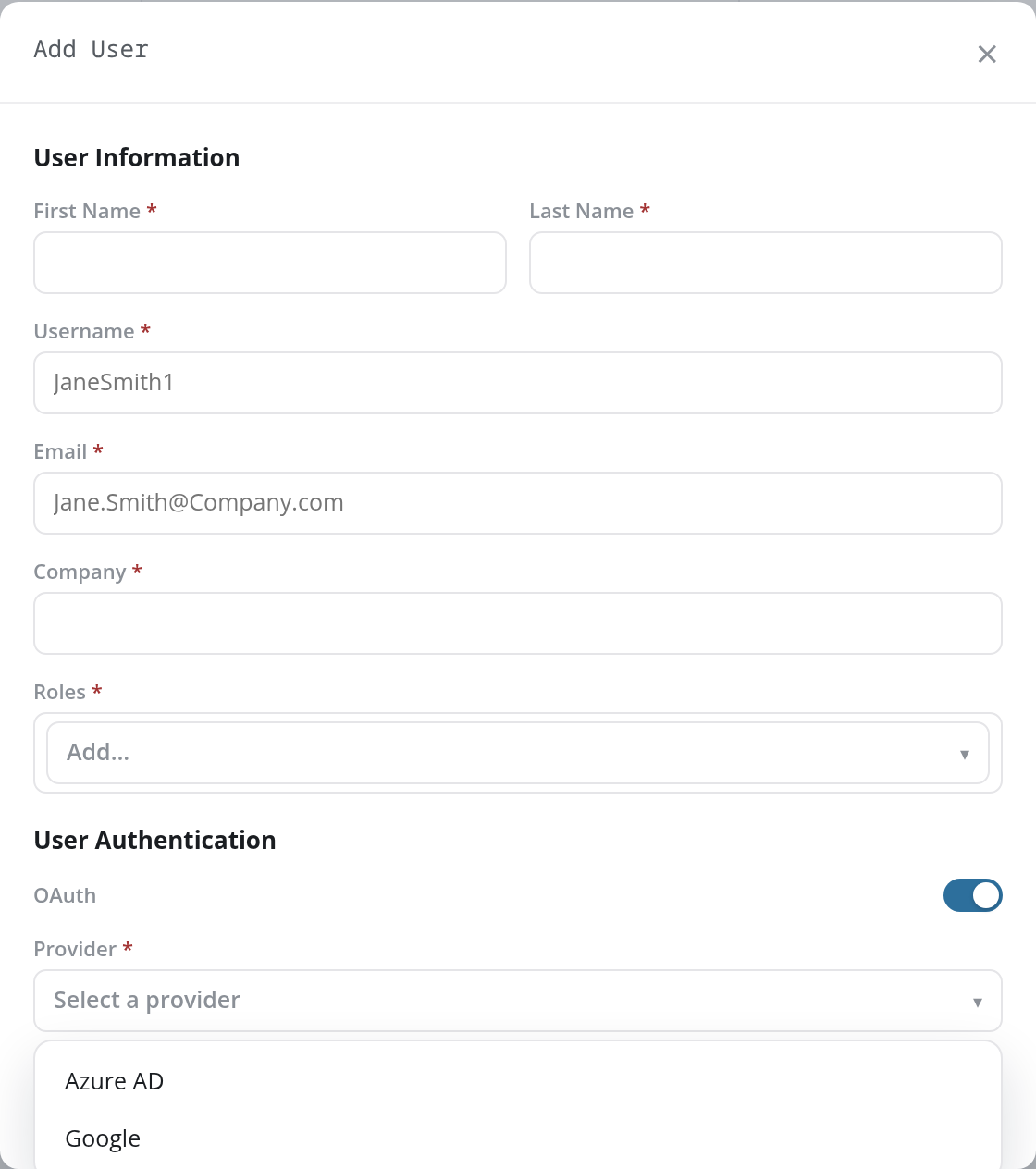
User Authentication sets how the user signs in:
- OAuth: a switch, off by default. Off, the user signs in locally with a username and password. On, the user signs in through an identity provider, and a required Provider drop-down appears beneath the switch with the options Azure AD and Google.
Click Add to create the user, or Cancel or the × in the title bar to close the dialog without adding anyone.
Add checks the fields in order and stops at the first problem, which it names in a red band at the top of the page while the dialog stays open: for example Please enter a first name. for an empty First Name, Please enter a valid email address. for an Email that is not an address, and Please select a role. when Roles is empty.
When the user is added, the dialog closes, the band reads Added followed by the username and An email was sent to followed by the user's address (for example Added mlee.northwind. An email was sent to marcus.lee@example.com.), and the user appears in the table. You can also set a local user's password yourself with Reset Password.
Update User
A row's Edit action opens the Update User dialog, the same form as Add User filled in with that user's details.
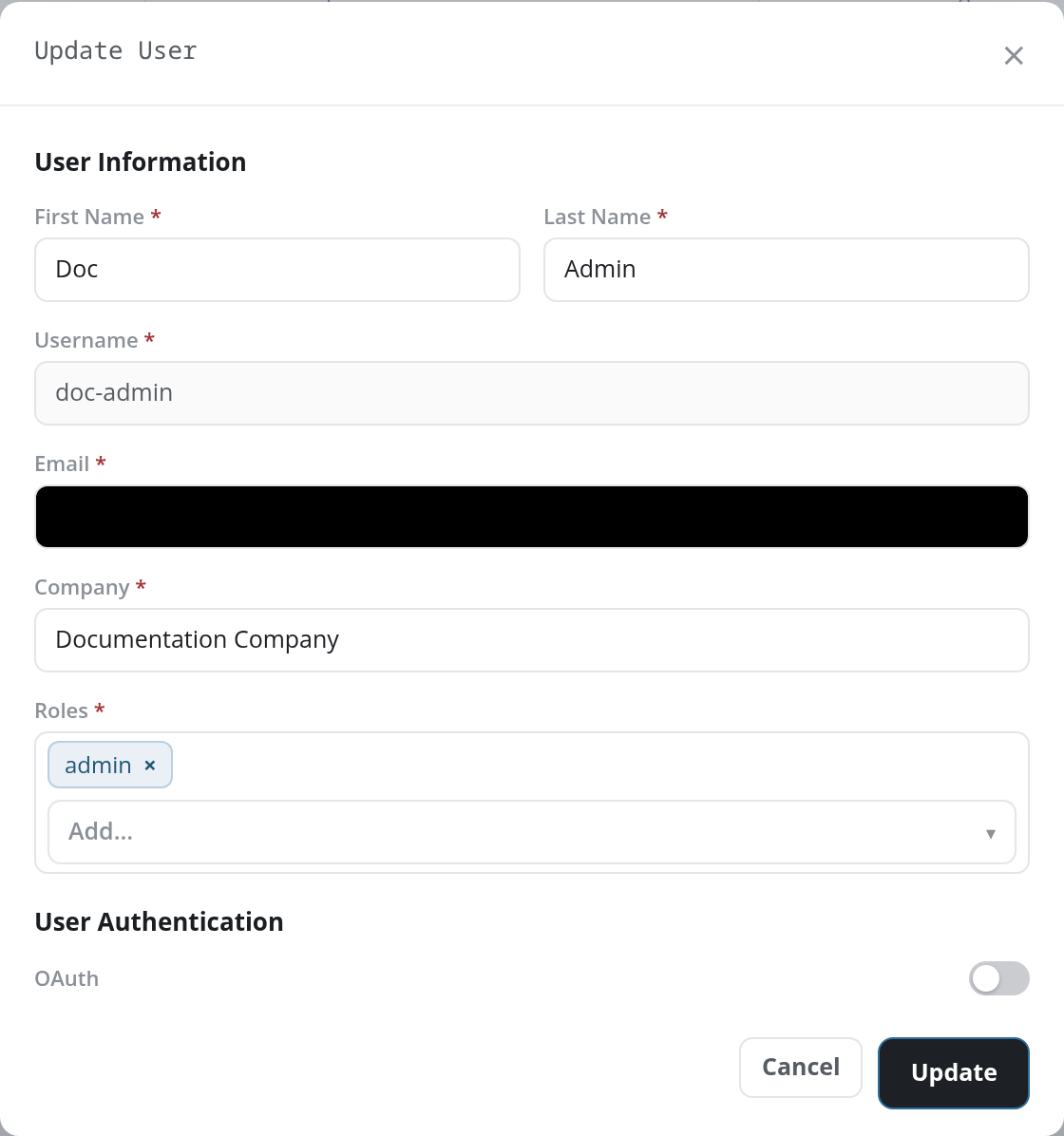
Every field except Username can be changed: the username is fixed once the account exists and is shown read-only. The user's current roles appear as chips in Roles; for a user who signs in through OAuth, the OAuth switch is on and Provider shows their identity provider.
Click Update to save the changes, or Cancel or × to close the dialog without saving. Update runs the same checks as Add (a user needs at least one role: Please select a role.); a saved change reports Updated followed by the username.
Reset Password
A local user's Reset Password action opens the Reset Password dialog, subtitled Set a new password for followed by the username. A user who signs in through OAuth has no Reset Password action: their password belongs to the identity provider.
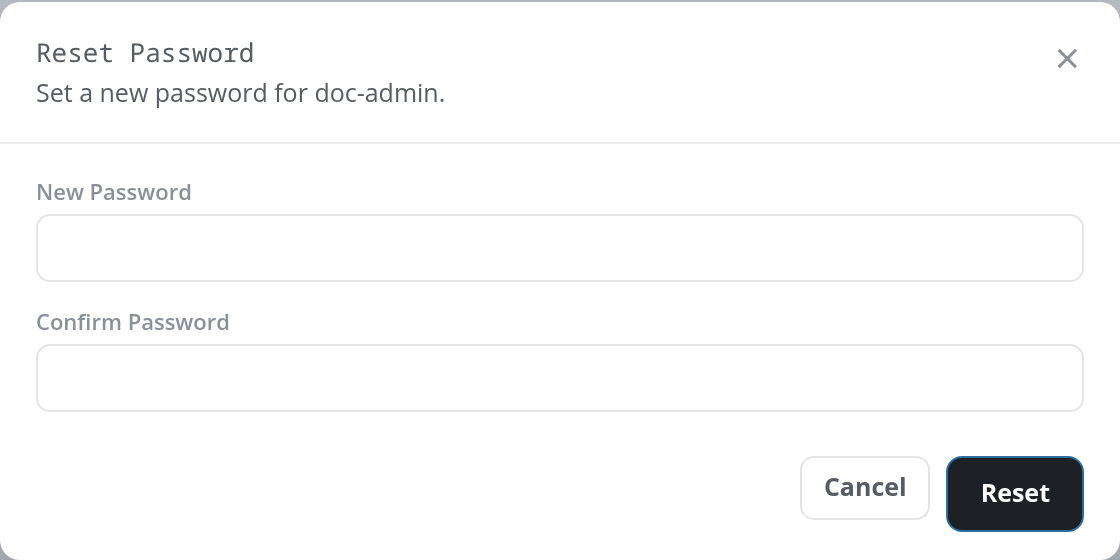
- New Password: the password to set, at least eight characters long.
- Confirm Password: the same password again.
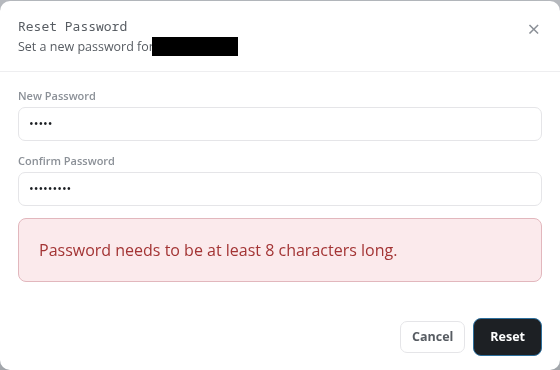
Click Reset to set the password, or Cancel or × to close the dialog without changing it. The dialog shows its message above the buttons and stays open when the password is refused: Password needs to be at least 8 characters long. (checked first), then Passwords do not match.
When the password is set, the dialog closes and the band at the top of the page reads Password reset for followed by the username. The user can sign in with the new password straight away.
Delete a User
A row's Delete action deletes that user's account, so that the user can no longer sign in to the site. Every row has Delete, your own included.
A confirmation titled Delete User asks Are you sure you want to delete followed by the username. Accept it to delete the account, or cancel to keep it. A deleted user leaves the table, and the band at the top of the page reads Deleted followed by the username.