Report Tasks
The Report Tasks page is the run history of the site's report processors: one row per run, with the report that ran, who or what started it, its status, how long it took, and what it cost. Each row opens the report with that run's output loaded. A scheduled report's own runs are also listed under Prior Runs on Report Scheduler.
Menu path: Admin console → Management → Report Tasks · URL path: /v2/admin/report-tasks
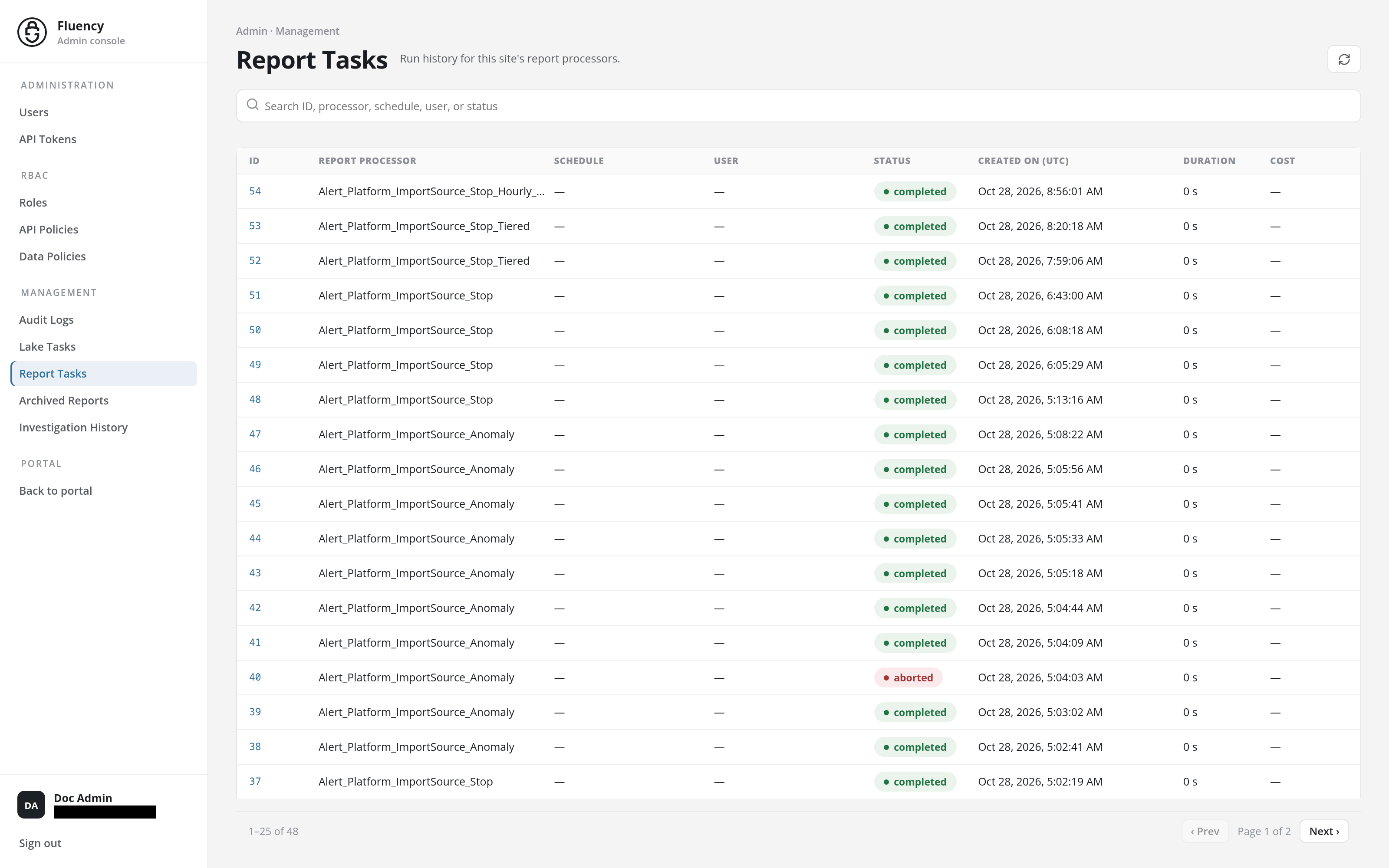
Page Layout
The page sits in the Admin console, with Report Tasks highlighted under Management in the side navigation.
- Header: the breadcrumb Admin · Management and the title Report Tasks with the subtitle Run history for this site's report processors., and the Refresh report tasks button (a circular-arrows icon) on the right that reloads the table.
- Search field: a full-width field with the placeholder Search ID, processor, schedule, user, or status.
- Task table: one row per run, newest first, 25 to a page, with a pager along its bottom edge.
Search
Type in the search field to narrow the table to the runs whose ID, report processor, schedule, user, or status matches: for example, a report's name to see all its runs, or aborted to find the runs that did not finish.
Task Table
| Column | What it shows |
|---|---|
| ID | The run's task ID, as a link that opens the run. |
| Report Processor | The name of the report that ran. |
| Schedule | The schedule the run belongs to, or –. |
| User | The user who started the run, or – when no user did. |
| Status | The run's state, such as completed or aborted. |
| Created On (UTC) | When the run started, in UTC. |
| Duration | How long the run took, such as 59ms or 0s. |
| Cost | The run's cost, or –. |
Click a row to open the report on Reports with that run loaded, at /v2/reports?kind=fpl&name=<report>&id=<run ID>: the report's code, the run's status and runtime, and its output.
Pager
Below the table, the range in view (for example 1–25 of 33), ‹ Prev, the page number (Page 1 of 2), and Next › move through the runs, 25 at a time.