API Tokens
The API Tokens page lists the long-lived credentials that integrations and scripts use to call the platform without an interactive sign-in. Each token carries the roles, data policies, and API policies that decide what it may do. From here you can add a token, change what an existing token is granted, or delete one. A token's secret is shown only once, when the token is created.
Menu path: Admin console → Administration → API Tokens · URL path: /v2/admin/api-tokens
Task guide: API Tokens: creating and handling machine credentials.
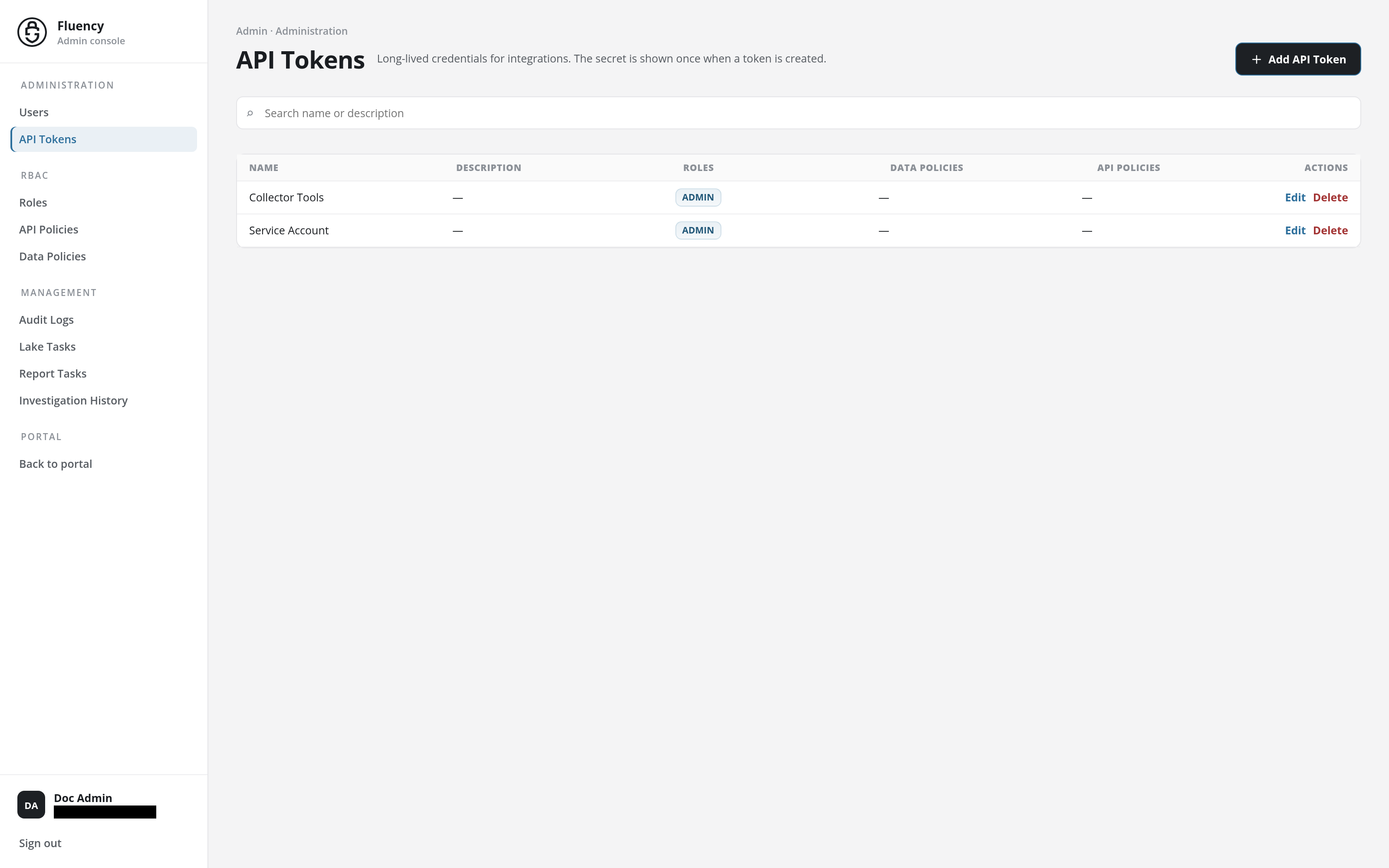
Page Layout
The breadcrumb reads Admin · Administration. The header shows the title API Tokens with the subtitle Long-lived credentials for integrations. The secret is shown once when a token is created., and the Add API Token button on the right. Below it are a search field, with the placeholder Search name or description, that narrows the table to tokens whose name or description matches, and the token table.
Token Table
One row per token, with the columns:
- Name: the token's name, for example Service Account.
- Description: the token's description, or a dash when it has none.
- Roles: a badge for each role granted to the token, for example ADMIN. Roles are defined on Roles.
- Data Policies: data policies attached to the token directly, over and above its roles; see Data Policies.
- API Policies: API policies attached to the token directly, over and above its roles; see API Policies.
- Actions: Edit, which opens the Update API Token dialog, and Delete, which deletes the token.
Add API Token
Click Add API Token to open the Add API Token dialog.
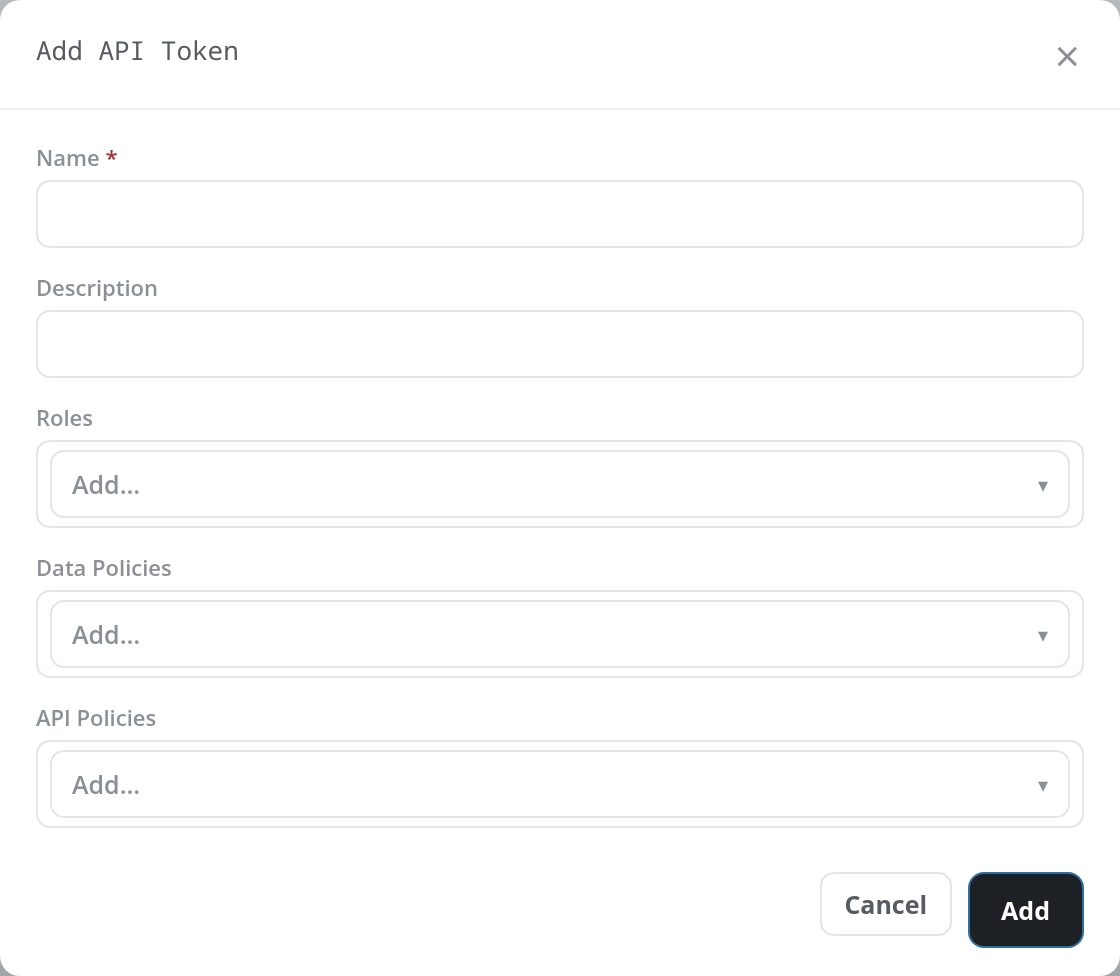
- Name (required): a name for the token that says what uses it.
- Description: optional free text.
- Roles: the roles to grant the token, picked from the Add… drop-down of the roles defined on the site (for example admin and analyst).
- Data Policies: data policies to grant the token directly, picked from the data policies defined on the site (for example data_admin and data_review).
- API Policies: API policies to grant the token directly, picked from the API policies defined on the site.
Each item picked appears in its list as a chip with an × that removes it again, and each list accepts several items. All three lists are optional: a token's access is whatever its roles and policies add up to, so a token created with none of them is refused every call it makes.
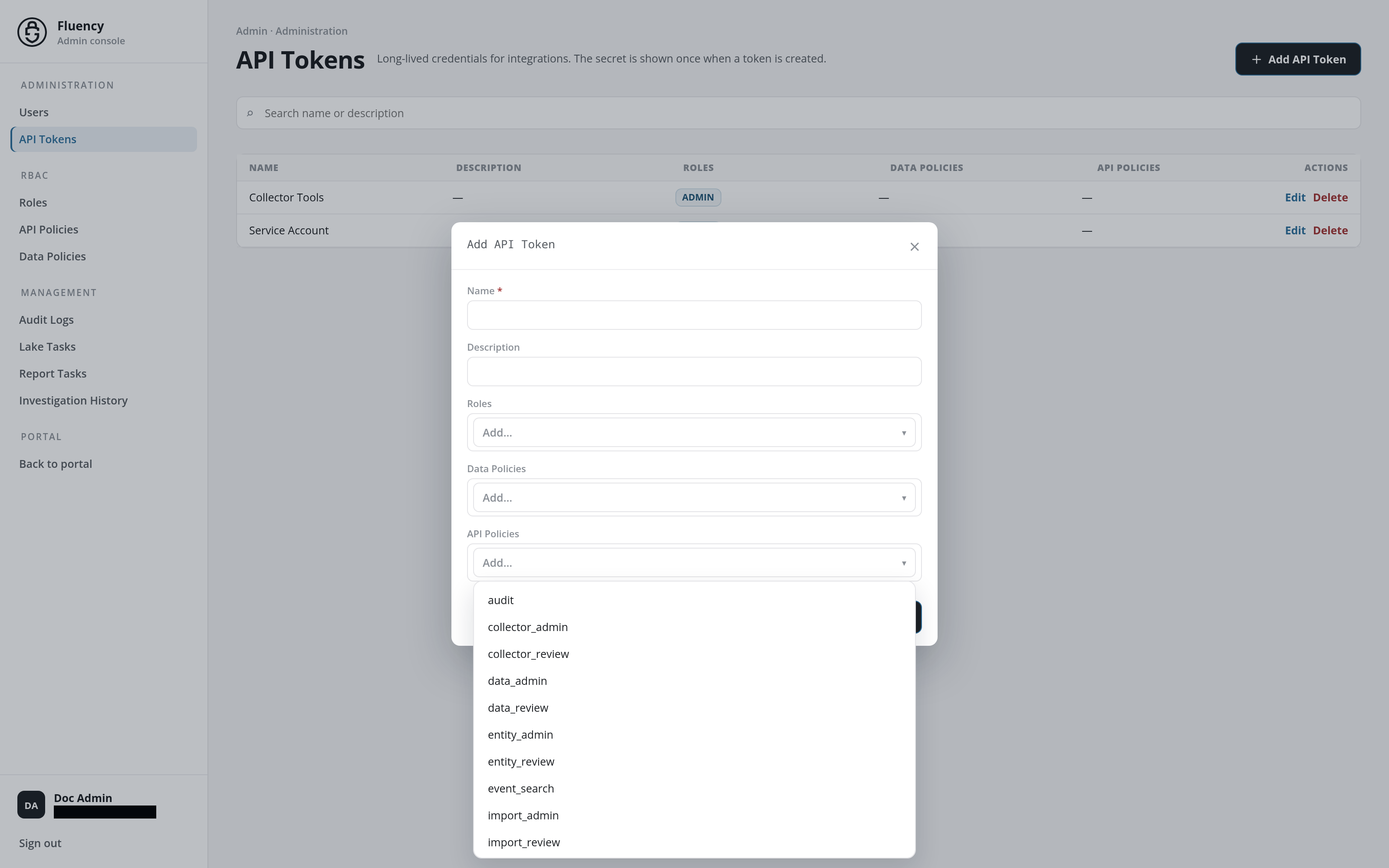
The API Policies drop-down scrolls; besides the policies shown above it offers the integration, notification, and report policies (integration_admin, integration_review, notification_admin, notification_review, report_admin, report_review) and user.
Click Add to create the token, or Cancel or × to close the dialog without creating one. The token's secret is displayed once, at creation: copy it then and store it somewhere safe.
Add refuses the token, with the dialog left open and the reason in a red band at the top of the page, when Name is empty (Name is required.) or another token already has the name (duplicate token name).
Token Generated
When the token is created, the band at the top of the page reads API Token added successfully. and a second dialog opens, Token generated, with the note Save this token now. It will not be shown again after this dialog closes.

- Token: the token's secret, a read-only field.
- Copy token: the button beside the field, which copies the secret to the clipboard.
- Done (or ×): closes the dialog. The secret cannot be shown again; the new token appears in the table.
Update API Token
A row's Edit action opens the Update API Token dialog, the same form filled in with that token's grants.
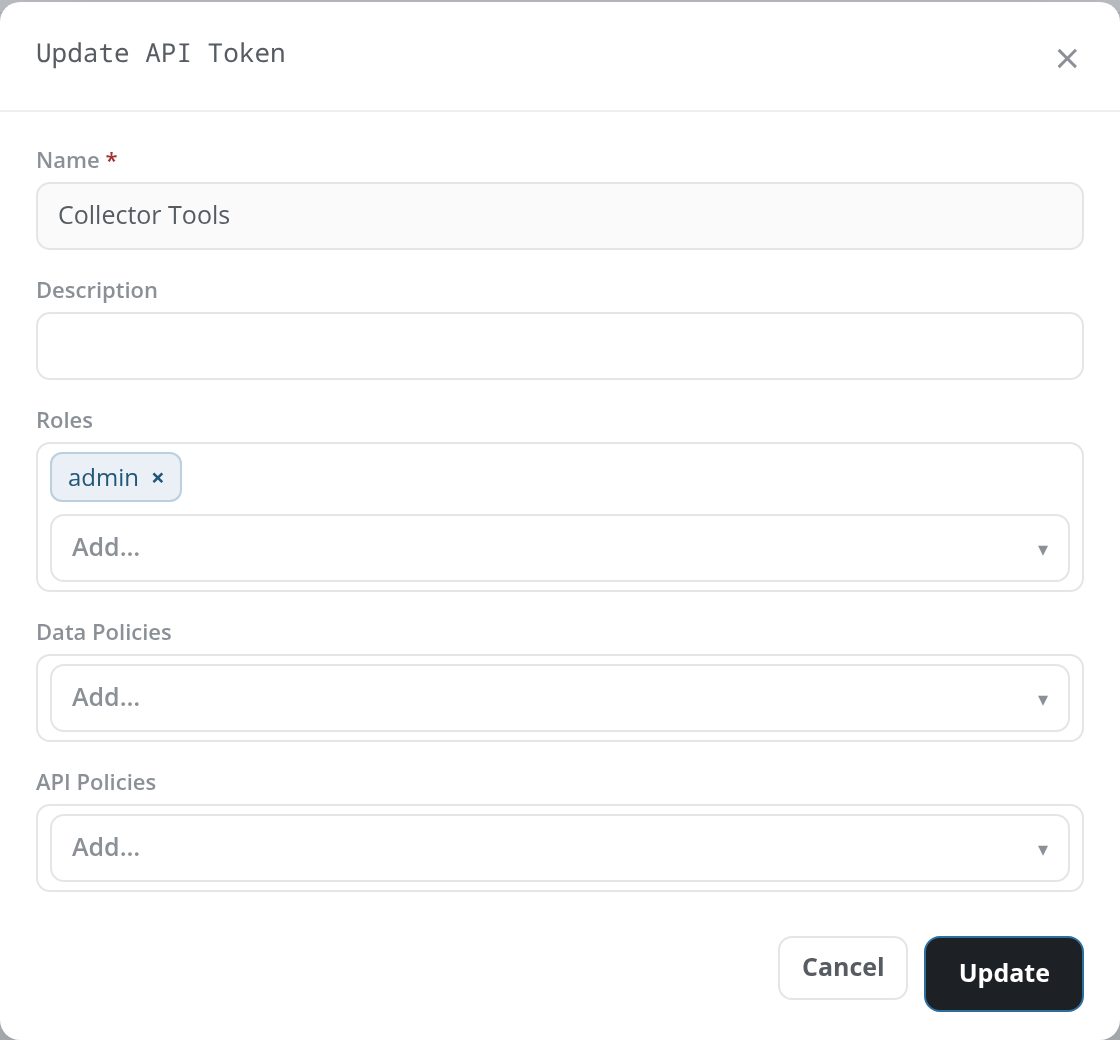
The Name is fixed and shown read-only; the Description and the three lists can be changed. Click Update to save the changes, or Cancel or × to close the dialog without saving. A saved change reports API Token updated successfully. An update changes what the token may do, not the token itself: callers keep using the same secret, and the new grants apply to their next call.
Delete a Token
A row's Delete action deletes that token. A confirmation titled Delete API Token asks Are you sure you want to delete followed by the token's name; accept it to delete the token, or cancel to keep it. A deleted token leaves the table, and the band at the top of the page reads API Token deleted successfully.
An integration still using the token can no longer call the platform with it: its next call is refused as unauthorized (HTTP 401).
Using a Token
A program presents the token in a standard Authorization: Bearer <token> header on its HTTPS requests to the site's API, at the same host as the portal. The token acts with exactly the roles and policies it carries, as a user holding them would: a call outside them is refused with 403 and Access Denied. API Tokens → Using a Token has a worked example and the responses to expect.