Roles
The Roles page lists the account's roles. A role is a named bundle of data policies and API policies that is assigned to users and to API tokens, so that everyone holding the role gets the same access. From here you can add a role, change the policies a role carries, or delete it.
Menu path: Admin console → RBAC → Roles · URL path: /v2/admin/roles
Task guide: Managing Roles: what each role can do.
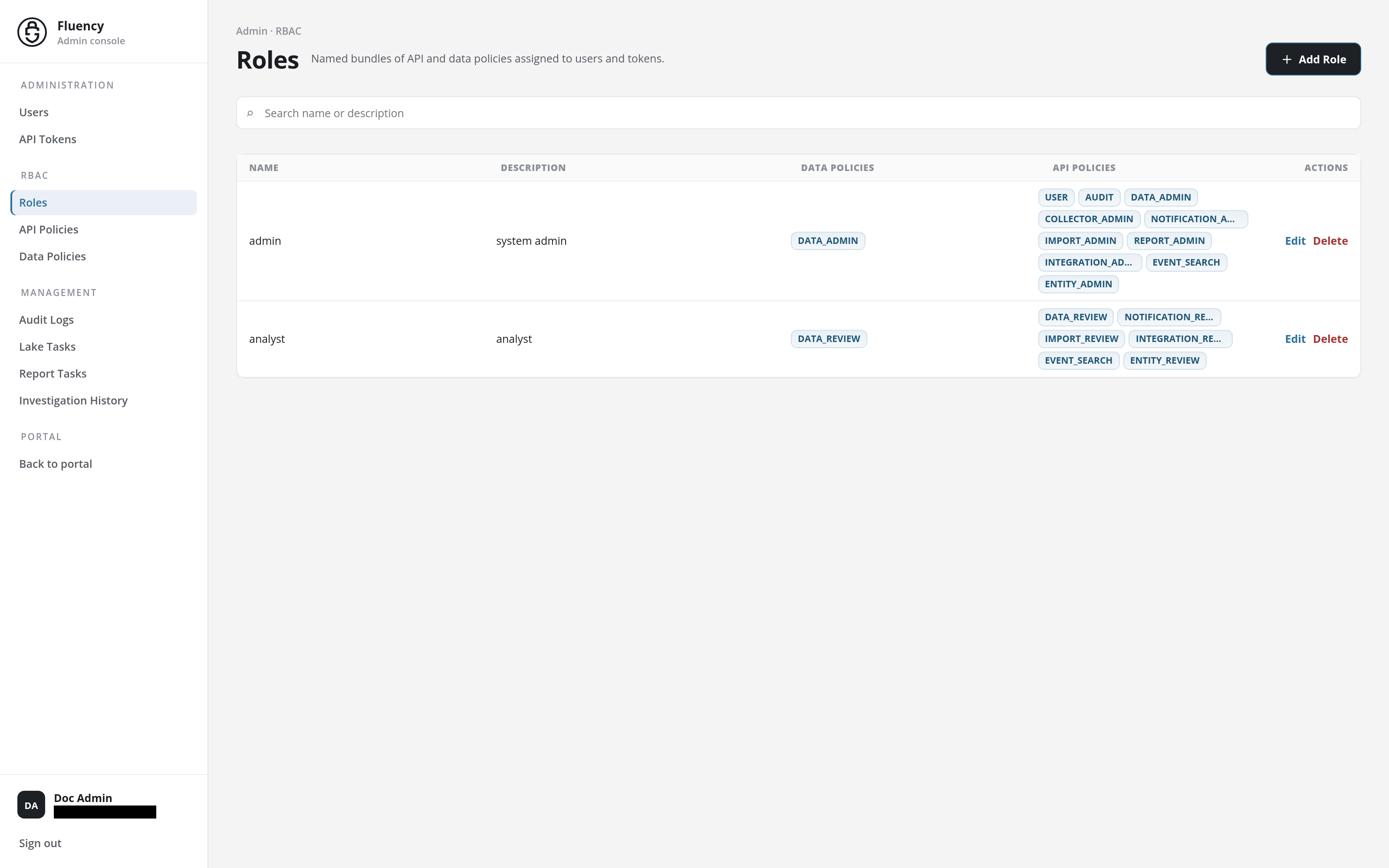
Page Layout
The page sits in the Admin console, with the console's side navigation on the left and Roles highlighted under RBAC.
- Header: the breadcrumb Admin · RBAC, the title Roles with the subtitle Named bundles of API and data policies assigned to users and tokens., and the + Add Role button on the right.
- Search field: a full-width field with the placeholder Search name or description.
- Roles table: one row per role.
Search
Type in the Search name or description field to narrow the table to the roles whose name or description matches.
Roles Table
The table has five columns:
| Column | What it shows |
|---|---|
| Name | The role's name, such as admin or analyst. |
| Description | The role's description, such as system admin. |
| Data Policies | One chip per data policy the role carries, such as DATA_ADMIN. |
| API Policies | One chip per API policy the role carries. A chip too long for the column is cut short with an ellipsis (NOTIFICATION_A…). |
| Actions | Edit opens the role in the Update Role dialog; Delete removes the role (see Delete a Role). |
In the example above, admin carries the data_admin data policy and the full set of administration API policies (user, audit, data_admin, collector_admin, notification_admin, import_admin, report_admin, integration_admin, event_search, entity_admin), while analyst carries data_review and the review-level API policies plus event_search.
Add Role
Click + Add Role to open the Add Role dialog.
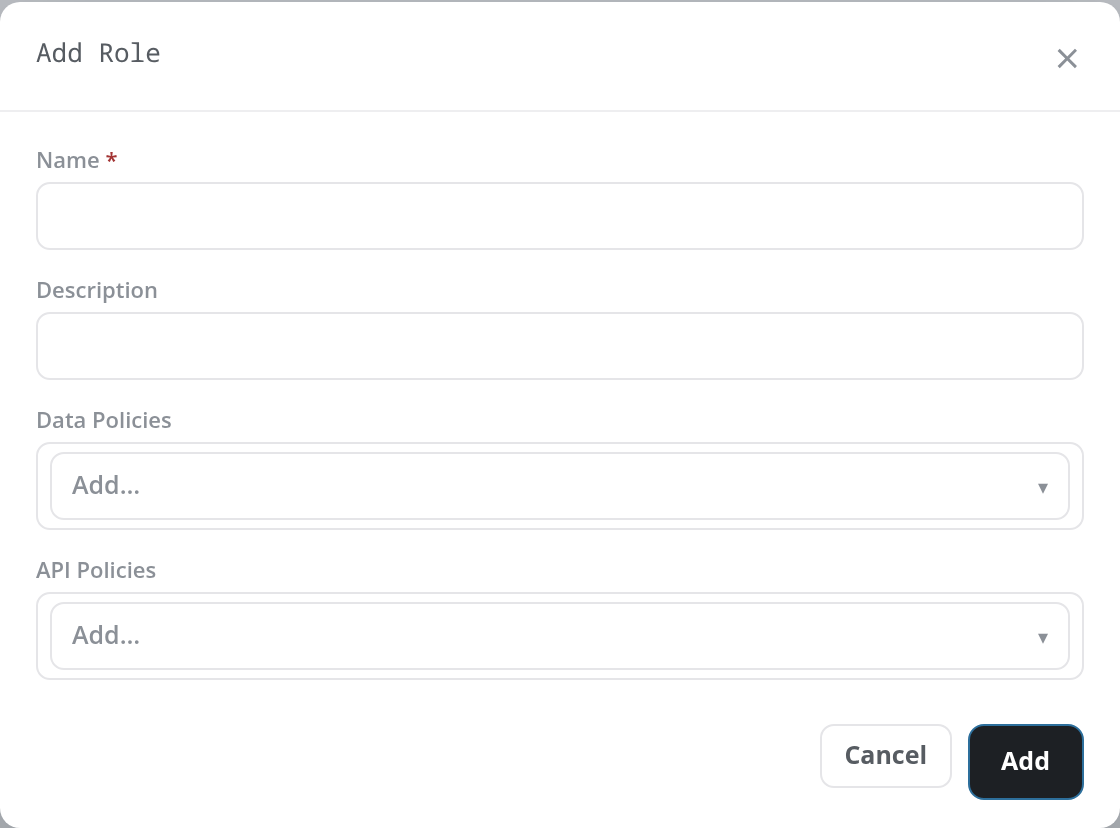
The dialog has four fields:
- Name (required): the role's name.
- Description: optional free text.
- Data Policies: a multi-select picker showing Add…. Its list holds the account's data policies, such as
data_adminanddata_review. - API Policies: a multi-select picker showing Add…. Its list holds the account's API policies.
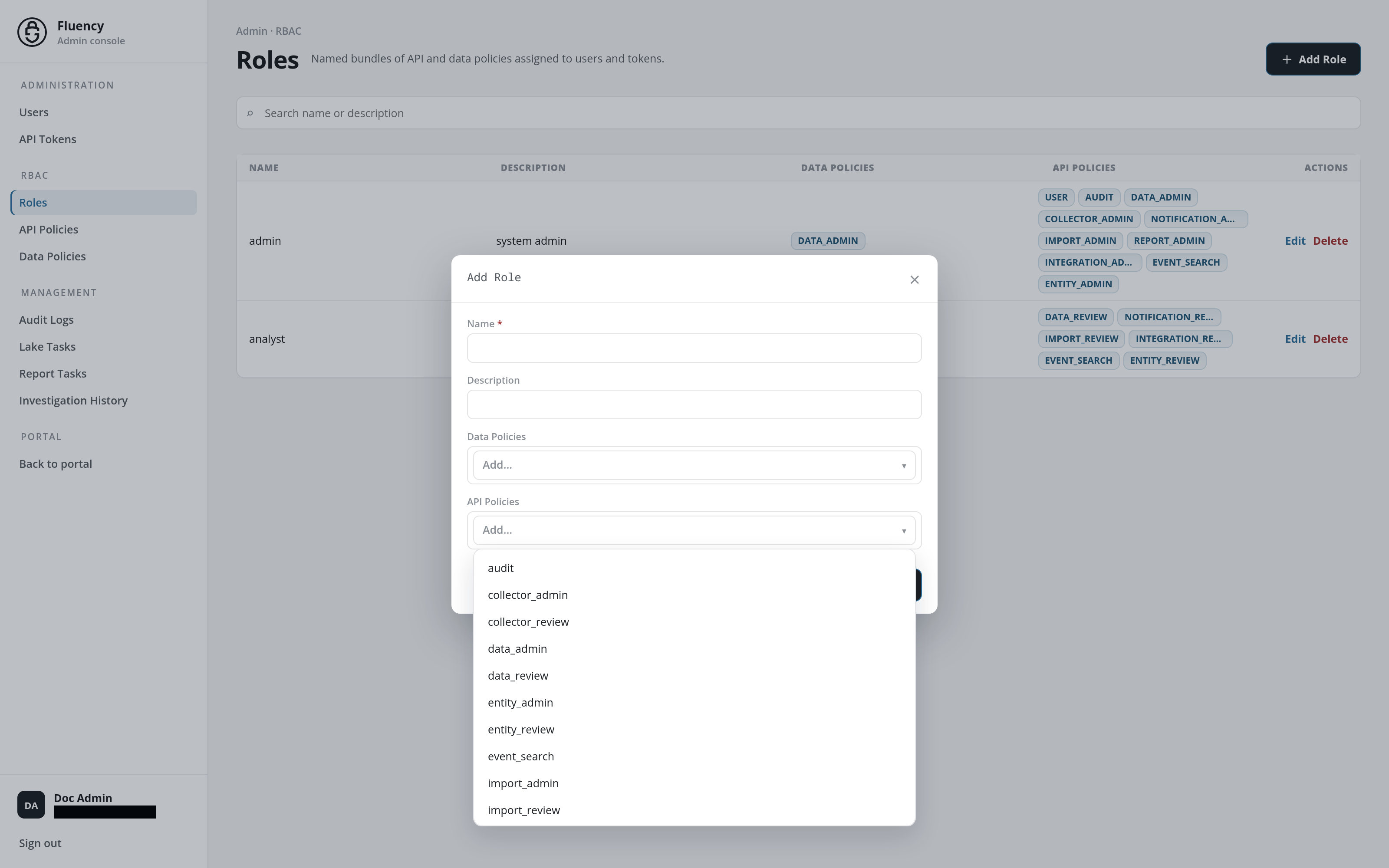
Each policy picked from a list is added above the picker as a chip with an × that removes it again, and leaves the list. When every policy of a kind has been added, the picker reads No more options and is disabled.
Click Add to create the role, or Cancel (or the × in the title bar) to close the dialog without saving.
Add refuses the role, with the dialog left open and the reason in a red band at the top of the page, when:
- Name is empty: Name is required.
- The role carries no policy at all, neither a data policy nor an API policy: no policy defined. A role needs at least one.
- Another role already has the name: duplicate name.
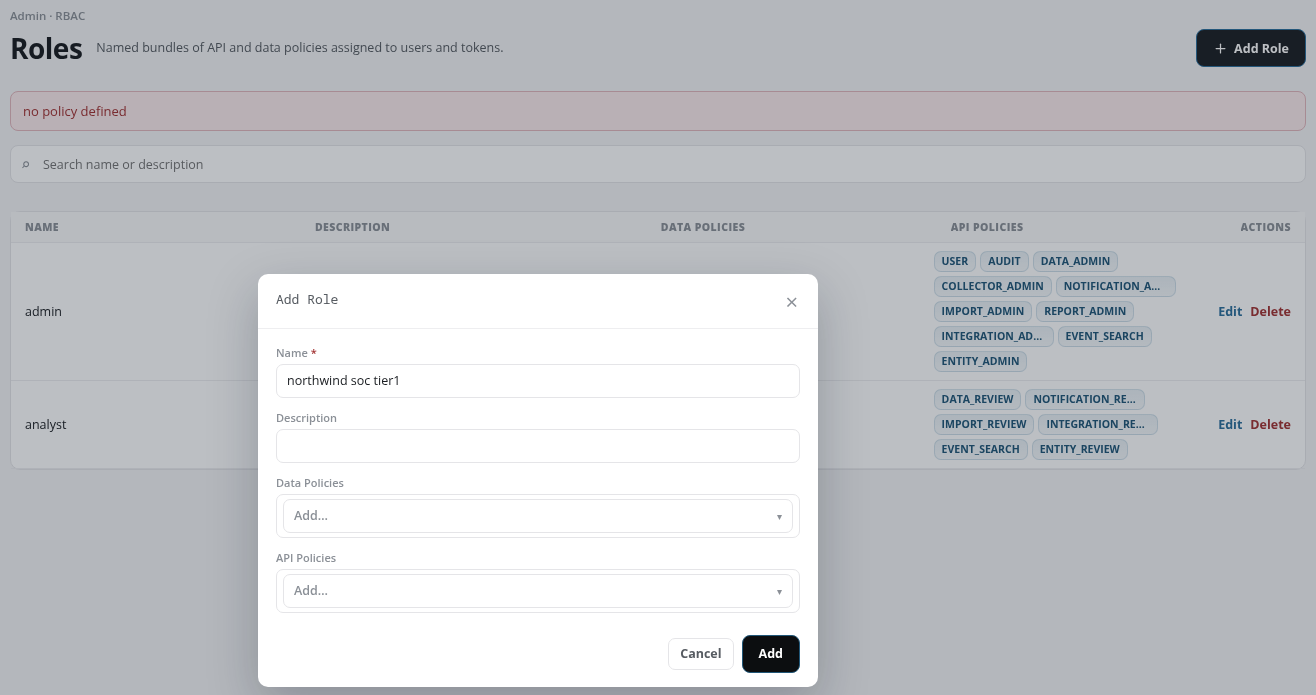
A name may contain spaces, such as soc tier1; the table shows it as typed, while the policy chips are shown in capitals. When the role is added, the dialog closes, the band reads Role added successfully., and the role appears in the table and in the Roles lists of the Add User and Add API Token dialogs.
Update Role
Click Edit on a row to open the Update Role dialog for that role. It has the same fields as Add Role, filled in from the role: its policies appear as chips, each with an × to remove it, and the Add… pickers offer the policies the role does not have yet.
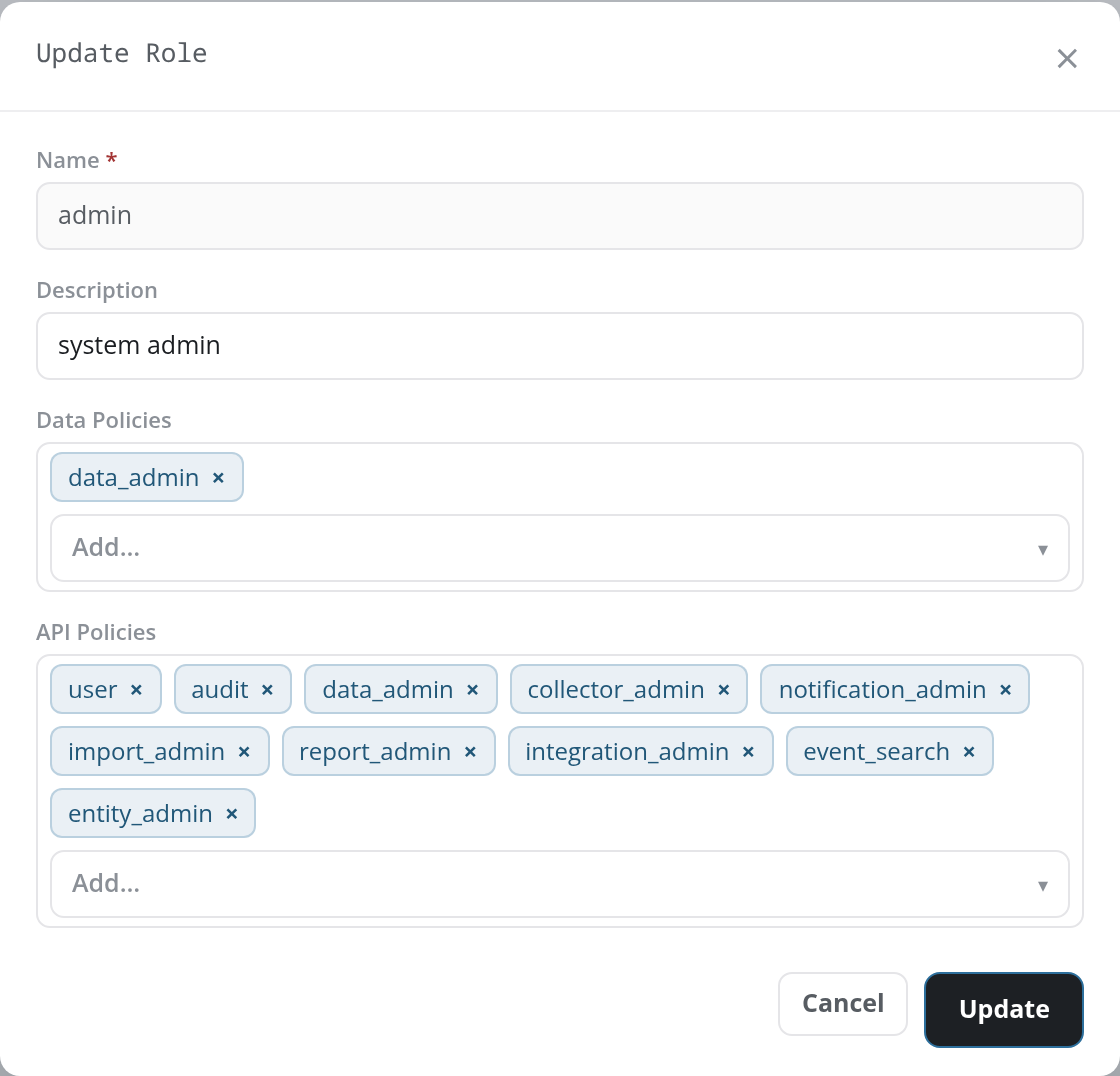
The Name field is read-only: a role keeps its name once created. Each chip's × (labelled Remove and the policy's name) asks Delete followed by the policy's name and This will remove it. Continue? before it removes the chip. Click Update to save the changes, or Cancel to close the dialog without saving. A saved change reports Role updated successfully.
A change to a role's policies applies to every user and token holding the role from their next request: users who are signed in do not need to sign in again.
Delete a Role
A row's Delete action deletes the role. A confirmation titled Delete Role asks Are you sure you want to delete followed by the role's name; accept it to delete the role, or cancel to keep it. A deleted role leaves the table, and the band at the top of the page reads Role deleted successfully.
The users and tokens that held the role lose the access it granted. Move them to another role on Users and API Tokens before deleting it.
What a Role's Policies Allow
A role combines two kinds of policy, picked from two separate lists:
- API Policies decide which parts of the platform its holders may call, and with which privileges: see API Policies. A user with no API policy that covers a page's data cannot use that page.
- Data Policies hold the field rules for each data type: see Data Policies.
The built-in policies include two named data_review, one in each list: the API policy data_review (DATA:[READ]) and the data policy data_review. The API policy is the one that lets a role read data at all. With it, a role's users can open and search the workspace pages: Home, Overview Summary, Cases Search, Notable Events, Datalake Search, KQL Search, Resources, Assets, Applications, and Platform. The API policy event_search (SEARCH:[READ]) on its own does not let a role run a KQL Search or a Datalake Search; a role that searches needs data_review (or data_admin) as well, as the built-in analyst role does.
A role with only review policies cannot make changes: an attempt by its users to add a role, or to change a user (their own roles included), is refused. The Admin console itself is shown only to users whose role gives them access to it (see Who Sees the Admin Console).