Archived Reports
The Archived Reports page lists the site's daily report archives. A report whose schedule has Daily archive turned on (see Report Scheduler) runs once a day over the previous day, and each of those runs is kept for 12 months. This page shows which reports are archived, which days each archive covers and which it misses, and opens every archived run's stored output.
Menu path: Admin console → Management → Archived Reports · URL path: /v2/admin/archived-reports
Page Layout
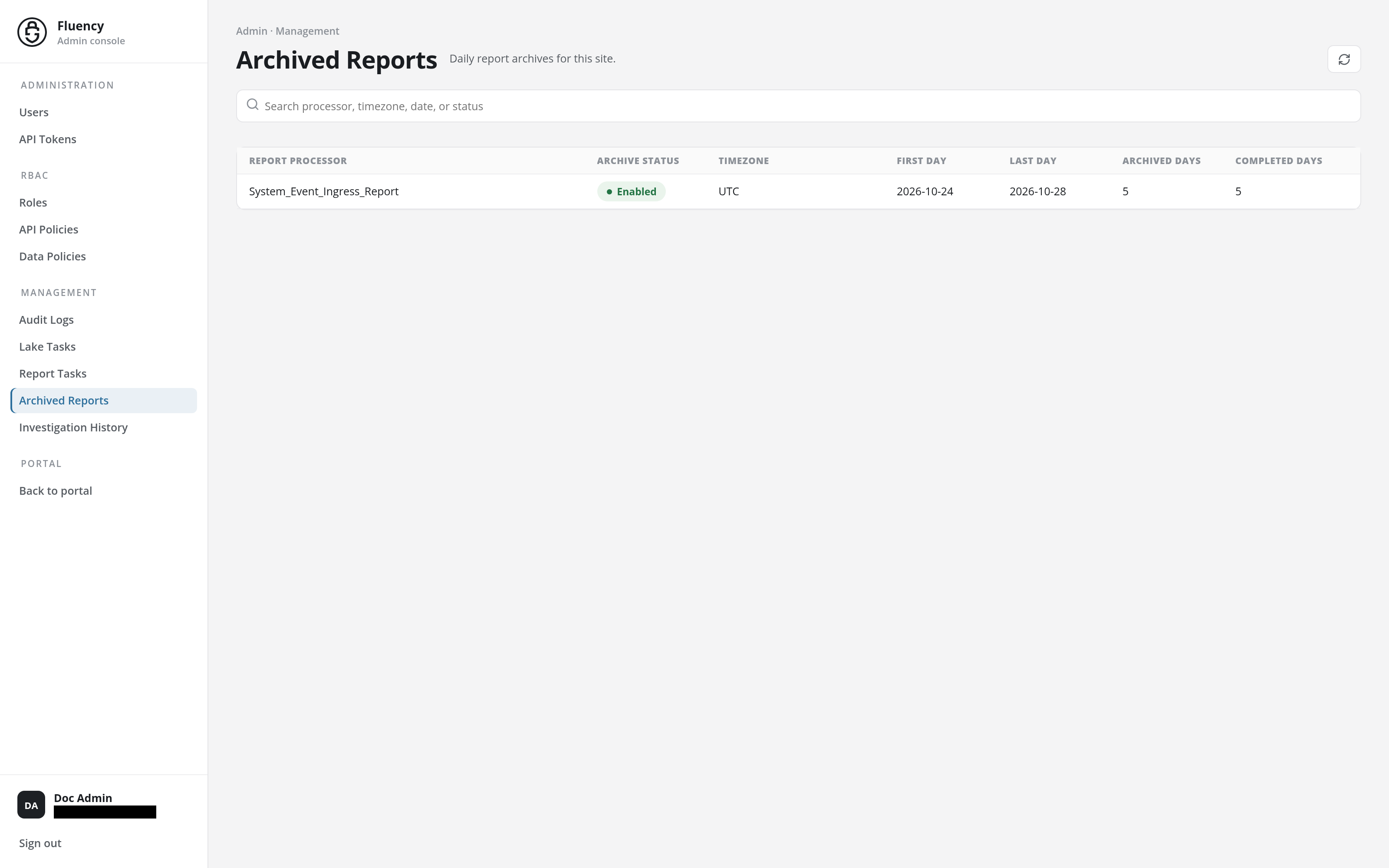
The page sits in the Admin console, with Archived Reports highlighted under Management in the side navigation.
- Header: the breadcrumb Admin · Management and the title Archived Reports with the subtitle Daily report archives for this site., and the Refresh archived reports button (a circular-arrows icon) on the right.
- Search field: a full-width field with the placeholder Search processor, timezone, date, or status.
- Archive table: one row per archived report.
Archive Table
| Column | What it shows |
|---|---|
| Report Processor | The archived report. |
| Archive Status | Whether daily archiving is on, such as Enabled. |
| Timezone | The timezone the archive's days are counted in, such as UTC. |
| First Day / Last Day | The first and last day the archive holds a run for. |
| Archived Days | How many days have an archived run. |
| Completed Days | How many of those runs completed. |
Click a row to open the report's archive history.
Archive History
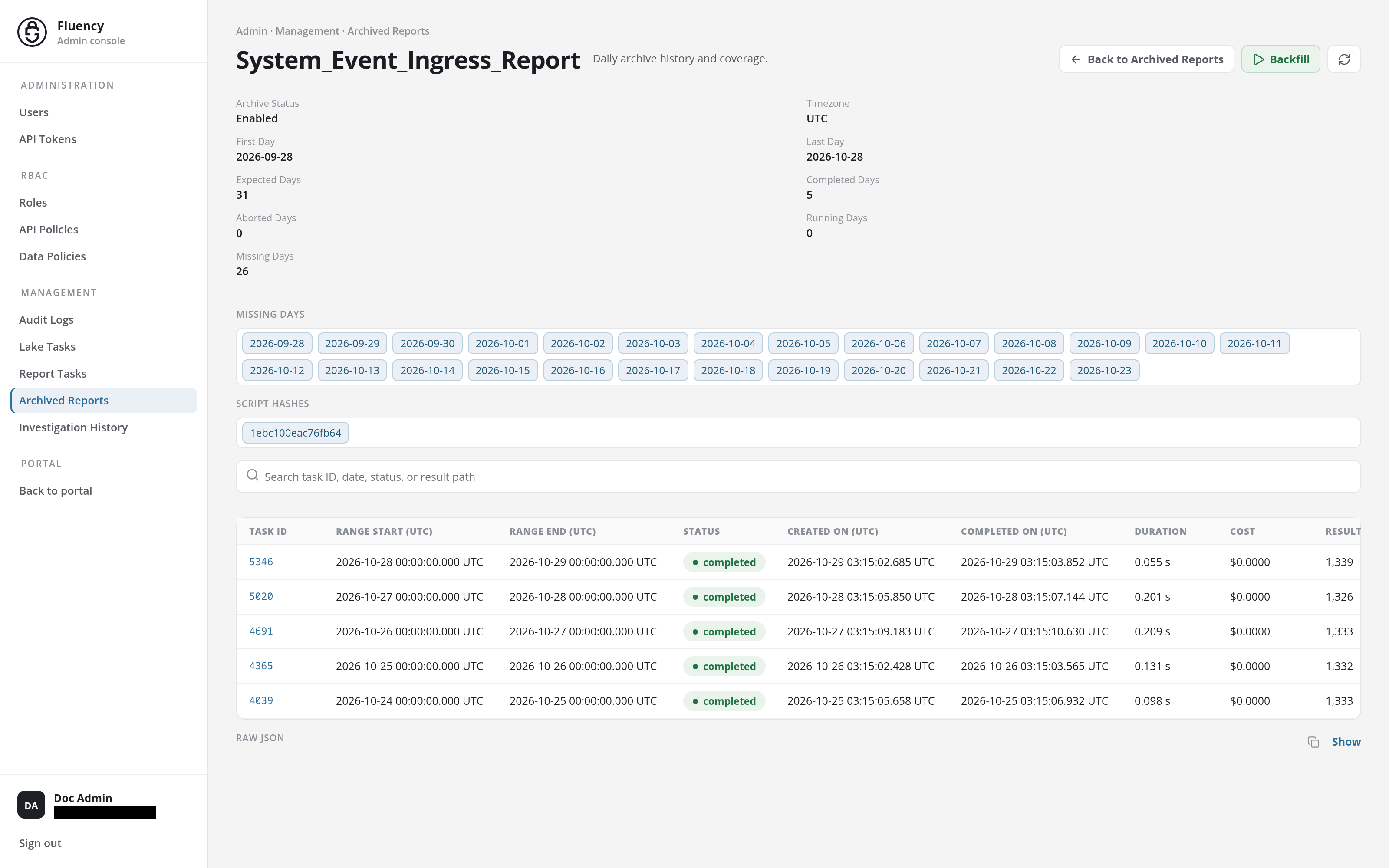
A report's archive history page, at /v2/admin/archived-reports?name=<report>, is titled with the report's name and the subtitle Daily archive history and coverage., under the breadcrumb Admin · Management · Archived Reports. Back to Archived Reports returns to the list, Backfill opens the Backfill dialog, and the refresh button reloads the page.
From top to bottom:
- Summary: Archive Status, Timezone, the First Day and Last Day of the period the archive is expected to cover, and its day counts: Expected Days, Completed Days, Aborted Days, Running Days, and Missing Days.
- Missing Days: a chip for each day in the period with no archived run.
- Script Hashes: the hash of each version of the report's script the archived runs were made with.
- Search field: Search task ID, date, status, or result path narrows the run table.
- Run table: one row per archived run, newest first: Task ID (a link to the run's result), Range Start (UTC) and Range End (UTC) (the day the run covers), Status, Created On (UTC), Completed On (UTC), Duration, Cost, and Result Bytes.
- Raw JSON: the archive's record as JSON, hidden until Show is clicked, with a copy button beside it.
A report with no archived runs yet has no Script Hashes, and its run table reads No archive entries yet.
Backfill
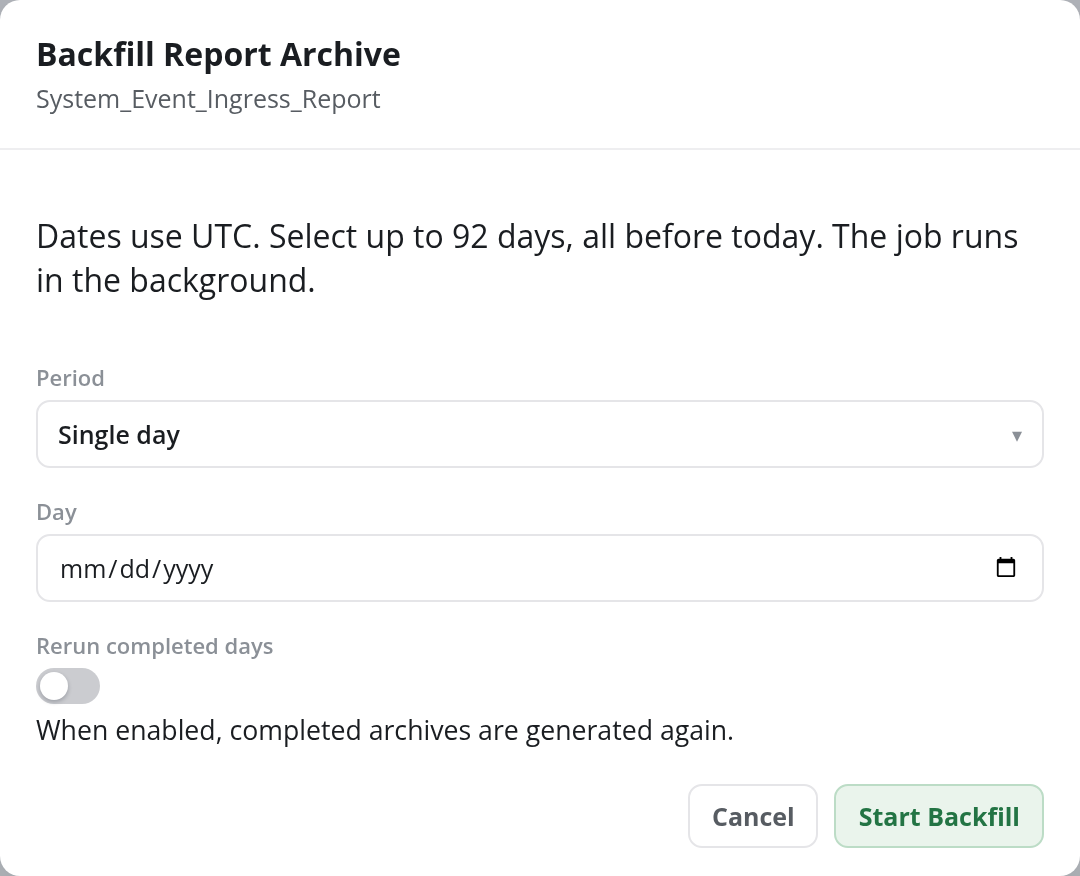
Backfill opens the Backfill Report Archive dialog, headed with the report's name and the note Dates use UTC. Select up to 92 days, all before today. The job runs in the background.
- Period: Single day (the default) or Date range.
- Day: the day to archive, for a single day; Start day and an optional End day, for a date range.
- Rerun completed days: a switch, off by default: When enabled, completed archives are generated again. Off, only the days with no completed run are archived.
Start Backfill starts the job; Cancel closes the dialog without starting it.
Archived Result
Clicking a task ID opens that run's stored result, at /v2/admin/archived-reports?name=<report>&taskID=<task ID>&archiveID=<archive ID>, titled <report> · Task <ID> with the subtitle Archived report results. Back to Archive History returns to the archive history, and the refresh button reloads the result.
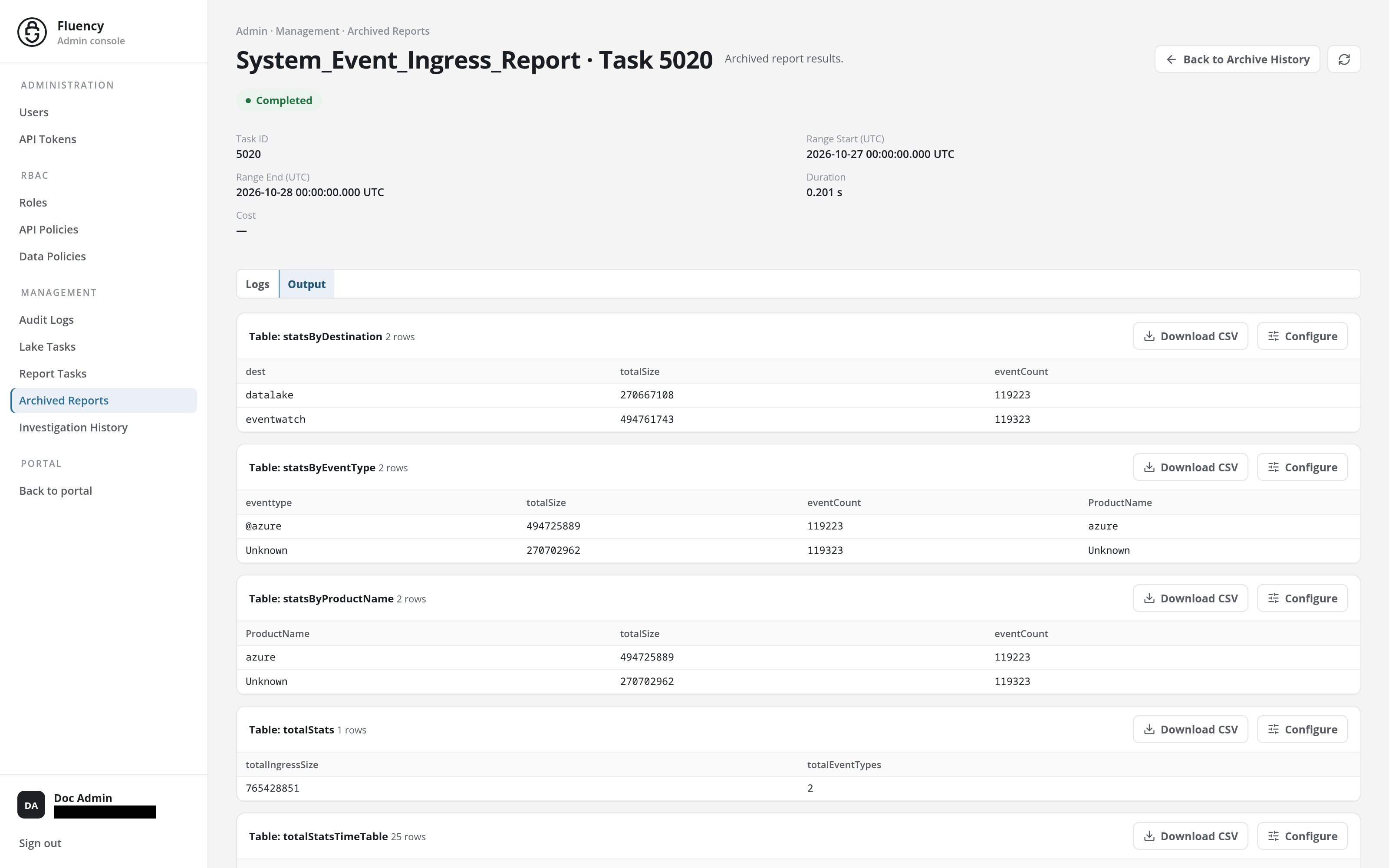
Below a status badge (such as Completed) are the run's Task ID, Range Start (UTC), Range End (UTC), Duration, and Cost, then two tabs:
- Logs: the run's log.
- Output: selected when the result opens: the report's output, one section per table or alert it produced, each headed with its name and row count, with Download CSV and Configure buttons, as on a report run on Reports. A table longer than 20 rows is paged, 20 rows at a time.