KQL Search
The KQL Search page runs KQL queries against the data lake. An index browser on the left lists the indexes you can query and their columns, the editor holds the query, and the panel below it switches between your recent queries and the results of the last run. For the query language itself, see KQL.
Menu path: KQL Search · URL path: /v2/kql-search
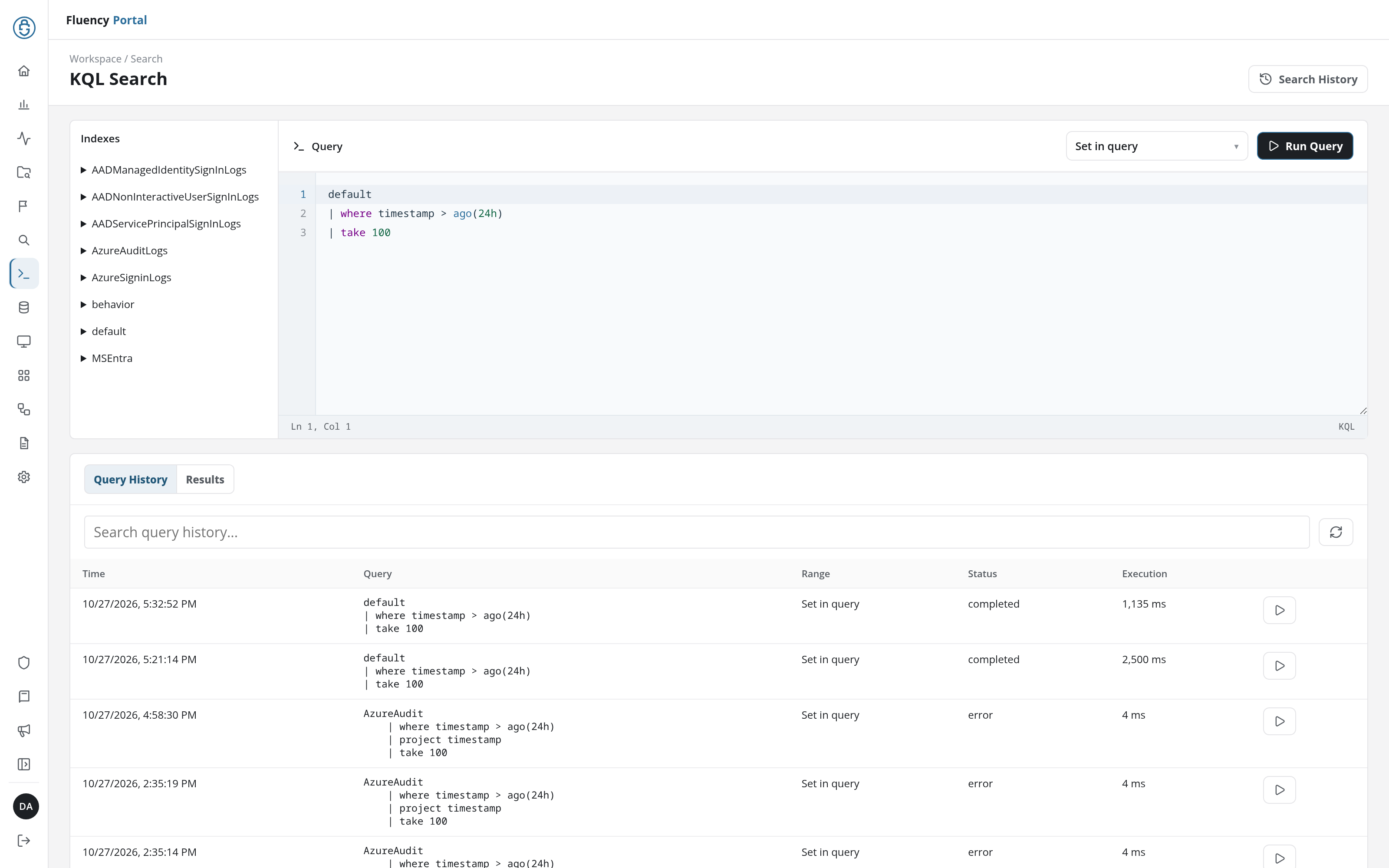
Page Layout
- Header: the title KQL Search and, on the right, the Search History button.
- Indexes (left): the indexes available to KQL, each expandable to its columns.
- Query (right): the time-range selector, Run Query, and the KQL editor.
- Query History / Results: two tabs in a panel across the bottom of the page.
Search History
Search History in the header opens KQL Search History, the account-wide record of KQL searches.
Indexes
The Indexes list names every index that KQL can query: in the example, the Azure and Entra ID sign-in and audit indexes, behavior, default, and MSEntra. Click an index's name, or the ▶ in front of it, to expand it:
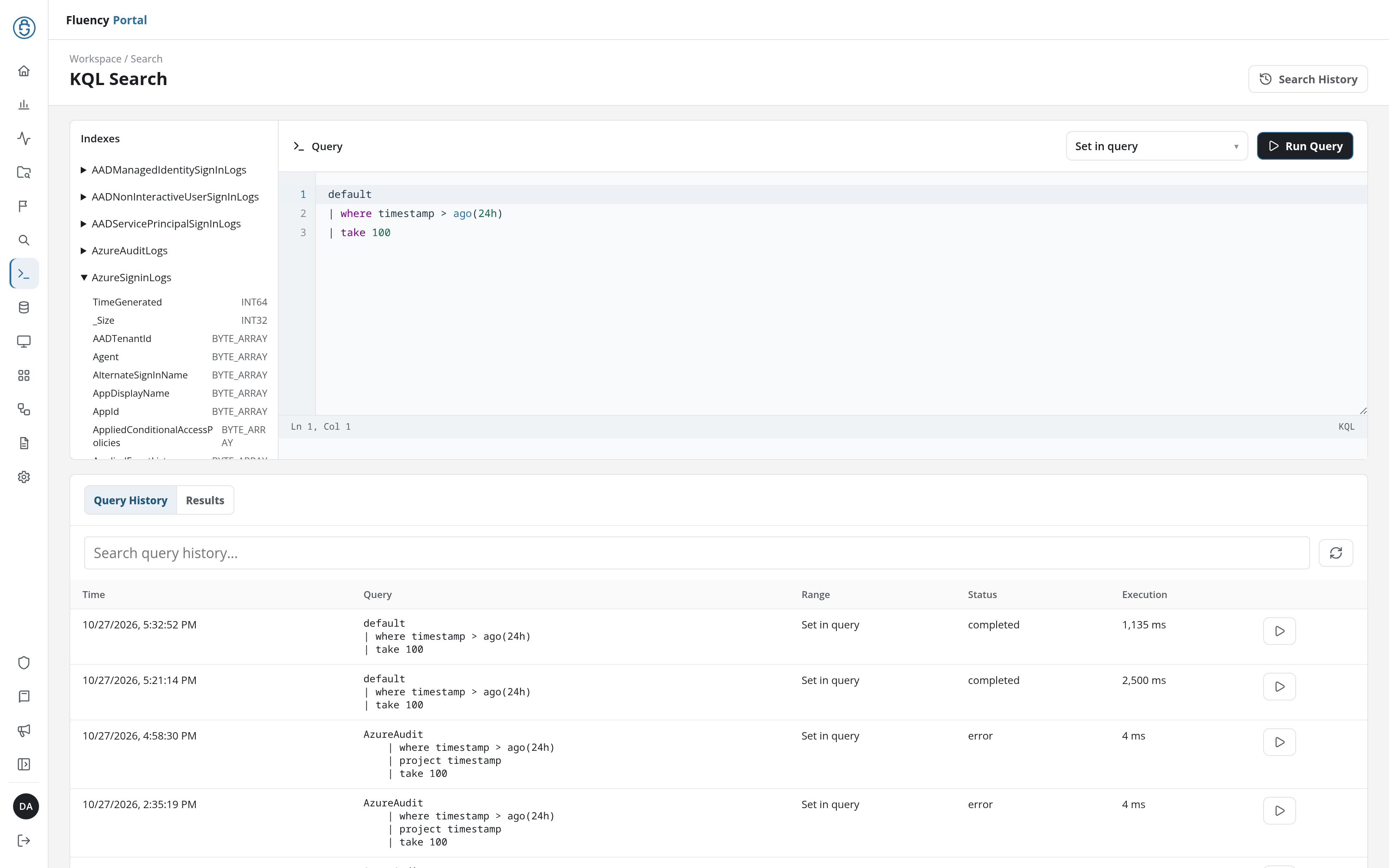
An expanded index lists its columns, each with its storage type on the right: INT64, INT32, BYTE_ARRAY, and so on. An index that uses the standard event layout instead shows Default event schema. Several indexes can be open at once; click a name again to collapse it.
The table names in the list are the names a query reads from. A table's schema is managed on Schemas.
Query
Time Range
The drop-down to the left of Run Query sets the time window the query runs over:
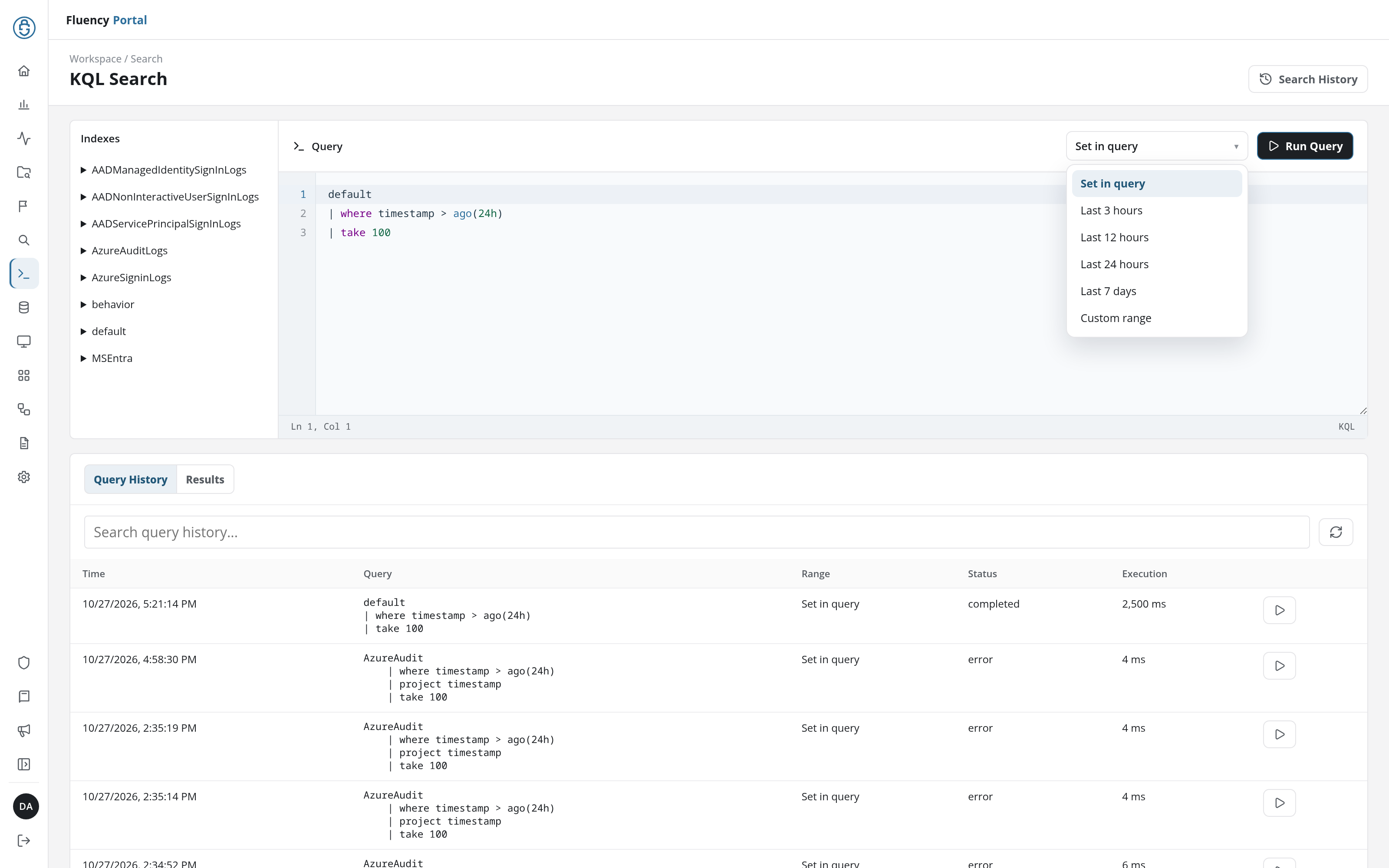
- Set in query (the default): no window is applied from outside; the query's own time filter, such as
where timestamp > ago(24h), decides. - Last 3 hours, Last 12 hours, Last 24 hours, Last 7 days: a window ending now.
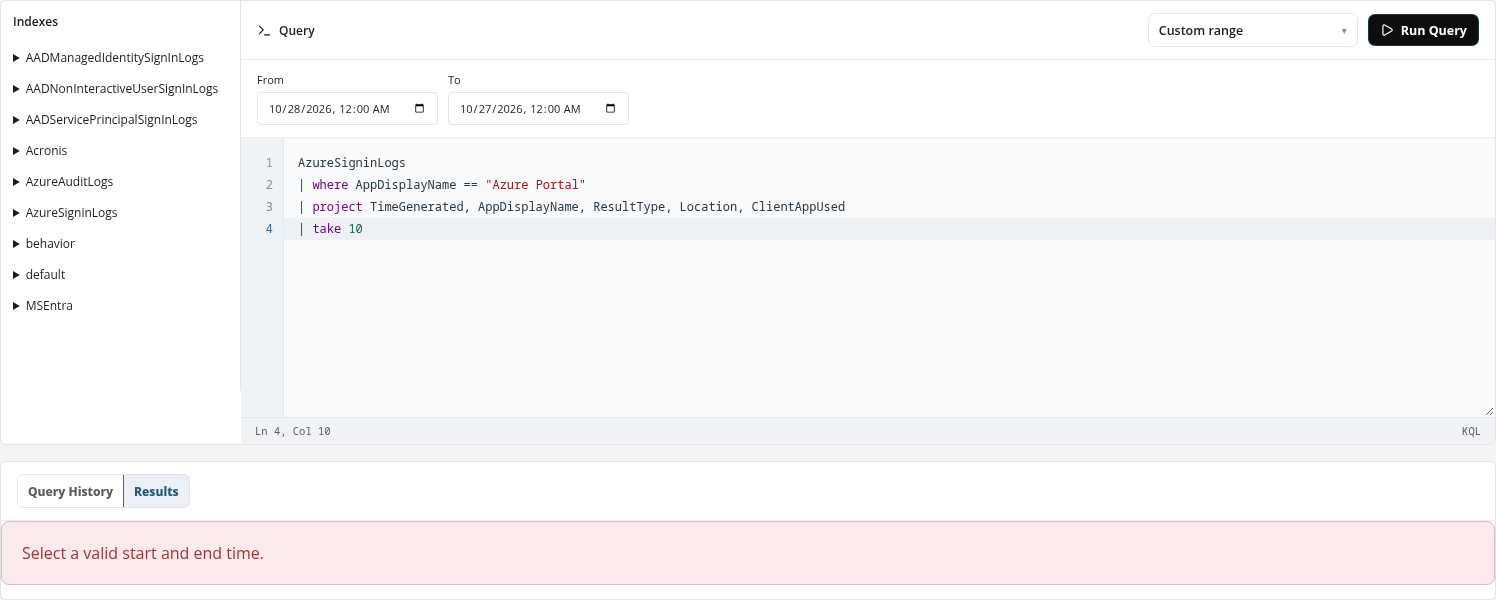
- Custom range: adds From and To date-and-time fields above the editor for a window of your own.
The From and To fields are both required and start empty; their times are in your browser's local time. Running the query with either one empty brings up the browser's own prompt to fill it in, and with To before From the Results tab reads Select a valid start and end time. instead of running the query:
Editor
The editor holds the KQL query, with line numbers, syntax highlighting, and the cursor position (Ln 1, Col 1) and language (KQL) in its status bar. It opens with a starter query:
default
| where timestamp > ago(24h)
| take 100
Drag the corner at its lower right to make the editor taller. The editor has no shortcut for running the query: Ctrl+Enter adds a new line.
Run Query
Run Query runs the query in the editor over the chosen time range and switches the bottom panel to the Results tab. It is unavailable (greyed out) while the editor is empty or holds only spaces. While the query runs, the button is replaced by Cancel, and the Results tab reads Searching...; Cancel stops the query.
Query History
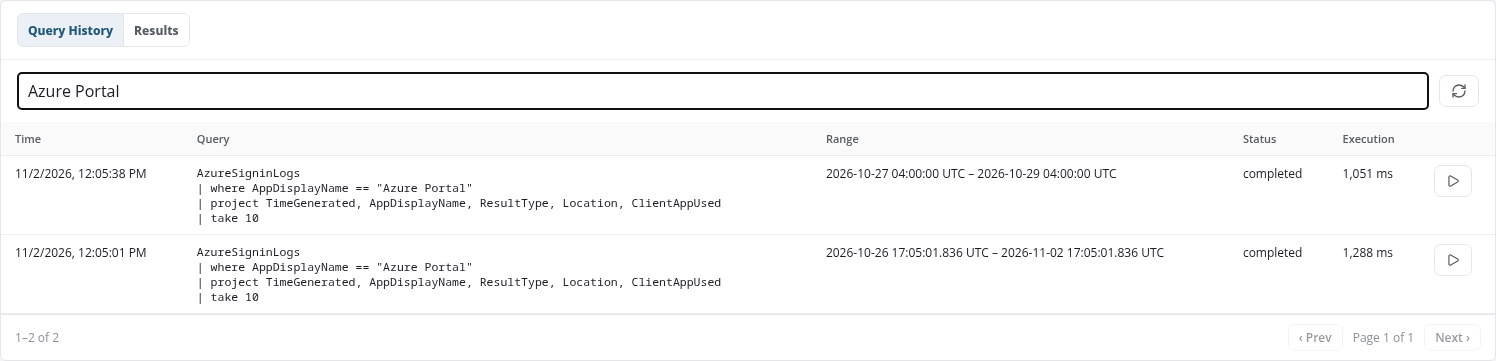
The Query History tab, shown when the page opens, lists the queries you have run, newest first. It holds your own queries only; KQL Search History lists every user's.
- Search query history...: a text field that filters the list as you type, on the query text and the status (
errorlists the failed queries). When nothing matches, the table reads No matching queries. - Refresh history: the circular-arrows button beside it, which reloads the list.
The table's columns are Time (when the query ran), Query (the query text), Range (the time range it ran with: Set in query, or for a preset or custom range the UTC window it searched, such as 2026-10-27 04:00:00 UTC – 2026-10-29 04:00:00 UTC), Status (completed or error), and Execution (how long it took, in milliseconds). The list shows 20 queries at a time; the line below it gives the rows shown and the page (1–20 of N · Page 1 of N), and ‹ Prev and Next › page through the list.
Rerun Query
The ▷ button at the end of each row (Rerun query) loads that query into the editor together with its time-range setting, runs it again, and switches to the Results tab. A query that ran over a preset reruns over the same preset ending now (a Last 7 days query searches the last seven days again); one that ran over a Custom range gets its From and To back. Every run, a rerun included, adds a row to the history.
Results
The Results tab shows the outcome of the last run. Before any query has run in the page, it reads No query results.
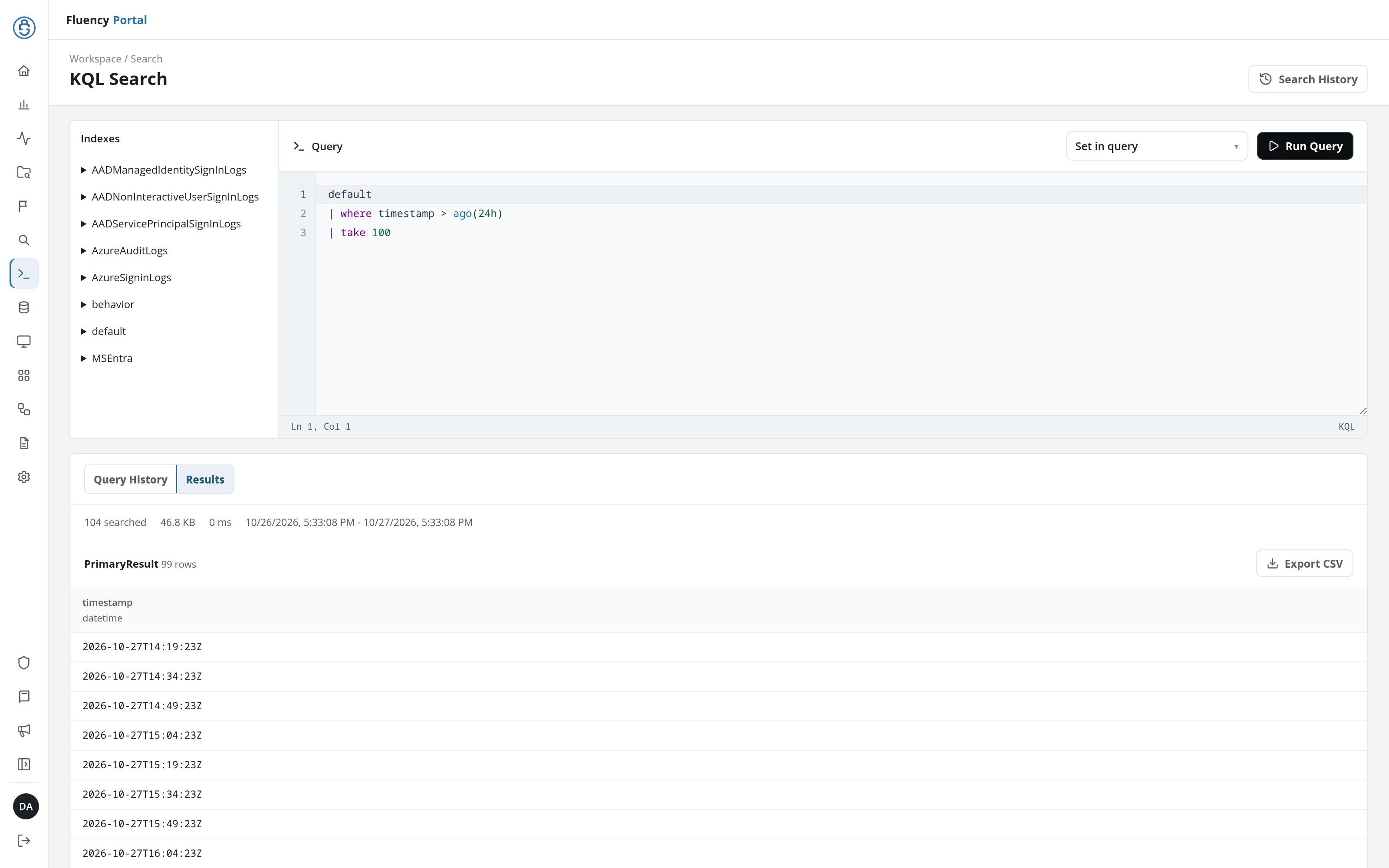
- Summary line: the number of records searched, the size of the data, a time in milliseconds, and the time window the query covered, in local time.
- Result table: headed by its name and row count (PrimaryResult 99 rows). Each column is headed by its name with its type beneath it (
timestamp/datetime), one row per returned record. - Export CSV: downloads the result table as a CSV file named after the table (
PrimaryResult.csv), with a header row of column names. - Paging: the table shows 20 rows at a time (1–20 of N), with ‹ Prev, the page number and Next › below it.
When a query fails, the tab shows the error in a red panel instead: for a syntax error, a table that does not exist, or a column the table does not have. A time filter on timestamp against an index with typed columns, such as AzureSigninLogs, fails this way, and the error names the index's own time column (TimeGenerated).