Data Policies
The Data Policies page lists the account's data policies. A data policy limits what a role can see in search results: for each data type it covers (resource, event, or metaflow), it can include or exclude fields, unmask fields and entities, and filter the documents returned. Data policies are given to users and tokens through roles, and can also be attached to an API token directly.
Menu path: Admin console → RBAC → Data Policies · URL path: /v2/admin/data-policies
Task guide: Managing Roles: what each role can do.
Page Layout
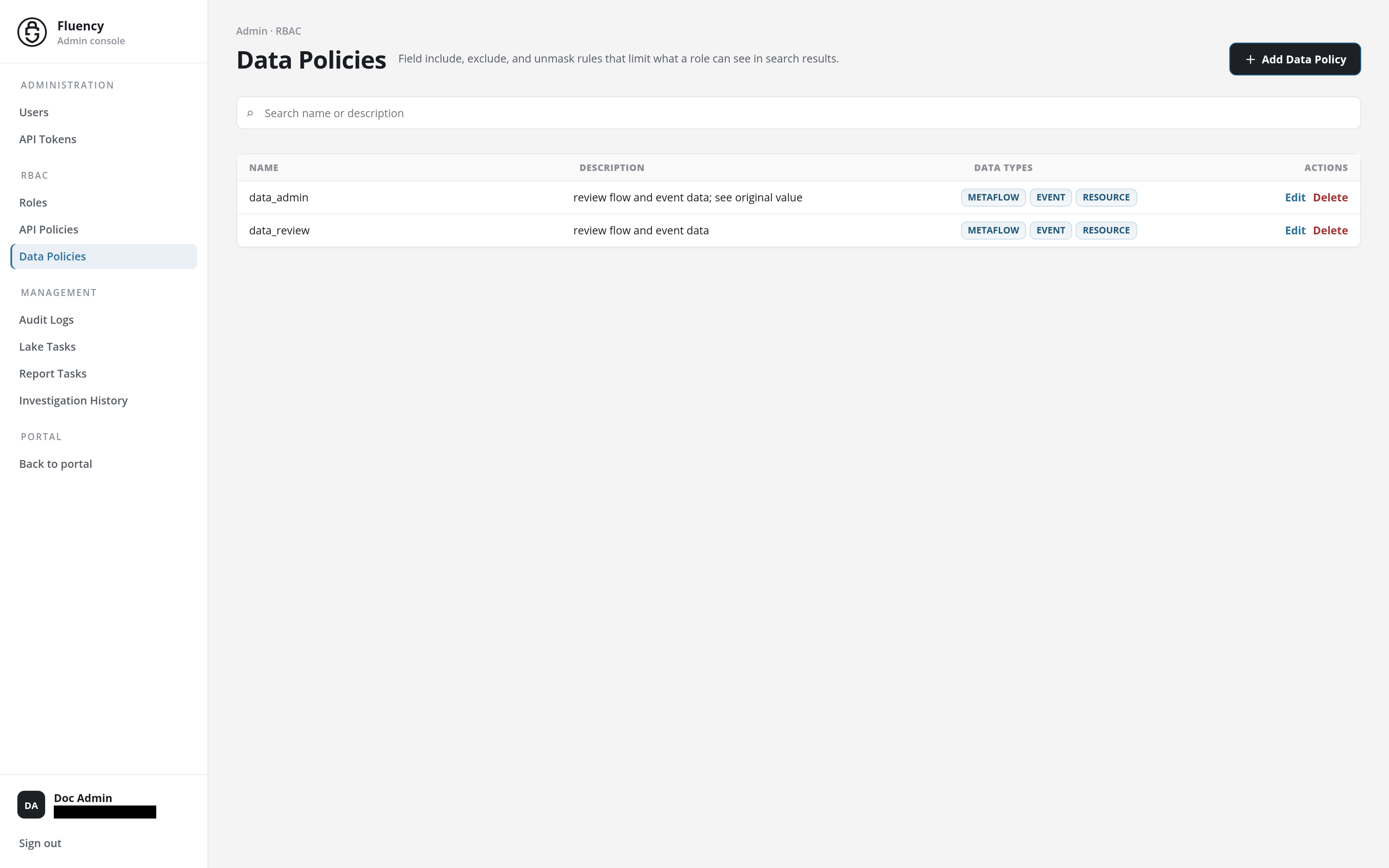
The page sits in the Admin console, with Data Policies highlighted under RBAC in the side navigation.
- Header: the breadcrumb Admin · RBAC, the title Data Policies with the subtitle Field include, exclude, and unmask rules that limit what a role can see in search results., and the + Add Data Policy button on the right.
- Search field: a full-width field with the placeholder Search name or description.
- Policies table: one row per data policy.
Search
Type in the Search name or description field to narrow the table to the policies whose name or description matches.
Policies Table
The table has four columns:
- Name: the policy's name.
- Description: the policy's description.
- Data Types: one chip per data type the policy has rules for: METAFLOW, EVENT, RESOURCE.
- Actions: Edit opens the policy in the Update Data Policy dialog; Delete removes the policy (see Delete a Data Policy).
In the example above, the account has two data policies, both covering all three data types:
- data_admin: review flow and event data; see original value.
- data_review: review flow and event data.
Add Data Policy
Click + Add Data Policy to open the Add Data Policy dialog.
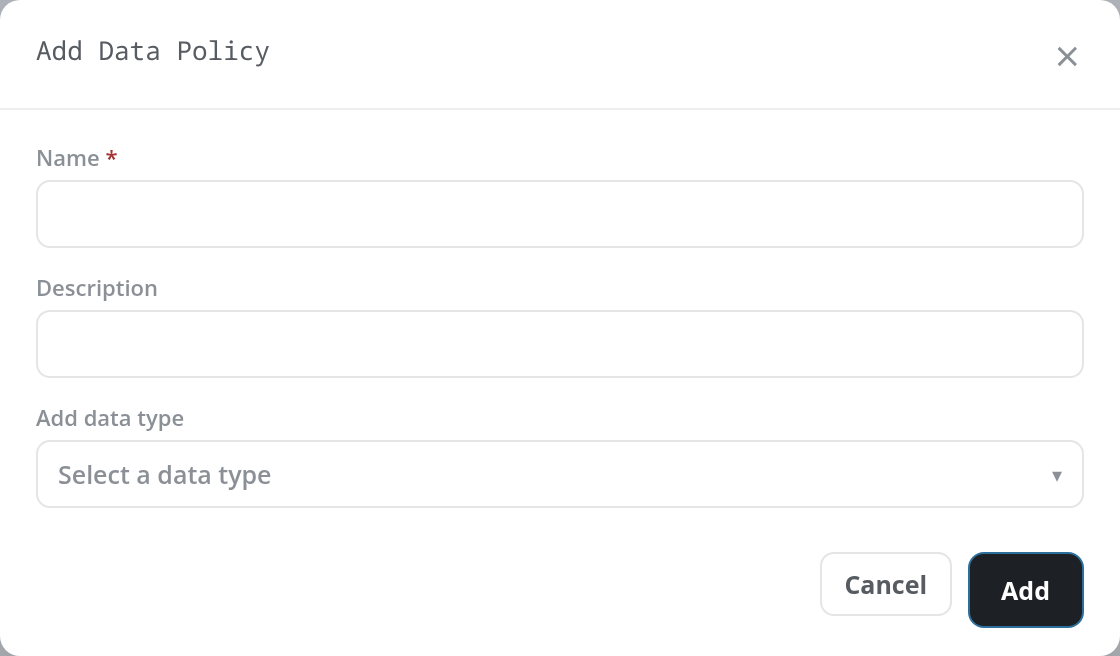
The dialog opens with three fields:
- Name (required): the policy's name.
- Description: optional free text.
- Add data type: a drop-down, Select a data type, offering resource, event, and metaflow.
Data Type Rules
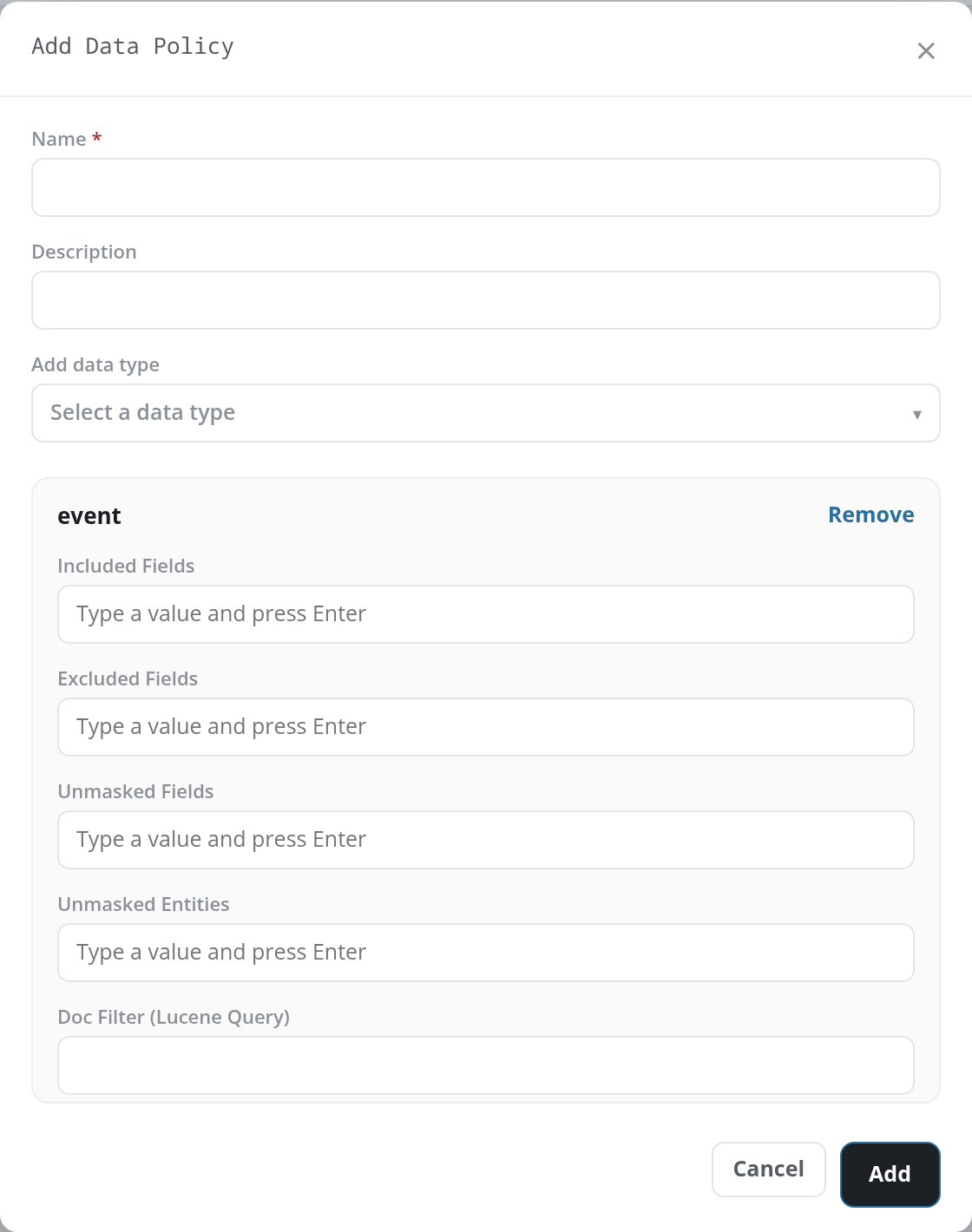
Picking a data type from Add data type adds a panel for it below the picker, titled with the data type and with a Remove link in its upper-right corner that takes the panel out again. Each panel holds the same five rules:
| Field | What it holds |
|---|---|
| Included Fields | Fields of this data type the policy shows. |
| Excluded Fields | Fields of this data type the policy hides. |
| Unmasked Fields | Fields whose original value the policy shows rather than a masked one. |
| Unmasked Entities | Entities whose original value the policy shows rather than a masked one. |
| Doc Filter (Lucene Query) | A Lucene query that limits which documents of this data type the policy returns. |
The four field lists take one value at a time: type a value and press Enter (the placeholder reads Type a value and press Enter). All five are optional.
Click Add to create the policy, or Cancel (or the × in the title bar) to close the dialog without saving.
Add refuses the policy, with the dialog left open and the reason in a red band at the top of the page, when Name is empty (Name is required.) or no data type has been added (dataTypes is empty): a policy needs at least one data type panel. When the policy is added, the dialog closes, the band reads Data Policy added successfully., and the policy is offered in the Data Policies lists of Add Role and Add API Token.
Update Data Policy
Click Edit on a row to open the Update Data Policy dialog for that policy. The Name field is read-only and the Description is filled in, followed by one panel per data type the policy covers, each with its Remove link and its five rules. The dialog body scrolls when the panels run past its height, and its Cancel and Update buttons stay at the bottom.
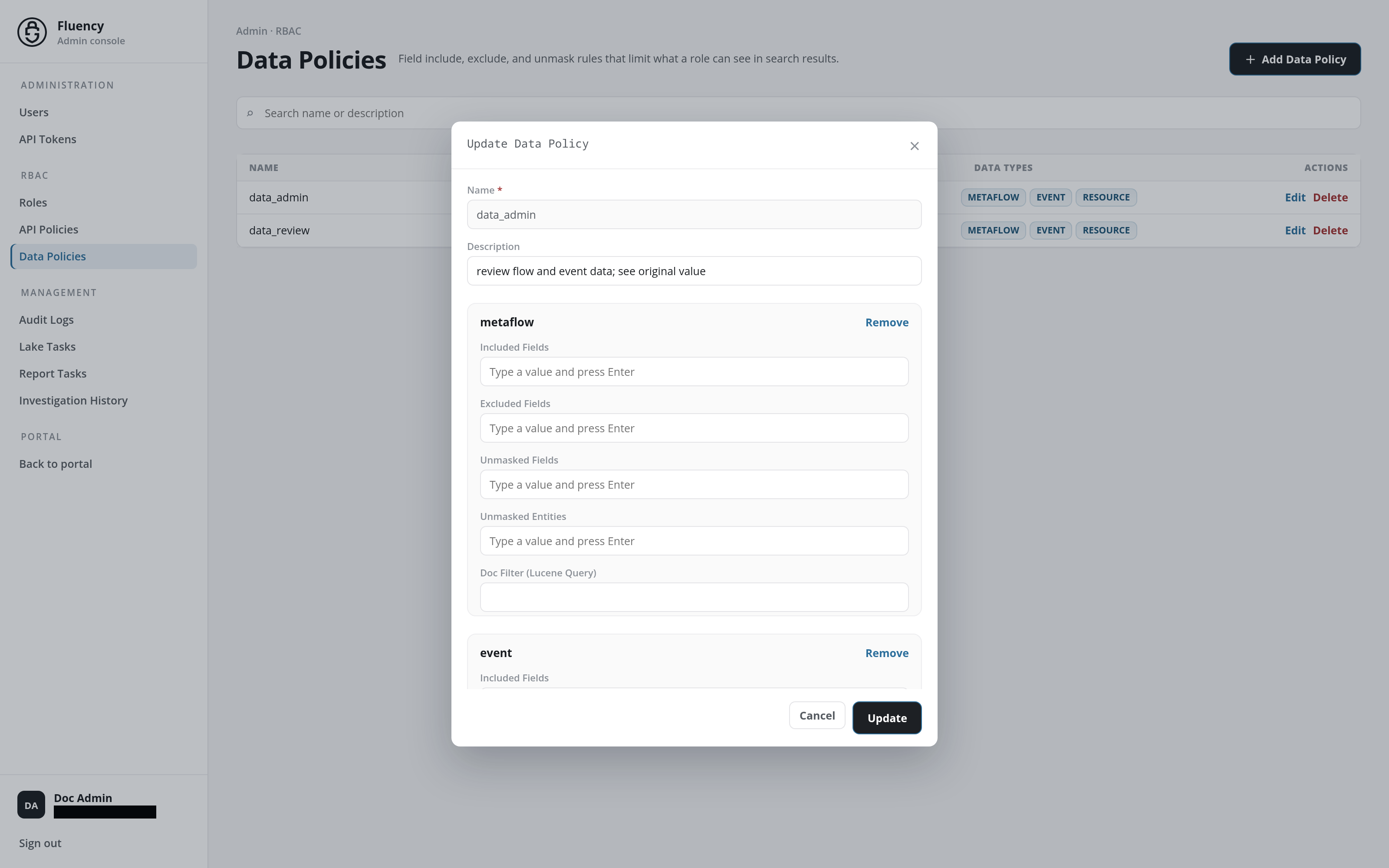
When a policy already covers every data type, as data_admin and data_review do, the dialog has no Add data type picker. Click Update to save the changes, or Cancel to close the dialog without saving. A saved change reports Data Policy updated successfully.
Delete a Data Policy
A row's Delete action deletes the policy. A confirmation titled Delete Data Policy asks Are you sure you want to delete followed by the policy's name; accept it to delete the policy, or cancel to keep it. A deleted policy leaves the table, and the band at the top of the page reads Data Policy deleted successfully. Take the policy off the roles and tokens that carry it first, on Roles and API Tokens.