Behavior Rules
The Behavior Rules page lists the behavior detection rules in the account: the rules that score entity behavior and raise behaviors from matching events. From here you can search, filter, and sort the rule list, choose which columns it shows, open any rule in a detail panel, create a rule, edit or delete the rules of your own, and open the Behavior Filters page that holds the rules' exceptions.
Menu path: Configuration → Behavior Rules · URL path: /v2/configuration/behavior-rules
Task guide: Creating a Behavior Rule: building a rule step by step; Managing Rules: cloning, deactivating, and tuning rules.
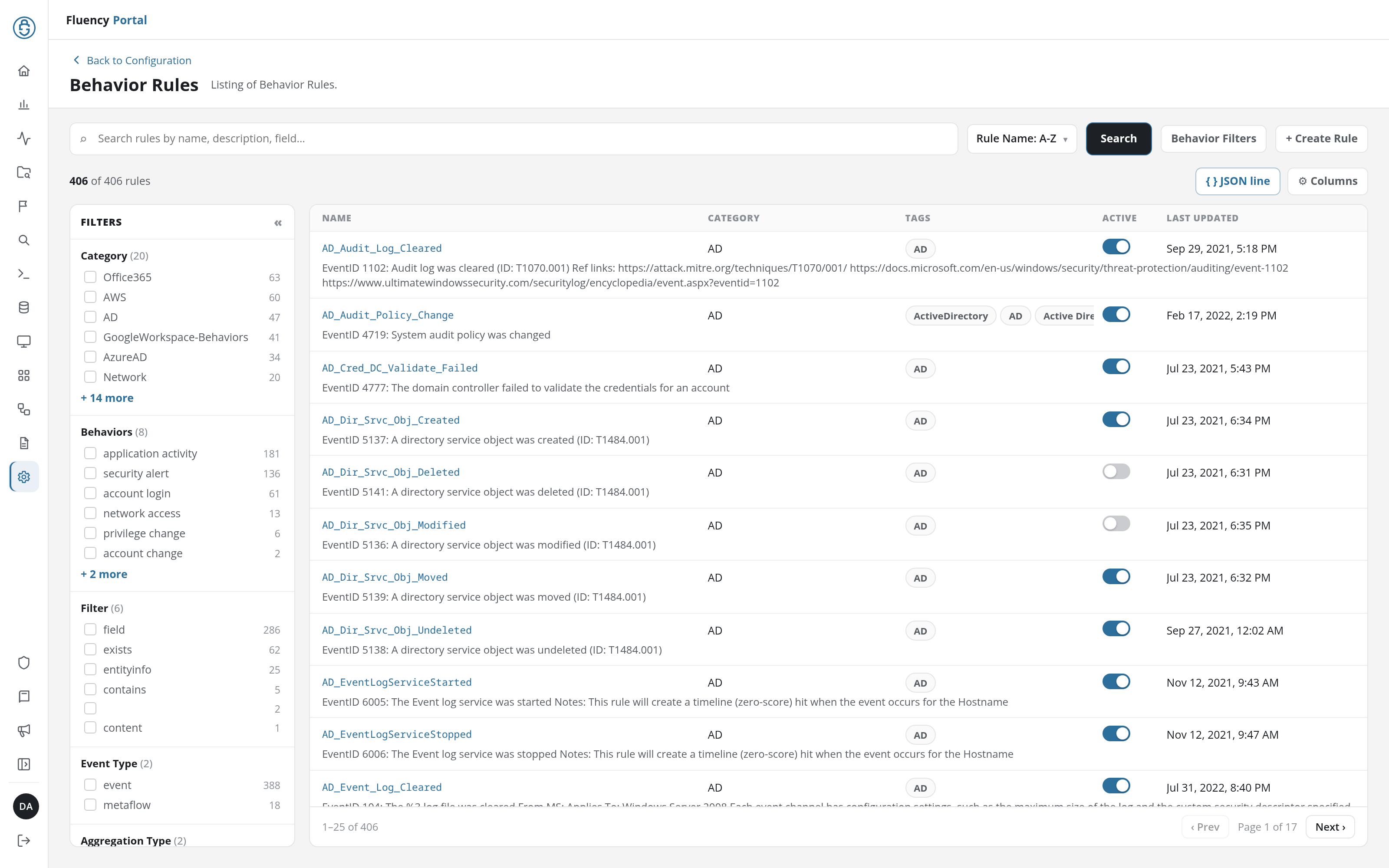
Page Layout
- Header: a Back to Configuration link above the title Behavior Rules and the subtitle Listing of Behavior Rules.
- Search bar: a full-width search field (placeholder Search rules by name, description, field…), the sort drop-down, and the Search, Behavior Filters, and + Create Rule buttons.
- List toolbar: the rule count on the left (for example 395 of 395 rules), and the JSON line and ⚙ Columns buttons on the right.
- Filters panel (left): groups of checkbox facets for narrowing the rule list.
- Rule table (right): one row per rule, with pagination underneath.
Search and Sort
Type in the search field and press Enter or click Search to filter the rule list to the rules whose name, description, or fields match. When no rule matches, the table reads No behavior rules match this search. and each filter group No values in this window. The drop-down beside the field orders the list:
- Rule Name: A-Z: alphabetical by rule name; the order the page opens with.
- Rule Name: Z-A: reverse alphabetical.
- Last Updated: the most recently updated rules first.
Filters Panel
The FILTERS panel groups the rules by attribute. Each group heading shows how many distinct values it has, and each value is a checkbox with the number of rules that carry it:
| Group | Example values |
|---|---|
| Category | Office365, AWS, AD, GoogleWorkspace-Behaviors, AzureAD, Network |
| Behaviors | application activity, security alert, account login, network access, privilege change, account change |
| Filter | field, exists, entityinfo, contains |
| Event Type | event, metaflow |
| Aggregation Type | first, aggregation |
| Tags | O365, AD, GoogleWorkspace, GSuite, sigma, AWS |
| Repository | Fluency |
| Disabled | false, true |
A group shows its most common values first; a + N more link under the list reveals the rest, and Show less hides them again. The « button in the panel's header collapses the panel to give the table the full width; » FILTERS opens it again.
Ticking a value narrows the table to the rules that carry it and adds a chip for it above the table, such as Category: AWS ×, with a Clear all button. A chip's × removes that filter; Clear all removes them all.
List Toolbar
JSON Line
JSON line shows or hides a line of each rule's raw JSON definition beneath its description in the table. The button is highlighted while the JSON lines are shown. The lines are shown when the page is first opened in a browser; the browser remembers the choice, which applies to the JSON line button on Notable Events and Cases Search as well.
Columns
⚙ Columns opens a checklist of the table's columns. Ticking or clearing an entry shows or hides that column at once.
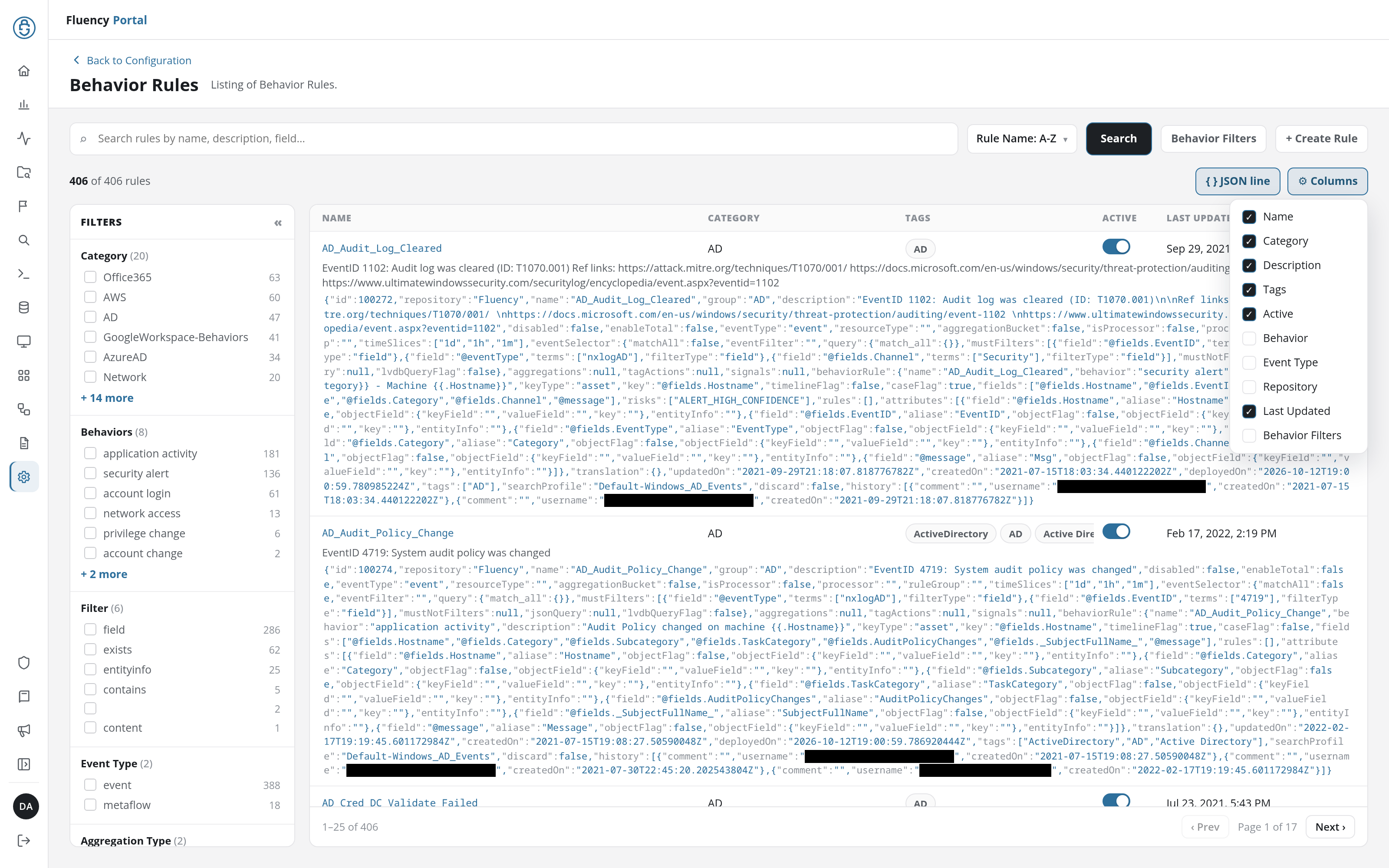
| Column | Shown by default |
|---|---|
| Name | Yes |
| Category | Yes |
| Description | Yes, as a line beneath the rule's name |
| Tags | Yes |
| Active | Yes |
| Behavior | No |
| Event Type | No |
| Repository | No |
| Last Updated | Yes |
| Behavior Filters | No |
Rule Table
Each row is one rule. With the default columns it shows the rule's Name, Category, Tags as chips, an Active switch, and Last Updated date and time, with the rule's description on a second line. Twenty-five rules are listed per page; the footer reports the range shown (for example 1–25 of 395) and the current page, with ‹ Prev and Next › buttons to move between pages.
Active Switch
The Active switch enables or disables the rule. A blue switch is on; a grey switch is off. Flipping it saves the change immediately; there is no separate save step. A green notice confirms it: Eventwatch Bucket Status Updated for <rule name>.
Rule Detail Panel
Click a rule's row to open its detail panel, which slides in over the right half of the page.
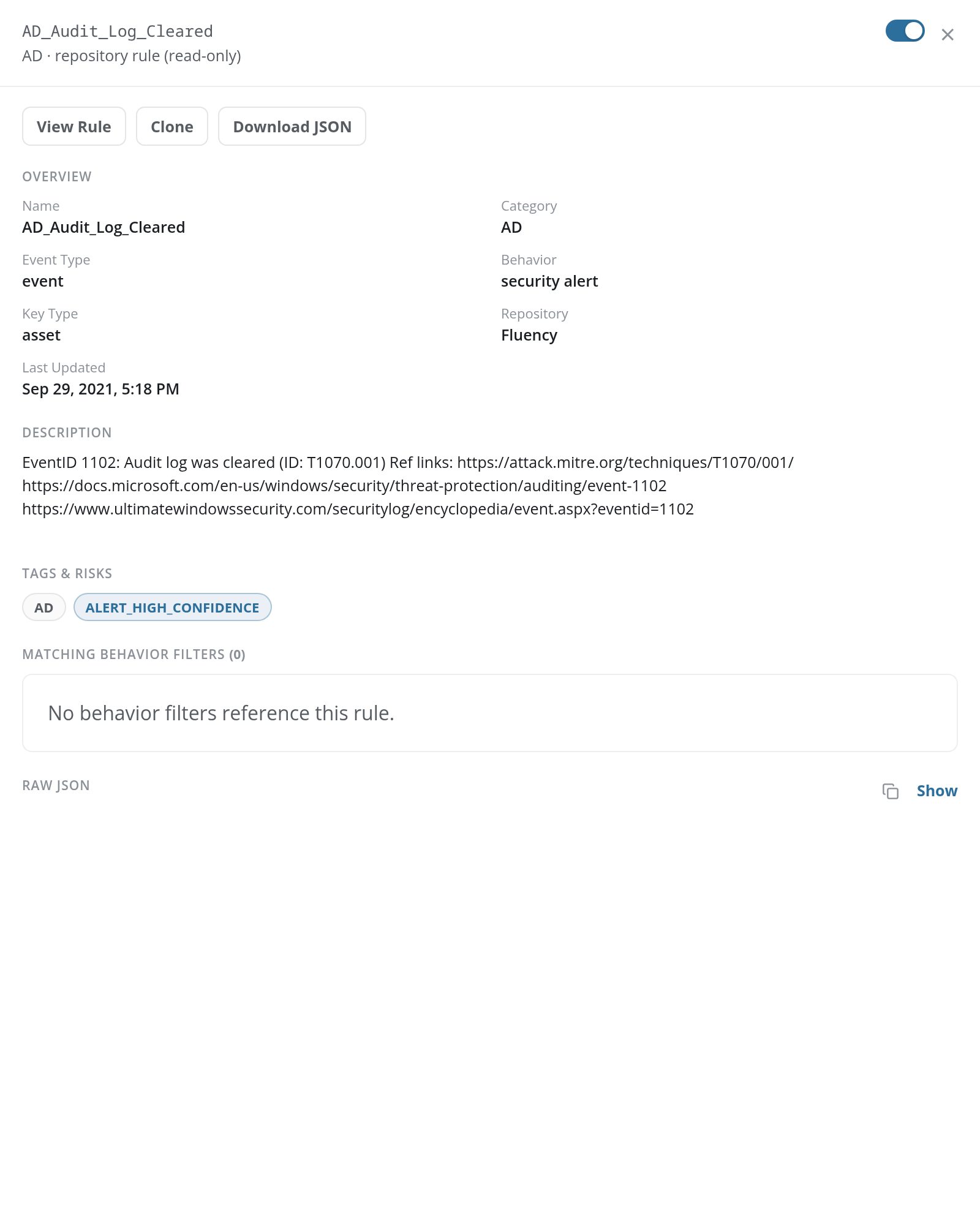
- Header: the rule's name, with its category and the rule's origin beneath it, repository rule (read-only) for a rule supplied by a repository such as Fluency. On the right are the rule's on/off switch, which works like the table's Active switch, and the × that closes the panel.
- View Rule: opens the rule itself.
- Clone: starts a new rule from a copy of this one: the Add Behavior Rule wizard opens with the name
<rule name>_cloneand the rule's description, tags, and event type; Bucket Category starts empty. - Download JSON: saves the rule's JSON definition as
<rule name>.json, and a green notice reads JSON File Downloaded. - OVERVIEW: Name, Category, Event Type, Behavior, Key Type (for example
assetorusername), Aggregation Type when the rule has one, Repository, and Last Updated. - DESCRIPTION: the rule's full description, including any reference links.
- TAGS & RISKS: the rule's tags, followed by its risk labels highlighted in blue (for example
ALERT_HIGH_CONFIDENCE). - MATCHING BEHAVIOR FILTERS: the number of behavior filters that reference the rule, and a list of them; No behavior filters reference this rule. when there are none.
- RAW JSON: the rule's JSON definition, collapsed. Show expands it, and the copy icon beside it copies the JSON to the clipboard.
A rule of your own, created on this account rather than supplied by a repository, has no origin line under its category and no Repository row in OVERVIEW. Its buttons are Edit, Clone, Download JSON, and a red Delete:
- Edit: opens the rule in the Update Behavior Rule wizard.
- Delete: asks Are you sure you want to delete the behavior rule <rule name>? Once the rule is deleted, the panel closes, a green notice reads Successfully deleted behavior rule, and the rule leaves the table.
Create Rule
Click + Create Rule to open the Add Behavior Rule dialog: Define the bucket, how events are selected, and the activity that raises a behavior. The dialog is a three-step wizard whose steps are shown across the top: 01 Bucket Definition, 02 Selection Criteria, and 03 Activity Performed.
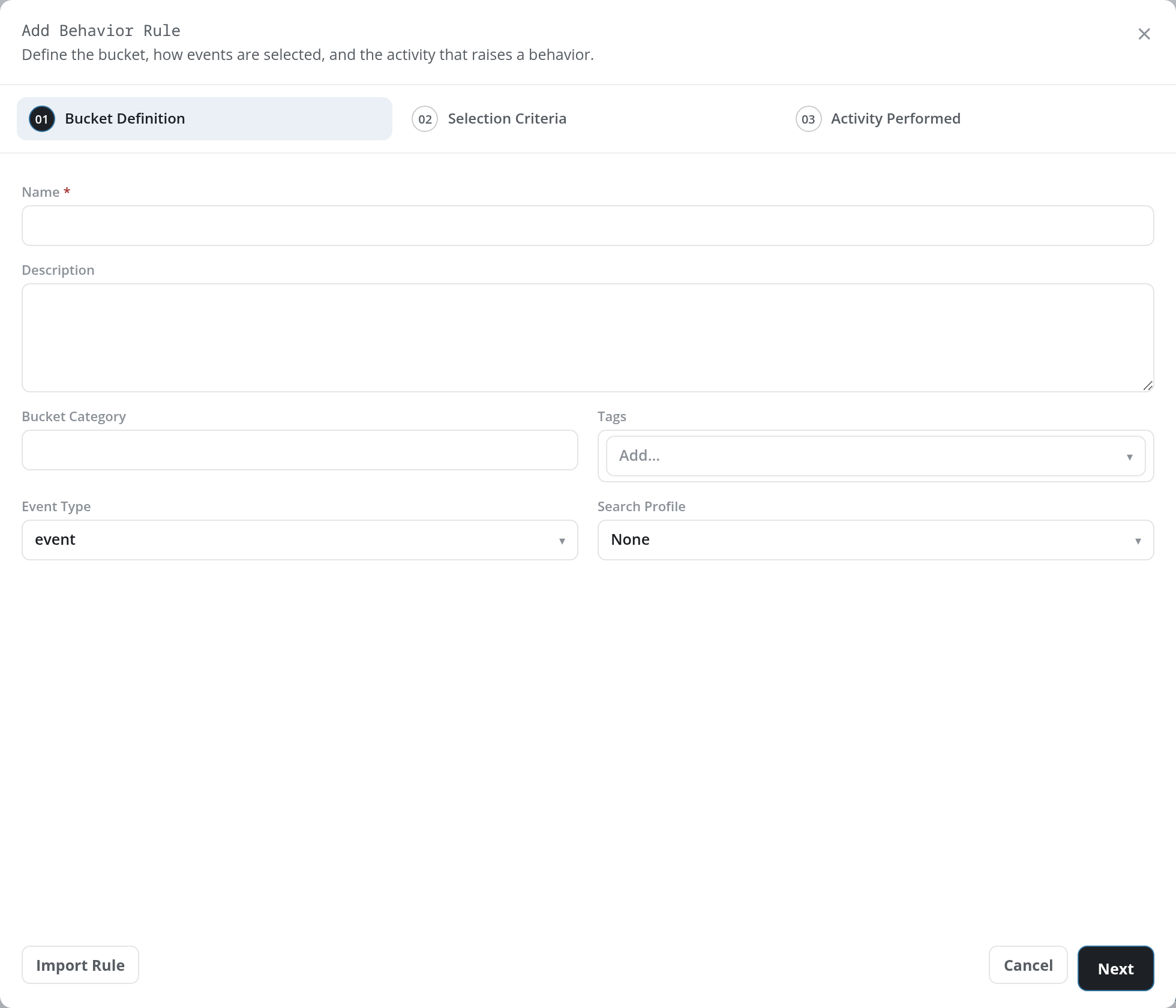
The Bucket Definition step contains:
- Name: required; letters, digits,
_and-only. Next refuses an empty name, or one with any other character such as a space, with Name is required and should contain only alphanumeric, _, - characters. - Description: multi-line text.
- Bucket Category: free text.
- Tags: a multi-select list (Add…) of tags, such as AD, AWS, AzureAD, CrowdStrike, and EntraID.
- Event Type: a drop-down preset to event; the options are metaflow, event, and resource. Choosing resource adds a Resource Type drop-down (preset to None) below.
- Search Profile: a drop-down preset to None, listing the saved event search profiles (see Search Facets), for example Default-SentinelOne, Default-O365_Exchange, and Default-AzureAD_SignIn.
At the bottom of the dialog, Import Rule loads an existing rule definition instead of building one field by field, Cancel closes the dialog, and Next moves to the next step. The × in the upper-right corner also closes the dialog. Once a step is passed, its number across the top turns into a check mark (✓ Bucket Definition).
Selection Criteria
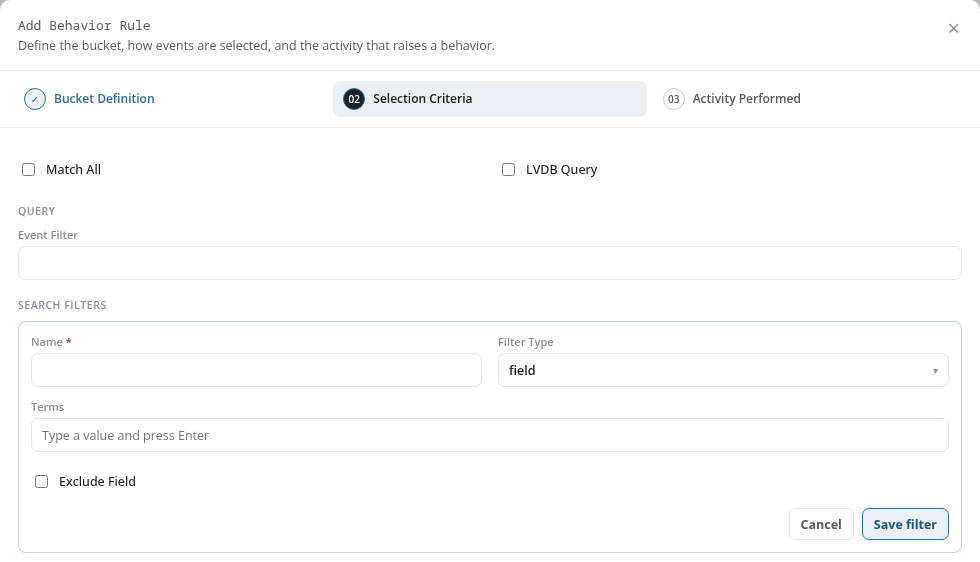
The Selection Criteria step chooses the events the rule reads:
- Match All: a checkbox, unticked.
- LVDB Query: a checkbox, unticked.
- Event Filter, under QUERY: a text field for a selection query.
- SEARCH FILTERS: the rule's search filters, one row each, and an + Add Search Filter button.
+ Add Search Filter opens the filter's editor in the step itself:
- Name: required; the event field the filter tests, such as
@fields.Operation. - Filter Type: a drop-down preset to field; the options are content, contains, startswith, endswith, regexp, field, entityinfo, exists, and feed.
- Terms: the values to match (Type a value and press Enter). Each value becomes a chip with an × that removes it.
- Exclude Field: a checkbox, unticked.
Save filter adds the filter to the list; it needs a field name and at least one term. Cancel closes the editor without adding one. While the editor is open, Next is greyed out. A saved filter reads as a sentence, for example @fields.Operation must be FilePreviewed OR FileDownloaded, with Edit and Delete at its right. Back returns to the previous step; Next moves on, with or without filters.
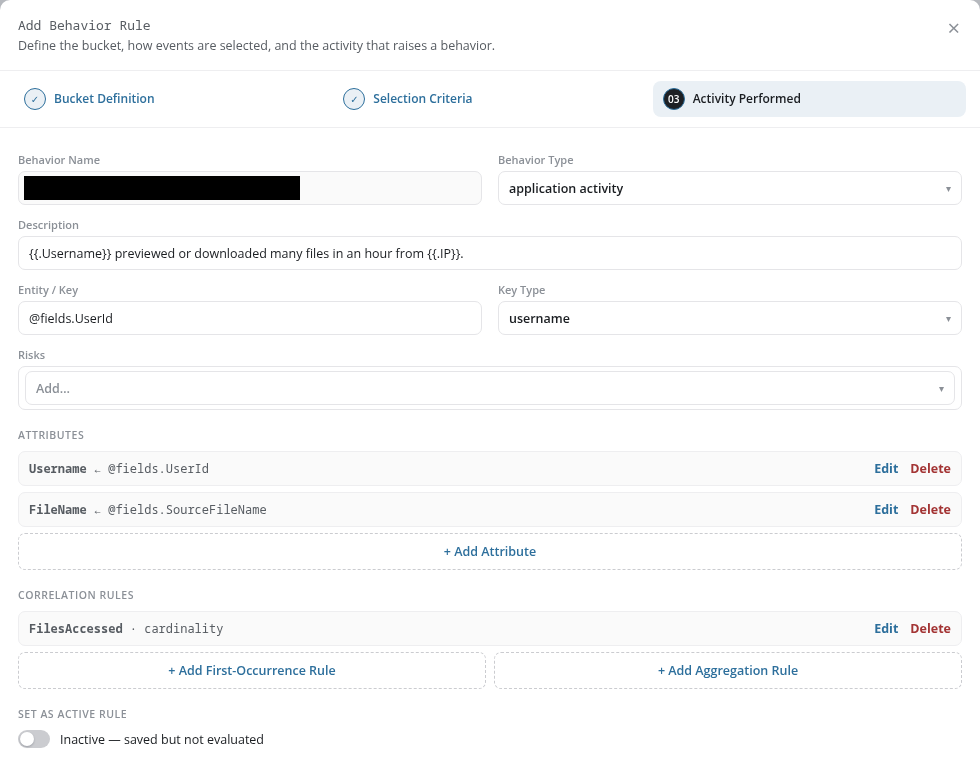
Activity Performed
The Activity Performed step defines the behavior the rule raises:
| Field | Control | Default |
|---|---|---|
| Behavior Name | The rule's name, read-only. | |
| Behavior Type | Required. A drop-down: network access, account login, application activity, or security alert. The rule is not saved without one. | Select a behavior… |
| Description | Free text. It can refer to an attribute by its alias, as {{.Username}}. | Empty |
| Entity / Key | The event field that identifies the entity, such as @fields.UserId. | Empty |
| Key Type | A drop-down: username, asset, ip, mac address, application, and further key types such as AD_AUTO and SentinelOne.AgentID. | username |
| Risks | A multi-select list (Add…) of risk labels. | None |
Below the fields, three sections:
- ATTRIBUTES: the event fields recorded with each behavior. + Add Attribute opens an editor with Field (the event field) and Alias (the name it is shown under), both required, and Cancel and Save attribute; with either left empty, Save attribute reports Field is required · Alias for field is required. A saved attribute reads
<alias> ← <field>, for exampleUsername ← @fields.UserId, with Edit and Delete. - CORRELATION RULES: + Add First-Occurrence Rule and + Add Aggregation Rule, each opening an editor described below. A saved correlation rule reads
<name> · <type>, for exampleFilesAccessed · cardinality, with Edit and Delete. - SET AS ACTIVE RULE: a switch, on by default and labelled Active. Turned off, it reads Inactive (saved but not evaluated): the rule is saved but the platform does not evaluate it until it is switched on.
While an attribute or correlation-rule editor is open, Save is greyed out. Back returns to the previous step.
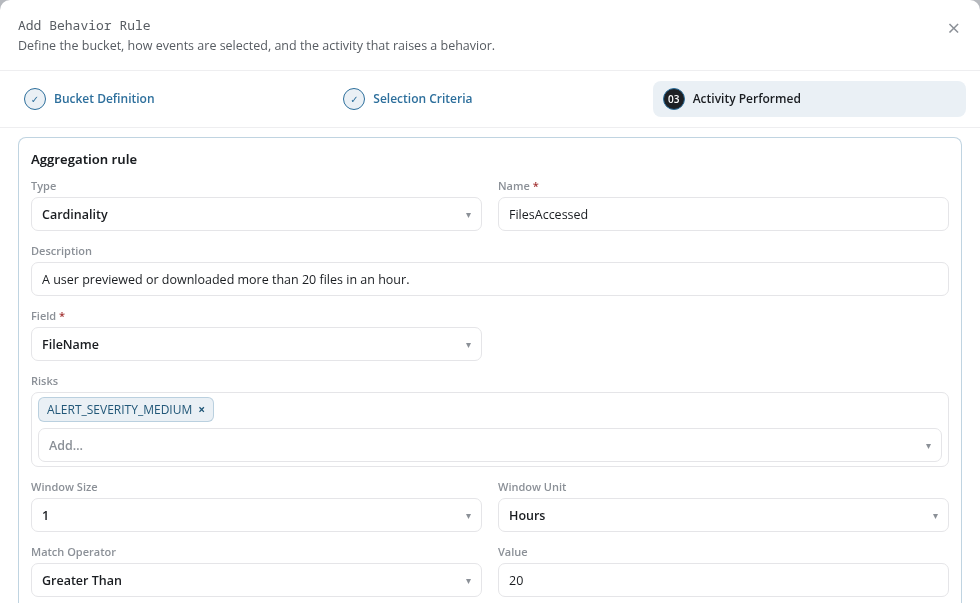
Aggregation Rule
+ Add Aggregation Rule opens the Aggregation rule editor, for a rule that triggers when an aggregate of the entity's events crosses a value within a window:
| Field | Control | Default |
|---|---|---|
| Type | Count, Sum, or Cardinality. | Sum |
| Name | Required. Text. | Empty |
| Description | Text. | Empty |
| Field | Required. A drop-down of __SIZE__ and the aliases of the attributes already added. | Select a field… |
| Risks | A multi-select list of risk labels, such as ALERT_SEVERITY_MEDIUM. | None |
| Window Size | 1, 5, 10, 15, or 30. | 1 |
| Window Unit | Minutes, Hours, or Days. | Hours |
| Match Operator | Greater Than, Less Than, or Between. | Greater Than |
| Value | A number. | 0 |
Save rule adds it to CORRELATION RULES; with the name or field missing, it reports Name is required · Field is required. Cancel closes the editor without adding the rule.
First-Occurrence Rule
+ Add First-Occurrence Rule opens the First-occurrence rule editor, for a rule that triggers when a value is seen for the first time:
- Name: required.
- Fields: required; the fields whose values are tracked (Type a value and press Enter).
- Risks: a multi-select list of risk labels.
- Global Scope, Local Scope, and Entity Scope: checkboxes; only Local Scope is ticked by default.
- Window Size (default 10) and Window Unit (default Days), with the same options as for an aggregation rule.
Save rule adds it; with the name or fields missing, it reports Name is required · At least one field is required. Cancel closes the editor only, not the wizard.
Saving the Rule
Save, on the Activity Performed step, creates the rule. Once it is saved, the dialog closes, a green notice reads Successfully added behavior rule, and the rule joins the table, active or inactive as SET AS ACTIVE RULE was set.
Update Behavior Rule
Edit, in the detail panel of a rule of your own, opens the same three steps as Update Behavior Rule, filled in from the rule. Name is read-only; the other fields can be changed. The first step has no Import Rule; Cancel closes the wizard and Next moves on. The last step has Back and Save, and no Cancel.
Behavior Filters
Click Behavior Filters to open the Behavior Filters page (/v2/configuration/behavior-filters), which lists the exceptions applied to behavior rules.
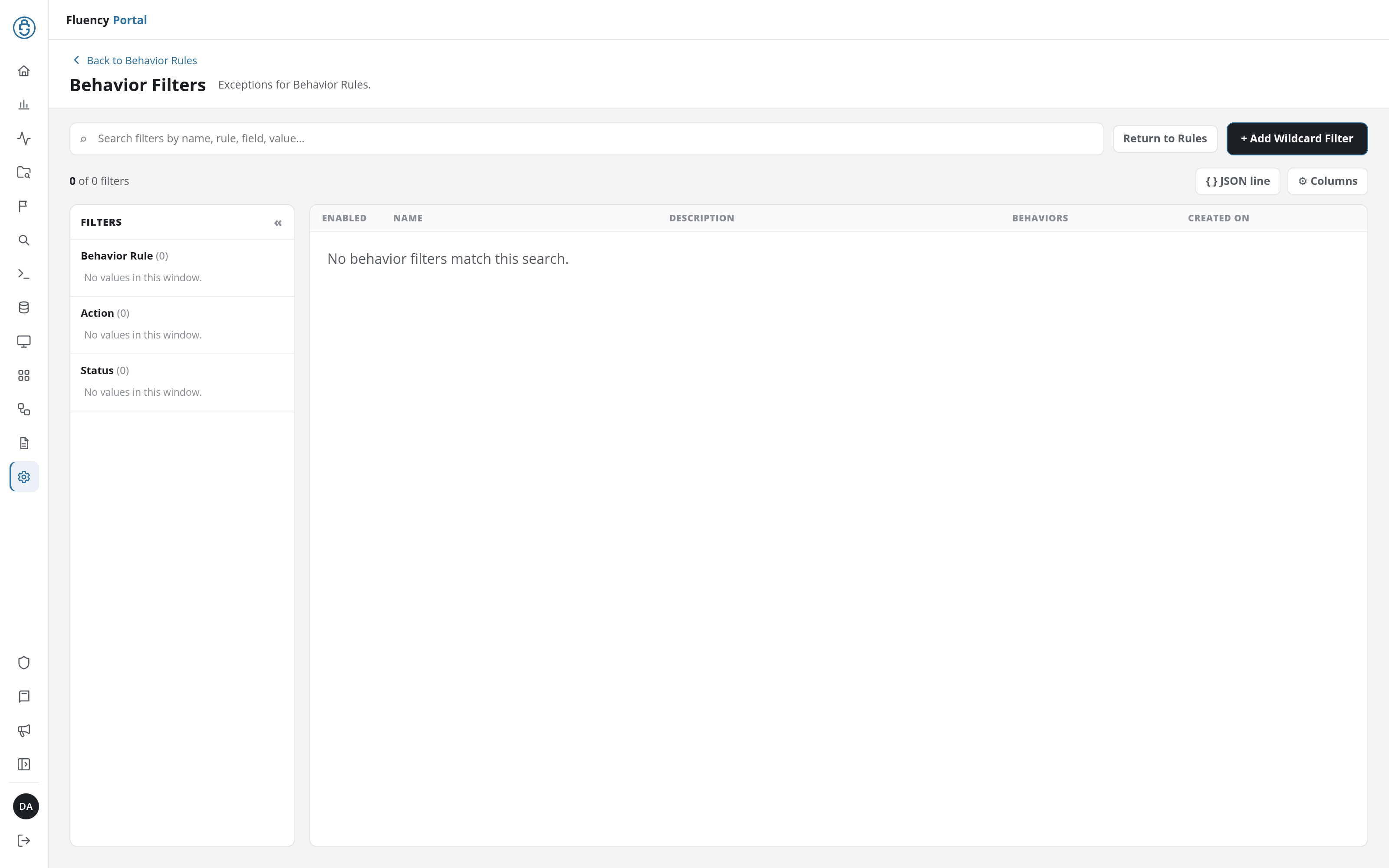
The page is laid out like Behavior Rules:
- A Back to Behavior Rules link above the title Behavior Filters and the subtitle Exceptions for Behavior Rules.
- A search field (placeholder Search filters by name, rule, field, value…), a Return to Rules button that goes back to the Behavior Rules page, and + Add Wildcard Filter, which creates a new filter (see Add Wildcard Filter).
- The filter count (for example 0 of 0 filters) with JSON line and ⚙ Columns buttons (see Filter Columns).
- A FILTERS panel with Behavior Rule, Action, and Status groups. A group with no values reads No values in this window.
- A table with ENABLED, NAME, DESCRIPTION, BEHAVIORS, and CREATED ON columns. When the account has no filters, the table reads No behavior filters match this search.
Filter Columns
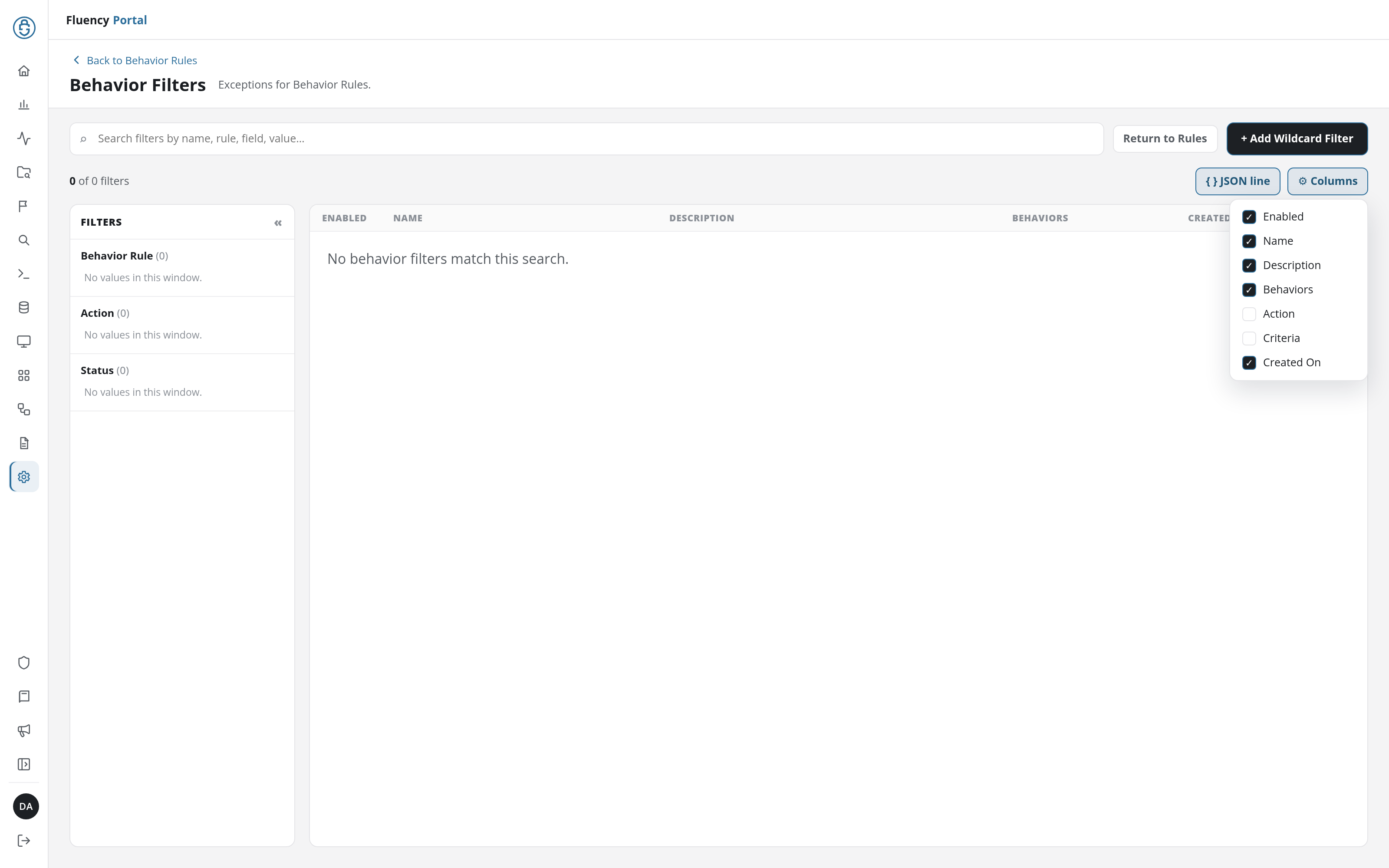
⚙ Columns on the Behavior Filters page opens a checklist of the filter table's columns, two of which are hidden by default:
| Column | Shown by default |
|---|---|
| Enabled | Yes |
| Name | Yes |
| Description | Yes |
| Behaviors | Yes |
| Action | No |
| Criteria | No |
| Created On | Yes |
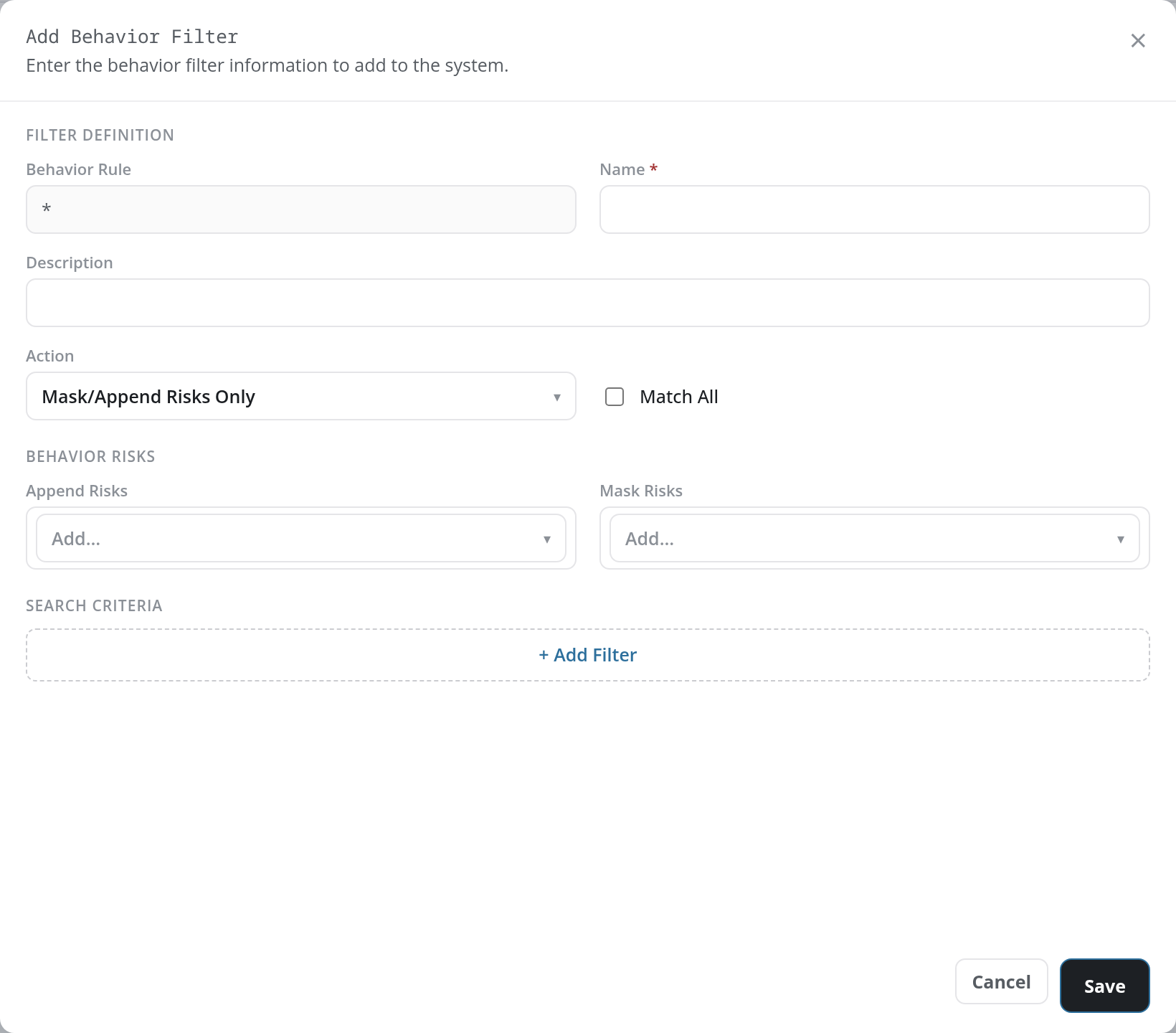
Add Wildcard Filter
+ Add Wildcard Filter opens the Add Behavior Filter dialog: Enter the behavior filter information to add to the system. It has three sections:
- FILTER DEFINITION
- Behavior Rule: greyed out, showing
*. - Name: required.
- Description: free text.
- Action: a drop-down preset to Mask/Append Risks Only; the other option is Discard Matching Event.
- Match All: a checkbox, unticked.
- Behavior Rule: greyed out, showing
- BEHAVIOR RISKS: two multi-select lists (Add…): Append Risks and Mask Risks.
- SEARCH CRITERIA: an + Add Filter button.
The dialog ends with Cancel and Save; the × in its upper-right corner closes it. Save needs a name and at least one search criterion; with neither, it reports both at once: Filter Name is required · At least one search criteria is required.