Application Templates
The Application Templates page lists the YAML templates that applications are installed from. Each template describes one application: its display name, catalog category, icon, the parameters its install form asks for, and the pipeline objects it creates. From here you can look a template up, read its YAML, create a new template, or delete one.
Menu path: Configuration → Application Templates · URL path: /v2/configuration/application-templates
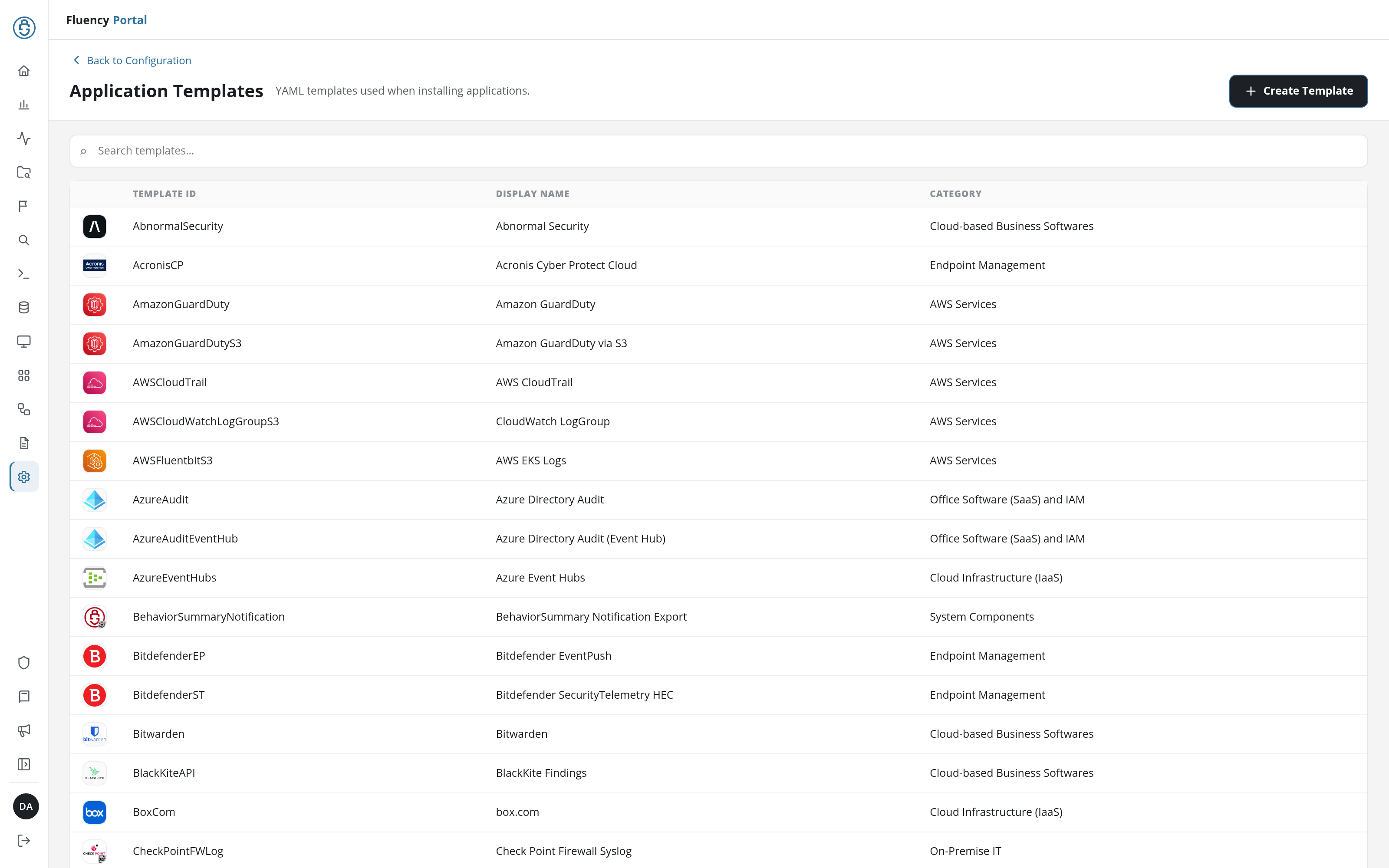
Page Layout
- Header: a Back to Configuration link above the title Application Templates and the subtitle YAML templates used when installing applications, with a + Create Template button on the right.
- Search field: a full-width field with the placeholder Search templates….
- Template table: one row per template, in a single scrolling list.
Template Table
| Column | Contents |
|---|---|
| (unlabelled) | The template's icon. |
| Template ID | The template's identifier, such as AWSCloudWatchLogGroupS3. Rows are sorted by this column, ignoring case. |
| Display Name | The name the application is shown under when it is installed, such as CloudWatch LogGroup. |
| Category | The catalog category the template belongs to, such as AWS Services, Endpoint Management, On-Premise IT, or System Components. |
The Template ID and the Display Name often differ: AWSFluentbitS3 is AWS EKS Logs, GSuite is Google Workspace (OAuth), and FluencyMetaflow is Normalized Metaflow; and the ID is the name used in the template's YAML. Type in the search field to narrow the table to matching templates; with no match, the table reads No application templates match this search.
View a Template
Click a row to open the template in the Editing TemplateID Application Template dialog. Its YAML Template field shows the whole template, read-only.
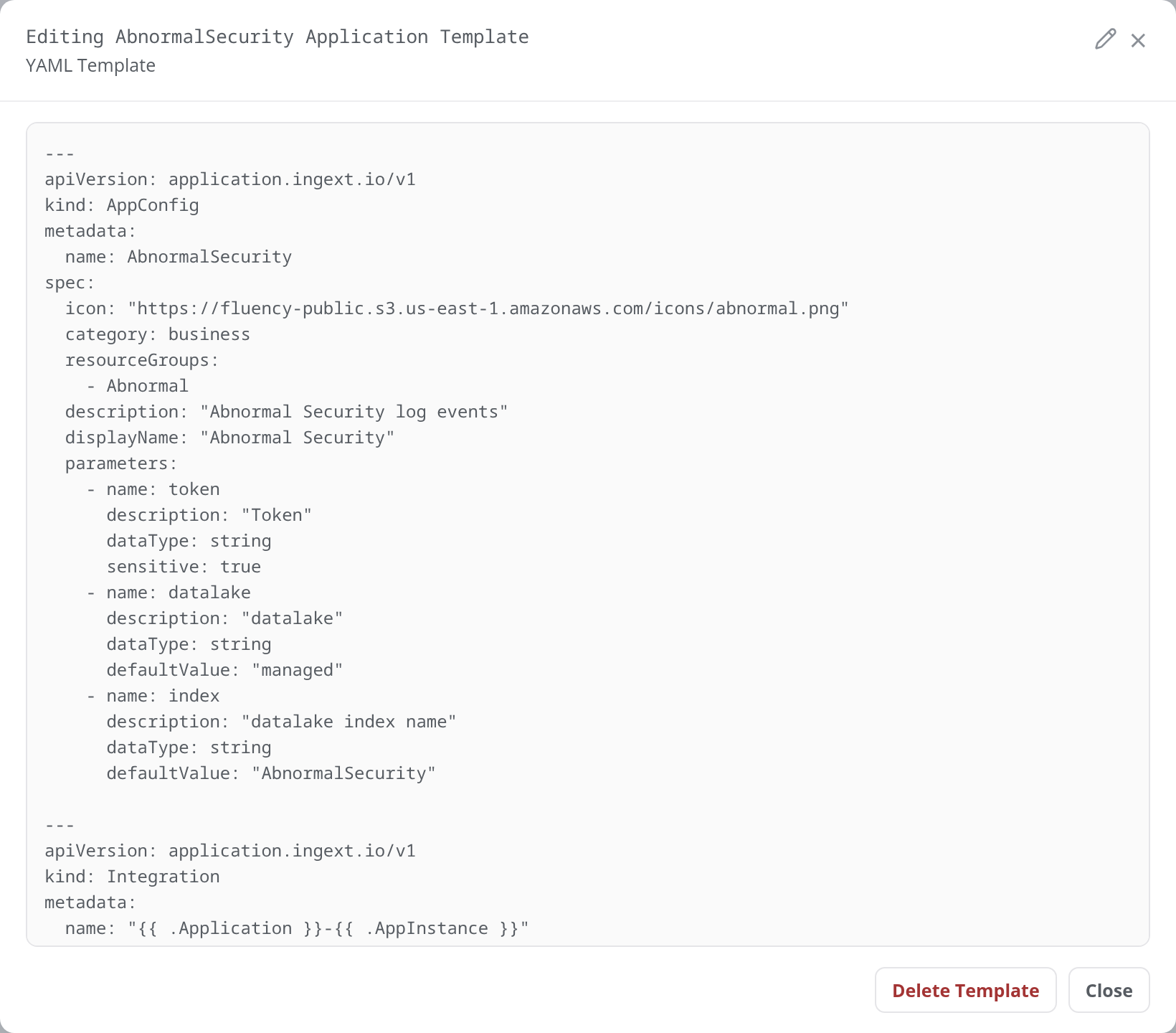
The YAML is a multi-document file. The first document, of kind AppConfig, declares the template itself: metadata.name is the Template ID, and spec holds the icon, category, displayName, description, the resourceGroups the application uses, and the parameters its install form asks for, each with a name, a description, a dataType, and optionally a defaultValue or sensitive: true. The documents after it declare the objects the application creates, such as an Integration or a DataSink.
The dialog's controls:
- Edit template (the pencil in the title bar): makes the YAML editable. While it is editable, the buttons below it are Cancel Editing and Save, and Delete Template is hidden. Save saves the template and closes the dialog, with a green notice: Application template saved successfully.
- Delete Template: deletes the template, after a confirmation (Delete Application Template: Are you sure you want to delete the application template <Template ID> permanently?). The dialog closes, the row leaves the table, and a green notice reads Application template deleted successfully.
- Close, or the × in the title bar: closes the dialog.
Create Template
Click + Create Template to open the Create New Application Template dialog. Its YAML Template field is a text editor pre-filled with a skeleton to complete.
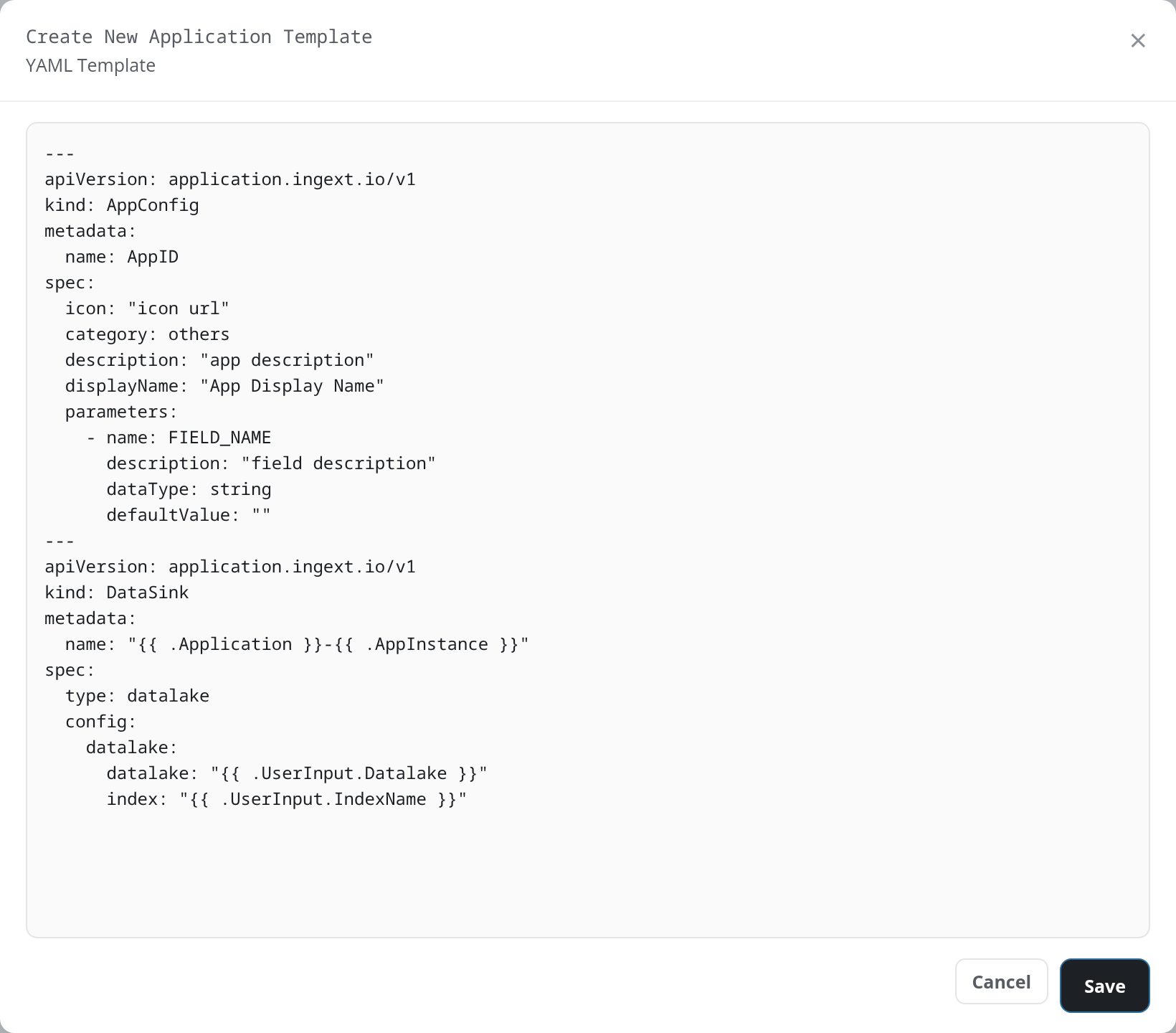
The skeleton holds two documents:
---
apiVersion: application.ingext.io/v1
kind: AppConfig
metadata:
  name: AppID
spec:
  icon: "icon url"
  category: others
  description: "app description"
  displayName: "App Display Name"
  parameters:
    - name: FIELD_NAME
      description: "field description"
      dataType: string
      defaultValue: ""
---
apiVersion: application.ingext.io/v1
kind: DataSink
metadata:
  name: "{{ .Application }}-{{ .AppInstance }}"
spec:
  type: datalake
  config:
    datalake:
      datalake: "{{ .UserInput.Datalake }}"
      index: "{{ .UserInput.IndexName }}"
- The
AppConfigdocument supplies the row in the table above:metadata.namebecomes the Template ID,spec.displayNamethe Display Name, andspec.categorythe Category. - Each entry under
spec.parametersis one input of the template's install form. - The
DataSinkdocument is an object the application creates when installed. Values in{{ }}are filled in at install time:.Applicationand.AppInstancefrom the application being installed, and.UserInput.*from the install form.
Click Save to create the template, or Cancel or × to close the dialog without saving.
Save reports a problem in red at the top of the dialog, which stays open:
- an empty editor: YAML template is required.
- YAML that does not parse: the parser's message, with the line it stopped at, for example yaml: line 2: did not find expected ',' or ']'
- YAML with no
AppConfigdocument: an error naming the missingAppConfig.
Once the template is saved, the dialog closes, a green notice reads Application template saved successfully, and the template is listed in the table and in the Application Catalog, under its category.