Integrations
The Integrations page lists the account's active integrations (the configured connections to cloud, identity, endpoint, and notification services that applications and notifications use) and is where a new integration is created.
Menu path: Configuration → Integrations · URL path: /v2/configuration/integrations
Task guide: Integrations: vendor-by-vendor setup guides.
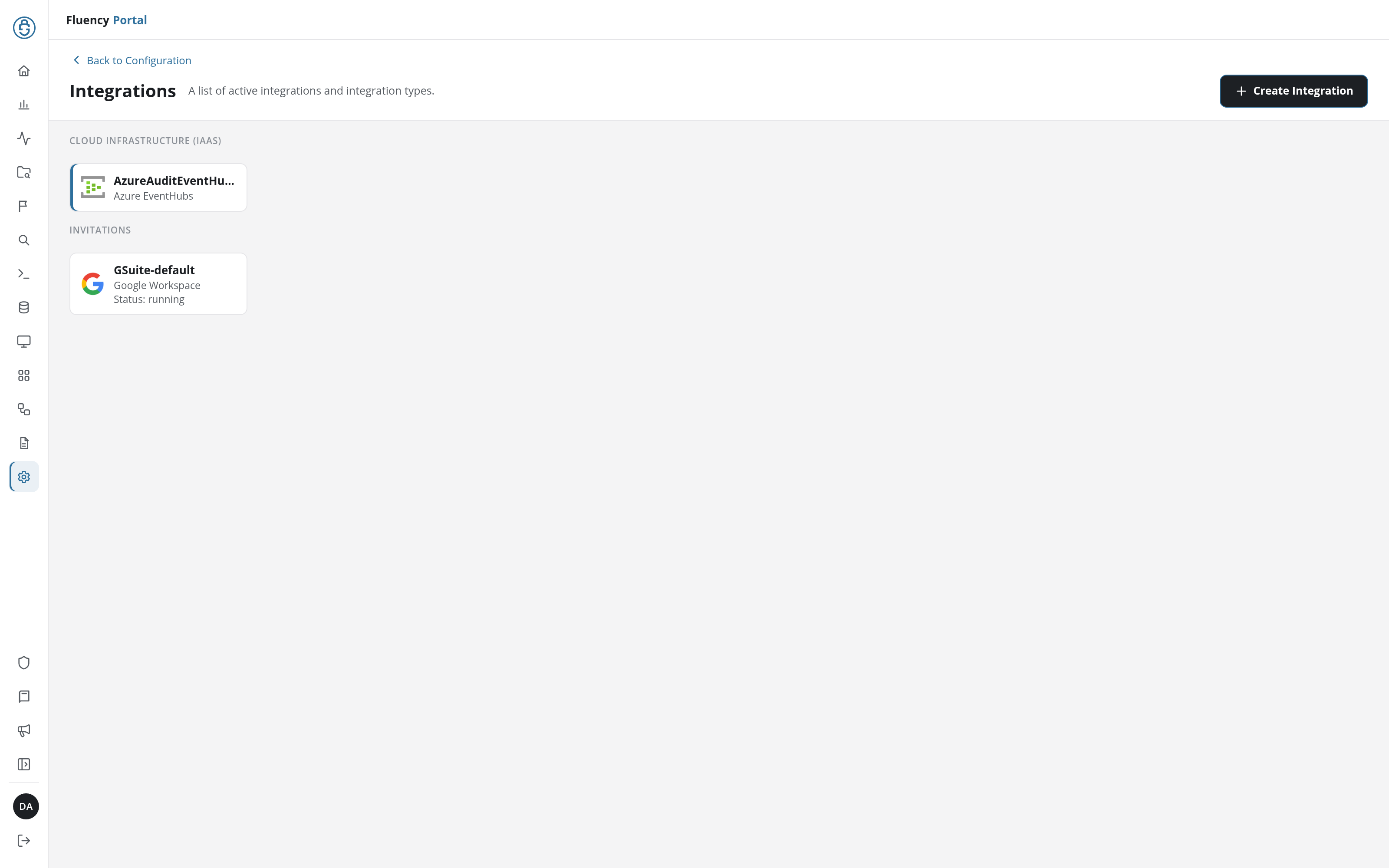
Page Layout
The header has a Back to Configuration link above the title Integrations and the subtitle A list of active integrations and integration types, with a + Create Integration button on the right. Below it, the account's integrations are shown as cards, grouped under category headings such as Cloud Infrastructure (IaaS).
Integration Cards
Each card shows the integration type's icon and:
- The integration's name, such as
AzureAuditEventHub-default; a long name is cut short with an ellipsis. - The integration type, such as Azure EventHubs or Google Workspace.
- For some integrations, a Status line, such as Status: running.
Besides the catalog categories, the page can show an Invitations group (in the example it holds the GSuite-default Google Workspace integration) and an Others group for integrations whose type is not in the catalog.
Integration Panel
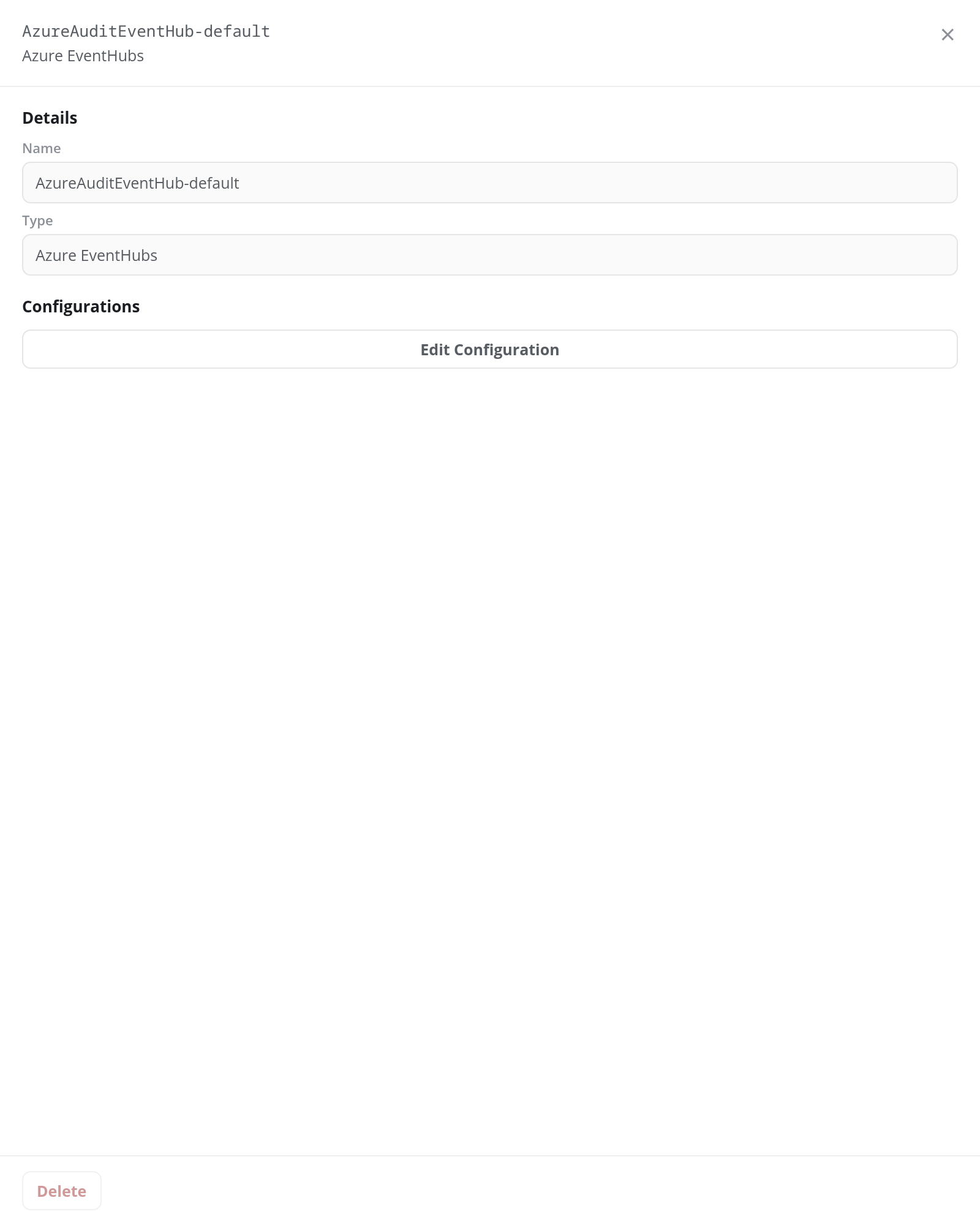
Click a card to open its panel, a side panel on the right of the page titled with the integration's name and type. × closes it.
For a configured integration the panel shows:
- Details: the integration's Name, its Description when it has one, and its Type, all read-only.
- Configurations: the type's stored settings, read-only (for example the Data Center URL of an AcronisCP integration, or the Token of a Slack integration; an Azure EventHubs integration lists none here), and an Edit Configuration button. The button opens the Edit Configuration dialog: Details (Name *, Description, and the read-only Type) and Configurations (the type's settings, such as the Token * of a Slack integration, or Add EventHub and a Create Plugin Datasource switch for Azure EventHubs), with Cancel and Update. Name can be changed here, so an integration can be renamed; the same name rule applies as when it was created. Update saves the change with the notice Configuration Updated Successfully.
- Delete: at the panel's foot. It is greyed out on an integration that an application uses, such as one the application installed. Otherwise it deletes the integration after a Delete Integration confirmation (Are you sure you want to delete this Integration?), with the notice Integration Deleted.
For an integration in the Invitations group, the panel holds the invitation instead, all read-only: Name, Integration, Inviter, Invitee Email, Status, Created On, and Last Updated, with Delete at its foot.
Create Integration
Click + Create Integration to open the Create Integration dialog (Choose an integration type.), a catalog of integration types as tiles, grouped by category. Choose a type to configure an integration of that kind; Close or × closes the catalog.
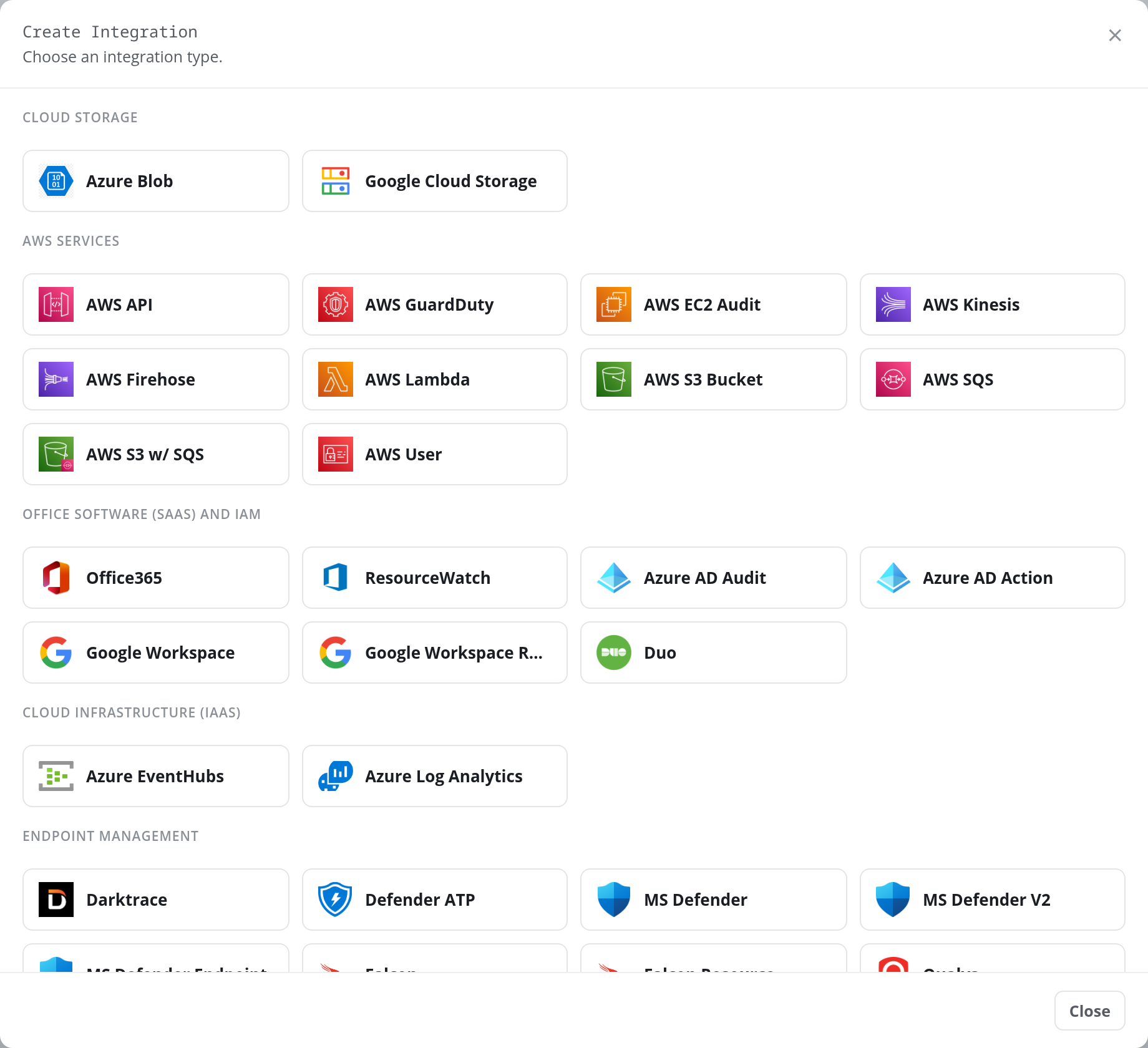
The catalog's categories and types:
| Category | Integration types |
|---|---|
| Cloud Storage | Azure Blob, Google Cloud Storage |
| AWS Services | AWS API, AWS GuardDuty, AWS EC2 Audit, AWS Kinesis, AWS Firehose, AWS Lambda, AWS S3 Bucket, AWS SQS, AWS S3 w/ SQS, AWS User |
| Office Software (SaaS) and IAM | Office365, ResourceWatch, Azure AD Audit, Azure AD Action, Google Workspace, Google Workspace Resource, Duo |
| Cloud Infrastructure (IaaS) | Azure EventHubs, Azure Log Analytics |
| Endpoint Management | Darktrace, Defender ATP, MS Defender, MS Defender V2, MS Defender Endpoint, Falcon, Falcon Resource, Qualys, Sophos, TenableCloud, Trend Vision One, Varonis, Palo Alto Cortex, SentinelOne, SentinelOne Events, Bitdefender |
| Email Audit and Protection | Abnormal Security, Mimecast, Mimecast CG, Proofpoint, Proofpoint ESS |
| Cloud-Based Network Services | AgentPortal, Cato Networks, Netskope, Netskope Resource, Cloudflare Log Push, Peplink InControl, RESTAPI, Prometheus Push |
| Cloud-Based Business Softwares | BlackKite, Okta, Bitwarden, Salesforce, Workday |
| System Notification Export | Slack, PagerDuty, ServiceNow |
| On-Premise IT | LDAP |
Choosing a tile opens an Add <type> panel in place of the catalog, headed with the type's name. Its Details section holds Name * (what the card will be labelled), Description, a Configuration method drop-down on the types that can be connected in more than one way, and the read-only Type. Configurations below holds the type's own settings, and Save creates the integration. For example, Add Azure Blob asks for Tenant ID *, Client ID *, Storage Account *, Container *, an Authentication Method drop-down (Service Principal to begin with), and Client Secret *; Add Google Cloud Storage asks for Bucket *, Mode * (read, write, or read/write), Prefix, Target Service Account, and Service Account Key *.
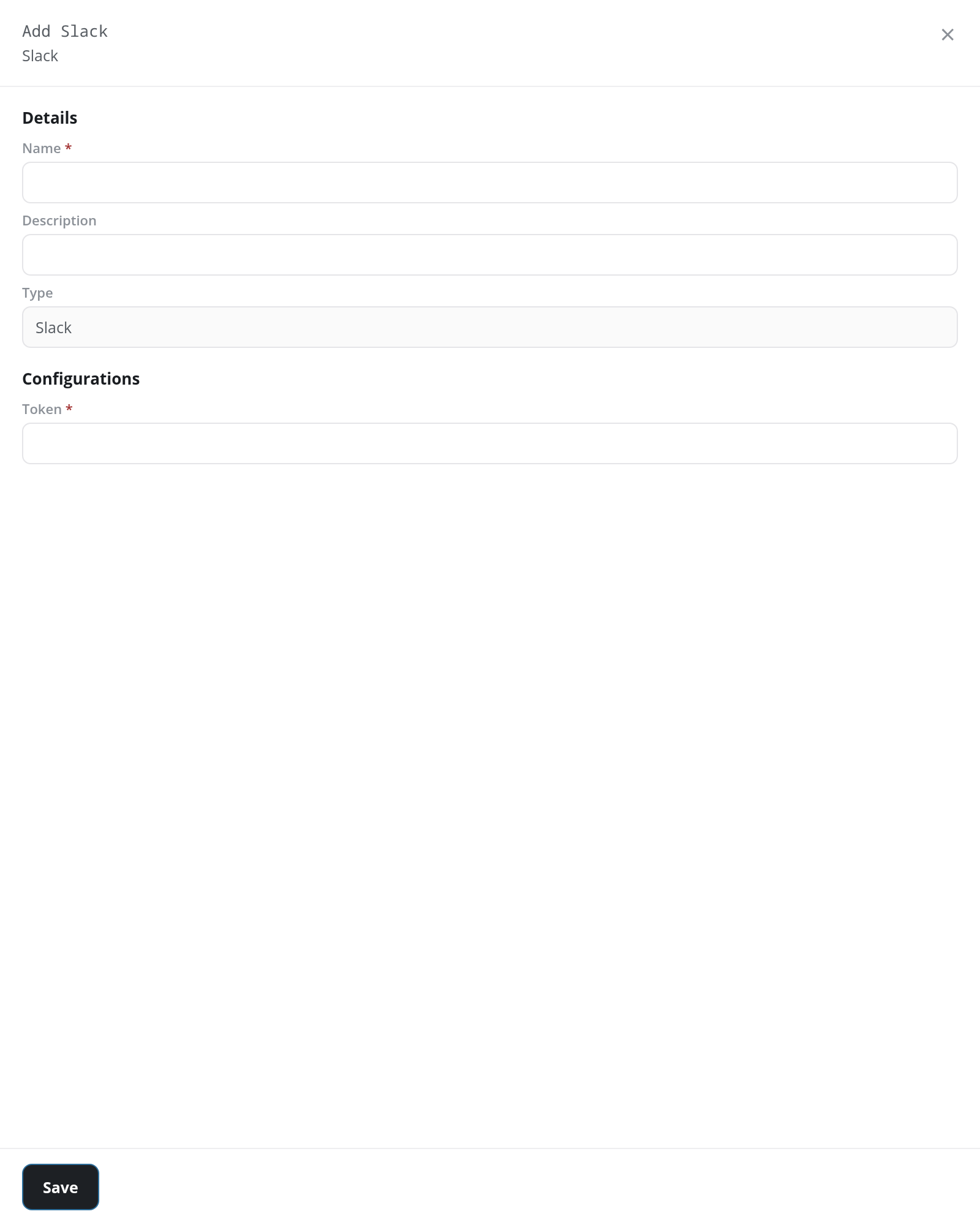
Save checks the form first. Every problem is listed at once in a red notice at the top of the page, such as Please enter a token for a Slack integration without its Token. A saved integration shows the notice Integration created successfully, and its card appears on the page under its category, such as System Notification Export for Slack. An integration's name is unique for its type: a name already used by an integration of the same type is refused.
Name Rule
An integration's Name must start with a letter, contain only letters and digits, and be shorter than 40 characters. Spaces, hyphens and underscores are refused (NorthwindSlack is accepted; Northwind Slack, Northwind-Slack and Northwind_Slack are not), with the message Name must start with a letter, contain only letters and numbers and be less than 40 characters. The rule applies to integrations created or renamed on this page; an integration an application creates is named by the application, such as AzureAuditEventHub-default.
Add AWS S3 Bucket
The AWS S3 Bucket tile, under AWS Services, opens a form whose fields depend on its Configuration method:
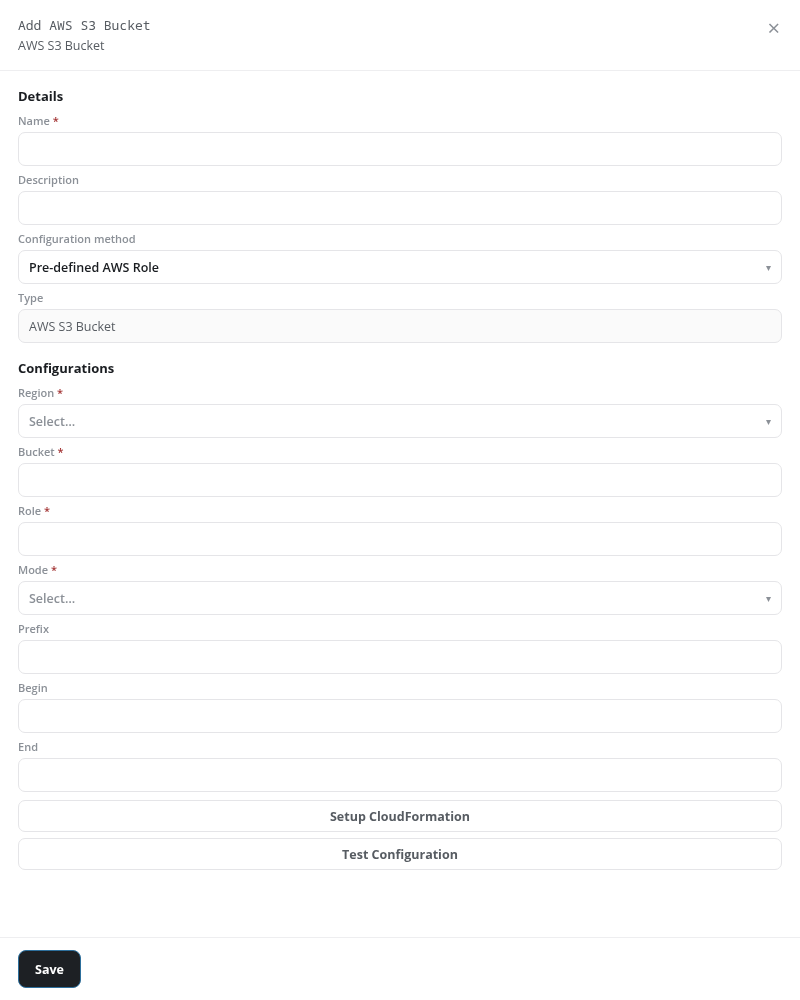
- Details: Name *, Description, Configuration method (Access/Secret Key, Pre-defined AWS Role (the default), or IAM Role ARN), and the read-only Type.
- Configurations:
- Region *: a drop-down of AWS regions.
- Bucket *: the bucket name.
- The credential, by method:
- Pre-defined AWS Role: Role *, a drop-down of the roles registered on AWS Roles, listed by their Display Name (a text field while none is registered).
- IAM Role ARN: Role ARN *, and an Email field.
- Access/Secret Key: Access Key * and Secret Key * (a masked field), and an Email field.
- Mode *: read, write, or read/write.
- Prefix, Begin and End: optional.
- Setup CloudFormation opens the Cloud Formation Setup dialog, with the AWS stack to create on its CloudFormation tab (the template URL, Region, Description and Parameters, each with a copy button) and the IAM policy for the bucket on its IAM Policy tab (for read mode,
s3:GetObjecton the bucket's objects ands3:ListBucketon the bucket). - Test Configuration tries the bucket with the details entered, before anything is saved, and reports the result in a notice at the top of the page.
- Save creates the integration.