Search Facets
The Search Facets page lists the saved event search facet profiles: named sets of facet fields, with an optional query and the indexes they apply to, used on Datalake Search. From here you can create a profile, import profiles from a JSON file, and edit, download, or delete existing ones.
Menu path: Configuration → Search Facets · URL path: /v2/configuration/search-facets
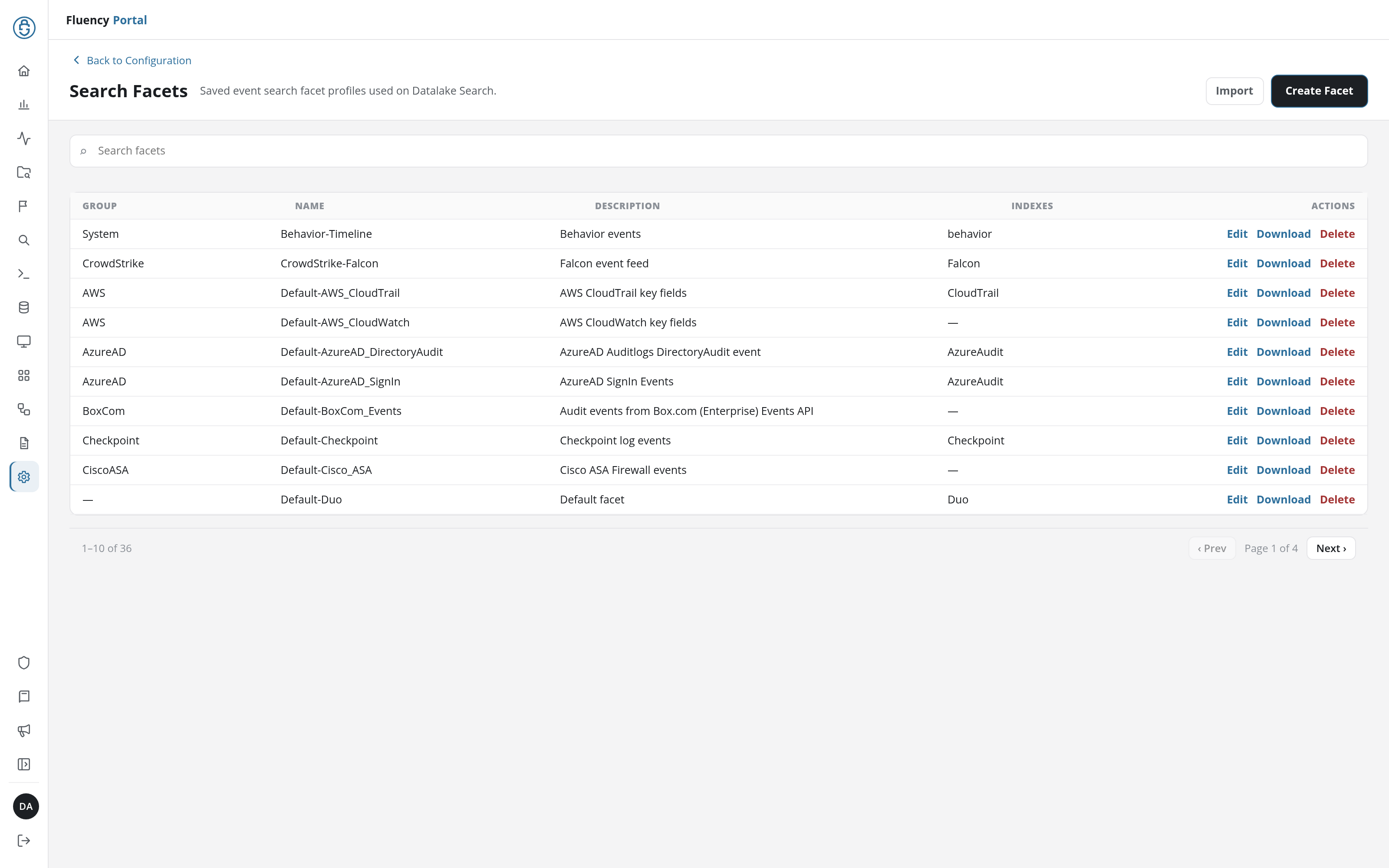
Page Layout
- Header: a Back to Configuration link above the title Search Facets and the subtitle Saved event search facet profiles used on Datalake Search., with the Import and Create Facet buttons on the right.
- Search field: Search facets, which narrows the table to the matching profiles; with no match, the table reads No matching search facets.
- Profile table: ten profiles per page, with a footer giving the range shown (for example 1–10 of 37), the page number, and ‹ Prev / Next › buttons.
Profile Table
| Column | What it shows |
|---|---|
| GROUP | The source the profile belongs to, for example AWS, AzureAD, CrowdStrike, or System; – when it has none. |
| NAME | The profile's name, such as Default-AWS_CloudTrail or Behavior-Timeline. |
| DESCRIPTION | What the profile is for, for example AWS CloudTrail key fields. |
| INDEXES | The data lake indexes the profile applies to; – when it names none. |
| ACTIONS | Edit opens the profile in the Edit Search Facet dialog, and Download and Delete download or delete it. |
Create Facet
Click Create Facet to open the Create Search Facet dialog: Fields and query used on Datalake Search. The dialog has three sections.
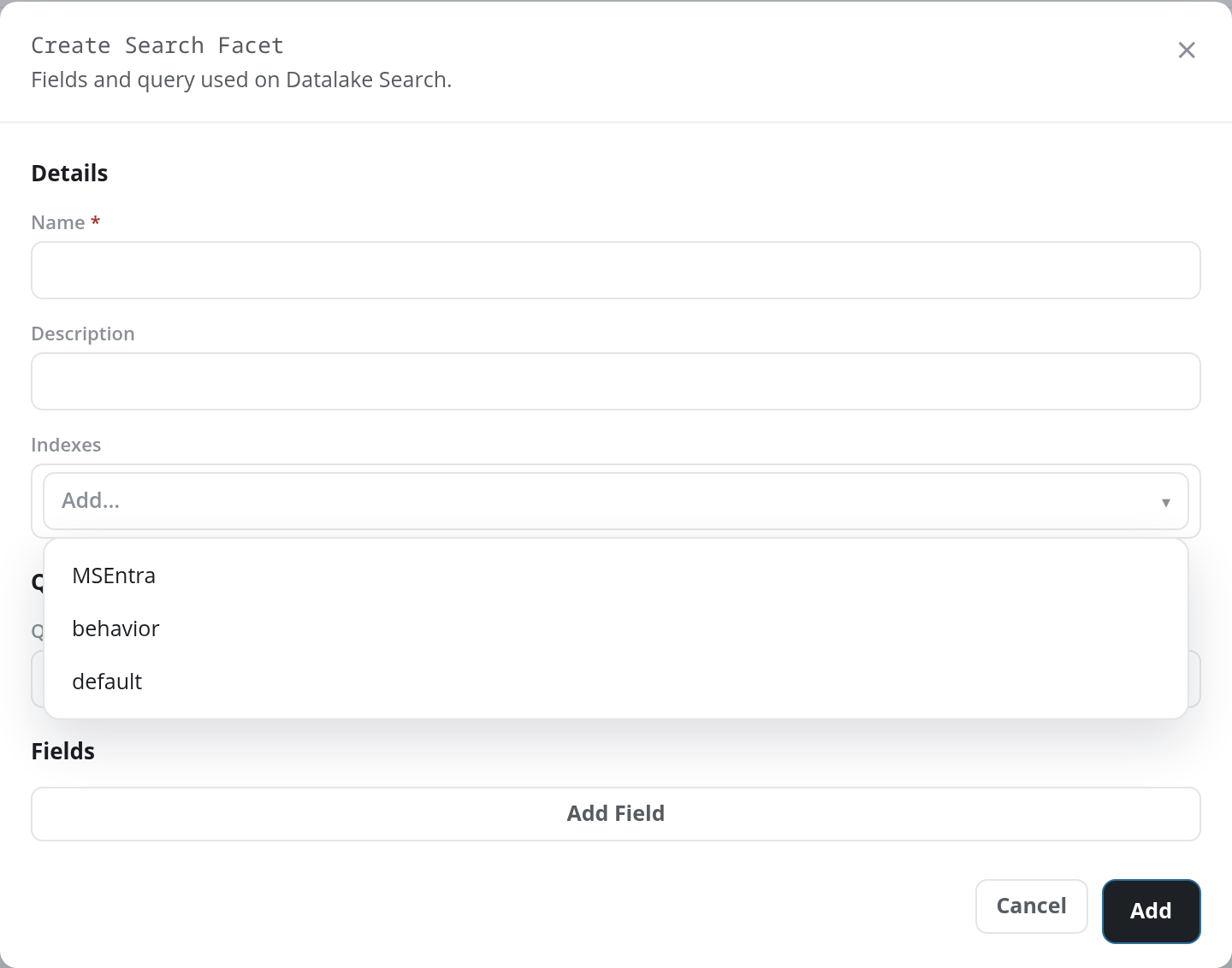
Details
- Name: required (Name is required).
- Description: optional.
- Indexes: a multi-select list (Add…) of the account's data lake indexes, such as behavior, default, and MSEntra. Each chosen index appears as a chip with an × to remove it.
Query
- Query: an optional query that selects the events the profile applies to, in the form shown by the placeholder
@parser:aws.
Fields
- Add Field: adds a facet field row; see Edit Search Facet for the row's controls. A profile needs at least one row with its Field filled in: a row with only a Title, or no row at all, gives Add at least one field. A row whose Title is left empty takes the Field as its title.
Click Add to create the profile, or Cancel to close the dialog. Validation messages appear in red at the top of the dialog, one at a time. Once the profile is saved, the dialog closes, the profile appears in the table, and a green notice reads Facet saved.
Edit Search Facet
A profile's Edit opens the Edit Search Facet dialog, the same form with the profile's values filled in. The Name is read-only.
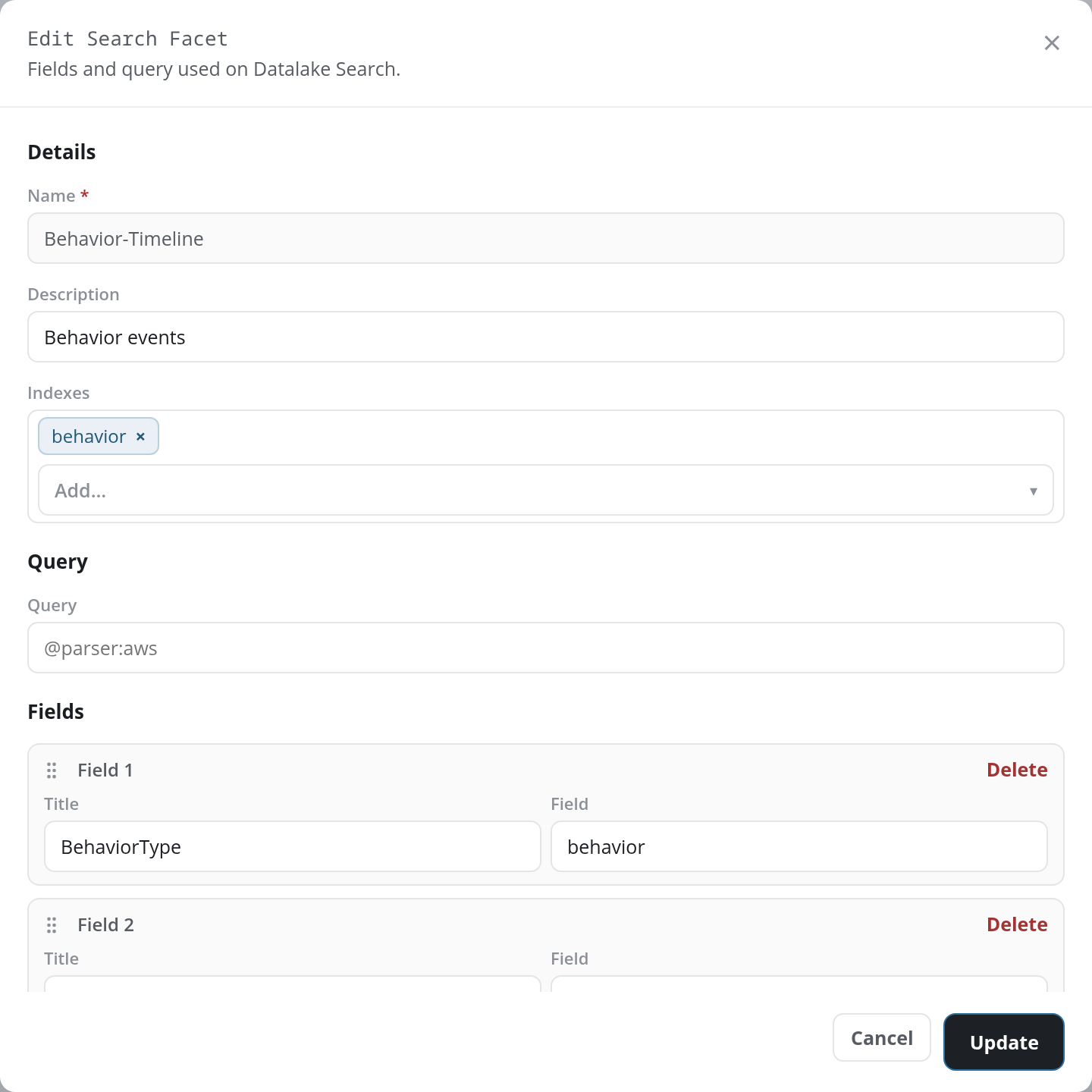
Under Fields, each facet is a numbered row (Field 1, Field 2, …) with:
- a drag handle on the left, for changing the facet's position in the list: drag a row onto another to move it there, and the rows are renumbered;
- Title: the facet's heading on Datalake Search, for example BehaviorType;
- Field: the event field it counts, for example
behavior; - Delete: removes the row, after a confirmation (Delete facet field <title>?).
Add Field at the end of the list appends another row. Click Update to save the profile, or Cancel to close without saving; row changes, including a deleted row, are saved only by Update. Once the profile is saved, the dialog closes and a green notice reads Facet updated. The facets appear on Datalake Search in the order of the rows.
Import
Click Import to open the Import Search Facet(s) dialog: Upload a facet JSON file, then choose which to import.
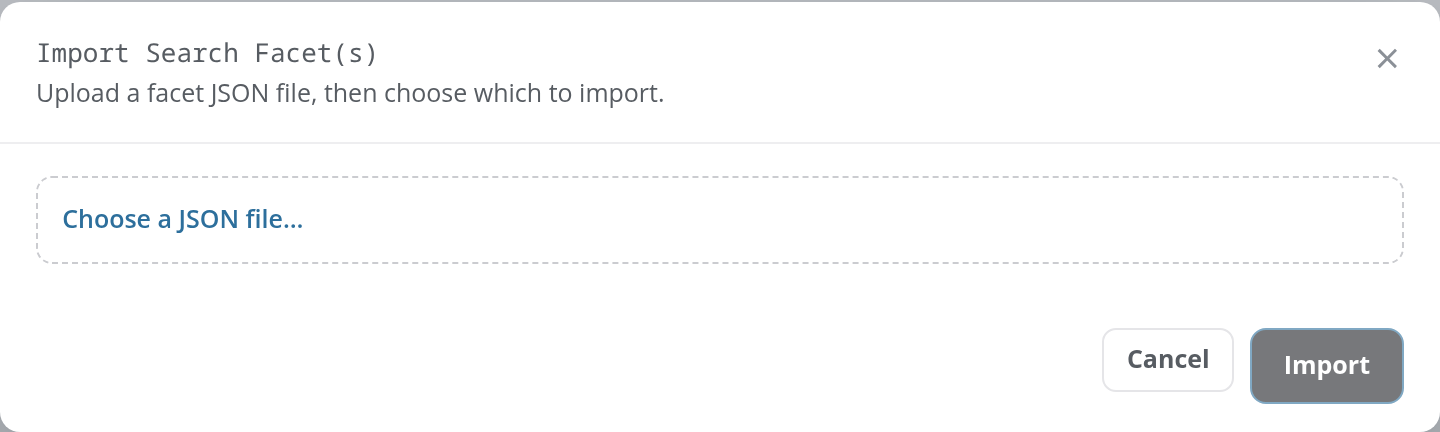
Click Choose a JSON file… to pick the file. Import is greyed out while no file is chosen; Cancel closes the dialog.
The file is a JSON array of profiles, the format Download produces. A file that is not valid JSON, or holds a single profile object rather than an array, gives Invalid file format. A valid file lists its profiles in a table with Name, Description, Fields (the facet titles) and Query columns, and a checkbox on each row; the checkbox in the header row (Select all facets) ticks or clears them all.
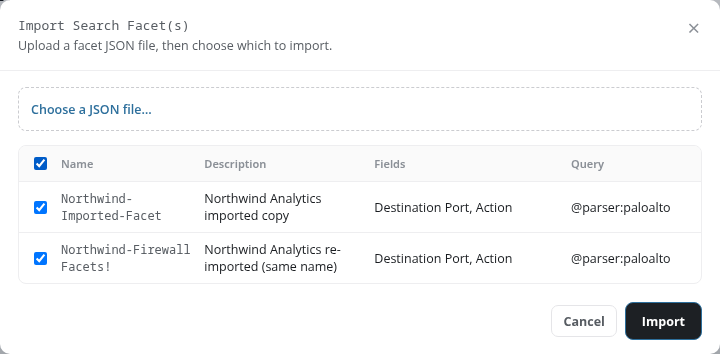
Import stays greyed out until at least one profile is ticked. Click it to import the ticked profiles. When a ticked profile has the same name as an existing one, a confirmation first lists the duplicates (Confirm Add: Duplicate facets selected. <names> will be overwritten.); accepting it overwrites those profiles with the file's version and adds the rest. A green notice then reads Facets imported successfully.
Download and Delete
- Download saves the profile as a JSON file named after it (
<name>.json). The file is a JSON array holding the one profile, with keys including itsname,description,indexes,queryandfacets(each facet'stitle,fieldandsize); this is the format Import reads. - Delete asks for confirmation (Delete Facet: Are you sure you want to delete this facet, <name>?) before it removes the profile. A green notice then reads Facet deleted.