Processors
The Processors page lists the FPL (Fluency Programming Language) objects the platform's pipelines run: processors, receivers, packers, actions, and rules. From here you can browse and search each kind, see where each one is deployed, open one in the code editor, clone it into a local copy, or write a new one.
Menu path: Configuration → Processors · URL path: /v2/configuration/processors
Task guide: Processors: transforming and decorating records. The language itself is described in the FPL reference.
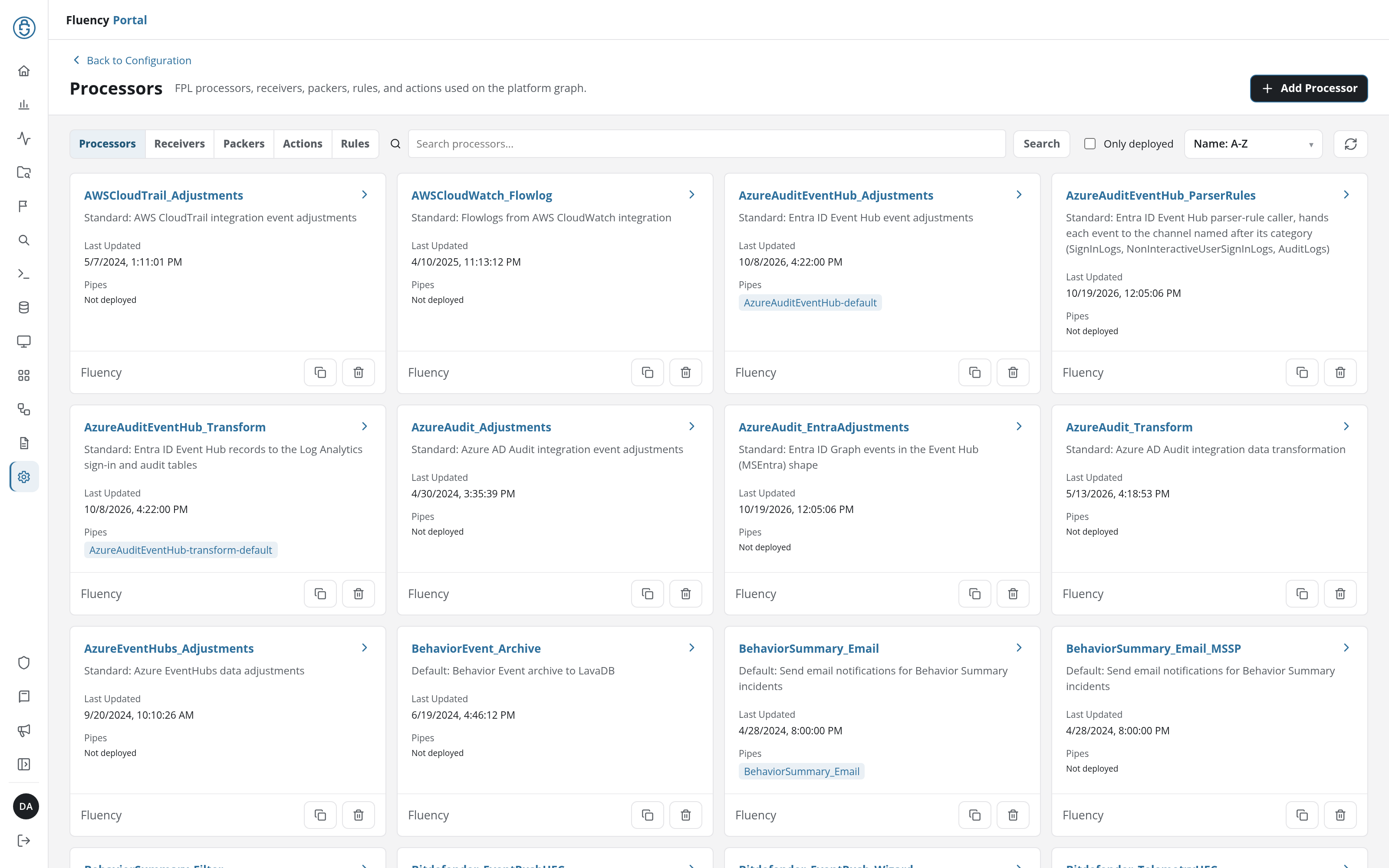
Page Layout
- Header: a Back to Configuration link, the title Processors with the subtitle FPL processors, receivers, packers, rules, and actions used on the platform graph., and on the right the Add button.
- Toolbar: the type tabs, then a search field and Search button, the Only deployed filter, the sort drop-down, and a refresh button.
- Card grid: one card per object of the selected type.
Type Tabs
The five tabs switch the page between the kinds of FPL object. The selected tab is highlighted, and it is carried in the URL's type parameter, so each tab can be linked to directly:
| Tab | URL | Card field | Add button |
|---|---|---|---|
| Processors (the tab the page opens on) | ?type=fpl_processor | Pipes | Add Processor |
| Receivers | ?type=fpl_receiver | Sources | Add Receiver |
| Packers | ?type=fpl_packer | - | Add Packer |
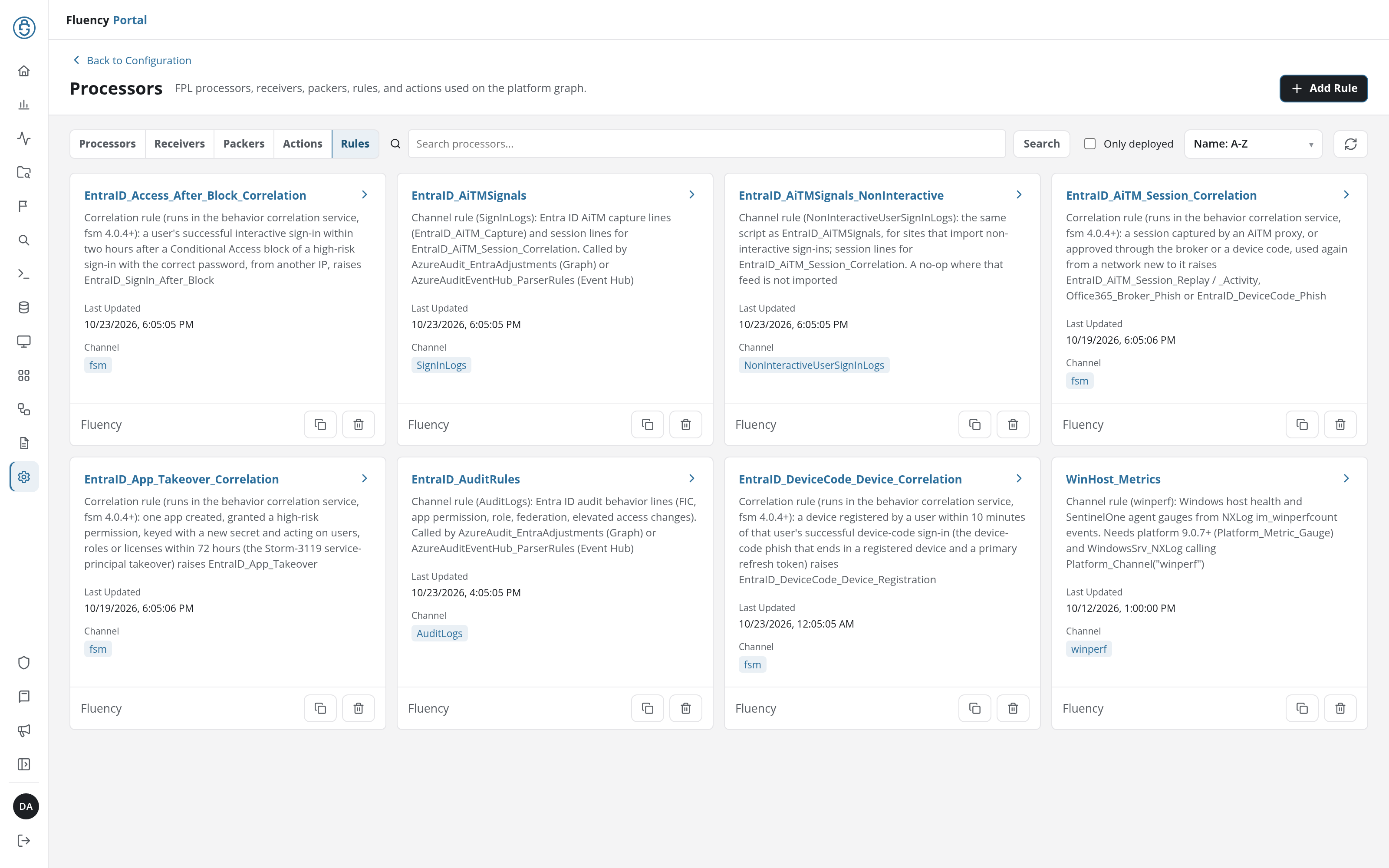
| Actions | ?type=fpl_action | Target | Add Action |
| Rules | ?type=fpl_rule | Channel | Add Rule |
The Add button in the header is relabelled for the selected tab. A tab with no objects of its kind says so in place of the grid: for example, No packers found.
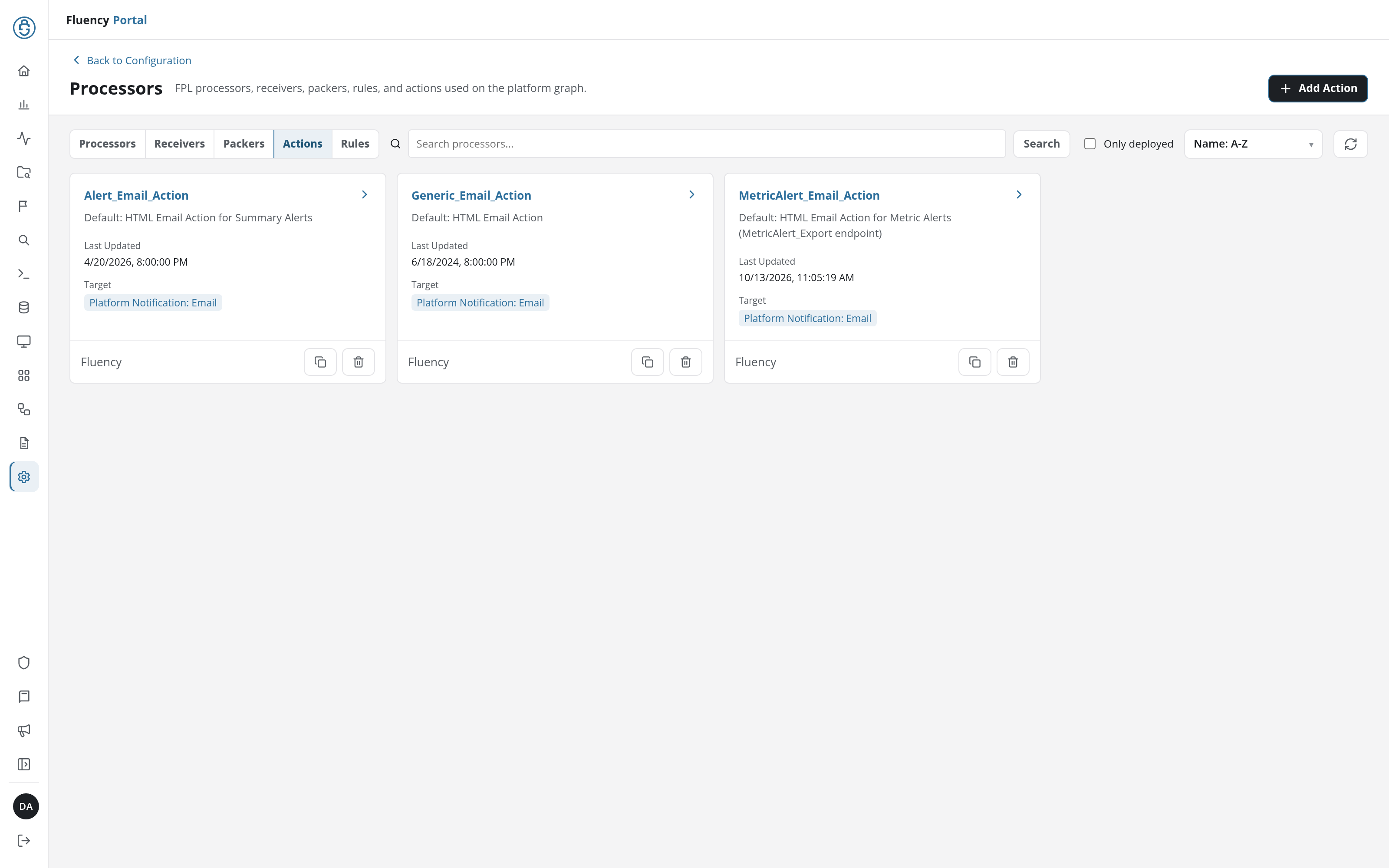
Search, Filter, and Sort
- Search: type in the Search processors... field and click Search to narrow the grid to the matching objects of the selected type.
- Only deployed: a checkbox that, when ticked, keeps only the objects that are in use on the platform: for a processor, one with at least one pipe.
- Sort: a drop-down ordering the grid by Name: A-Z (the default), Name: Z-A, or Last updated.
- Refresh: the circular-arrows button at the right end of the toolbar reloads the list.
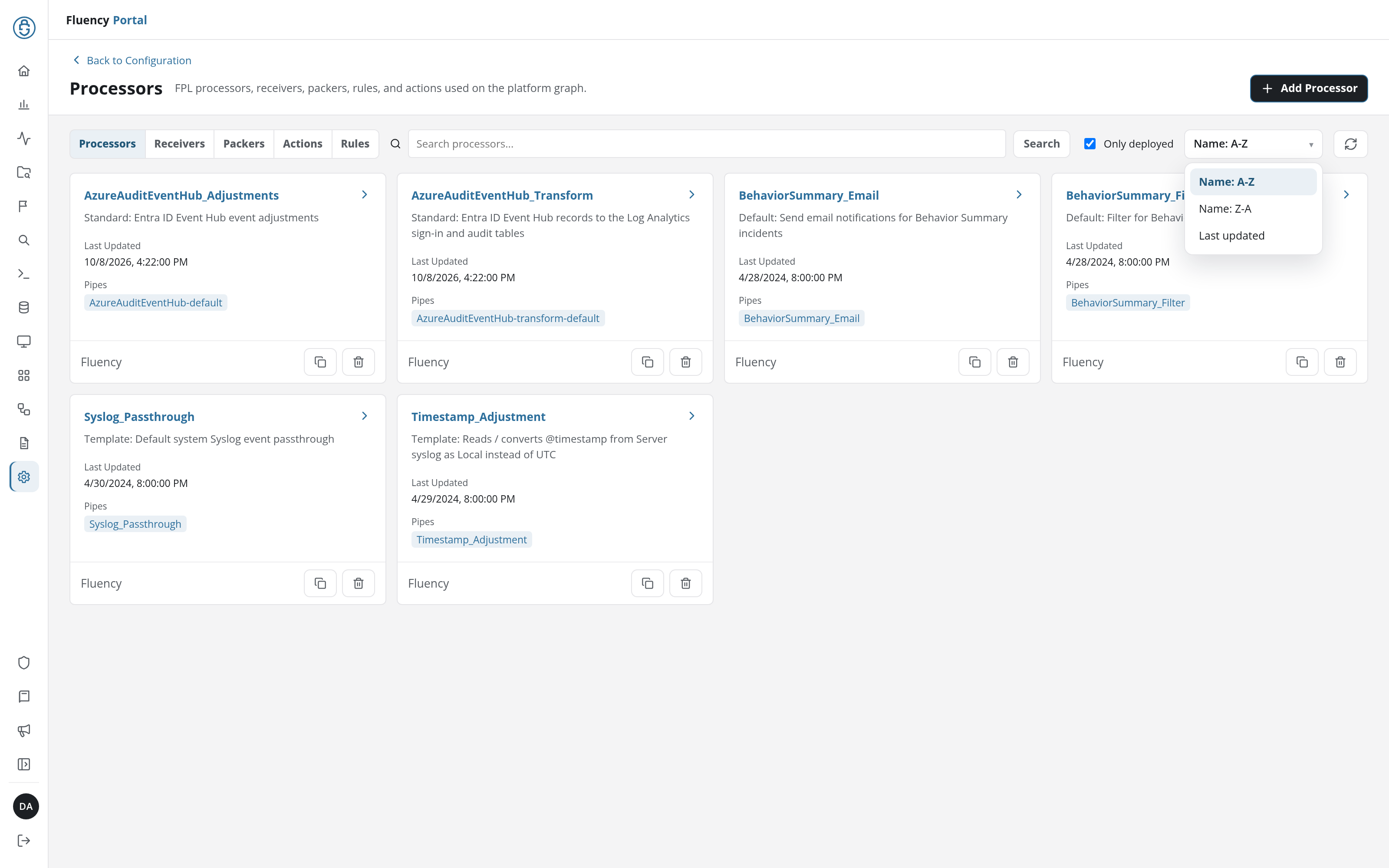
Cards
Each object is a card:
- Name: the object's name, with a › in the card's upper-right corner. The card is a link: click it to open the object in the editor.
- Description: the object's description. Many start with a label such as Standard:, Default:, Template:, or Tool:.
- Last Updated: the date and time the object was last changed.
- Card field: where the object is used, which depends on the tab (see the table above):
- Pipes: on a processor, the pipes it runs in as chips, or Not deployed.
- Sources: on a receiver, the sources that use it, or Not deployed.
- Target: on an action, what it delivers to, for example Platform Notification: Email.
- Channel: on a rule, the channel it is called on, for example SignInLogs or fsm.
- Footer: the repository the definition comes from (for example Fluency) on the left, and two icon buttons on the right: Clone (a copy icon), which opens a copy of the object in the editor, and Delete (a trash icon), which deletes it. An object created in the account, with Add or Clone, names no repository.
Add a New Object
Click the header's Add button (Add Processor on the Processors tab) to open the editor on a new object of the selected type, at /v2/configuration/processors/new?type=<type>, where <type> is fpl_processor, fpl_receiver, fpl_packer, fpl_action, or fpl_rule; any other value opens the editor with Invalid processor type. and a greyed-out Add. The new object is named after its type (New_Processor, New_Receiver, New_Packer, New_Action, New_Rule), and its code starts as a stub that passes every record through:
function main({obj, size, source}) {
    return "pass"
}
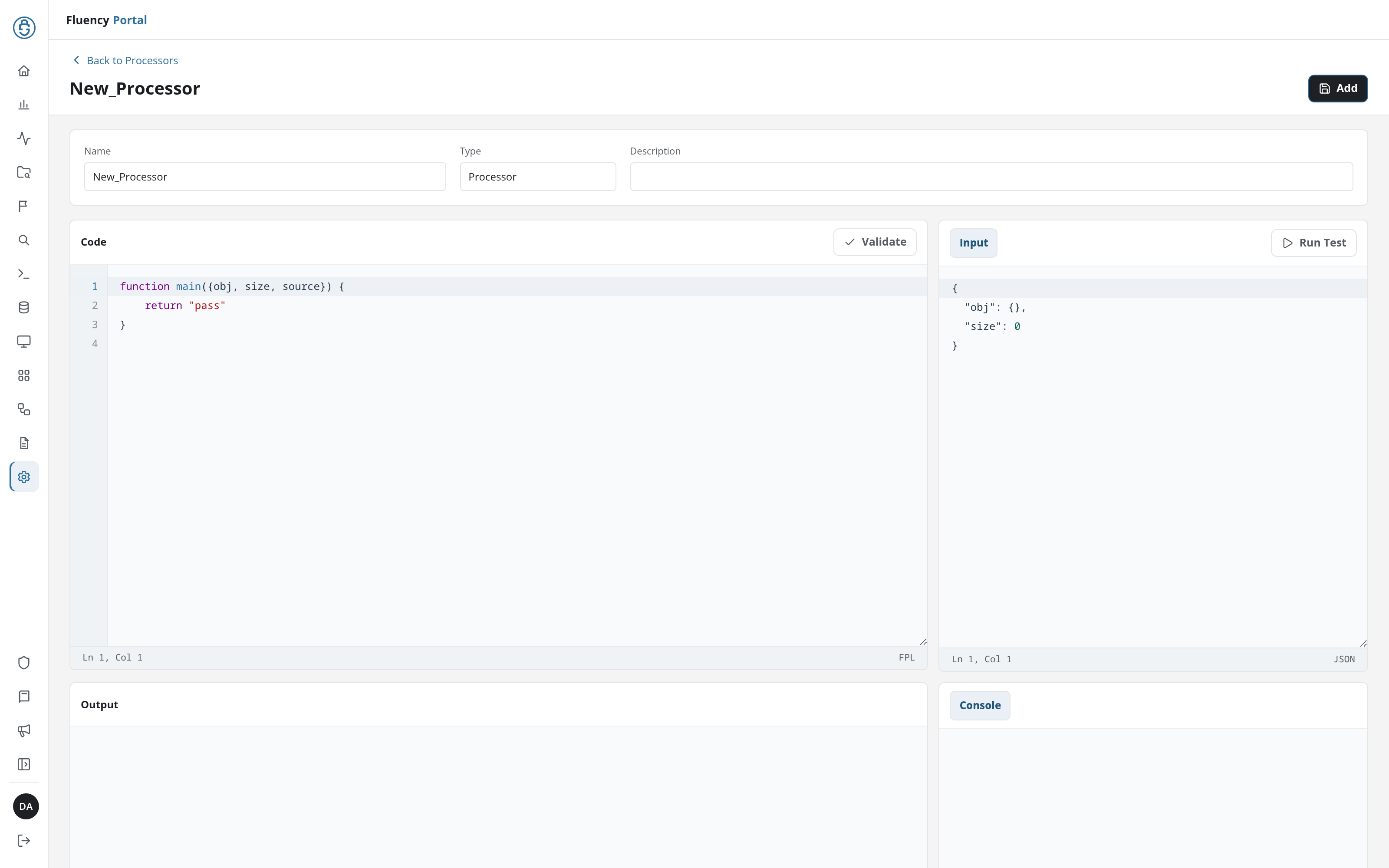
Click Add in the header to save the new object and return to the list, where the object has a card of its own. Name is required (Name is required.), and the name of an existing object is refused with a duplicate-name error.
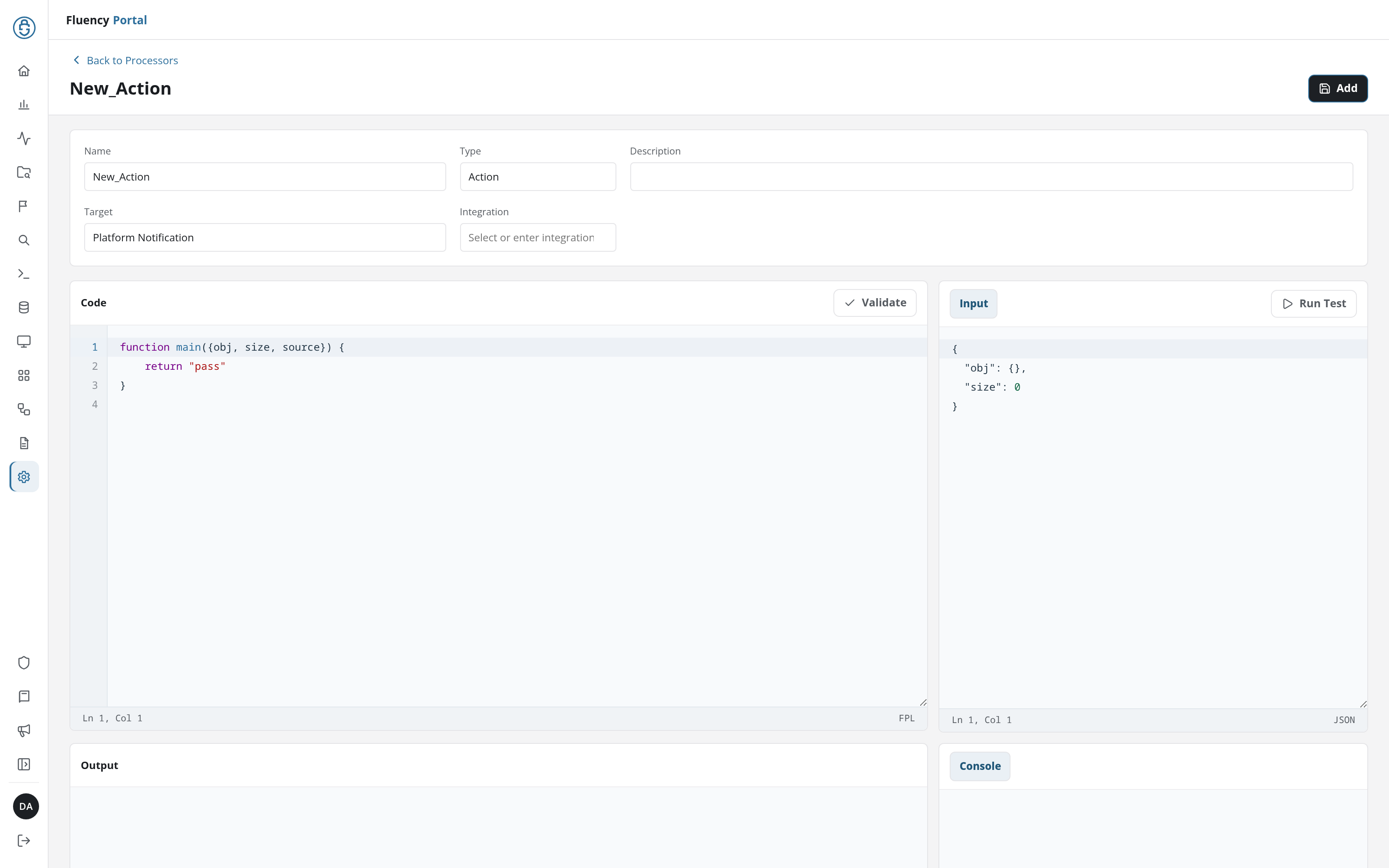
Actions and rules carry extra fields beside Name, Type, and Description:
- Action: Target, set to Platform Notification, and Integration, a field to Select or enter integration (the notification integration the action delivers through, such as Email). Integration is required: Select an integration.
- Rule: Channel, the channel the rule is called on. Channel is required: Select or enter a channel.
Processor Editor
Clicking a card opens the object in the editor, at /v2/configuration/processors/edit?name=<name>. The header carries a Back to Processors link, the object's name as the title, and Save Changes on the right.
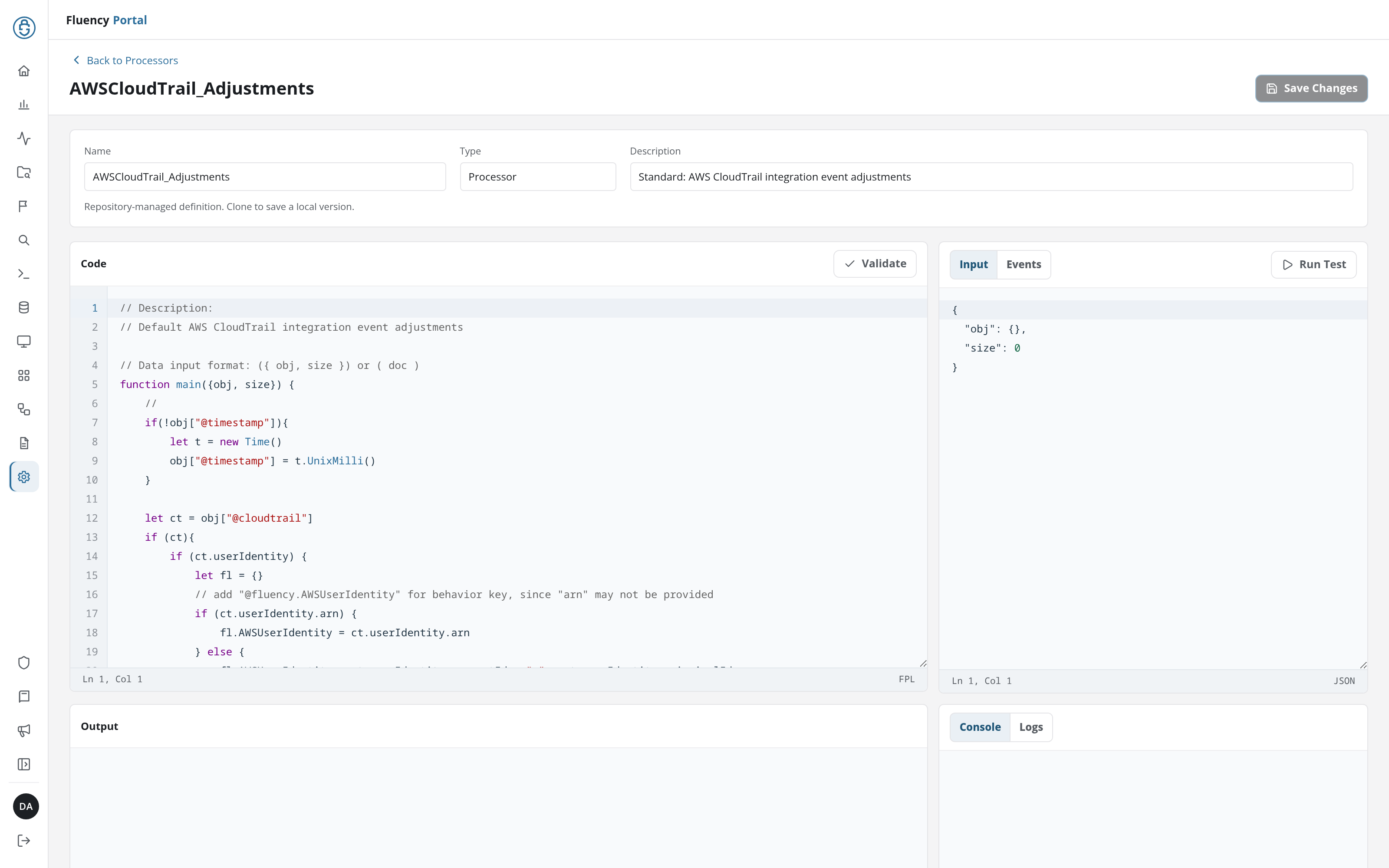
The editor has five areas:
- Fields: Name, Type (fixed by the tab the object belongs to), Description, and, for an action or a rule, the extra fields described above. Once the object is saved, its Name is read-only.
- Code: the FPL source, with line numbers, the cursor position (Ln, Col), and the language (FPL) in its footer. Click Validate in the panel's header to check the code.
- Input: the test record, as JSON, prefilled with an empty record:
{"obj": {}, "size": 0}. Click Run Test to run the code against it. An existing object also has an Events tab beside Input. - Output: the result of the test run, read-only.
- Console: the test run's console output, read-only. An existing object also has a Logs tab beside Console.
Validate and Run Test
The result of Validate and Run Test appears as a notice under the header:
- Validate: Validation successful. in green, or, in red, the syntax error with its line and column, for example line 3:4 extraneous input 'return' expecting {…} (the message lists what the parser expected there).
- Run Test: Test completed. in green when the code ran. Output then shows the record as the code returned it, formatted over several lines, and Console shows each
printfline (printf <date> <time>: <text>), then a blank line and Run Status: with the status the code returned, such aspassorabort. When Input is not valid JSON, the notice gives the JSON error instead, for example invalid json: unexpected EOF.

Save Changes
On an existing object, Save Changes stays greyed out until something is changed. It validates the code before saving: code that does not validate is not saved, and the notice gives the error, prefixed validation error:. Saved changes give a green Changes saved. Leaving the editor with unsaved changes, by Back to Processors or otherwise, brings up the browser's prompt to confirm leaving the page.
Events and Logs
On an existing object, the Events tab samples the live events passing through it, to test against:
- Deployment: a drop-down of the places the object runs, each as <pipe>: <deployment>, such as AzureAuditEventHub-default: AzureAuditEventHub-default.
- Event status: which events to sample, by what the object did with them: pass (the default), abort, drop, or error.
- Refresh events: the refresh button beside them, which fetches a new sample.
The sampled events are listed below as Event 1, Event 2, and so on, each showing the start of its JSON. The copy button beside an event (Copy event N and use as test input) puts it in the Input tab, ready for Run Test. When there is nothing to sample, the tab reads No events found.
An object that is not deployed has no Deployment drop-down: the tab holds only Event status and Refresh events, and reads No events found.

The Logs tab beside Console shows the object's logs, with its own refresh button; it reads No logs found. when there are none.
A definition that comes from a repository (the objects whose card footer names a repository such as Fluency) is read-only here. The editor notes Repository-managed definition. Clone to save a local version. under the fields, and Save Changes is disabled. The code can still be validated and tested.
Clone
A card's Clone button opens the editor on a copy of the object, at /v2/configuration/processors/new?clone=<name>. The copy is named after the source with _Clone appended (for example AWSCloudTrail_Adjustments_Clone), and carries the source's description and code. Unlike the source, the copy's name, description, and code can all be changed.
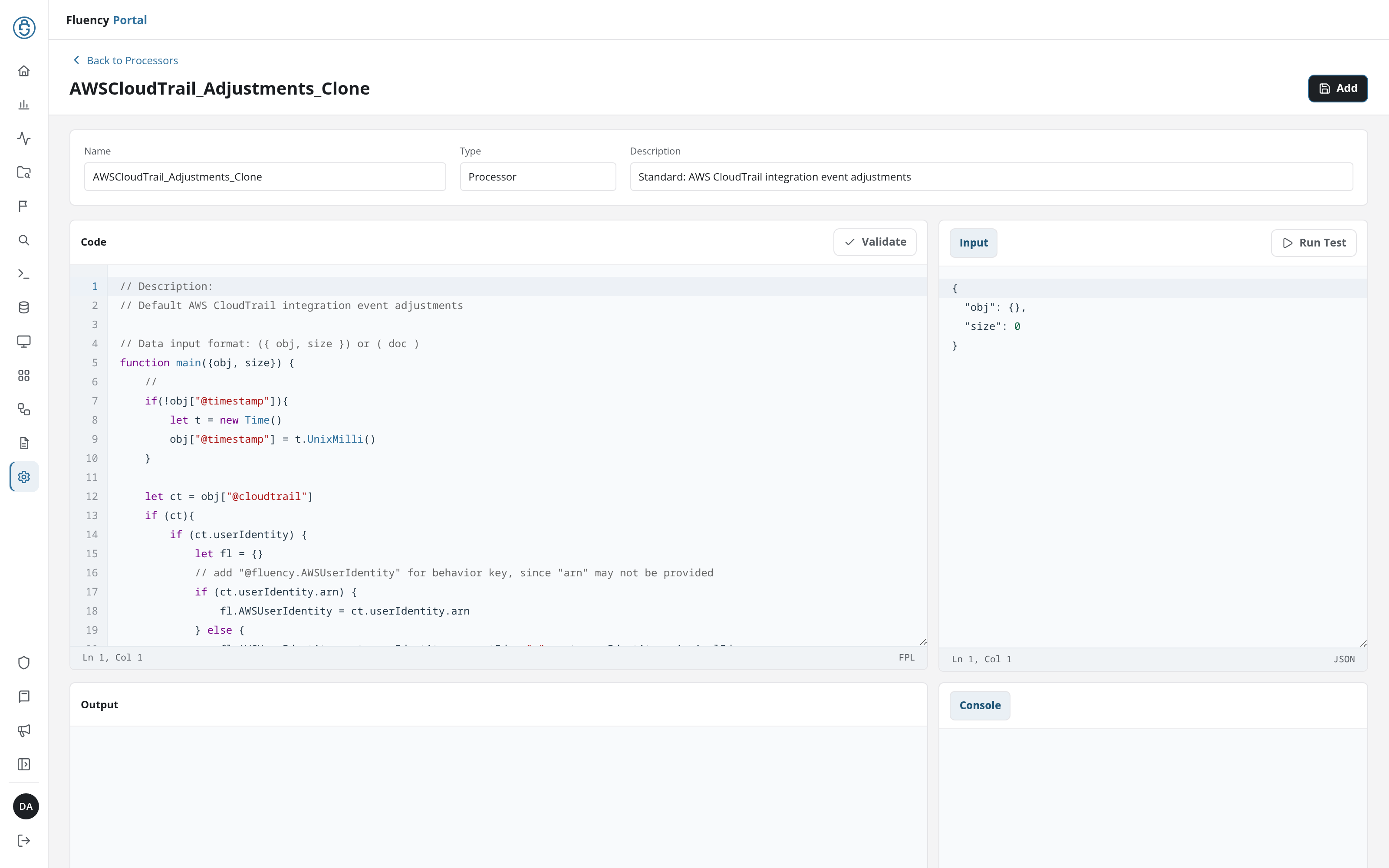
Click Add in the header to save the copy as a local object. The copy needs a name no other object has: keeping the source's own name is refused with a duplicate-name error.
Delete
A card's Delete (the trash icon) asks for confirmation (Delete <name>? This cannot be undone.) before it deletes the object; its card then leaves the grid.