Audit
The Audit area shows a log of user and API activity in the Fluency portal, with faceted filtering and full-text search.
Menu path: Settings → Management → Audit · URL path: /settings/audit
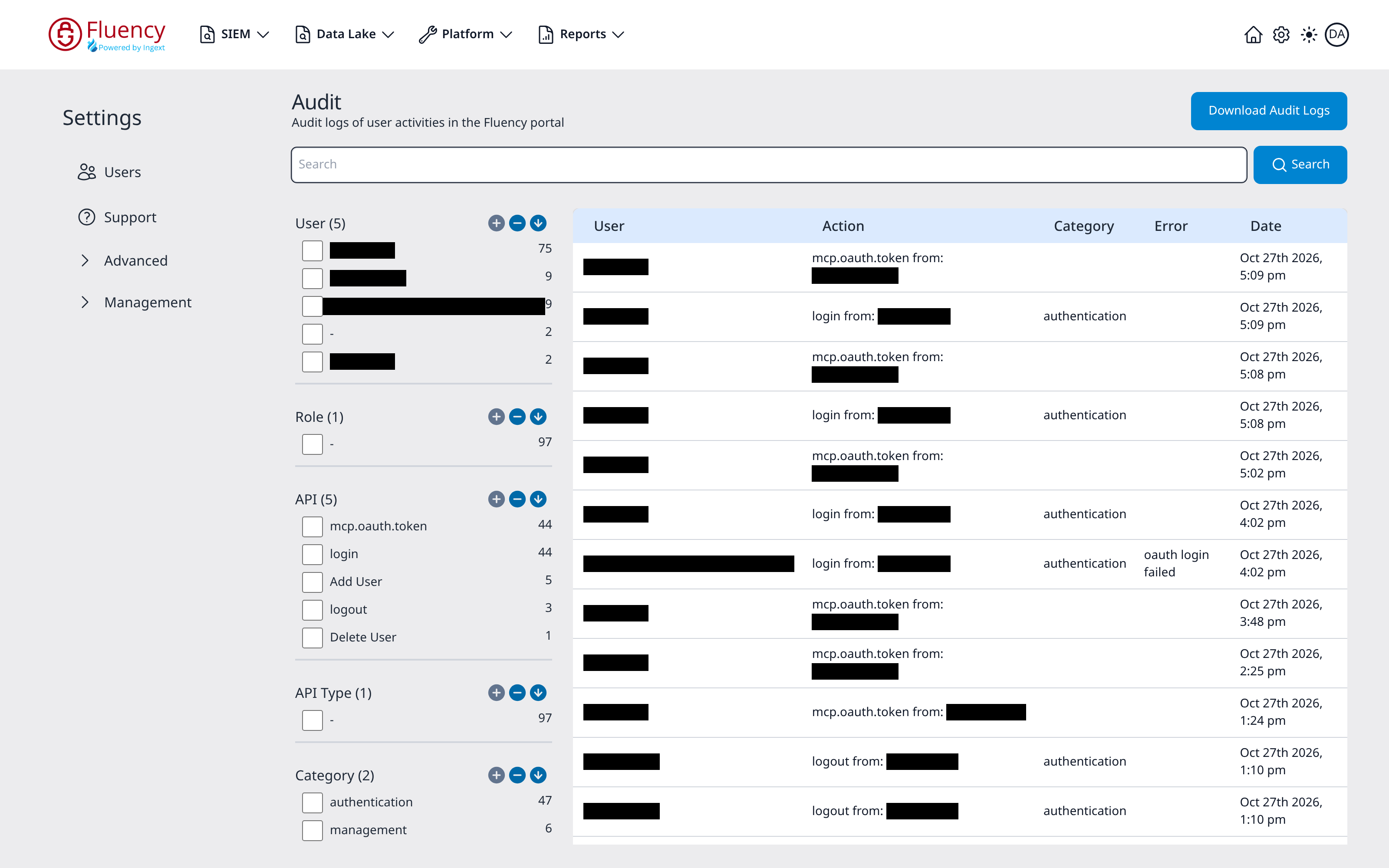
Page Layout
The header shows the title Audit with the subtitle Audit logs of user activities in the Fluency portal and a Download Audit Logs button in the upper-right corner. Below the header a Search field with a Search button filters the log by text. The rest of the page is split into a filter panel on the left and the log table on the right.
Filter Panel
The left panel is a faceted filter. Each field the log can be narrowed by appears as a group whose values each show a matching-record count and a checkbox for filtering. The groups include:
- User: the actor, such as a named user or an OAuth identity.
- Role
- API: the action, such as login, Add User, or Delete User.
- API Type
- Category: such as authentication or management.
- Error
Each group has controls to expand, collapse, and sort its listed values.
Audit Log Table
The table on the right has five columns:
- User: the actor that performed the action.
- Action: what was done and where from, such as a login from an IP address, or an Add User or Delete User action naming the user it applied to.
- Category: the action's category, such as authentication or management.
- Error: any error associated with the entry, such as oauth login failed.
- Date: when the action occurred.
A pagination bar below the table pages through the results.
Download Audit Logs
Click Download Audit Logs to export the audit log.