Users
The Users area lists the account's users and the roles assigned to each. It is the area shown when the Settings page loads.
Menu path: Settings → Users · URL path: /settings/team
Task guide: Managing Users: who gets an account and what they can see.
Page Layout
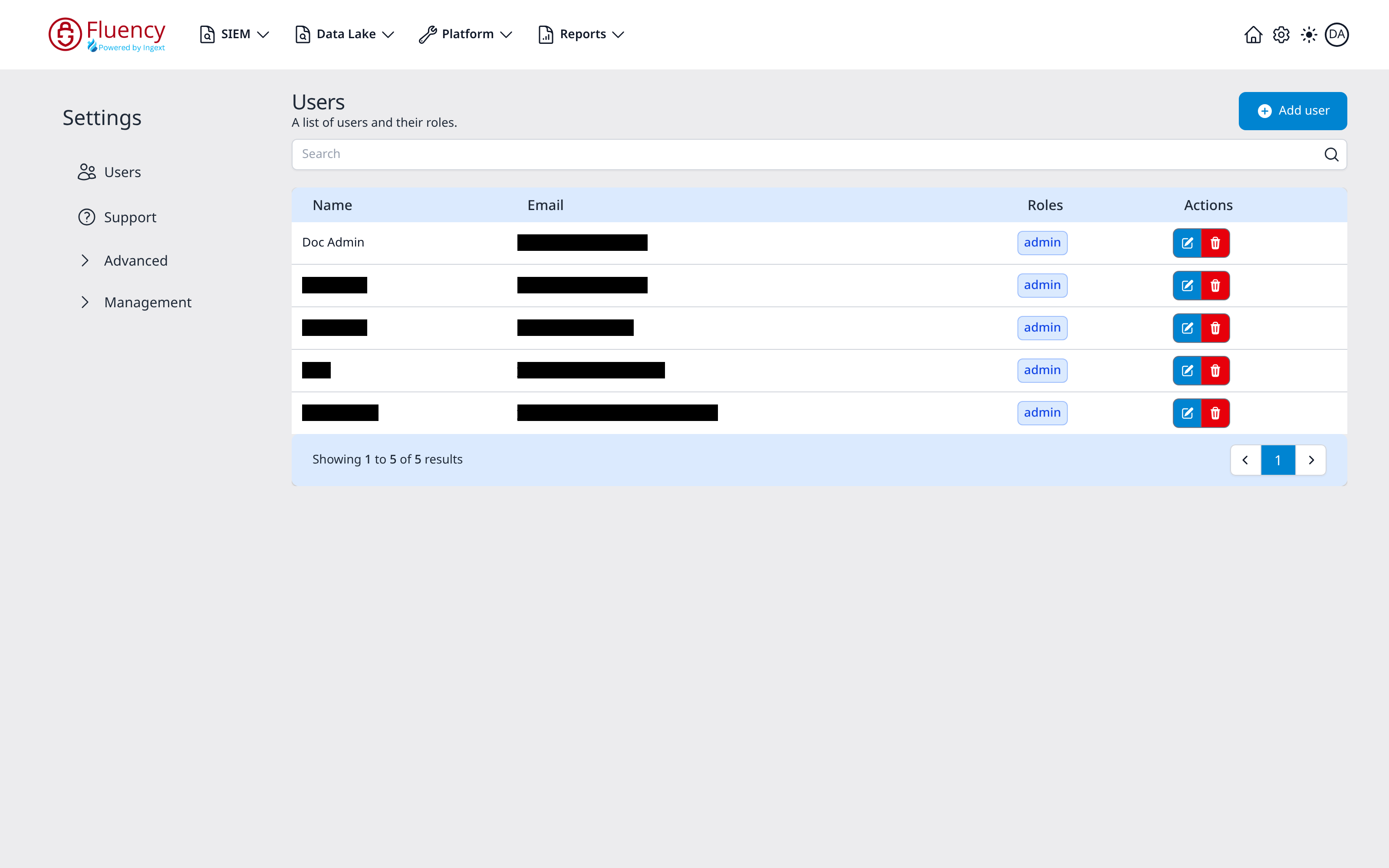
The header shows the title Users with the subtitle A list of users and their roles. and an Add user button in the upper-right corner. Below the header is a Search box, then the user table, then a pagination bar.
User Table
The table has four columns:
- Name: the user's display name.
- Email: the user's email address.
- Roles: the roles assigned to the user, each shown as a tag.
- Actions: a blue edit (pencil) button and a red delete (trash) button for the row.
The pagination bar reports the range and total (for example Showing 1 to 3 of 3 results) and provides page controls on the right.
Add user
Click Add user to open the Add User dialog ("Enter the user information to add to the system."). Required fields are marked with a red asterisk.
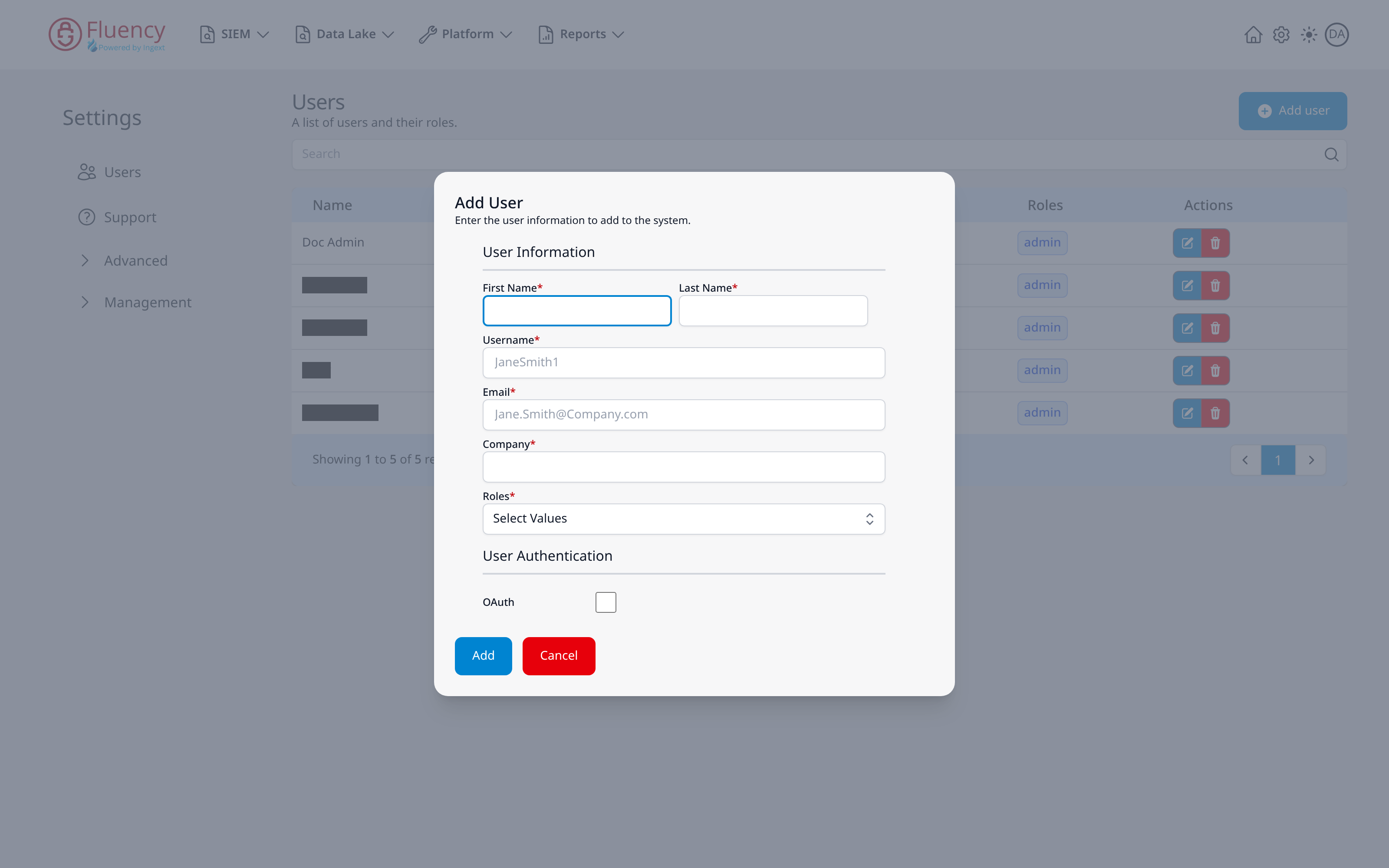
The dialog has two sections:
User Information
- First Name (required) and Last Name (required): side-by-side name fields.
- Username (required): sign-in name; placeholder text shows the expected format.
- Email (required): the user's email address; placeholder text shows the expected format.
- Company (required): the user's organization.
- Roles (required): a Select Values drop-down for assigning roles to the user.
User Authentication
- OAuth: checkbox that enables OAuth authentication for the user.
Click Add to create the user, or Cancel to close the dialog without saving.
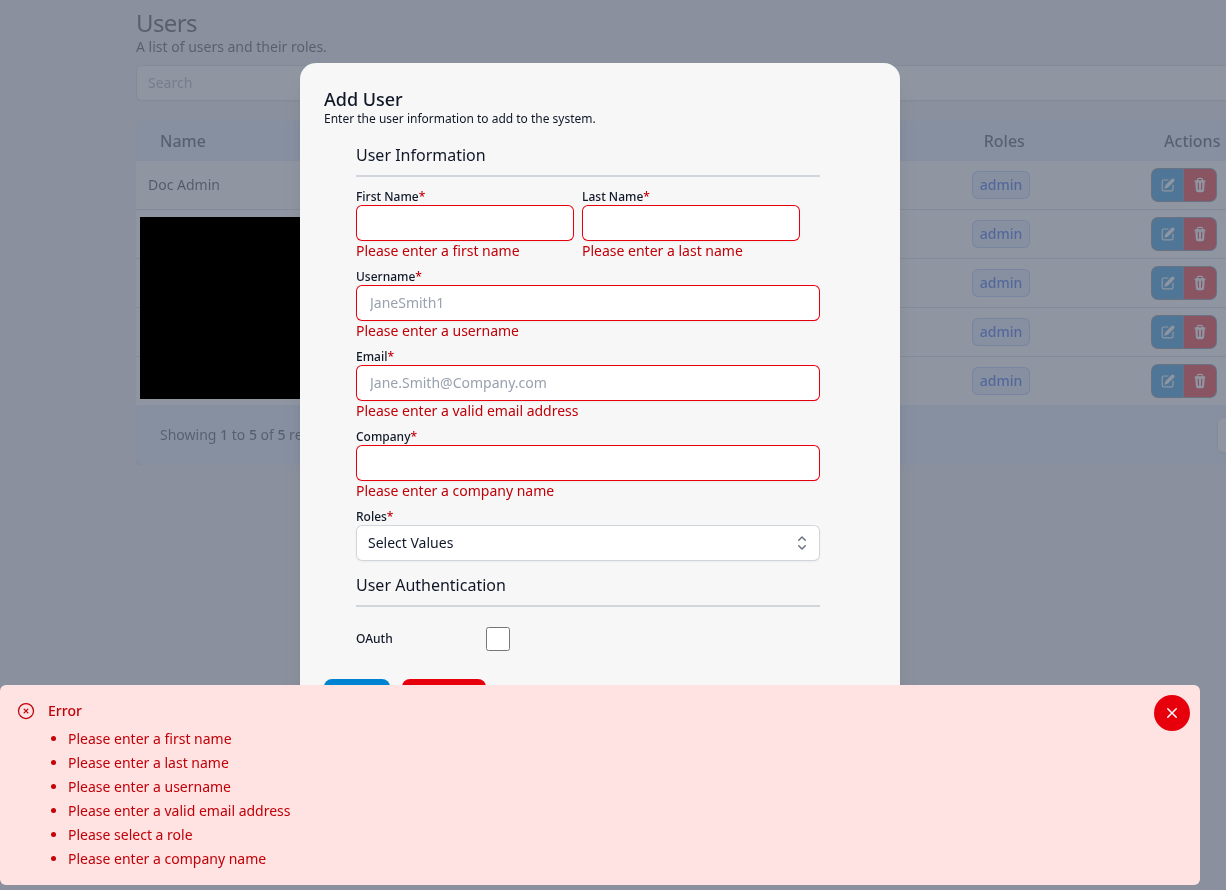
Add checks every field at once. Each missing or invalid field is outlined in red with its message beneath it (Please enter a first name, Please enter a last name, Please enter a username, Please enter a valid email address, Please enter a company name), and a red Error toast at the bottom of the page lists every problem, Please select a role included. The dialog stays open; the toast stays until it is closed with its × button.
When the user is added, a green Successfully added user! toast reads The user with username followed by the username, has been added successfully. An email has been sent to followed by the user's address, with the login details.
Edit a User
Click the blue edit button in a row's Actions column to open the Update User dialog. It has the same fields as Add User, pre-filled with the user's current values, and the same subtitle, Enter the user information to add to the system.
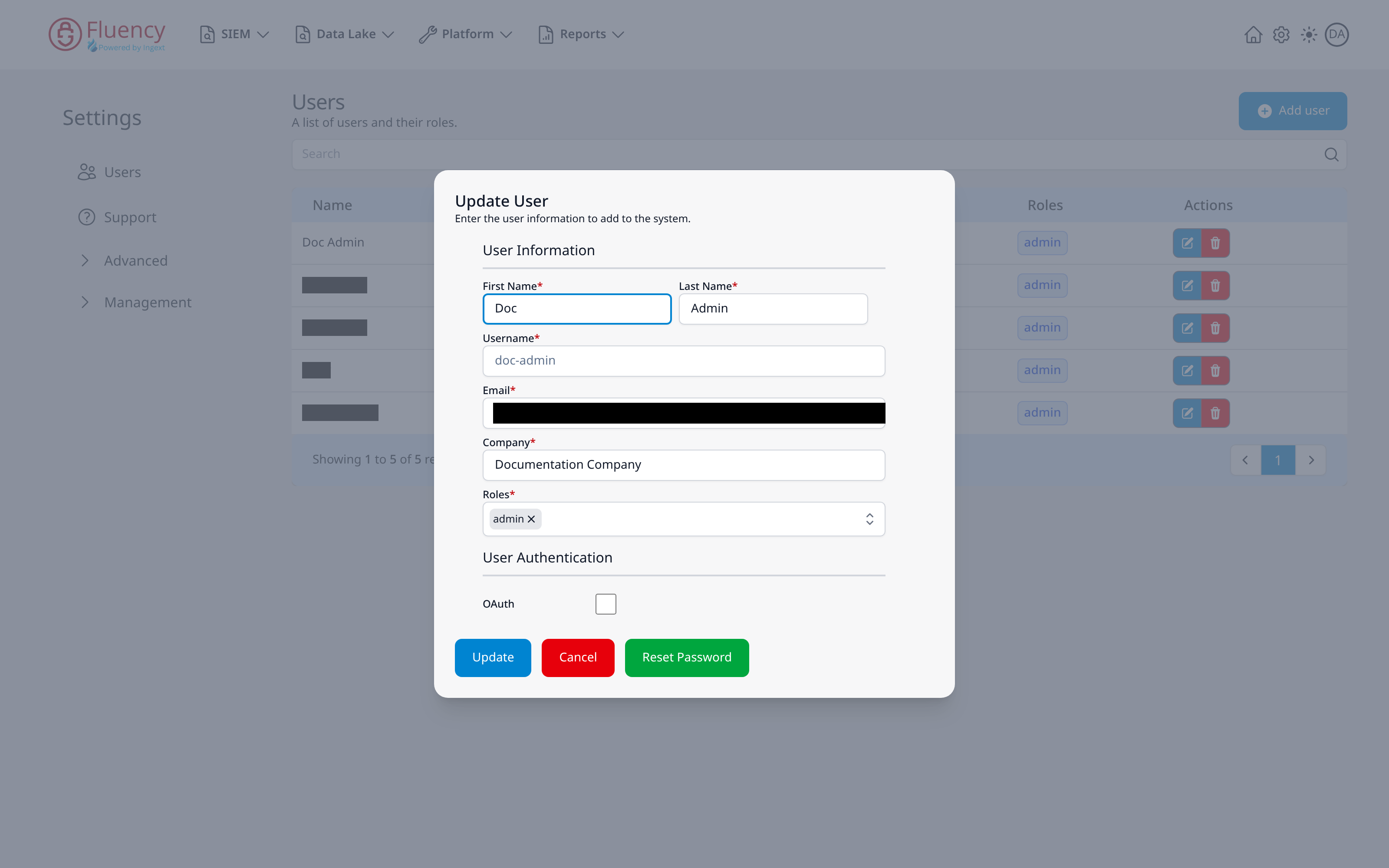
Three buttons sit at the bottom:
- Update (blue): saves the changes. A green Successfully updated user! toast confirms the save: The user with the username followed by the username and has been updated.
- Cancel (red): closes the dialog without saving.
- Reset Password (green): opens the Reset Password dialog for the user.
Reset Password
Reset Password in the Update User dialog opens a second dialog, Reset Password, over it.

- Password: the new password, at least eight characters long.
- Confirm Password: the same password again.
Click Reset (blue) to set the password, or Cancel (red) to close the dialog without changing it. A password that is too short is outlined in red with Password needs to be at least 8 characters long beneath it, and a red Error toast repeats the message; two passwords that differ produce an Error toast reading Passwords do not match. When the password is set, a green Successfully reset password! toast reads The password for the user with the username followed by the username and has been reset., and the Update User dialog is still open behind it.
Delete a User
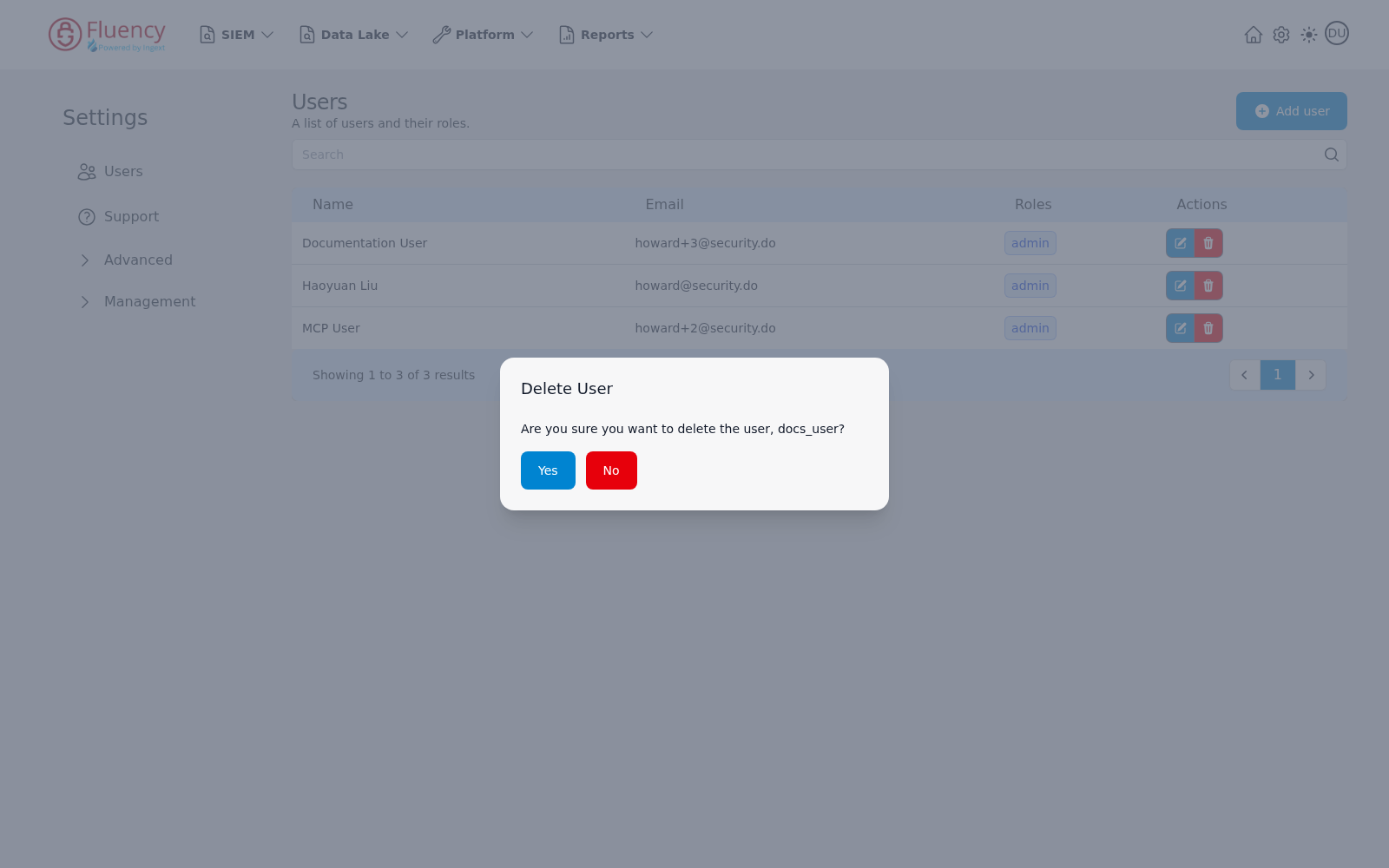
Click the red delete button in a row's Actions column to open the Delete User confirmation, which asks Are you sure you want to delete the user, followed by the username. Click the blue Yes button to delete the user or the red No button to keep it. A deleted user leaves the table, and a green Successfully deleted user! toast reads The user with username followed by the username and has been deleted.