Profile
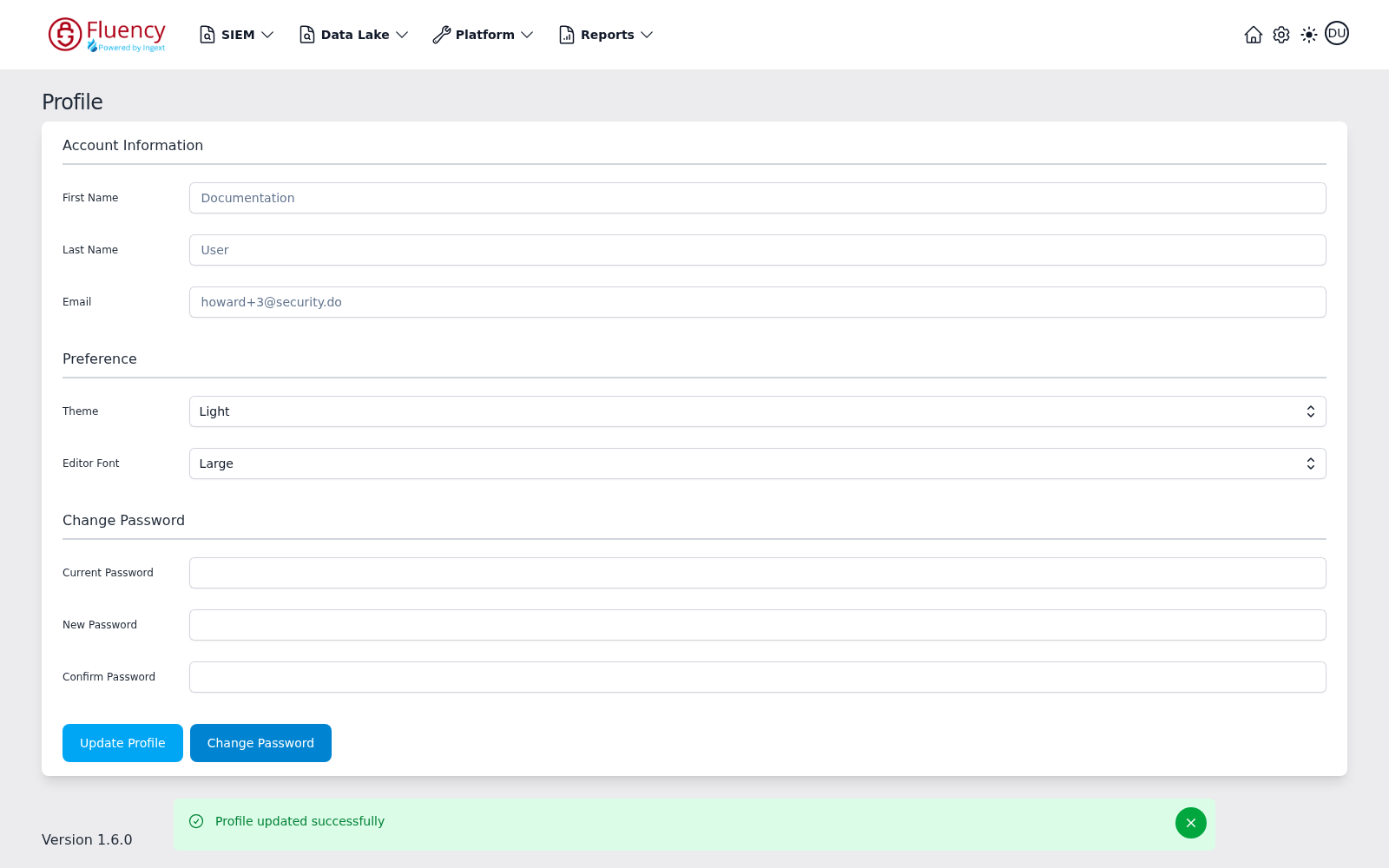
The Profile page is where the signed-in user manages their own account: their name and email, their display preferences, and their password. The browser tab titles it Settings - Profile.
Menu path: account avatar (upper-right) → Profile · URL path: /user/profile
The avatar menu holds two items: Profile, which opens this page, and Logout.
Page Layout
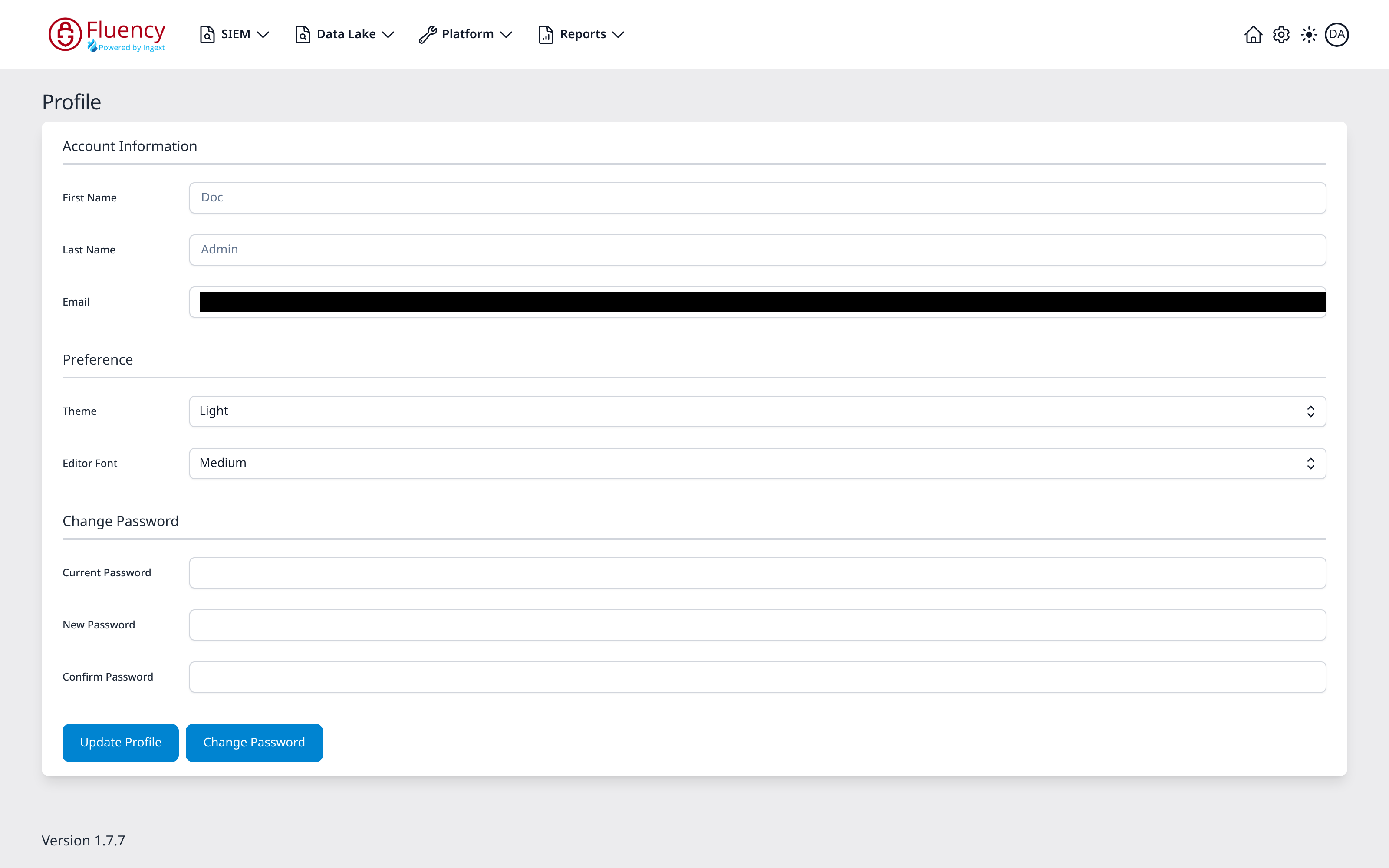
Under the page heading Profile, a single card holds three sections (Account Information, Preference, and Change Password), followed by two action buttons. The application version is shown in the lower-left corner of the page.
Account Information
- First Name
- Last Name
All three are read-only (greyed out): the user's name and email address are not changed from this page.
Preference
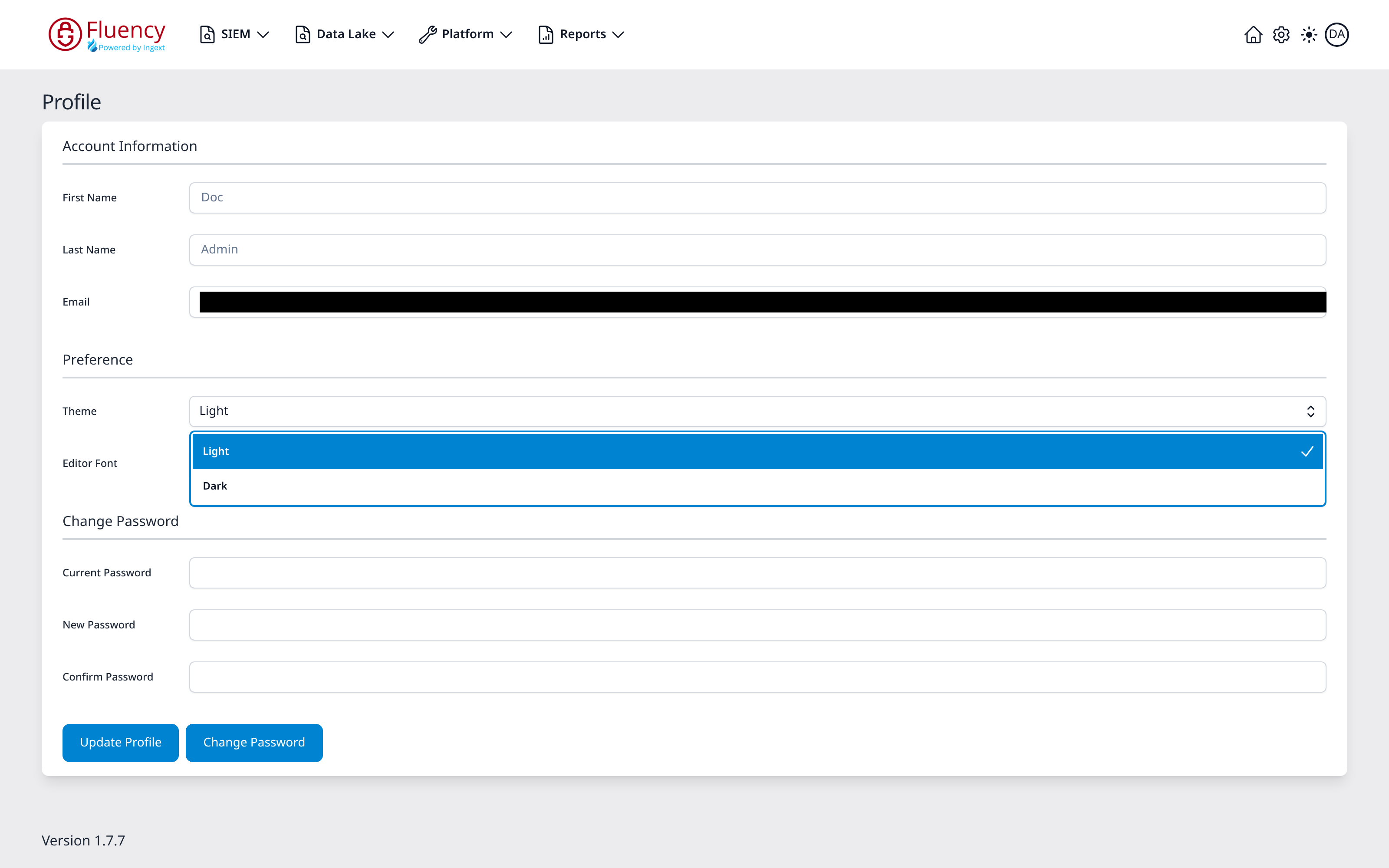
- Theme: a drop-down for the interface theme, with Light and Dark options.
- Editor Font: a drop-down for editor text size, with Small, Medium, and Large options.
Change Password
- Current Password
- New Password
- Confirm Password
Actions
- Update Profile: saves the Preference fields, Theme and Editor Font. On success the page shows a green Profile updated successfully toast, dismissible with its close button.
- Change Password: submits the password change. If the Current Password field is empty, the page shows a red error toast reading Please enter your current password.