Assets Search
The Assets Search page lists the assets the platform has registered or discovered from data ingress. Use it to query the asset inventory, download the list, or add an asset by hand.
Menu path: Platform → Assets → Assets Search · URL path: /platform/assets
Page Layout
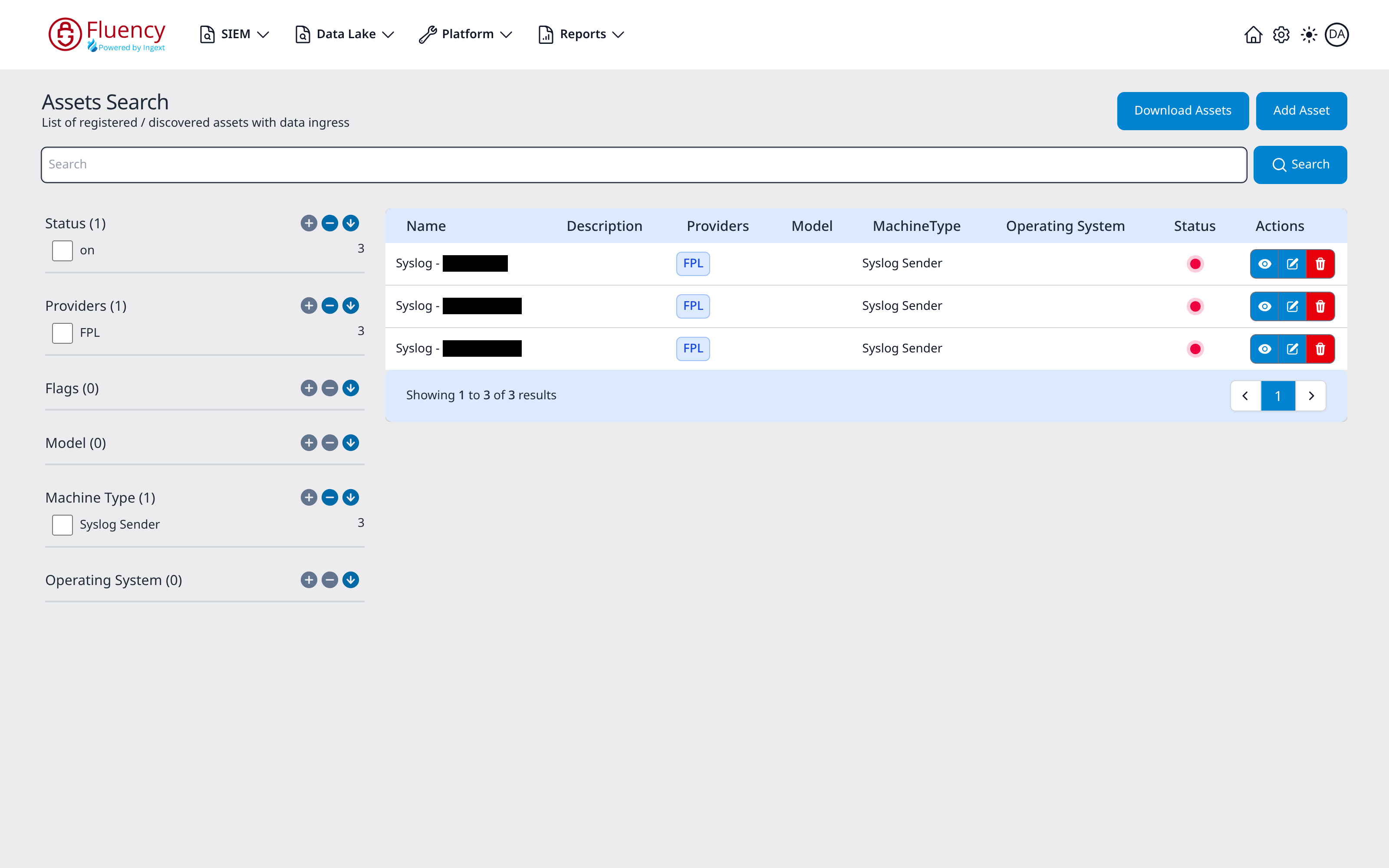
The header shows the page title and the subtitle List of registered / discovered assets with data ingress, with the Download Assets and Add Asset buttons on the right. Below the header, a full-width Search field with a Search button spans the page. The body is split into a facet panel on the left and the asset results table on the right, with a result counter and pagination controls under the table.
Header Actions
Download Assets
Click Download Assets to export the asset list.
Add Asset
Click Add Asset to open the Add Asset dialog and register an asset manually.
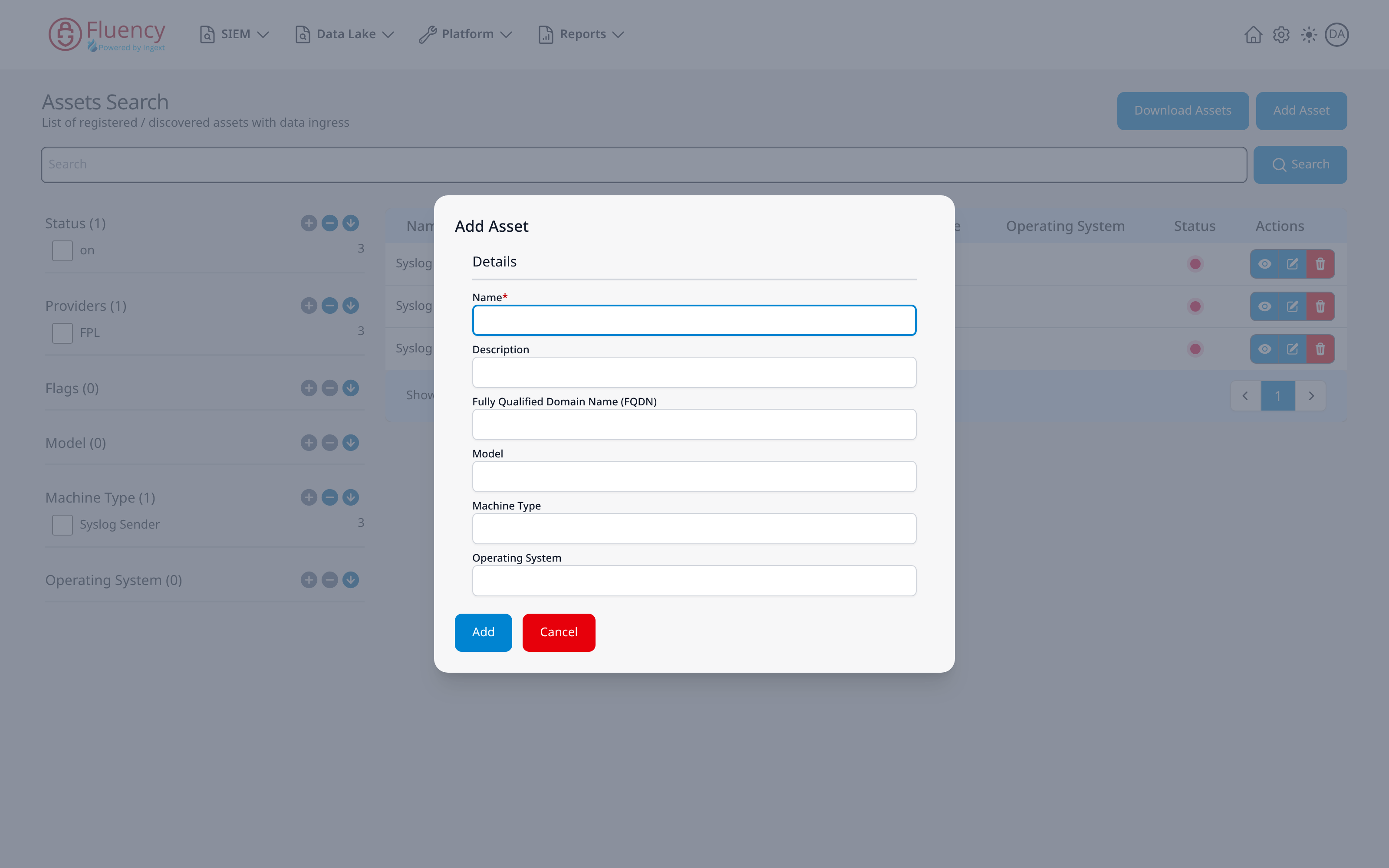
The Add Asset dialog contains a single Details section with these fields:
- Name (required)
- Description
- Fully Qualified Domain Name (FQDN)
- Model
- Machine Type
- Operating System
Click Add to save the asset, or Cancel to close the dialog without saving.
Search Bar
Enter a query in the Search field and click Search to run it against the asset inventory. If a search cannot be completed, the page reports the error in a dismissible notification.
Facet Panel
The panel on the left breaks the asset inventory down by facet. It holds six facet groups, each heading followed by a count in parentheses:
- Status
- Providers
- Flags
- Model
- Machine Type
- Operating System
Each facet heading also carries three small round icon buttons (a plus, a minus, and a downward arrow). Beneath the heading, the group lists its values, each with a checkbox and, on the right, the number of matching assets; in the example, Status lists on, Providers lists FPL, and Machine Type lists Syslog Sender, each with 3. A group with no values, such as Flags (0), shows only its heading.
Results Table
Matching assets appear in the table with these columns:
- Name
- Description
- Providers: the providers as blue chips, such as FPL.
- Model
- MachineType
- Operating System
- Status: a small green activity sparkline, or a red dot.
- Actions: three joined buttons: a blue view (eye), a blue edit (pencil), and a red delete (trash).
- The eye opens a side panel (titled Processor Info) with the asset's Asset Details (Name, Providers, FPL, Last Updated), an Asset Metrics chart, and View JSON, the asset's record as JSON.
- The pencil opens the Edit Asset dialog: Name (read-only), Description, Fully Qualified Domain Name (FQDN), Model, Machine Type, and Operating System, with Update and Cancel.
- The trash opens the Delete Asset confirmation, Are you sure you want to delete asset <name>?, with Yes and No.
When no assets match, the table shows No data available. The footer reports the result count (for example, Showing 1 to 3 of 3 results) with previous, numbered, and next page buttons on the right.