Applications
The Applications page is where a platform's applications live. An application is a packaged pipeline (a data source, the processors that parse it, and the sinks it writes to) installed from a template by filling in a form rather than by wiring the pipeline by hand. From this page you can review each installed application's status and configuration, install a new one from the template catalog, and browse the template library.
Menu path: Platform → Applications · URL path: /platform
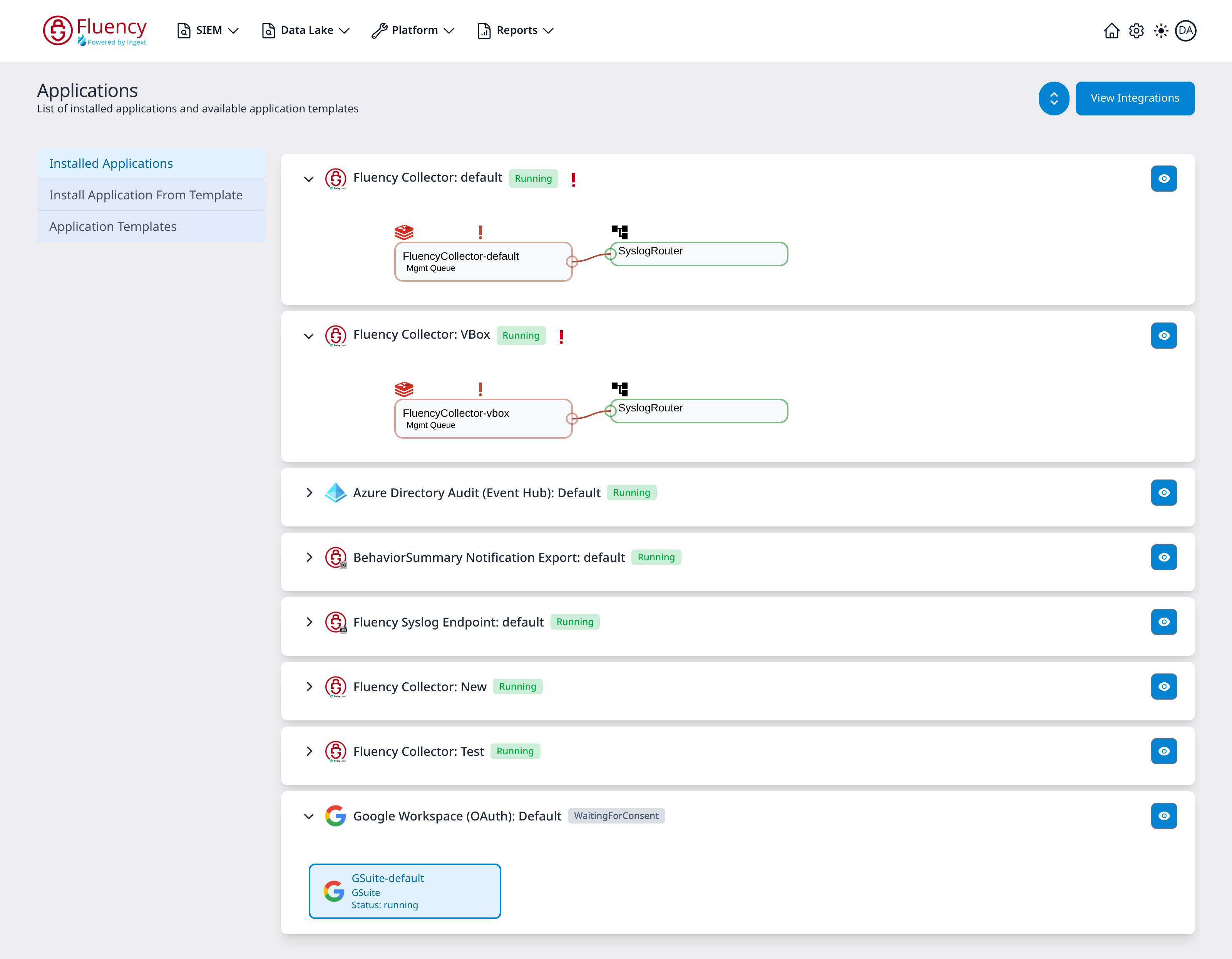
Page Layout
The page header shows the Applications title with the subtitle List of installed applications and available application templates, and two controls in the upper-right corner:
- A round chevron button that expands or collapses every application card at once.
- A blue View Integrations button that leaves this page for the Integrations page.
Below the header the page is split in two:
- A view selector on the left.
- The content region on the right, showing whichever view is selected.
View Selector
The three entries switch the content region between three views of the same subject. The selected entry is highlighted in blue; Installed Applications is the view the page opens on.
| Entry | What it shows |
|---|---|
| Installed Applications | One card per application installed on this platform, with its status and its pipeline diagram. |
| Install Application From Template | The template catalog: every application template, grouped by category, with a setup form behind each one. |
| Application Templates | The template library as a table of template IDs, and the editor for adding a template of your own. |
Switching views does not change the URL: all three are states of /platform.
Expand All / Collapse All
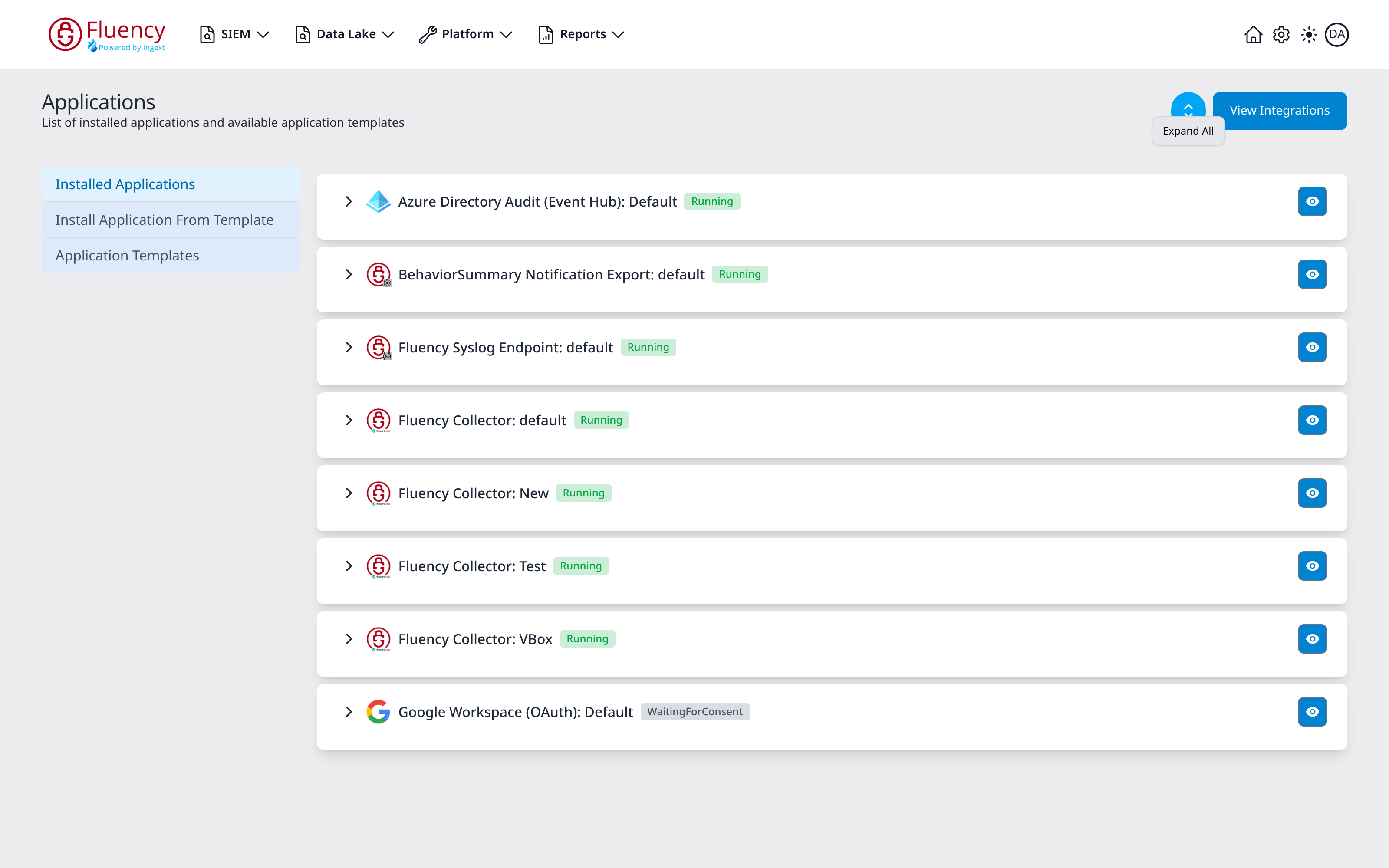
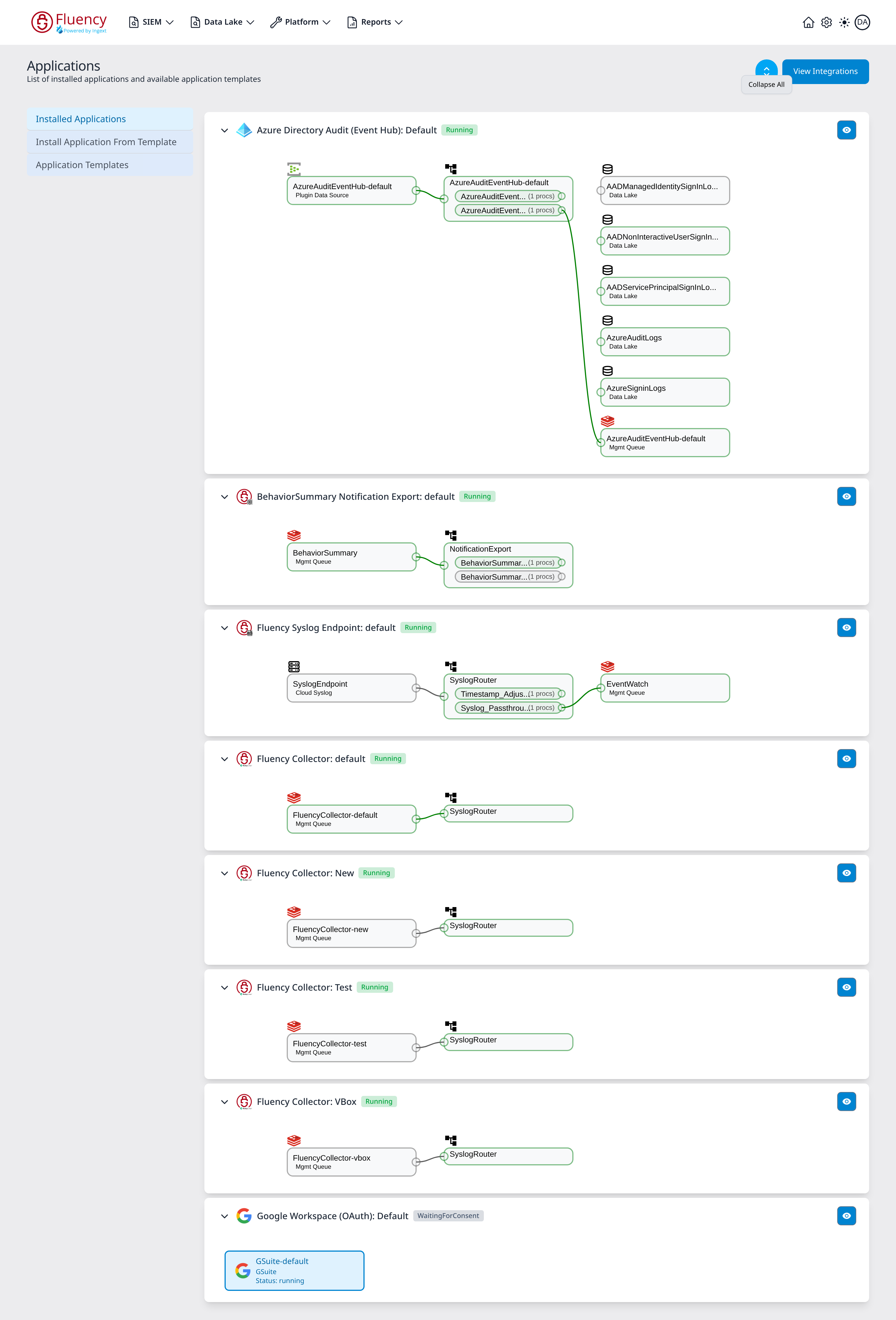
The round chevron button in the upper-right corner expands or collapses every application card at once. Hovering over it shows a tooltip naming the action it will perform next, so the tooltip flips between Expand All and Collapse All as you use it.
Below, the button has just collapsed every card, and the tooltip offers Expand All:
Clicking again expands every card, revealing the pipeline each application built (or an empty body, where it has not built one yet), and the tooltip changes to Collapse All:
The button acts on the cards in the Installed Applications view only; it stays in the header on the other two views, where it has nothing to act on.
View Integrations
View Integrations goes to the Integrations page, at /platform/integrations. It is a navigation button rather than a fourth view: the page title changes to Integrations, the view selector changes to that page's own three entries (Existing Integrations, New Integration, and Invitations), and the header button gives way to a yellow advisory banner whose red Back to Applications button returns here. The Platform menu has no Integrations entry, so this button is the way to the page.
The shortcut is on this page because the two are halves of one job. An application install creates the integration that holds its credentials (the Add Integration lines in an application's Actions list), and the Integrations page is where those credentials are edited afterwards, or where an integration is created on its own for a pipeline built by hand.