Schemas
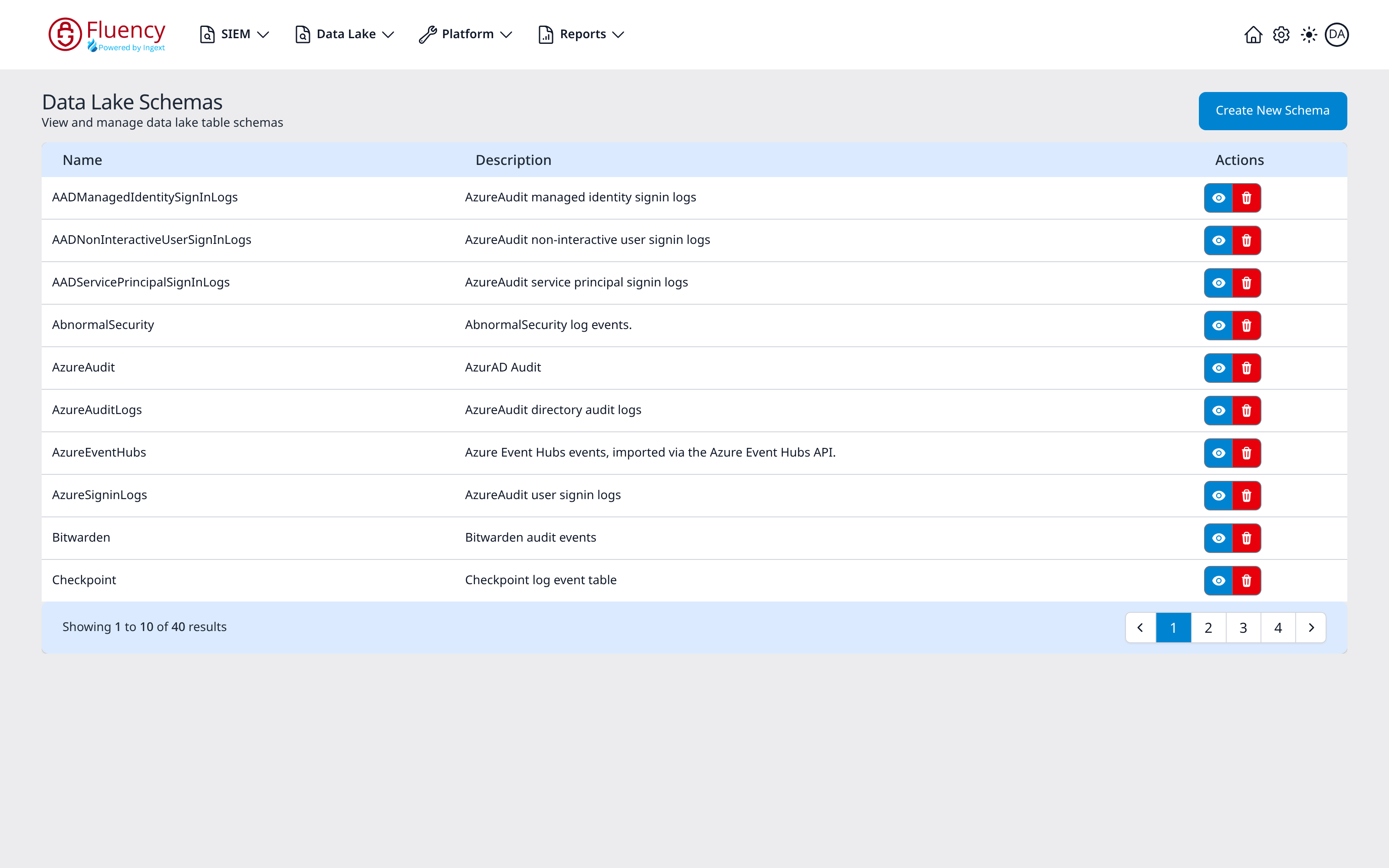
The Schemas page lists the table schemas available to the data lake and lets you create new schemas or open and delete existing ones.
Menu path: Data Lake → Schemas · URL path: /dataLake/schemas
Page Layout
From top to bottom the page contains:
- A header with the page title Data Lake Schemas and the subtitle View and manage data lake table schemas, with the Create New Schema button on the right.
- A table of schemas with Name, Description, and Actions columns. Each row has a blue eye button and a red trash button under Actions.
- A footer bar reporting the visible range (Showing 1 to 10 of the total number of schemas) with numbered page buttons and previous/next arrows. The table shows ten schemas per page, sorted by name.
The list holds schemas for common log sources (for example AbnormalSecurity, AzureAudit, Bitwarden, Checkpoint, CloudTrail, Cortex, and Falcon, plus the Microsoft Entra ID sign-in tables such as AADNonInteractiveUserSignInLogs), each with a short description of the events it covers.
Create New Schema
Click Create New Schema to open the Creating New Schema dialog, subtitled Creating a new schema in the data lake:
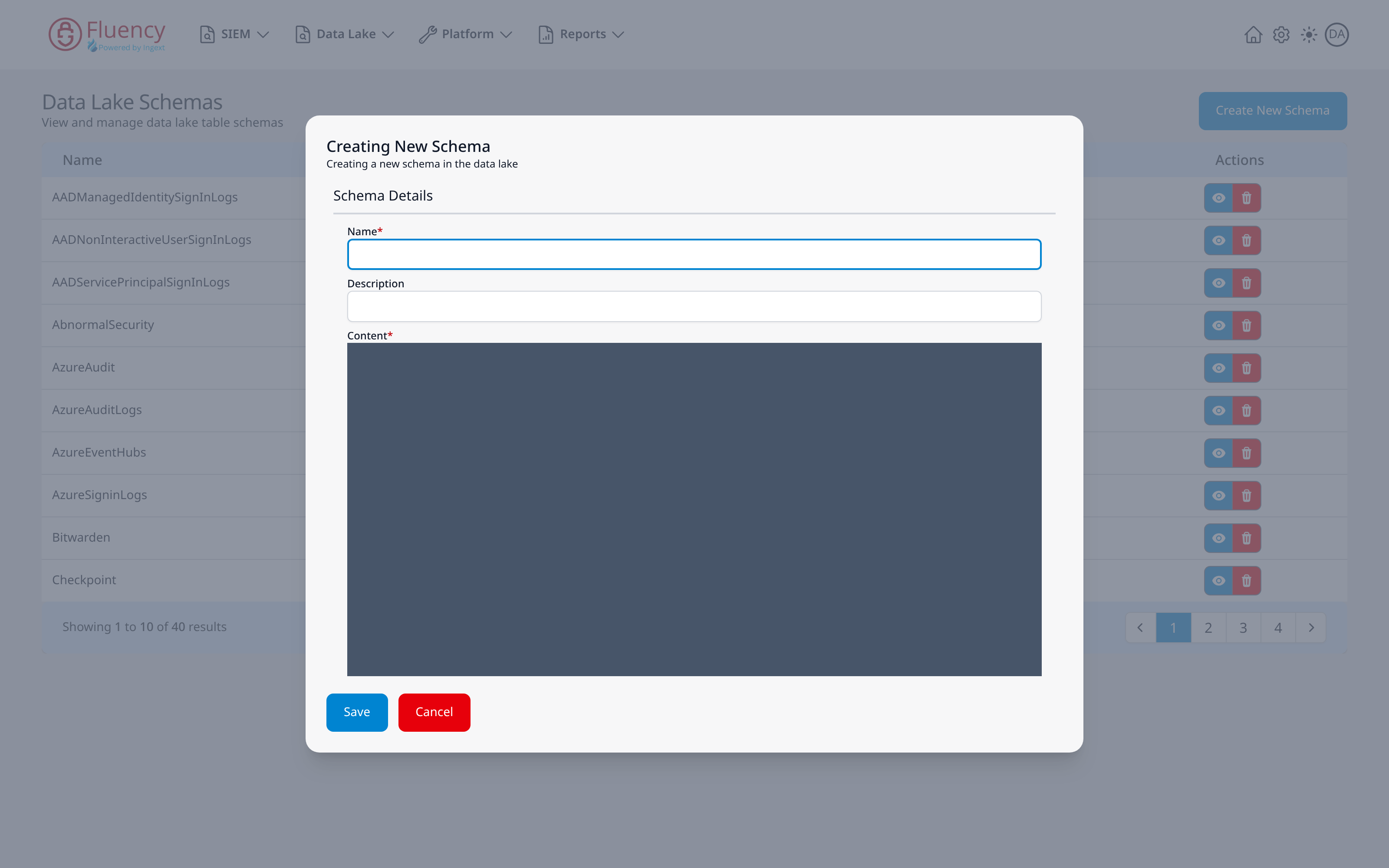
The Schema Details section contains:
- Name (required): the schema's name.
- Description: an optional summary.
- Content (required): a dark code editor for the schema definition, empty for a new schema.
Click Save to create the schema or Cancel to close without saving.
Schema Row Actions
Each row's Actions column offers two buttons: the eye button opens the schema for viewing and editing, and the trash button deletes it.
Editing Schema
Click a row's eye button to open the Editing Schema dialog for that schema:
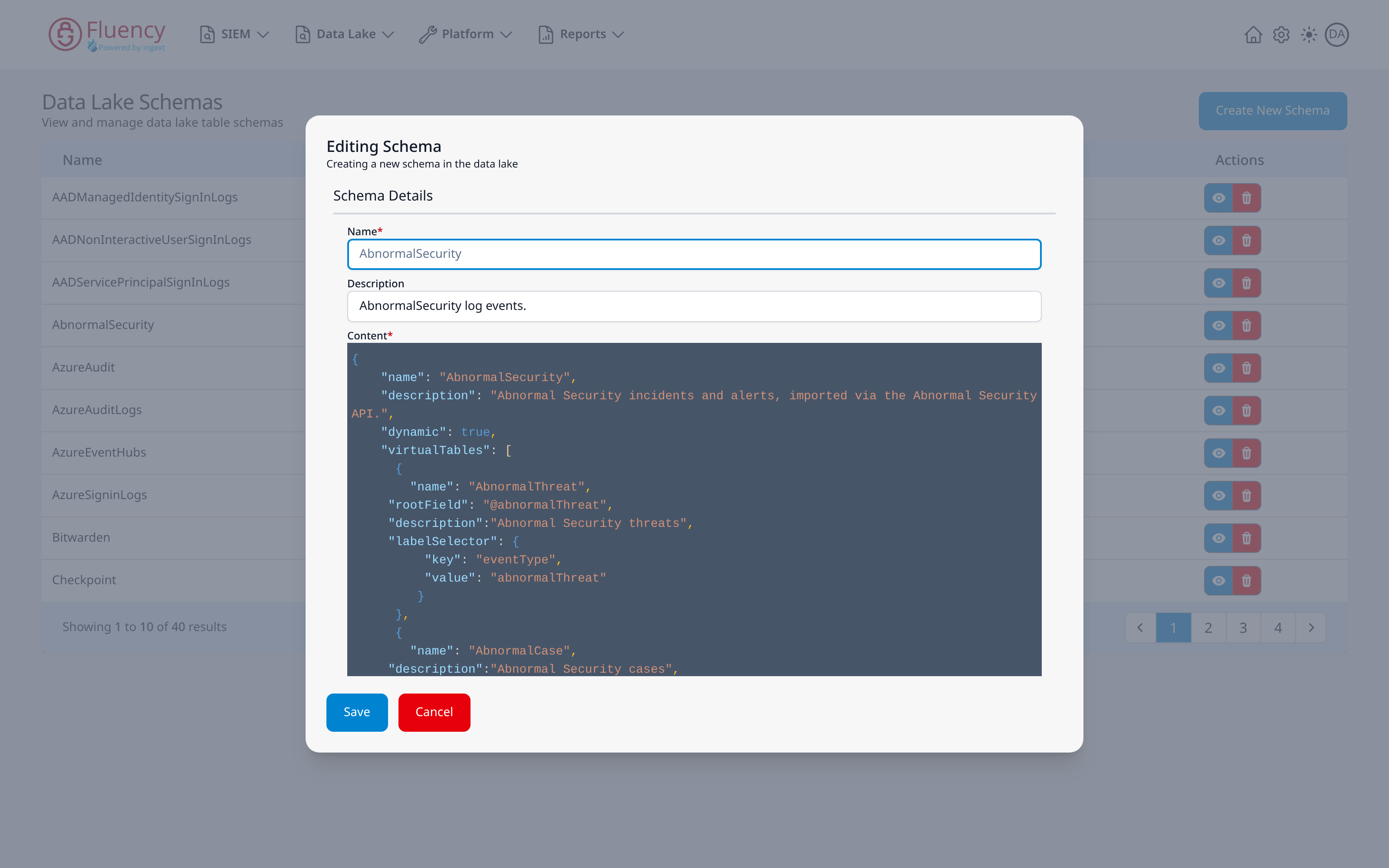
The dialog uses the same Schema Details form as schema creation, pre-filled with the selected schema; its subtitle reads Creating a new schema in the data lake, as in the creation dialog. The Content editor shows the schema's JSON definition, the AbnormalSecurity schema in the example above. Properties used across the schemas include name, description, a dynamic flag, aliases, virtualTables (each with a name, root field, and label selector), and a fields list where each field carries a name, description, and type information such as fpltype, type, and convertedtype. Edit the fields and click Save to apply changes, or Cancel to discard them.
Confirm Delete Schema
Click a row's trash button to open the Confirm Delete Schema dialog:
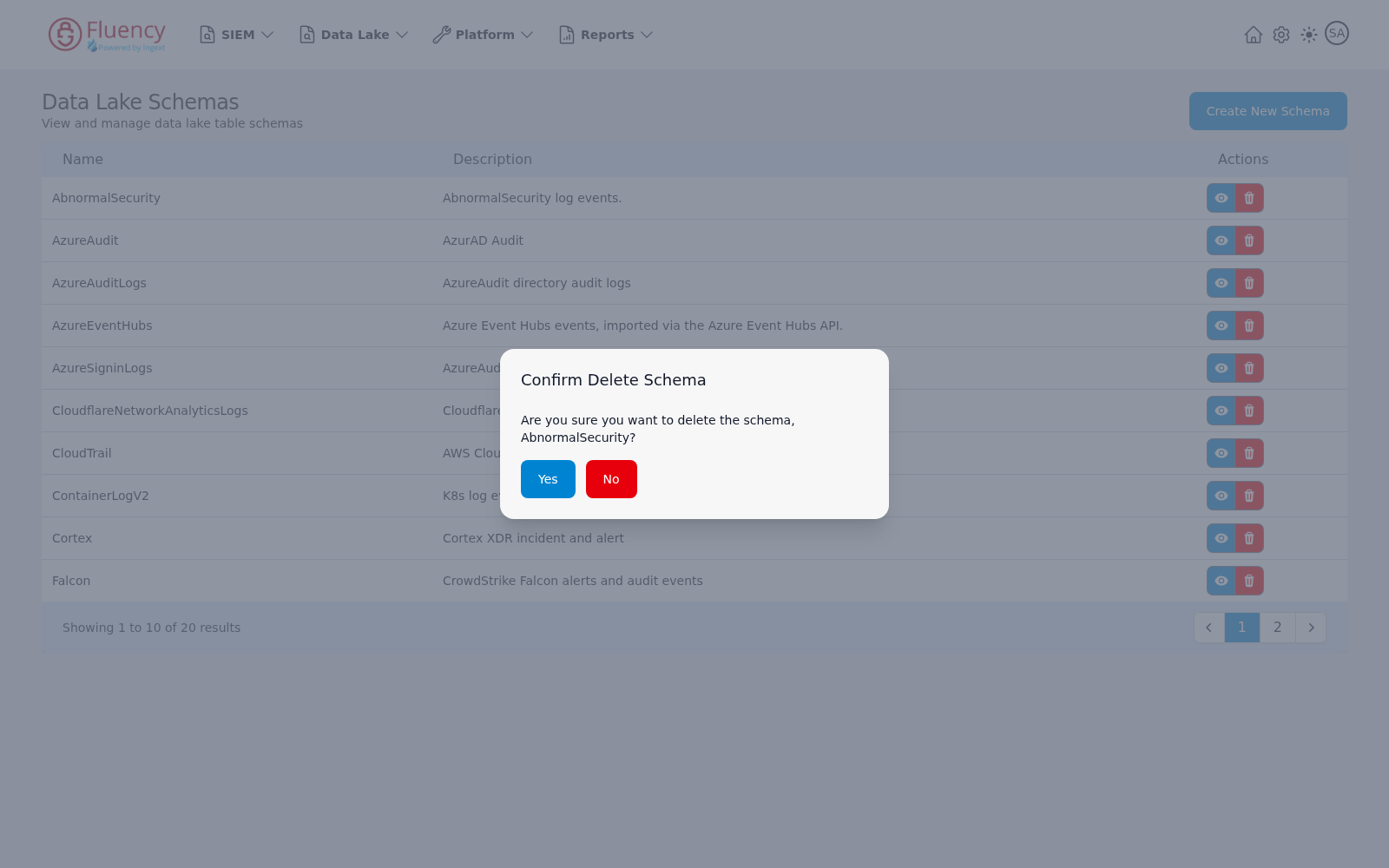
The dialog asks whether you are sure you want to delete the named schema. Click Yes to delete it or No to keep it. The same confirmation appears for whichever row's trash button you click, naming that schema.