KQL Query Builder
The KQL Query Builder page is an interactive KQL workbench for data lake indexes: browse an index's columns, write a KQL query against it, run the query, and review past runs and results.
Menu path: Data Lake → KQL Query Builder · URL path: /dataLake/schemas/builder
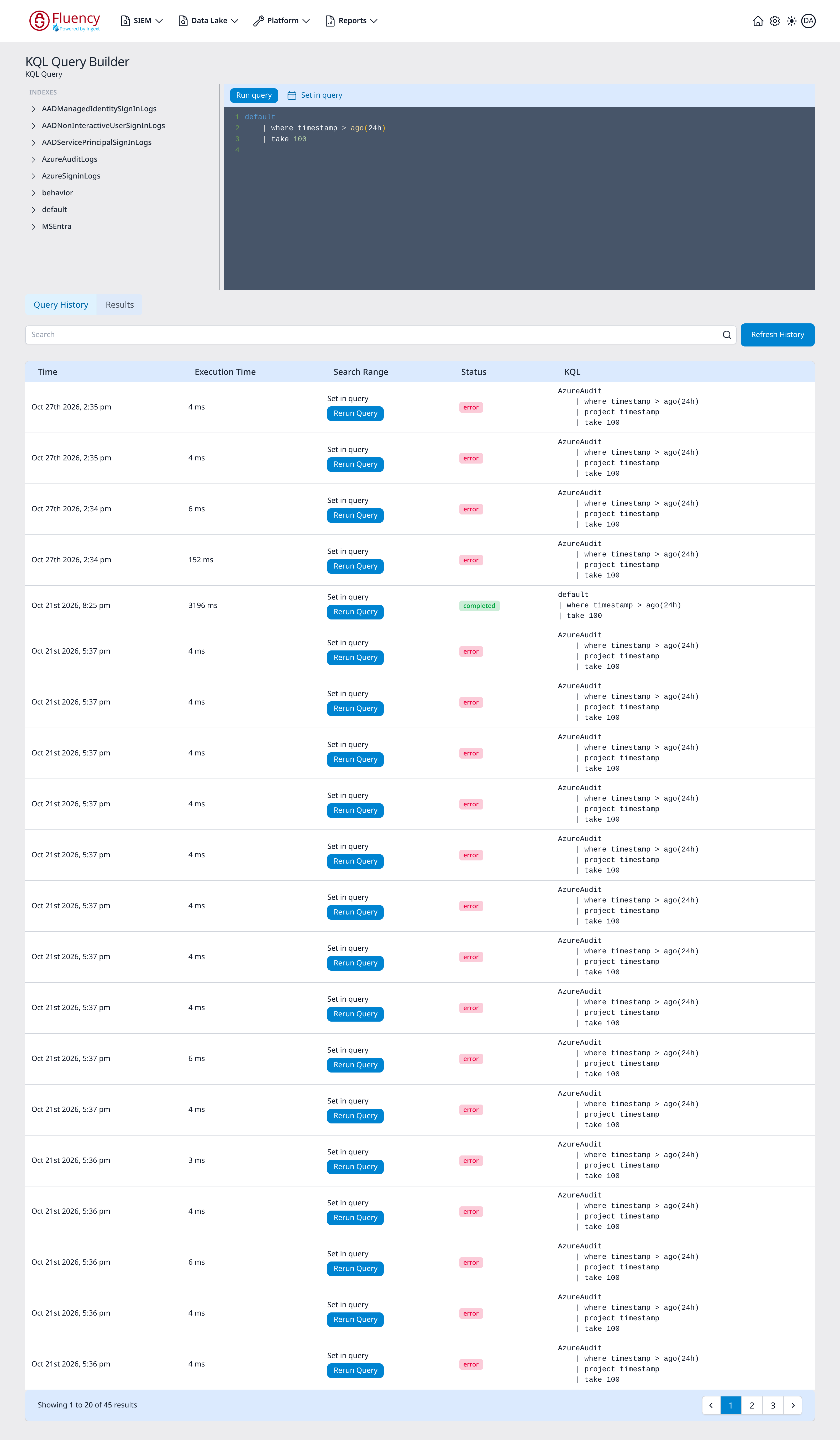
Page Layout
From top to bottom the page contains:
- A header with the page title KQL Query Builder and the subtitle KQL Query.
- A left INDEXES panel listing the queryable indexes, each with an expand chevron: in the example above AADManagedIdentitySignInLogs, AADNonInteractiveUserSignInLogs, AADServicePrincipalSignInLogs, AzureAuditLogs, AzureSigninLogs, behavior, default, and MSEntra.
- On the right, a toolbar with the Run query button and the Set in query time-range menu (marked with a calendar icon), above the dark KQL editor. When the page loads, the editor holds the sample query
default | where timestamp > ago(24h) | take 100, with line numbers and syntax highlighting. - Below, a Query History tab and a Results tab. Query History is selected when the page loads; until a query has run, the Results tab reads Run a query to view results.
Indexes Panel
Click an index name to select it and expand its schema in place, listing each column with its type:
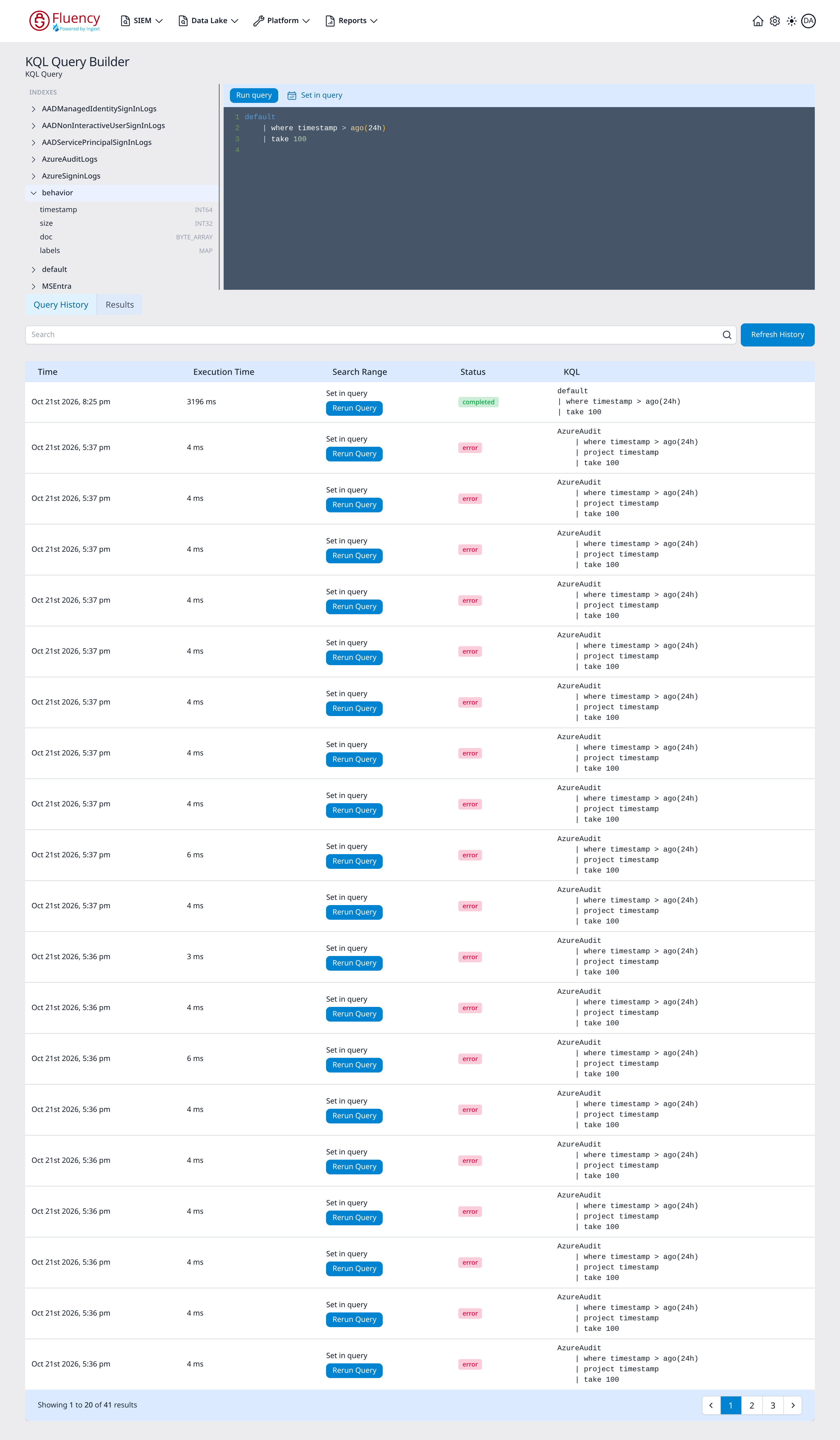
Indexes on the ingext default schema, such as behavior and default, show the base columns timestamp (INT64), size (INT32), doc (BYTE_ARRAY), and labels (MAP), and so does AzureAudit. An index whose schema defines its own fields lists those fields instead: AzureAuditLogs starts with TimeGenerated (INT64), _Size (INT32), and AADOperationType (BYTE_ARRAY).
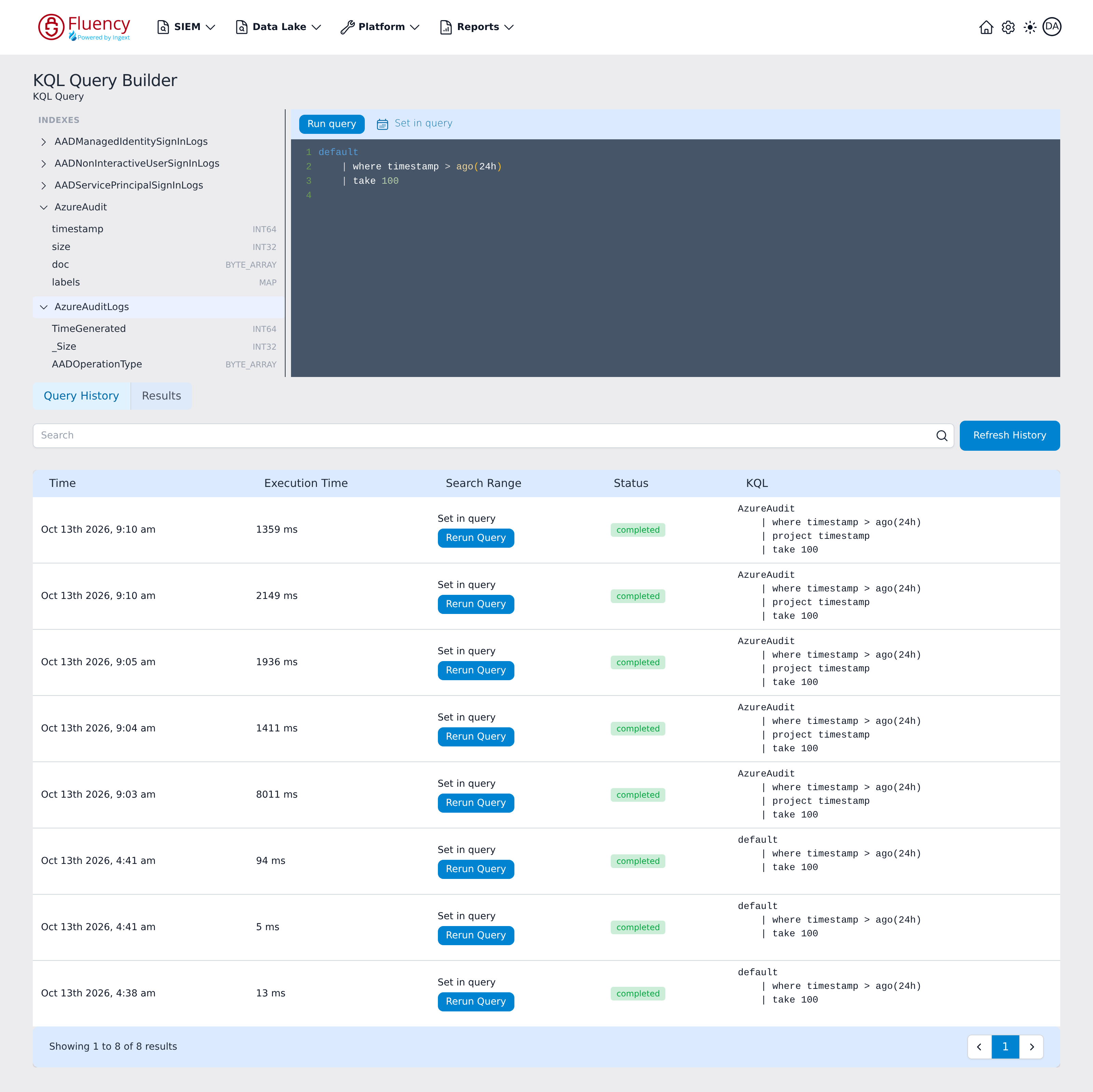
Expanding another index does not collapse the first: each entry opens independently, so several indexes can show their columns at once, and the panel scrolls when the lists outgrow it. Here AzureAudit has been expanded and then AzureAuditLogs below it:
Query Toolbar and Editor
The toolbar above the editor contains:
- Run query: executes the KQL currently in the editor.
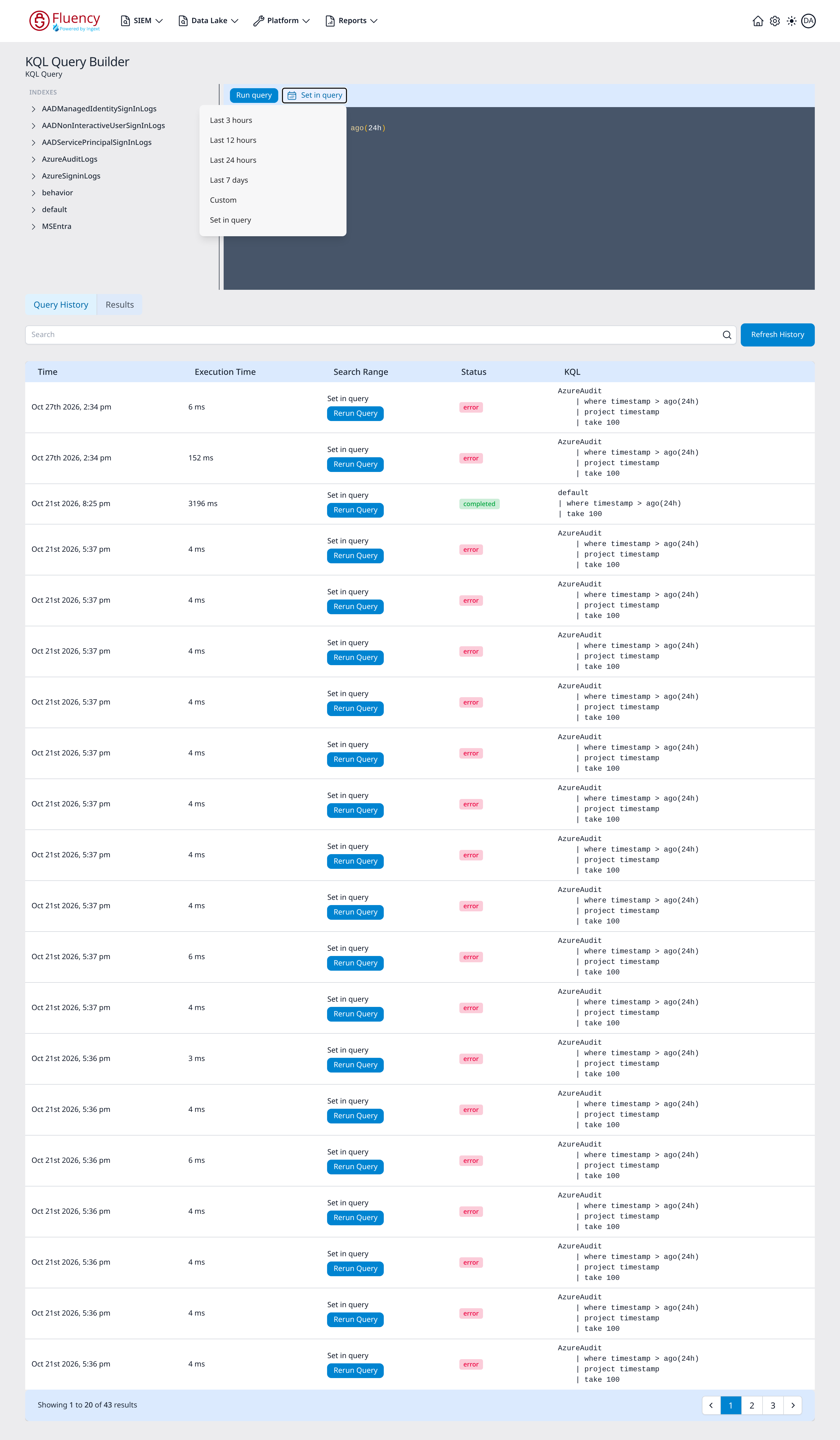
- Set in query: the time-range menu, marked with a calendar icon. It offers Last 3 hours, Last 12 hours, Last 24 hours, Last 7 days, Custom, and Set in query. Set in query, the setting on a fresh page, leaves the range to a time filter in the query itself, such as the
ago(24h)filter in the sample query; history entries run that way show Set in query in their Search Range column.
Run query
Click Run query to execute the editor's query. The page switches to the Results tab, here for a query on the AzureAudit index, AzureAudit | where timestamp > ago(24h) | project timestamp | take 100:
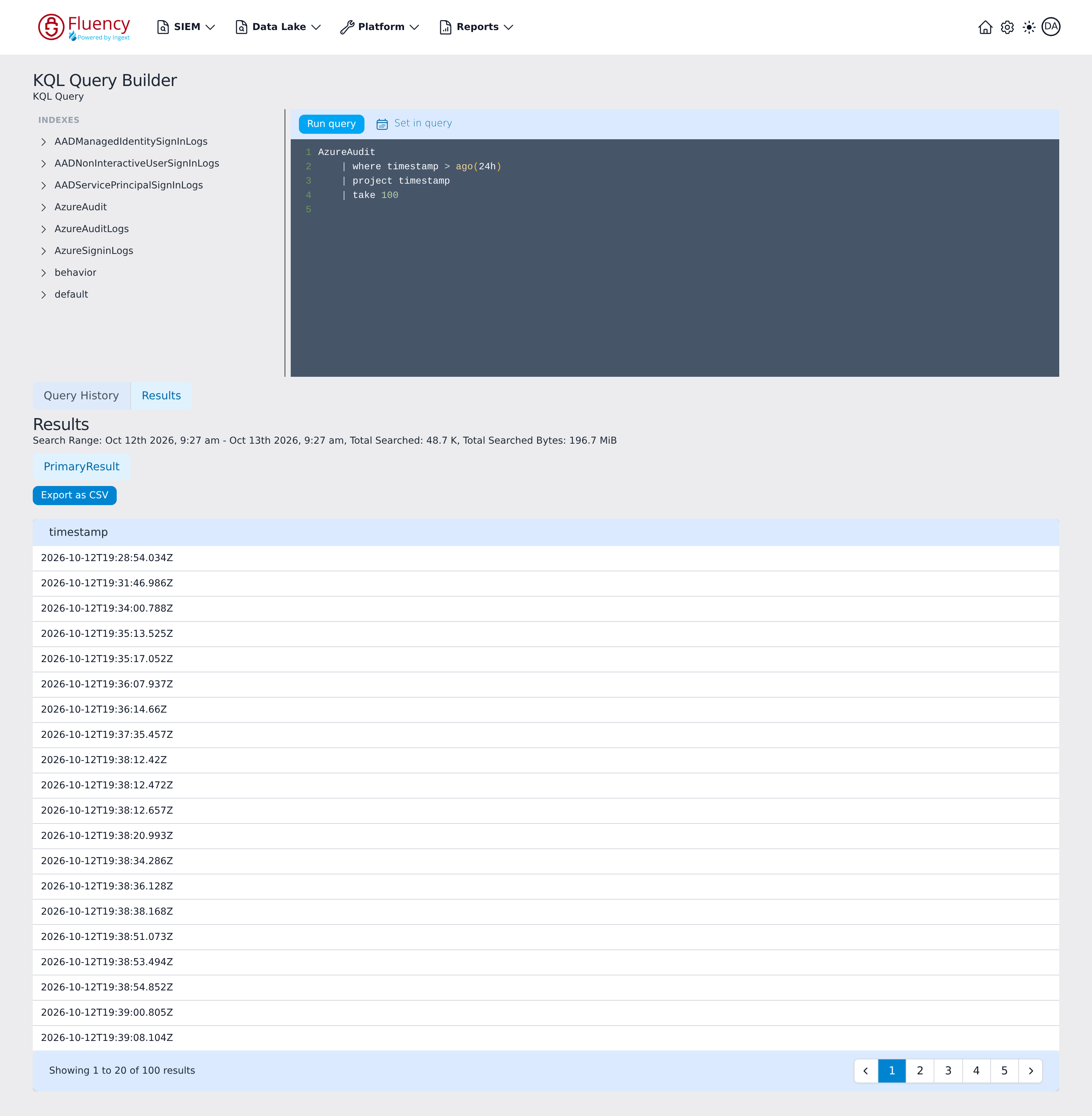
The Results view shows:
- A summary line with the Search Range the run covered, Total Searched (the number of records searched), and Total Searched Bytes.
- A PrimaryResult tab for the query's result table, and an Export as CSV button that downloads it.
- The returned records, one column per field the query returns (a single timestamp column for the projected example), 20 per page, with a footer reporting the visible range and numbered page buttons.
When no records match, the body reads No results found instead.
Query History
The Query History tab lists previous query runs, newest first; every run, including a rerun, adds a row. Above the table, a Search box filters the list and the Refresh History button reloads it. The table columns are:
- Time: when the query ran.
- Execution Time: how long the run took, in milliseconds.
- Search Range: the range source label (Set in query for runs whose range comes from the query) with a Rerun Query button.
- Status: a status chip: green completed for a finished run, or red error for a run that failed.
- KQL: the query text that was executed.
The table shows 20 runs per page. A footer bar reports the visible range (for example Showing 1 to 20 of 45 results) with numbered page buttons between previous/next paging arrows.
Rerun Query
Click Rerun Query on a history row to load that entry's KQL into the editor and execute it again. The page switches to the Results tab, showing the same results view as Run query:
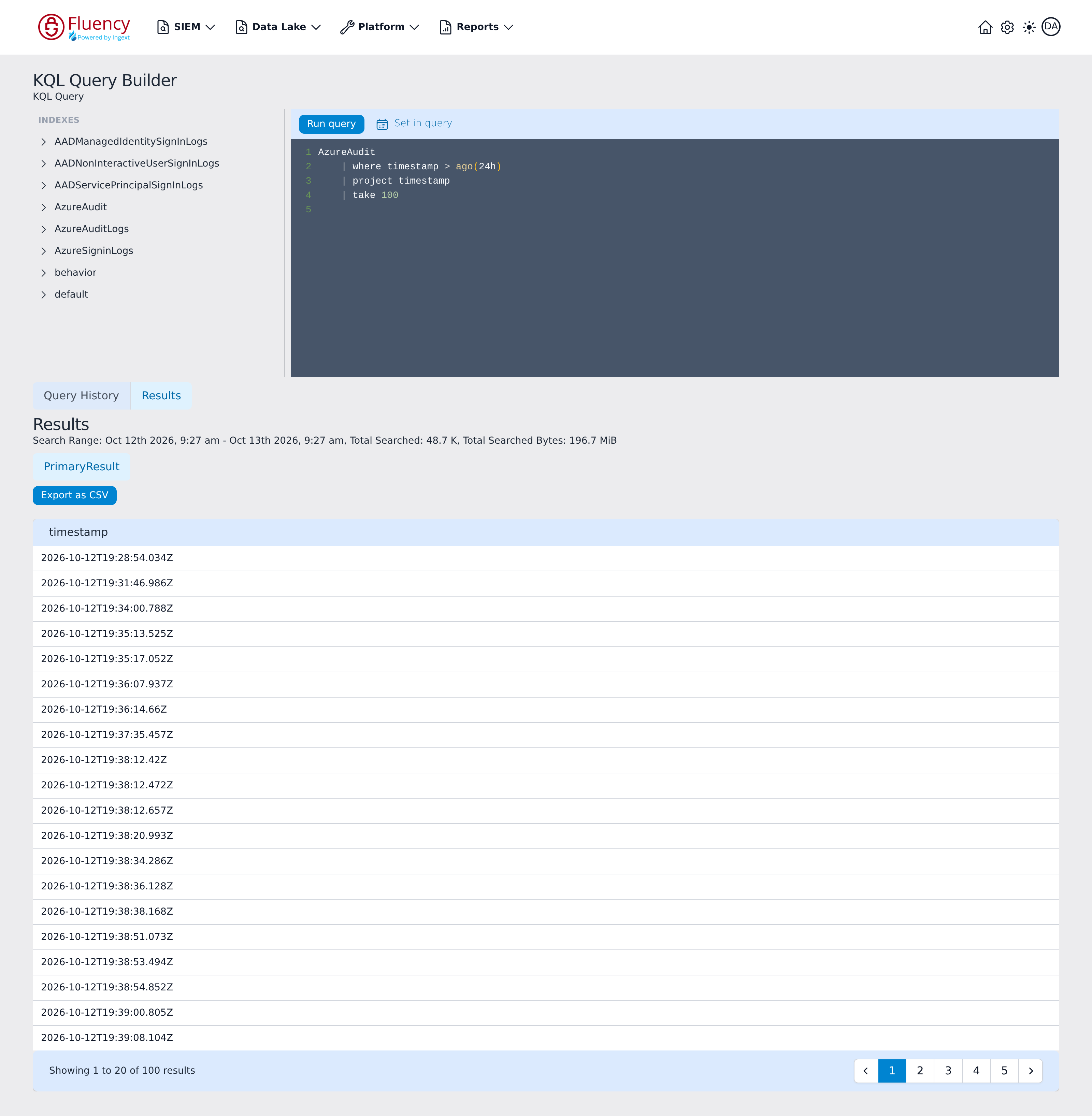
Every history row offers the same Rerun Query action for its own recorded query.