Invitations
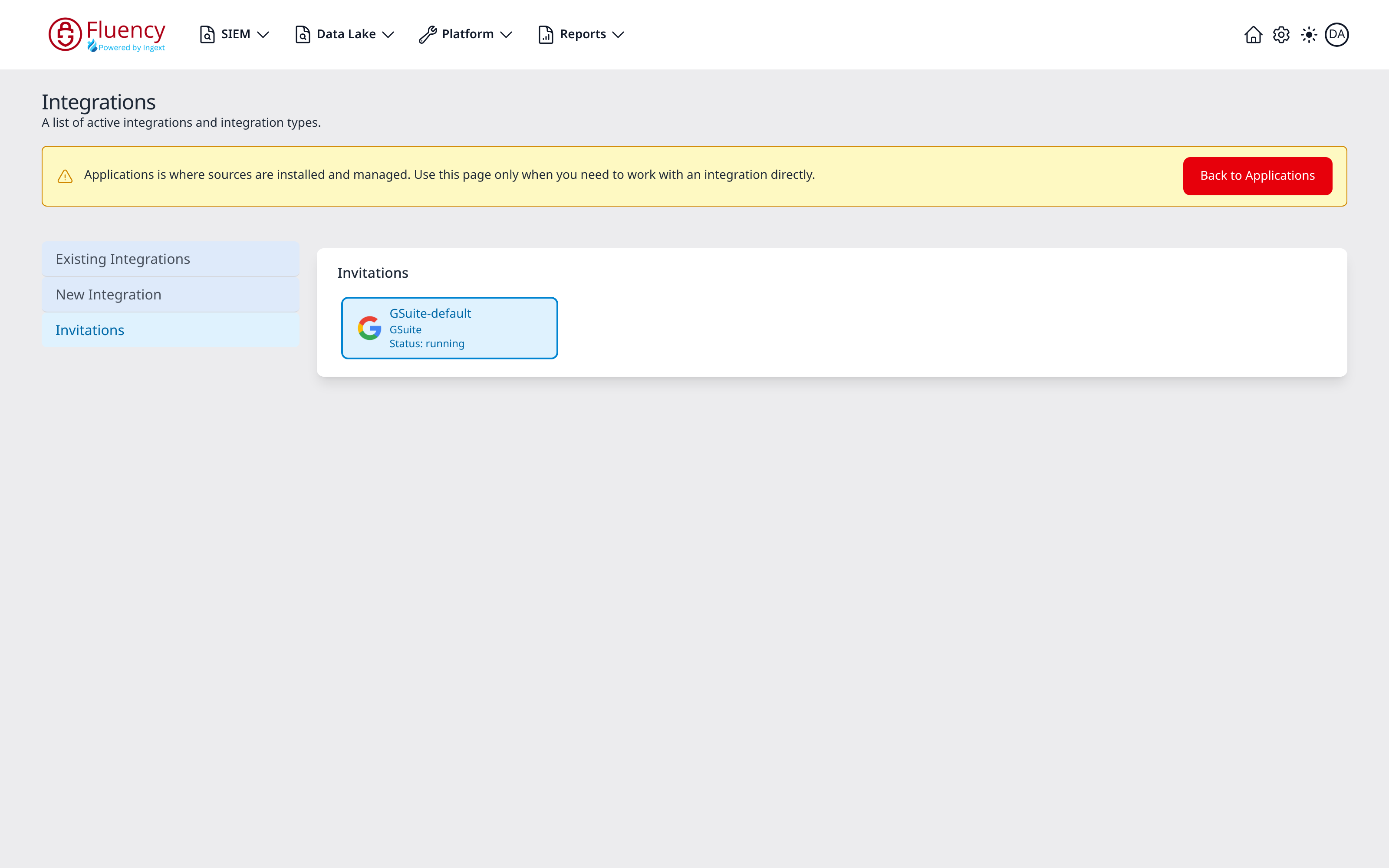
Invitations is the third view of the Integrations page. It lists the consent invitations the platform has sent: an application installed from a template that is authorised by an administrator's consent, rather than by credentials typed into its form, sends an invitation to that administrator, and the integration it needs is not created until the consent is granted. Each pending invitation has a tile here.
The view selector shows Invitations only while there is at least one invitation. On a platform with none, the selector holds just Existing Integrations and New Integration.
Menu path: Platform → Applications → View Integrations → Invitations · URL path: /platform/integrations (the URL does not change when the view does)
Invitation Tiles
The view holds a single Invitations panel. Each tile in it is one invitation, outlined in blue, and carries the integration type's icon beside three lines:
- The name of the integration the invitation is for, in the form <template ID>-<instance name>, such as
GSuite-default. - The integration type, such as GSuite.
- Status: followed by the invitation's state, such as running.
The same tile appears in the body of the application's card in Installed Applications, where the application carries a WaitingForConsent badge. Once consent is granted, the integration appears in Existing Integrations like any other.
Invitation Panel
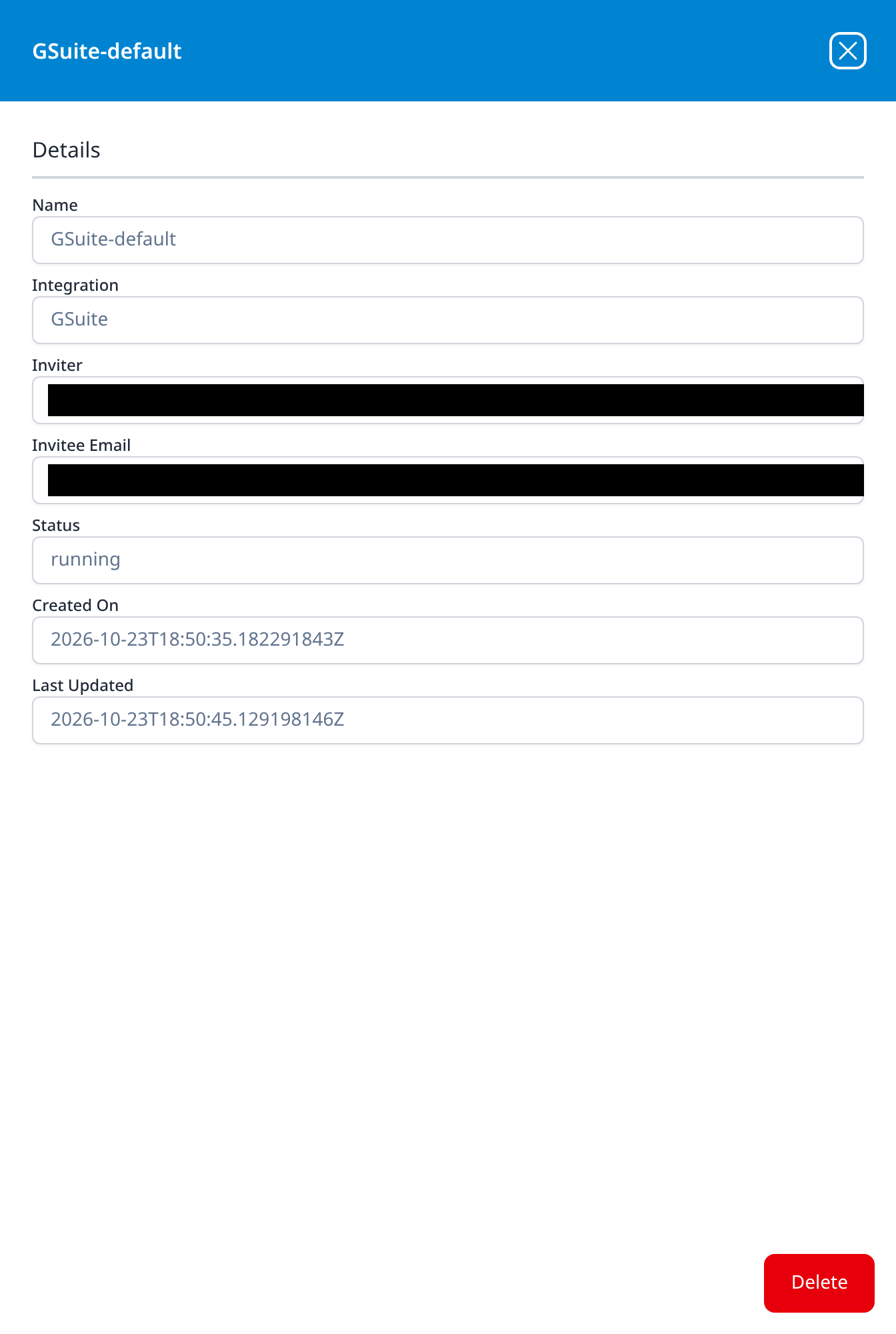
Clicking a tile opens a panel titled with the integration's name. Its Details section shows the invitation, read-only:
| Field | Contents |
|---|---|
| Name | The integration's name, as on the tile. |
| Integration | The integration type, such as GSuite. |
| Inviter | The account that sent the invitation. |
| Invitee Email | The address the invitation was sent to: the administrator whose consent it asks for. |
| Status | The invitation's state, such as running. |
| Created On | When the invitation was sent, as a UTC timestamp. |
| Last Updated | When the invitation last changed. |
A red Delete button in the lower-right corner deletes the invitation; the X in the title bar closes the panel.