Routers
A router runs one or more pipes, and each pipe runs a chain of processors (FPL code that parses, adjusts, and routes events) and delivers what passes to its sinks. Each router is a card in the middle column of the Platform diagram, with one row per pipe. Click the router's title to open the router panel, click a pipe row to open the pipe panel, or click Add Router + at the foot of the column to add a router.
Menu path: Platform → a router card or a pipe row, or Add Router + · URL path: /v2/platform
Task guide: Data Routers: creating a router and connecting it; Processors: writing the FPL processors a pipe runs.
Router Panel
The panel's header shows the router's name and Router · its ID, with the Copy JSON icon, Refresh, and × on the right. It has three tabs (Details, Component Info, and Events) and Delete, which deletes the router, at its foot.
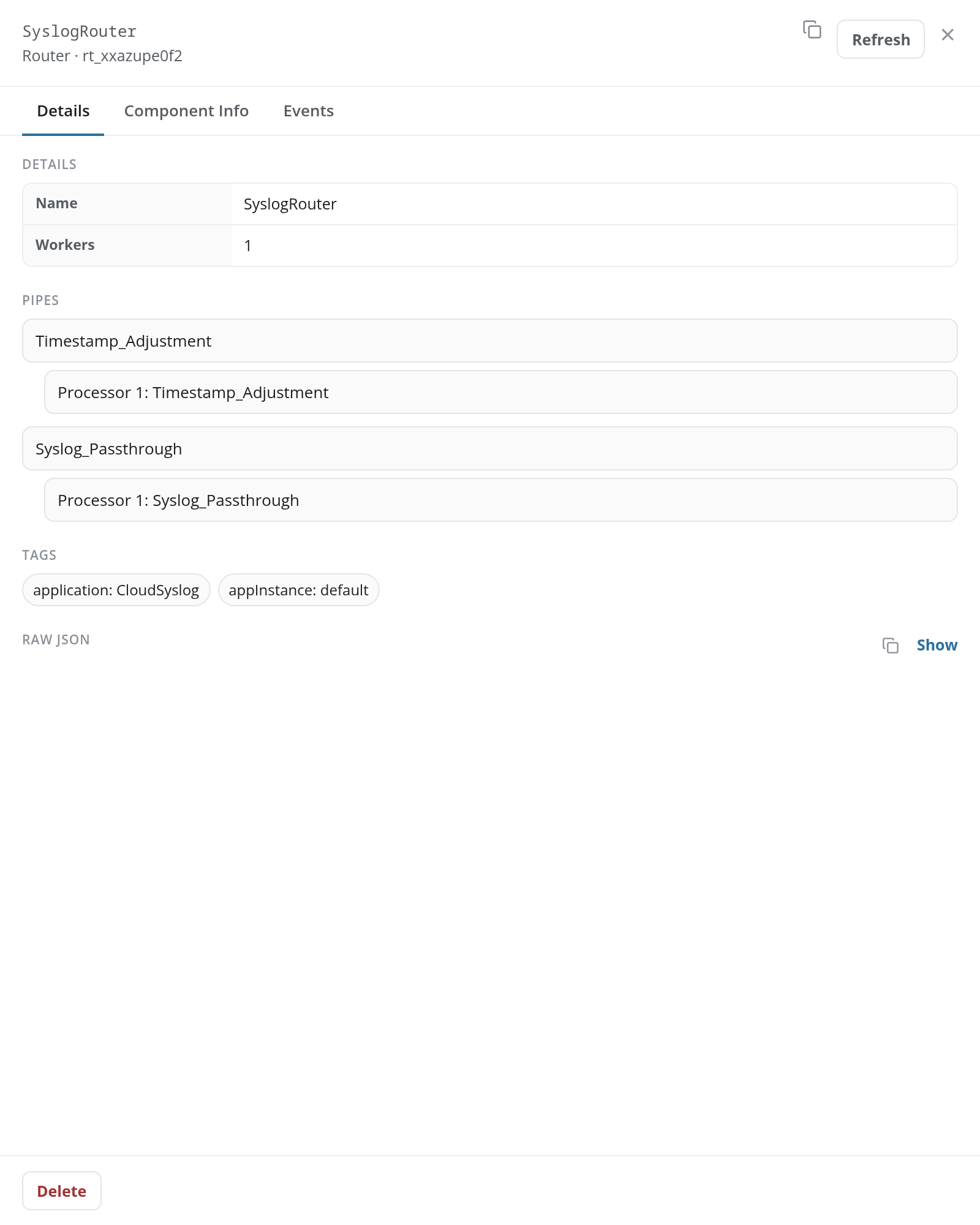
- Details: DETAILS gives the router's Name and its number of Workers. PIPES lists the router's pipes, each with its processors beneath it in order (Processor 1: followed by the processor's name). A pipe's name opens the pipe panel; a processor opens the processor panel. TAGS and RAW JSON follow, as on every panel; a router added by hand has no tags, and no TAGS section.
- Component Info: STATE gives the router's Buffer.
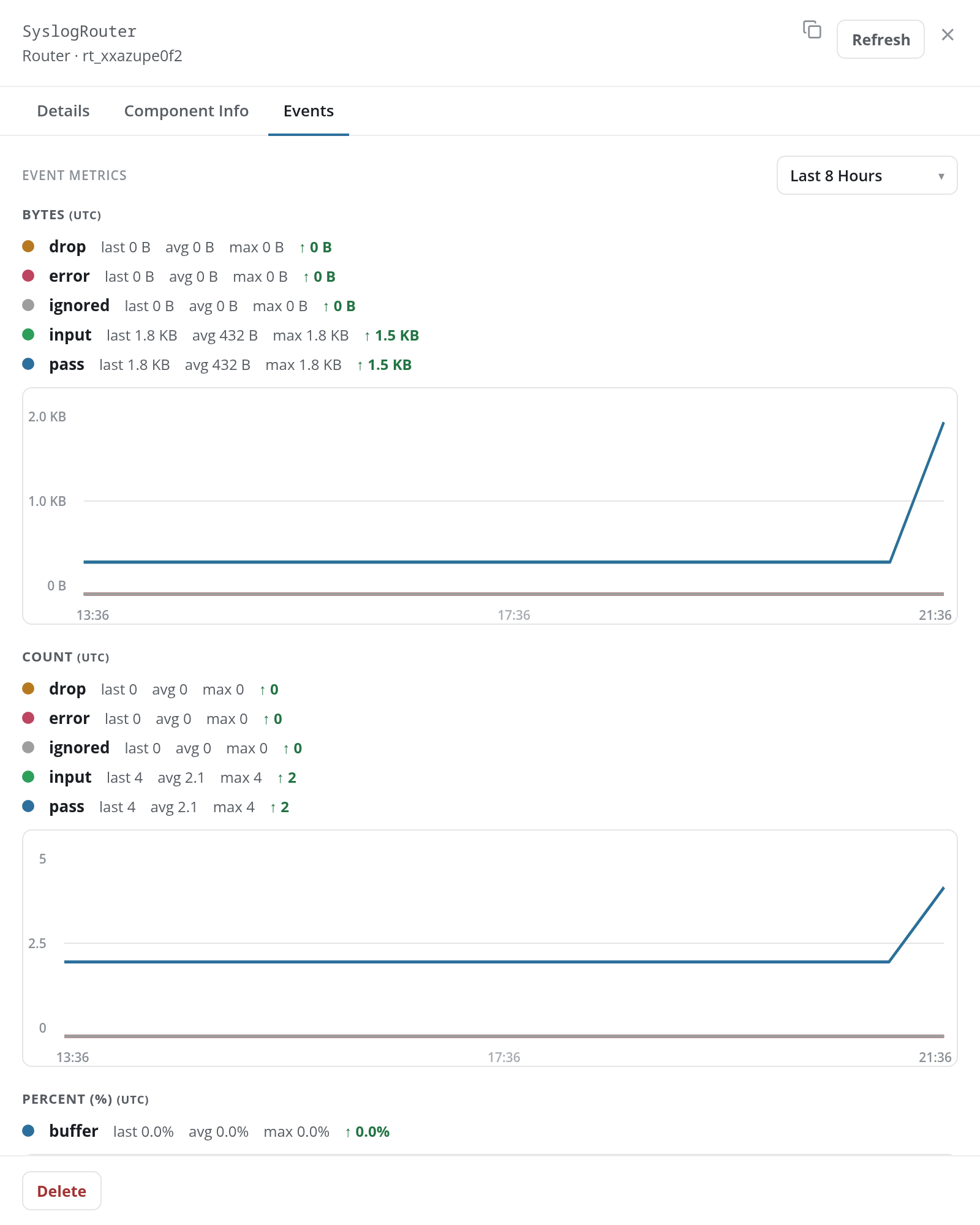
- Events: the router's input, pass, drop, error, and ignored series in bytes and in event counts, its buffer as a percentage, and its recent events. See Events Tab.
Pipe Panel
A pipe row opens the pipe panel. Its header shows the pipe's name and Pipe · its ID. It has two tabs, Details and Events, and Remove From Router, which takes the pipe out of its router, at its foot.
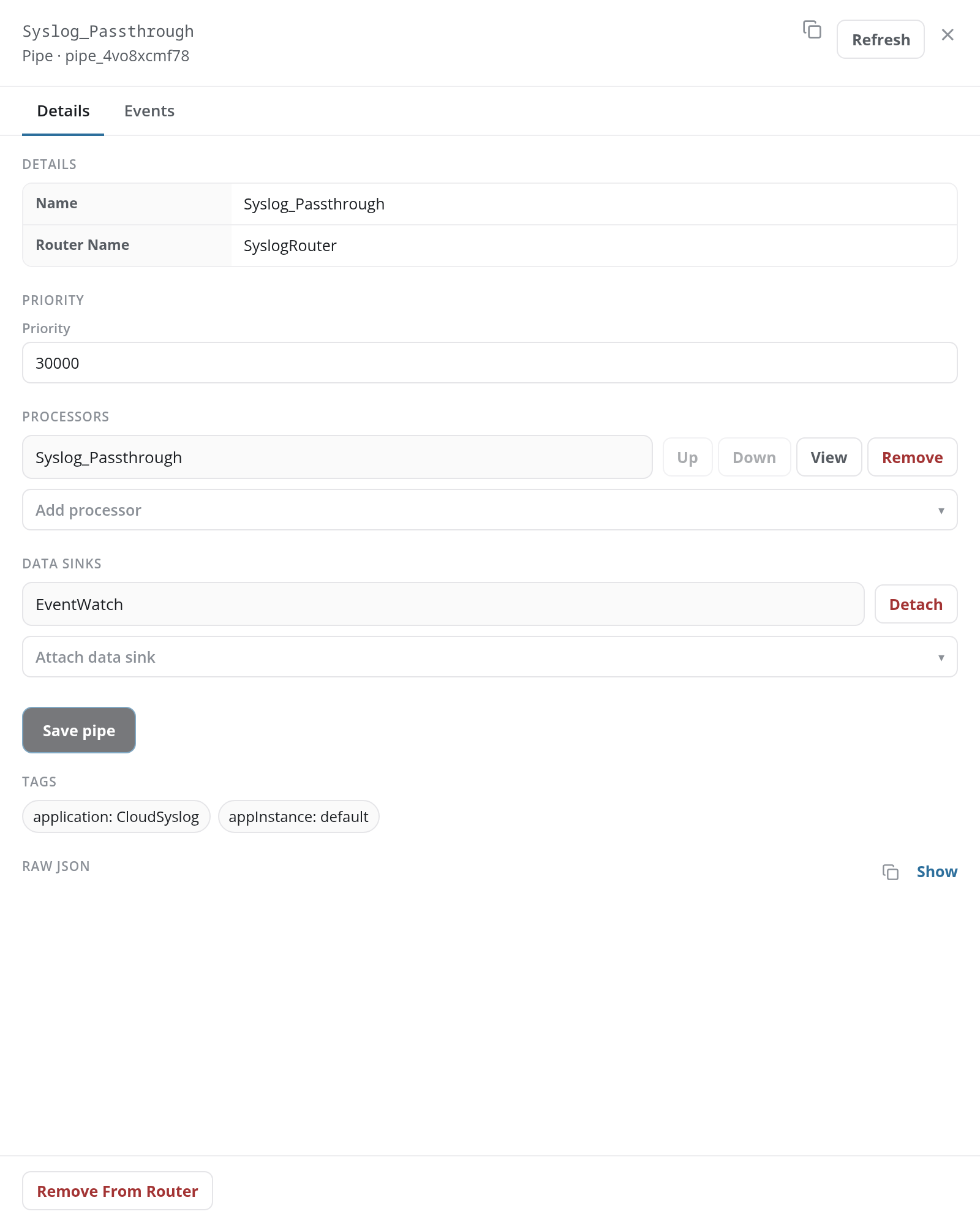
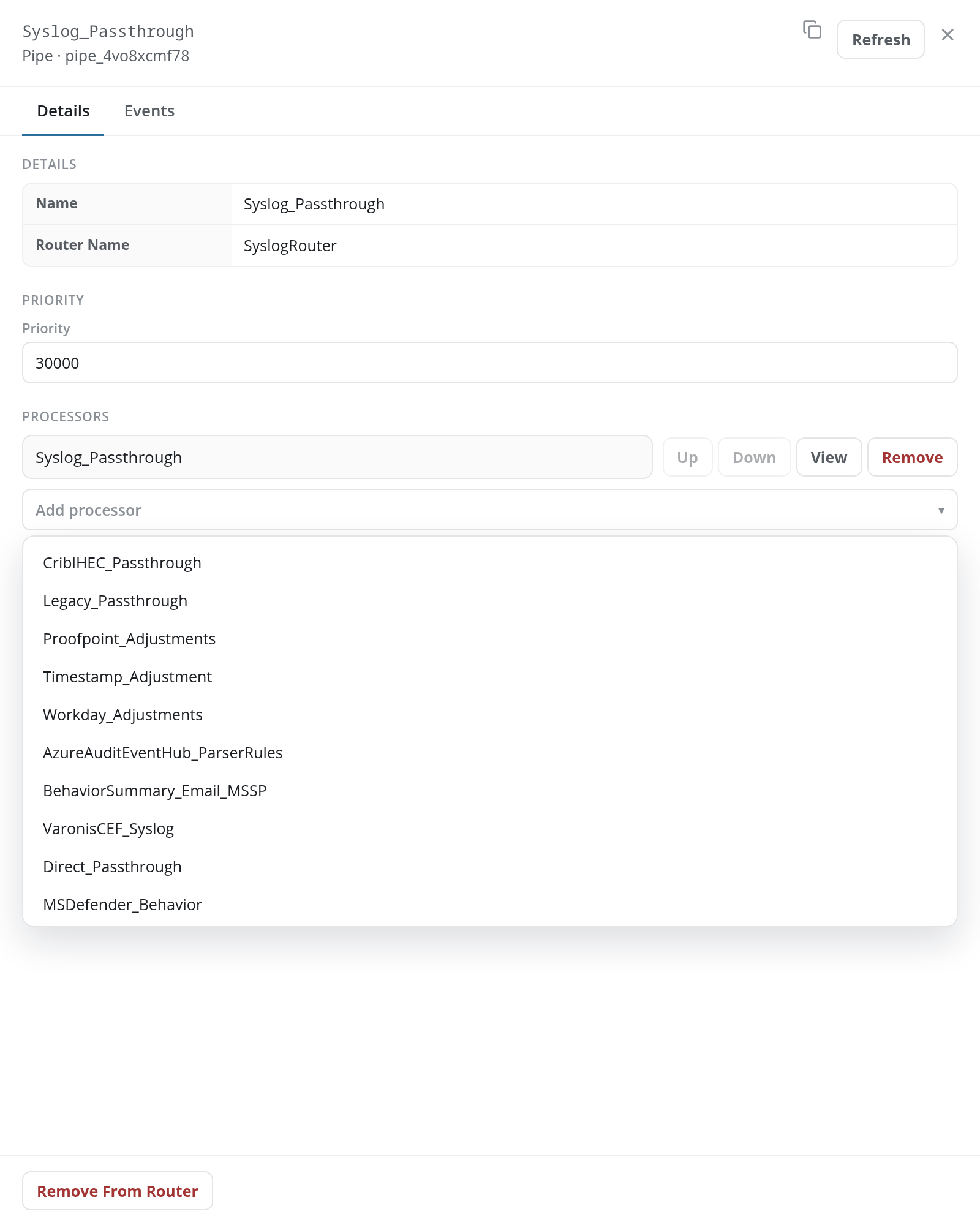
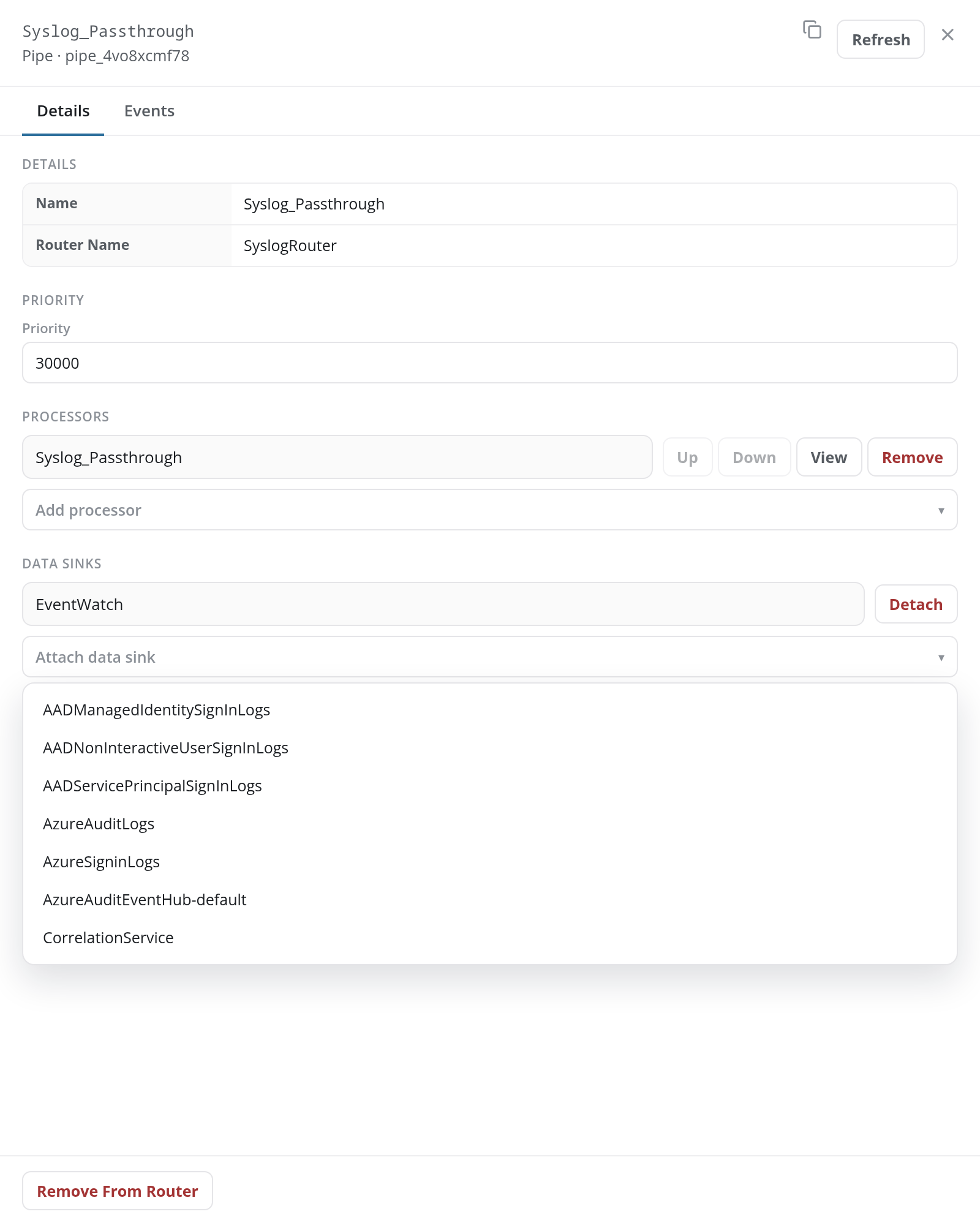
The Details tab holds the pipe's settings:
- DETAILS: the pipe's Name and its Router Name.
- PRIORITY: the pipe's Priority within its router, a number field holding a value such as 100, 1000, or 30000.
- PROCESSORS: the processors the pipe runs, in order. Each row has Up and Down, which move the processor in the chain (Up is unavailable on the first processor and Down on the last), View, which opens its processor panel, and Remove, which takes it off the pipe. The Add processor list beneath adds a processor to the end of the chain.
- DATA SINKS: the sinks the pipe delivers to, each with Detach, or No data sink attached. The Attach data sink list beneath offers every sink not yet attached. Detach is how a pipe is disconnected from a sink: it asks no confirmation, and the line leaves the diagram once you save.
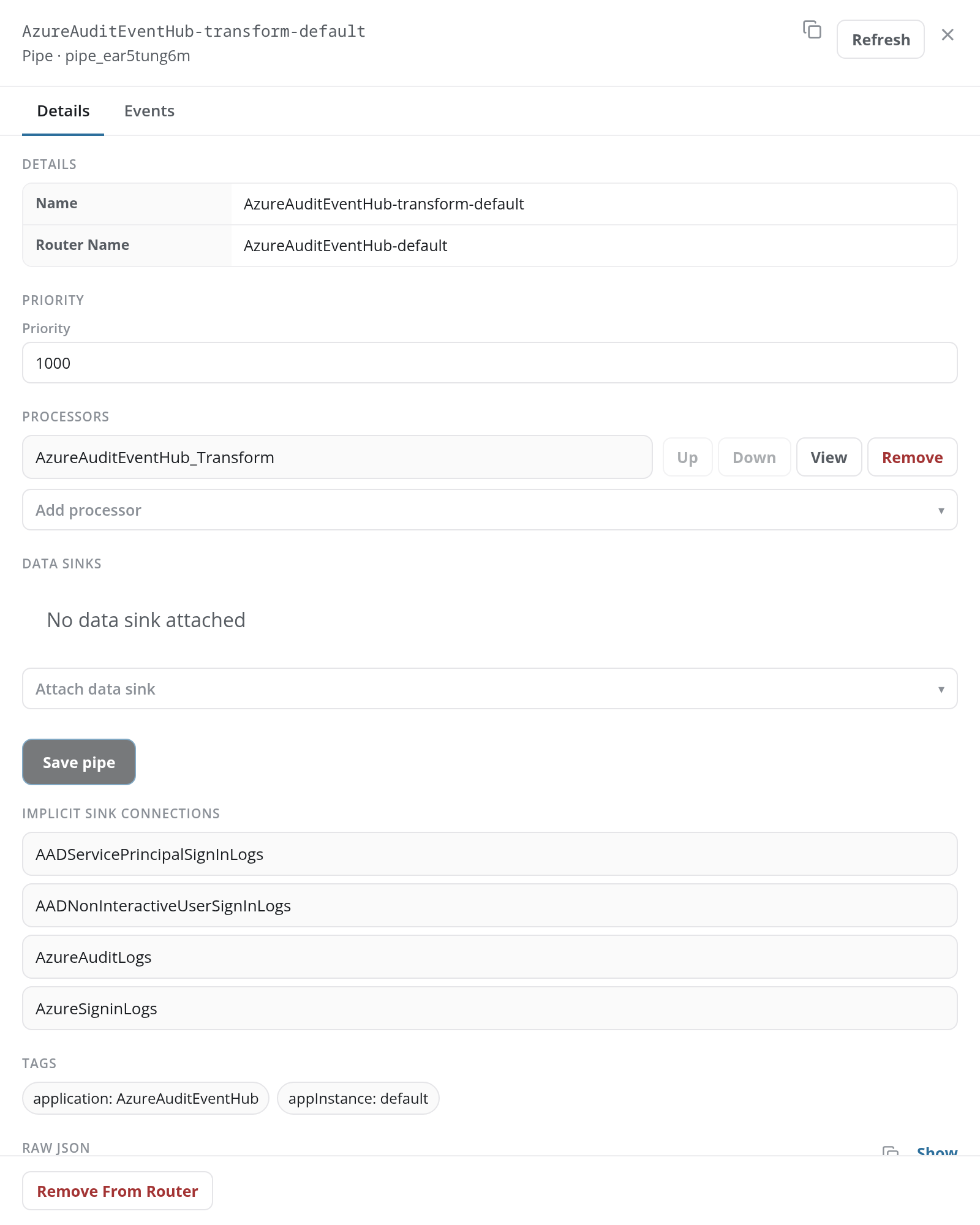
- Save pipe: saves the changes made to the priority, processors, and sinks above it. It stays greyed out until something has changed; saving shows the notice Pipe updated successfully.
- IMPLICIT SINK CONNECTIONS: on a pipe whose processors write to sinks themselves, the sinks they deliver to. These are the dashed connections in the diagram.
- TAGS and RAW JSON, as on every panel.
Implicit Sink Connections
The AzureAuditEventHub transform pipe has no data sink attached, but its processor writes to four Entra ID indexes. Its panel lists them under IMPLICIT SINK CONNECTIONS; each name opens that sink's panel.
The pipe's Events tab charts its pass, abort, drop, and error series, in bytes and in event counts, and lists its recent events.
Processor Panel
View on a pipe's processor, or a processor in the router panel's PIPES list, opens the processor panel. Its header shows the processor's name and Processor · the pipe it runs in, as a link back to that pipe. It has two tabs, Details and Events, and Remove From Pipe at its foot.
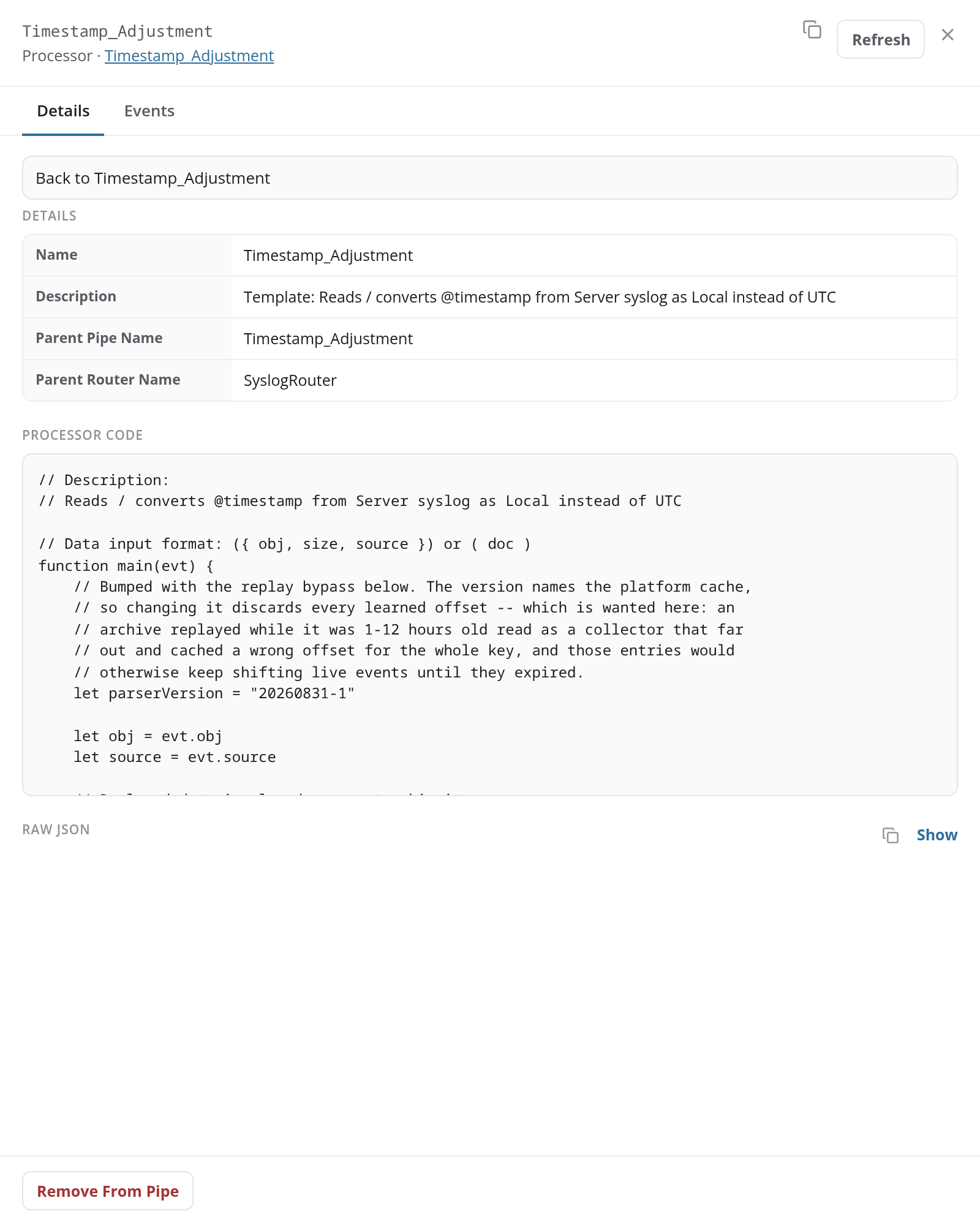
- Back to followed by the pipe's name returns to the pipe panel.
- DETAILS: the processor's Name, its Description, and its Parent Pipe Name and Parent Router Name.
- PROCESSOR CODE: the processor's FPL code. Processors are listed and written on Configuration → Processors.
- RAW JSON, as on every panel.
Remove From Pipe takes the processor off this pipe, after a confirmation that asks Are you sure you want to remove followed by the processor and the pipe. The panel closes. The processor itself stays in the account and is still offered in Add processor.
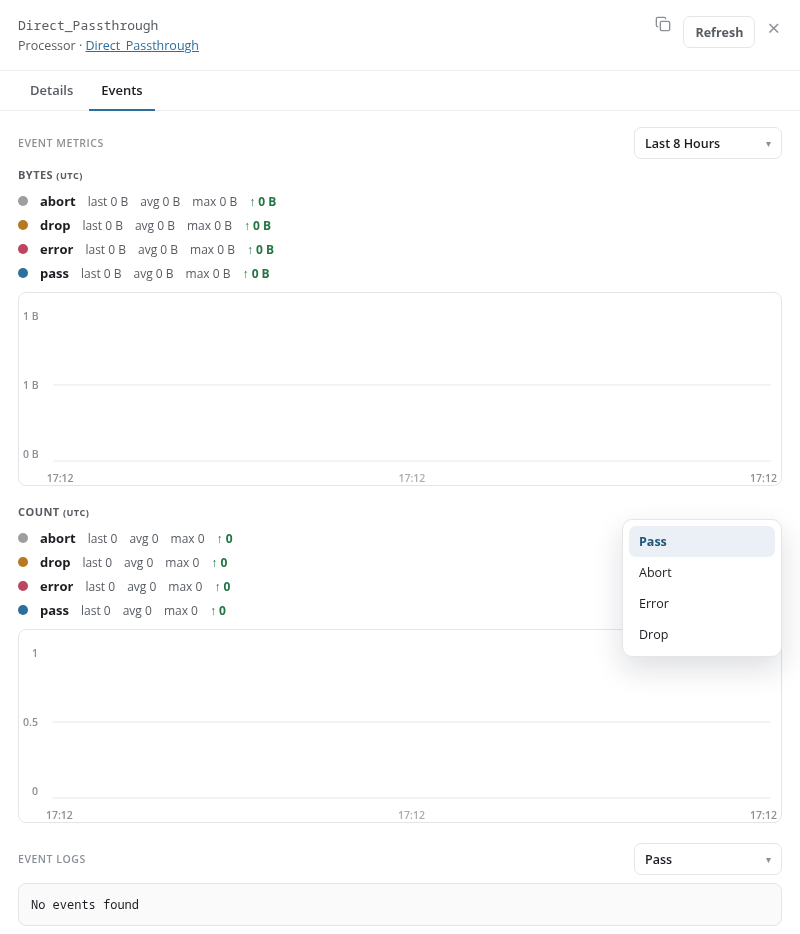
The Events tab charts the processor's pass, abort, drop, and error series over the period chosen in the Metrics time range list. Above EVENT LOGS, a second list chooses which events are shown: Pass (the default), Abort, Error, or Drop.
Adding a Router
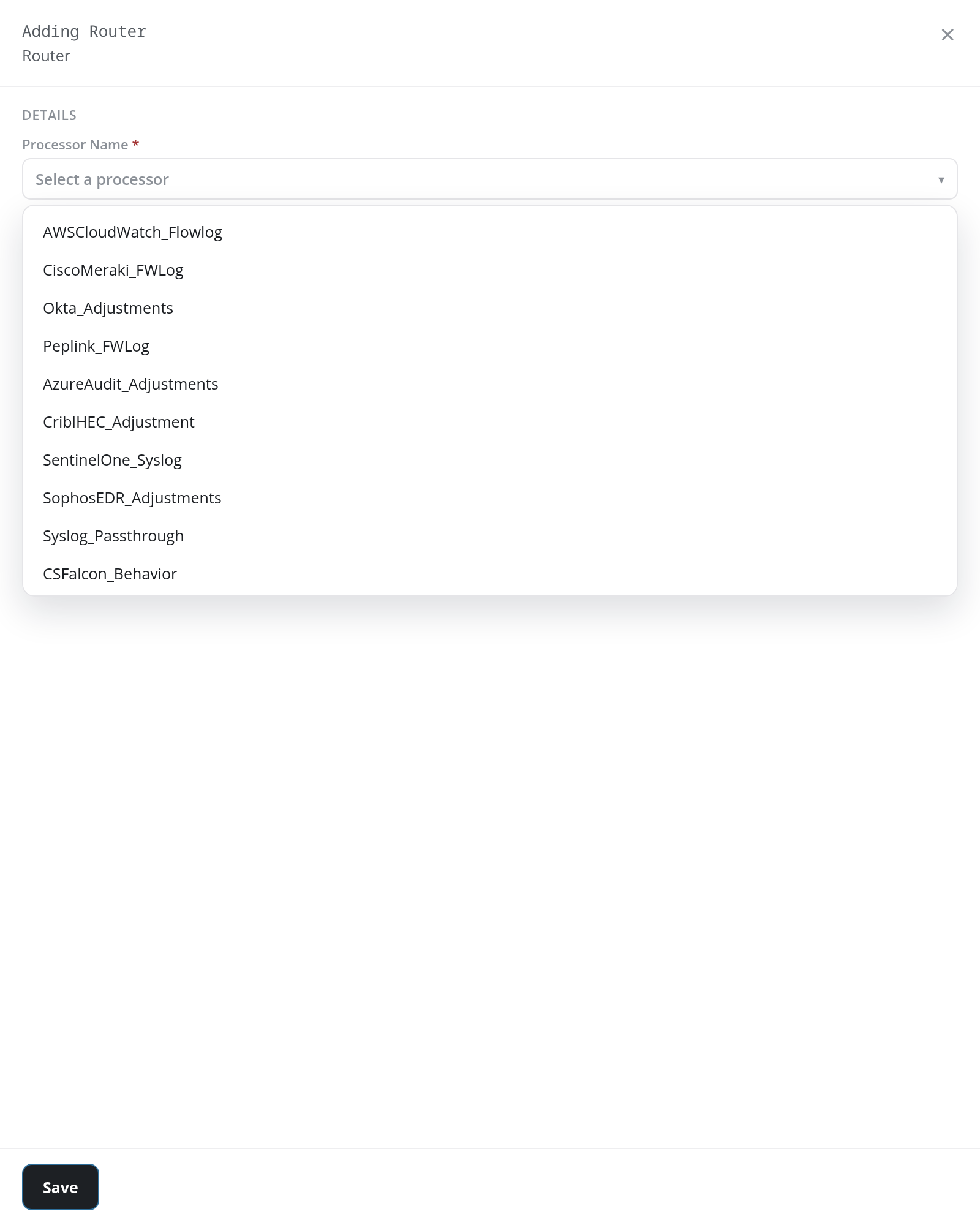
Add Router + opens the Adding Router panel:
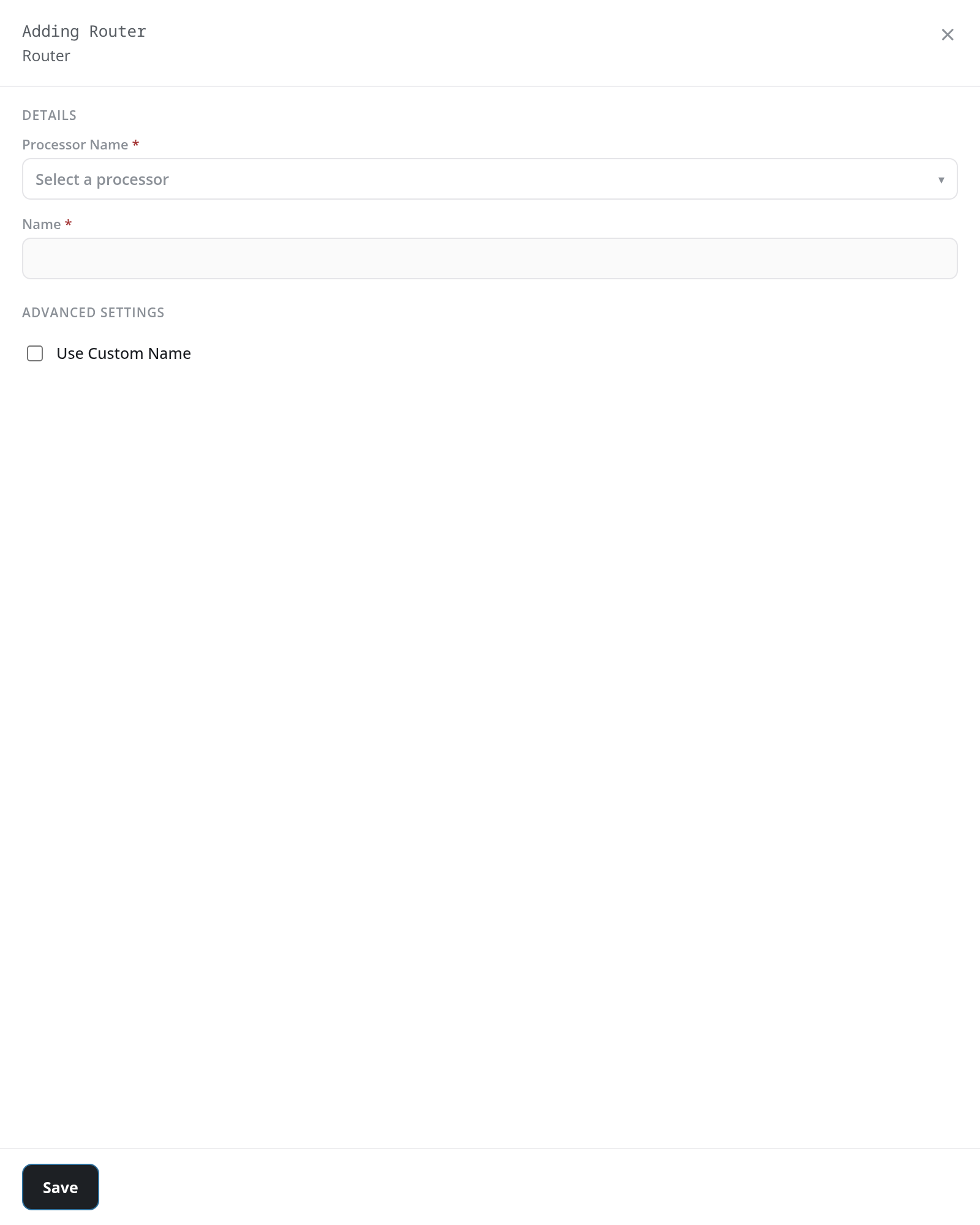
- Processor Name *: the processor the router's pipe runs, chosen from the account's processors (Select a processor until one is chosen).
- Name *: the router's name, filled in from the processor. It is read-only until Use Custom Name is ticked.
- Use Custom Name (under ADVANCED SETTINGS, cleared): tick it to give the router a name of its own.
Save at the foot creates the router. It checks the panel first, and names what is missing or wrong in a notice titled Invalid Configuration and under the field: Please select a processor when no processor is chosen, and Name is required and must be less than 40 characters for an empty or too long name. Router names are unique: a name another router already has is refused with the notice Error (router followed by the name and add error: duplicate router name).
A router that saves shows the notice Router Added Successful, and its card appears in the Routers column with one pipe row. The pipe is named after the processor, whatever name the router has, and starts at priority 0; its sinks are attached on its pipe panel or by connecting its row to a sink.