Sources
A source is where data enters the pipeline: an installed application's plugin, an internal management queue, the cloud syslog endpoint, or one of the other source types listed under Adding a Source. Each source is a card in the left-hand column of the Platform diagram. Click a source card to open its panel, or click Add Source + at the foot of the column to add a source.
Menu path: Platform → a source card, or Add Source + · URL path: /v2/platform
Task guide: Data Sources: the source types and how data is connected to the pipeline.
Source Panel
The panel's header shows the source's name and Source · its ID, with the Copy JSON icon, Refresh, and × on the right. It has three tabs (Details, Component Info, and Events) and two actions at its foot, Reboot and, depending on whether the source feeds a router, Disconnect Source From Router or Delete:
- Reboot: restarts the source, after the confirmation Reboot Source (Are you sure you want to reboot the source?). The notice Source Reloaded Successfully follows.
- Disconnect Source From Router, while the source feeds a router: removes the connection from the source to that router. The source has to be inactive first: while it is active the platform refuses, with the notice Failed To Delete Connection (Data source followed by the source's name and needs to be disabled first before connection can be deleted). An inactive source asks for confirmation, Disconnect Source From Router (Are you sure you want to disconnect followed by the source and the router), and the notice Connection Updated Successfully follows.
- Delete, in its place once the source feeds no router: deletes the source, after the confirmation Deleting Source (Are you sure you want to delete followed by the source's name). The notice Source Delete Successful follows (the source's name and is deleted from the platform), and the card leaves the diagram. A source that feeds a router has to be disconnected before it can be deleted.
Details
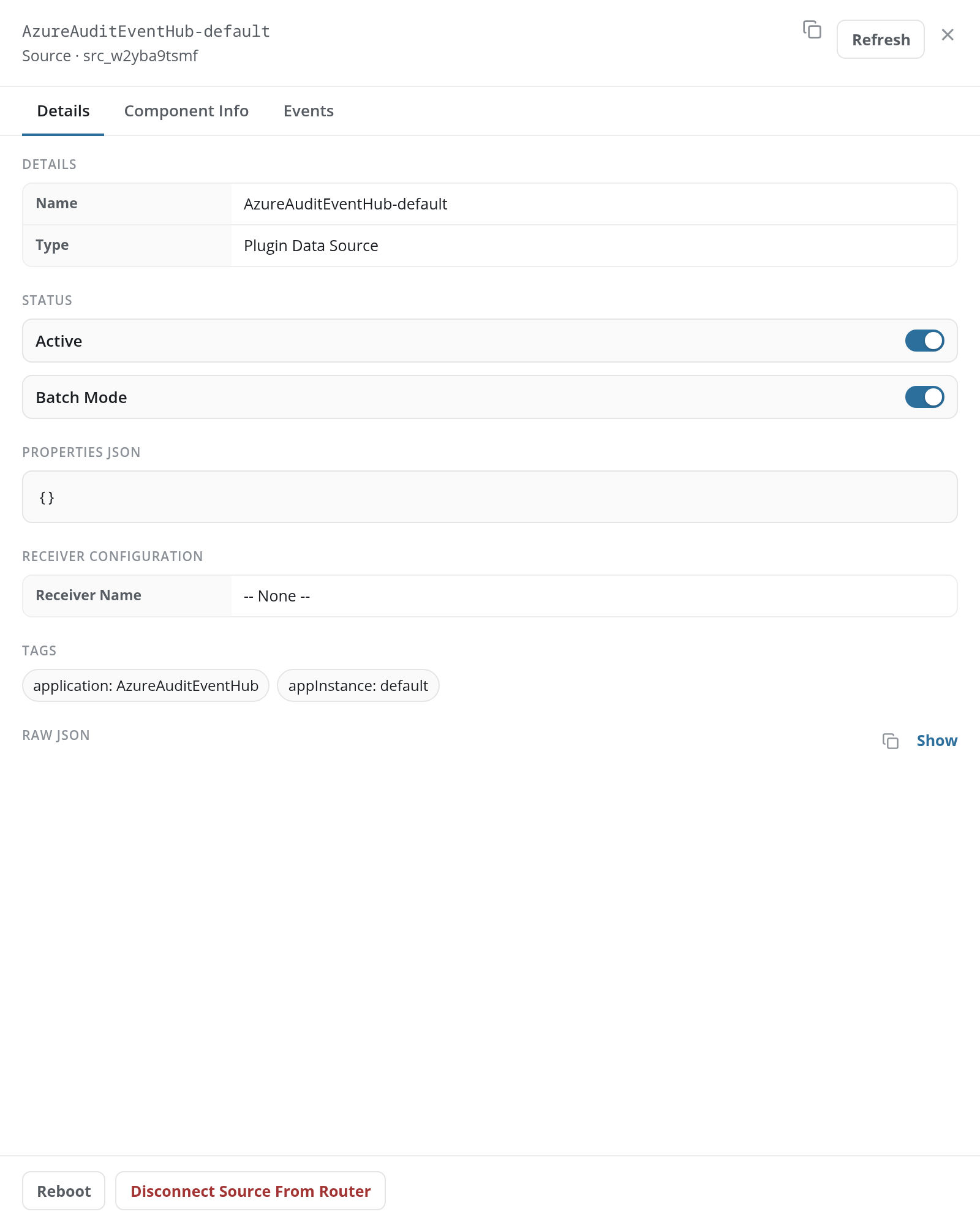
The Details tab holds the source's settings, in sections:
-
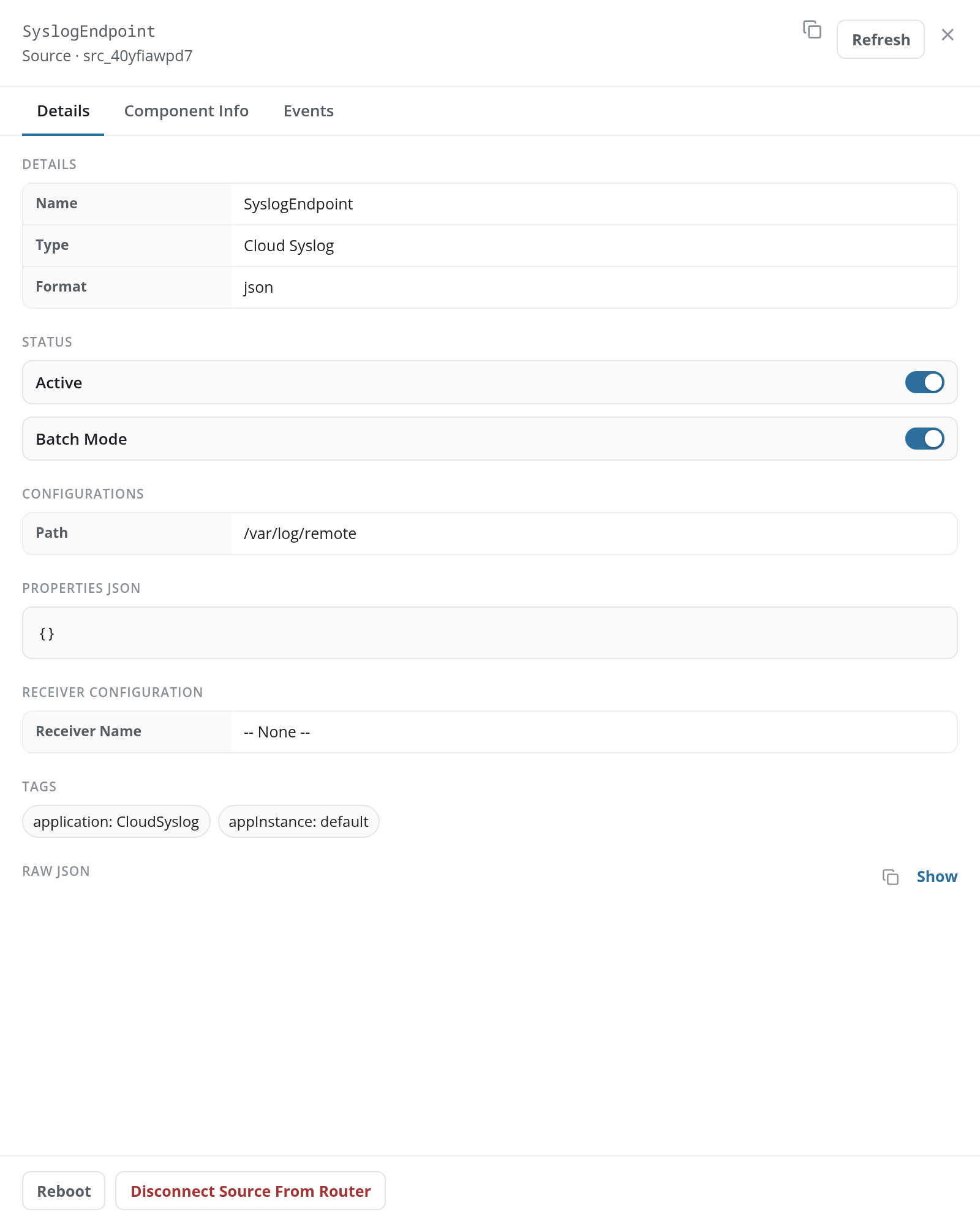
DETAILS: the source's Name and Type, such as Plugin Data Source, Mgmt Queue, Cloud Syslog, or Webhook. A cloud syslog or webhook source adds its Format, such as json.
-
STATUS: two switches. Active turns the source on or off; while it is off, its label reads Disabled. The second switch turns the source's job mode on or off. The panel has no save step for them: each switch asks for confirmation and takes effect at once, and a notice confirms the change.
Switch Confirmation Notice Active, off Deactivate Source: Are you sure you want to deactivate followed by the source's name Source is now inactive Active, on Activate Source: Are you sure you want to activate followed by the source's name Source is now active Job mode, on Toggle Job Mode: Are you sure you want to enable job mode? Job mode updated successfully Job mode, off Toggle Job Mode: Are you sure you want to disable job mode? Job mode updated successfully -
CONFIGURATIONS: the settings of the source's type, where it has any. A cloud syslog source shows the Path its messages are read from, such as
/var/log/remote. -
PROPERTIES JSON: the source's extra properties as JSON;
{}when it has none. -
RECEIVER CONFIGURATION: the Receiver Name: the FPL receiver the source uses, or -- None --. Receivers are listed on the Receivers tab of Configuration → Processors.
-
TAGS: chips naming the application that created the source and its instance, such as application: AzureAuditEventHub and appInstance: default. A source added by hand on this page has no tags, and no TAGS section.
-
RAW JSON: the source's definition: Show displays it, and the copy icon copies it.
Which sections appear depends on the source. The cloud syslog endpoint shows all of them, and a plugin source all but CONFIGURATIONS. A management queue such as BehaviorSummary or FluencyCollector-default shows DETAILS, STATUS, TAGS, and RAW JSON.
Component Info
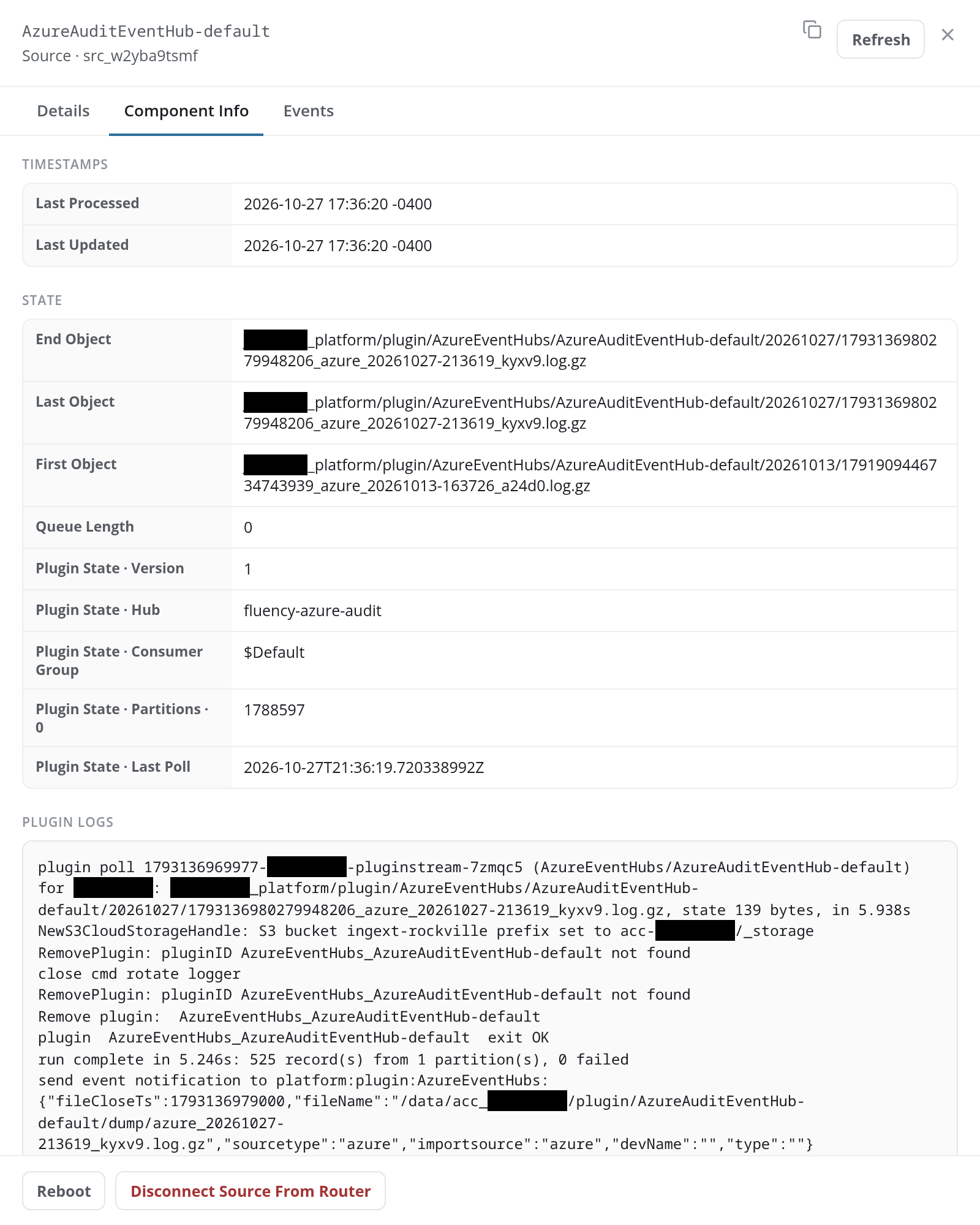
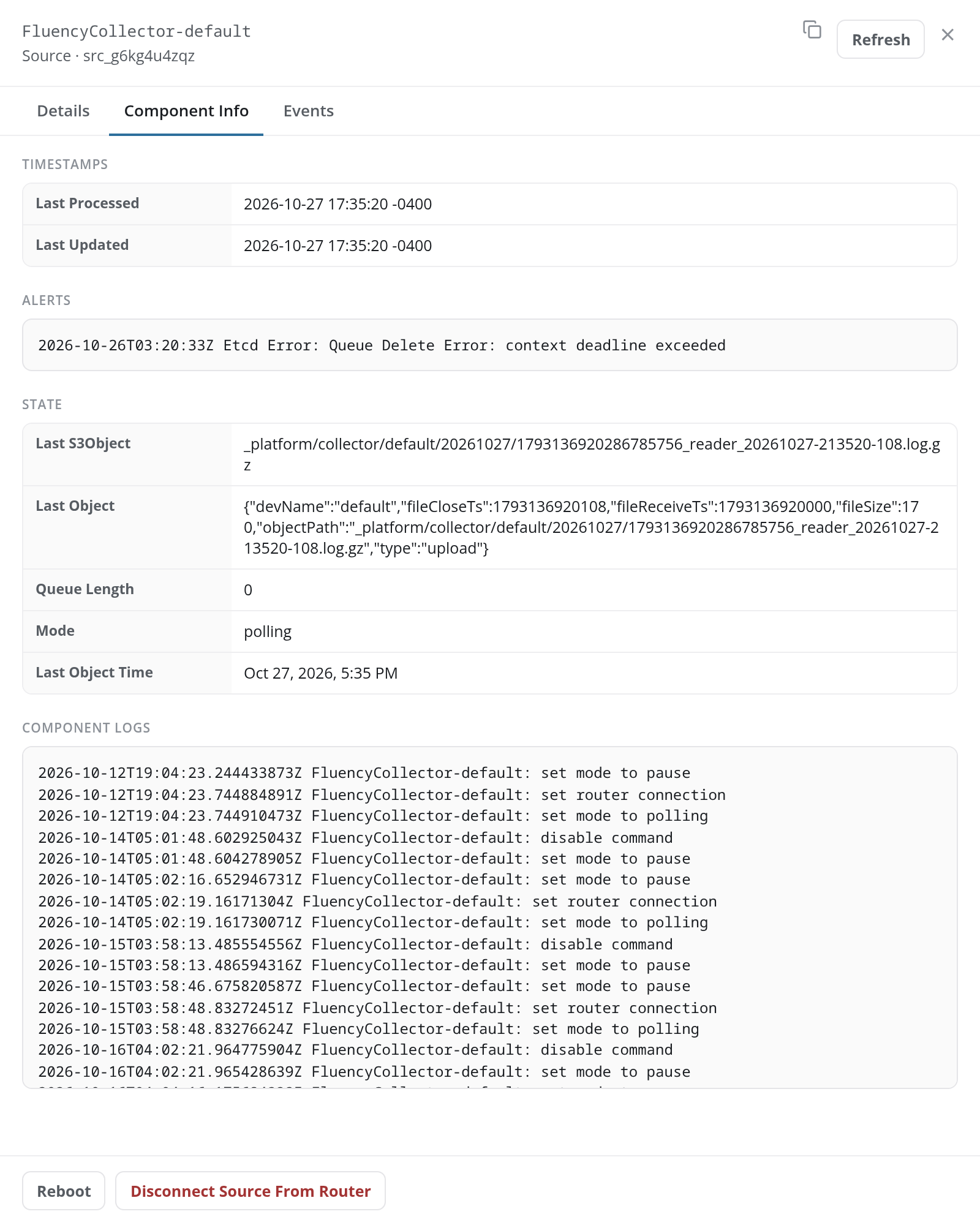
The Component Info tab shows what the source is doing now. Its sections depend on the source:
- TIMESTAMPS: the Last Processed and Last Updated times, on a plugin source or a management queue. The cloud syslog endpoint has no TIMESTAMPS section: its tab opens with STATE.
- ALERTS: where the source has any, its alert messages, each with its time (for example a queue error).
- STATE: the source's read position. Its fields depend on the source type:
- A plugin source shows the First Object, Last Object, and End Object (the paths of the data files it has read), its Queue Length, and its plugin's own state: for an Azure Event Hub plugin, the Version, Hub, Consumer Group, the sequence number reached in each partition, and the Last Poll time.
- A management queue shows the Last Object it took from the queue (with Last S3Object for a collector's queue), its Queue Length, its Mode (such as polling), and the Last Object Time.
- The cloud syslog endpoint shows its read Offset and its Mode.
- A webhook source shows Last Update, Timestamp, File ID, Block ID, and its Mode (such as pause). Like the cloud syslog endpoint, it has no TIMESTAMPS section.
- PLUGIN LOGS or COMPONENT LOGS: the source's log. A plugin's log records each poll: what it read, how many records it produced, and how long the run took. A queue's, endpoint's or webhook source's log records its mode changes (set mode to pause, set router connection, set mode to polling) and commands such as disable command and enable command; a Reboot logs clear command and stop command.
Events
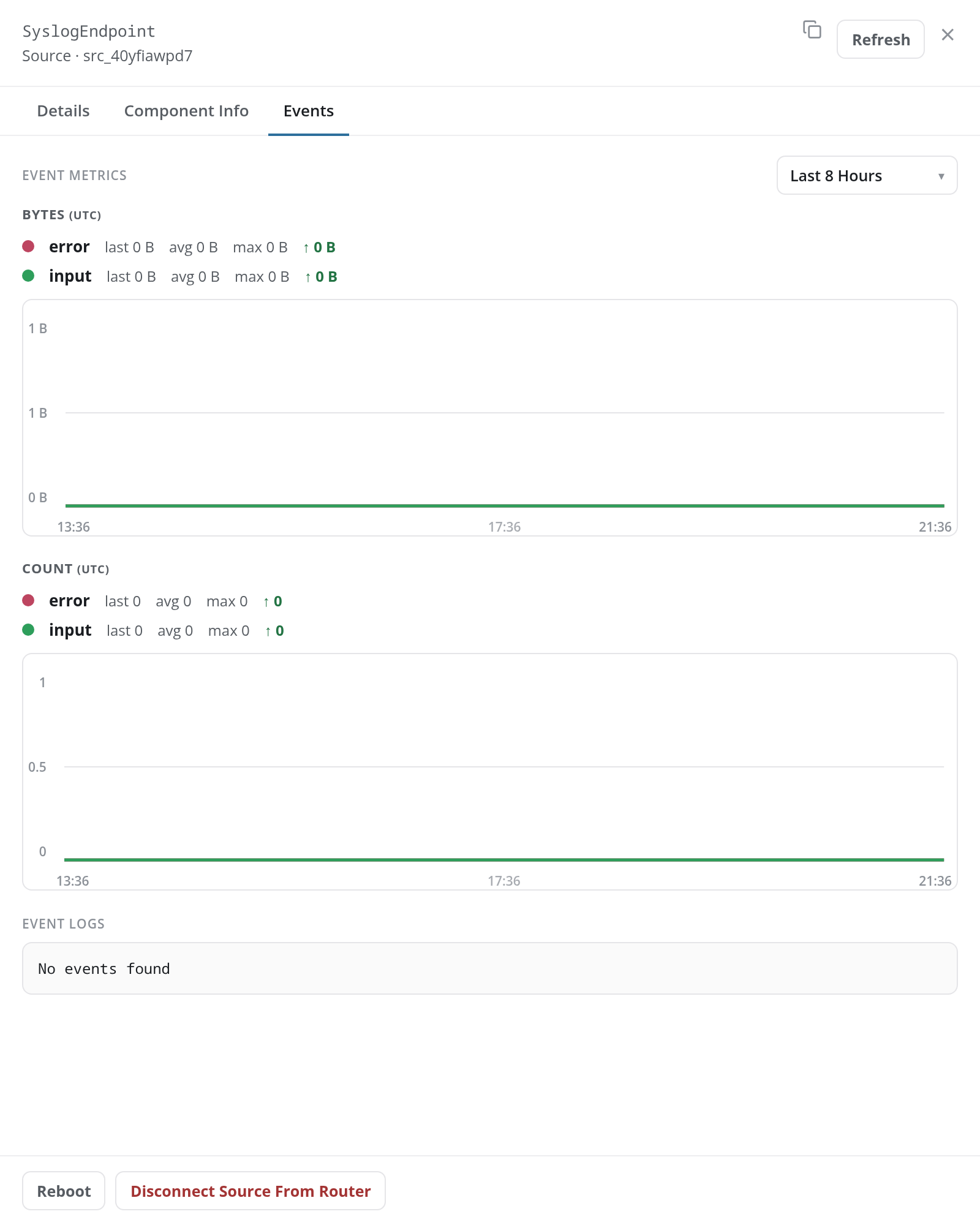
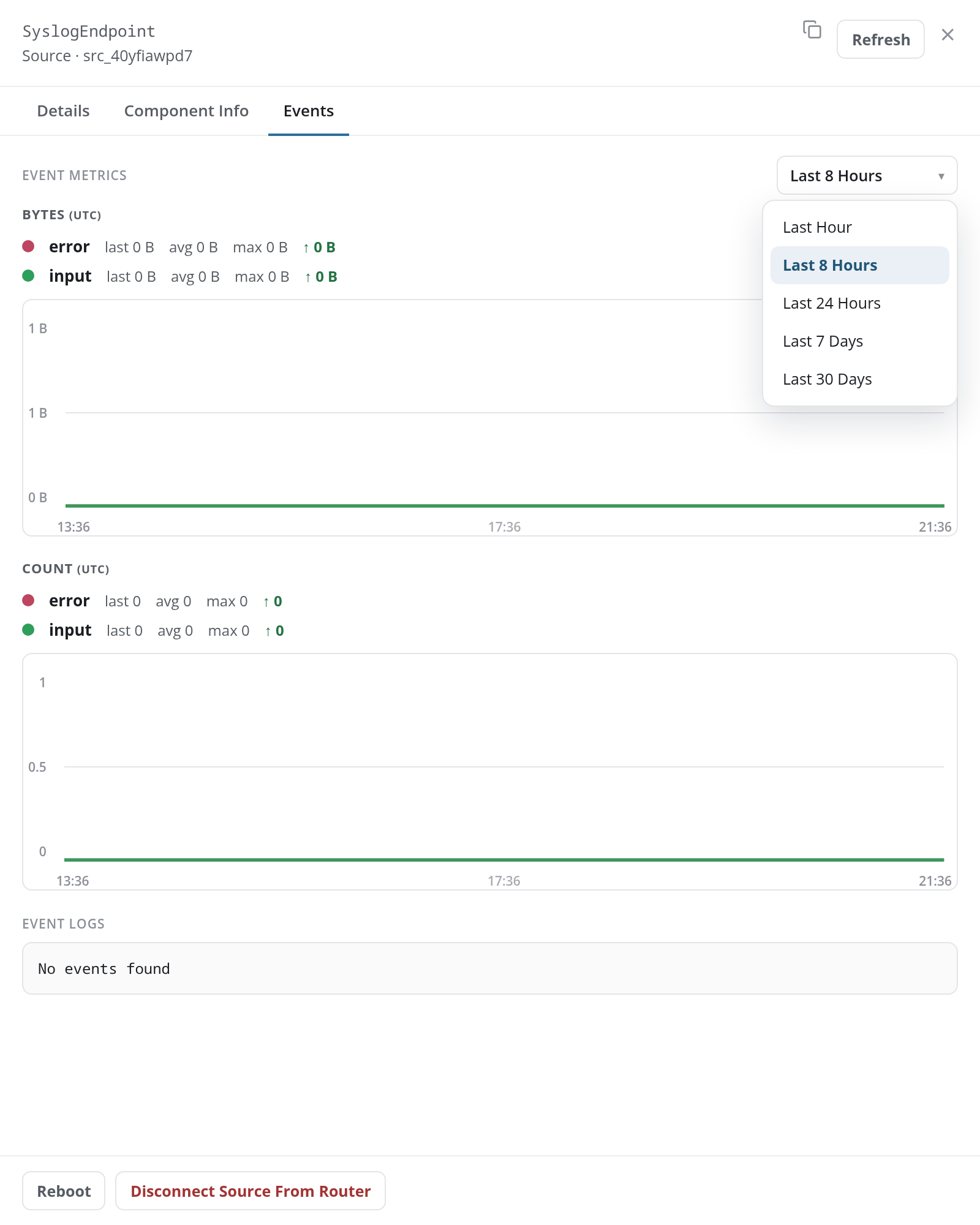
The Events tab charts the source's input and error series, in bytes and in event counts, over the period chosen in the list on the right, and lists its most recent events under EVENT LOGS. See Events Tab for the parts of the tab.
Adding a Source
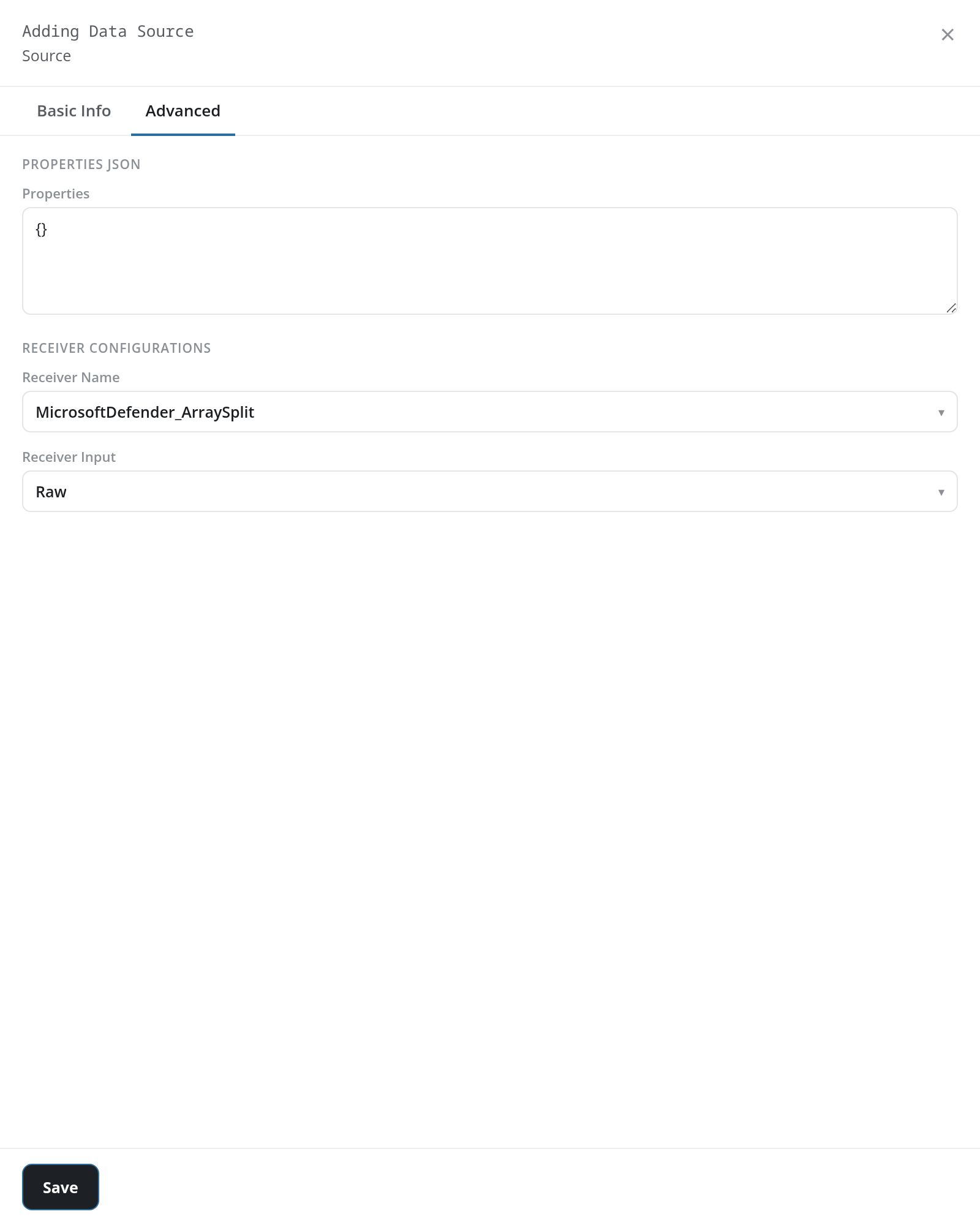
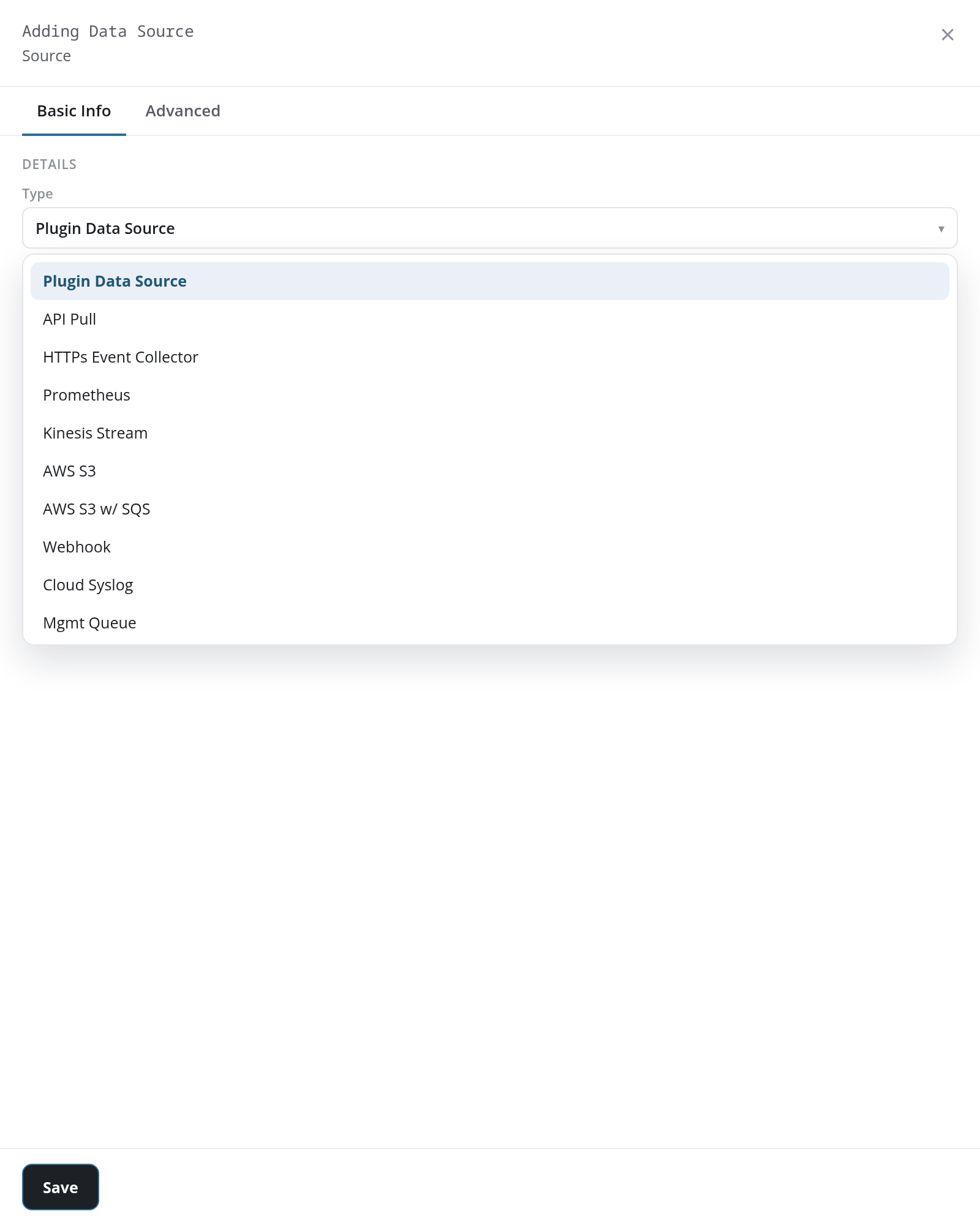
Add Source + opens the Adding Data Source panel. Choose the source's Type first: the panel's fields change with it. Most types have two tabs, Basic Info and Advanced. Save at the foot creates the source.
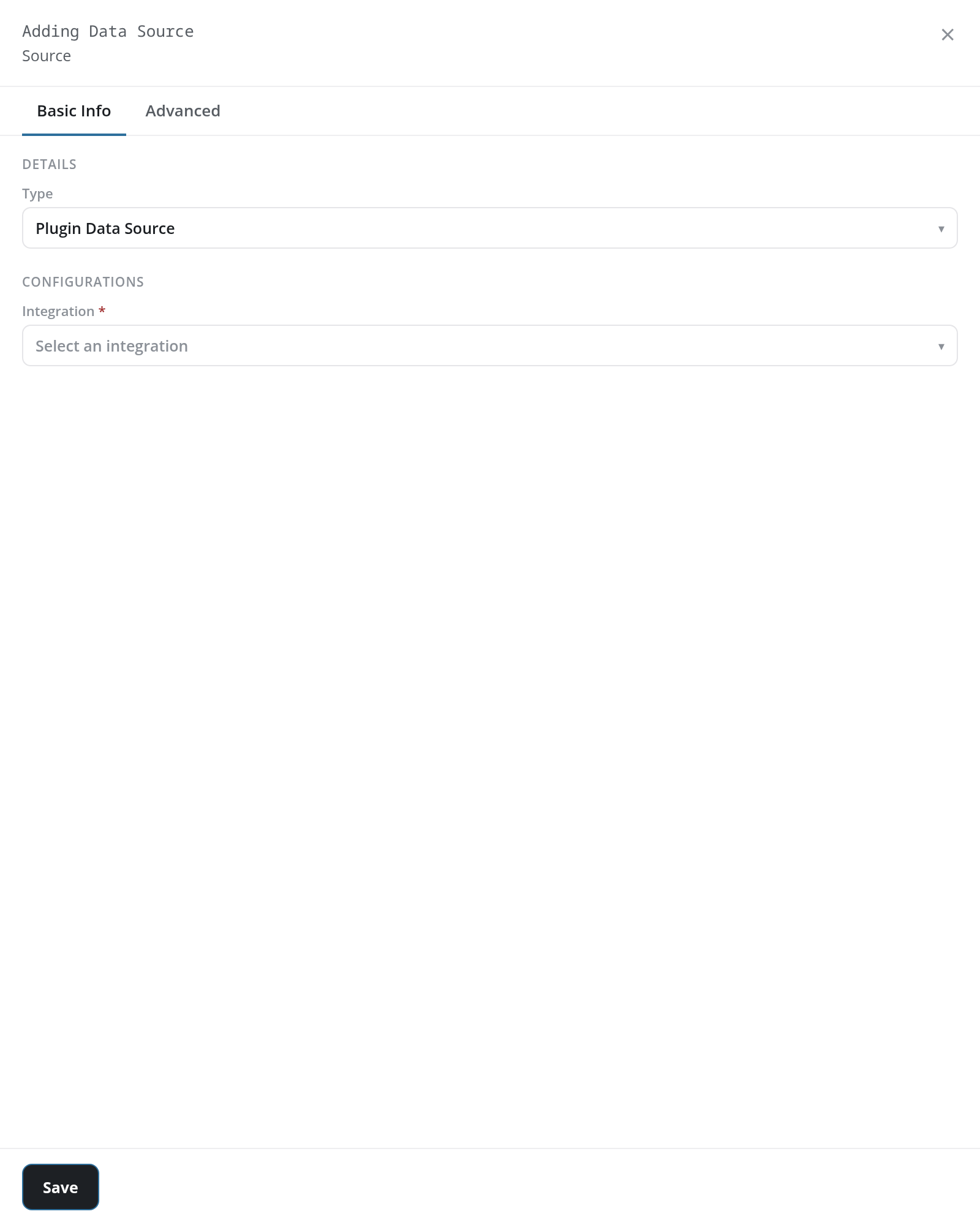
The Type list offers ten source types:
Basic Info by Type
The Basic Info tab groups its fields under DETAILS and CONFIGURATIONS. Fields marked with an asterisk (*) are required:
| Type | DETAILS | CONFIGURATIONS |
|---|---|---|
| Plugin Data Source (the default) | - | Integration *: one of the account's integrations, such as AzureEventHubs: AzureAuditEventHub-default |
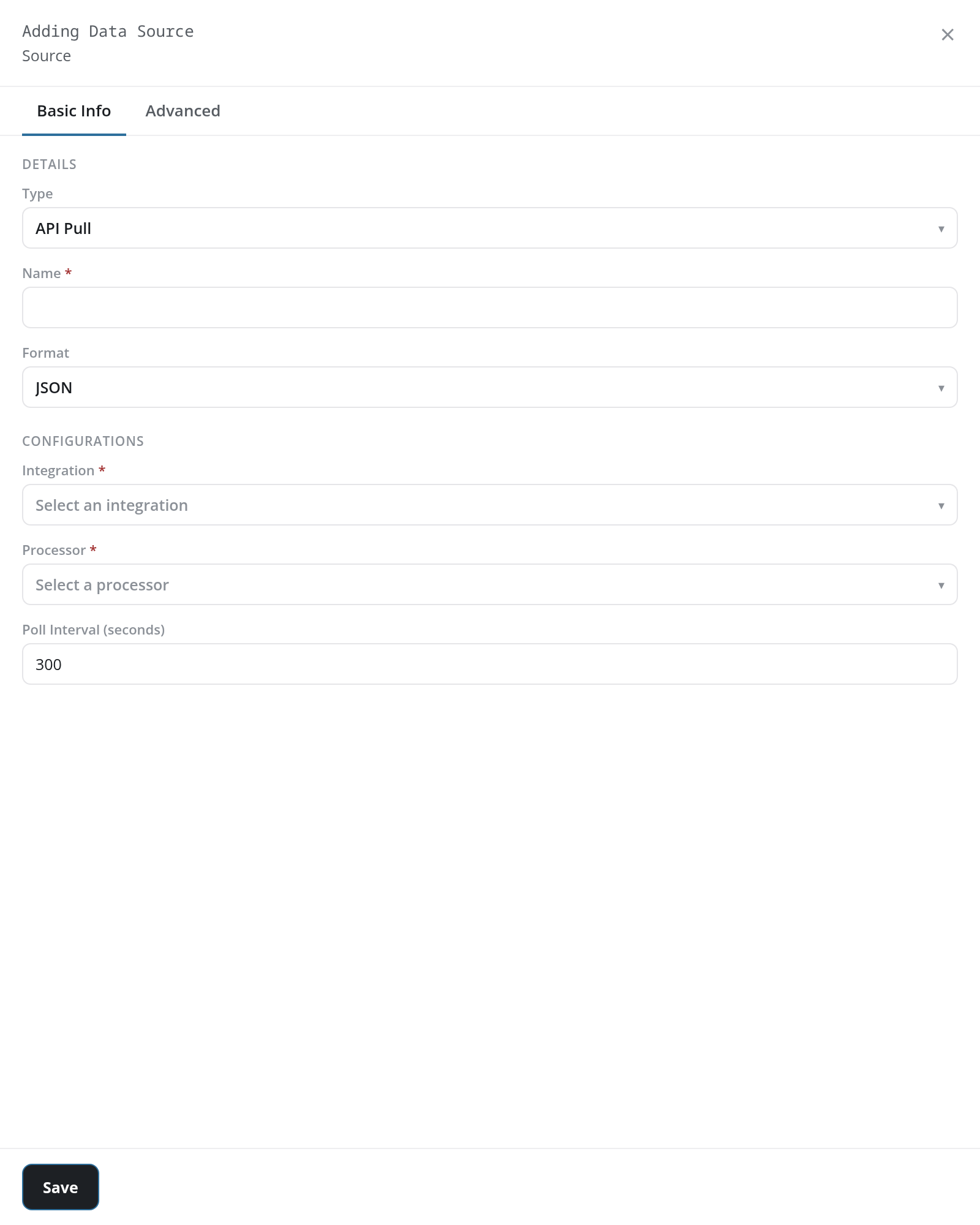
| API Pull | Name *, Format (default JSON) | Integration *, Processor *, Poll Interval (seconds) (default 300) |
| HTTPs Event Collector | Name *, Format (default JSON) | Enable indexer acknowledgement (checkbox, cleared) |
| Prometheus | Name *, Format (default JSON) | Authorization (default Basic), Username * |
| Kinesis Stream | - | Integration * |
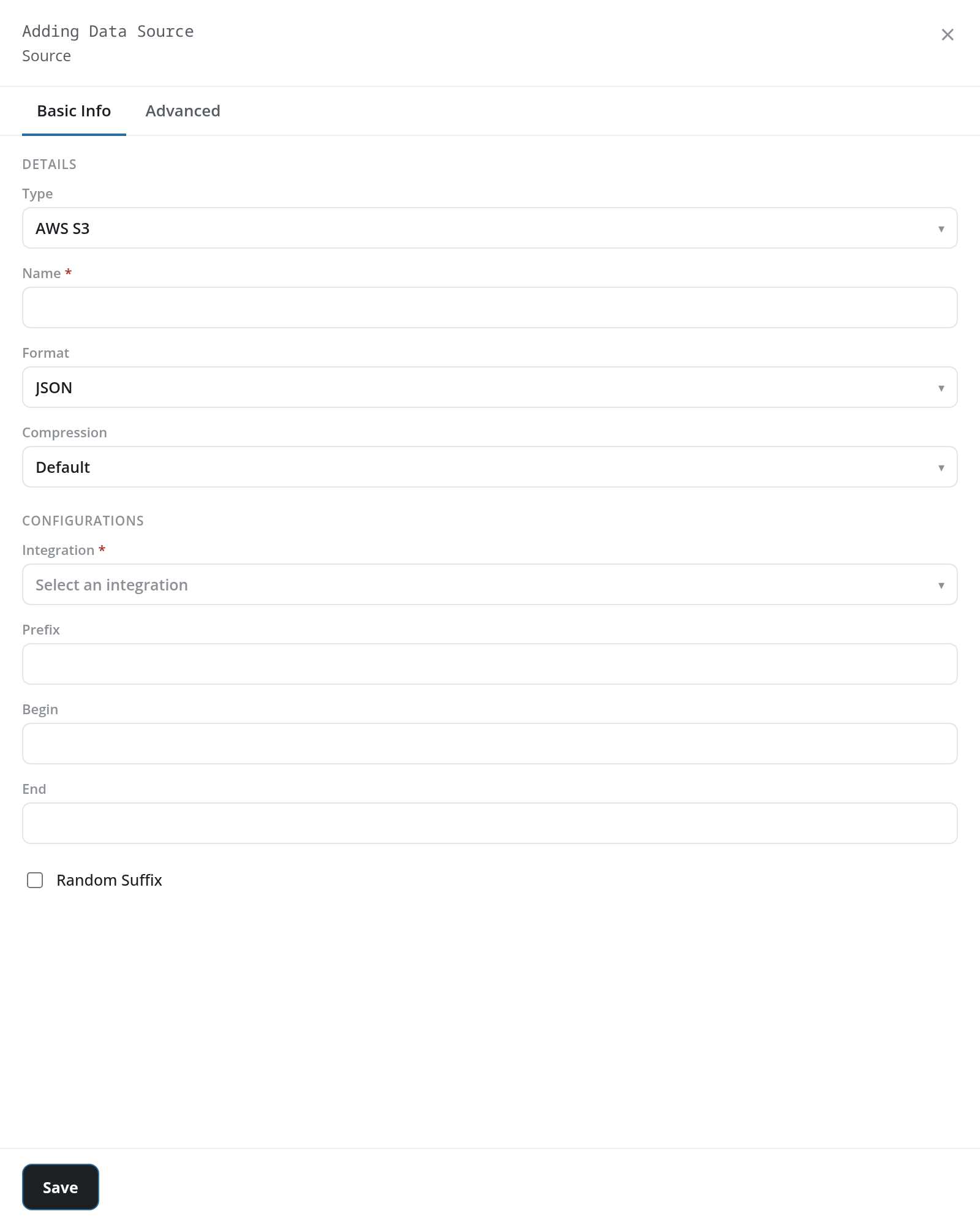
| AWS S3 | Name *, Format (default JSON), Compression (default Default) | Integration *, Prefix, Begin, End, Random Suffix (checkbox, cleared) |
| AWS S3 w/ SQS | Name *, Format (default JSON), Compression (default Default) | Integration * |
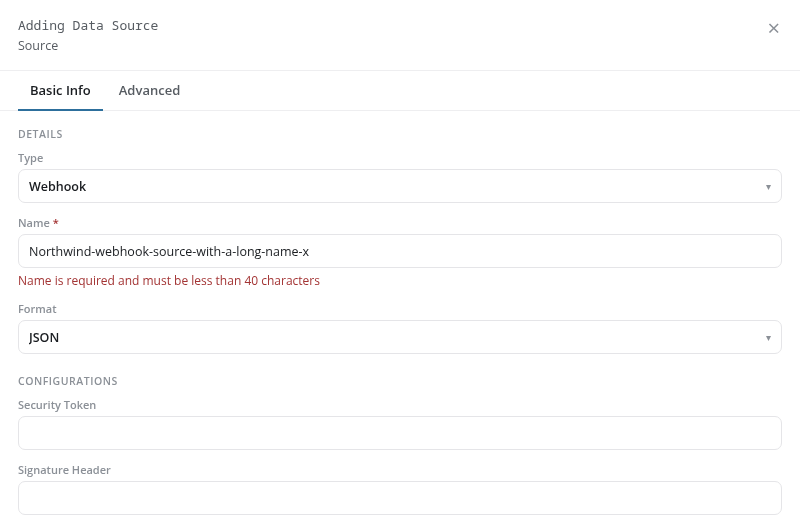
| Webhook | Name *, Format (default JSON) | Security Token, Signature Header |
| Cloud Syslog | - | none: the panel reads This adds the system Syslog endpoint to the platform. |
| Mgmt Queue | - | Queue *: the management queue to read |
Cloud Syslog and Mgmt Queue have the Basic Info tab only. Where a type has a Format list, it offers JSON, Text, and Syslog.
Saving
Save checks the panel before anything is created. What is missing or wrong is named in a notice titled Invalid Configuration, and again under the field:
- Name, empty or too long: Name is required and must be less than 40 characters. A name may contain spaces.
- Integration, on a type that needs one, not chosen: Please select an integration.
- Properties, on the Advanced tab, not valid JSON: Props needs to be a valid JSON object.
Source names are unique: a name another source already has is refused with the notice Error (data source followed by the name and add error: duplicate data source name). A source that saves shows the notice Source Added Successful, and its card appears at the foot of the Sources column. The new source feeds no router until you connect it (see Making a Connection).
Advanced
The Advanced tab holds two settings shared by the source types that have it:
- PROPERTIES JSON: Properties, a text area for the source's extra properties as JSON,
{}by default. - RECEIVER CONFIGURATIONS: Receiver Name, the FPL receiver the source uses: -- None Selected -- by default, or a receiver such as MicrosoftDefender_ArraySplit, AWSCloudTrail_ArraySplit, or AWSCloudWatch_ArraySplit. Choosing a receiver adds Receiver Input, set to Raw.