Sinks
A sink is where processed data leaves the pipeline: a data lake index, a management queue such as EventWatch, or one of the other sink types listed under Adding a Sink. Each sink is a card in the right-hand column of the Platform diagram. Click a sink card to open its panel, or click Add Sink + at the foot of the column to add a sink.
Menu path: Platform → a sink card, or Add Sink + · URL path: /v2/platform
Task guide: Data Sinks: the sink types and where records are usually sent.
Sink Panel
The panel's header shows the sink's name and Sink · its ID, with the Copy JSON icon, Refresh, and × on the right. It has three tabs (Details, Component Info, and Events) and Delete, which deletes the sink, at its foot.
Delete asks for confirmation, Deleting Sink (Are you sure you want to delete followed by the sink's name). A sink that a pipe still delivers to is not deleted: the notice Error names the pipe that references it (data sink followed by the sink's ID, delete error, and is referenced by pipe followed by the pipe's name). Detach it from the pipe first (see Pipe Panel). A sink that no pipe uses is deleted with the notice Sink Delete Successful (the sink's name and is deleted from the platform), and its card leaves the diagram.
Details
The Details tab holds the sink's settings, in sections:
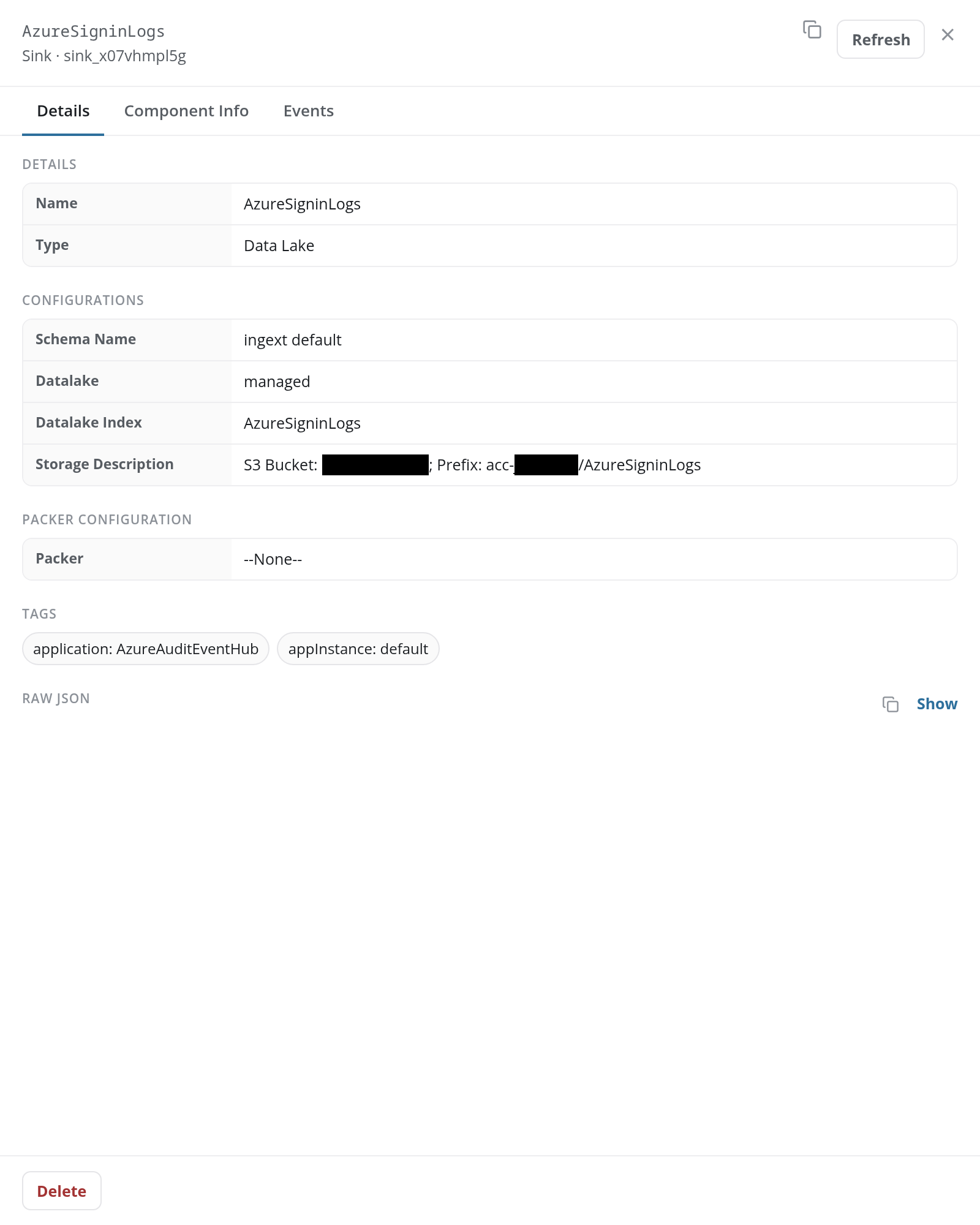
- DETAILS: the sink's Name and Type, such as Data Lake or Mgmt Queue.
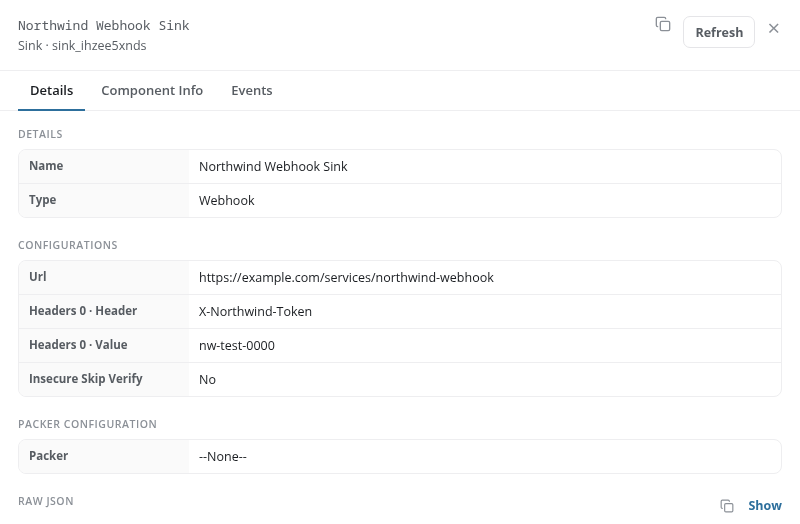
- CONFIGURATIONS: the settings of the sink's type. A data lake sink shows its Schema Name (such as ingext default), its Datalake (such as managed), its Datalake Index, and a Storage Description naming the S3 bucket and prefix the index is stored under. A webhook sink shows its Url, each header it sends as a numbered pair (Headers 0 · Header and Headers 0 · Value, then Headers 1 · …), and Insecure Skip Verify (No unless the box was ticked).
- PACKER CONFIGURATION: the Packer, the FPL packer the sink uses, or --None--. Packers are listed on the Packers tab of Configuration → Processors.
- TAGS: chips naming the application that created the sink and its instance, such as application: AzureAuditEventHub and appInstance: default. A sink with no tags has no TAGS section.
- RAW JSON: the sink's definition: Show displays it, and the copy icon copies it.
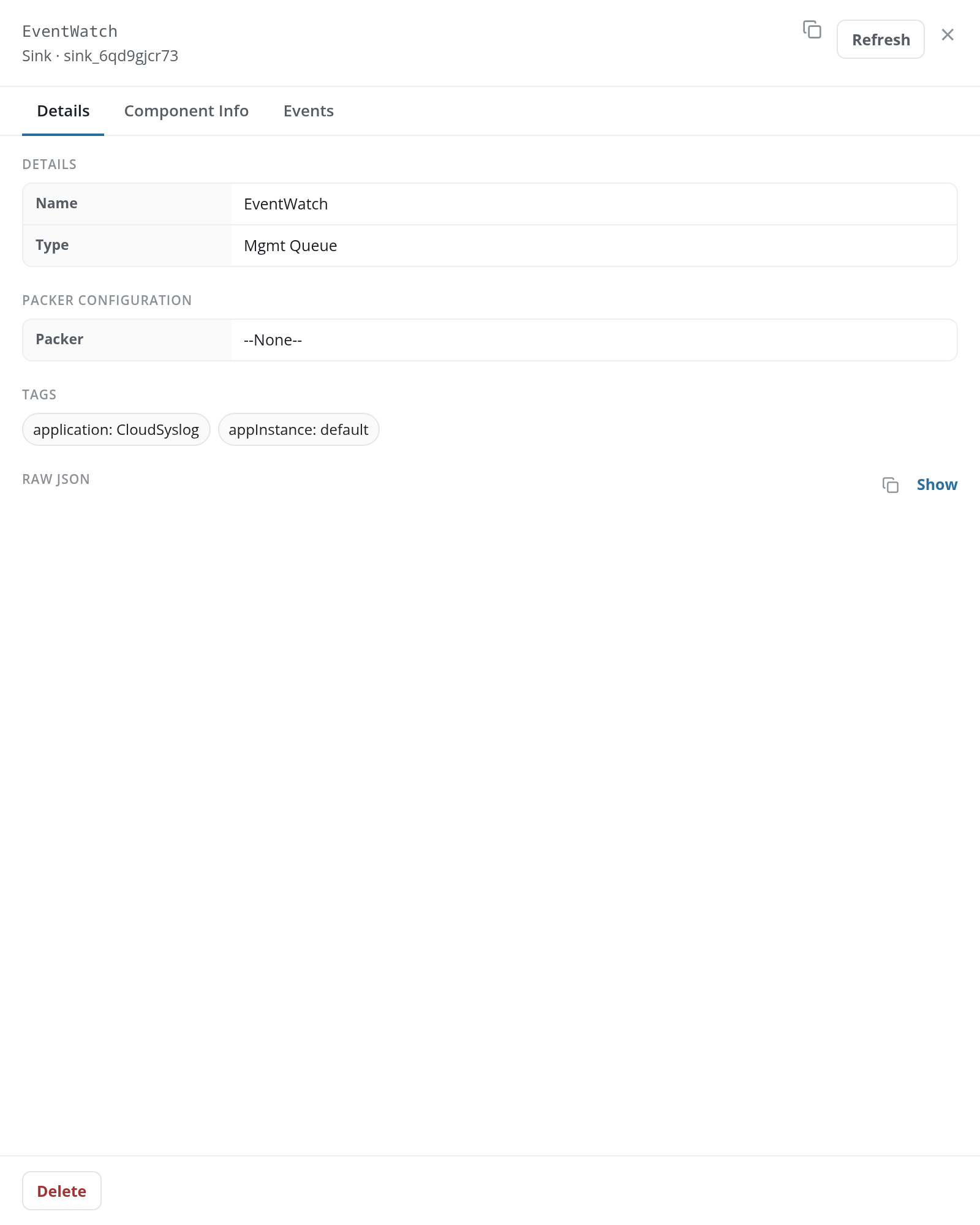
A management queue sink, such as EventWatch, has no CONFIGURATIONS section:
Component Info
The Component Info tab's STATE section gives the sink's Buffer. A webhook sink adds its Event Queue Length.
Events
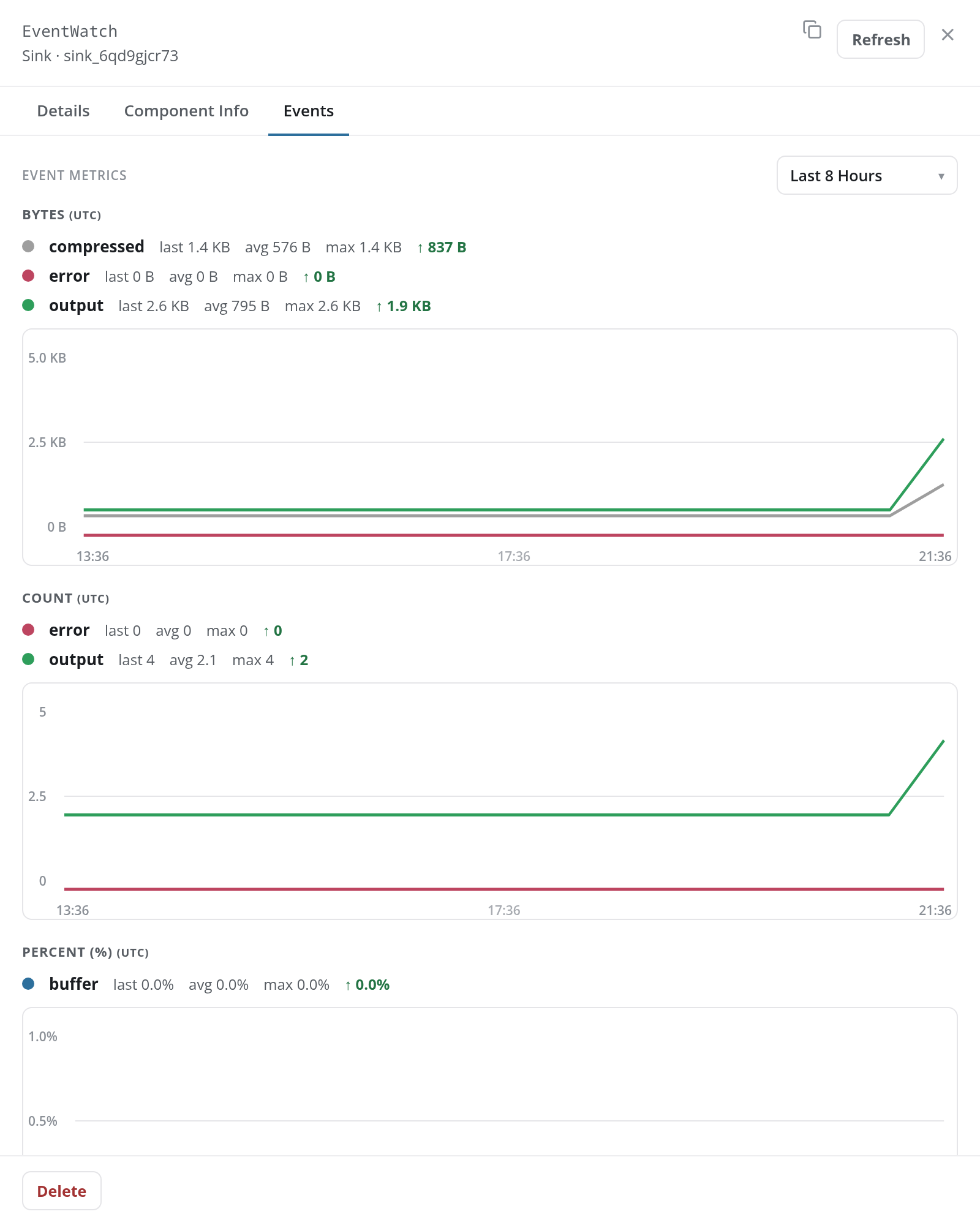
The Events tab charts the sink's output and compressed series in bytes, its output in event counts, and its buffer as a percentage, over the period chosen in the list on the right. A management queue or webhook sink adds an error series to the bytes and count charts, even when it has had no errors; a data lake sink has none. EVENT LOGS below lists the most recent events it delivered. See Events Tab.
Adding a Sink
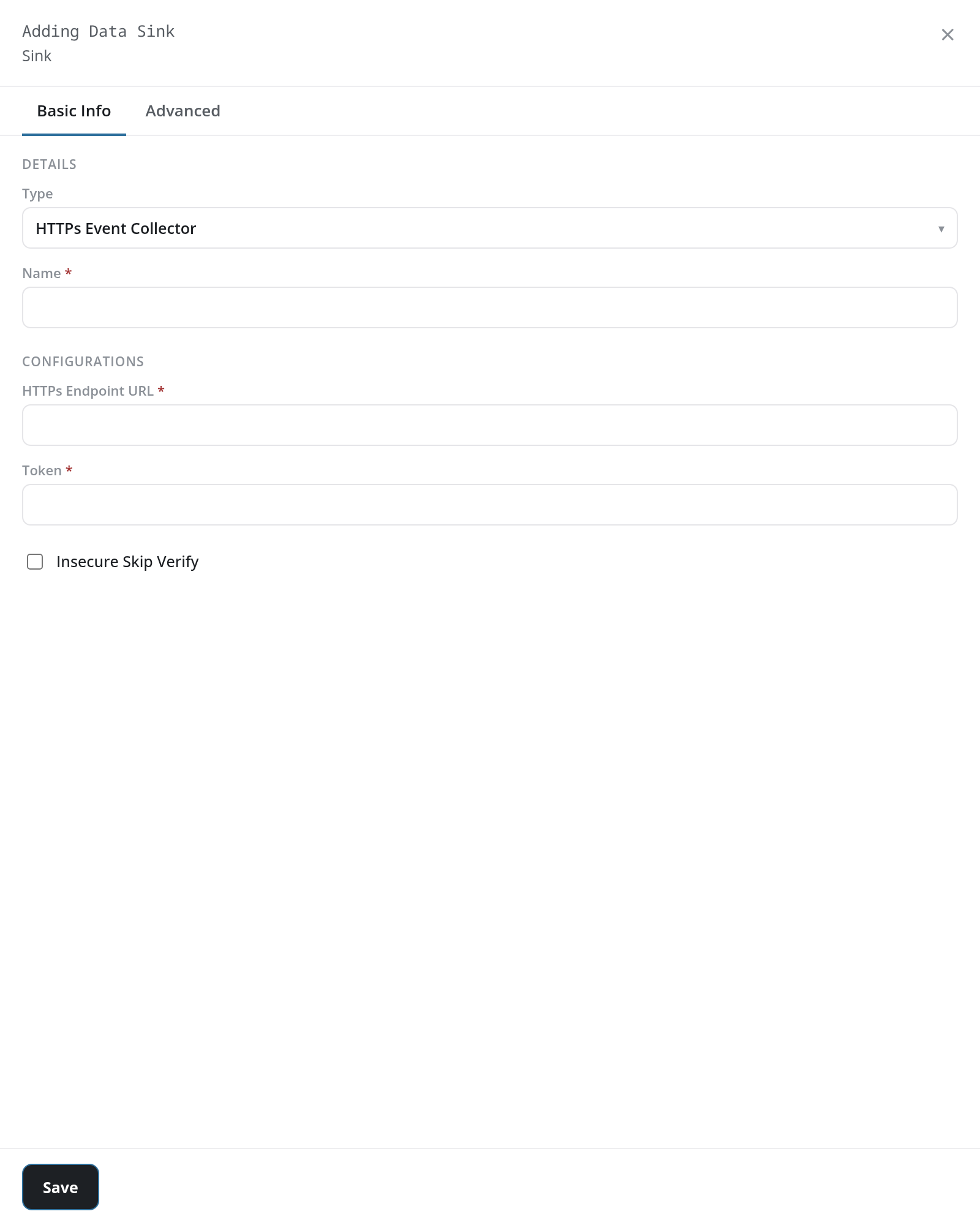
Add Sink + opens the Adding Data Sink panel. Choose the sink's Type first: the panel's fields change with it. The panel has two tabs, Basic Info and Advanced; Mgmt Queue has Basic Info only. Save at the foot creates the sink.
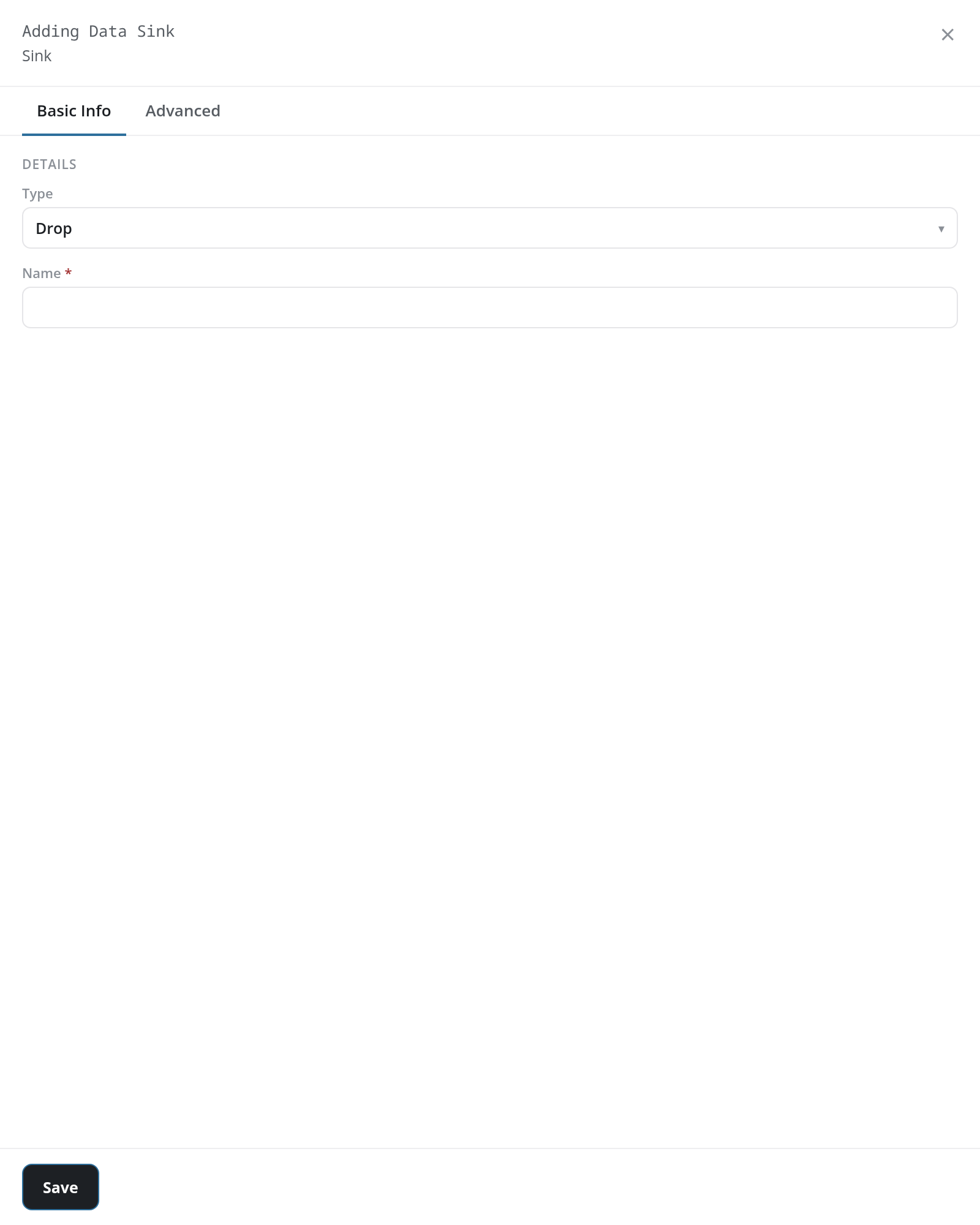
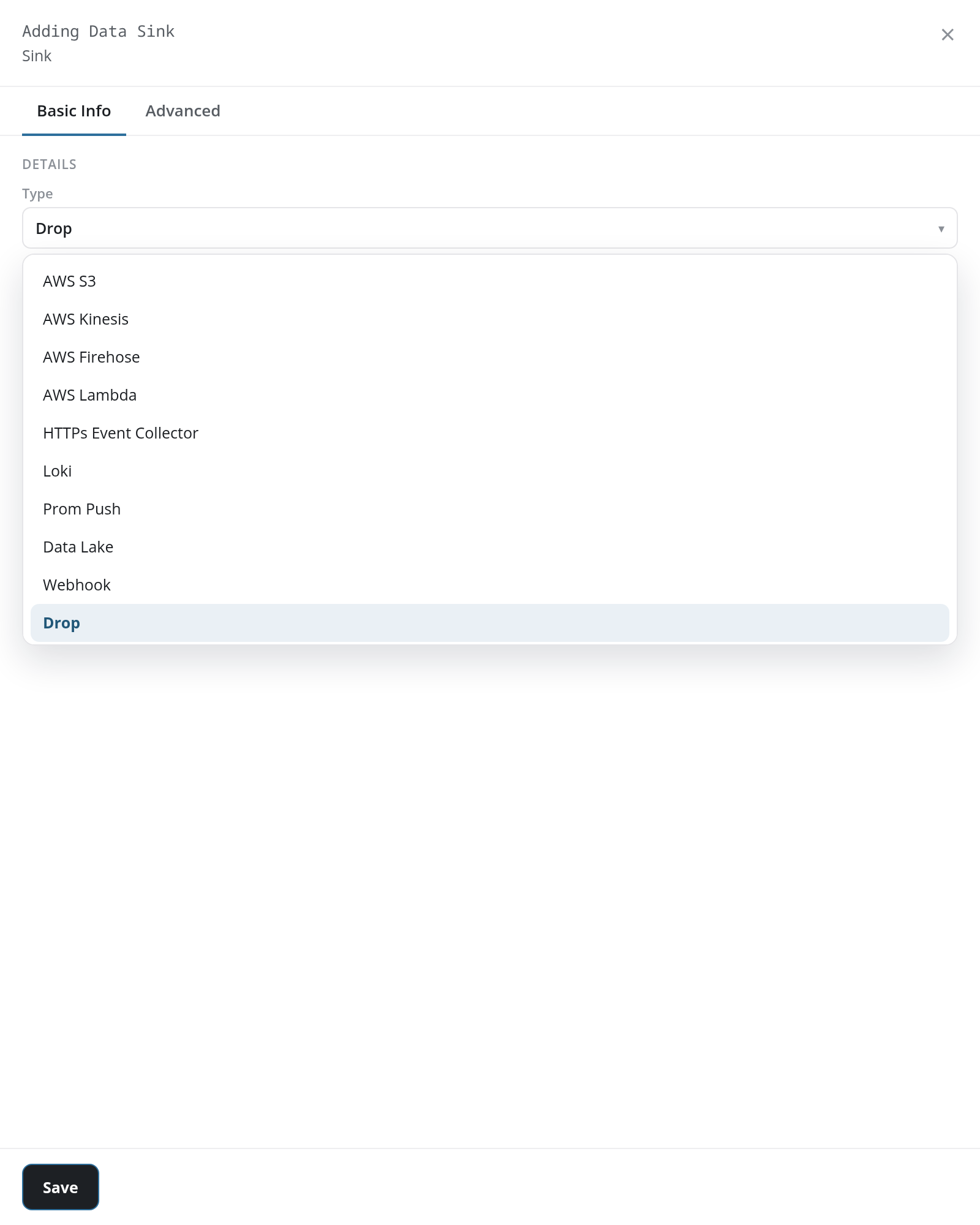
The Type list offers eleven sink types, with Drop chosen when the panel opens:
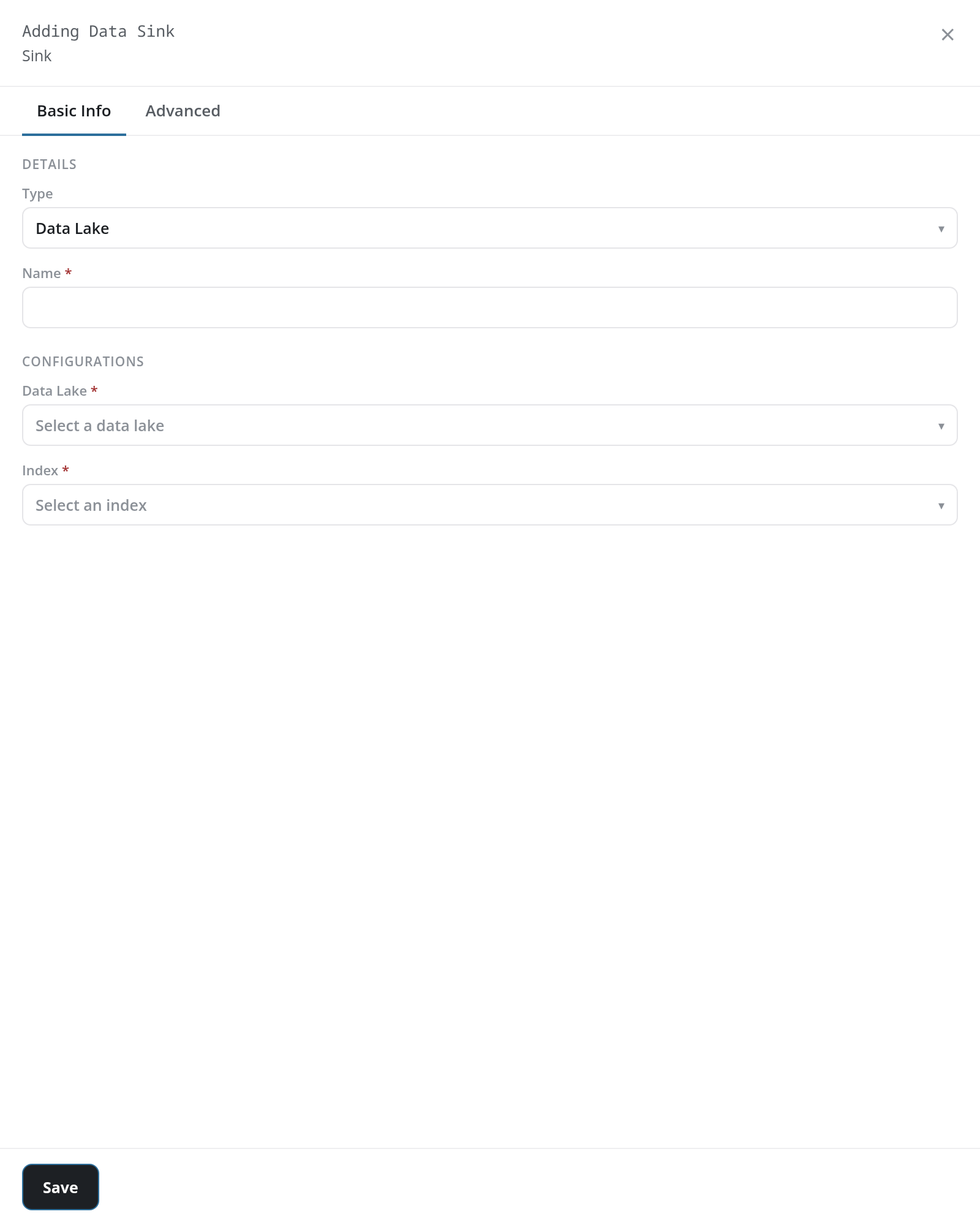
Basic Info by Type
The Basic Info tab groups its fields under DETAILS and CONFIGURATIONS. Fields marked with an asterisk (*) are required:
| Type | DETAILS | CONFIGURATIONS |
|---|---|---|
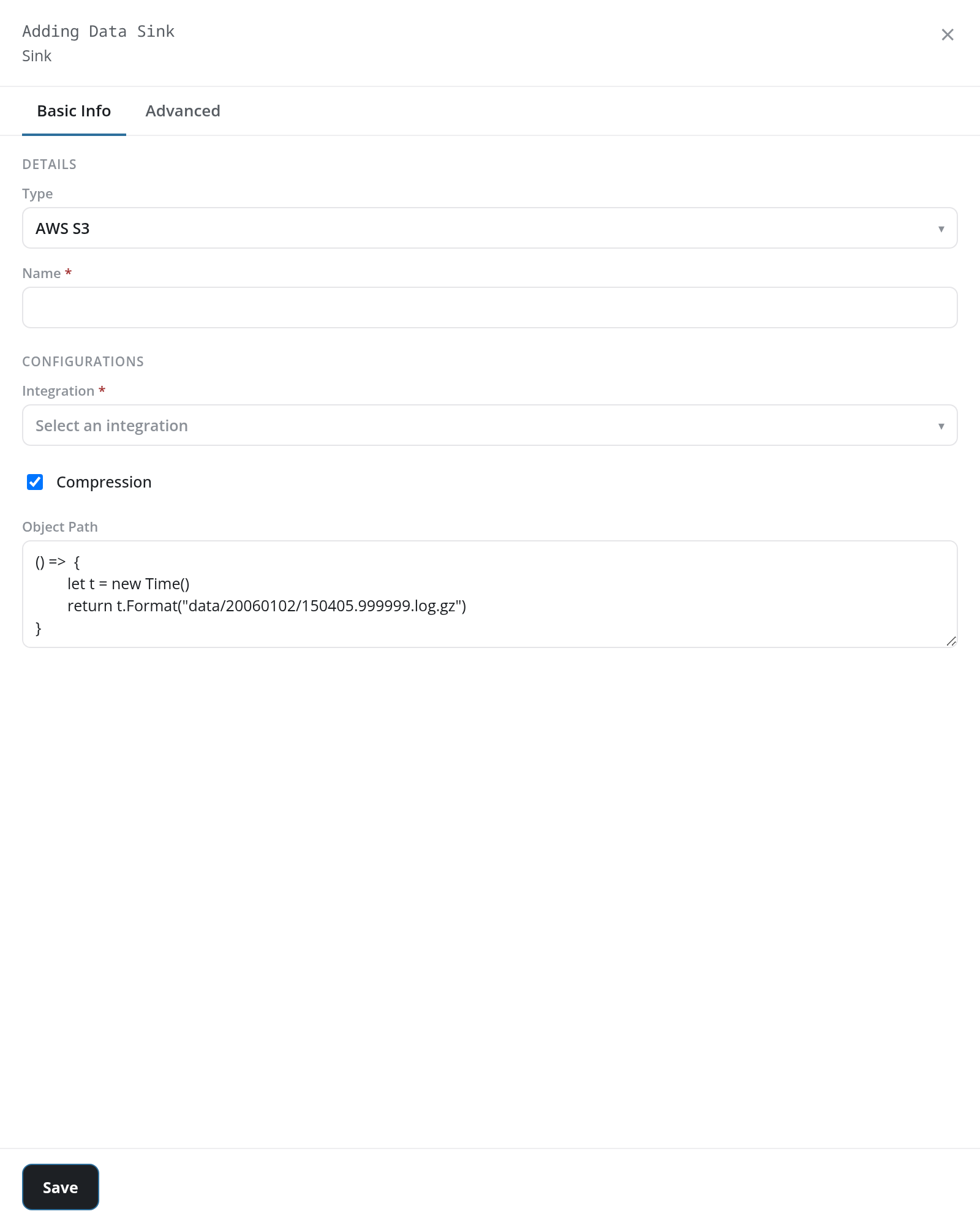
| AWS S3 | Name * | Integration *, Compression (checkbox, ticked), Object Path: FPL code that returns each object's path (see below) |
| AWS Kinesis | - | Integration * |
| AWS Firehose | - | Integration * |
| AWS Lambda | - | Integration * |
| HTTPs Event Collector | Name * | HTTPs Endpoint URL *, Token *, Insecure Skip Verify (checkbox, cleared) |
| Loki | Name * | Integration * |
| Prom Push | Name * | Integration * |
| Data Lake | Name * | Data Lake *, Index * |
| Webhook | Name * | URL *, Insecure Skip Verify (checkbox, cleared), Headers: Add Header adds a header to send |
| Drop (the default) | Name * | - |
| Mgmt Queue | - | Queue *: the management queue to deliver to |
The Object Path of an AWS S3 sink starts as a function that names each object after the time it is written:
() =>  {
    let t = new Time()
    return t.Format("data/20060102/150405.999999.log.gz")
}
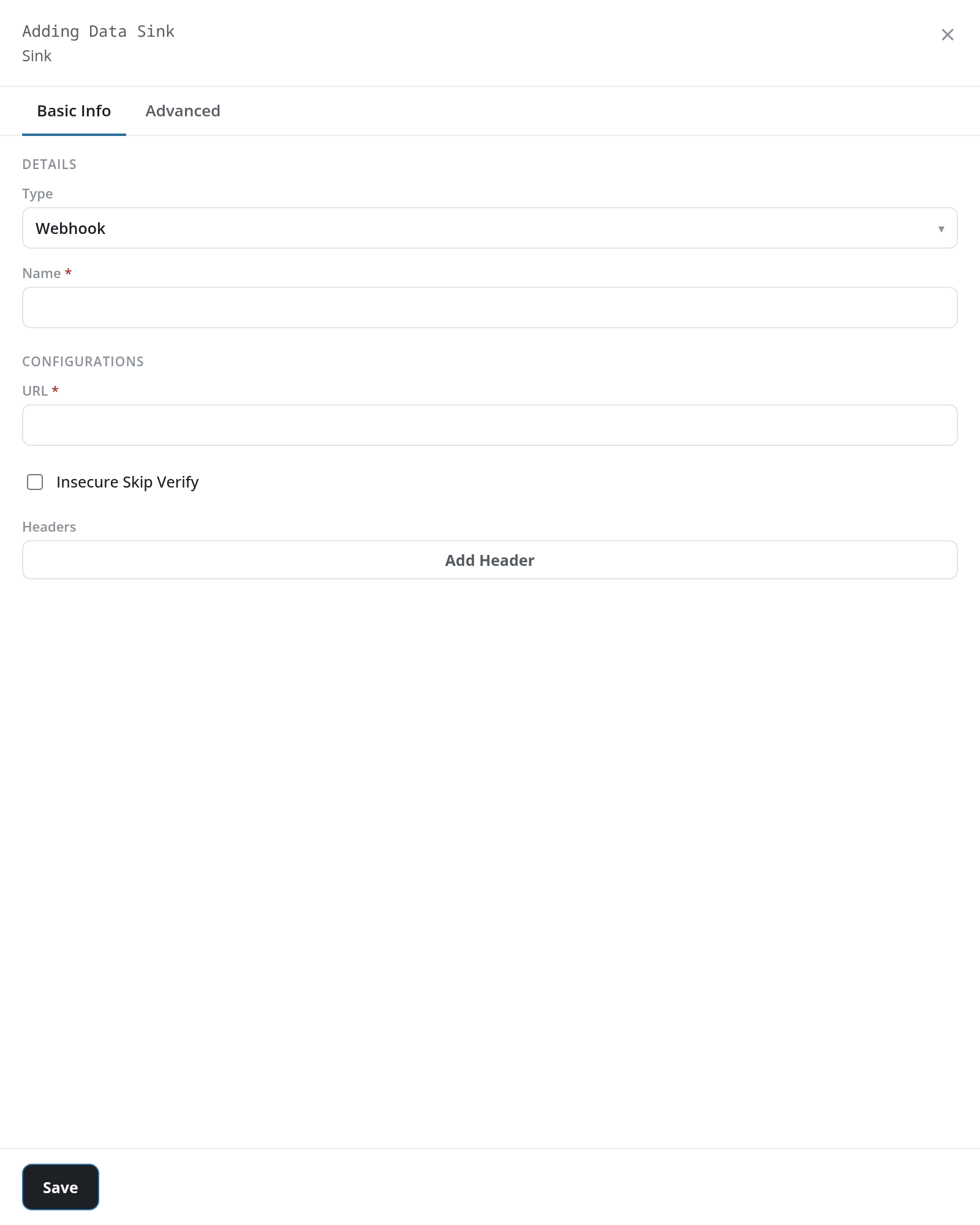
On a Webhook sink, each Add Header adds a row with a Header and a Value field and Remove, which deletes the row.
Saving
Save checks the panel before anything is created. What is missing is named in a notice titled Invalid Configuration: Name is required and must be less than 40 characters for an empty or too long name, and URL is required for a webhook sink without a URL. A sink that saves shows the notice Sink Added Successful, and its card appears at the foot of the Sinks column. It receives nothing until a pipe delivers to it (see Making a Connection).
Advanced
For a Drop sink the Advanced tab reads Advanced settings are not available for this sink type. For a Webhook sink it holds PACKER CONFIGURATION: Packer, the FPL packer the sink uses, -- None Selected -- by default. Packers are listed on the Packers tab of Configuration → Processors.