Processors
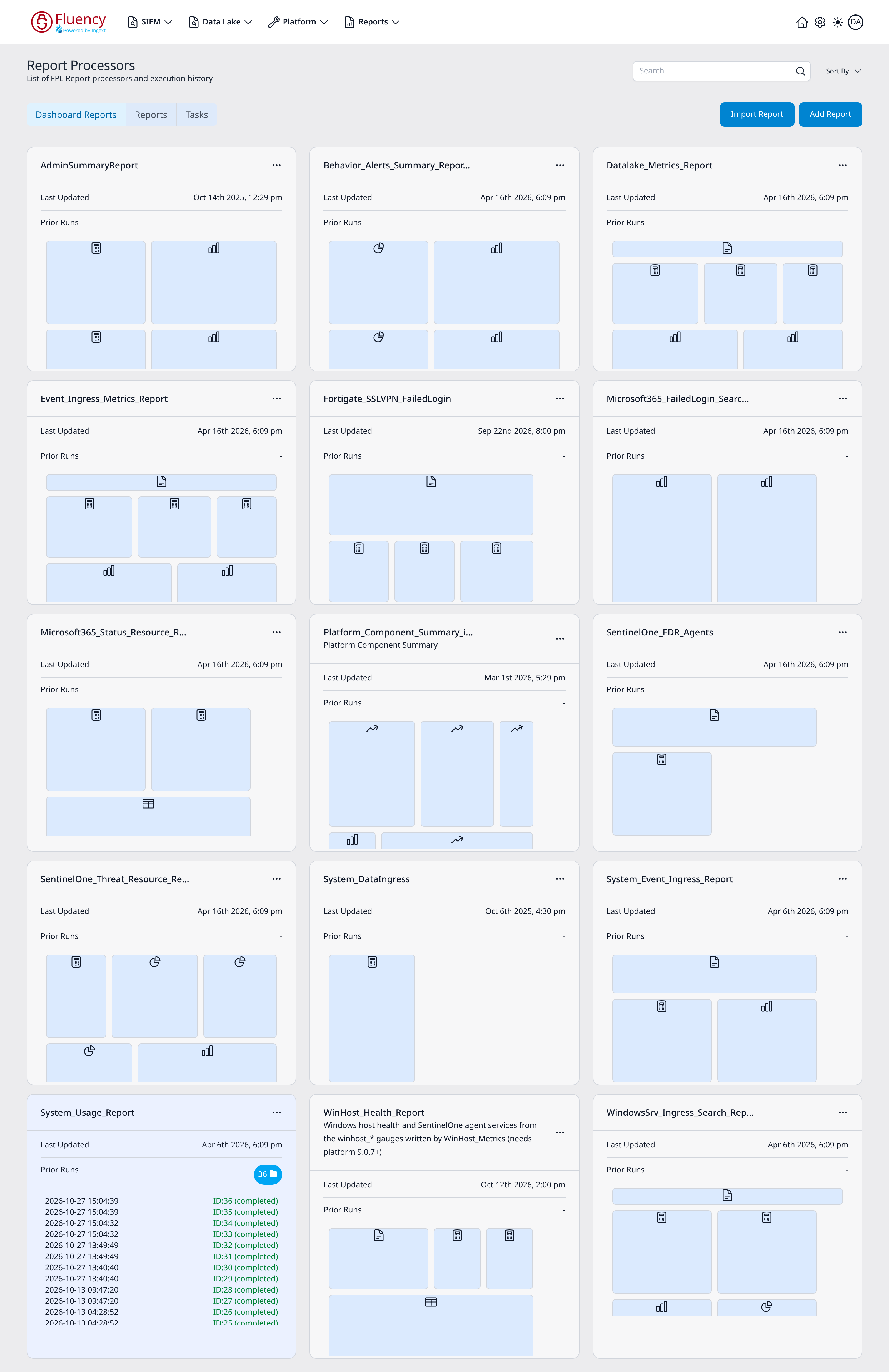
The Report Processors page lists the FPL report processors defined in the account and their execution history. From here you can search and sort the list, import or create report processors, clone an existing one, and review a processor's prior runs.
Menu path: Reports → Processors · URL path: /reports/processors
Page Layout
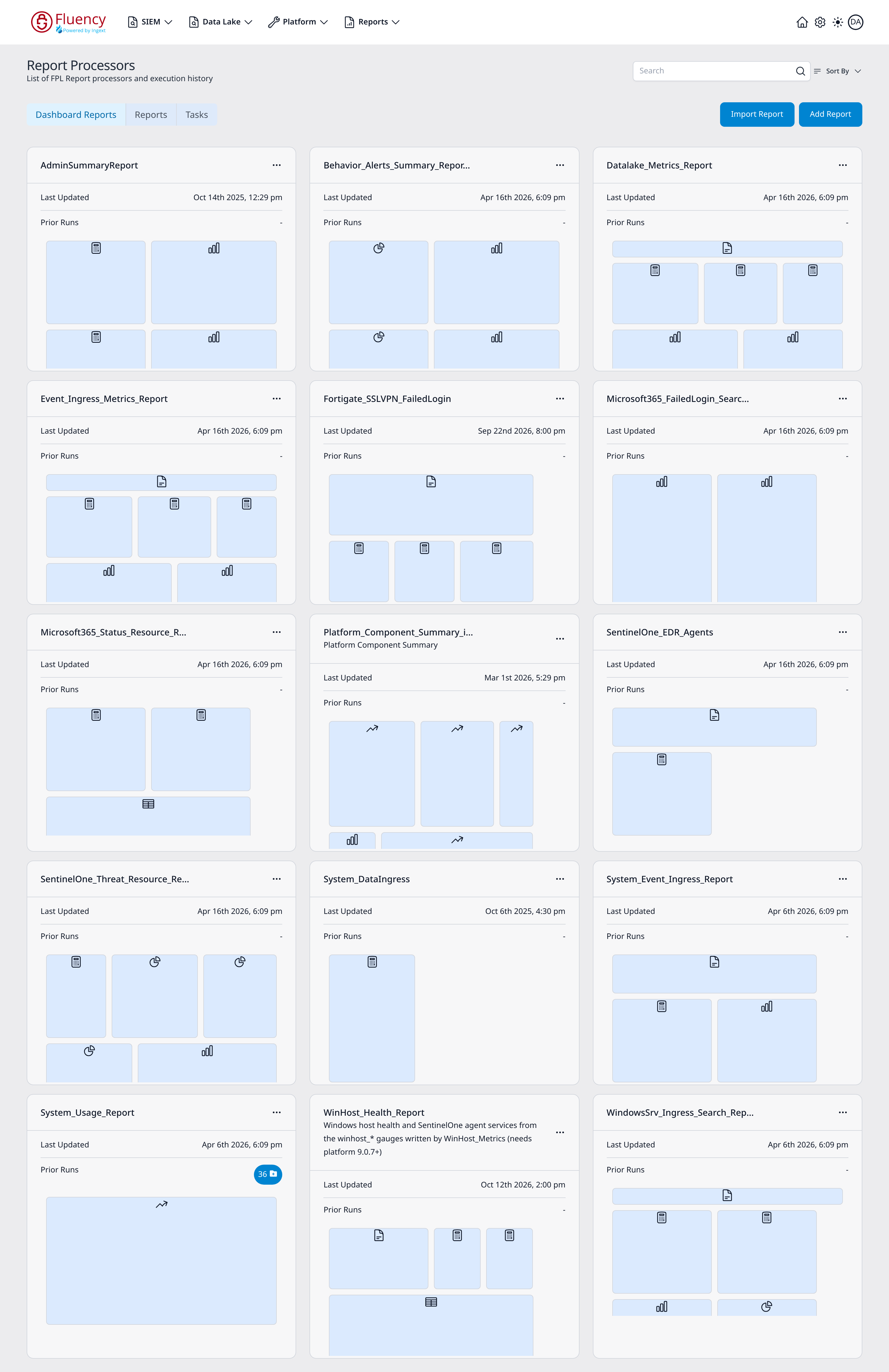
From top to bottom the page contains:
- A header with the title Report Processors and the subtitle List of FPL Report processors and execution history, with a Search box and a Sort By dropdown on the right.
- A row of category tabs: Dashboard Reports (selected by default), Reports, and Tasks, with the Import Report and Add Report buttons on the right.
- A card grid, three cards per row, with one card for each report processor.
Search and Sort
- Search: type in the search box to filter the cards by name.
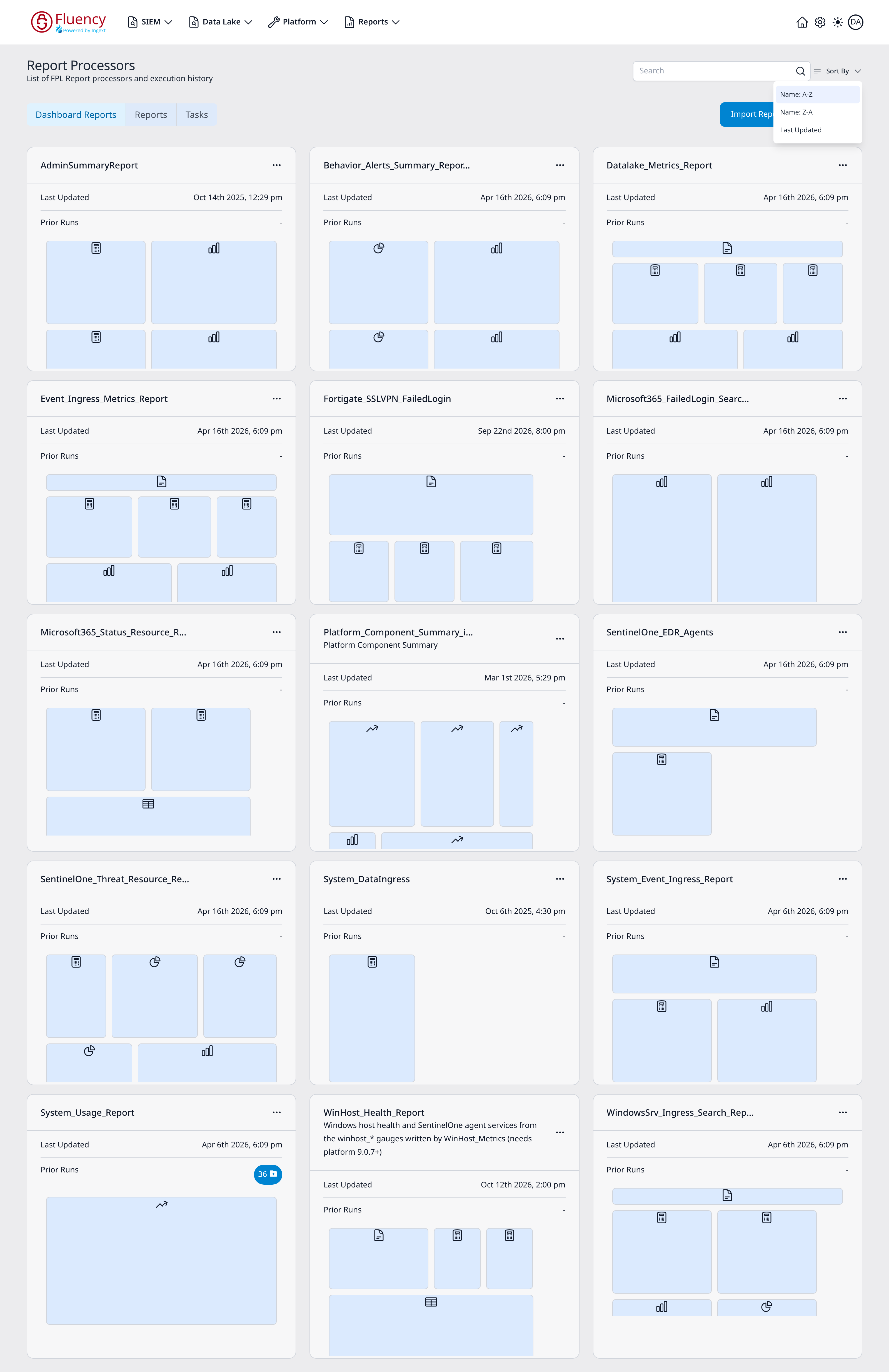
- Sort By: opens a menu that reorders the cards. The options are:
- Name: A-Z
- Name: Z-A
- Last Updated
Category Tabs
The tabs under the header switch what the page lists:
- Dashboard Reports (selected by default): report processors shown as cards that preview the report's widgets, described under Processor Cards.
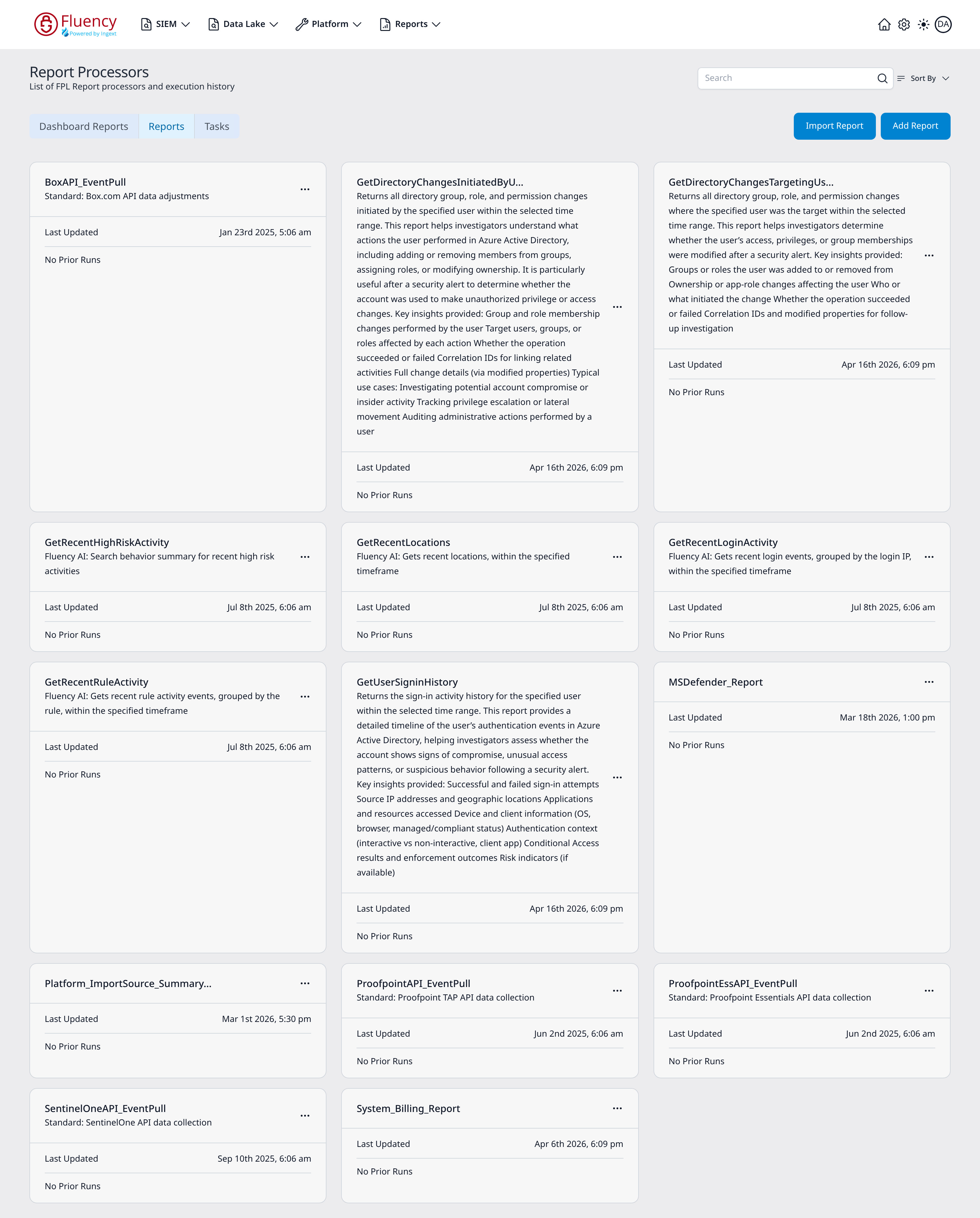
- Reports: the other FPL report processors, also as cards but without a widget preview. A card with no recent runs reads No Prior Runs.
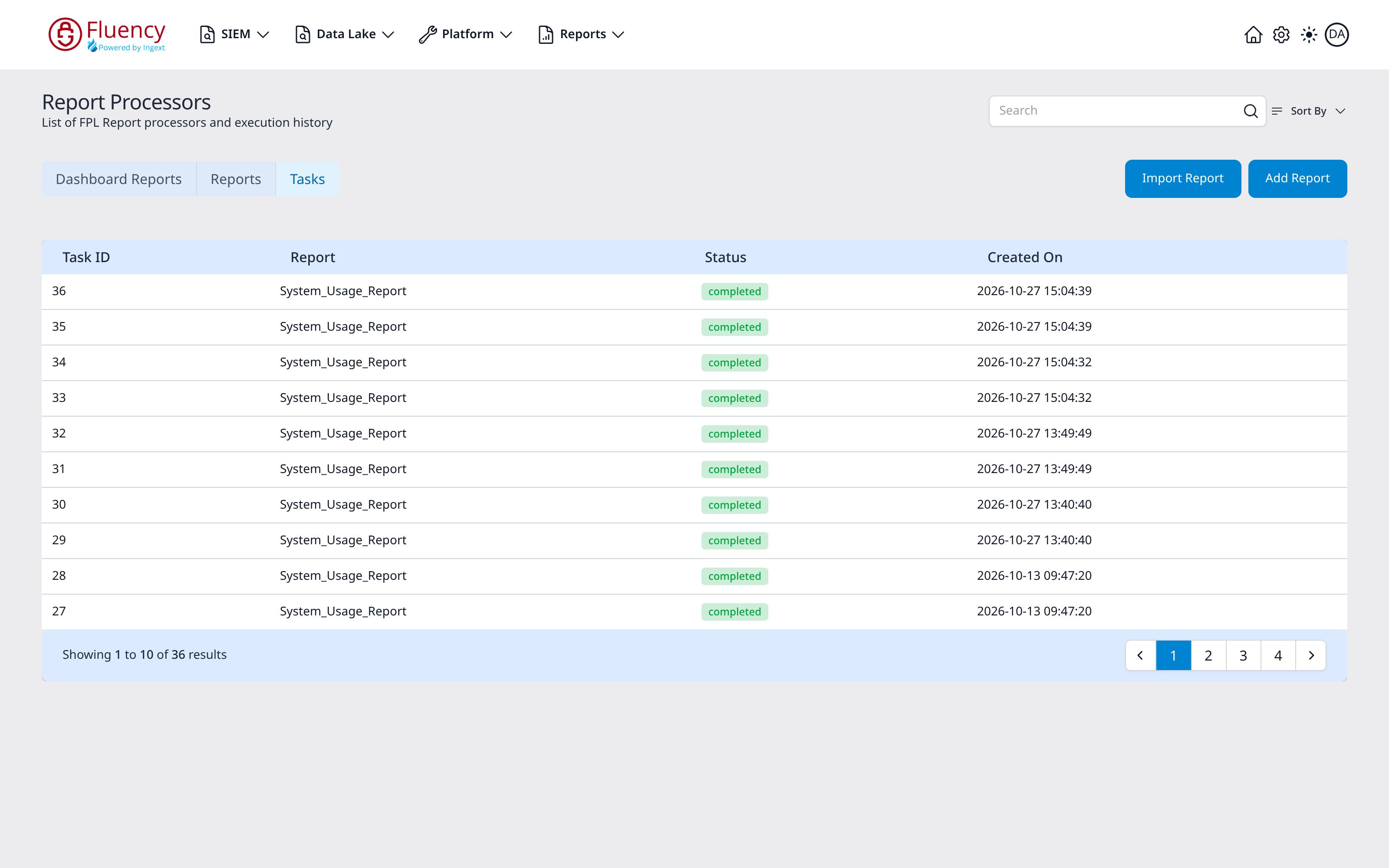
- Tasks: a table of report task runs instead of cards, newest first, with Task ID, Report, Status (a green completed chip for a finished run) and Created On columns and a pagination bar.
Import Report
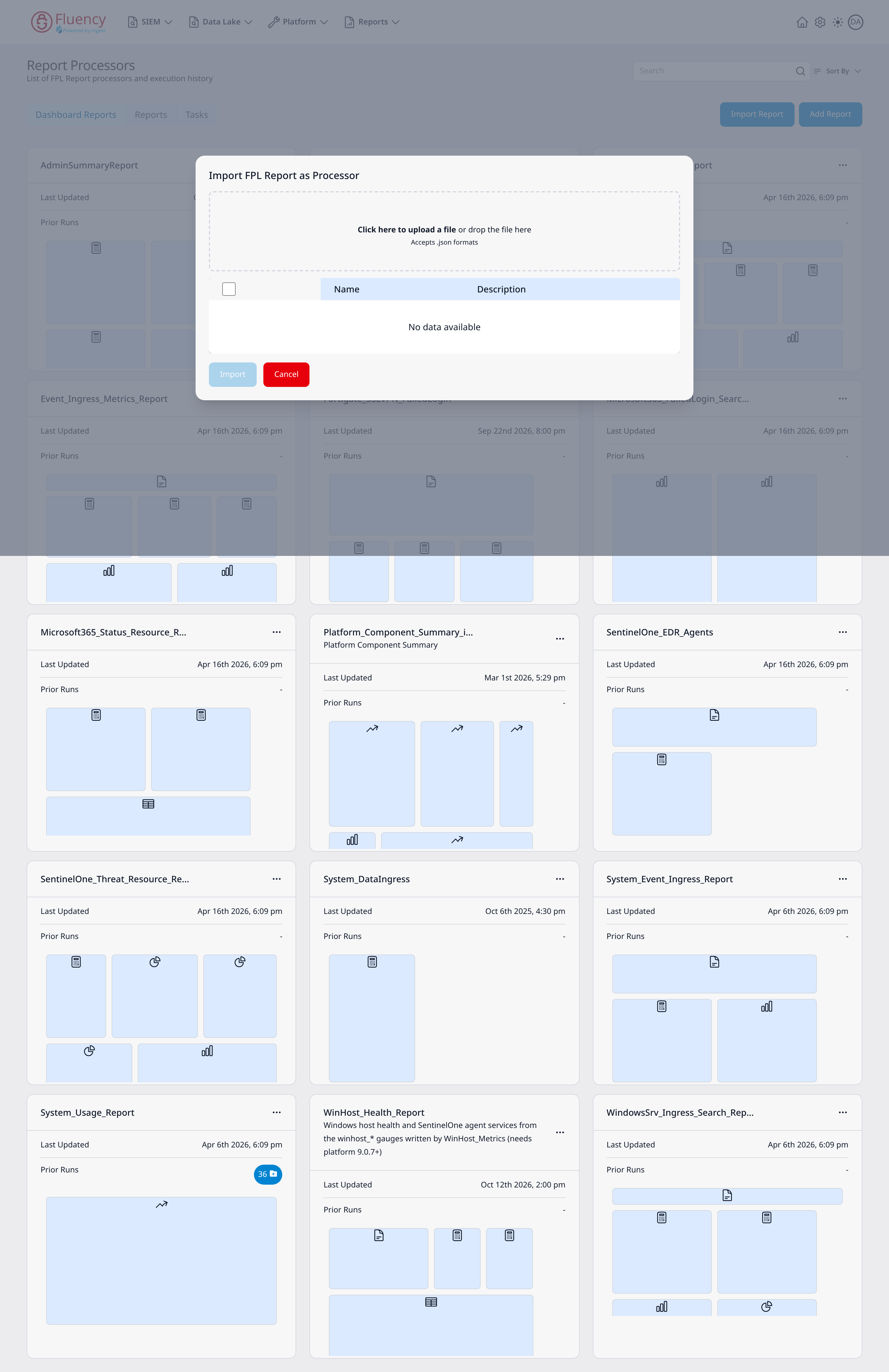
Click Import Report to open the Import FPL Report as Processor dialog, which loads report definitions from a file:
- An upload area labeled Click here to upload a file or drop the file here; it accepts
.jsonformats. - A selection table with a checkbox column and Name and Description columns. Until a file is loaded it reads No data available.
- Import: imports the selected reports (disabled until a file is loaded and a row is selected).
- Cancel: closes the dialog without importing.
Add Report
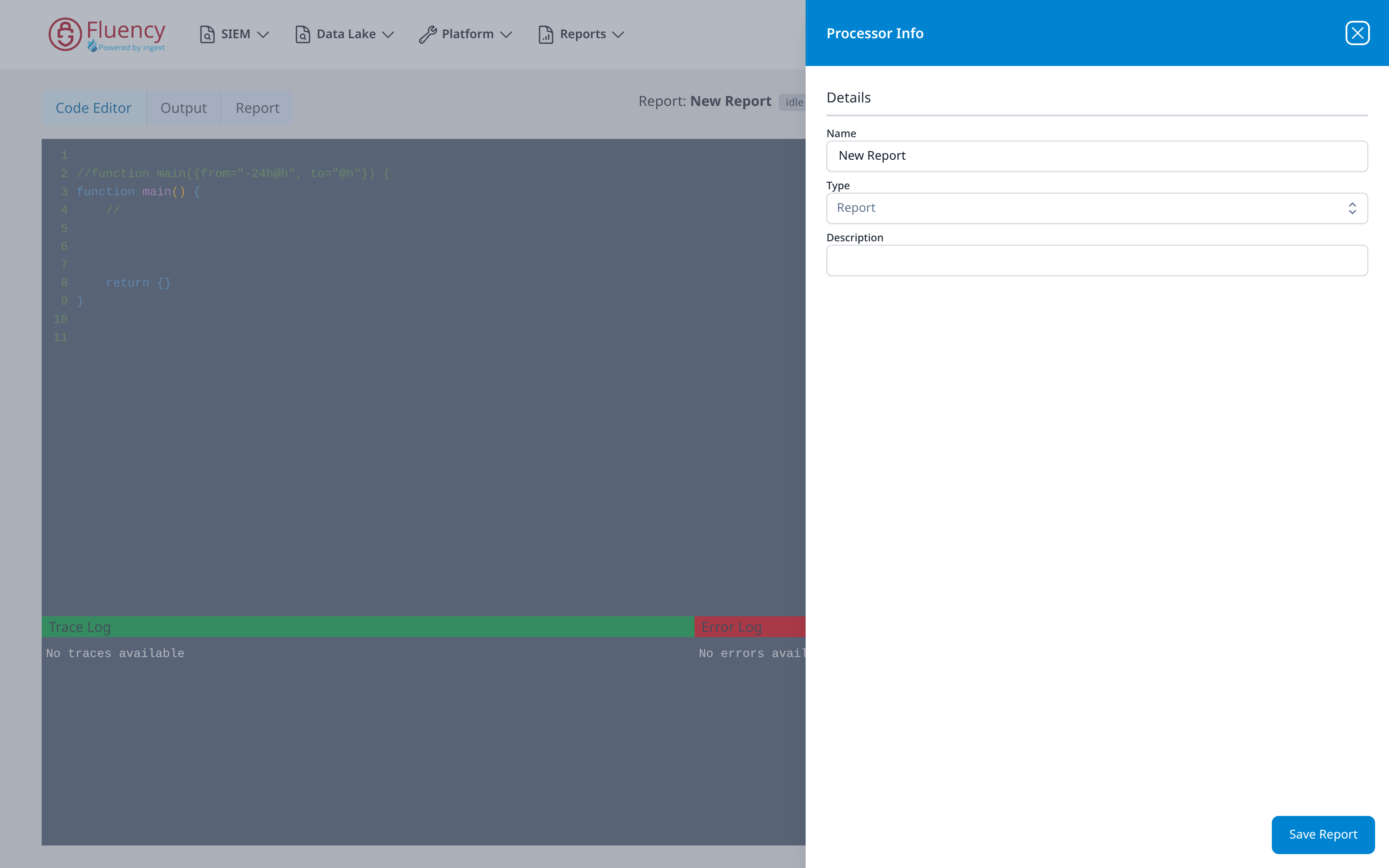
Click Add Report to leave the list and open the report editor at /platform/processors/report?name=&id=0&action=add with a new, empty report:
- The editor has Code Editor, Output, and Report tabs. The toolbar to their right shows the report name (Report: New Report) and its run status (idle for a new report), followed by Run and Save Processor buttons.
- The Code Editor tab contains an FPL skeleton (
function main()) plus Trace Log and Error Log panes, which read No traces available and No errors available for a new report. - A Processor Info panel opens on the right with a Details form: a Name field (prefilled with New Report), a Type dropdown (set to Report), and a Description field. Click Save Report at the bottom of the panel to save the new processor. While the panel is open it covers the right side of the editor, including the Run and Save Processor buttons; its Close panel button hides it, and an Edit Info button in the toolbar brings it back.
Processor Cards
Each card summarizes one report processor:
- The card title is the processor name; some cards show a short description under the name.
- Last Updated: the date and time the processor was last modified.
- Prior Runs: a dash when there is no recent run history, or a count badge when runs exist (see below).
- The card body shows thumbnail tiles of the report's widgets (table, chart, trend, and document icons).
Click a card outside its buttons to open that processor in the report editor, at /platform/processors/report?name= followed by the processor name. For a saved processor the toolbar's buttons are Run, Update Processor and Publish, the Processor Info panel starts closed behind an Edit Info button, and the panel's save button reads Update Report.
Card Options Menu
The ... button in a card's title bar opens the card's options menu. It contains a single option:
- Clone: creates a copy of the report processor.
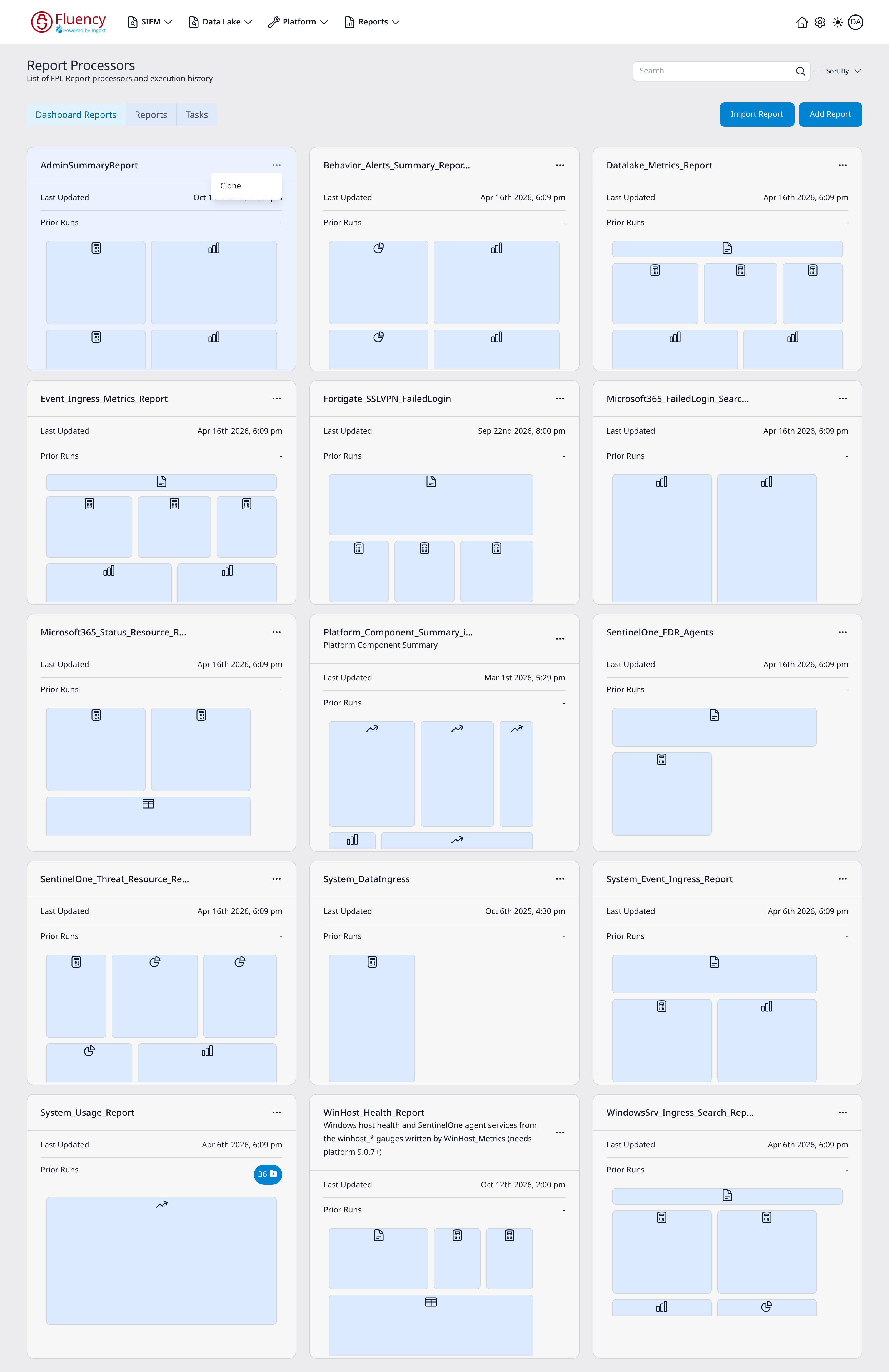
The same menu is available on every card.
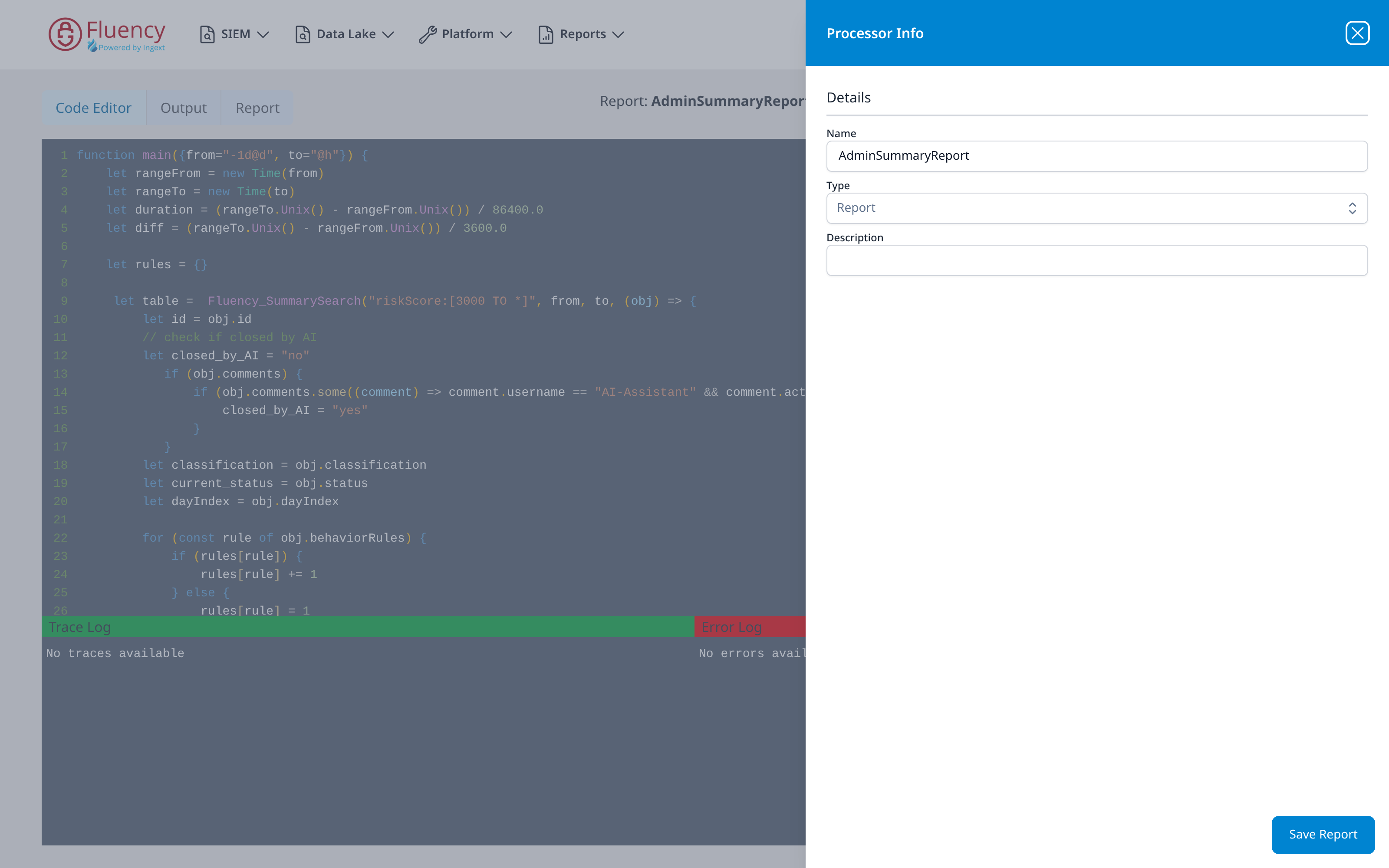
Choosing Clone opens the report editor at /platform/processors/report with a copy of the processor: the Code Editor is loaded with the source processor's FPL code, and the Processor Info panel opens on the right with its Details form prefilled: the Name field contains the source processor's name, the Type dropdown is set to Report, and the Description field is empty. Click Save Report at the bottom of the panel to save the copy.
Prior Runs Count
When a processor has recent runs, its Prior Runs value is a blue count badge. Click the badge to expand the run history inside the card: each entry shows the launch date and time on the left and the run ID with its status, in the form ID:n (completed), on the right. A long history scrolls within the card.