Varonis SaaS API
Varonis watches unstructured data (file shares, SharePoint, Exchange, Microsoft 365 and the directory behind them) and records who can reach which files, who actually does, and how both change. Fluency polls the Varonis SaaS API over HTTPS for its DatAlert alerts and, optionally, the file-activity events underneath them: signals no firewall or endpoint agent produces, and most useful next to the identity and endpoint telemetry that says who and from where.
Authentication is an API key held by a user with the Threat Detection Integrator role; the one decision is how much of the activity stream to import (the volume decision).
The setup has two halves:
- In Varonis: create an API key for a user holding the Threat Detection Integrator role, and note the tenant URL.
- In Fluency: install the Varonis application template, paste both values in, and choose how much of the activity stream to import.
This page covers Varonis SaaS, which has a template and needs no syslog listener: if your Varonis lives at https://<something>.varonis.io and you sign in to it over the internet, it is the right page. On-premise Varonis DatAdvantage has no template: it sends syslog to a listener and its parser is built by hand.
What arrives
| Stream | What it holds | Lands in |
|---|---|---|
| DatAlert alerts | Alerts on mass file access, permission changes that expose sensitive data, activity on stale or sensitive shares, and the file encryption that marks ransomware, each with the threat model that fired and the entities involved | The Varonis index |
| Activity events | The underlying file and directory activity records | The Varonis index |
Alerts are always collected. How much of the activity stream comes with them is set by the Activity event import parameter, which defaults to the whole stream and, left there, makes this one of the largest sources on the platform; read the volume decision before you install.
How alerts change as they are triaged, and what to deduplicate them on, is in Data reference.
Before you begin
A Varonis SaaS tenant. The tenant URL is of the form https://<tenant>.varonis.io. If your deployment is on-premise, stop here and use Varonis DatAdvantage instead.
A user who can be given the Threat Detection Integrator role. The template's own field label names this role, and it is the one Varonis intends for SIEM integrations. Use a dedicated service identity rather than a named administrator (see the caution in step 1).
A decision about the activity stream. The Activity event import parameter defaults to all, which is the whole activity stream. Read the volume decision before you install; it is much easier to widen this later than to undo a month of it.
Part 1: Varonis
1. Choose the account that will hold the key
A Varonis API key inherits the permissions of the user it belongs to, so choosing the account is the permission step.
An API key tied to an administrator's account carries that administrator's access, and dies with it. When that person changes role, has their permissions narrowed, or leaves and is deactivated, the integration stops, and the symptom is an empty feed, which on an alert stream is indistinguishable from a quiet week.
Create a dedicated user for the integration, grant it the Threat Detection Integrator role and nothing else, and exclude it from the joiner-mover-leaver process that would deactivate a person's account.
2. Grant the Threat Detection Integrator role
Assign the Threat Detection Integrator role to that user. This is the role the template's field label names, and it is the least privilege that works for this integration: it is scoped to reading detection data rather than to administering Varonis.
Do not substitute a broader administrative role because it is easier to assign. The key is being stored in another system; the role decides what someone holding it could reach.
3. Create the API key
Create an API key for that user in the Varonis web interface. Where API keys are managed differs between Varonis releases, so follow Varonis's documentation for your version.
Varonis displays the key value at creation and not again. Copy it now. If it is lost, the key has to be revoked and a new one issued, and revoking is what stops the running integration, so do it in the order under Maintenance.
4. Note the tenant URL
The value the form wants is the tenant host with its scheme and nothing else: https://acme.varonis.io, exactly the shape the field label gives. Not a path, not an endpoint, not the address of a specific page inside the console.
| Value | Where it came from |
|---|---|
| Varonis tenant URL | The address you sign in to (step 4). |
| Varonis API Key | The creation screen in step 3. |
Part 2: Fluency
The volume decision
The third parameter decides how much of Varonis reaches the lake, and it is the one field on this form that can change the size of the integration by orders of magnitude. Its label spells out all three values:
| Value | What it imports |
|---|---|
all | The whole activity stream: every file and directory event Varonis records. |
alerted | Only the events behind each alert. |
none | Alerts only. |
The field is pre-filled all. That is the widest of the three, and Varonis's activity stream is not a modest feed: it records file-level access across every monitored share, so a mid-sized estate produces vastly more activity records than alerts; the ratio is not close. Left at the default, this integration will be among the largest sources on the platform, and it will consume API budget on Varonis's side in proportion.
alerted is the setting most deployments actually want: it gives you the evidence behind each alert, which is what an analyst opens the alert to look for, without the rest of the estate's routine file access. Start there, confirm the alerts and their supporting events are landing, and widen to all deliberately if you have a reason and the capacity for it.
The parameter accepts only all, alerted or none, but it is rendered as free text: nothing on the form validates what you type. A typo is not rejected at install time; the application installs and behaves however the collector treats an unrecognised value. Type it exactly, in lower case.
Install the Application
- v2 interface
- Classic v1 interface
In the navigation rail, open Applications and click Install Application, then choose Varonis from the Cloud-based Business Softwares category of the Application Catalog. All three parameters are required.
Go to Platform → Applications → Install Application From Template and choose Varonis from the Cloud-based Business Softwares category. All three parameters are required.
| Parameter | Notes |
|---|---|
| Varonis tenant URL, e.g. https://acme.varonis.io | The tenant host from step 4, scheme included. |
| Varonis API Key (user with the Threat Detection Integrator role) | The key from step 3. The label names the role the key's user must hold. |
| Activity event import: all (whole activity stream), alerted (only the events behind each alert), none (alerts only) | Pre-filled all. See the volume decision; this is not a field to leave alone by default. |
| datalake | Pre-filled managed. |
| datalake index name | Pre-filled Varonis. Two applications writing to the same index name in the same lake will collide, and the second one aborts. |
- v2 interface
- Classic v1 interface
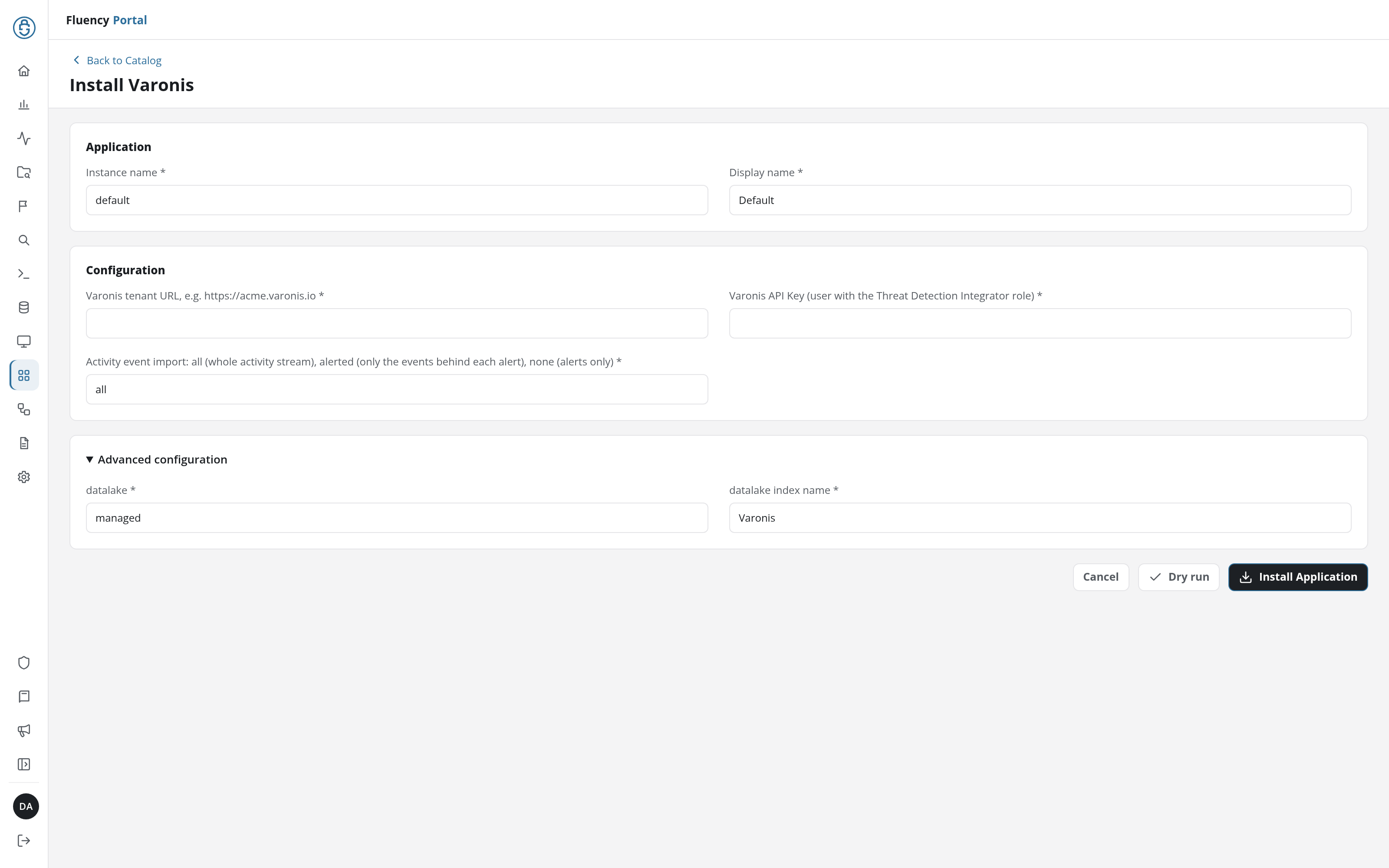
The last two sit in the collapsed Advanced configuration section below Configuration; click its heading to reach them. Leave Instance name and Display name at default / Default unless you are installing a second instance, in which case give each one a name you will recognise on the applications list.
Click Dry run first to have the platform check the values before anything is installed, then click Install Application. The Applications page opens with the notice Default is launching., and the new application is listed with a green Running badge once the pipeline is up.
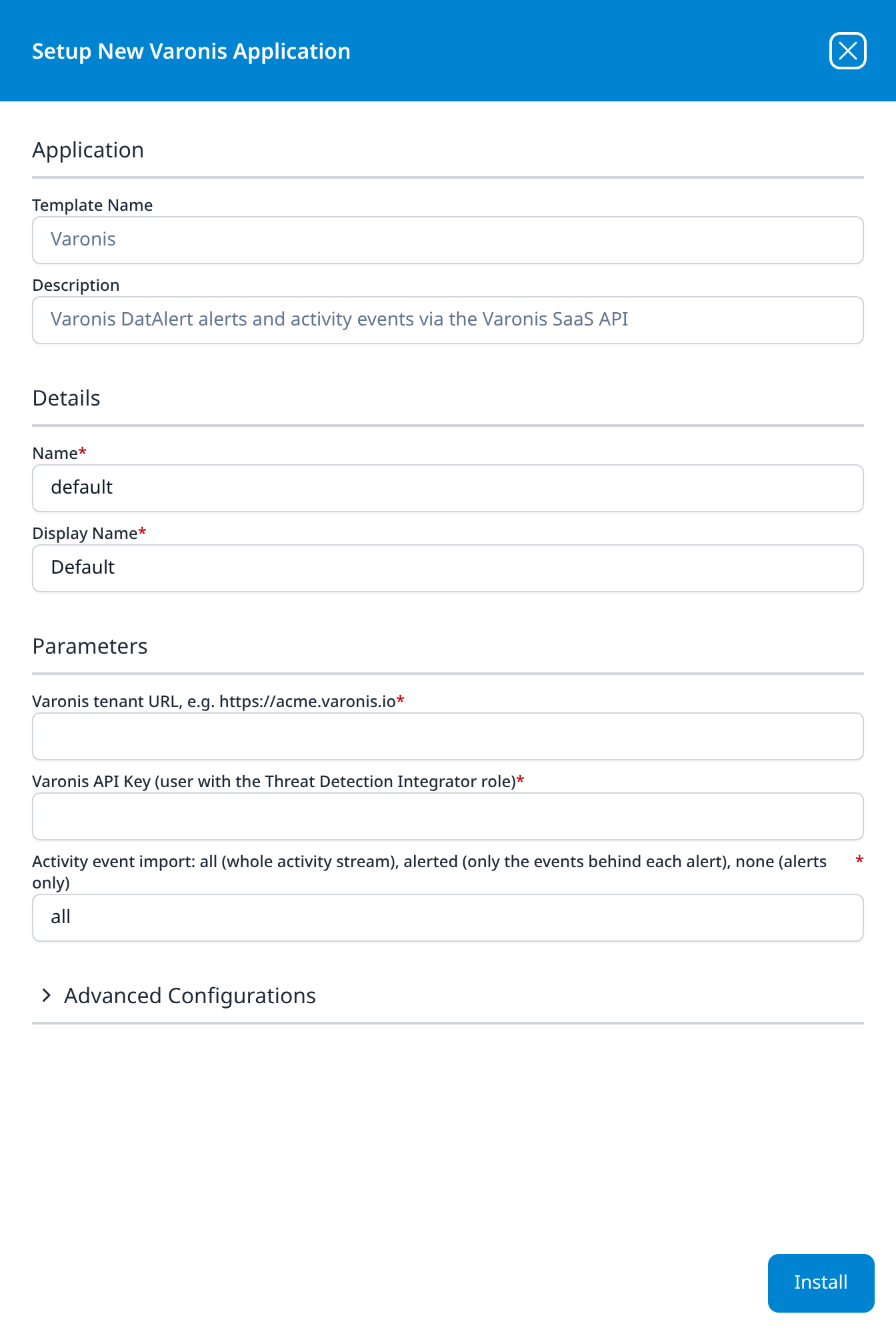
The last two sit in the collapsed Advanced Configurations row below the parameters. Leave Name and Display Name at default / Default unless you are installing a second instance, in which case give each one a name you will recognise on the applications list.
Press Install. The application then appears in the Installed Applications view, where its badge reads Running once the pipeline is up.
Two of the three parameter labels carry their own instructions, which is unusual for this catalog: the tenant URL field gives the host shape and the API key field names the required Varonis role.
Confirm it is running
A Running badge means the pipeline started, not that Varonis accepted the key.
The alert feed is a poor first health check on its own: a well-tuned Varonis tenant can legitimately raise no alerts for a day, so an empty index proves nothing either way. Check in this order:
- Compare against Varonis's own alert list. Open the Varonis console and look at the alerts raised in the window since you installed. If Varonis has alerts for that window and the
Varonisindex does not, the problem is the integration. If Varonis has none either, there is nothing to find yet and the integration may be perfectly healthy. - Trace one named alert end to end. Pick an alert you can see in the console, note its identifier and time, and search for it. That is the check that proves the whole path rather than one end of it.
- If you set
alloralerted, confirm the activity events too. They are the half that can fail independently: an account whose role was narrowed after the key was issued can still return alerts while returning nothing underneath them.
See Confirm data is arriving for the general procedure.
Maintenance
Rotating the key
Template parameters are read-only after install, so a new key means uninstalling and installing again. Issue the new key before revoking the old one, so there is no window in which neither works:
- In Varonis, create a second API key for the same user.
- In Fluency, uninstall the Varonis application and install it again with the new key and the same other values. To uninstall, click Uninstall at the top right of the application's details page (v1: the red Uninstall button at the foot of its details panel on Platform → Applications).
- Confirm data is arriving on the new key.
- Only then revoke the old key in Varonis.
Review
Where the key has no fixed lifetime, the thing that ends it is somebody revoking it or changing the account's role, and Varonis will not tell Fluency that it happened. Put this on the same review cycle as your other service credentials, and treat it worked for months and then stopped with no change on the Fluency side as a permissions question first.
Removing the integration
Uninstall the application in Fluency first, with the Uninstall button at the top right of its details page (v1: the red Uninstall button at the foot of its details panel on Platform → Applications), then revoke the key in Varonis. In that order the credential is dead before it is orphaned.
Troubleshooting
| Symptom | Likely cause | Fix |
|---|---|---|
| Running, index empty, Varonis shows alerts for the same window | The key is wrong, was revoked, or the account lost the role | Re-check the role assignment on the key's user (step 2) |
| Running, index empty, Varonis shows no alerts either | Nothing to collect yet | Not a fault; trace a named alert once one is raised |
| Alerts arrive, activity events do not | Activity event import is none, or was mistyped | Uninstall and reinstall with all or alerted; the parameter is read-only after install |
| Far more data than expected | Activity event import left at its all default | See the volume decision; reinstall with alerted |
| The same alert appears repeatedly | Expected: alerts are updated as they are triaged | Deduplicate on the alert identifier; see Alerts are state, not events |
| Install aborts on a name clash | Another application already writes to the Varonis index | Reinstall with a different datalake index name |
| It worked, then stopped, nothing changed here | The key's user was deactivated, or its role was narrowed | Check the account, not the key |
Data reference
What the alert stream looks like once it lands, for searches and detection rules written against it.
Alerts are state, not events
A Varonis alert is a record that gets updated as it is triaged: its status changes as someone works it, and it can be closed and reopened. The same alert can therefore reach the lake more than once, carrying a different status each time.
Two consequences worth planning for before you build anything on this feed:
- Deduplicate on the alert's own identifier, and sort on its time field, not on arrival order.
- A detection rule that fires on arrival will fire again on the updates: including on the update that closed the alert as a false positive. Match on the status, not on the presence of a record.
Related
- Varonis DatAdvantage: the on-premise product, which sends syslog and has no template.
- Varonis install form: this template's entry in the catalog reference (v1: Install Application From Template).
- Business Software: other SaaS business sources.
- Integration Matrix: which ingress method each product supports.