Salesforce Event Monitoring
Fluency polls the Salesforce REST API for Salesforce Event Monitoring data: the EventLogFile records covering logins, API calls, report exports, file transfers and Apex execution. Salesforce commonly holds the most commercially sensitive data an organization owns, and the ordinary administrative interface does not show who bulk-exported it. Event Monitoring does, which makes it the primary source for insider-risk and departing-employee investigations as well as for spotting API abuse by a compromised integration user.
Authentication is machine-to-machine: a dedicated Salesforce user holding exactly two permissions is the Run As identity of an app using the OAuth 2.0 client credentials flow. Fluency holds that app's consumer key and secret rather than anyone's password, and every call it makes is attributable to that one user in your own audit trail.
The setup has two halves:
- In Salesforce: create the integration user, a permission set, and an app with the client credentials flow enabled. This produces three values: an API URL, a Consumer Key and a Consumer Secret.
- In Fluency: install the Salesforce Event Monitoring application template and paste those three values into its form.
What arrives
| Stream | What it holds | Lands in |
|---|---|---|
| Event log files, every org | Logins, logouts, total API usage and a few exception and violation records, in daily files. | The Salesforce index |
| Event log files, Event Monitoring add-on | Around 50 event types, adding API calls, report exports, file transfers, impersonation and Apex execution, in hourly files as well. | The Salesforce index |
Without the Event Monitoring add-on, Salesforce generates only the event types every org gets and keeps them for one day, so an outage longer than a day is permanent loss; confirm the licence before you start (Before you begin). Salesforce batches events into log files rather than streaming them, so data is expected to be hours old: see Confirm it is running.
The object and permissions behind the feed, and the event types security teams reach for, are in Data reference.
Before you begin
The Event Monitoring add-on: this is a hard gate. Sold standalone or as part of Salesforce Shield. Without it, Salesforce generates only the free subset (Apex Unexpected Exception, CORS Violation Record, CSP Violation, Hostname Redirects, Login, Logout and API Total Usage) with 1-day retention, delivered only in the 24-hour files. Report exports, file transfers and API detail are not generated at all. The integration installs and runs perfectly well against an org without the add-on; it just collects very little. Confirm the licence with your Salesforce account executive before spending anyone's time.
With the add-on you get the full event-type set, hourly files, and 30-day retention on-platform (extendable to a year through an opt-in setting).
A Salesforce administrator who can create users, create and assign permission sets, and create apps in Setup.
A spare Salesforce Integration user licence. Enterprise, Unlimited and Performance orgs are provisioned with five at no cost; Developer Edition has them too. Check under Setup → Company Information before you start, because running out mid-way is an unhelpful place to stop.
Salesforce is retiring Connected Apps in favour of External Client Apps. From Winter '26, new-org Connected App creation is off by default; from Spring '26, turning it back on requires a request to Salesforce Support. If New Connected App is greyed out in your org, that is why; use the External Client App path in step 4. Existing Connected Apps keep working.
Access to the Fluency portal with permission to install applications.
Part 1: Salesforce
All of this happens in Salesforce Setup. Work through the four steps in order: the app in step 4 cannot be finished until the user from step 1 exists, because Salesforce will not save a client credentials flow without a run-as identity.
1. Create the integration user
The client credentials flow has no interactive login. Salesforce executes every API call as a designated user, so that user's permissions are the integration's permissions. Give it a dedicated account, not a person's, and emphatically not a System Administrator's.
Go to Setup → Users → Users → New User.
- Last Name / Alias: something you will recognise in a log,
Integration/sihere. - Email: a mailbox an administrator monitors. Salesforce sends the activation mail there.
- Username: must be unique across all of Salesforce and formatted like an email address, though it need not be a real mailbox.
- User License: Salesforce Integration.
- Profile: Minimum Access - API Only Integrations.
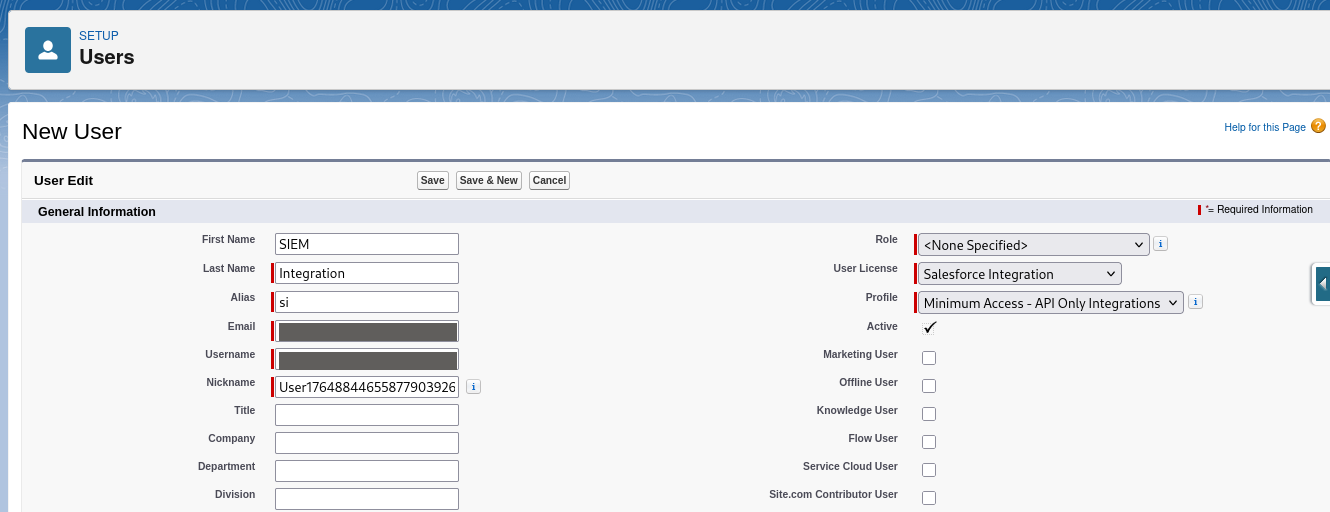
That profile is the point of the exercise: it grants API Enabled and Api Only User and nothing else, and the API-only restriction cannot be edited off. The user can call REST, SOAP and Bulk API; it cannot sign in to the web interface at all.
Click Save.
2. Create the permission set
The Salesforce Integration licence deliberately grants almost nothing. Everything the integration needs beyond bare API access arrives through a permission set, and that permission set needs a permission set licence attached before it is allowed to hand out the permission the integration needs.
Go to Setup → Permission Sets → New.
- Label:
SIEM Integration, or whatever your naming convention gives you. - API Name: fills itself in.
- License: leave at --None--. This is the permission set licence field, and setting it here would lock the set to one user-licence type; the entitlement the integration needs is assigned separately, below.
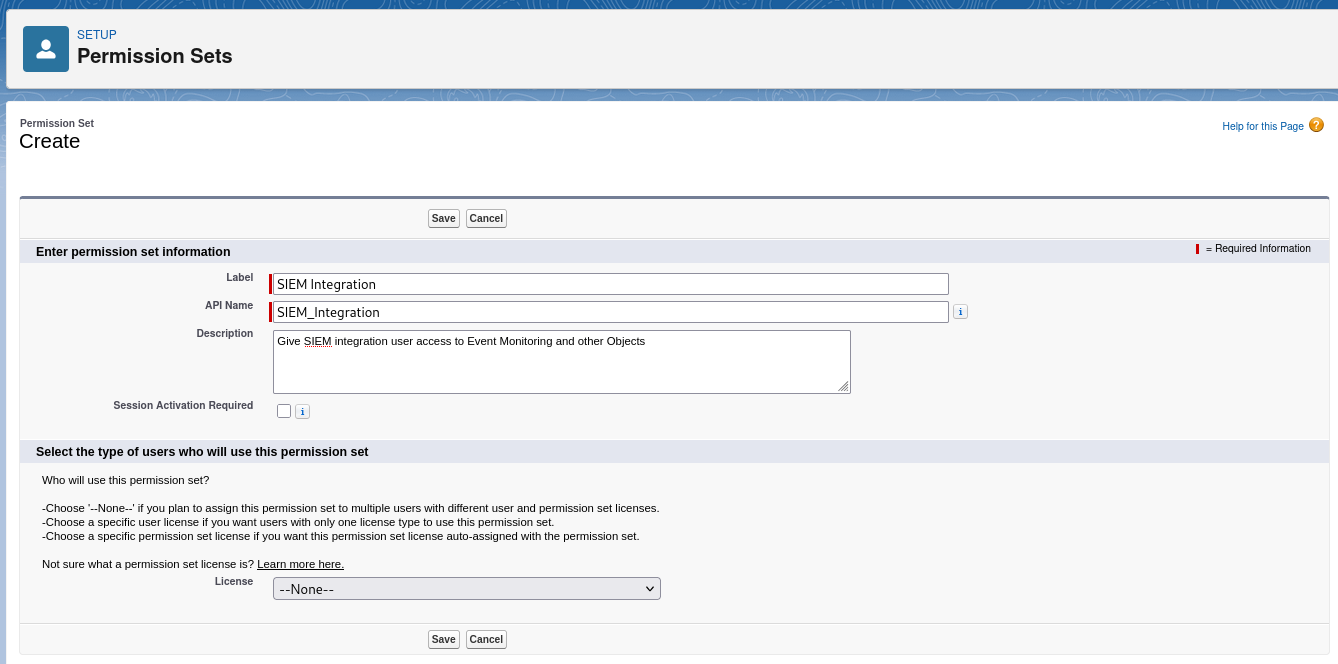
Click Save.
Enable the Salesforce API Integration permission set licence
On the new permission set, open Permission Set License Assignments (reachable from the permission set overview) and tick Salesforce API Integration.

Salesforce's own wording on that page explains why this exists: "Some permissions can only be granted to users who have a specific permission set license." The Salesforce API Integration licence entitles a Salesforce Integration user to the same permissions a System Administrator could hold, but only entitles. It grants nothing by itself. The permission set below is what actually grants.
Skip this and View Event Log Files either will not appear or will not stick when you save.
Grant the two system permissions
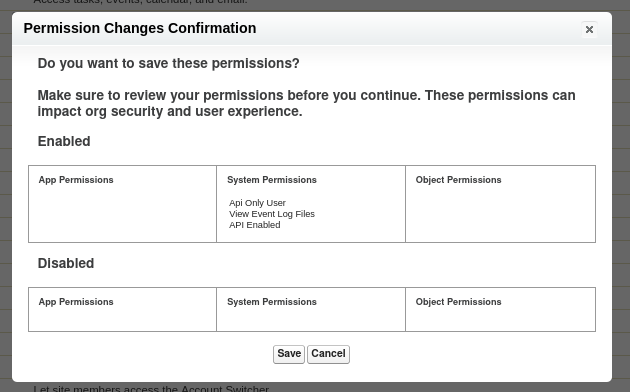
Open System Permissions → Edit on the permission set and tick exactly two:
- API Enabled: "Access any Salesforce.com API."
- View Event Log Files: "Get CSV event log files via the API."

Do not grant View All Data. It also unlocks EventLogFile, which is why it turns up in older integration guides, and it hands the integration read access to every record in the org along the way. Two permissions are enough.
Save, and confirm on the dialog Salesforce raises:
3. Assign the permission set to the integration user
On the permission set, click Manage Assignments → Add Assignments, pick the integration user, and Assign. Or from the other direction: the user record's Permission Set Assignments related list, Edit Assignments, move SIEM Integration into Enabled Permission Sets.
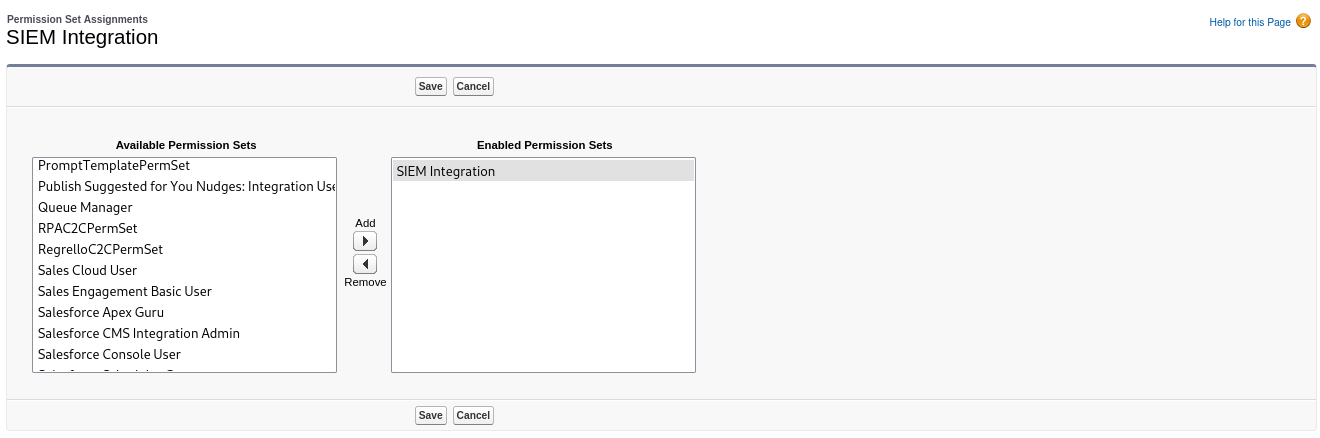
The user record is where to check the result. Both related lists should have a row:
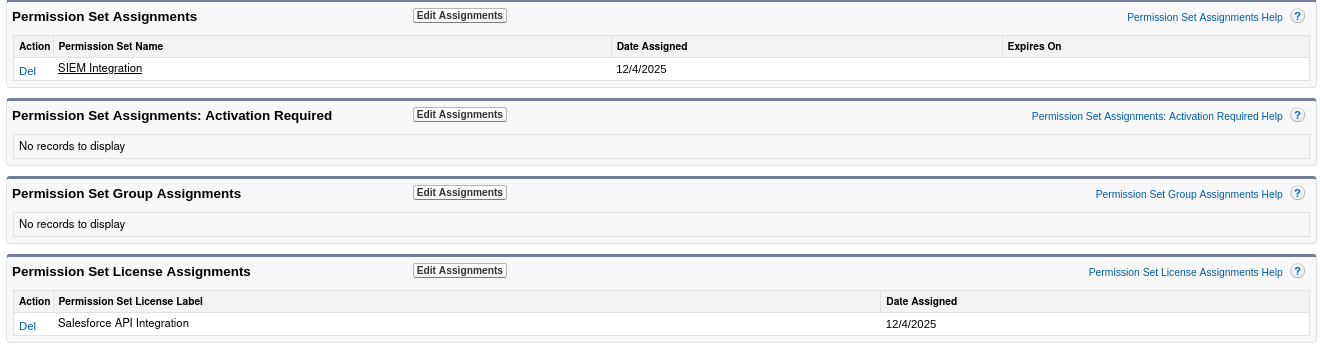
If Permission Set License Assignments is empty, the entitlement from step 2 did not reach the user and the API calls will be denied later with an access error rather than an authentication one.
4. Create the app and enable the client credentials flow
Two app types can do this. External Client Apps are the current model and the one to use for anything new; Connected Apps are the legacy model, still fully functional where one already exists, but increasingly hard to create. The screenshots below are from a Connected App.
- External Client App (current)
- Connected App (legacy)
Go to Setup → App Manager → New External Client App.

Basic Information: give it a name (Fluency Integration is the name Fluency's own onboarding tooling uses) and a contact email.
API (Enable OAuth Settings)
- Tick Enable OAuth.
- Callback URL: required by the form even though this flow never redirects a browser anywhere.
https://login.salesforce.comis a safe placeholder. - Selected OAuth Scopes: add Manage user data via APIs (api), and nothing else. See the warning below.
Flow Enablement: tick Enable Client Credentials Flow and accept the security warning.
Create.
Now set the run-as identity, which lives on a different tab. Go to Setup → External Client App Manager, open the app, and on the Policies tab click Edit. Under OAuth Policies → OAuth Flows and External Client App Enhancements, tick Enable Client Credentials Flow and set Run As (Username) to the integration user from step 1. Save.
Yes, that is the same checkbox name in two places. The one on the app enables the flow; the one on the policy, together with Run As, authorises it.
Go to Setup → App Manager → New Connected App. If that button is greyed out, your org is on the post-Winter '26 default; use the External Client App tab instead.
Basic Information: name and contact email.
API (Enable OAuth Settings)
- Tick Enable OAuth Settings.
- Callback URL: required by the form even though this flow never redirects a browser anywhere.
https://login.salesforce.comis a safe placeholder. - Selected OAuth Scopes: add Manage user data via APIs (api), and nothing else.
- Tick Enable Client Credentials Flow and accept the security warning.
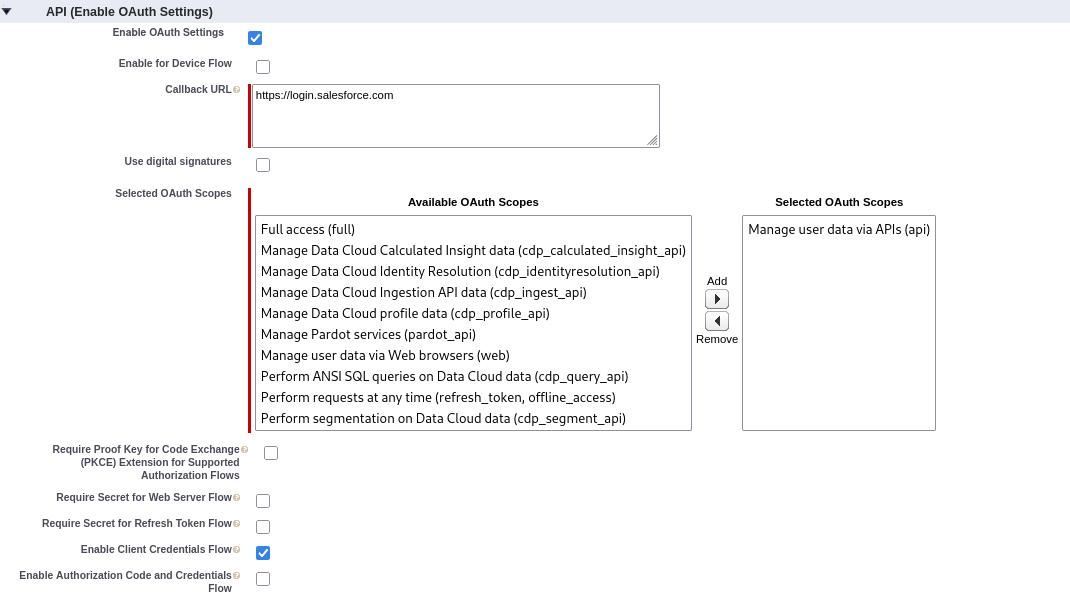
Save. Salesforce warns that changes can take up to ten minutes to take effect; that is real, and a token request made immediately afterwards may fail for no other reason.
Then set the run-as identity. From the app's page choose Manage → Edit Policies, and under Client Credentials Flow set Run As to the integration user from step 1. Save.

api scope, and only the api scopeSalesforce validates scopes on the client credentials flow rather than silently issuing a token. A token request whose app carries no supported scope fails:
{"error":"invalid_grant","error_description":"no valid scopes defined"}
Full access (full), Manage user data via Web browsers (web) and Perform requests at any time (refresh_token, offline_access) are not supported for this flow, the last two because it never issues a refresh token and never involves a browser. An app configured years ago with Full access (full) and nothing else looks correct in the interface and no longer works. Add Manage user data via APIs (api) and remove the rest; api alone is also the least privilege that works, so this is a change worth making on its own merits.
Salesforce's own warning for this flow: anyone holding the app's consumer key and secret can obtain an access token as the run-as user. There is no second factor and no user approval step. The only control is how little that user can do, which is why step 1 creates a dedicated API-only account with two permissions rather than reusing an administrator's.
5. Collect the consumer key and secret
External Client App: Setup → External Client App Manager, open the app, Settings → OAuth Settings, and reveal the consumer key and secret there.
Connected App: Setup → App Manager, the row's dropdown → View, then API (Enable OAuth Settings) → Manage Consumer Details. Salesforce re-verifies your identity with a code emailed to you before it shows them.
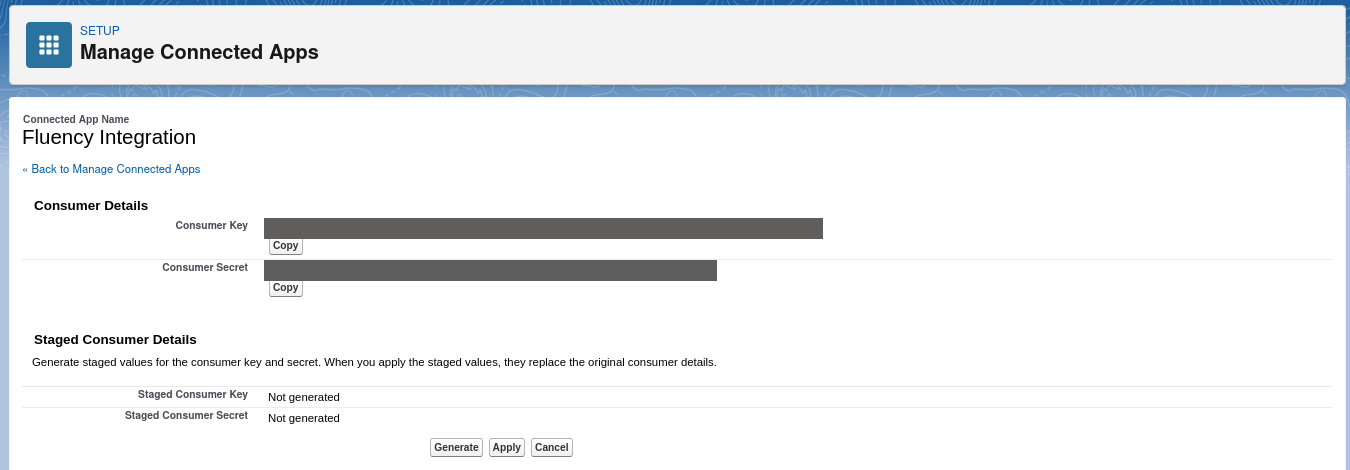
The Staged Consumer Details section on the same page is the rotation mechanism; see Rotating the consumer secret.
Unlike most OAuth secrets, this one is re-readable: you can come back to this page later rather than losing it forever. Treat it as a credential anyway.
6. Find the API URL
Fluency's API URL is the org's My Domain login URL. Read it from Setup → My Domain → Current My Domain URL:
https://<MyDomainName>.my.salesforce.com
Sandboxes take the form https://<MyDomainName>--<SandboxName>.sandbox.my.salesforce.com.
The https://<MyDomainName>.lightning.force.com address you are looking at while you read this is the application URL, for the Lightning interface. It is not a supported API host, and pasting it into Fluency produces a connector that authenticates against nothing. The value you want ends in .my.salesforce.com.
You should now be holding all three values:
| Value | Where it came from |
|---|---|
| API URL | Setup → My Domain → Current My Domain URL |
| Consumer Key | The app's OAuth settings / Manage Consumer Details |
| Consumer Secret | The same page, next to the key |
Verify before you leave Salesforce
One request tells you whether all four of the previous steps landed, and it is much easier to read an error here than to infer one from an application that installs and quietly collects nothing:
curl -s -X POST "https://<MyDomainName>.my.salesforce.com/services/oauth2/token" \
  -d "grant_type=client_credentials" \
  -d "client_id=<consumer key>" \
  -d "client_secret=<consumer secret>"
A working setup returns an access_token and an instance_url. The failures map cleanly onto the steps above:
| Response | What it means |
|---|---|
invalid_grant / no valid scopes defined | The app has no supported scope; step 4, add Manage user data via APIs (api) |
invalid_grant / no client credentials user enabled | No Run As user on the flow; step 4, the policies half |
invalid_client | The consumer key or secret is wrong, or the client credentials flow is not enabled on the app |
unsupported_grant_type | The request reached a .lightning.force.com host; step 6 |
Part 2: Fluency
Install the Application
- v2 interface
- Classic v1 interface
In the navigation rail, open Applications and click Install Application, then choose Salesforce Event Monitoring from the Cloud-based Business Softwares category of the Application Catalog.
Go to Platform → Applications → Install Application From Template and choose Salesforce Event Monitoring from the Cloud-based Business Softwares category.
| Parameter | Notes |
|---|---|
| API URL | The org's My Domain login URL, ending .my.salesforce.com. |
| Consumer Key | The app's consumer key. |
| Consumer Secret | The app's consumer secret. Masked once the application is installed. |
| datalake | Pre-filled managed. |
| datalake index name | Pre-filled Salesforce. Two applications writing to the same index name in the same lake will collide, and the second one aborts. |
- v2 interface
- Classic v1 interface
The last two sit in the collapsed Advanced configuration section below Configuration; click its heading to reach them. The defaults are usually right; the reason to change the index name is a second Salesforce org, which is the same case that calls for a distinct Instance name and Display name.
Leave Instance name and Display name at default / Default unless you are installing a second instance (collecting from a sandbox alongside production, for example), in which case give each one a name you will recognise on the applications list.
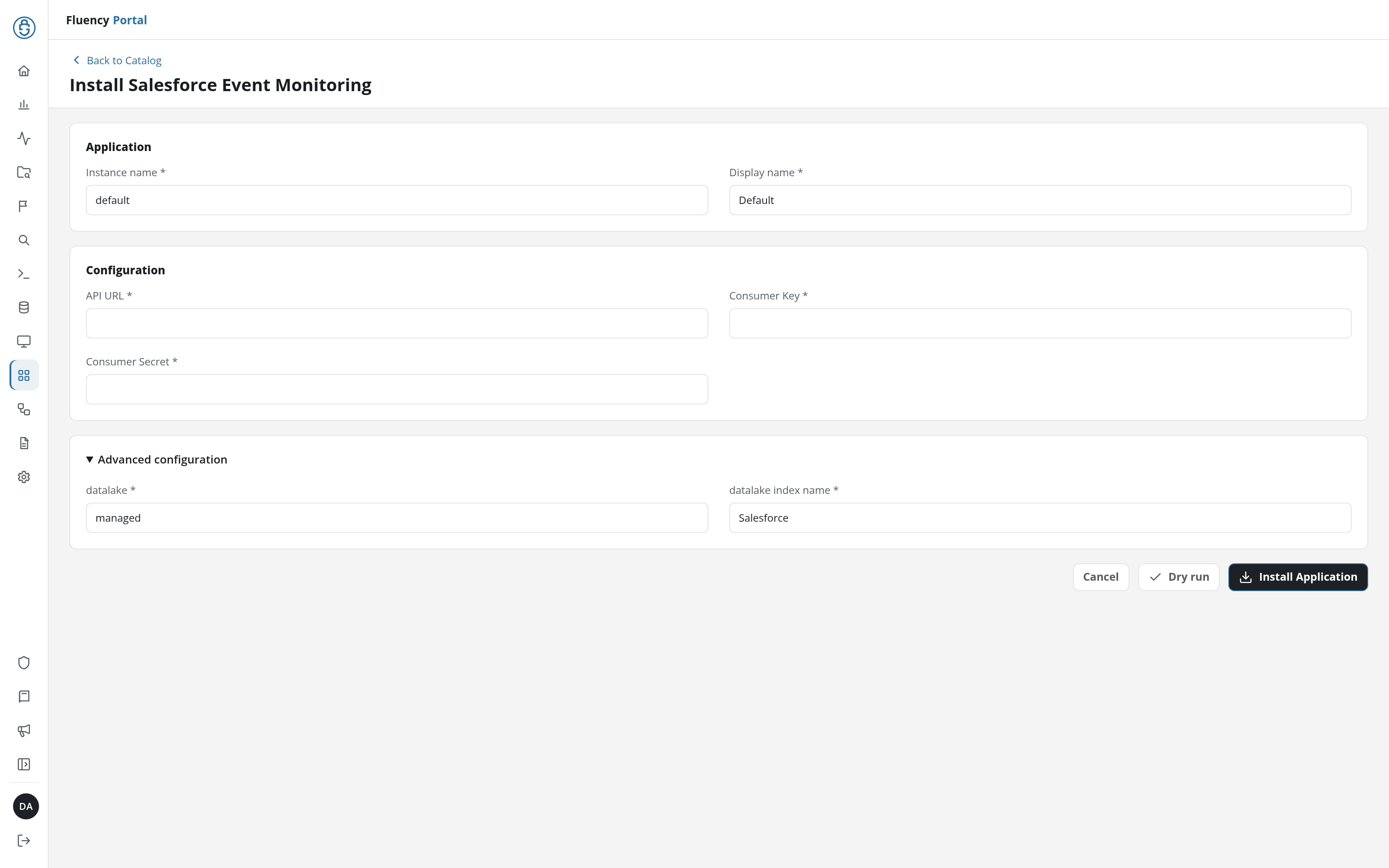
Click Dry run first to have the platform check the URL and the consumer credentials before anything is installed, then click Install Application. The Applications page opens with the notice Default is launching., and the new application is listed with a green Running badge once the pipeline is up.
The last two sit in the collapsed Advanced Configurations row below the parameters. The defaults are usually right; the reason to change the index name is a second Salesforce org, which is the same case that calls for a distinct Name and Display Name.
Leave Name and Display Name at default / Default unless you are installing a second instance (collecting from a sandbox alongside production, for example), in which case give each one a name you will recognise on the applications list.
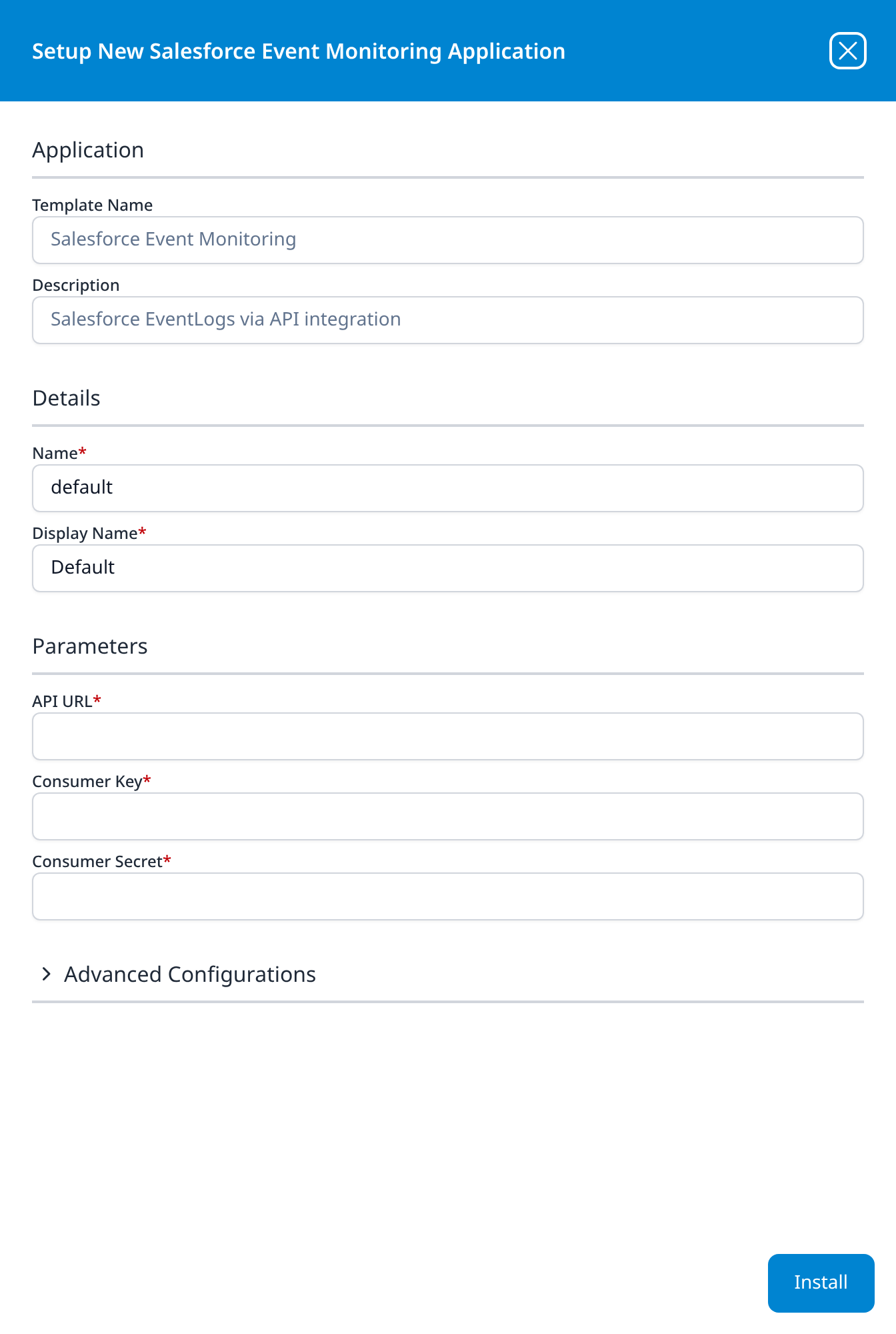
Press Install. The application then appears in the Installed Applications view, where its badge reads Running once the pipeline is up.
Confirm it is running
- v2 interface
- Classic v1 interface
The application is listed on Applications as Salesforce Event Monitoring, with the display name Default beneath it. Its badge should read Running in green within a few seconds; a red Error badge means the pipeline aborted or reported errors in the last hour, and the details page shows the error message beneath the summary figures. Click its row to open the application details page, with its status, Pipeline, Parameters (the consumer secret masked) and Actions. Nothing an install records can be edited afterwards: changing a credential means uninstalling and installing again.
The application appears under Installed Applications as Salesforce Event Monitoring: Default. Its badge should read Running in green within a few seconds; Aborted in red means the pipeline stopped on an error, and the details panel will carry the message. Every field in that panel is read-only: changing a credential means uninstalling and installing again.
An empty index shortly after install is the expected result, not a fault. Salesforce's own figure for hourly files is that an event takes three to six hours from occurring to appearing in a log file, "however, it can take longer". An org without the Event Monitoring add-on gets 24-hour files only, so the wait is up to a day. Do not start debugging inside that window: there is nothing to see yet, and every symptom looks the same.
Once the window has passed, see Confirm data is arriving for how to check that events are landing. Login events are the sensible thing to search for first: every org has them, and they are in the free set, so they arrive whether or not the add-on is in place.
Maintenance
Rotating the consumer secret
The consumer secret does not expire on a schedule, so rotation is your choice rather than a deadline, but rotate immediately if it has ever been exposed, because it is a complete credential on its own.
Salesforce supports staged rotation, which is what makes this possible without an outage:
- On Manage Consumer Details (Connected App) or the app's OAuth settings (External Client App), click Generate under Staged Consumer Details. The current key and secret keep working.
- Click Apply. The staged values replace the originals; the old secret stops working at this point.
- In Fluency, uninstall the Salesforce Event Monitoring application and install it again with the new values. Template parameters are read-only after install, so reinstalling is the supported way to change a credential. To uninstall, click Uninstall at the top right of the application's details page (v1: the red Uninstall button at the foot of its details panel on Platform → Applications).
Collection resumes from wherever the new instance starts. Because Salesforce keeps log files for 30 days with the add-on (one day without it), a short gap during a planned rotation is recoverable in the first case and not in the second.
Removing the integration
Uninstall the application in Fluency first, using the Uninstall button at the top right of its details page (v1: the red Uninstall button at the foot of its details panel on Platform → Applications), so the pipeline stops cleanly before its credentials do.
On the Salesforce side, delete the app; that revokes the key and secret. Then deactivate or freeze the integration user, which both stops it being usable and frees the Salesforce Integration licence. Deleting the permission set is optional; leaving it costs nothing and makes the integration easy to rebuild.
Troubleshooting
| Symptom | Likely cause | Fix |
|---|---|---|
| Nothing arrives in the first few hours | Normal. Salesforce batches event logs; hourly files lag activity by 3–6 hours, daily files by up to 24 | Wait out the window before investigating anything else |
Token request returns no valid scopes defined | The app carries no scope supported by the client credentials flow, typically Full access (full) and nothing else | Add Manage user data via APIs (api) to Selected OAuth Scopes, remove full, web and refresh_token (step 4) |
Token request returns no client credentials user enabled | No Run As user is set on the flow | Set it on the app's policies (step 4) |
Token request returns invalid_client | Consumer key or secret mistyped, or Enable Client Credentials Flow was never ticked on the app | Re-copy both values (step 5); check the flow is enabled |
| Authentication succeeds but queries are denied or return nothing | The run-as user is missing View Event Log Files or API Enabled, or never received the Salesforce API Integration permission set licence | Check both related lists on the user record (step 3) |
| The connector cannot reach the org at all | A .lightning.force.com address was used as the API URL | Use the My Domain login URL ending .my.salesforce.com (step 6) |
| Logins and logouts arrive but report exports never do | No Event Monitoring add-on: the org only generates the free subset | Confirm the licence with your Salesforce account executive |
| It worked, then stopped after an app change | Salesforce takes up to ten minutes to apply Connected App changes, and applying staged consumer details invalidates the old secret immediately | Wait ten minutes; if a rotation was applied, reinstall with the new values |
| Volume jumped sharply | URI or LightningPageView were enabled; these record page-level activity for every user | Expected. Decide whether you want them before the next invoice |
Data reference
What the event log files hold once they land, for searches and detection rules written against them.
Streams, endpoints and permissions
| Stream | Salesforce object | Permission | Contents |
|---|---|---|---|
| Event log files | EventLogFile, downloaded through its LogFile blob | View Event Log Files + API Enabled, on the run-as user | One CSV per event type per interval (roughly 50 event types with the Event Monitoring add-on, 7 without) |
Everything here is read-only. Fluency never writes back to Salesforce.
Salesforce does not stream events. It batches them into log files: one file per event type per day, and, for orgs with the add-on, one or more files per event type per hour. Fluency queries EventLogFile for new records and downloads each file's contents. That batching is the single most important thing to understand about this integration, because it means data is expected to be hours old. See Confirm it is running.
The event types security teams reach for
Salesforce publishes around 50 event types; the EventLogFile Supported Event Types reference lists them all. These are the ones that answer the questions a SOC usually asks:
| Event type | Answers | In the free set? |
|---|---|---|
Login, Logout | Who authenticated, from where, with which client and login type | Yes |
LoginAs | Which administrator impersonated which user | No |
API, RestApi, BulkApi | What an integration or script called, how much it pulled, and how long it took | No |
ApiTotalUsage | Total API call volume for the org | Yes |
ReportExport | Who exported which report, the departing-employee question | No |
ContentTransfer | File and attachment downloads | No |
ApexExecution, ApexCallout | Custom code runs and outbound calls from Apex | No |
URI, LightningPageView | Page-level user activity. High volume; enable deliberately | No |
Under the hood
Engineering reference: how EventLogFile collection works
This describes the Salesforce API mechanics any EventLogFile collector has to follow. Administrators connecting Salesforce do not need it.
Authentication
POST https://<MyDomainName>.my.salesforce.com/services/oauth2/token
grant_type=client_credentials
client_id=<consumer key>
client_secret=<consumer secret>
The response carries access_token and instance_url; subsequent calls use Authorization: Bearer <access_token> against instance_url. There is no refresh token: the flow is cheap enough to simply repeat when the token expires, which is why refresh_token/offline_access are not valid scopes for it.
Discovery and download: two calls per file
EventLogFile records are metadata. Querying them tells you which files exist; the contents live behind a separate blob fetch.
GET /services/data/v<version>/query?q=SELECT+Id,EventType,LogDate,Interval,Sequence,LogFileLength+FROM+EventLogFile+WHERE+LogDate+>+<watermark>
GET /services/data/v<version>/sobjects/EventLogFile/<Id>/LogFile
The second call returns CSV, with the column names also available on the record's LogFileFieldNames. Every event type has its own column set (a Login file and a ReportExport file share almost nothing beyond TIMESTAMP, USER_ID and EVENT_TYPE), so parsing is per-type, not generic.
Hourly versus daily, and why both exist
Two fields disambiguate:
| Hourly | 24-hour | |
|---|---|---|
Interval | Hourly | Daily |
Sequence | 1 and upward | 0 |
| Delivery | One or more files per hour of activity | One file per day of activity |
| Incremental behaviour | A new file is created and Sequence increments | A new file replaces the original for that date |
Hourly files require the Event Monitoring add-on. The two sets overlap (the same event appears in an hourly file and, later, in that day's daily file), so a collector that ingests both without filtering on Interval will duplicate everything.
Retention and latency
- Free subset (no add-on): 1 day retention, daily files only.
- With the add-on: 30 days on-platform, extendable to one year through the Event Monitoring settings opt-in.
- Latency: Salesforce states three to six hours for hourly files, with an explicit "can take longer"; daily files up to 24 hours.
Retention is the real constraint on outage tolerance. A collector that is down for a week recovers everything on an org with the add-on and nothing on an org without it.
API consumption
Both calls count against the org's daily API request limit: one query plus one download per file, and the file count scales with the number of enabled event types. ApiTotalUsage is where that consumption shows up in the org's own telemetry, which makes this integration self-observing: you can watch its cost in the data it collects.
References
Salesforce
- EventLogFile: Object Reference: the object, its fields, and the permissions it requires
- EventLogFile Supported Event Types: every event type and its columns
- Query or View Hourly Event Log Files: the three-to-six-hour figure
- Differences Between Hourly and 24-Hour Event Logs:
Interval,Sequence, and the overlap between the two - OAuth 2.0 Client Credentials Flow for Server-to-Server Integration: the flow and its run-as requirement
- Identify Issues with Invalid Scopes in the Client Credentials Flow: the Winter '26 scope change
- Give Integration Users API Only Access: the Salesforce Integration licence and the API-only profile
- Invoke REST APIs with the Salesforce Integration User and OAuth Client Credentials: why the Salesforce API Integration permission set licence is needed
- My Domain Login and Application URL Formats:
.my.salesforce.comversus.lightning.force.com - Understanding Event Monitoring: what the add-on covers and what is free without it
Fluency
- Salesforce Event Monitoring install form: the template's fields and defaults (v1: Install Application From Template)
- Confirm data is arriving
- Box.com: the same REST-API-pull pattern on a different product
- Business Software: the rest of this category