Google Workspace (Service Account)
Fluency polls the Google Workspace audit log through the Admin SDK Reports API (the same activity records the Admin console shows under Reporting → Audit and investigation) and reads your user and group directory with the same credential. The audit log is the record of who signed in, what administrators changed, what happened to files, and which third-party applications users let into Workspace data.
Authentication is by service account with domain-wide delegation: the OAuth client is a service account in your own Google Cloud project, so nothing outside your organisation holds a grant against your Workspace. In exchange you own a Google Cloud project, a key file, and the job of rotating it.
The setup runs in three browser tabs, and the first two are separate Google consoles at different addresses, with separate sign-in states:
- In the Google Cloud console, console.cloud.google.com: a project, a service account, and a JSON key.
- In the Google Workspace Admin console, admin.google.com: one domain-wide delegation entry, authorising that service account against five scopes.
- In Fluency: install the Google Workspace application template, paste the key, and name the administrator the service account acts as.
| Google Workspace (OAuth) | Google Workspace | |
|---|---|---|
| Guide | Google Workspace (OAuth) | This page |
| Who owns the OAuth client | Fluency, which holds a refresh token | You, in a Google Cloud project you create |
| You supply | An administrator's email address (minutes of work, in one browser tab) | An administrator's email address and a key file you generate, paste in once and store (after creating a Cloud project, a service account and a domain-wide delegation entry) |
| Stops working when | That administrator is deactivated, or any super admin revokes the grant | You delete the key or the service account |
| Unavailable when | Your organisation restricts third-party app access | An organisation policy forbids service-account key creation |
Google Alert Center (apps.alerts) | Not available: the Alert Center API requires a service account with domain-wide delegation | Authorised in the delegation entry at step 4 |
Both read the same audit log from the same API; the difference is where the trust sits, since the OAuth route lets an outside OAuth client hold a standing grant against Workspace data. Take this page if your organisation restricts third-party app access under Security → Access and data control → API controls, will not approve an unverified OAuth client, or requires credentials touching Workspace to live inside its own tenancy, or if you want the Google Alert Center, which Google opens only to a service account with domain-wide delegation; otherwise the OAuth route is materially less work, with no key to look after.
What arrives
| Stream | What it holds | Lands in |
|---|---|---|
| Sign-ins | Successes and failures, the challenges passed or failed, suspicious-login verdicts, and SAML sign-ins | The GSuite index |
| Administrator actions | Every change made in the Admin console | The GSuite index |
| OAuth grants | Which third-party applications users authorise, and to which scopes | The GSuite index |
| Drive | File sharing, download and permission changes | The GSuite index |
| Accounts, groups, calendars and devices | Password and 2-step verification changes, group membership, calendar and mobile device activity | The GSuite index |
| Directory | Users, groups and group memberships, read-only | Resources |
The delegation entry you create in step 4 has to carry all five scopes: a short list stops whatever needs the missing scope, and Google's error does not name it. Drive and Keep activity need a Business or Enterprise edition, and are empty on others; see Before you begin. Google reports some streams hours after the event, and says that "In rare cases, events might not be reported"; see its lag figures.
Google's full stream list, lag figures and retention limit, and the directory read, are in Data reference.
Before you begin
| Requirement | How to check |
|---|---|
| Google Cloud access to create a project, or an existing project you may add a service account to | console.cloud.google.com. Billing is not required: the Admin SDK API has no billed component for this use. |
| No organisation policy blocking service-account key creation | If iam.disableServiceAccountKeyCreation is enforced, step 3 fails and this route is unavailable. That is a deliberate control at many organisations; the OAuth route is the alternative. |
| Super administrator in the Admin console | Domain-wide delegation is a super-admin screen, and it is in the other console: admin.google.com, not Google Cloud. |
| A Workspace administrator account for the service account to act as | Its role has to carry the Reports privilege, read access to users and groups (Admin API privileges → Users → Read and Groups → Read), and Alert Center → View access. Every super administrator has all of them; a custom role needs them granted under Account → Admin roles. The one-second test for the first: sign in as that account and open Reporting → Audit and investigation → Login log events; if events are listed, it holds what the audit log needs. Prefer a dedicated administrator account over a person's own, so an ordinary offboarding does not take collection down, and sign in as it once before you use it so it has completed Google's first-login steps. |
| Drive and Keep activity require Business or Enterprise | Google states the Drive activity report "is only available for Google Workspace Business and Enterprise customers", and says the same of Keep. On Business Starter these streams are simply empty. |
Domain-wide delegation lets a service account act as any user in your domain, for the scopes you list. It is scoped by scope, not by user: the entry you create at step 4 does not restrict which account the service account may impersonate. The restraint is that only Fluency holds the key, and the template names one administrator to impersonate.
Two consequences for planning. If your organisation has multi-party approval enabled, authorising the delegation requires a second super administrator to sign off before it takes effect, so allow for a colleague. And Google warns that "Changes can take up to 24 hours but typically happen more quickly", which means an install attempted straight after the authorisation can fail for reasons that resolve themselves. Do step 4 before you need it.
Part 1: Google Cloud console
Everything here happens at console.cloud.google.com. It produces the two values the rest of the guide consumes: the service account's Unique ID, for Part 2, and a JSON key file, for Part 3.
1. Create the project and enable the two APIs
Create a project (something like gws-audit) or select an existing one you are willing to have this live in for good.
Then go to APIs & Services → Library, search for admin sdk api, and open Admin SDK API. Check that Service name reads admin.googleapis.com before you enable anything: that one API serves both the audit log and the directory (Google describes it as letting administrators "view and manage resources like users and groups" and "run reports to audit usage within your account"), so the Reports and Directory scopes at step 4 need nothing else turned on.
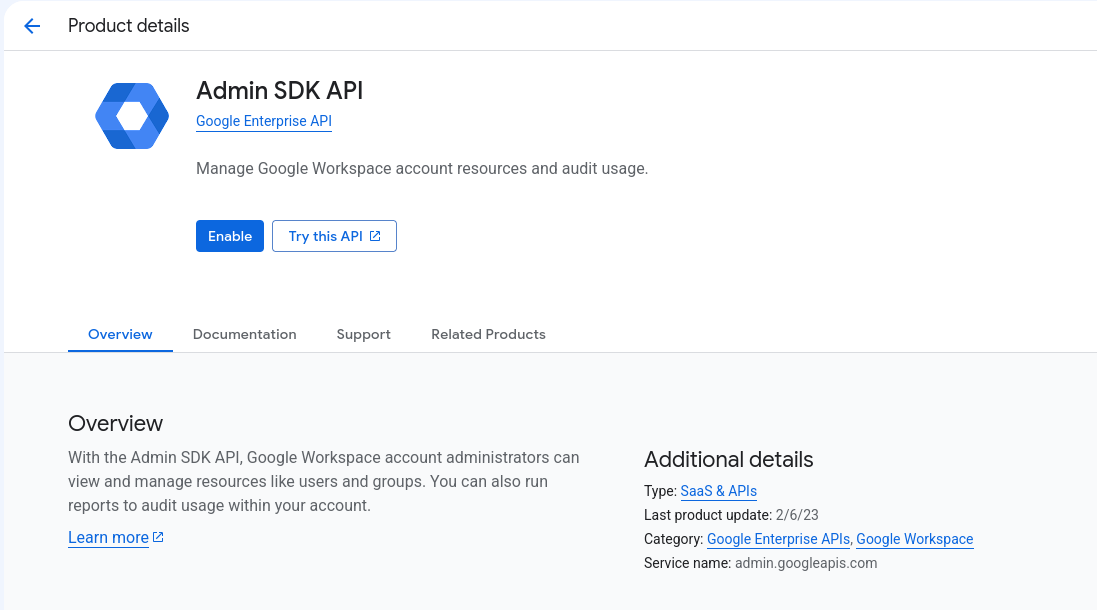
Press Enable. If the button reads Manage instead, the API is already on.
Then go back to the Library, search for alert center, and enable Google Workspace Alert Center API the same way: Service name alertcenter.googleapis.com. It is a separate Google service, and it is what the fifth scope at step 4, apps.alerts, reaches.
From a terminal, one command enables both:
gcloud services enable admin.googleapis.com alertcenter.googleapis.com --project=YOUR_PROJECT_ID
Skipping either API is the failure that looks least like itself: the credential is valid, the delegation is correct, and every call to that API comes back 403 accessNotConfigured with a message that the API "has not been used in project … before or it is disabled".
2. Create the service account
Go to IAM & Admin → Service Accounts and press Create service account.
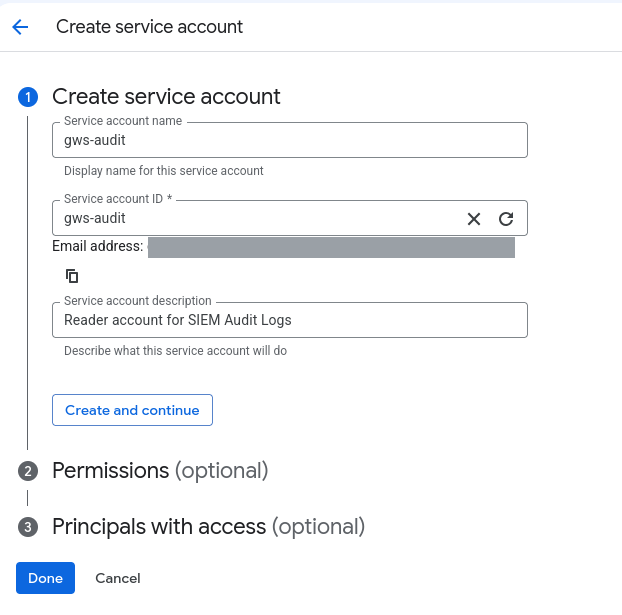
Name it for what it is: gws-audit, described as a reader account for SIEM audit logs. The Service account ID generates an email address of the form gws-audit@<project>.iam.gserviceaccount.com. Keep that address for your own records; it is not the address Fluency asks for in Part 3.
The wizard offers Permissions (optional) and Principals with access (optional). Leave both empty and press Done.
Those grant IAM roles over Google Cloud resources, and this service account touches none. Every permission it will ever exercise comes from the domain-wide delegation entry you create at step 4, which lives in the Admin console and is invisible from Google Cloud IAM. Granting it a Cloud role here adds real access to your Cloud project and buys nothing in Workspace.
3. Copy the Unique ID and create the key
Open the finished service account. Both values you need are on this one page.
On the Details tab, copy the Unique ID: a long number, also shown as OAuth 2 Client ID in the service accounts list, and as client_id inside the JSON key you create next. That is what the Admin console asks for at step 4. It is not the email address, and the two are not interchangeable.
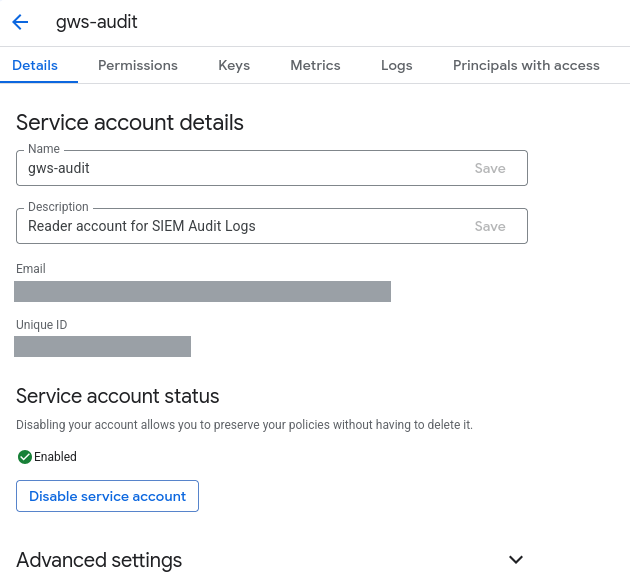
Then open the Keys tab, and press Add key → Create new key → JSON.
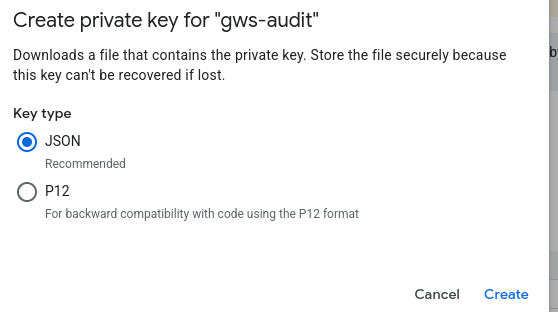
Google's own wording on the dialog: "Downloads a file that contains the private key. Store the file securely because this key can't be recovered if lost."
There is no copy in the console: the Keys tab lists the key's fingerprint and nothing else. Lose the file and the only remedy is to create a second key and delete the first. Put it straight into whatever your organisation uses for secrets, and delete the browser download.
The key then appears as Active on the Keys tab.
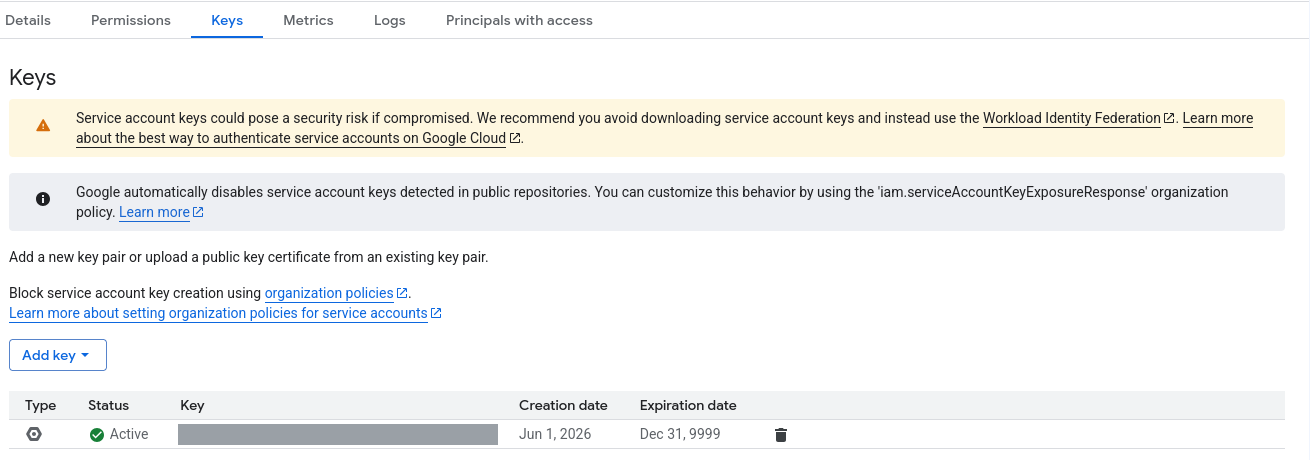
The Expiration date column reads Dec 31, 9999. That is not a rendering quirk: a service-account key has no lifetime, and nothing will ever prompt you to replace it. There is no renewal reminder to miss because there is no renewal.
The practical consequences are the ones every non-expiring credential has. It stays valid after the person who created it has left. It stays valid in the ticket it was pasted into, in the laptop backup, and in the repository it was accidentally committed to. Set your own rotation date and record it now: at install time, when you know the date, rather than at rotation time, which never arrives on its own.
Google says the same thing on the same screen, more bluntly, and about the whole mechanism rather than this key: "Service account keys could pose a security risk if compromised. We recommend you avoid downloading service account keys and instead use the Workload Identity Federation." That advice is sound and this template cannot take it; see Under the hood. One thing Google does do for you: it "automatically disables service account keys detected in public repositories."
That is the whole of the Google Cloud half. Leave the tab open; you come back to it only to rotate the key.
Part 2: Google Workspace Admin console
This part is in a different console at a different address: the Google Workspace Admin console, admin.google.com. Nothing in the Cloud console links here, and nothing here knows your service account exists; the only thing carried across is the Unique ID you copied at step 3. Sign in as a super administrator.
4. Authorise the service account for domain-wide delegation
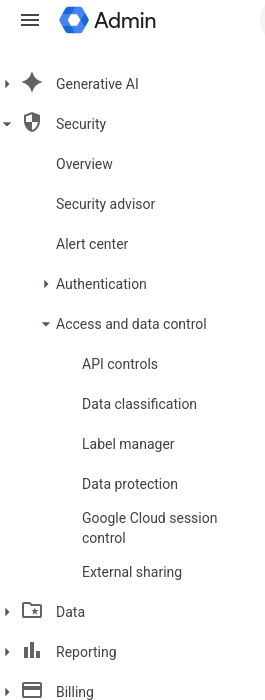
Go to Security → Access and data control → API controls. You are in the right console if the product name at the top left reads Admin.
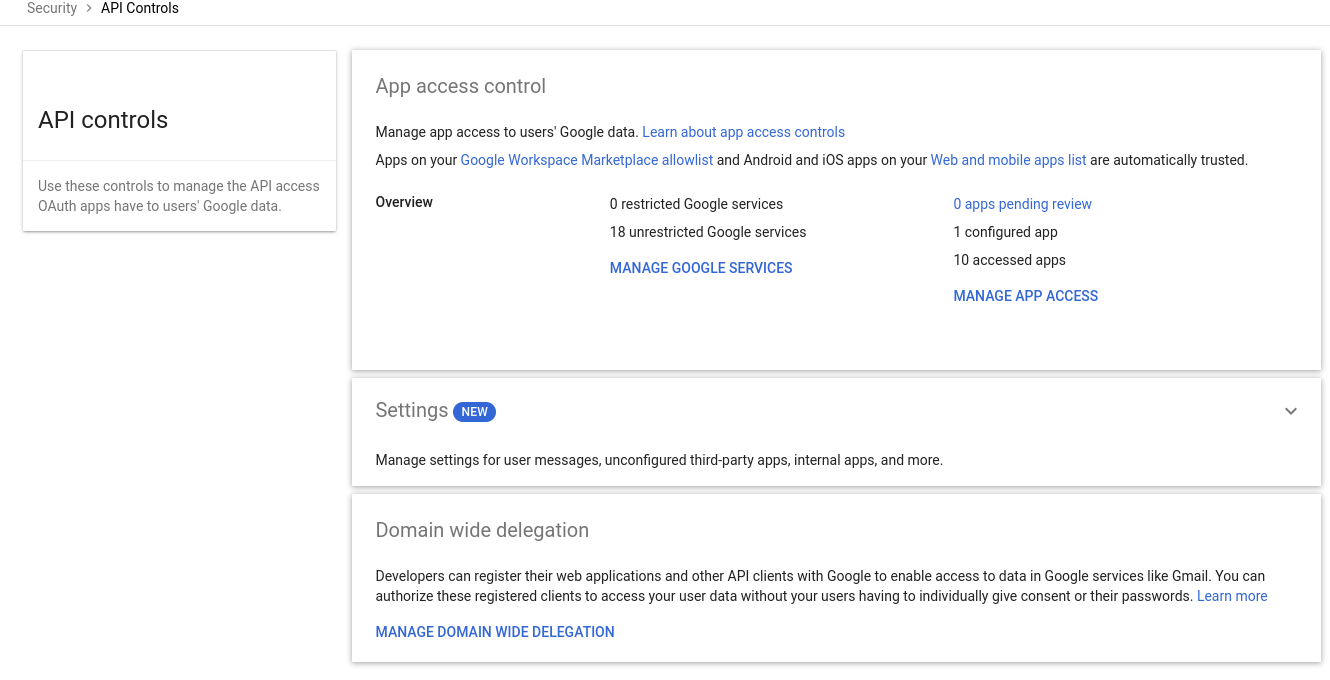
The API controls page stacks three panels. Scroll past App access control and Settings to Domain wide delegation at the bottom, and press MANAGE DOMAIN WIDE DELEGATION.
Press Add new. Paste the service account's Unique ID from step 3 into Client ID, and the scopes into OAuth scopes (comma-delimited).
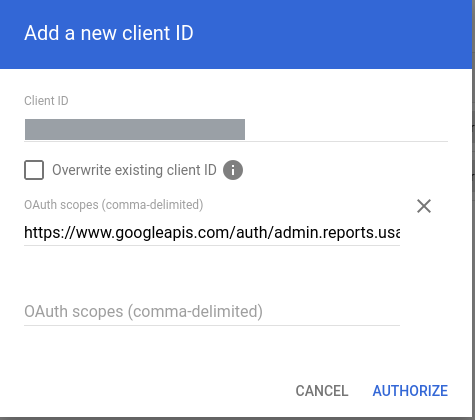
The field wants one comma-delimited line. Paste this whole thing:
https://www.googleapis.com/auth/admin.reports.audit.readonly,https://www.googleapis.com/auth/admin.directory.user.readonly,https://www.googleapis.com/auth/admin.directory.group.readonly,https://www.googleapis.com/auth/admin.directory.group.member.readonly,https://www.googleapis.com/auth/apps.alerts
| Scope | What it buys |
|---|---|
admin.reports.audit.readonly | The audit activity streams, the integration's reason for existing. |
admin.directory.user.readonly | Read-only over the user directory. |
admin.directory.group.readonly | Read-only over groups. |
admin.directory.group.member.readonly | Read-only over group memberships. |
apps.alerts | The Google Alert Center: the security alerts Google raises for your domain. |
Four of the five are readonly. apps.alerts is the only scope Google publishes for the Alert Center API, and it has no read-only variant: Google describes it as "Read and write access to Alert Center API". The integration only lists alerts; it never changes or deletes them, or sends feedback on them.
None of the five opens a mailbox, a file or a calendar. The Reports and Directory scopes return records of who did what; alert records carry what Google attaches to an alert, which for a mail alert includes the recipients and, for a message a user reported, its subject line and a snippet of the body.
Press AUTHORIZE. The entry then appears in the list with its scopes as chips: two shown, and +3 More for the rest of the five.

Click the entry to check the whole list. A panel opens with the Client ID and every scope as a chip (all five should be there, apps.alerts last) and an EDIT link for changing the list later.
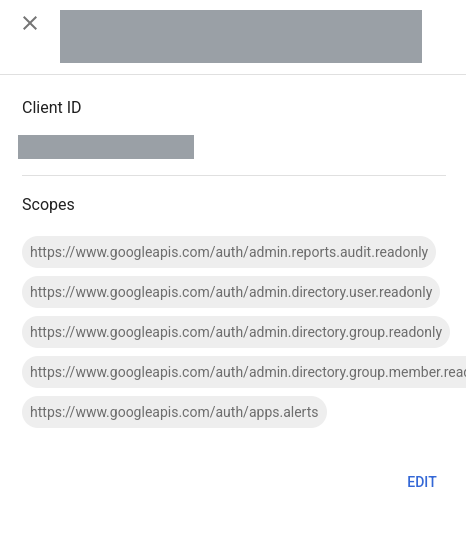
Domain-wide delegation grants exactly the scopes pasted here. The integration asks Google for three separate tokens: one for the audit log (admin.reports.audit.readonly), one for the directory (the three admin.directory scopes) and one for alerts (apps.alerts); and Google checks each request against this entry as a whole. If a request names a scope that is not on the list, Google refuses that token outright, not for the missing scope, for the whole request:
unauthorized_client: Client is unauthorized to retrieve access tokens using this method,
or client not authorized for any of the scopes requested.
So a missing scope stops everything that shares its token, and nothing else. Leave out admin.reports.audit.readonly and the audit log stops while users and groups keep arriving. Leave out any one of the three directory scopes, even group.member.readonly on its own, and users and groups both stop, while the audit log carries on.
Note what that error does not say: it does not name the missing scope, and it does not distinguish "your client ID is wrong" from "your scope list is short". Both produce this string. That is why the list is worth pasting whole rather than trimming it to the scopes that look obviously necessary.
An entry authorised earlier may also carry admin.reports.usage.readonly. The integration does not use it, so it is safe to remove, and, for the reason below, worth removing.
Authorising more than the five is safe from Google's point of view and unsafe from yours: this is a standing grant over your whole domain, not over one mailbox. Add what is asked for, and no more.
Remember that this change "can take up to 24 hours but typically happen more quickly". If everything below is correct and still fails, wait before you start changing things.
Verify before you leave Google
Four things can be wrong at this point and they produce four different errors. Exercising the credential here costs a minute; inferring it later from an application that installs and collects nothing costs an afternoon.
# pip install google-auth
from google.auth.transport.requests import AuthorizedSession
from google.oauth2 import service_account

KEY     = "gws-audit-000000-0000000000.json"   # step 3
SUBJECT = "gws-collector@example.com"          # a Workspace admin, NOT the service account

SCOPES = [
    "https://www.googleapis.com/auth/admin.reports.audit.readonly",
    "https://www.googleapis.com/auth/admin.directory.user.readonly",
    "https://www.googleapis.com/auth/admin.directory.group.readonly",
    "https://www.googleapis.com/auth/admin.directory.group.member.readonly",
    "https://www.googleapis.com/auth/apps.alerts",
]

creds = service_account.Credentials.from_service_account_file(
    KEY, scopes=SCOPES).with_subject(SUBJECT)
session = AuthorizedSession(creds)

for label, url, params in [
    ("audit    ", "https://admin.googleapis.com/admin/reports/v1/activity/users/all/applications/login",
                  {"maxResults": 1}),
    ("directory", "https://admin.googleapis.com/admin/directory/v1/users",
                  {"customer": "my_customer", "maxResults": 1}),
    ("alerts   ", "https://alertcenter.googleapis.com/v1beta1/alerts",
                  {"pageSize": 1}),
]:
    r = session.get(url, params=params)
    print(label, r.status_code, r.text[:300])
The script asks for all five scopes in one token, which is stricter than the integration itself. Google validates a token request's whole scope list against the delegation entry in one go, so a single request naming all five proves the entry is complete. A script that asks for less passes happily against an entry that is short, and whatever needs the scope you did not test then never arrives.
| Response | What it means |
|---|---|
Three 200s, the first with an items array | Everything is correct. Go to Part 3. |
200 with no items on the audit call | The credential works; there were no sign-ins in the default window. On a live tenant, check the window rather than the setup. |
200 with an empty body on the alerts call | The credential works; your alert center holds no alerts. Normal on a quiet tenant. |
No call runs · unauthorized_client: Client is unauthorized … | The delegation entry is missing, the Client ID is wrong, or the scope list is short (step 4). Also the expected answer if you ran this within minutes of authorising. |
No call runs · invalid_grant: Invalid email or User ID | SUBJECT is not a real user in this domain. Check the address (Before you begin). |
403 · accessNotConfigured | The API that call reaches is not enabled on the project: the Admin SDK API for the audit and directory calls, the Alert Center API for the alerts call. See step 1. |
403 · "Not Authorized to access this resource/api" on the audit call | SUBJECT exists but its role lacks the Reports privilege (Before you begin). |
403 on the directory call only | SUBJECT's role cannot read the directory. A super administrator can; a custom role needs the Users and Groups read privileges under Admin API privileges. |
403 on the alerts call only, not accessNotConfigured | SUBJECT's role lacks Alert Center → View access (Before you begin). |
The distinction the table is built around: unauthorized_client and invalid_grant are raised by the token exchange, before any request reaches Google's APIs, so no call runs and the fault is in the delegation entry or the subject address. A 403 means the token was issued and an API refused it, so the fault is in the project or the impersonated user's role, and which call it lands on tells you which API or privilege is short.
Part 3: Fluency
Install the Application
- v2 interface
- Classic v1 interface
In the navigation rail, open Applications and click Install Application, then choose Google Workspace from the Office Software (SaaS) and IAM category of the Application Catalog. Its description reads Google Workspace (G-Suite) audit via Google Project; the adjacent Google Workspace (OAuth) entry is the other route.
Go to Platform → Applications → Install Application From Template and choose Google Workspace from the Office Software (SaaS) and IAM category. Its description reads Google Workspace (G-Suite) audit via Google Project; the adjacent Google Workspace (OAuth) entry is the other route.
| Parameter | Notes |
|---|---|
| GWS Admin Email Address | The administrator being impersonated: a real user in your Workspace domain, holding the Reports privilege. See Before you begin and the caution below. |
| GWS Service Account Key JSON (paste content) | The whole contents of the file from step 3, pasted in, not a path to it. Stored masked. |
| datalake | Pre-filled managed. |
| datalake index name | Pre-filled GSuite. Two applications writing to the same index name in the same lake will collide, and the second one aborts on a name clash that has nothing obviously to do with Google, so this template and Google Workspace (OAuth) cannot both run against the same lake at their defaults. Install one of them, not both: if you have been running the OAuth route and are moving here, either uninstall it first or give this install its own index name while you try the second route. |
- v2 interface
- Classic v1 interface
datalake and datalake index name sit in the collapsed Advanced configuration section below Configuration; click its heading to reach them.
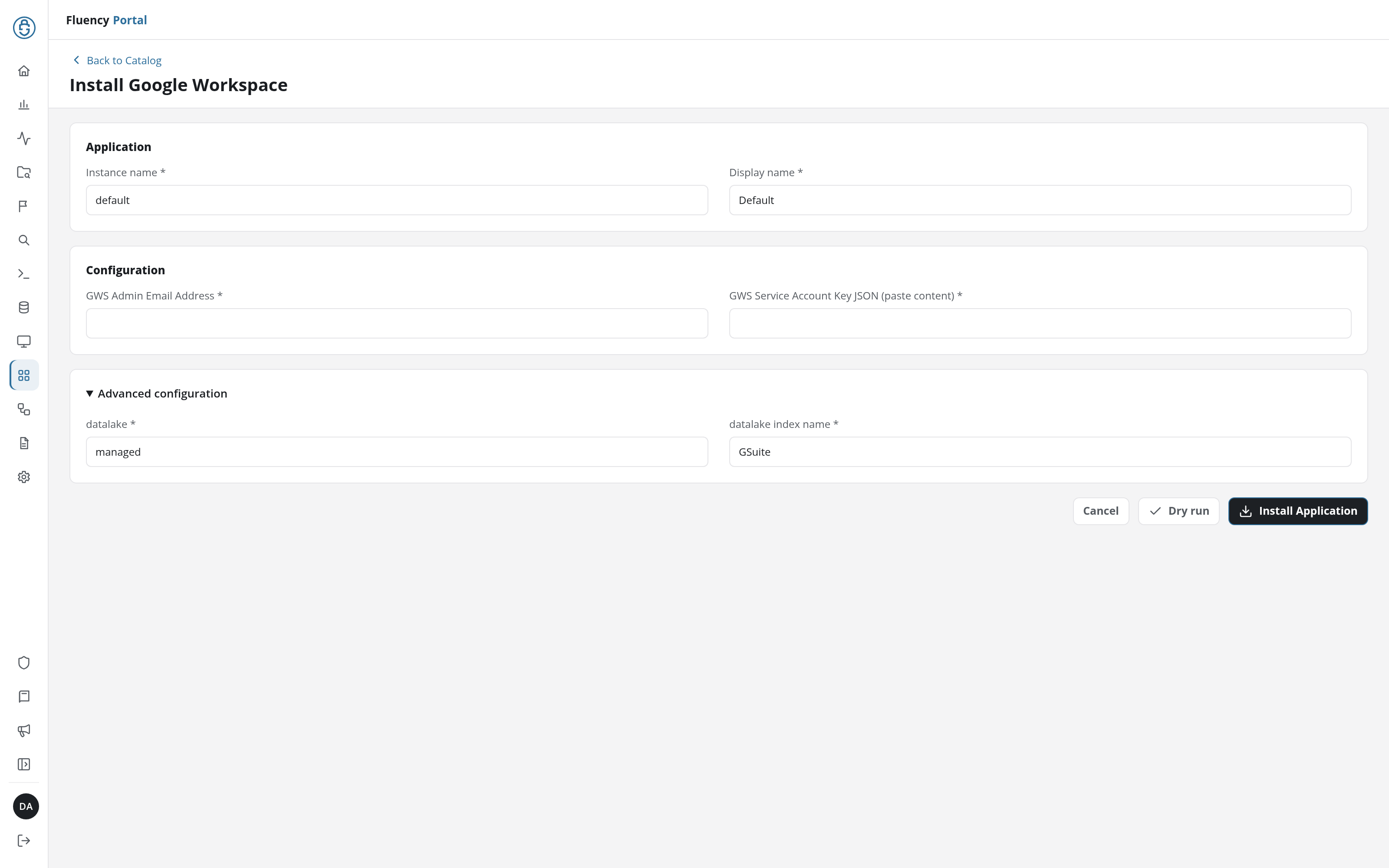
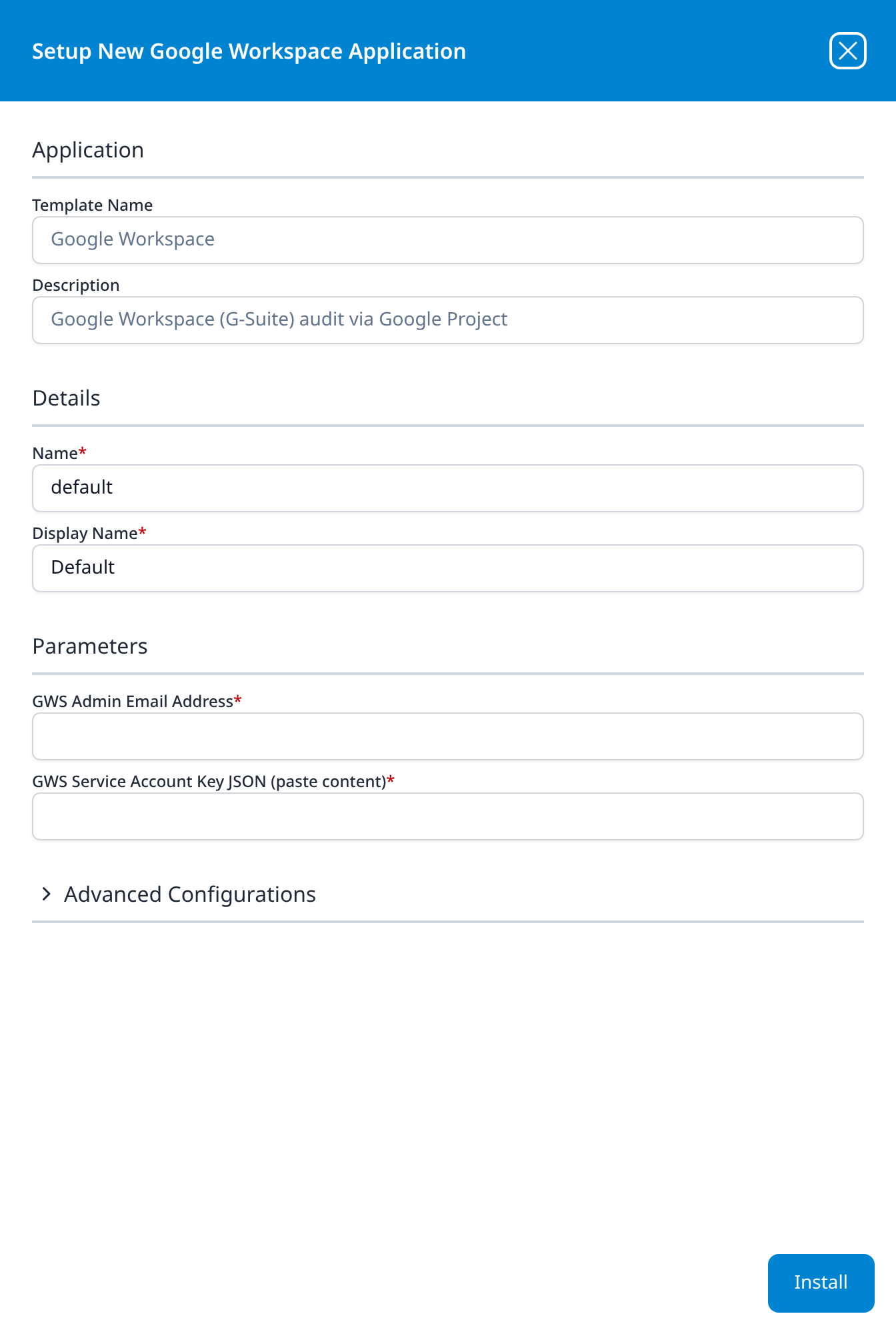
Both are email addresses and both came out of Part 1, and the service account's own …iam.gserviceaccount.com address is the one you have been looking at for the last ten minutes. Putting it in this field is the single most common way to get this integration wrong.
It has to be the Workspace administrator, because that is the account the service account impersonates: a service account is not a member of your Workspace domain and cannot be impersonated. Elastic ships the same warning against the same field on its own Google Workspace integration, which is a fair sign of how often it happens: "The Delegated Account value in the configuration, is expected to be the email of the administrator account, and not the email of the ServiceAccount."
The failure is invalid_grant: Invalid email or User ID, from the token exchange, before anything reaches the Reports API. The verification step catches it in a minute; the install does not tell you which of the two fields was wrong.
- v2 interface
- Classic v1 interface
Click Dry run first to have the platform check the address and key before anything is installed, then click Install Application. The Applications page opens with the notice Default is launching., and the new application is listed with a green Running badge once the pipeline is up.
Press Install. The application then appears in the Installed Applications view, where its badge reads Running once the pipeline is up.
Confirm it is running
Give the first poll a few minutes, then search the GSuite index. A healthy install shows login activity almost immediately on any tenant with people in it, because Google reports sign-ins in "Near real time (couple of minutes)".
If the index is empty, the fastest way to tell a quiet tenant from a broken credential is to re-run the verification script: it exercises the same credential against the same endpoints and gives you a specific error instead of an absence. That is worth doing before opening a ticket, because the failure modes it separates all present identically from Fluency's side.
See Confirm data is arriving for the general procedure.
Maintenance
Rotating the key
Template parameters are read-only after install, so a rotation is an uninstall and reinstall. Do it in this order, so there is no window in which neither key works:
- In the Google Cloud console, on the service account's Keys tab, Add key → Create new key → JSON. The account can hold several keys at once, and both are valid until you remove one.
- In Fluency, uninstall the Google Workspace application. To uninstall, click Uninstall at the top right of the application's details page (v1: the red Uninstall button at the foot of its details panel on Platform → Applications).
- Install it again with the same GWS Admin Email Address and the new key.
- Confirm collection has resumed.
- Only then, delete the old key from the Keys tab.
Nothing else changes: the service account, its Unique ID and the domain-wide delegation entry are all unaffected by a key rotation, so you never have to go back to the Admin console for this.
Rotating the impersonated administrator is a different job and a larger one: confirm the new account can open Reporting → Audit and investigation first, then uninstall and reinstall with the new address.
Removing the integration
- Uninstall the application, from the Uninstall button at the top right of its details page (v1: the red Uninstall button at the foot of its details panel on Platform → Applications).
- In the Google Cloud console, delete the key, then the service account.
- In the Admin console, remove the entry under Security → Access and data control → API controls → Manage Domain Wide Delegation.
Step 3 is the one that gets forgotten, and it is the one that matters, partly because it is in the console you stopped using two steps ago. Deleting the service account stops that client ID working, but the delegation entry remains in your Admin console as a domain-wide grant with nothing behind it: clutter in exactly the list an access review is meant to be able to trust. Google's own guidance is to review these periodically and remove the ones no longer in use.
Troubleshooting
| Symptom | Likely cause | Fix |
|---|---|---|
| Domain-wide delegation is nowhere in the Google Cloud console | It is not there. It lives in the Admin console, a different product at a different address | Part 2: admin.google.com, signed in as a super administrator. |
unauthorized_client: Client is unauthorized … | The delegation entry is missing, its Client ID is wrong, or its scope list is short | Step 4. The client ID is the service account's Unique ID, not its email. All five scopes belong in it: the entry shows two chips and +3 More, and clicking it lists all five. |
| The same error, immediately after authorising | Propagation | "Changes can take up to 24 hours but typically happen more quickly." Wait before changing anything. |
| The verification script passes, but the audit log or the directory never arrives | The script asked for fewer scopes than the integration uses | Re-run it with all five scopes as written in Verify before you leave Google. A token request is checked against the whole entry at once, so only a five-scope request proves the entry complete. |
| Audit events arrive, but users and groups do not | One of the three directory scopes is missing from the delegation entry (any one of them stops both) or the impersonated account cannot read users and groups | Step 4, then Before you begin. |
invalid_grant: Invalid email or User ID | The service account's own address was used where the impersonated administrator's belongs | See the caution. It must be a real Workspace user. |
403 · accessNotConfigured | The Admin SDK API (or, for alerts, the Alert Center API) is not enabled on the project | Step 1. |
403 · "Not Authorized to access this resource/api" | The impersonated account's role lacks the Reports privilege | Before you begin. Confirm it can open Reporting → Audit and investigation. |
| Key creation is refused in Google Cloud | An organisation policy blocks service-account keys | This route is unavailable as configured. Use the OAuth route, or have the policy exempted for this project. |
| The delegation cannot be saved | Multi-party approval is enabled | A second super administrator has to approve it. |
| Collection worked, then stopped with no configuration change | The impersonated administrator was deactivated, or their role was narrowed, or the key was deleted | Re-run the verification script; it names which. |
| Events are in the Admin console but not in the lake | Stream lag | token runs hours behind, and Calendar and Groups can; see Lag, completeness and retention. |
| A backfill returned far less than the range requested | The six-month retention ceiling on API-retrieved audit data | Requests past the window succeed and return only what is retained. |
| Drive or Keep activity is empty, everything else works | Edition gate | Google restricts both reports to Business and Enterprise. Nothing to fix. |
| Duplicate events in the lake | Expected of a polled feed | Deduplicate on id.uniqueQualifier with id.time; see Under the hood. |
| Install fails on an index-name clash | A Google Workspace (OAuth) application already holds GSuite | The two templates share a default index name. Uninstall the other one, or set a different datalake index name under Advanced configuration (v1: Advanced Configurations). |
Requests intermittently return 503 | Rate limit | Google returns 503 rather than 429 for quota; see Under the hood. |
Data reference
What the audit log and the directory look like once they land, for searches and detection rules written against them.
The audit streams
The audit log, through the Reports API. Google exposes it as one endpoint per product area, and each request names a single applicationName, so every stream is a separate poll:
GET https://admin.googleapis.com/admin/reports/v1/activity/users/all/applications/{applicationName}
The streams that matter for security work are login (sign-in successes, failures and challenge types), admin (every Admin console action), token (OAuth grants users give third-party applications), drive, user_accounts, groups, mobile, saml, rules and context_aware_access. Gmail message events (the gmail application) are not among the streams this integration collects. Google publishes roughly forty applicationName values in total; the applicationName enumeration is the current list, and the OAuth page has the annotated version of this list.
The directory
The directory, through the Directory API on the same host, read-only over users, groups and group memberships. The OAuth route's consent screen asks for the same three Directory scopes. What differs is the second resource group this template declares, GoogleWorkspace-Behaviors, which the OAuth variant does not.
Lag, completeness and retention
Three properties of the audit feed matter enough to decide things, and they are the same on both routes:
- Events lag, by stream, and Google publishes the figures.
admin,login,driveandsamlare "Near real time (couple of minutes)"; Calendar and Groups are "Tens of minutes (can also go up to a couple of hours)";tokenis "A couple of hours". So Fluency and the Admin console will disagree for a while, and most where it is least convenient. - Google does not guarantee the log is complete. Its own wording: "There's a small chance that reports and log event data for some events will be delayed beyond the following specified times", and "In rare cases, events might not be reported." Alert on what is present; do not conclude from an absence alone.
- Six months, and asking for more succeeds quietly. Retention for "Audit data retrieved using the API" is 6 months, and a request reaching further back returns less data rather than failing. An outage longer than that is unrecoverable.
Which streams the template polls is not on the form
The install form takes an administrator's address and a key. There is no stream selector, so which applicationName values are polled, and what the directory read populates, are decided inside the template rather than by you. To see what your install collects, open the installed application's details and read its Actions list.
The scopes are not in that category. Step 4 gives all five the template uses. Leave one out and the data that depends on it stops arriving; see the caution there.
Under the hood
Engineering reference: service-account authentication and the Admin SDK
What this section describes
Everything below describes the Admin SDK and Google's service-account model.
The settings that belong to your own install rather than to the API (which applicationName streams it polls, its cadence, what its GSuites and GoogleWorkspace-Behaviors resource groups populate, and the field names events land under in the lake) are recorded on the install itself: open the installed application's details and read its Actions list.
Authentication
The JSON key holds an RSA private key. The client signs a JWT asserting the service account as issuer, the requested scopes, https://oauth2.googleapis.com/token as audience, and (the part that makes this domain-wide delegation rather than an ordinary service-account call) a sub claim naming the user to impersonate. Google exchanges that assertion for a short-lived access token that acts as the named user.
Three things follow that are worth holding on to:
- The permission is not on the service account. Nothing in Google Cloud IAM describes what this account may read in Workspace. The grant is the Admin console delegation entry, which is why step 2 attaches no IAM role at all, and why the two consoles have to be visited in that order, since the Admin console has nothing to authorise until the Unique ID exists.
- The token exchange is where scope errors surface, one token at a time. The integration exchanges three assertions (audit, directory and alerts, each naming only its own scopes), so a short delegation entry fails the tokens that need the missing scope, before any request reaches the API, and leaves the others working. That is the difference between the
unauthorized_clientand403rows in the verification table. - The reach is the impersonated user's. The service account is not the security principal in any meaningful sense; the administrator named in GWS Admin Email Address is. Everything the OAuth route says about the consenting administrator applies here too, which is why this route does not fully escape the account-lifetime problem; it only moves the key out of a person's hands.
Google recommends against this mechanism
Google's own advice on the screen where you create the key is to not create it: "Service account keys could pose a security risk if compromised. We recommend you avoid downloading service account keys and instead use the Workload Identity Federation."
Workload Identity Federation lets an external workload exchange its own platform identity for Google credentials with no long-lived key anywhere. It is the better mechanism and this template cannot use it: the form takes a pasted key and nothing else, and the federation trust would have to be established between your project and Fluency's infrastructure rather than by a value you paste. There is no choice to make here, but it explains why the credential looks the way it does, and that the mitigation Google would otherwise recommend is unavailable is worth knowing when a reviewer asks.
The practical mitigations that are available: keep the project dedicated to this, attach no Cloud IAM roles, authorise only the five scopes, and set a rotation date at install time.
The endpoint, deduplication and limits
Identical to the OAuth route, which carries the full parameter table. The essentials:
- One
applicationNameper request; n streams means n polls. startTime/endTimeare RFC 3339 and filter on event occurrence time, not on when Google committed the record, which is the whole of the lag problem. WithoutendTimethe report "returns all activities from thestartTimeuntil the current time or the most recent 180 days if thestartTimeis more than 180 days in the past". Gmail is special-cased: "For Gmail requests,startTimeandendTimemust be provided and the difference must not be greater than 30 days."- Sort on
id.time; deduplicate onid.uniqueQualifiertogether withid.time. Google describesid.timeas "Time of occurrence of the activity. This is in UNIX epoch time in seconds" andid.uniqueQualifieras "Unique qualifier if multiple events have the same time"; second resolution is why neither is a key on its own. maxResultsis 1–1000, default 1000; pagination is bynextPageToken.- Quota is "2,400 queries per minute per user per Google Cloud project", with "an additional limit of 250 filter queries per minute (15,000 filter queries per hour)", where "A filter query is an API request that contains at least one of the following query parameters:
userKey,actorIpAddress,eventName,filters,orgUnitID,groupIdFilter". SinceuserKeyis in every call to this endpoint, the lower figure is the safer one to plan against. Exceeding either returns503, not429.
Note the shape of that quota on this route in particular: it is per Google Cloud project, and the project is yours. Anything else you point at the Admin SDK from the same project shares the budget.
References
- Reports API overview: what the API is and what it serves
activities.listreference: every parameter, and the fullapplicationNameenumeration- Directory API
users.listreference: the endpoint the three directory scopes reach - Alert Center API authorization: the
apps.alertsscope, and Google's requirement of a service account with domain-wide delegation - Grant access to the alert center: the Alert Center admin-role privileges
- Create access credentials: the service-account and delegation procedure
- Control API access with domain-wide delegation: the Admin console side, and the propagation delay
- Data retention and lag times: the per-stream lag and retention tables quoted above
- Usage limits: quotas and the 503 response
- Best practices for managing service account keys: Google's own position on the credential this route uses
Fluency
Related
- Google Workspace (OAuth): the same audit integration, authorised by administrator consent against Fluency's OAuth client
- Office 365 Audit: the equivalent audit feed for the other major productivity suite
- Okta: another integration whose credential inherits an administrator's permissions rather than carrying its own
- Integration Matrix: which ingress method each product supports