Office 365 Audit
Office365-Audit is the combined Microsoft 365 template. One application collects the Office 365 unified audit log (Exchange, SharePoint, Teams and every other workload that writes to it) from the Office 365 Management Activity API, and the Entra ID (Azure AD) directory audit, the sign-in log and a periodic read of the directory itself from Microsoft Graph. It is the alternative to installing three separate applications: Office 365 Activity API, Azure AD audit and Office 365 Resource Watch.
Authentication is a client secret on an Entra application you register yourself, in one sitting. The other three default to administrator consent instead, where an administrator you name approves a separate Fluency application for each and finishes the setup for you; since they can take a client secret too, the real choice is one application or three (see Before you begin).
The setup has two halves:
- In Microsoft Entra ID: register an application, add nine read-only permissions across two Microsoft APIs, grant admin consent, and create a client secret. This produces three values: a Tenant ID, a Client ID and a Client Secret.
- In Fluency: install the Office365-Audit application template and paste those three values into its form.
What arrives
| Stream | What it holds | Lands in |
|---|---|---|
| Unified audit log | Mail, file, site, Teams, admin and DLP activity across every Microsoft 365 workload, plus service-health messages. | The Office365 index |
| Directory audit | Directory changes: users and groups created or modified, role assignments, application and consent grants, password resets, PIM activity. | The MSEntra index |
| Sign-ins | Interactive sign-ins, with client IP, device, application, conditional-access result and risk state. | The AzureSigninLogs index |
| Directory | Users, groups, devices, applications, policies and authentication-method registration, read periodically to resolve audit records to names. | Resources |
Unified audit logging must be on in the tenant, and sign-ins need Microsoft Entra ID P1 or P2; see Before you begin. The activity feed serves only the last seven days, as Entra does on a Free tenant, so a collection outage can lose events for good; see Rotating the client secret. Nine read-only permissions across two APIs back these streams, and one left unconsented fails alone with a 403 while the rest keep arriving; see step 4.
Which permission backs which stream, and the legacy AzureAudit index name, are in Data reference.
Before you begin
Whether this template or the consent route suits you. Choose this template when consent-based authorisation is not available to you, when you need a credential you control and can rotate on your own schedule, or simply when you would rather run one application than three. Choose the consent route instead when you would rather not hold a credential at all: a consent grant never expires and survives the administrator who approved it, where a client secret expires and stops collection silently when it does.
Enable Admin Consent Mode is a checkbox on each of their install forms, and unticking it reveals the same Azure Tenant ID, Azure ClientID and Azure ClientSecret fields this template uses. So the choice between this template and those is not really consent-versus-secret; it is one application or three. If you are creating an app registration anyway, this template is almost always the better destination.
Unified audit logging must be on in the tenant. Nothing reaches the Management Activity API until it is. Microsoft turns it on by default for most Microsoft 365 organizations, but not for Business Basic, Business Standard or Business Premium, and not for unmanaged tenants on an enterprise free trial. Check from Exchange Online PowerShell:
Get-AdminAuditLogConfig | Format-List UnifiedAuditLogIngestionEnabled
True means you are covered. If it returns False, turn it on in the Microsoft Purview portal (the Audit solution card shows a Start recording user and admin activity banner) or run:
Set-AdminAuditLogConfig -UnifiedAuditLogIngestionEnabled $true
Enabling auditing can take up to 60 minutes to take effect, and events can take several hours after that before they are retrievable. Nothing that happened before you switched it on is ever recoverable: the audit log only holds what it was recording at the time. Turn it on and let it run for a day before concluding the integration is broken.
You also need the Audit Logs role in Exchange Online to change that setting; by default the Compliance Management and Organization Management role groups hold it.
A Microsoft Entra ID P1 or P2 licence, if you want sign-in logs. The directory audit is available on every tier, but the sign-in API is premium-only: without P1 or P2 it returns Neither tenant is B2C or tenant doesn't have premium license and the AzureSigninLogs index stays empty. The rest of the integration is unaffected. Note also that Entra retains audit and sign-in data for only 7 days on Free and 30 days on P1/P2, so a collection outage longer than that loses events permanently.
An Entra identity that can register an application and grant tenant-wide admin consent. That means Global Administrator, or Privileged Role Administrator combined with Application Administrator or Cloud Application Administrator. Consent rights are the part people miss: without them you can create the application, but its permissions stay unconsented and no data ever flows.
Access to the Fluency portal with permission to install applications.
Part 1: Microsoft Entra ID
Work through this half in the Microsoft Entra admin center, or in the Azure portal under Microsoft Entra ID. If you would rather script it, skip to Automated alternative; the result is identical.
1. Register the application
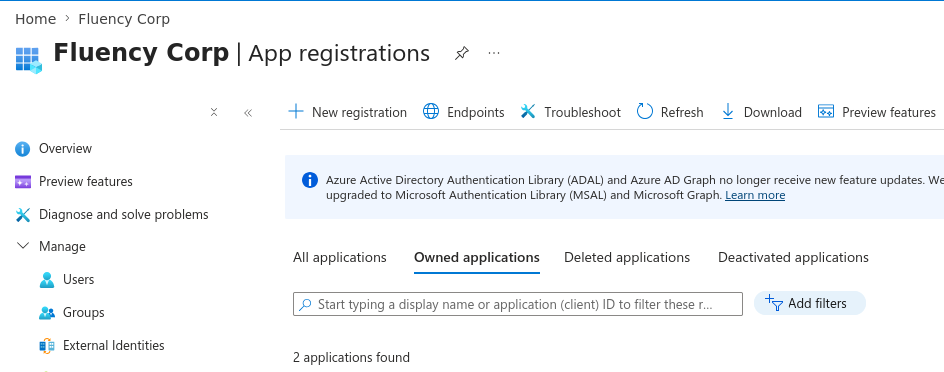
Go to App registrations → New registration.
- Name: anything recognisable.
ingext-azureauditis the name Fluency's own onboarding tooling uses, and is a good default. (The screenshots on this page show an application namedFluencyIngextIntegration_Test; yours carries the name you enter here.) - Supported account types: Accounts in this organizational directory only (single tenant).
- Redirect URI: leave blank. This application never signs a user in.
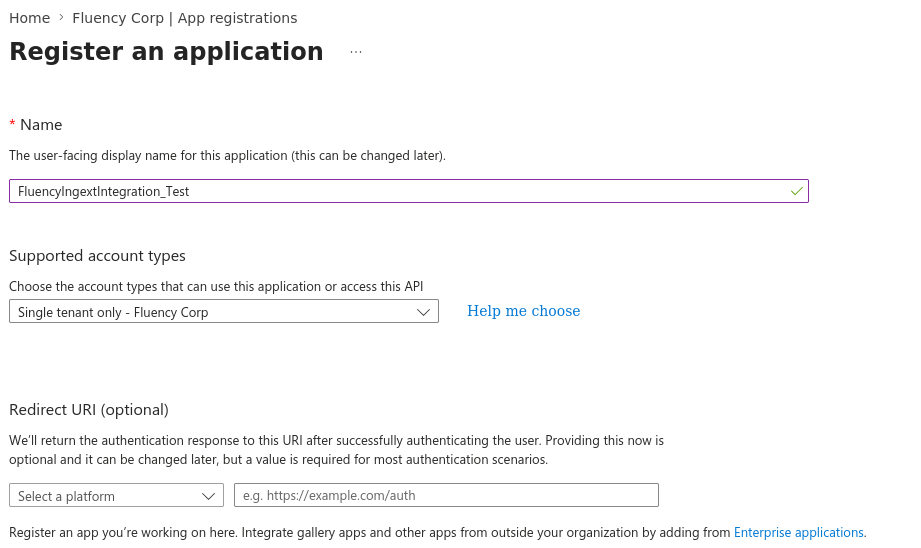
Click Register.
App registrations → New registration is the right path. Enterprise applications → New application → Create your own application looks similar and produces a service principal, but it gives you nowhere to add API permissions or a client secret. If you find yourself on a page headed Browse Microsoft Entra App Gallery, you are in the wrong place.
2. Add the Microsoft Graph permissions
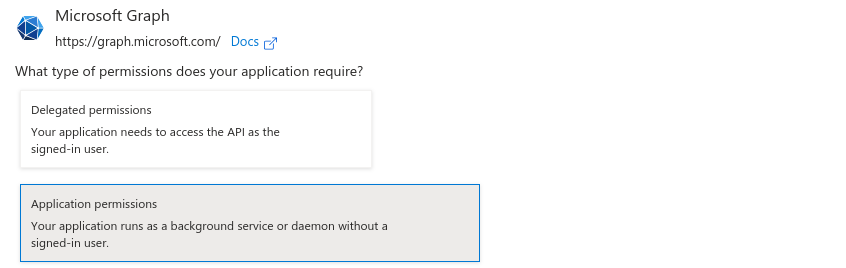
On the new application, go to API permissions → Add a permission. On the Microsoft APIs tab, choose Microsoft Graph.
Choose Application permissions: "Your application runs as a background service or daemon without a signed-in user." This is the app-only path; Delegated permissions would require a signed-in user and will not work here.
Now search for and tick each of these six. The search box filters as you type, and each permission sits under a collapsible group of the same name:
AuditLog.Read.AllDirectory.Read.AllPolicy.Read.AllReports.Read.AllUserAuthenticationMethod.Read.AllMailboxSettings.Read
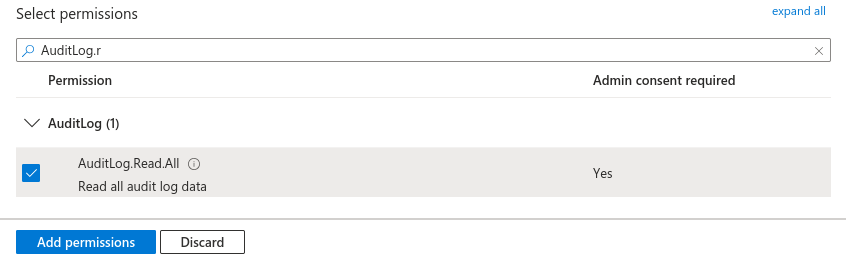
Every one of them reads Admin consent required: Yes; that is step 4. Take the .Read variant in each case, never .ReadWrite; the picker lists both next to each other and the read-write permission is a strictly wider grant that this integration has no use for.
Click Add permissions.
3. Add the Office 365 Management API permissions
The unified audit log does not come from Graph. It comes from a separate API with its own service principal, so this is a second trip through Add a permission.
On the Microsoft APIs tab, choose Office 365 Management APIs. Choose Application permissions again, then tick all three:
ActivityFeed.ReadActivityFeed.ReadDlpServiceHealth.Read
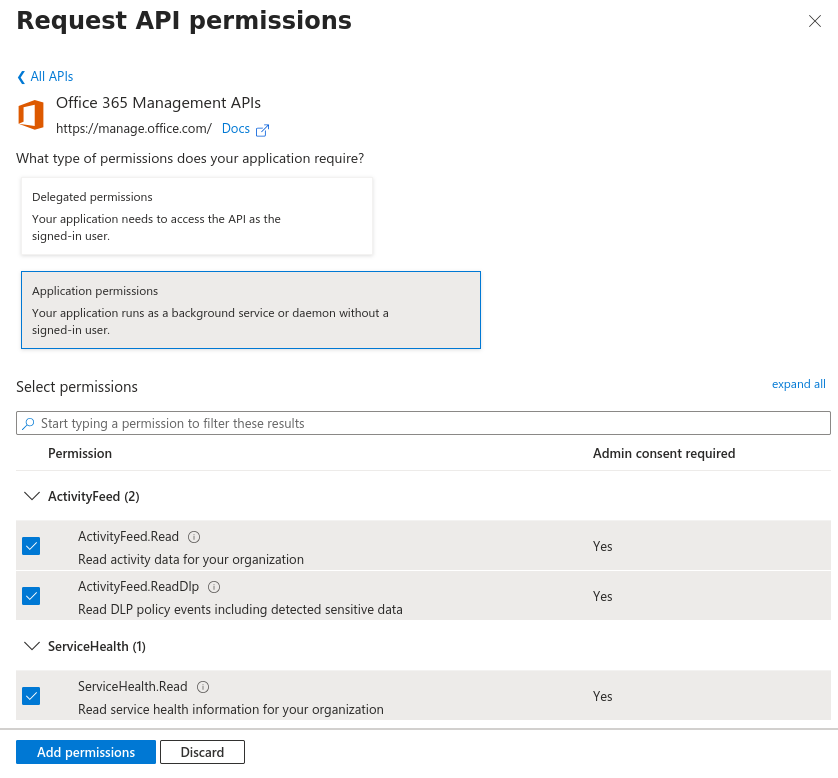
Click Add permissions.
Some tenants have never had the Office 365 Management APIs service principal provisioned, and the tile does not appear. Open the APIs my organization uses tab and search for Office 365 Management APIs instead. If it is missing there too, create the service principal from its well-known application ID and reload the page:
az ad sp create --id c5393580-f805-4401-95e8-94b7a6ef2fc2
All nine permissions should now be listed under Configured permissions, split into Microsoft Graph (6) and Office 365 Management APIs (3), every row with Type Application and a Status of Not granted.
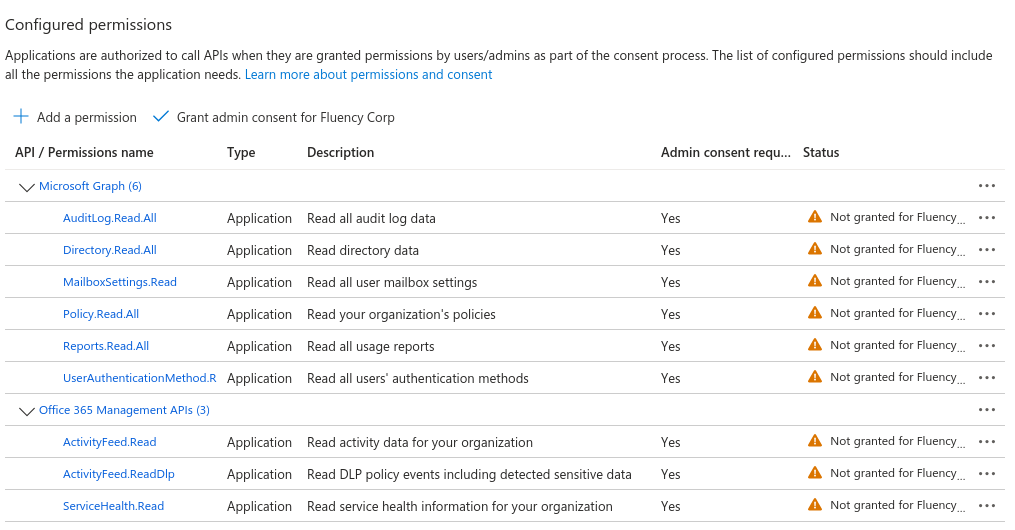
4. Grant admin consent
Application permissions do nothing until an administrator consents on the tenant's behalf. On the same API permissions page, click Grant admin consent for <tenant>.
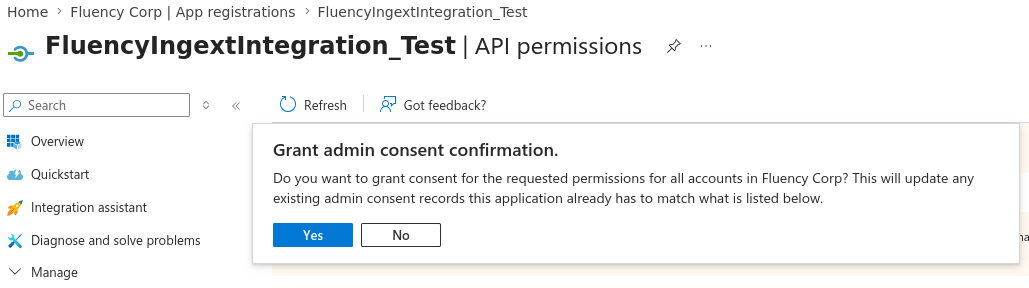
Confirm with Yes. All nine rows must then show a green Granted for <tenant>:
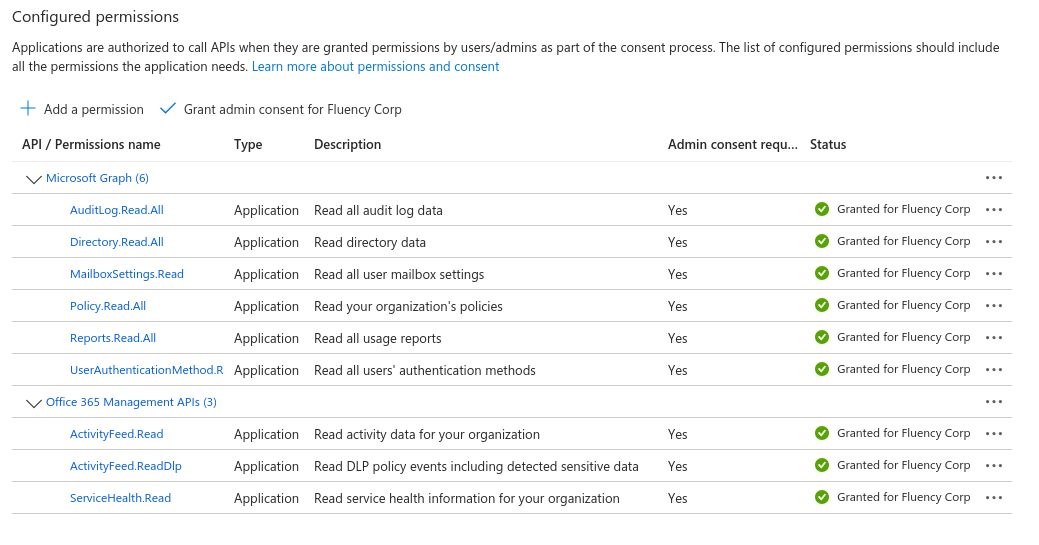
If the button is greyed out, the account you are signed in as does not hold consent rights. The application and its permissions are already saved; ask an administrator who does to open the same page and click it.
Consent applies to whatever is listed at the time you click, so if you add a permission later you have to consent again. A permission that was added but never consented to returns 403 while the others keep working, which reads as "the integration works, but SharePoint events are missing" rather than as an error; check the Status column, not the fact that data is arriving.
5. Create a client secret
Go to Certificates & secrets → Client secrets → New client secret. Give it a description you will recognise in two years' time, and choose an expiry.
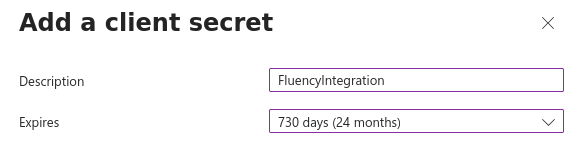
The drop-down opens on Recommended: 180 days (6 months). Microsoft caps the portal's maximum at 24 months; pick whatever your credential-rotation policy allows, and write the date down. When the secret expires the integration stops collecting, and it fails quietly from Microsoft's side; see Rotating the client secret.
Click Add. The new secret appears in the list with its Value shown in full, exactly once.
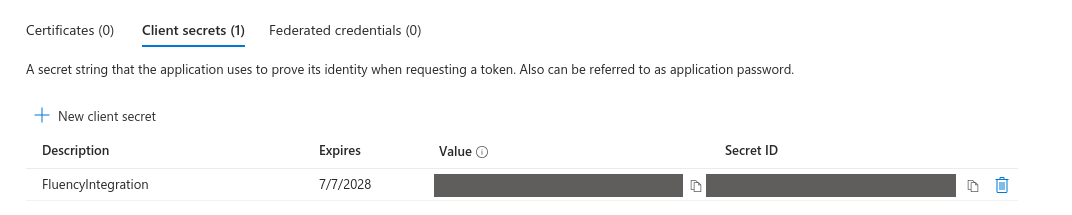
The Value column is readable only until you navigate away. Reload the page and it is masked forever; the secret cannot be recovered, only replaced.
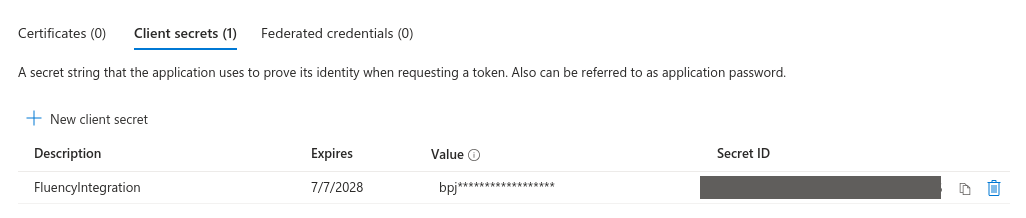
The Secret ID in the next column is not the secret; it is an identifier for the credential record, and it stays fully readable, which is exactly why it gets copied by mistake. Pasting the Secret ID into Fluency is the single most common cause of an application that installs and then immediately aborts.
6. Record the Tenant ID and Client ID
Go to the application's Overview page. Under Essentials, copy:
- Application (client) ID → Fluency's Azure ClientID
- Directory (tenant) ID → Fluency's Azure Tenant ID
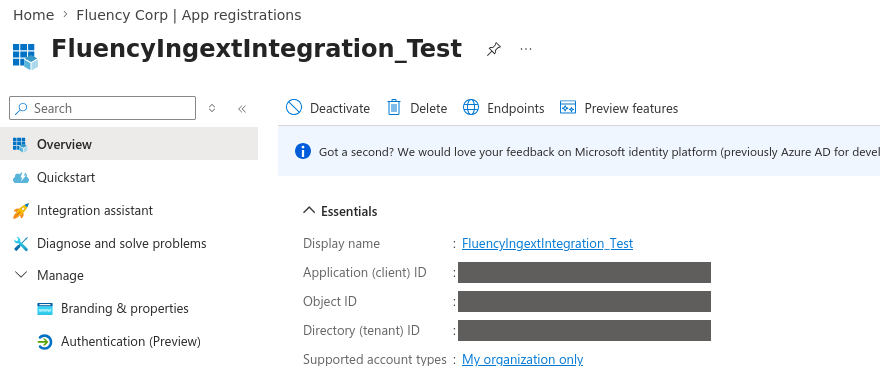
You should now be holding all three values:
| Value | Where it came from |
|---|---|
| Azure Tenant ID | Overview → Directory (tenant) ID |
| Azure ClientID | Overview → Application (client) ID |
| Azure ClientSecret | Certificates & secrets → the secret's Value |
Ignore Object ID. It identifies the application object in the directory and is not used here. Unlike the client secret, the tenant and client IDs are not sensitive and can be read from the portal at any time.
Automated alternative
The same registration as a script. Useful when onboarding several tenants, and the path Fluency's own onboarding tooling takes. Both versions need the same consent rights as the portal walkthrough, both are idempotent (re-running reuses an existing application rather than duplicating it), and both end by printing the three fields as JSON.
- Azure CLI
- PowerShell
Requires Azure CLI.
# Sign in to the target tenant, then confirm which tenant you are in
az login    # or: az login --use-device-code   (headless / no browser)
az account show --query '{tenant:tenantId, account:user.name}' -o table

GRAPH=00000003-0000-0000-c000-000000000000
O365=c5393580-f805-4401-95e8-94b7a6ef2fc2

GRAPH_PERMS=(Directory.Read.All AuditLog.Read.All Policy.Read.All \
             Reports.Read.All UserAuthenticationMethod.Read.All MailboxSettings.Read)
O365_PERMS=(ActivityFeed.Read ActivityFeed.ReadDlp ServiceHealth.Read)

# 1. Both resource service principals must exist before they can receive consent.
#    The Office 365 Management APIs one is absent in some tenants.
az ad sp show --id $GRAPH >/dev/null 2>&1 || az ad sp create --id $GRAPH
az ad sp show --id $O365  >/dev/null 2>&1 || az ad sp create --id $O365

# 2. Register the application (single tenant, no redirect URI)
APP_ID=$(az ad app create \
  --display-name ingext-azureaudit \
  --sign-in-audience AzureADMyOrg \
  --query appId -o tsv)

# 3. Resolve each permission's app-role ID at runtime, no hardcoded GUIDs
resolve() {
  az ad sp show --id "$1" \
    --query "appRoles[?value=='$2' && contains(allowedMemberTypes,'Application')].id | [0]" -o tsv
}
graph_pairs=(); for p in "${GRAPH_PERMS[@]}"; do graph_pairs+=("$(resolve $GRAPH $p)=Role"); done
o365_pairs=();  for p in "${O365_PERMS[@]}";  do o365_pairs+=("$(resolve $O365 $p)=Role"); done

# 4. Request them as Application permissions (=Role, as opposed to =Scope for delegated)
az ad app permission add --id $APP_ID --api $GRAPH --api-permissions "${graph_pairs[@]}"
az ad app permission add --id $APP_ID --api $O365  --api-permissions "${o365_pairs[@]}"

# 5. Create the app's own service principal, then grant tenant-wide admin consent
az ad sp create --id $APP_ID
az ad app permission admin-consent --id $APP_ID

# 6. Append a client secret valid for two years, and print it
az ad app credential reset --id $APP_ID \
  --display-name ingext-azureaudit --years 2 --append \
  --query password -o tsv

# 7. Print the tenant and client IDs
az account show --query tenantId -o tsv
echo $APP_ID
Steps 5 and 6 can fail with a replication delay immediately after step 2: if admin-consent reports that the service principal was not found, wait a few seconds and run it again.
Confirm consent landed by counting the app-role assignments (nine is correct):
az rest --method GET \
  --url "https://graph.microsoft.com/v1.0/servicePrincipals(appId='$APP_ID')/appRoleAssignments" \
  --query "length(value)"
Requires PowerShell 7 or later and the Microsoft.Graph.Authentication and Microsoft.Graph.Applications modules. The signed-in administrator consents to the script's own scopes (Application.ReadWrite.All, AppRoleAssignment.ReadWrite.All, Directory.Read.All) at the Connect-MgGraph prompt.
Install-Module Microsoft.Graph.Authentication, Microsoft.Graph.Applications -Scope CurrentUser

Connect-MgGraph -Scopes Application.ReadWrite.All, AppRoleAssignment.ReadWrite.All, Directory.Read.All
# add -UseDeviceCode on a headless host with no browser
Get-MgContext | Select-Object TenantId, Account     # confirm the target tenant

$graphAppId = '00000003-0000-0000-c000-000000000000'
$o365AppId  = 'c5393580-f805-4401-95e8-94b7a6ef2fc2'
$perms = @{
  $graphAppId = 'Directory.Read.All','AuditLog.Read.All','Policy.Read.All',
                'Reports.Read.All','UserAuthenticationMethod.Read.All','MailboxSettings.Read'
  $o365AppId  = 'ActivityFeed.Read','ActivityFeed.ReadDlp','ServiceHealth.Read'
}

$app = New-MgApplication -DisplayName ingext-azureaudit -SignInAudience AzureADMyOrg
$sp  = New-MgServicePrincipal -AppId $app.AppId

foreach ($resourceAppId in $perms.Keys) {
    $resourceSp = Get-MgServicePrincipal -Filter "appId eq '$resourceAppId'"
    if (-not $resourceSp) { $resourceSp = New-MgServicePrincipal -AppId $resourceAppId }
    foreach ($name in $perms[$resourceAppId]) {
        $role = $resourceSp.AppRoles | Where-Object {
            $_.Value -eq $name -and $_.AllowedMemberTypes -contains 'Application'
        }
        New-MgServicePrincipalAppRoleAssignment -ServicePrincipalId $sp.Id `
            -PrincipalId $sp.Id -ResourceId $resourceSp.Id -AppRoleId $role.Id
    }
}

$secret = Add-MgApplicationPassword -ApplicationId $app.Id -PasswordCredential @{
    DisplayName = 'ingext-azureaudit'
    EndDateTime = (Get-Date).AddMonths(24)
}

[pscustomobject]@{
    tenantId     = (Get-MgContext).TenantId
    clientId     = $app.AppId
    clientSecret = $secret.SecretText
} | ConvertTo-Json
Assigning the app roles directly, as above, is the admin consent: there is no separate consent step to run afterwards. Add-MgApplicationPassword always appends, so it never disturbs an existing secret.
--append is not optionalWithout --append, az ad app credential reset "clears all passwords and keys" before creating the new one. On a fresh application that is harmless; run it against an application already in service and you will revoke the credential that is currently collecting data.
Part 2: Fluency
Install the Application
- v2 interface
- Classic v1 interface
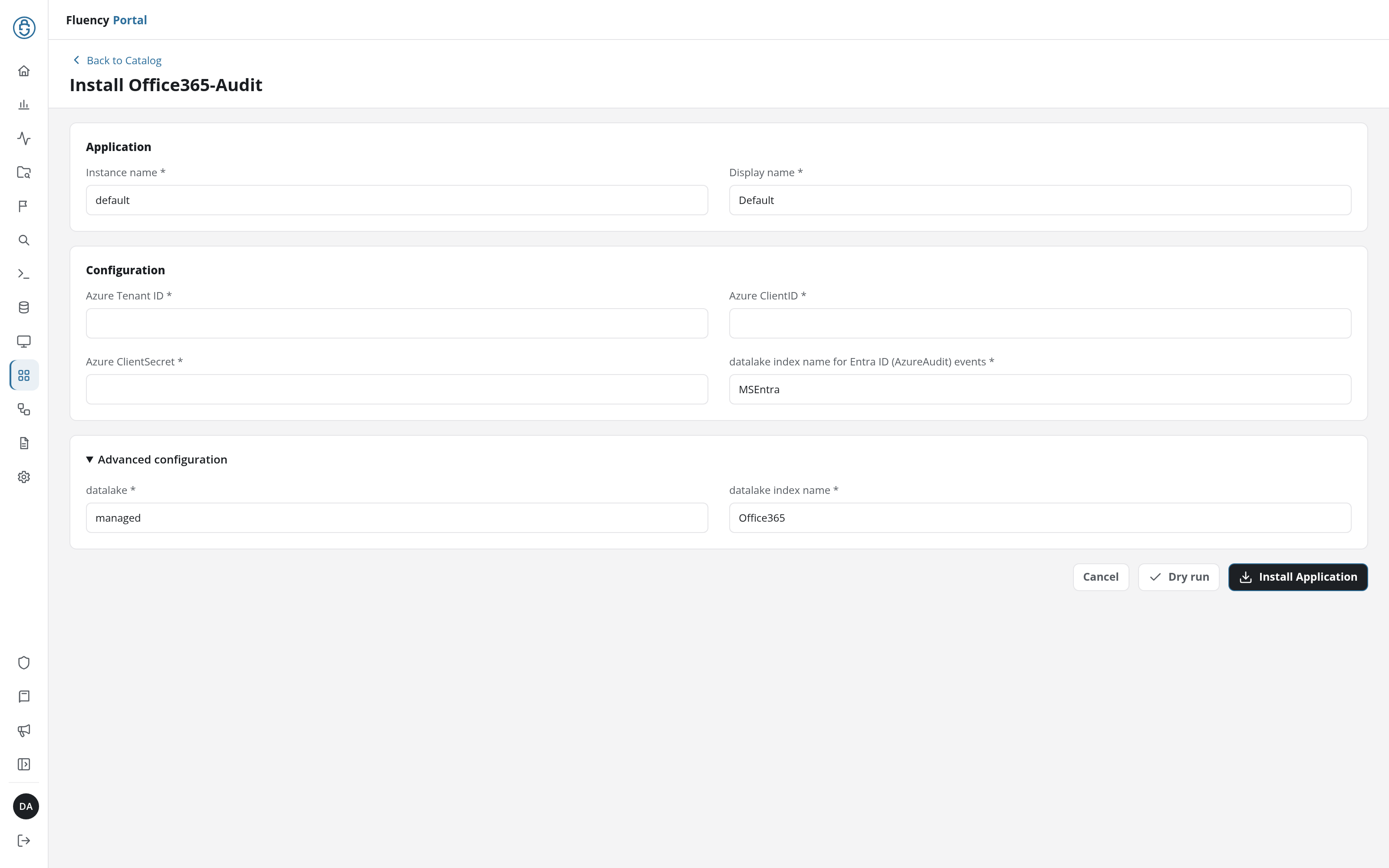
In the navigation rail, open Applications and click Install Application, then choose Office365-Audit from the Office Software (SaaS) and IAM category of the Application Catalog.
Go to Platform → Applications → Install Application From Template and choose Office365-Audit from the Office Software (SaaS) and IAM category.
Every parameter is required:
| Parameter | Notes |
|---|---|
| Azure Tenant ID | The directory the application is registered in: Entra's Directory (tenant) ID. |
| Azure ClientID | The registered application: Entra's Application (client) ID. |
| Azure ClientSecret | The secret Value, not the Secret ID. Masked once the application is installed. |
| datalake | Pre-filled managed. |
| datalake index name | Pre-filled Office365. Receives the unified audit log. |
| datalake index name for Entra ID (AzureAudit) events | Pre-filled MSEntra. Receives the directory audit. Older deployments use the legacy name AzureAudit here. |
- v2 interface
- Classic v1 interface
datalake and datalake index name sit in the collapsed Advanced configuration section below Configuration; click its heading to reach them.
Leave Instance name and Display name at default / Default unless you are installing a second instance (collecting from two Microsoft 365 tenants, for example), in which case give each one a name you will recognise on the applications list.
Leave Name and Display Name at default / Default unless you are installing a second instance (collecting from two Microsoft 365 tenants, for example), in which case give each one a name you will recognise on the applications list.
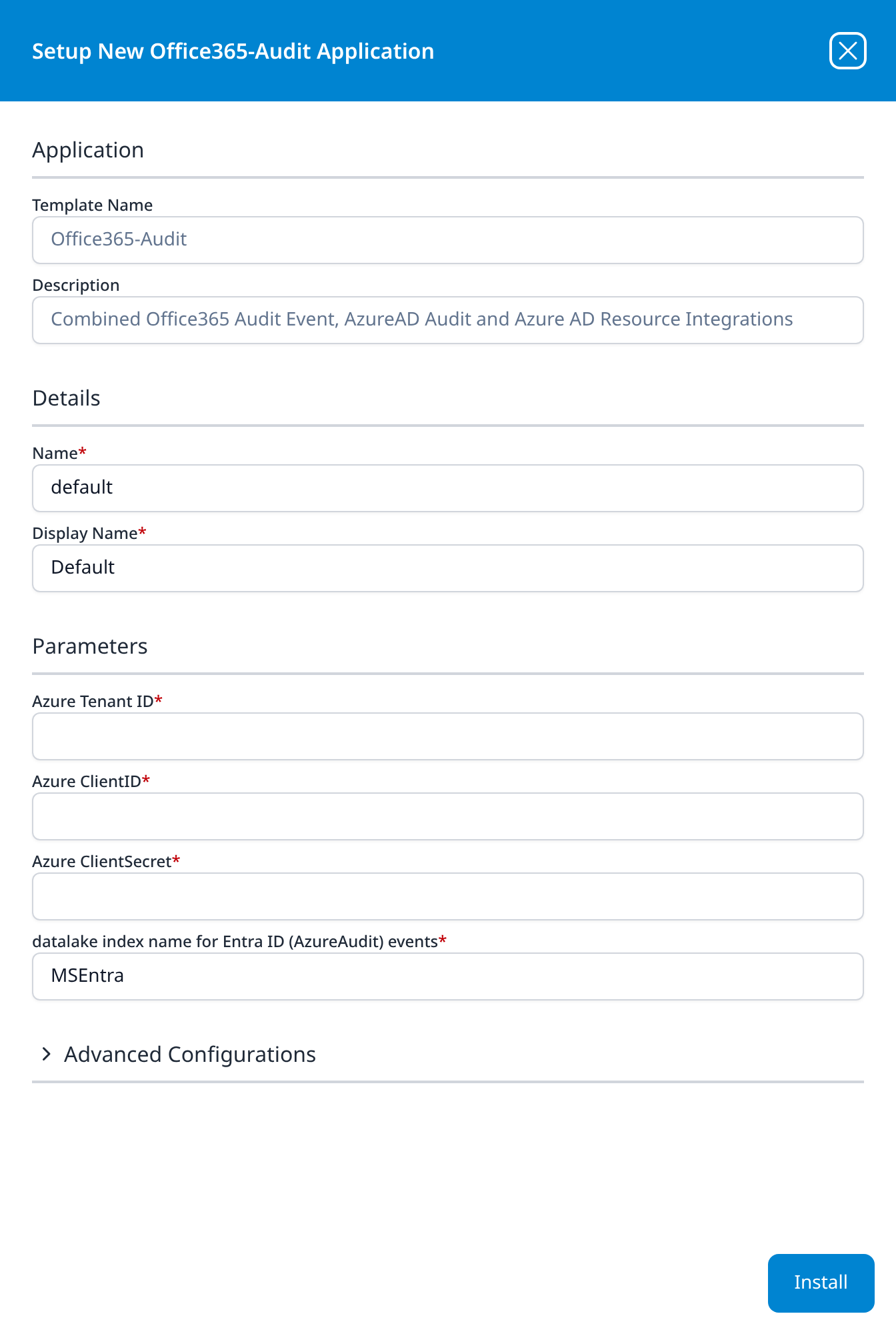
Two applications writing to the same index name in the same lake will collide, and the second one aborts. Office365 is also the default for the Office365 template, and MSEntra is also the default for Azure Directory Audit and Entra ID (AzureAD) Audit via Event Hubs, so this template cannot run alongside any of those at their defaults. Either change the names here, or uninstall the separate applications first. Azure Directory Audit also collects the same Entra feed into the same table indexes, so run one or the other in any case.
The sign-in stream lands in a third index, AzureSigninLogs, which the install creates and which is not exposed as a parameter, so it cannot be renamed to dodge a collision.
- v2 interface
- Classic v1 interface
Click Dry run first to have the platform check the three credentials against Microsoft before anything is installed, then click Install Application. The Applications page opens with the notice Default is launching., and the new application is listed with a green Running badge once the pipeline is up.
Press Install. The application then appears in the Installed Applications view, where its badge reads Running once the pipeline is up.
Confirm it is running
- v2 interface
- Classic v1 interface
The application is listed on Applications as Office365-Audit, with its display name beneath it. Its badge should read Running in green within a few seconds; a red Error badge means the pipeline aborted or reported errors in the last hour (a taken index name being the usual cause), and the details page shows the error message beneath the summary figures.
Click its row to open the application details page. The summary card carries the status and the traffic in and out; Pipeline draws the data sources, routers and destinations the install created; Parameters shows the values back with the client secret masked; and Actions lists, one line per object, the setup steps the install carried out.
The application appears under Installed Applications as Office365-Audit: Office365-Audit. Its badge should read Running in green within a few seconds; Aborted in red means the pipeline stopped on an error, and the details panel will carry the message, a taken index name being the usual cause.
The blue eye button on the card opens the details panel, titled Viewing Office365Audit Application. Details repeats the template name, the internal Name, the Display Name and the Status badge. Parameters shows the six values back as tenantID, clientId, clientSecret (masked), datalake, index and azureAuditIndex. Actions lists, one line per object, everything the install created: the three data sources, two routers and their pipes, and the data-lake and management-queue sinks they feed.
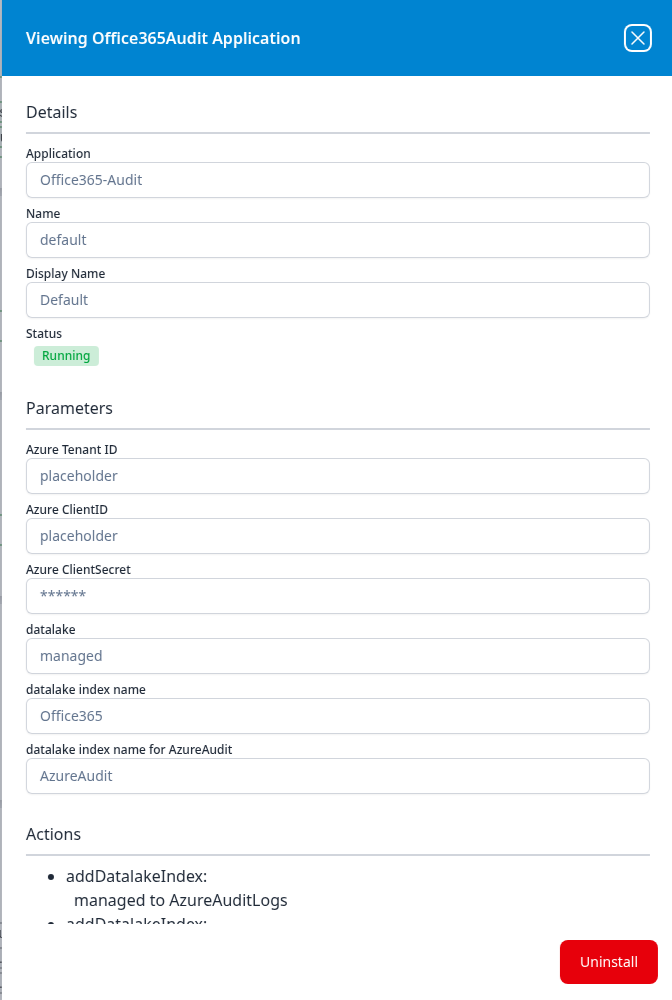
Every field in this panel is read-only.
Nothing an install records can be edited afterwards. Changing a credential means uninstalling the application and installing it again; see Rotating the client secret.
The Management Activity API only delivers to an active subscription, and Microsoft warns that on a newly created one it can take up to 12 hours for the first content blobs to become available. Entra directory audit and sign-in events arrive sooner but still lag the activity itself. An empty Office365 index on the afternoon of the install is expected, not a fault; see Troubleshooting before changing anything.
See Confirm data is arriving for how to check that events are landing.
Maintenance
Rotating the client secret
Client secrets expire, and Microsoft gives no warning on the Fluency side when one does: collection simply stops. Rotate before the expiry date you recorded in step 5:
- In Entra, go to the application's Certificates & secrets and add a New client secret. Leave the old one in place for now; an application can hold several.
- Copy the new Value.
- In Fluency, uninstall the Office365-Audit application and install it again with the new secret. The parameters are read-only after install, so reinstalling is the supported way to change a credential. To uninstall, click Uninstall at the top right of the application's details page (v1: the red Uninstall button at the foot of its details panel on Platform → Applications).
- Once data is flowing again, delete the old secret in Entra.
Do this before the expiry rather than after it. Activity-feed content stays retrievable for seven days, so a short gap often backfills, but Microsoft does not let you retrieve content that became available while a subscription was stopped, so the safe assumption is that anything missed during an outage does not come back. Allow for the first-content delay again after the reinstall.
Removing the integration
Uninstall the application in Fluency first, with the Uninstall button at the top right of its details page (v1: the red Uninstall button at the foot of its details panel on Platform → Applications), so the pipeline stops cleanly before its credentials stop working.
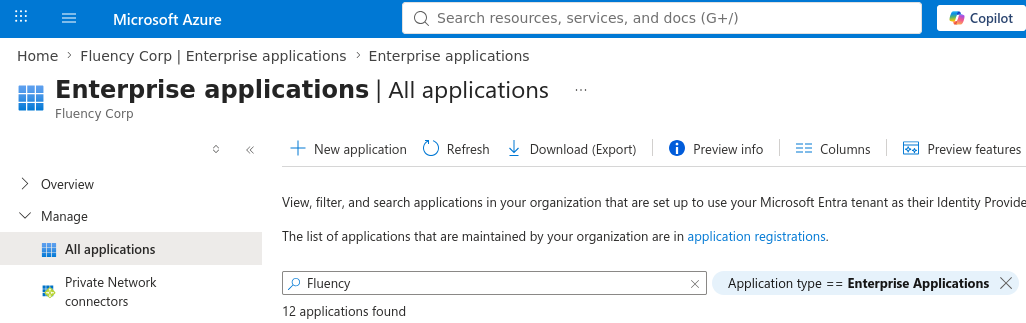
To revoke access on the Microsoft side, delete the app registration, or revoke just the consent from Microsoft Entra ID → Enterprise applications, where the application appears as a service principal. Deleting it there removes the tenant's consent without deleting the registration.
Troubleshooting
| Symptom | Likely cause | Fix |
|---|---|---|
| The application shows Error (v1: Aborted) immediately after install | An index name is already taken in that lake: usually Office365 from the Office365 template, or MSEntra from Azure Directory Audit or Azure Directory Audit (Event Hub) (AzureAudit on an older deployment) | The error message in the application's details names the index. Uninstall the conflicting application, or reinstall this one with different index names. |
| The application shows Error (v1: Aborted), and no index is named in the error | The Secret ID was pasted instead of the secret Value, or the secret has expired | Uninstall, then reinstall with the secret's Value. If it was never captured, create a new secret; the old value is unrecoverable. |
Everything is Running but the Office365 index is empty | Unified audit logging is off in the tenant, or the subscription is still within its first-content window | Run Get-AdminAuditLogConfig | FL UnifiedAuditLogIngestionEnabled. If it is True, wait out the 12 hours before investigating further. |
MSEntra (AzureAudit on an older deployment) fills but AzureSigninLogs stays empty | The tenant has no Microsoft Entra ID P1 or P2 licence | Expected. The sign-in API is premium-only; the rest of the integration is unaffected. |
Authentication succeeds but some calls return 403 Forbidden | Admin consent was granted before all nine permissions were added | Entra → App registrations → the app → API permissions → Grant admin consent. Every row must read Granted for <tenant>. |
The Office 365 stream fails with AF10001 | The token is missing ActivityFeed.Read: the Office 365 Management API permissions were never added, or never consented to | Add all three under Office 365 Management APIs and consent again. Graph permissions do not substitute. |
The Office 365 stream fails with AF20022 | No subscription exists for that content type: the start call failed, or was throttled | Microsoft throttles /subscriptions/start to one call per content type per 15 minutes, so give it that long. If it persists, uninstall and reinstall so the subscriptions are started again. |
| Collection worked, then stopped around the six-month mark | The client secret expired; 180 days is the portal's default | Rotate the secret. |
| Events arrive but are hours old, or out of order | Normal for the Management Activity API | Microsoft aggregates events across datacenters into content blobs and does not guarantee ordering. Judge freshness over hours, not minutes. |
| Office 365 Management APIs is not offered in the permission picker | The tenant has no service principal for it | az ad sp create --id c5393580-f805-4401-95e8-94b7a6ef2fc2, then reload the permission picker. |
To check what an application is actually authorised for, acquire a token with its credentials and decode it at https://jwt.ms. The roles claim should list the permissions you expect for that resource; note that the two APIs issue separate tokens, so check both:
# Microsoft Graph: expect the six Graph roles
curl -s -X POST "https://login.microsoftonline.com/<tenantId>/oauth2/v2.0/token" \
  -d "client_id=<clientId>" -d "client_secret=<clientSecret>" \
  -d "scope=https://graph.microsoft.com/.default" -d "grant_type=client_credentials"

# Office 365 Management APIs: expect ActivityFeed.Read, ActivityFeed.ReadDlp, ServiceHealth.Read
curl -s -X POST "https://login.microsoftonline.com/<tenantId>/oauth2/v2.0/token" \
  -d "client_id=<clientId>" -d "client_secret=<clientSecret>" \
  -d "scope=https://manage.office.com/.default" -d "grant_type=client_credentials"
Data reference
What the streams look like once they land, and the permission behind each, for searches and detection rules written against them.
Indexes and sources
The application writes to three data-lake indexes, fed by two different Microsoft APIs.
| Index | Source | Contents |
|---|---|---|
Office365 | Office 365 Management Activity API | The unified audit log: mail, file, site, Teams, admin and DLP activity across every Microsoft 365 workload, plus service-health messages. |
MSEntra | Microsoft Graph: GET /auditLogs/directoryAudits | Directory changes: users and groups created or modified, role assignments, application and consent grants, password resets, PIM activity. |
AzureSigninLogs | Microsoft Graph: GET /auditLogs/signIns | Interactive sign-ins with the client IP, device, application, conditional-access result and risk state. |
AzureAudit is the legacy name of the directory-audit index: older deployments write the directory audit to AzureAudit rather than MSEntra, and keep doing so.
Alongside those event streams the application reads the directory itself (users, groups, devices, applications, policies and authentication-method registration), which is what lets Fluency resolve an object GUID in an audit record to a name, and score a sign-in against the account it belongs to.
The nine permissions
All nine are Application permissions (app-only, type = Role, no signed-in user), and all nine are read-only. Fluency never writes back to the tenant.
| API | Permission | Backs |
|---|---|---|
Office 365 Management APIsc5393580-f805-4401-95e8-94b7a6ef2fc2 | ActivityFeed.Read | The unified audit activity feed |
ActivityFeed.ReadDlp | DLP events, including the detected sensitive data, in that feed | |
ServiceHealth.Read | Service-health and incident messages | |
Microsoft Graph00000003-0000-0000-c000-000000000000 | AuditLog.Read.All | The Entra directory audit and sign-in logs |
Directory.Read.All | Directory resources: users, groups, devices, applications | |
Policy.Read.All | Conditional-access and directory policy, and the applied-policy detail on sign-in records | |
Reports.Read.All | Usage and security reports | |
UserAuthenticationMethod.Read.All | MFA and authentication-method registration | |
MailboxSettings.Read | Mailbox settings |
Under the hood
Engineering reference: how the two APIs are polled
This section documents how the collection works for Fluency engineering and for anyone diagnosing a gap in the data. Administrators connecting Microsoft 365 do not need it.
Office 365 Management Activity API
Base URL, for a commercial tenant:
https://manage.office.com/api/v1.0/{tenantId}/activity/feed/{operation}
Government tenants use manage-gcc.office.com (GCC), manage.office365.us (GCC High) or manage.protection.apps.mil (DoD).
The API is subscription-based rather than a plain query. A subscription is started per content type with POST /subscriptions/start?contentType=..., and there are five:
| Content type | Covers |
|---|---|
Audit.AzureActiveDirectory | Entra sign-in and directory activity as it appears in the unified log |
Audit.Exchange | Exchange Online admin and mailbox activity |
Audit.SharePoint | SharePoint and OneDrive file and site activity |
Audit.General | Every other workload: Teams, Power Platform, Purview, Viva Engage |
DLP.All | DLP events across all workloads, including the detected sensitive data |
Collection is then a two-step poll: GET /subscriptions/content?contentType=...&startTime=...&endTime=... lists the content blobs available, and each blob is fetched from its own contentUri. Constraints that shape the polling loop:
- A new subscription can take up to 12 hours to produce its first content blob.
startTimeandendTimemust be no more than 24 hours apart, andstartTimeno more than 7 days in the past.- Content blobs expire after 7 days;
AF20051is returned for anything older. - Listing is paginated through a
NextPageUriresponse header, not a body property. - Events are aggregated across datacenters and are not guaranteed to be in order; a later blob can contain earlier events.
- Throttling is per tenant, with a baseline of 2,000 requests per minute.
- Repeated
/subscriptions/startcalls are throttled to one per 15 minutes per content type.
Auth is OAuth2 client credentials against https://manage.office.com/.default. The tenant ID in the URL must match the tid in the token, or the call fails with AF20010.
Microsoft Graph
The Entra streams are ordinary Graph collections, polled with a createdDateTime / activityDateTime filter and paginated through @odata.nextLink:
GET https://graph.microsoft.com/v1.0/auditLogs/directoryAudits
GET https://graph.microsoft.com/v1.0/auditLogs/signIns
Both are backed by AuditLog.Read.All. Sign-ins additionally require the tenant to hold Entra ID P1 or P2; without it the call returns Neither tenant is B2C or tenant doesn't have premium license. appliedConditionalAccessPolicies is only populated on sign-in records when the caller also holds Policy.Read.All, which is why that permission is in the set.
Directory resources (users, groups, devices, applications, policies, authentication-method registration and mailbox settings) are read on a slower cadence than the event streams, and are what the remaining Graph permissions back.
Auth is OAuth2 client credentials against https://graph.microsoft.com/.default. Note that the two APIs take separate tokens with separate scopes; a token good for Graph is not accepted by manage.office.com, and vice versa.
What the install creates
The Actions list in the application's details records one line per object. An Office365-Audit install produces three plugin data sources (one per collection path) feeding two routers, which fan out to the data-lake sinks (AzureAuditLogs, AzureSigninLogs, and the Office 365 index named in the parameters) and to two management queues. addDatalakeIndex entries create the indexes in the managed lake as a side effect of the install, which is why a name that already exists aborts the whole application rather than just one stream.
References
Microsoft
- Office 365 Management Activity API reference: content types, operations, error codes
- Get started with Office 365 Management APIs: app registration and the consent model
- Office 365 Management Activity API schema: the record shapes per workload
- Turn auditing on or off: the unified audit log prerequisite
- List directoryAudits and List signIns: the Graph audit endpoints
- Microsoft Entra data retention: 7 days on Free, 30 on P1/P2
- Analyze activity logs with Microsoft Graph: the premium-licence and role errors
- Add and manage app credentials: client secret lifetimes and rotation
- Office 365 Management Activity API FAQs and troubleshooting
Fluency
- Office 365 Activity API, Azure AD audit and Office 365 Resource Watch: the three admin-consent templates this one replaces, each requesting a different permission set through a different Entra application
- Applications: what the Applications page does (v1: Platform → Applications)
- Office365-Audit install form: the template's fields and defaults (v1: Install Application From Template)
- Confirm data is arriving
- Microsoft integrations: the rest of this category