Office365 ResourceWatch
The Office365 Resource Watch template collects an inventory of your Microsoft 365 tenant rather than a stream of events: users, groups, devices, registered applications, installed apps and conditional access policies, read periodically from Microsoft Graph and kept on Resources (v1: SIEM → Resources). An audit log tells you what happened; this tells you what exists, which is what lets a detection resolve an object GUID in an audit record to a person, check whether an account that just signed in is enabled, or find every application holding a given Graph permission.
You never open the Microsoft portal: you enter an administrator's email address, and Microsoft asks that administrator to approve FluencyOffice365ResourceWatch, an application Fluency already operates, so there is no app registration and no client secret. The person who finishes the setup, a Global Administrator or Privileged Role Administrator, may not be you, and until they approve, the application reports Running and collects nothing.
The setup has two halves, and the Fluency half comes first:
- In Fluency: install the Office365 Resource Watch template with an administrator's email address. This sends the approval request.
- In Microsoft: that administrator reviews the permissions and accepts.
| Template | Collects | Authentication | Lands in |
|---|---|---|---|
| Office365 Resource Watch (this page) | Tenant resource inventory | Administrator consent to FluencyOffice365ResourceWatch | Resources |
| Office365 | The unified audit log | Administrator consent to Fluency Office365 Event Reader | Index Office365 |
| Azure Directory Audit | Entra directory audit | Administrator consent to FluencyAzureADAudit | Index MSEntra |
| Office365-Audit | All three | Client secret only: the tenant ID, client ID and secret of an app registration you create | Both indexes and Resources |
The three consent templates are separate Entra applications, each with its own permission set, so consenting to one does not consent to the others: installing all three means three requests and three approvals. Office365-Audit already reads this inventory, so if it is installed you very likely do not need this template; see Before you begin.
What arrives
| Stream | What it holds | Lands in |
|---|---|---|
| Users | Display name, account enabled, MFA enabled, user type, created on, roles | Resources |
| Groups | Group membership and type | Resources |
| Devices | Registered and joined devices | Resources |
| Applications | Registered applications, with publisher domain, application ID and the permissions each holds | Resources |
| Installed Apps | Applications installed in the tenant | Resources |
| Cond. Access Policies | The tenant's conditional access policies | Resources |
Nothing lands in a data-lake index: the inventory is listed under Office 365 on Resources and refreshed on a schedule rather than appended to, so the form has no index name to collide with another application's.
The permission behind each resource type, and where your install records its refresh cadence, are in Data reference.
Before you begin
Office 365 Audit already reads the directory resources this template collects: its catalog description is "Office365 audit event, AzureAD audit and Azure Directory Resources". If you are running that, you are very likely getting this inventory already, and installing Resource Watch alongside it means two applications reading the same objects from Graph on their own schedules.
There is no index collision to warn about, because this template writes to the Resources store rather than to a data-lake index, so nothing will fail. It will just be duplicated work. Check the Resources (v1: SIEM → Resources) page before installing: if Office 365 resources are already there and populated, you do not need this.
A Global Administrator or Privileged Role Administrator. This is stricter than the other Microsoft integrations and it is the most common reason this install stalls. Microsoft's rule is:
Privileged Role Administrator, for granting consent for apps requesting any permission, for any API.
Cloud Application Administrator, AI Administrator, or Application Administrator, for granting consent for apps requesting any permission for any API, except Microsoft Graph app roles (application permissions).
This application requests Microsoft Graph application permissions: Read all audit log data and Read all user mailbox settings are both unambiguously the app-only variants of their permissions, since the delegated ones are worded "Read audit log data" and "Read user mailbox settings". That puts it squarely in the exception, so Cloud Application Administrator and Application Administrator are not sufficient. Send the request to a Global Administrator or a Privileged Role Administrator.
No licence gate. Unlike the directory audit, reading directory objects does not need Microsoft Entra ID P1 or P2. Resource Watch works on a Free tenant.
No tenant switch to turn on. Unlike the unified audit log, there is nothing to enable first: the directory is always readable by an application that has been granted the permissions.
An email address that will get the consent link to the approver. It does not have to be the administrator's own; see the note under Install the Application.
Access to the Fluency portal with permission to install applications.
Part 1: Fluency
Install the Application
- v2 interface
- Classic v1 interface
In the navigation rail, open Applications and click Install Application, then choose Office365 Resource Watch from the Office Software (SaaS) and IAM category of the Application Catalog.
Go to Platform → Applications → Install Application From Template and choose Office365 Resource Watch from the Office Software (SaaS) and IAM category.
| Parameter | Notes |
|---|---|
| Enable Admin Consent Mode? | Checkbox, ticked by default. Leave it ticked for the route this page documents. Unticking it changes the form; see If your tenant will not allow the consent route. |
| admin email address | Where the consent link is sent. Any valid address (see the note below). |
Those two fields are the whole form. There is no datalake and no datalake index name.
The admin email address can be any valid email address. It is used only to deliver the consent link and plays no part in authentication. Whoever opens the link then signs in to Microsoft with the actual administrator account, which can be a different address entirely, so you can, for example, enter your own address and pass the link on to the administrator. The Global Administrator or Privileged Role Administrator requirement applies to the account that signs in, not to the address the link was sent to.
- v2 interface
- Classic v1 interface
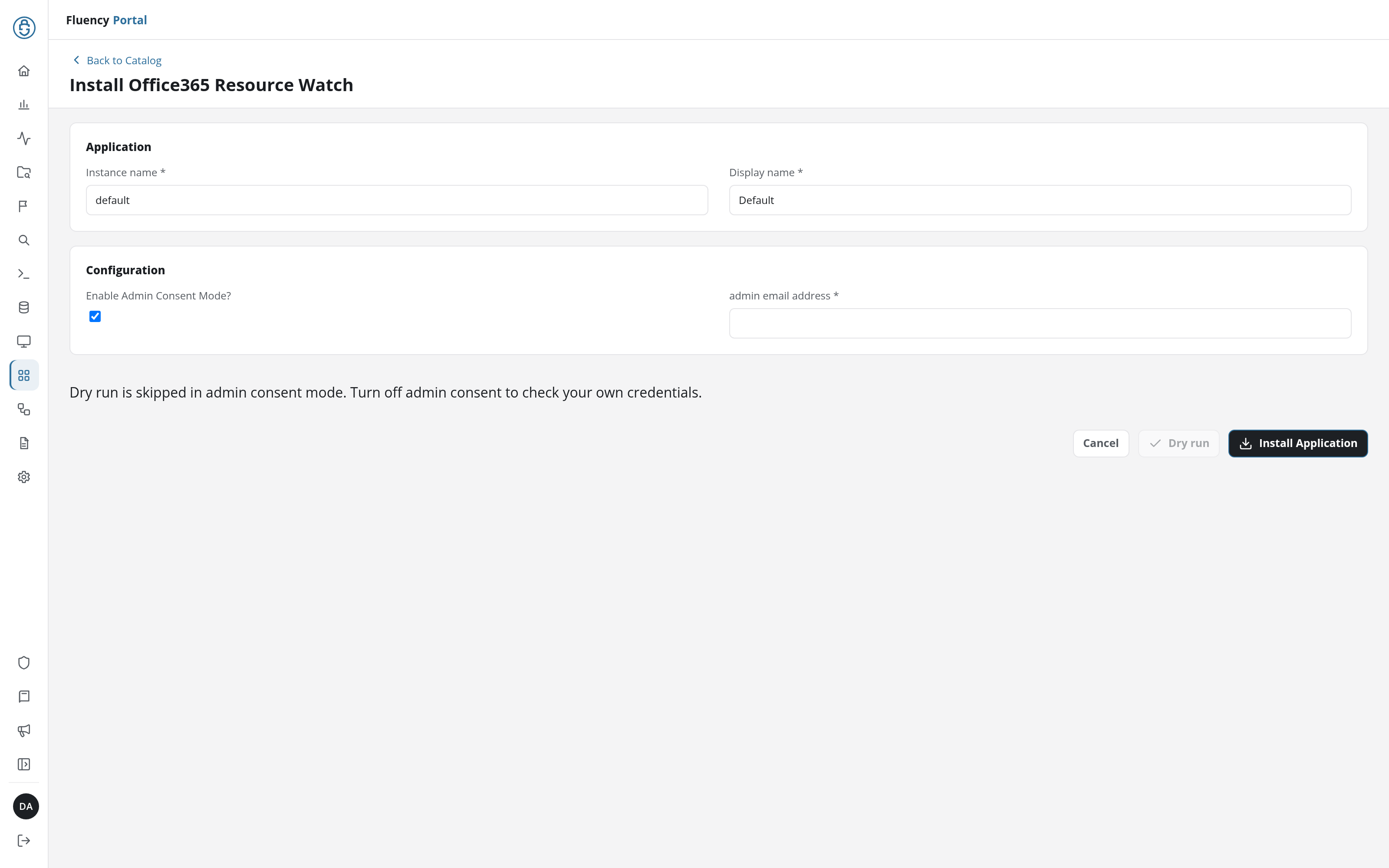
While Enable Admin Consent Mode? is ticked, Dry run is greyed out; there is no credential of yours for it to check. Click Install Application. The Applications page opens with the notice Default is launching. and lists the new application with its status badge.
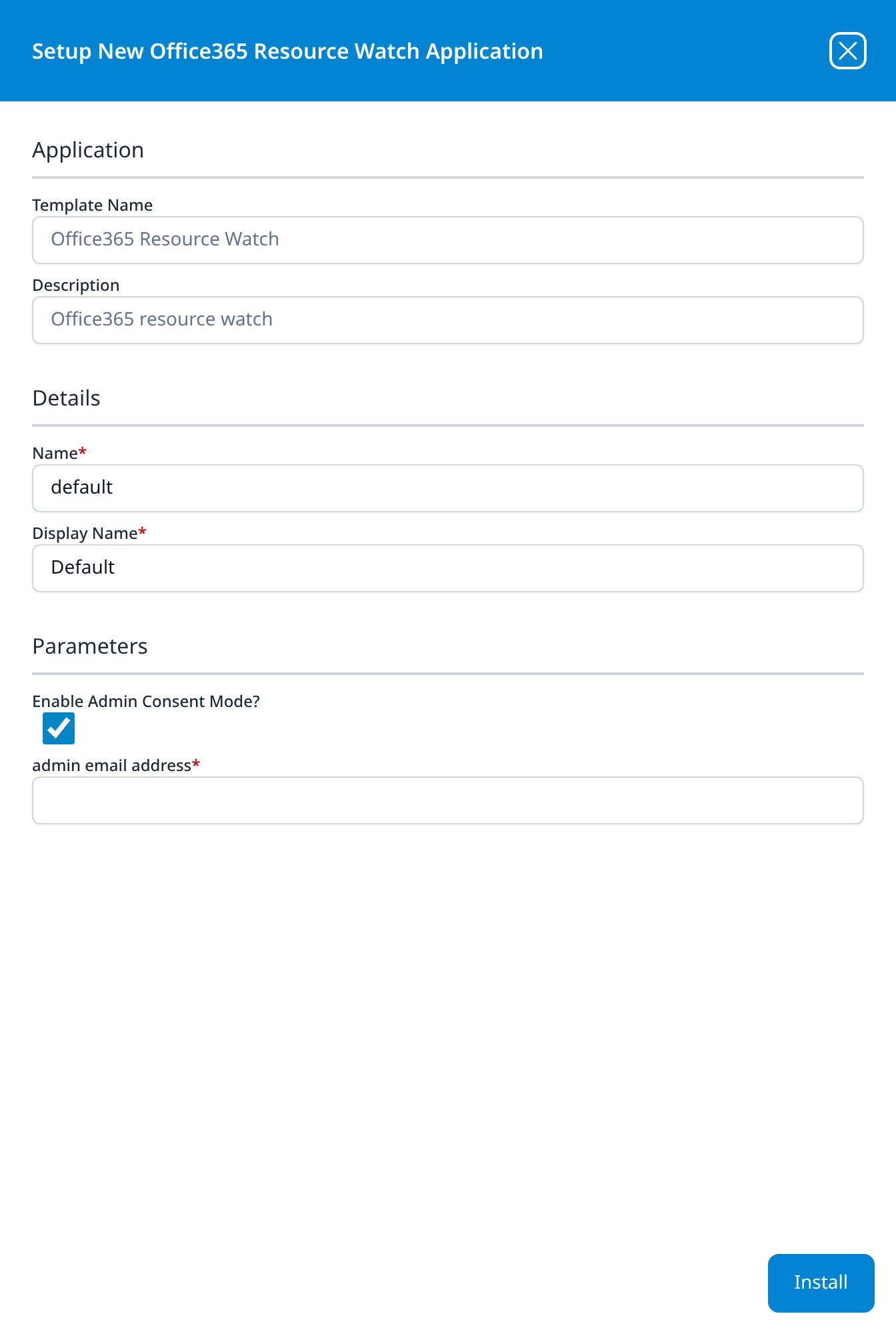
Press Install. The application then appears in the Installed Applications view, where its badge reads Running once the pipeline is up.
The badge reflects the pipeline, not the consent. Until the administrator approves in Microsoft, this application is a correctly-built pipeline with nothing to read, and it looks identical to one that is collecting normally. There is no "waiting for approval" state to watch for.
For this template the confirmation is unusually clean, though: a resource roster is never legitimately empty. See Confirm it is running.
If your tenant will not allow the consent route
If your organisation blocks consent to third-party applications, untick Enable Admin Consent Mode; the form replaces the email field with Azure Tenant ID, Azure ClientID and Azure ClientSecret, for an app registration you create and hold yourself.
Build the registration as described in Part 1 of the Office 365 Audit page, granting the Microsoft Graph application permissions listed in Review the request and accept below. Note that going this way means creating and rotating a client secret, and that Office 365 Audit collects these same resources plus two event streams from one registration, so if you are registering an application anyway, that is usually the better destination.
Part 2: Microsoft
This half is performed by the administrator who opens the consent link. Everything below is written for them.
What the administrator receives
Fluency sends a message to the address entered on the install form, containing a link to Microsoft's admin consent page for the application. Opening it takes them to login.microsoftonline.com, where they sign in with their administrator account, which need not be the address the message was sent to, and are shown the permission request.
Check spam quarantine first. Reinstalling does not change how the request is delivered.
Review the request and accept
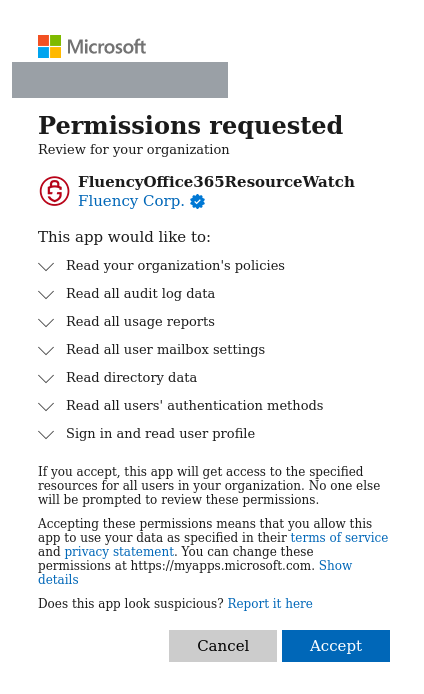
Seven permissions are requested, the widest set of the three consent templates:
| Consent screen wording | Permission | What it buys |
|---|---|---|
| Read your organization's policies | Policy.Read.All | The Cond. Access Policies resource type. |
| Read all audit log data | AuditLog.Read.All | Directory audit and sign-in data. See the note below: this is broader than the inventory needs. |
| Read all usage reports | Reports.Read.All | Per-user and per-service usage counters. |
| Read all user mailbox settings | MailboxSettings.Read | Mailbox configuration: forwarding rules, delegates, automatic replies. |
| Read directory data | Directory.Read.All | Users, Groups, Devices, Applications, Installed Apps. The core of what this template produces. |
| Read all users' authentication methods | UserAuthenticationMethod.Read.All | The MFA Enabled column, and which methods each account has registered. |
| Sign in and read user profile | User.Read (delegated) | Identifies the signing-in administrator during the consent itself. Not used for collection. |
Three checks before accepting:
- The application is
FluencyOffice365ResourceWatchand the publisher is Fluency Corp. If the name or publisher is anything else, stop. - The list matches the table above. A consent screen asking for more than this is not this integration.
- The screen says Review for your organization: that is the tenant-wide grant.
Click Accept. If the administrator clicks Cancel, Microsoft returns AADSTS65004: The resource owner or authorization server denied the request., no grant is created, and nothing on the Fluency side reports it.
Most of the list is inventory metadata. Three entries are not, and an administrator is entitled to weigh them:
- Read all user mailbox settings exposes forwarding rules, delegate access and automatic replies for every mailbox. That is a genuine detection asset (attacker-created forwarding rules are a classic persistence technique, and this is how you inventory them), but it is mailbox configuration for the whole organisation.
- Read all users' authentication methods covers registered phone numbers and Authenticator settings. Microsoft is explicit about the limit: it "does not allow the app to see secret information like passwords, or to sign-in or otherwise use the authentication methods."
- Read all audit log data is the widest permission on the list and it is not obviously needed by a resource inventory. Microsoft does pair the two routinely ("the Directory.Read.All permission is required to retrieve tenant licensing information if it isn't already cached"), but that explains why an audit integration needs
Directory.Read.All, not why an inventory needsAuditLog.Read.All. None of the resource types in Resource types and permissions is backed by it, so treat it as an unexplained part of the ask rather than a justified one.
You cannot accept six of seven: the consent screen grants all or nothing. If a subset is what your organisation will allow, use the client-secret route, where you choose the permissions yourself and can leave the ones you object to unticked. Expect the resource types they back to be empty or absent in that case.
What the grant is, and what it is not
Once accepted, the grant lives on the tenant rather than on the administrator who approved it:
- It does not expire, and there is no secret to rotate.
- It survives the approver leaving: deactivating the administrator who clicked Accept does not affect collection.
- It is revocable by anyone with the role, from Enterprise applications, without telling Fluency.
- It does not grant a person anything. No Fluency user gains access to your tenant.
Confirm it is running
A resource roster is the strictest health check any integration offers, because it is never legitimately empty. An event feed on a quiet tenant may have nothing to show; a directory that contains no users does not exist. If the roster is empty, something is wrong.
- v2 interface
- Classic v1 interface
Open Resources from the navigation rail. Once the application has run, Office 365 is listed there with one entry per resource type it collects. Open a resource type to list its records; the list has a Back to Resources link, a Download Resource export and a Search this resource… field. A resource type that has loaded but holds nothing reads No data found.
The users list is the one worth checking first: compare its records against the number of accounts you expect. A count that is plausible means consent was granted and collection is working. The applications list is the other one to look at on first run: it is the inventory of every application in the tenant and the Graph permissions each holds, which most tenants have never actually taken.
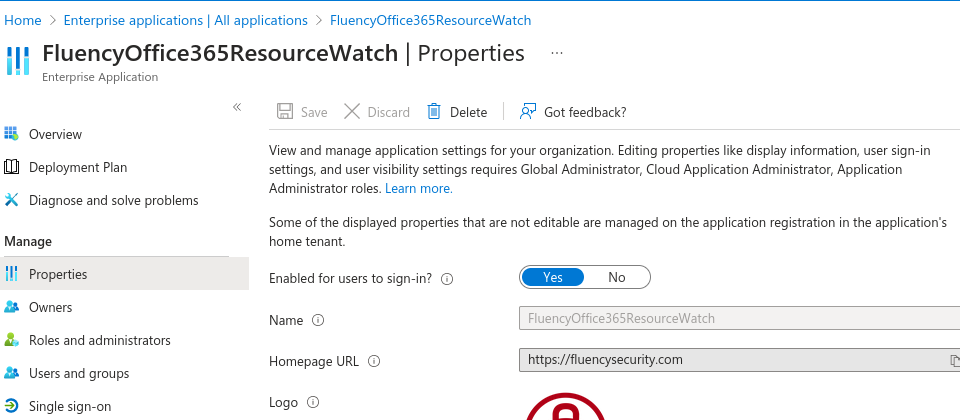
If the roster never populates, check the Microsoft side: in the Microsoft Entra admin center, go to Entra ID → Enterprise apps → All applications and search for FluencyOffice365ResourceWatch. If it is not there, consent was never granted.
Open SIEM → Resources (URL path /SIEM/resources). Once the application has run, an Office 365 card appears with one button per resource type it collects:
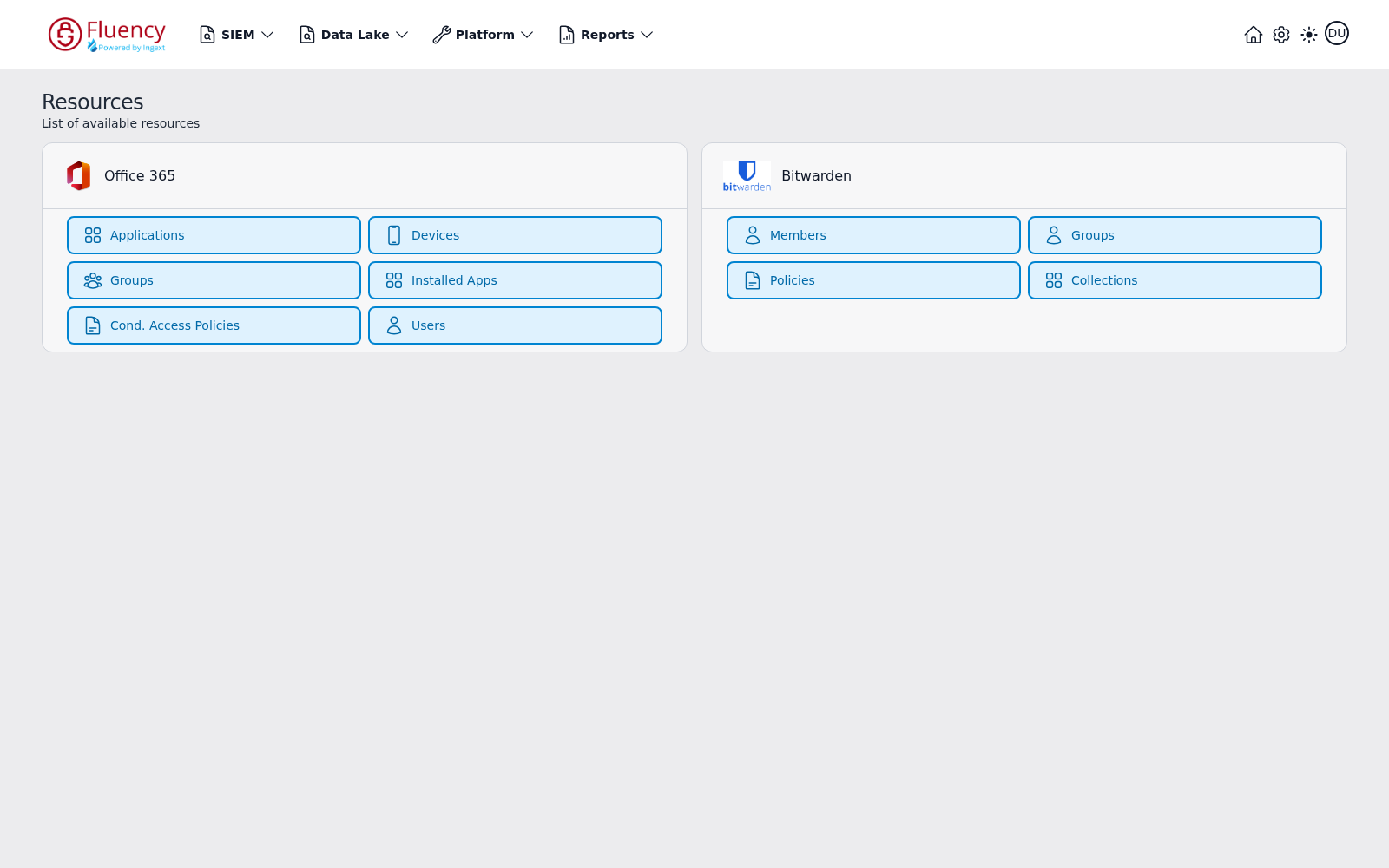
Click a resource type to open its list at /SIEM/resources/O365/<type>. The list replaces the cards with a record browser: a red Back to Resources button, a Download Resource export, a drop-down for switching resource type within the integration, a Search bar, a faceted filter panel reporting Total Records, and one card per record.
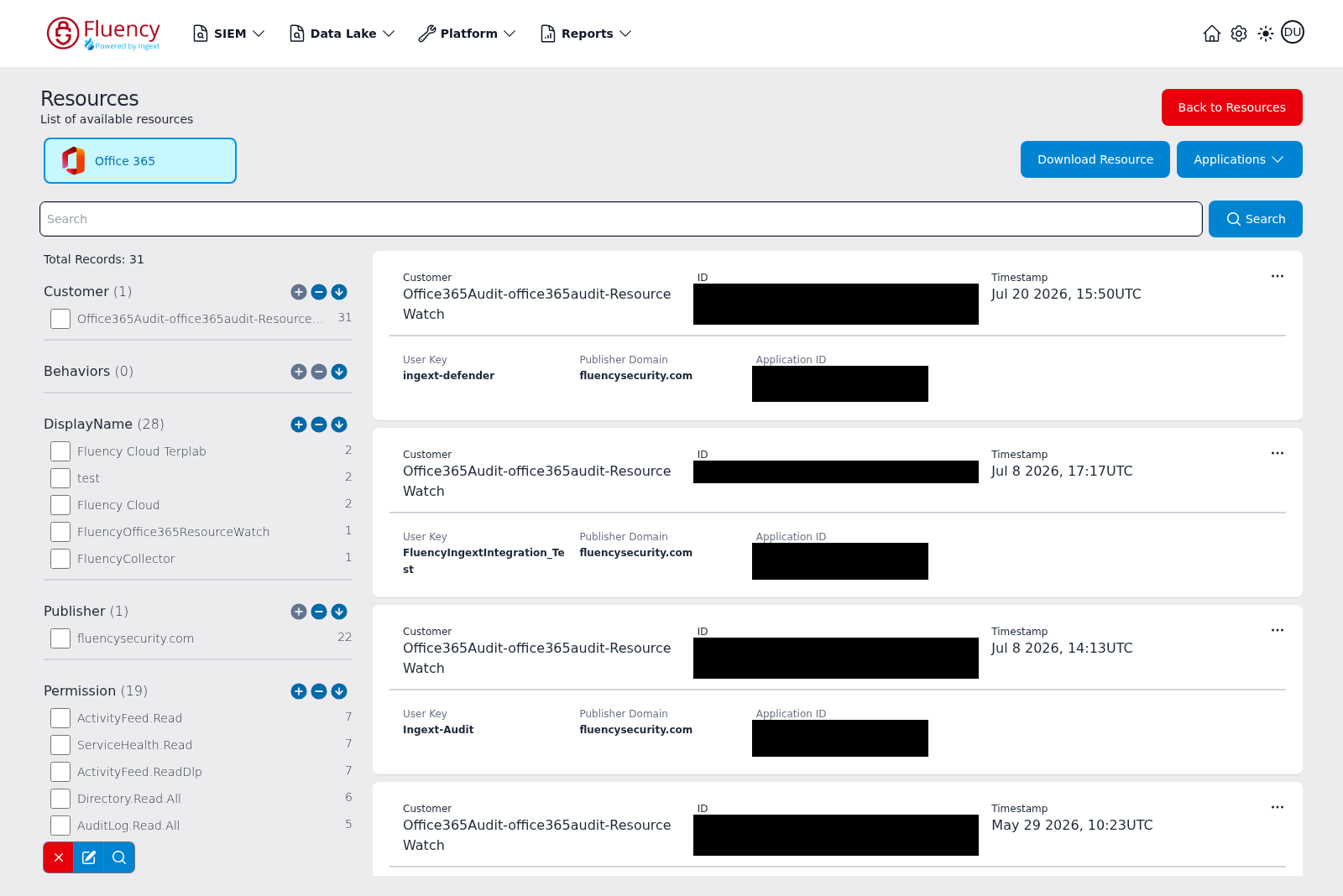
Users is the list worth checking first. It carries Display Name, Account Enabled, MFA Enabled, User Type, Created On, and Roles, with AccountEnabled, Group, and Role facets: an inventory of who is in the tenant, which accounts are enabled, and which lack MFA.
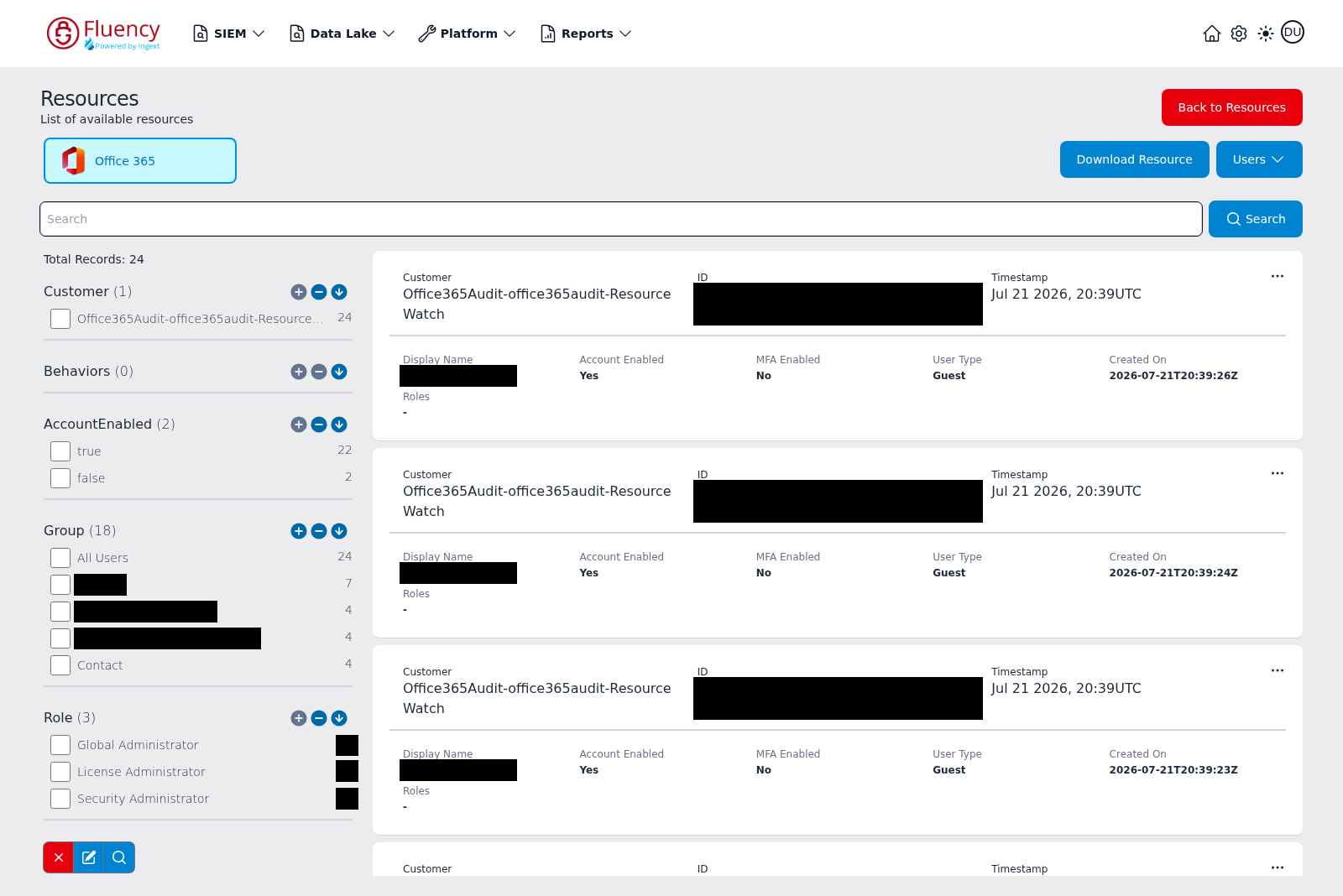
Compare Total Records against the number of accounts you expect. A count that is plausible means consent was granted and collection is working. Applications is the other one to look at on first run: its Permission facet is the fastest way to find every application in the tenant holding a given Graph permission, which is the inventory most tenants have never actually taken.
If a resource type button returns a Resource Load Failed message naming that type, the application has not collected it yet; give the first poll time to complete before treating it as a failure. If every type fails and the card never populates, check the Microsoft side: in the Microsoft Entra admin center, go to Entra ID → Enterprise apps → All applications and search for FluencyOffice365ResourceWatch. If it is not there, consent was never granted.
For the full page reference, see Resources (v1: SIEM → Resources).
Maintenance
There is no credential to rotate
No secret expires, so nothing here needs a calendar entry. What can break the integration is someone revoking the consent, so the maintenance task is review rather than rotation.
Reviewing and revoking the grant
From Entra ID → Enterprise apps → All applications → FluencyOffice365ResourceWatch → Permissions → Admin consent, use the ... control on a permission row and select Revoke permission.
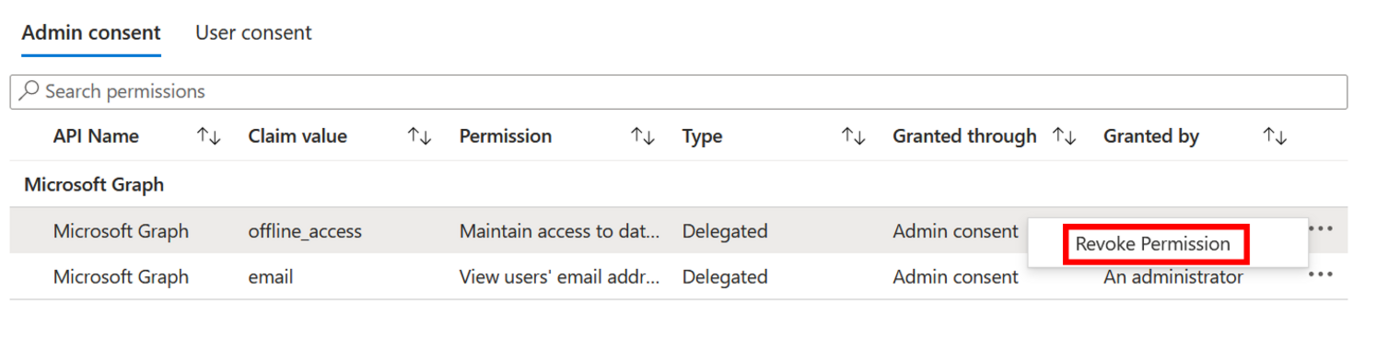
The Type column on that tab separates Delegated from Application, which matters here because several of the seven permissions display identical wording for both: Read directory data, Read your organization's policies, Read all usage reports and Read all users' authentication methods are worded the same either way. The consent screen cannot tell you which was granted; this tab can.
Nothing tells Fluency when a grant is revoked. Collection stops and the application keeps reporting Running. Because the roster is refreshed rather than appended to, a revoked grant shows up as an inventory that quietly stops ageing rather than as an empty one, which is harder to notice. If the Created On column has no recent accounts in it, check the grant.
Removing the integration
Uninstall the application in Fluency first, with the Uninstall button at the top right of its details page (v1: the red Uninstall button at the foot of its details panel on Platform → Applications). Then, in Microsoft, delete the enterprise application (Properties → Delete) or revoke its permissions as above.
Troubleshooting
| Symptom | Likely cause | Fix |
|---|---|---|
| No Office 365 entry on Resources (v1: SIEM → Resources) at all | Consent was never granted, or the first collection has not finished | Search Enterprise applications for FluencyOffice365ResourceWatch. If it is absent, the request was not accepted; resend it. |
| The administrator sees Need admin approval rather than a consent screen | AADSTS90094: the account cannot consent to Microsoft Graph application permissions | Cloud Application Administrator is not enough for this template. Have a Global Administrator or Privileged Role Administrator open the same link. |
Consent fails with AADSTS65004 | The administrator selected Cancel | Send the request again. No grant was created. |
| The administrator never received anything | Wrong address, or the message was quarantined | Check the address on the install form, then spam quarantine. |
| One resource type returns Resource Load Failed, the rest are fine | That type has not been collected yet, or its backing permission was not granted | Wait out the first poll. If it persists, check the Admin consent tab for the permission in the Resource types and permissions table. |
| Cond. Access Policies is empty but everything else works | Policy.Read.All was not granted, or the tenant has no policies | Check the Admin consent tab. An empty list is correct for a tenant with no conditional access configured. |
| MFA Enabled is blank across all users | UserAuthenticationMethod.Read.All was not granted | Consent again with the full set, or grant that permission on your own registration if you are on the client-secret route. |
| The inventory is populated but stale: recent joiners are missing | The grant was revoked, or the application was deleted | Check Enterprise applications → Permissions → Admin consent. Re-consent if it is gone. |
| Two Office 365 entries on Resources, or records that look duplicated | Office365-Audit is also installed and reads the same objects | Expected. Uninstall whichever you do not want; there is no collision, only duplicated work. |
Data reference
What the inventory holds once it lands, for searches and detection rules written against it.
Resource types and permissions
| Resource type | Contents | Backed by |
|---|---|---|
| Users | Display name, account enabled, MFA enabled, user type, created on, roles | Directory.Read.All, UserAuthenticationMethod.Read.All |
| Groups | Group membership and type | Directory.Read.All |
| Devices | Registered and joined devices | Directory.Read.All |
| Applications | Registered applications, with publisher domain, application ID and the permissions each holds | Directory.Read.All |
| Installed Apps | Applications installed in the tenant | Directory.Read.All |
| Cond. Access Policies | The tenant's conditional access policies | Policy.Read.All |
Checking the refresh cadence on your own install
This template writes to the Resources store rather than to an index: its parameter schema has no datalake or datalake index name field at all, so there is nothing on the form to collide with another application. How often it refreshes, how a deleted object is aged out, and which Graph endpoints back each resource type are recorded on the install itself: open the application's details and read its Actions list.
Under the hood
Engineering reference: the consent flow and what is read from Graph
How the consent route authenticates
The application Fluency operates is registered as multi-tenant in Fluency's own directory. When the administrator approves, they are sent to Microsoft's admin consent endpoint:
https://login.microsoftonline.com/{tenant}/v2.0/adminconsent
        ?client_id={fluency-client-id}
        &scope=https://graph.microsoft.com/.default
        &redirect_uri={fluency-callback}
        &state={opaque}
Approval produces a redirect carrying admin_consent=True and the tenant GUID, which is why the form never asks for a tenant ID. Collection then uses the client credentials grant against https://graph.microsoft.com/.default.
Two artefacts result and they behave differently: application permissions produce an appRoleAssignment on the service principal, and delegated permissions consented tenant-wide produce an oauth2PermissionGrant with consentType: AllPrincipals. Neither references the approving user's account, which is why the grant outlives them.
What is read
Directory objects come from ordinary Microsoft Graph collections, paginated through @odata.nextLink:
GET https://graph.microsoft.com/v1.0/users
GET https://graph.microsoft.com/v1.0/groups
GET https://graph.microsoft.com/v1.0/devices
GET https://graph.microsoft.com/v1.0/applications
GET https://graph.microsoft.com/v1.0/servicePrincipals
GET https://graph.microsoft.com/v1.0/identity/conditionalAccess/policies
GET https://graph.microsoft.com/v1.0/users/{id}/authentication/methods
The list above is what the granted permissions and the resource types on Resources account for. The endpoints and cadence your own install uses are recorded in its Actions list, in the application's details.
Catalog observations
Two things distinguish this template from its three siblings in the connector catalog, both visible in its schema:
- It declares no
datalakeorindexparameter, which is why the destination is the Resources store rather than a lake index. - It declares no resource groups, where Office365 declares
Office365, Azure Directory Audit declaresAzureADand Office365-Audit declaresOffice365.
References
Microsoft
- Grant tenant-wide admin consent: which roles can approve, and the Microsoft Graph app-role exception
- Review permissions granted to enterprise applications: reviewing and revoking
- Overview of permissions and consent: delegated versus application permissions
- Admin consent on the Microsoft identity platform: the endpoint and its error responses
- Microsoft Graph permissions reference: the display strings in the table above
- List users and List conditionalAccessPolicies: the directory endpoints
Fluency
- Office 365 Audit: collects these same resources plus two event streams, on a client secret
- Office 365 Activity API and Azure AD audit: the other two consent templates
- Resources: the page this integration populates (v1: SIEM → Resources)
- Office365 Resource Watch install form: the template's fields, in both consent modes (v1: Install Application From Template)
- Microsoft integrations: the rest of this category