Office365 Audit API
The Office365 template collects the Office 365 unified audit log (mail, file, site, Teams, administrative and DLP activity from every Microsoft 365 workload) by subscribing to the Office 365 Management Activity API and polling it. It is the single highest-value feed most Microsoft 365 tenants have, because it records what an attacker does after they are already inside.
You never open the Microsoft portal: you enter an administrator's email address, and Microsoft asks that administrator to approve Fluency Office365 Event Reader, an application Fluency already operates, so there is no app registration and no client secret. The person who finishes the setup may not be you, and until they approve, the application reports Running and collects nothing.
The setup has two halves, and the Fluency half comes first:
- In Fluency: install the Office365 application template with an administrator's email address. This is what sends the approval request.
- In Microsoft: that administrator opens the request, reviews the permissions, and accepts.
| Template | Collects | Authentication | Lands in |
|---|---|---|---|
| Office365 (this page) | The unified audit log | Administrator consent to Fluency Office365 Event Reader | Index Office365 |
| Azure Directory Audit | Entra directory audit | Administrator consent to FluencyAzureADAudit | Index MSEntra |
| Office365 Resource Watch | Tenant resource inventory | Administrator consent to FluencyOffice365ResourceWatch | Resources |
| Office365-Audit | All three | Client secret only: the tenant ID, client ID and secret of an app registration you create | Both indexes and Resources |
The three consent templates are separate Entra applications, each with its own permission set, so consenting to one does not consent to the others: installing all three means three requests, three approvals and three entries under Enterprise applications. Office365-Audit collects all three with one application and one credential, at the cost of an app registration and a client secret that expires; neither route collects more data than the other.
What arrives
| Stream | What it holds | Lands in |
|---|---|---|
| Unified audit log | Exchange, SharePoint and OneDrive, Entra, Teams, Power Platform, Purview and Viva Engage activity | The Office365 index |
| DLP events | DLP matches across all workloads, including the detected sensitive data | The Office365 index |
| Service messages | Service-health and incident messages | The Office365 index |
The API serves only the last seven days, so collection that stops for longer than a week loses those events to Fluency for good; see Retention, and why an outage costs you. Microsoft repeats events on purpose and guarantees no maximum latency, so expect duplicates and judge freshness in hours; see Duplicates are the specification, not a fault. The Entra activity here is the unified log's own record, not the directory audit that Azure Directory Audit reads from Graph, so running both overlaps in coverage, not in data.
Content types, the permission behind each, and how Microsoft duplicates, delays and expires the feed are in Data reference.
Before you begin
Unified audit logging must be on in the tenant. Nothing reaches the Management Activity API until it is. Microsoft is explicit: "Before you can access data through the Office 365 Management Activity API, you must enable unified audit logging for your Office 365 organization." It is on by default for most Microsoft 365 organizations, but not for Business Basic, Business Standard or Business Premium, and not for unmanaged tenants on an enterprise free trial. Check from Exchange Online PowerShell:
Get-AdminAuditLogConfig | Format-List UnifiedAuditLogIngestionEnabled
True means you are covered. If it returns False, turn it on in the Microsoft Purview portal (the Audit solution card shows a Start recording user and admin activity banner) or run:
Set-AdminAuditLogConfig -UnifiedAuditLogIngestionEnabled $true
Microsoft notes that "The unified audit log configuration change can take up to 60 minutes to take effect." Nothing that happened before you switched it on is ever recoverable: the audit log only holds what it was recording at the time. Turn it on, then let it run for a day before concluding the integration is broken.
Changing that setting needs the Audit Logs role in Exchange Online; by default the Compliance Management and Organization Management role groups hold it.
An administrator who can consent on the tenant's behalf. This is the prerequisite people get wrong, because "an administrator" is not specific enough. Microsoft's requirement is:
Privileged Role Administrator, for granting consent for apps requesting any permission, for any API.
Cloud Application Administrator, AI Administrator, or Application Administrator, for granting consent for apps requesting any permission for any API, except Microsoft Graph app roles (application permissions).
The permissions this application requests are Office 365 Management API application permissions plus one delegated Graph permission (no Microsoft Graph app roles), so a Cloud Application Administrator or Application Administrator should be able to approve it, and a Global Administrator certainly can. That is not true of the other two consent templates, which do request Graph app roles and therefore need Privileged Role Administrator or Global Administrator.
That reading follows from the permissions on the consent screen. If the screen your administrator sees lists a Microsoft Graph application permission, the stricter rule applies instead. If you are not sure, send it to a Global Administrator and the question does not arise.
An email address that will get the consent link to the approver. It does not have to be the administrator's own; see the note under Install the Application.
Access to the Fluency portal with permission to install applications.
Part 1: Fluency
Install the Application
- v2 interface
- Classic v1 interface
In the navigation rail, open Applications and click Install Application, then choose Office365 from the Office Software (SaaS) and IAM category of the Application Catalog.
Go to Platform → Applications → Install Application From Template and choose Office365 from the Office Software (SaaS) and IAM category.
| Parameter | Notes |
|---|---|
| Enable Admin Consent Mode? | Checkbox, ticked by default. Leave it ticked for the route this page documents. Unticking it changes the form; see If your tenant will not allow the consent route. |
| Admin Email address | Where the consent link is sent. Any valid address (see the note below). |
| datalake | Pre-filled managed. |
| datalake index name | Pre-filled Office365. Two applications writing to the same index name in the same lake will collide, and the second one aborts. |
Both write to a data-lake index named Office365, and two applications writing to the same index name in the same lake will collide: the second one aborts. Either change the index name on whichever you install second, or uninstall the other first. See Troubleshooting.
- v2 interface
- Classic v1 interface
datalake and datalake index name sit in the collapsed Advanced configuration section below Configuration; click its heading to reach them.
Leave Instance name and Display name at default / Default unless you are installing a second instance (collecting from two Microsoft 365 tenants, for example), in which case give each one a name you will recognise on the applications list.
Leave Name and Display Name at default / Default unless you are installing a second instance (collecting from two Microsoft 365 tenants, for example), in which case give each one a name you will recognise on the applications list.
The admin email address can be any valid email address. It is used only to deliver the consent link and plays no part in authentication. Whoever opens the link then signs in to Microsoft with the actual administrator account, which can be a different address entirely, so you can, for example, enter your own address and pass the link on to the administrator.
- v2 interface
- Classic v1 interface
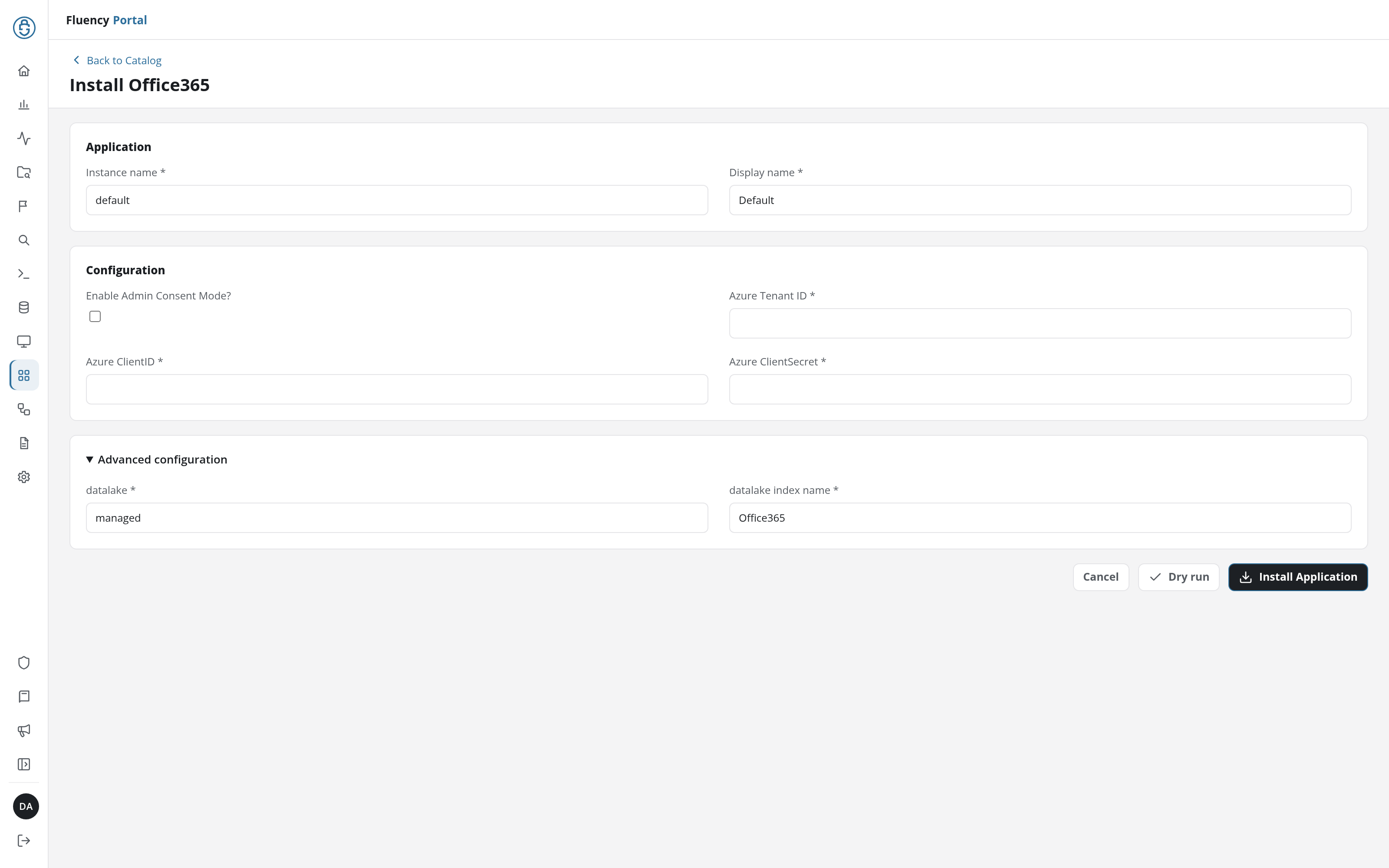
While Enable Admin Consent Mode? is ticked, Dry run is greyed out; there is no credential of yours for it to check. Click Install Application. The Applications page opens with the notice Default is launching. and lists the new application with its status badge.
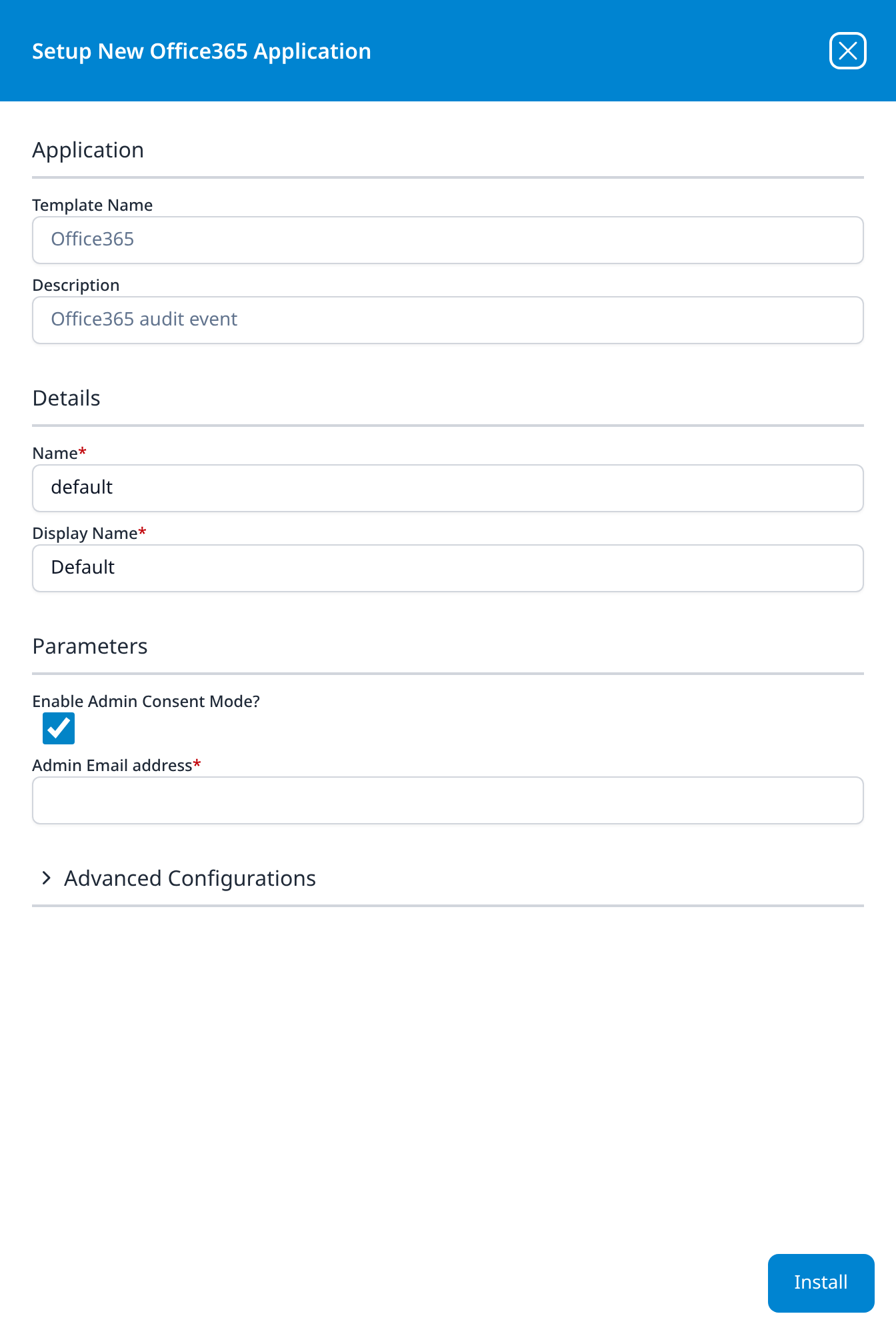
Press Install. The application then appears in the Installed Applications view, where its badge reads Running once the pipeline is up.
The badge reflects the pipeline, not the consent. Until the administrator approves in Microsoft, this application is a correctly-built pipeline with nothing to read, and it looks identical to one that is collecting normally.
There is no "waiting for approval" state to watch for, so do not use the badge to decide whether the request was received or acted on. The check that actually answers the question is on the Microsoft side, in Confirm it is running.
If your tenant will not allow the consent route
Some organisations disable user and admin consent to third-party applications outright. If yours does, or if you would simply rather hold your own credential, untick Enable Admin Consent Mode; the form replaces the email field with three others:
| Parameter | Notes |
|---|---|
| Azure Tenant ID | Entra's Directory (tenant) ID. |
| Azure ClientID | Entra's Application (client) ID for an app registration you create. |
| Azure ClientSecret | That registration's client secret Value. |
This is the same credential shape Office 365 Audit uses, and the app registration is built the same way: follow Part 1 of that page, but add only the three Office 365 Management API permissions (ActivityFeed.Read, ActivityFeed.ReadDlp, ServiceHealth.Read) if this template is all you are installing.
If you are registering an application and managing a client secret anyway, Office 365 Audit gives you the directory audit and sign-in logs from the same registration and the same secret, for a few more permission checkboxes. Unticking this box is the right answer when you specifically want only the unified audit log; it is the wrong answer if you were going to install the other templates too.
Part 2: Microsoft
This half is performed by the administrator who opens the consent link: possibly you, possibly someone in a different team who has no idea why they are being asked. Everything below is written for them.
What the administrator receives
Fluency sends a message to the address entered on the install form, containing a link to Microsoft's admin consent page for the application. Opening it takes them to login.microsoftonline.com, where they sign in with their administrator account, which need not be the address the message was sent to, and are shown the permission request.
Check spam quarantine first, and treat a missing message as a support question rather than a reason to reinstall: reinstalling changes nothing about how the request is delivered.
Review the request and accept
The consent screen is the only security control in this entire procedure. It is worth reading rather than clicking through.
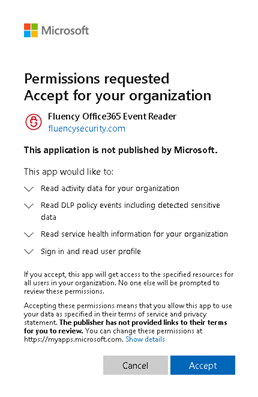
Four permissions are requested:
| Consent screen wording | Permission | What it buys |
|---|---|---|
| Read activity data for your organization | ActivityFeed.Read | The unified audit log. This is the one the integration exists for. |
| Read DLP policy events including detected sensitive data | ActivityFeed.ReadDlp | DLP events, including the sensitive content that triggered them. |
| Read service health information for your organization | ServiceHealth.Read | Service-health and incident messages. |
| Sign in and read user profile | User.Read (delegated) | Identifies the signing-in administrator during the consent itself. It is not used for collection. |
Three checks before accepting:
- The application is
Fluency Office365 Event Readerand the publisher is Fluency:fluencysecurity.com, or Fluency Corp. with a verified-publisher badge. If the name or the domain is anything else, stop. - The list matches the table above. A consent screen asking for more than this is not this integration.
- The screen says Accept for your organization or Review for your organization. That is the tenant-wide grant. A screen without it is granting something narrower and the integration will not work.
The consent screen can carry that line, and it means only that Fluency is a third party, which is true of every SIEM integration. It is not a warning about this specific application. What is worth attention is the publisher name and domain immediately above it, and the permission list below it.
ActivityFeed.ReadDlp is the one that deserves a second thoughtThe other permissions return metadata about activity. This one returns DLP events including the detected sensitive data, which is to say, excerpts of the content that matched a DLP rule: card numbers, identifiers, whatever your policies look for.
That is genuinely useful for investigating a data-loss alert, and it is also the broadest thing on the list. If your organisation would rather Fluency never held that content, this is the point to decide it, and the answer is to use the client-secret route with only ActivityFeed.Read and ServiceHealth.Read granted, because the consent screen is all-or-nothing. You cannot accept three of four permissions.
Click Accept. Microsoft records the grant against the tenant and redirects back.
If the administrator clicks Cancel, Microsoft returns AADSTS65004: The resource owner or authorization server denied the request. and no grant is created. Nothing on the Fluency side reports this.
What the grant is, and what it is not
Once accepted, the grant lives on the tenant, not on the administrator who approved it. Microsoft's own description of the flow makes the consequence explicit: after the initial consent, the application requests tokens that "include information only about the requesting application and not about the admin that originally granted consent."
In practice:
- It does not expire. There is no secret to rotate and no renewal date to miss.
- It survives the approver leaving. Deactivating the administrator who clicked Accept does not affect collection. This is the main practical advantage of the consent route over a client secret, and it is the opposite of how a personal API token behaves.
- It is revocable by anyone with the role, from Enterprise applications, without telling Fluency. See Maintenance.
- It does not grant a person anything. No Fluency user gains access to your tenant; the grant is to the application, which reads the audit feed and nothing else.
Confirm it is running
Because Running only reports the pipeline, confirm on the Microsoft side first: that is where the answer to "did the approval actually happen" lives.
In the Microsoft Entra admin center, go to Entra ID → Enterprise apps → All applications and search for Fluency Office365 Event Reader. If consent was granted, the application is there. If it is not, the request was never accepted, and nothing else you check will tell you that.
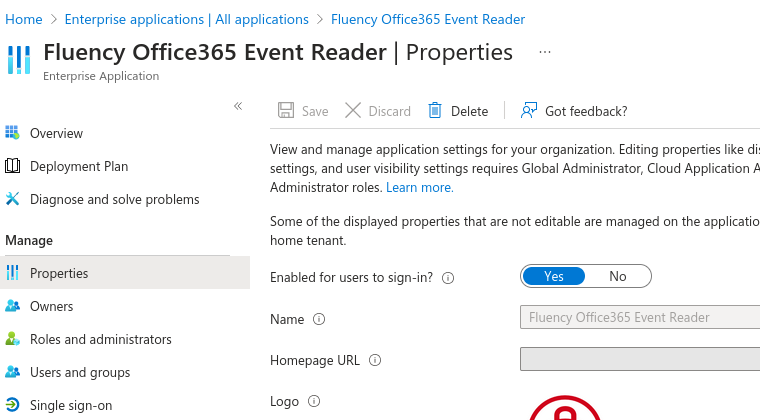
To see exactly what was granted, open Security → Permissions. The Admin consent tab lists every permission with a Type column separating Delegated from Application, which matters, because several Microsoft permissions display the same wording for both.
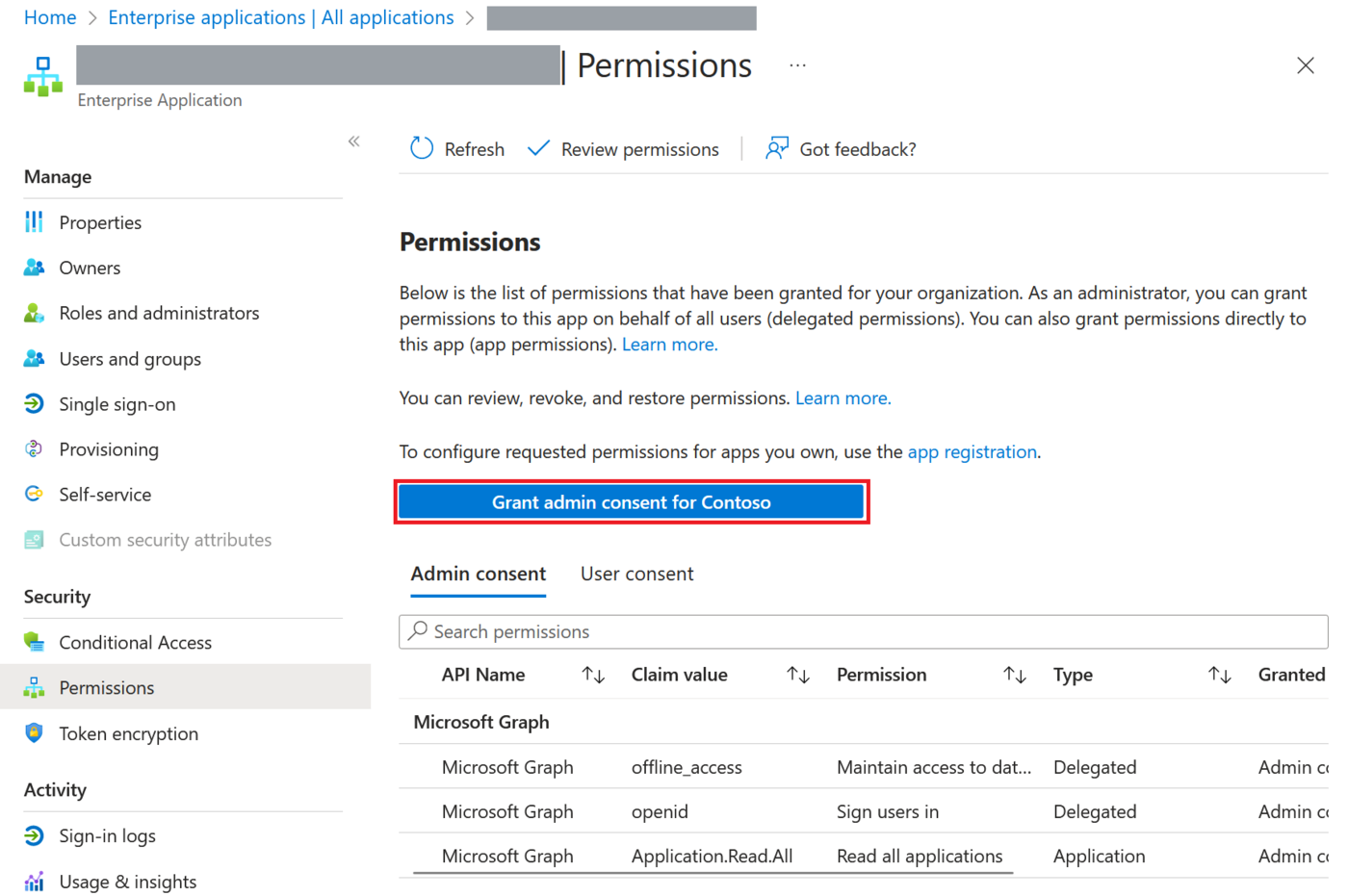
Then, on the Fluency side, check that events are landing in the Office365 index; see Confirm data is arriving.
Check that events are present, not that the count matches anything. As Duplicates are the specification explains, this feed repeats events on purpose and Microsoft's own portal deduplicates where the API does not, so a Fluency count higher than the same Purview search is the expected outcome, and reconciling the two is not a meaningful health check.
The Management Activity API only delivers to an active subscription, and Microsoft warns that on a newly created one it can take up to 12 hours for the first content blobs to become available. An empty Office365 index on the afternoon of the install is expected, not a fault.
Maintenance
There is no credential to rotate
That is the whole point of this route. No secret expires, so nothing here needs a calendar entry. What can still break the integration is someone revoking the consent, so the maintenance task is review, not rotation.
Reviewing and revoking the grant
Anyone with the right role can revoke this at any time, from Entra ID → Enterprise apps → All applications → <the application> → Permissions → Admin consent, using the ... control on a permission row and selecting Revoke permission.
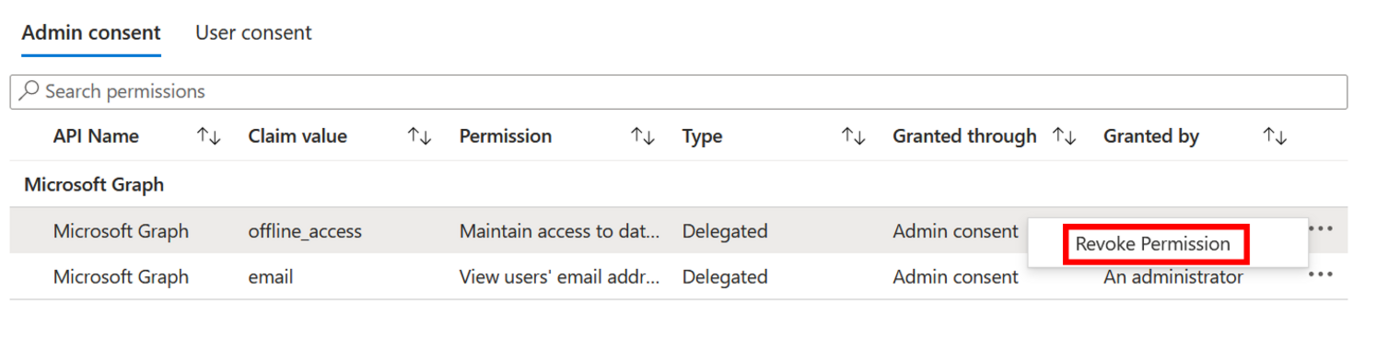
Two things about revocation are worth knowing in advance, because both produce support tickets:
- Nothing tells Fluency. Collection stops and the application keeps reporting Running. If a feed goes quiet with no other explanation, check whether the grant is still there before checking anything else.
- Revoking does not stop the application being re-consented. Microsoft notes that "Revoking the current granted permission doesn't stop users from re-consenting to the application's requested permissions." If the intent is to block it permanently, delete the enterprise application, or restrict consent at the tenant level.
Changing which administrator is named
The address on the form is only used to deliver the approval request. Once consent is granted, it has no further role, and the named administrator has no standing relationship with the integration, so there is nothing to update when they change jobs.
Removing the integration
Uninstall the application in Fluency first, with the Uninstall button at the top right of its details page (v1: the red Uninstall button at the foot of its details panel on Platform → Applications), so the pipeline stops cleanly. Then, in Microsoft, delete the enterprise application (Properties → Delete) or revoke its permissions as above.
Troubleshooting
| Symptom | Likely cause | Fix |
|---|---|---|
| The application shows Error (v1: Aborted) immediately after install | The index name is already taken in that lake, usually Office365 from Office365-Audit | The error message in the application's details names the index. Uninstall the conflicting application, or reinstall this one with a different index name. |
| Running, but the index is empty and has always been empty | The consent was never granted | Search Enterprise applications for Fluency Office365 Event Reader. If it is absent, the request was not accepted; resend it. |
| The administrator never received anything | Wrong address, or the message was quarantined | Check the address on the install form, then spam quarantine. Reinstalling does not change how the request is delivered. |
| The administrator sees Need admin approval rather than a consent screen | AADSTS90094: the signed-in account is not authorised to consent | The account needs Cloud Application Administrator, Application Administrator or Global Administrator. Have someone who holds one open the same link. |
Consent fails with AADSTS65004 | The administrator selected Cancel | Send the request again. No grant was created. |
| Running and consent is granted, but the index is still empty after a few hours | Unified audit logging is off, or the subscription is inside its first-content window | Run Get-AdminAuditLogConfig | FL UnifiedAuditLogIngestionEnabled. If True, wait out the 12 hours. |
| Collection worked for months, then stopped, with no change on the Fluency side | The grant was revoked, or the enterprise application was deleted | Check Enterprise applications → Permissions → Admin consent. Re-consent if it is gone. |
| Events arrive hours late, or out of order | Normal for this API | Microsoft gives no latency SLA and does not guarantee ordering. Judge freshness over hours, not minutes, and sort on CreationTime rather than arrival order. |
| The same event appears more than once | Normal for this API | Microsoft duplicates deliberately, to avoid losing events, and states that deduplication is the SIEM's job. Deduplicate on the record's Id. |
| Fluency's event count is higher than the same search in Purview | Normal for this API | The Purview portal deduplicates its own search results; the API does not. The counts are not meant to match. |
| Events are missing for a period longer than a week | Content blobs expired | Unrecoverable through the API. The records are still in Purview and can be exported from there, but the integration cannot backfill them. |
The stream fails with AF20022 | No subscription exists for that content type | Microsoft throttles /subscriptions/start to one call per content type per 15 minutes. Wait, then uninstall and reinstall so the subscriptions are started again. |
Microsoft.Office.Compliance.Audit.DataServiceException: Tenant <tenantID> does not exist | Unified audit logging has never been enabled | Enable it, then allow 60 minutes plus several hours before the first events are retrievable. |
Data reference
What the feed holds once it lands, and how Microsoft delivers it, for searches and detection rules written against it.
Content types and permissions
Events land in the data-lake index named on the install form, Office365 by default. The Management Activity API is subscription-based rather than a plain query: Fluency starts a subscription per content type, then polls for content blobs and fetches each one.
| Content type | Covers | Backed by |
|---|---|---|
Audit.AzureActiveDirectory | Sign-in and directory activity as it appears in the unified log | ActivityFeed.Read |
Audit.Exchange | Exchange Online administrative and mailbox activity | ActivityFeed.Read |
Audit.SharePoint | SharePoint and OneDrive file and site activity | ActivityFeed.Read |
Audit.General | Everything else: Teams, Power Platform, Purview, Viva Engage | ActivityFeed.Read |
DLP.All | DLP events across all workloads, including the detected sensitive data | ActivityFeed.ReadDlp |
| Service messages | Service-health and incident messages | ServiceHealth.Read |
Audit.AzureActiveDirectory is worth a note, because it is why this template and Azure Directory Audit look like they overlap and do not. Both carry directory activity, but from different sources with different shapes: this one is Entra activity as Microsoft 365 records it in the unified log, and the other is the Entra directory audit read directly from Microsoft Graph. They are different records of overlapping events, retained under different rules, so running both is duplication in coverage, not in data.
Checking which content types your install subscribes to
The five content types above are what the API offers and what the consented permissions cover. The subscriptions the Office365 template actually starts are recorded on the install itself: open the application's details and read its Actions list, which lists every object the install created.
Duplicates are the specification, not a fault
Microsoft states plainly that this feed repeats events on purpose, and that deduplicating them is the consumer's job:
This duplication of events is an expected and designed behavior intended to prevent the loss of any audit events. When an error is encountered by an audit event, the audit service retries the process, which may result in duplicate audit events being generated and stored in the audit log storage(s). While exporting audit search results using the UI from the Microsoft Purview portal automatically removes duplicates, the Office 365 Management Activity API does not have this de-duplication feature. Consequently, duplicates may appear in the results returned by the Office 365 Management Activity API. It is the responsibility of the SIEM solution to implement logic to remove such duplicated events upon ingestion.
Three consequences follow, and all three produce support tickets from people who think something is broken:
- Counts will not reconcile against Purview. The portal's audit search deduplicates; this API does not. A higher count in Fluency than in Purview for the same window is the expected result, not evidence of double ingestion.
- Deduplicate on the record's
Id, the GUID that uniquely identifies an audit record, and sort onCreationTimerather than on arrival order: a later content blob can contain earlier events. - You cannot cross-check with Microsoft's help. "Microsoft doesn't provide any kind of a log that allows you to cross-check any given application or third-party (ISV) application." If you need assurance that nothing was missed, the check has to be built from the content blobs themselves.
Latency is loose for the same reason: Microsoft trades speed for completeness and declines to commit to a number. There is "no guaranteed maximum latency for notification delivery (in other words, there is no SLA)"; typically "most notifications are sent within one hour of the event", and for "core services (such as Exchange, SharePoint, OneDrive, and Teams) event availability is typically 60 to 90 minutes." Microsoft's stated reason is worth quoting to anyone who asks why this feed is not real-time: "Because audit events are often used for forensic investigations, Microsoft prioritizes data completeness over latency."
Judge this integration's health over hours, not minutes, and never alert on the absence of an event within a short window.
Retention, and why an outage costs you
Two separate clocks apply, and confusing them is the usual way people misjudge how urgent an outage is.
- Microsoft's retention of the audit log itself. Managed by Microsoft Purview. Microsoft notes that "The default retention period for Audit (Standard) changed from 90 days to 180 days. Audit (Standard) logs generated before October 17, 2023 are retained for 90 days. Audit (Standard) logs generated on or after October 17, 2023 follow the new default retention of 180 days." Audit (Premium) retains Exchange, SharePoint, OneDrive and Entra records for one year.
- How far back the API will actually serve. Much shorter. Content blobs expire after 7 days,
startTimemay not be more than 7 days in the past, and a single listing call may not span more than 24 hours.
Microsoft draws the distinction itself:
The data that is returned by both methods is the same. The only difference is that with the API, you can get data for the last 7 days only [...] When searching the audit log in the Security & Compliance Center (or by using the corresponding Search-UnifiedAuditLog cmdlet in Exchange Online PowerShell), you can get data for the retention period in effect when the data is generated (for example, 90 days or one year).
So the audit log in Purview is not the thing Fluency reads. If collection stops for longer than a week, the events are still searchable in Purview and are permanently unavailable to the integration. Treat a week as the hard deadline for fixing a broken collection, not a month, and note that the recovery path is a Purview export, not a backfill.
Under the hood
Engineering reference: the consent flow and the Management Activity API
How the consent route authenticates
The application Fluency operates is registered as multi-tenant in Fluency's own directory. Microsoft requires this for the pattern: "This property must be set to YES to allow tenant admins to grant consent to your app to access their data by using the Office 365 Management APIs."
When the administrator approves, they are sent to Microsoft's admin consent endpoint:
https://login.microsoftonline.com/{tenant}/v2.0/adminconsent
        ?client_id={fluency-client-id}
        &scope=https://manage.office.com/.default
        &redirect_uri={fluency-callback}
        &state={opaque}
Approval produces a redirect carrying admin_consent=True and the tenant GUID. Microsoft's guidance explains why the form never asks for a tenant ID: "The tenant ID must be extracted from the access token and stored for future use."
From then on, collection uses the client credentials grant, which "allows your application to request subsequent access tokens as old ones expire, without requiring the tenant admin to sign in and explicitly grant consent."
Two artefacts result, and they behave differently:
- Application permissions produce an
appRoleAssignmenton the service principal. - Delegated permissions consented tenant-wide produce an
oauth2PermissionGrantwithconsentType: AllPrincipals.
Neither references the approving user's account, which is why the grant outlives them.
Office 365 Management Activity API
Base URL for a commercial tenant:
https://manage.office.com/api/v1.0/{tenantId}/activity/feed/{operation}
Government tenants use manage-gcc.office.com (GCC), manage.office365.us (GCC High) or manage.protection.apps.mil (DoD).
Collection is a two-step poll: GET /subscriptions/content?contentType=...&startTime=...&endTime=... lists available content blobs, and each blob is fetched from its own contentUri. The constraints that shape it:
- A new subscription can take up to 12 hours to produce its first content blob.
startTimeandendTimemust be no more than 24 hours apart, andstartTimeno more than 7 days in the past.- Content blobs expire after 7 days;
AF20051is returned for anything older. - Listing pages through a
NextPageUriresponse header, not a body property. - Events are aggregated across datacenters and are not guaranteed to be in order; a later blob can contain earlier events.
- Duplicates are by design: the audit service retries on error, and this API does no deduplication. Deduplicate on
Id, sort onCreationTime. contentCreatedis the date the notification was created, not the date of the event. Microsoft is explicit that "you can never query the API directly for events that occurred within any given period."- Throttling is per tenant, with a baseline of 2,000 requests per minute, and E5 organizations "will get approximately twice as much bandwidth as non-E5 organizations."
- Blob retrieval is throttled separately, returning
403 AF429("Too many requests. Method=GetBlob") when thePublisherIdentifierparameter is omitted, because callers without it share one general pool. - Repeated
/subscriptions/startcalls are throttled to one per 15 minutes per content type.
Auth is OAuth2 client credentials against https://manage.office.com/.default. The tenant ID in the URL must match the tid in the token, or the call fails with AF20010.
What the install creates
The Actions list in the application's details records one line per object created. addDatalakeIndex entries create the index in the managed lake as a side effect of the install, which is why a name that already exists aborts the whole application rather than just one stream.
References
Microsoft
- Office 365 Management Activity API reference: content types, operations, error codes
- Get started with Office 365 Management APIs: the multi-tenant consent model
- Office 365 Management Activity API schema: record shapes per workload
- Turn auditing on or off: the unified audit log prerequisite
- Manage audit log retention policies: the 180-day default and how to extend it
- Grant tenant-wide admin consent: which roles can approve
- Review permissions granted to enterprise applications: reviewing and revoking
- Admin consent on the Microsoft identity platform: the endpoint and its error responses
- Office 365 Management Activity API FAQs and troubleshooting
Fluency
- Office 365 Audit: all three feeds in one application, on a client secret
- Azure AD audit and Office 365 Resource Watch: the other two consent templates
- Office365 install form: the template's fields, in both consent modes (v1: Install Application From Template)
- Confirm data is arriving
- Microsoft integrations: the rest of this category