Palo Alto NGFW
Palo Alto Networks next-generation firewalls run PAN-OS and are built around App-ID and User-ID, so their logs identify the application in use and the authenticated user behind a session rather than just addresses and ports. PAN-OS separates its output into distinct log types (traffic, threat, URL filtering, WildFire submissions, system and configuration), each with its own field layout. Forwarding them gives the platform a per-application, per-user view of the perimeter along with the firewall's own threat verdicts and a full audit trail of configuration changes.
Device-side setup
Configure the device to forward syslog to the listener described below, following the vendor's own documentation for its syslog export. Nothing has to be built on the platform side beyond installing the template below: it supplies the parser and wires the pipeline.
Syslog configuration
The firewall or Panorama sends to a syslog listener: either the cloud syslog endpoint or a local collector appliance. The two destinations use different ports. The cloud endpoint has a per-tenant domain and a block of ports allocated to your account: Configuration → Syslog Ports (v1: Platform → Administration → Syslog Ports) shows the domain, the port range, and which protocol listens on which port; read the numbers off that page rather than assuming a standard one. A collector appliance listens on UDP/514 and TCP/514 by default; a TLS listener (usually 6514 for TLS, 7514 for TLS RFC 6587) is one you add on its Syslog Ports tab and open in the collector's firewall, and each of its listeners can carry a Customer Tag that attributes the records arriving on it. See Syslog Import for the protocol options and Syslog Ports for the listener configuration. Where Panorama already aggregates logs, forwarding from Panorama gives one destination to configure; forwarding from each firewall survives a Panorama outage.
Install the Application
- v2 interface
- Classic v1 interface
In the navigation rail, open Applications and click Install Application, then choose PaloAlto Firewall Syslog from the On-Premise IT category of the Application Catalog.
Go to Platform → Applications → Install Application From Template and choose PaloAlto Firewall Syslog from the On-Premise IT category.
The template supplies the parser and builds the pipeline: there is no source to add, no processor to attach, and no sink to wire by hand. Both parameters are required:
| Parameter | Notes |
|---|---|
| datalake | Pre-filled managed. |
| datalake index name | Pre-filled PaloAltoFW. Two applications writing to the same index name in the same lake will collide, and the second one aborts. |
- v2 interface
- Classic v1 interface
Both sit in the collapsed Advanced configuration section (the form has no Configuration section), so click its heading to reach them. The defaults are usually right; change the index name when something else on the platform already writes to PaloAltoFW.
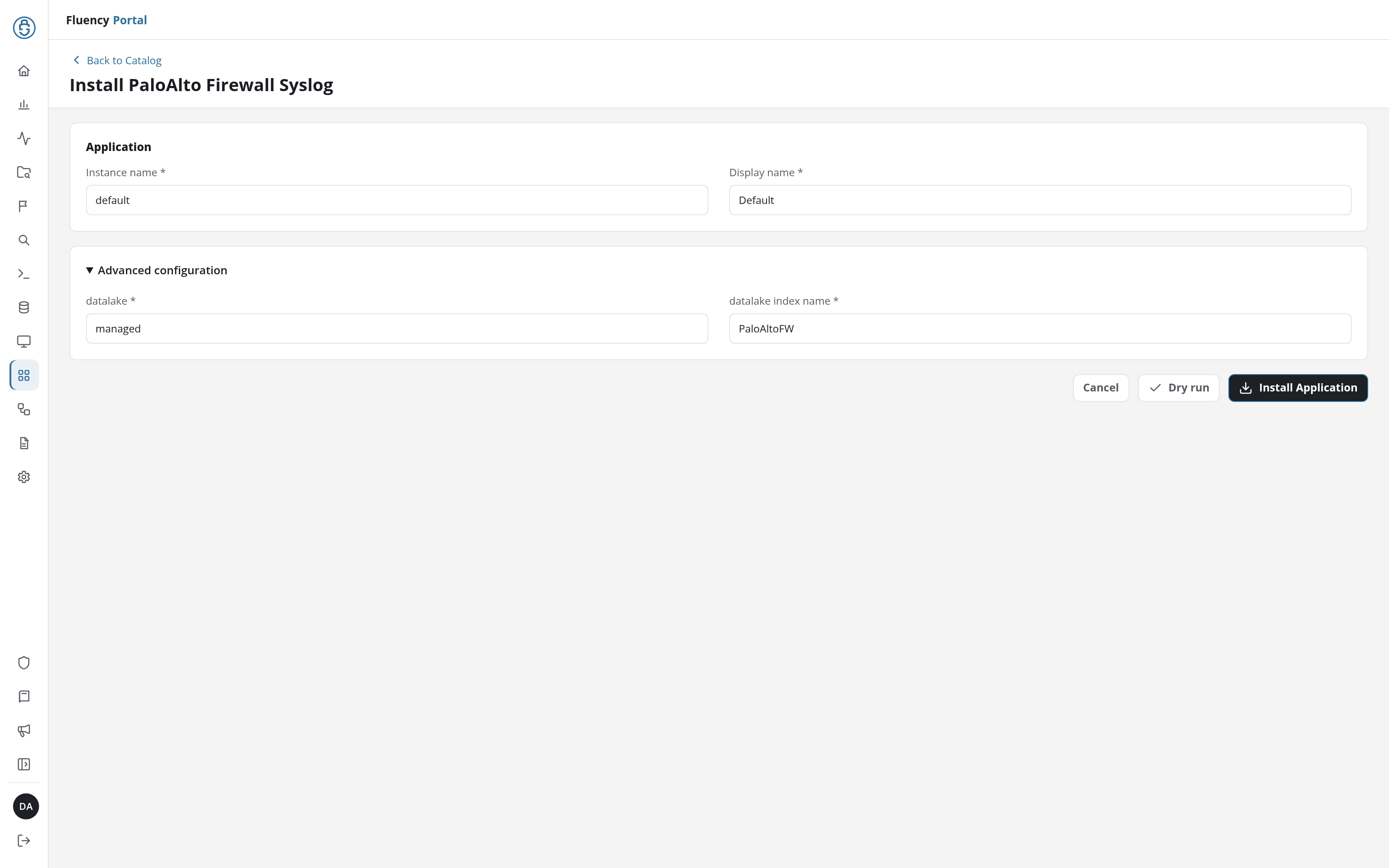
Click Install Application. The Applications page opens with the notice Default is launching., and the new application is listed with a green Running badge once the pipeline is up.
Both sit in the collapsed Advanced Configurations row below the Parameters heading, which is otherwise empty; expand the row to reach them. The defaults are usually right; change the index name when something else on the platform already writes to PaloAltoFW.
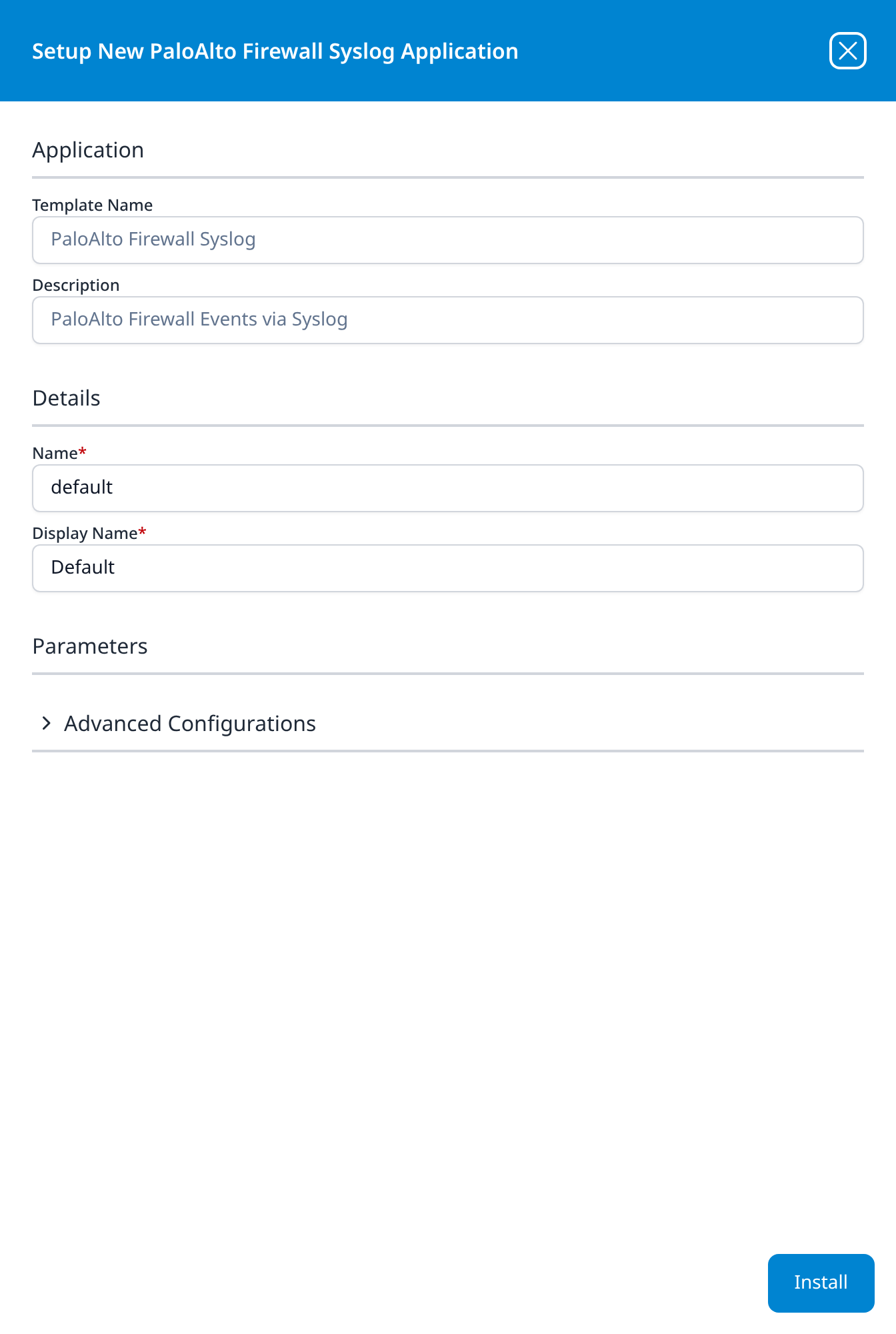
Press Install. The application then appears in the Installed Applications view, where its badge reads Running once the pipeline is up.
Related
- On-Prem / Syslog: other syslog devices.
- PaloAlto Firewall parser: the FPL parser cookbook for this device's syslog. The template ships a parser already, so this is only needed if you want to customise the parsing.
- Syslog Import and Syslog Ports: the transport and listener.