Cisco Meraki
Cisco Meraki is a cloud-managed networking line (MX security appliances, MS switches and MR wireless access points) configured entirely from the Meraki dashboard rather than device by device. Despite that cloud management model, the devices themselves emit syslog locally, and the dashboard decides which categories each network sends: firewall flows, URL requests, security events from the intrusion-detection engine, air-marshal wireless events and switch or appliance event logs. For a distributed estate of branch offices, this is the network telemetry: flow records showing what talked to what, and URL records showing where users went.
Device-side setup
Configure the device to forward syslog to the listener described below, following the vendor's own documentation for its syslog export. Nothing has to be built on the platform side beyond installing the template below: it supplies the parser and wires the pipeline.
Syslog configuration
Meraki devices send from their local addresses to the configured syslog server, which is either a local collector appliance or, where the site can reach it, the cloud syslog endpoint. Meraki's syslog is UDP-based, so a local collector is normally the right termination point rather than sending across the internet in the clear. A dedicated port per site or customer is how arriving data is tagged. See Syslog Import for the protocol options and Syslog Ports for configuring the listener.
Install the Application
- v2 interface
- Classic v1 interface
In the navigation rail, open Applications and click Install Application, then choose Cisco Meraki Syslog from the On-Premise IT category of the Application Catalog.
Go to Platform → Applications → Install Application From Template and choose Cisco Meraki Syslog from the On-Premise IT category.
The template supplies the parser and builds the pipeline: there is no source to add, no processor to attach, and no sink to wire by hand. Both parameters are required:
| Parameter | Notes |
|---|---|
| datalake | Pre-filled managed. |
| datalake index name | Pre-filled Meraki. Two applications writing to the same index name in the same lake will collide, and the second one aborts. |
- v2 interface
- Classic v1 interface
Both sit in the collapsed Advanced configuration section (the form has no Configuration section), so click its heading to reach them.
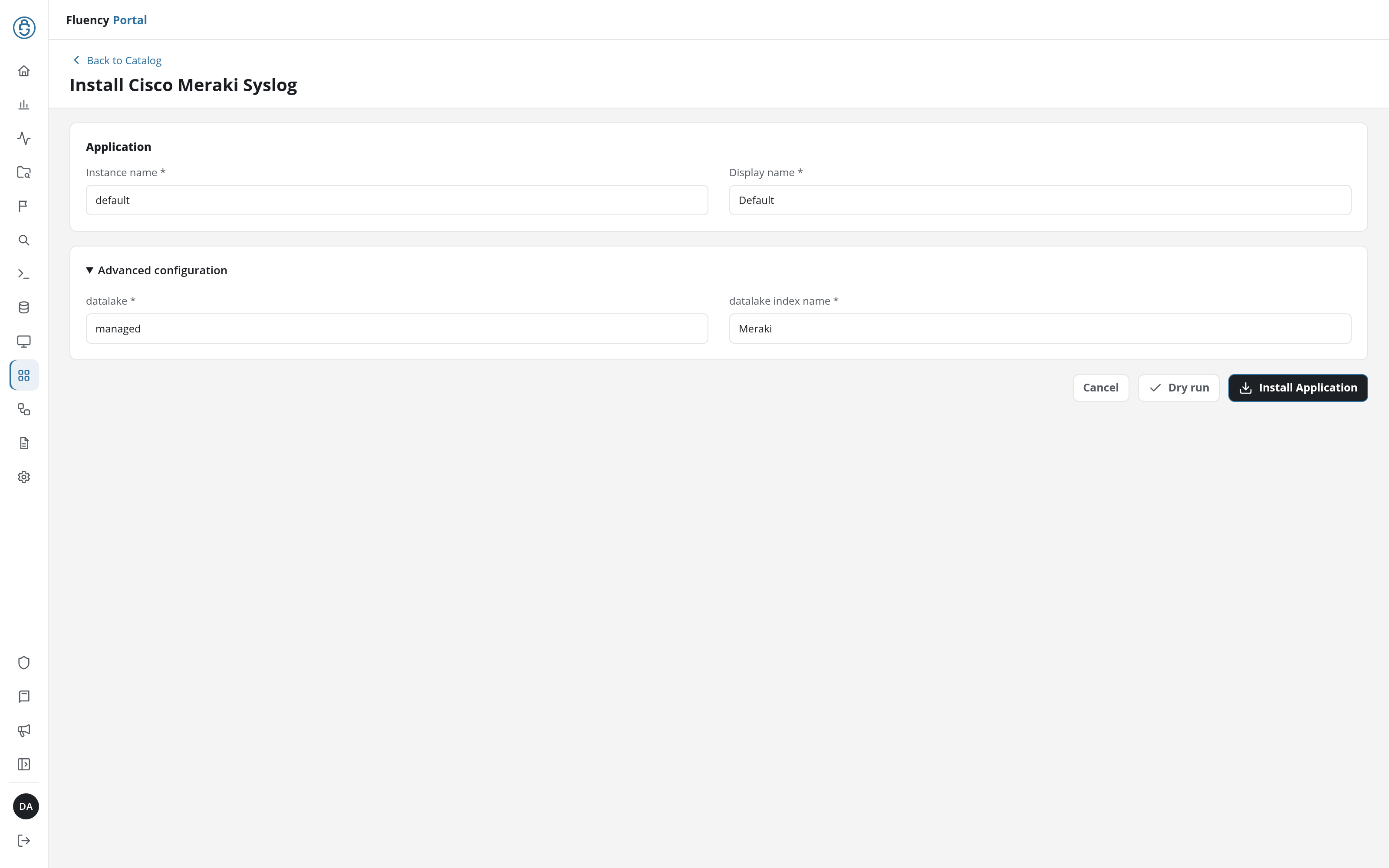
Click Install Application. The Applications page opens with the notice Default is launching., and the new application is listed with a green Running badge once the pipeline is up.
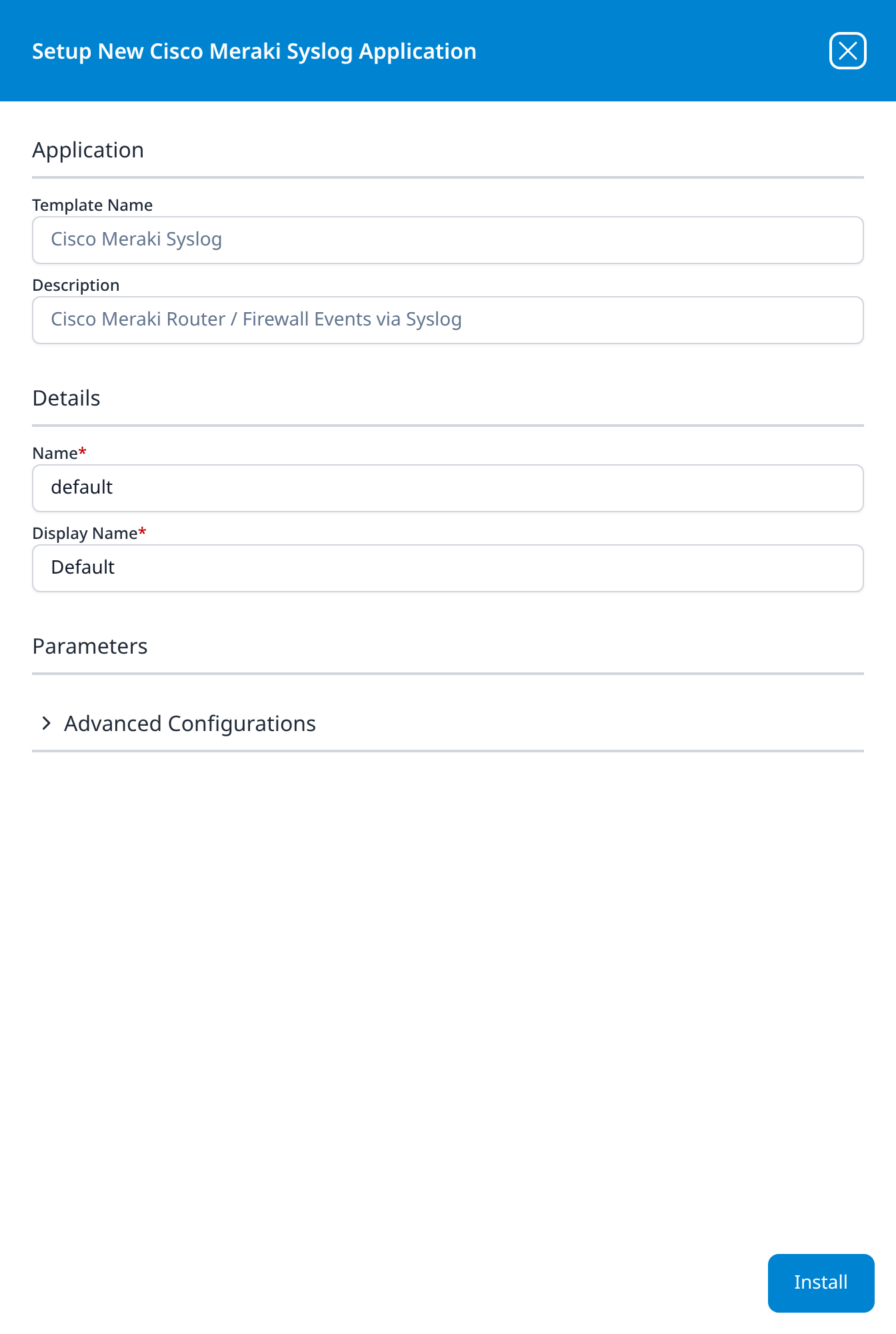
Press Install. The application then appears in the Installed Applications view, where its badge reads Running once the pipeline is up.
Related
- On-Prem / Syslog: other syslog devices.
- Cisco Meraki parser: the FPL parser cookbook for this device's syslog. The template ships a parser already, so this is only needed if you want to customise the parsing.
- Syslog Import and Syslog Ports: the transport and listener.
- Fluency Collector: the local termination point recommended for UDP syslog.