Windows Active Directory Logs
NXLog on a Windows host reads the host's event logs and forwards them as syslog, to a Fluency Collector on the same network or to the cloud syslog endpoint, where the Windows Server w/ NXLog application parses them into the WindowsAudit index. The steps are the same on a domain controller, a member server and a workstation; only DHCP audit logging is specific to a server with the DHCP role.
Setup has three parts:
- Generate the host's
nxlog.confwith the application's Configure NXLog wizard. - Install NXLog on the host, put the
nxlog.confin place, and start the service. - Confirm the events arrive.
Before you begin
- The Windows Server w/ NXLog application, installed: see Windows Server → Install the Application. Its details page holds the Configure NXLog wizard that produces the configuration.
- A destination, either:
- a collector: its IP address on the host's network, and a listener for the protocol you choose. A new collector has
tcpandudplisteners on 514; a TLS listener is one you add on the collector's Syslog Ports tab and open in its firewall; - the cloud syslog endpoint: the domain and the Syslog TLS port shown on Configuration → Syslog Ports (v1: Platform → Administration → Syslog Ports); see Syslog Ports.
- a collector: its IP address on the host's network, and a listener for the protocol you choose. A new collector has
- TCP rather than UDP. PowerShell script-block events (Event ID 4104) are often tens of kilobytes each, too large to travel reliably as UDP datagrams. A collector's default
tcp514 listener needs no change on the collector. - Administrator rights on the Windows host.
Generate the nxlog.conf
- v2 interface
- Classic v1 interface
In the navigation rail, open Applications and click the Windows Server w/ NXLog row. On its details page, the Configure NXLog card (Build an nxlog.conf for this Windows server) has a Configure NXLog button: click it.
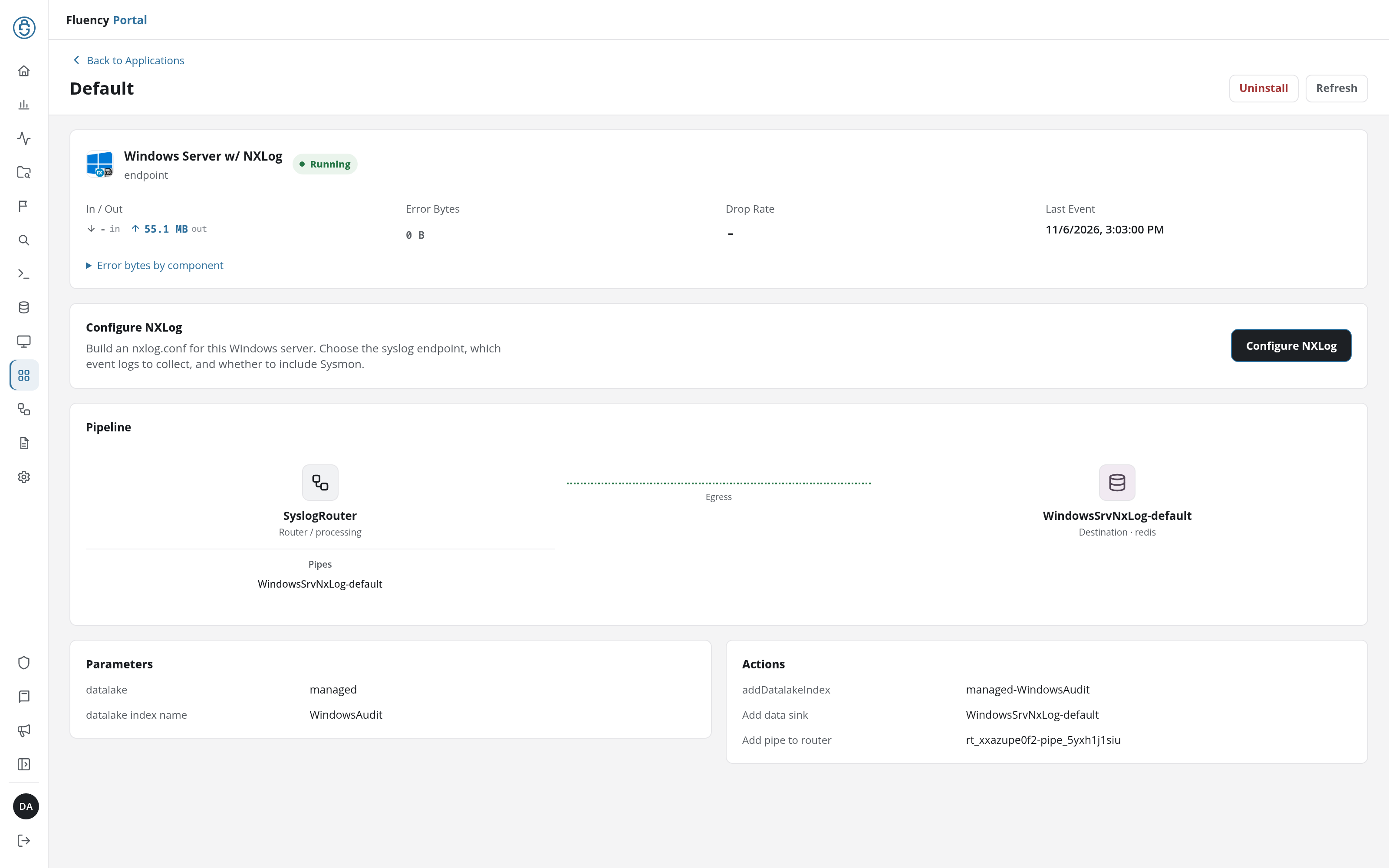
Go to Platform → Applications, open the Windows Server w/ NXLog card's details panel with its blue eye button, and click the green Configure NXLog button at its foot.
This opens the NXLog Configuration Download Wizard, in three steps. Next and Back move between them, and Download on the last step saves the file as nxlog.conf. The wizard only builds the file; it changes nothing on the platform, so run it as often as you need.
- v2 interface
- Classic v1 interface
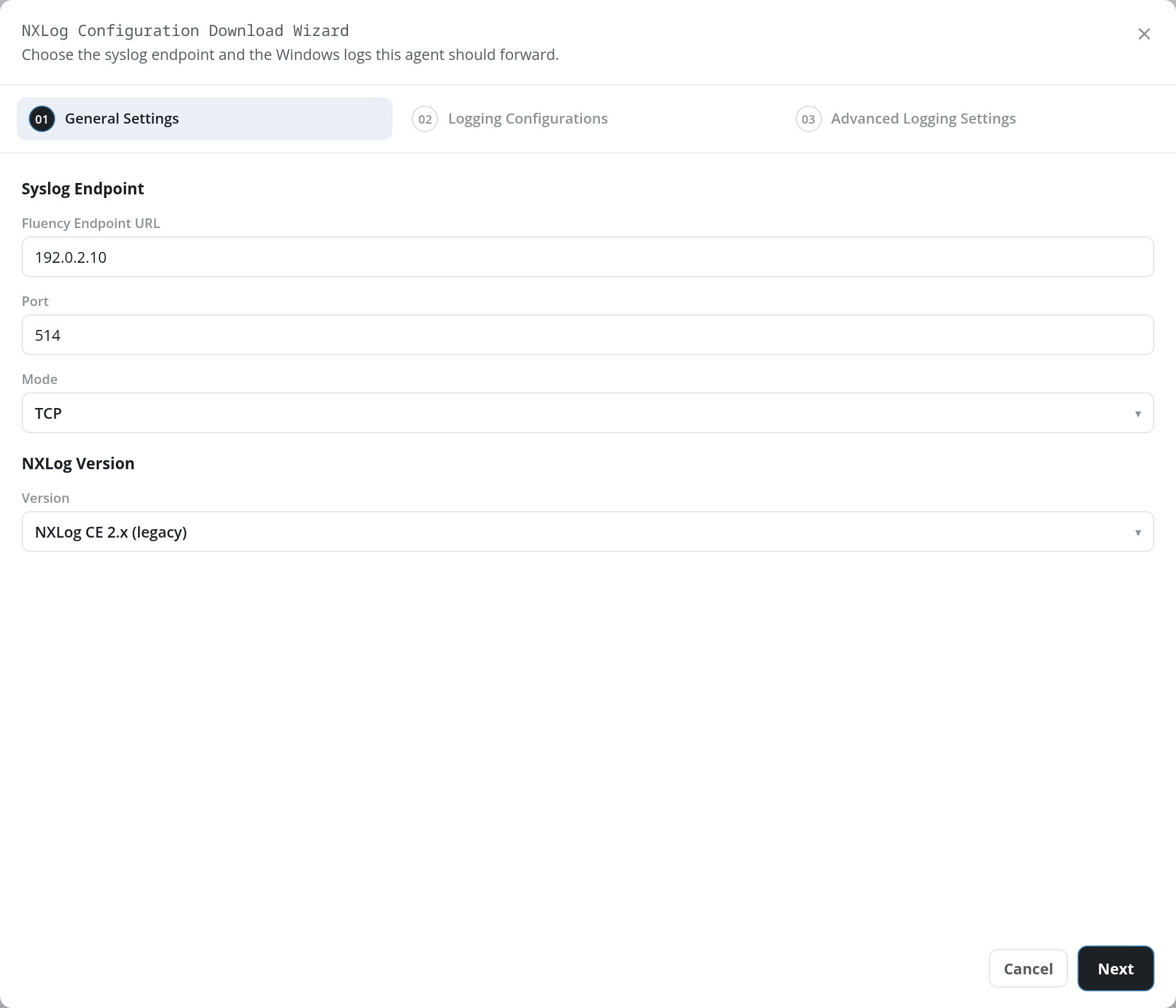
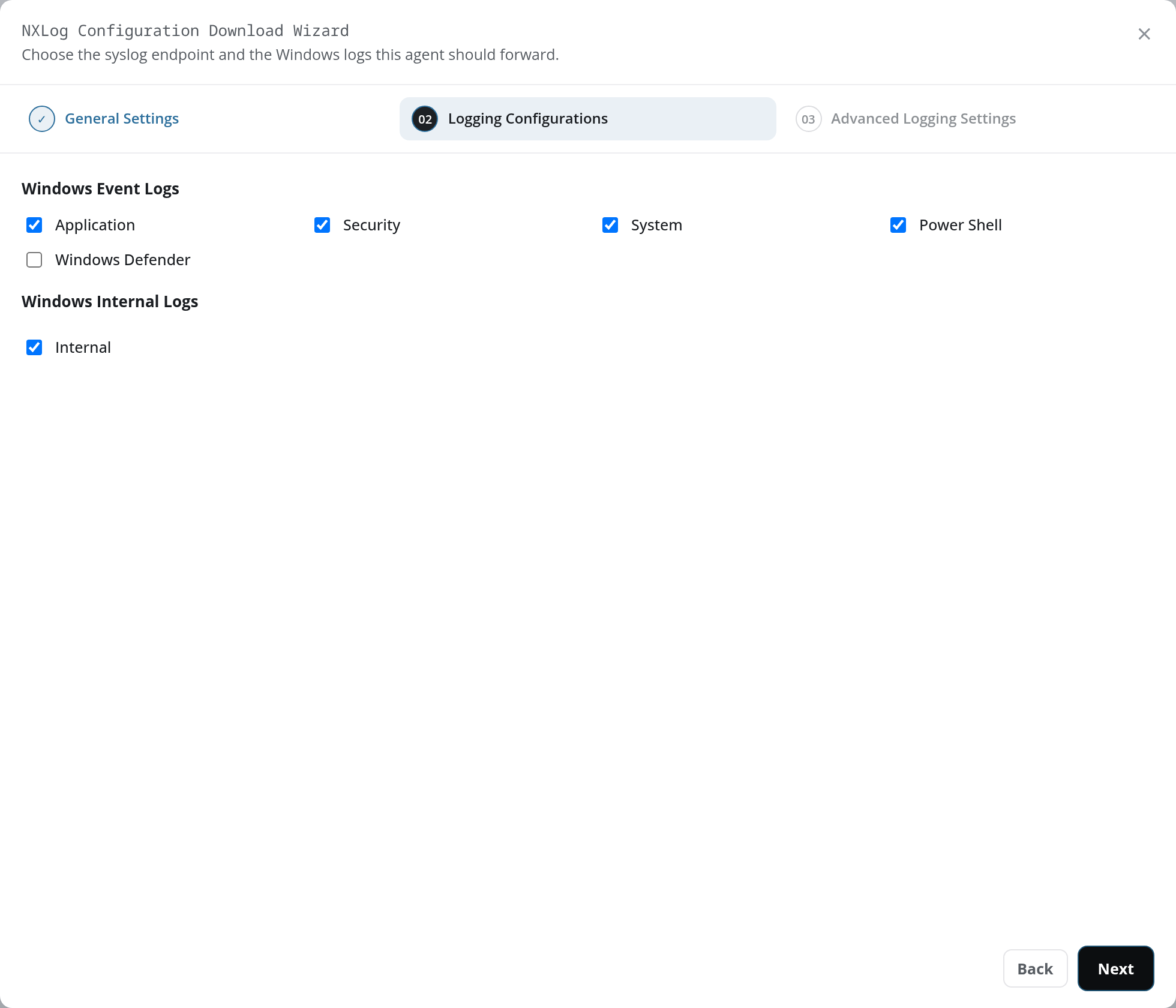
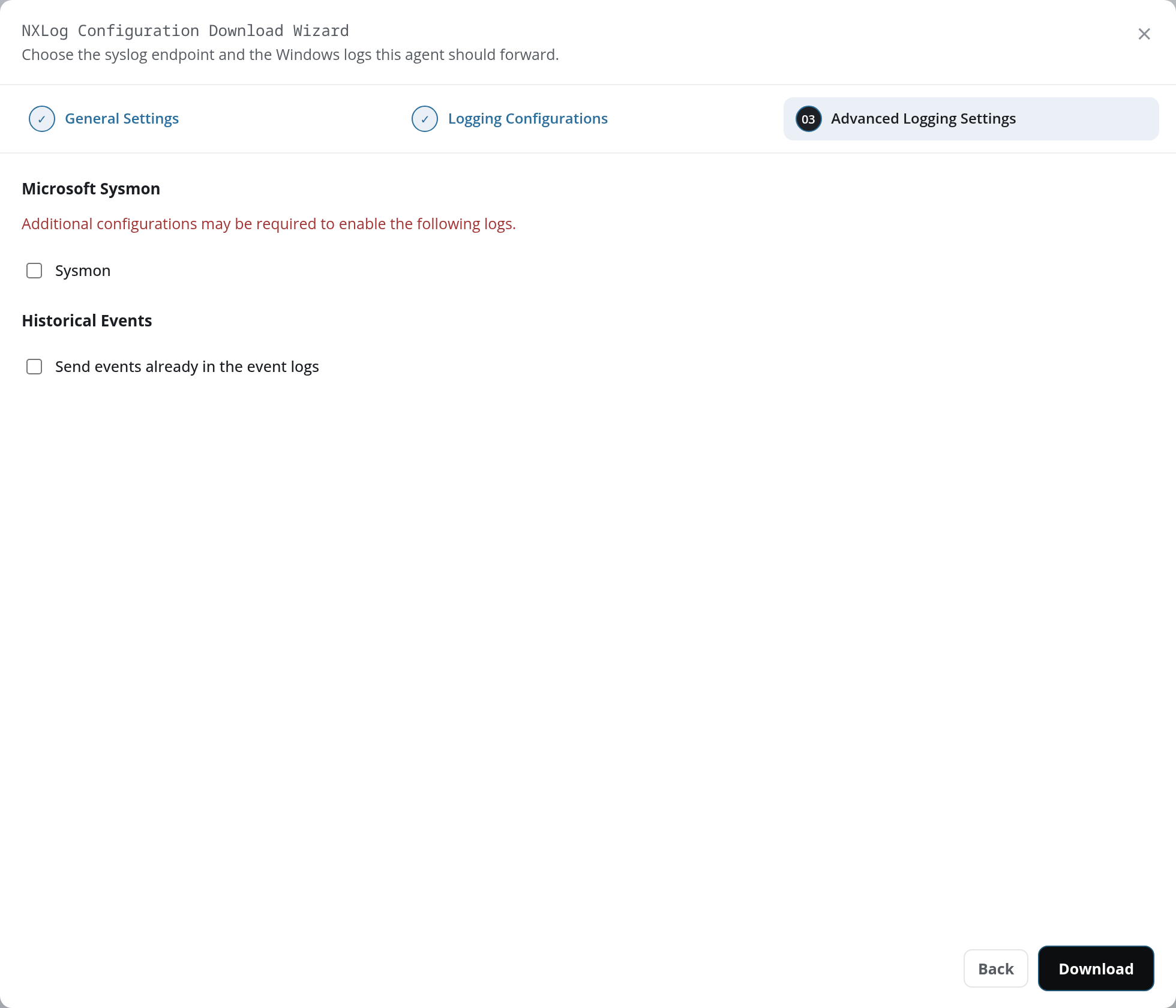
The v1 wizard has the same three steps, with the same fields, defaults and options.
General Settings
| Field | Default | Set it to |
|---|---|---|
| Fluency Endpoint URL | <cluster>.syslog.ingext.io. | The collector's IP address, or the cloud syslog domain from Syslog Ports |
| Port | 6514 | The listener's port: 514 for a collector's default listeners; for the cloud endpoint, the port Syslog Ports lists for Syslog TLS |
| Mode | TCP (w/TLS) | TCP for a collector's default tcp 514 listener; TCP (w/TLS) for the cloud endpoint or a collector's tls listener; UDP only where nothing else is possible |
| Version | NXLog CE 3.x | NXLog CE 2.x (legacy) for the NXLog 2.10 package under Install NXLog; NXLog CE 3.x for an NXLog 3.x installation |
In TCP (w/TLS) mode the step also offers Download CA Certificate: the CA bundle the cloud endpoint's certificate chains to, the same file as Download CA (ca.crt) on Syslog Ports. A collector's TLS listener presents a certificate from the collector's own CA instead, /etc/certs/ca.crt on the collector; see TLS Trust.
Logging Configurations: which event logs to forward. Application, Security, System and Power Shell are ticked; Windows Defender is not. Internal, under Windows Internal Logs, forwards NXLog's own log, and is ticked. The PowerShell channels include script-block events (Event ID 4104) where Windows records them, which hold the text of the PowerShell commands run on the host: a secret typed on a PowerShell command line reaches the platform with them.
Advanced Logging Settings: Sysmon forwards the Microsoft-Windows-Sysmon/Operational channel, which exists only once Sysmon is installed (see Windows Sysmon). Send events already in the event logs sends what the logs already hold when NXLog first starts; unticked, only events from then on are sent. Ticked, the wizard notes that this can be a large one-time volume (every event still retained in each selected log, Sysmon included), and that a host already running NXLog keeps its saved position and sends only new events. Read Sending a host's existing events before ticking it.
The file needs no editing. It has one input per event log, and drops a set of high-volume Security events (Event IDs 5152, 5156, 5157, 5158, 4656, 4658, 4661, 4662, 4663 and 4690) that the platform's parser discards anyway. It sends each event as one line of JSON with no syslog header, which is the form the parser expects: do not add a syslog header or change the output format. Its ROOT line follows the Version choice: C:\Program Files (x86)\nxlog for NXLog CE 2.x, C:\Program Files\nxlog for NXLog CE 3.x. An example is under Appendix A.
While Windows Update services a host, Windows can log thousands of Security event 4907 (Auditing settings on object were changed) in a few minutes. To keep them out, add OR ($EventID == 4907) to the drop() condition of the security_in input.
Install NXLog
Download
Download NXLog Community Edition 2.10 from Fluency's copy:
https://s3.amazonaws.com/SecurityDo/public/nxlog-ce-2.10.2150.msi
It is a 32-bit package that installs to C:\Program Files (x86)\nxlog; generate its configuration with NXLog CE 2.x (legacy). NXLog Community Edition 3.x is available from NXLog, which asks you to sign in to an NXLog account before downloading; generate its configuration with NXLog CE 3.x.
Install and configure
-
Run the MSI and follow its screens, or install it silently from an elevated prompt:
msiexec /i nxlog-ce-2.10.2150.msi /qn -
Copy the generated
nxlog.confover the one the installer created,C:\Program Files (x86)\nxlog\conf\nxlog.conf(C:\Program Files\nxlog\conf\nxlog.conffor NXLog CE 3.x). For TCP (w/TLS) mode, put the CA file in the sameconffolder, namedca.crt. -
Start the service. The installer sets the nxlog service to start automatically, but does not start it. From an elevated PowerShell:
Start-Service nxlogor right-click nxlog in the Services window (Administrative Tools → Services) and choose Start. After any later change to
nxlog.conf, restart it withRestart-Service nxlog.
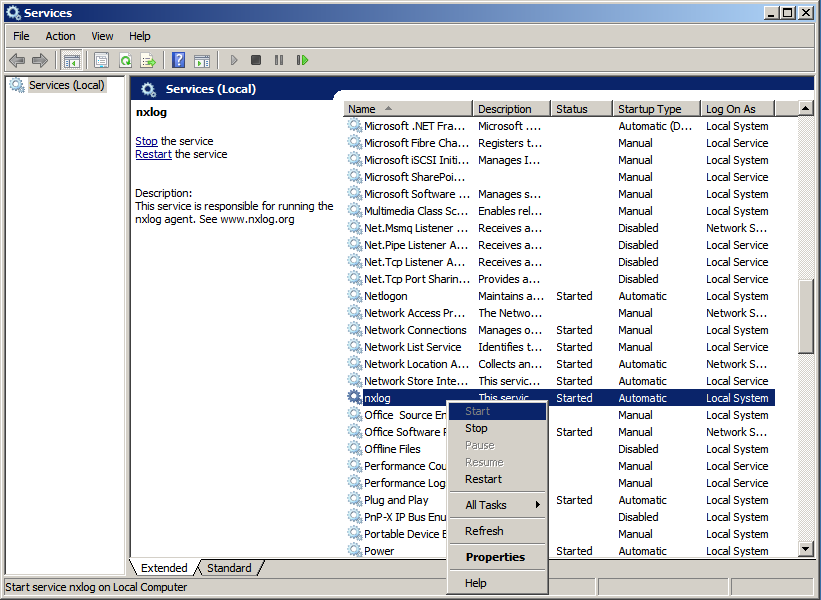
NXLog writes its own log to data\nxlog.log in its installation folder; check it if the service does not start.
A workstation that goes to sleep stops forwarding until it wakes. For one that has to report around the clock, turn sleep off on mains power:
powercfg /change standby-timeout-ac 0
Confirm the events arrive
On the Windows host, the NXLog log should show the connection and the start, and no errors:
Get-Content "C:\Program Files (x86)\nxlog\data\nxlog.log" -Tail 20
INFO connecting to 192.0.2.10:514
INFO nxlog-ce-2.10.2150 started
Over TCP, Get-NetTCPConnection -RemotePort 514 (or the TLS port) shows the connection as Established.
Unless Send events already in the event logs was ticked, nothing is sent until new events are written, so create one to test with:
New-EventLog -LogName Application -Source FluencyTest
Write-EventLog -LogName Application -Source FluencyTest -EventId 4242 -Message "Fluency NXLog test"
On the collector, if the host sends to one, the count of messages received on its syslog listeners rises: syslog-ng-ctl stats | grep s_remote.
In the platform, the events land in the WindowsAudit table. On KQL Search (v1: Data Lake → KQL Query Builder):
WindowsAudit
| where timestamp > ago(1h)
| where Hostname =~ "<HOST>"
| summarize count() by Channel, EventID
Allow about five minutes. A collector uploads what it has received about every 90 seconds, and indexing takes a few minutes more, so an event is usually searchable three to five minutes after it happened. Each event's ['@sender'] is the address of the host it came from, and ['@collector'] names the collector that delivered it.
Sending a host's existing events
With Send events already in the event logs ticked (define READ_FROM_LAST FALSE in the file), NXLog's first start sends every event still retained in each selected event log, as fast as the destination accepts them: roughly as much as those logs hold, usually within a minute or two. A long-running server with a large Security log sends far more than a newly built workstation.
- Use it only for a host's first installation. The platform does not remove duplicates: on a host that has already sent its events, the replay stores them all a second time.
- NXLog remembers where it stopped. It keeps its position in each log in
data\configcache.dat, in its installation folder. Uninstalling NXLog leaves that file, and theconfanddatafolders, in place, so a reinstallation resumes from the saved position rather than sending the history. To send the full history again, deleteconfigcache.datbefore starting NXLog. - Search replayed events by
EventTime.timestampis when the platform received an event, so replayed history all looks recent.EventTimeis when the event happened, as text in the host's local time, with no time zone. - A newly built machine's history includes Windows setup. Events logged during setup can carry the temporary computer name setup used (of the form
WIN-followed by random characters) rather than the final one, and times from before the clock was corrected.['@sender']still shows the host's address.
Windows DHCP Server
Skip this section if the DHCP role is not enabled. The wizard has no DHCP option, so the DHCP audit log is added to the generated nxlog.conf by hand.
Enable DHCP audit logging
Under Start Menu, choose "Administrative Tools", then select "DHCP" to open the DHCP Configuration Window:
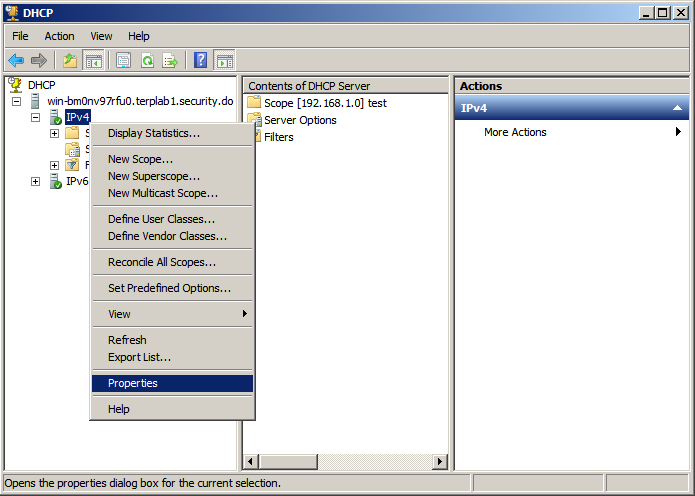
Under IPv4 (right-click), select Properties:
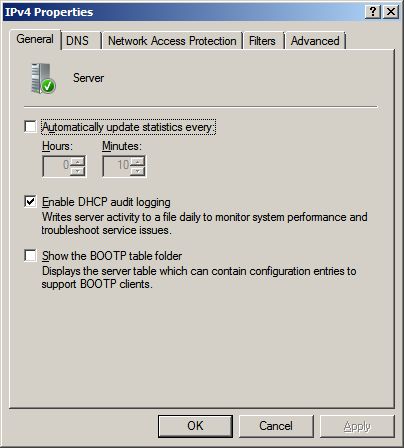
Verify that the “Enable DHCP audit logging” option is enabled. Click "OK" to confirm/exit.
Forward the DHCP audit log
Add this input and route to the end of nxlog.conf, then restart the service:
<Input dhcp_in>
    Module      im_file
    File        "C:\\Windows\\Sysnative\\dhcp\\DhcpSrvLog-*.log"
    SavePos     TRUE
    InputType   LineBased
    Exec        $Message = $raw_event;
</Input>
<Route DHCP_fluency>
    Path        dhcp_in => fluency_out
</Route>
Sysnative is how the 32-bit NXLog CE 2.x reaches C:\Windows\System32 on 64-bit Windows. With the 64-bit NXLog CE 3.x, use C:\\Windows\\System32\\dhcp\\DhcpSrvLog-*.log instead.
Appendix A: nxlog.conf example
What the wizard generates for NXLog CE 2.x (legacy), sending over TCP to a collector at 192.0.2.10 on port 514, with the default event logs:
#
# Standard Configuration for sending Windows (AD) Server logs to Fluency SIEM
#
# Version: 3.1.0
# Last update: 2026-11-05
#
# Notes: NXLog CE 2.x

define FLUENCY_DESTINATION_ADDRESS 192.0.2.10
define FLUENCY_DESTINATION_PORT 514
define FLUENCY_OUTPUT_MODE om_tcp

## Historical data: FALSE = also send events already in the event logs on first start
##                  TRUE  = only send new events (default behaviour)
define READ_FROM_LAST TRUE

## Please set the ROOT to the folder your nxlog was installed into,
## otherwise it will not start.

# For systems using newer NXLog editions (ver 3.0+),
# use 'Program Files' instead of 'Program Files (x86)':
define ROOT C:\Program Files (x86)\nxlog

Moduledir %ROOT%\modules
CacheDir %ROOT%\data
Pidfile %ROOT%\data\nxlog.pid
SpoolDir %ROOT%\data
LogFile %ROOT%\data\nxlog.log

<Extension json>
    Module      xm_json
</Extension>

<Extension syslog>
    Module      xm_syslog
</Extension>

<Output fluency_out>
    Module      %FLUENCY_OUTPUT_MODE%
    Host        %FLUENCY_DESTINATION_ADDRESS%
    Port        %FLUENCY_DESTINATION_PORT%

    Exec        $raw_event = replace($raw_event,"\r\n", " ");
    Exec        $raw_event = replace($raw_event,"\t", " ");
    Exec        to_json();
</Output>
##### Options/Modules ##########

## Fluency - collect im_internal logs
<Input internal_in>
    Module      im_internal
</Input>
<Route Internal_fluency>
    Path        internal_in => fluency_out
</Route>

## Fluency - collect System channel from im_msvistalog logs
<Input system_in>
    Module      im_msvistalog
    ReadFromLast %READ_FROM_LAST%
    SavePos     TRUE
    Query       <QueryList>\
                    <Query Id="0">\
                        <Select Path="System">*</Select>\
                    </Query>\
                </QueryList>
</Input>
<Route System_fluency>
    Path        system_in => fluency_out
</Route>

## Fluency - collect Security channel from im_msvistalog logs
<Input security_in>
    Module      im_msvistalog
    ReadFromLast %READ_FROM_LAST%
    SavePos     TRUE
    Query       <QueryList>\
                    <Query Id="0">\
                        <Select Path="Security">*</Select>\
                    </Query>\
                </QueryList>
    Exec if ($EventID == 5152) OR ($EventID == 5156) OR ($EventID == 5157) OR ($EventID == 5158) OR ($EventID == 4656) OR ($EventID == 4658) OR ($EventID == 4661) OR ($EventID == 4662) OR ($EventID == 4663) OR ($EventID == 4690) drop();
</Input>
<Route Security_fluency>
    Path        security_in => fluency_out
</Route>

## Fluency - collect Application channel from im_msvistalog logs
<Input application_in>
    Module      im_msvistalog
    ReadFromLast %READ_FROM_LAST%
    SavePos     TRUE
    Query       <QueryList>\
                    <Query Id="0">\
                        <Select Path="Application">*</Select>\
                    </Query>\
                </QueryList>
</Input>
<Route Application_fluency>
    Path        application_in => fluency_out
</Route>

## Fluency - collect PowerShell channel(s) from im_msvistalog logs
<Input powershell_in>
    Module      im_msvistalog
    ReadFromLast %READ_FROM_LAST%
    SavePos     TRUE
    Query       <QueryList>\
                    <Query Id="0">\
                        <Select Path="Windows PowerShell">*</Select>\
                        <Select Path="Microsoft-Windows-PowerShell/Operational">*</Select>\
                    </Query>\
                </QueryList>
</Input>
<Route PowerShell_fluency>
    Path        powershell_in => fluency_out
</Route>
Windows Defender and Sysmon each add one more input and route of the same form, for the Microsoft-Windows-Windows Defender/Operational and Microsoft-Windows-Sysmon/Operational channels. Send events already in the event logs sets READ_FROM_LAST to FALSE.
Appendix B: TLS
In TCP (w/TLS) mode the wizard changes only the output: the module becomes om_ssl, the port is the TLS port you entered, and the output block gains two lines:
<Output fluency_out>
    Module      %FLUENCY_OUTPUT_MODE%
    Host        %FLUENCY_DESTINATION_ADDRESS%
    Port        %FLUENCY_DESTINATION_PORT%
    AllowUntrusted true
    CAFile      %ROOT%\conf\ca.crt

    Exec        $raw_event = replace($raw_event,"\r\n", " ");
    Exec        $raw_event = replace($raw_event,"\t", " ");
    Exec        to_json();
</Output>
CAFile reads ca.crt from NXLog's conf folder: for the cloud endpoint, the file from Download CA Certificate (or Download CA (ca.crt) on Syslog Ports); for a collector, a copy of the collector's /etc/certs/ca.crt. Send to the cloud endpoint's Syslog TLS port, not its TLS RFC 6587 port: NXLog sends one event per line, which is the plain TLS framing (see Choosing a Protocol).