TrendMicro VisionOne
Fluency polls Trend Vision One (formerly Trend Micro Vision One, and TrendAI Vision One in Trend's help centre) through Trend's public v3.0 API; nothing is installed and nothing is pushed from Trend. Vision One is the correlation layer above Trend's endpoint, email, network and cloud products: those products feed it detections, and its detection models correlate them into a queue of scored Workbench alerts. Bringing Trend's own verdicts onto the platform matters most where Vision One is the primary EDR and its alerts need to reach the same triage queue as everything else.
Authentication is a bearer token: an API key created in the Vision One console with Trend's SIEM role, presented to the regional API domain your tenant was provisioned in.
The setup has two halves:
- In Trend Vision One: identify the tenant's regional API domain, then create an API key with the SIEM role. This produces two values: an API endpoint URL and an API key value.
- In Fluency: install the TrendMicro VisionOne application template and paste those two values into its form.
What arrives
| Stream | What it holds | Lands in |
|---|---|---|
| Workbench alerts | Correlated detections: severity score, the detection model that fired, investigation status, and the endpoints, accounts and mailboxes involved, with the indicators behind them. | The TrendMicroVisionOne index |
| Detection data | Individual file, web and endpoint detections from the connected Trend products, before correlation; far higher volume than alerts. | The TrendMicroVisionOne index |
| Audit logs | Console activity: sign-ins, policy changes, response actions, API key creation. | The TrendMicroVisionOne index |
Observed Attack Techniques events are not collected: Trend serves them through a separate pipeline API rather than a poll (see Streams, endpoints and retention). The key's role caps what is collected, and the SIEM role reaches all three streams; see step 2.
Endpoints, and how long Trend keeps each stream, are in Data reference.
Before you begin
At least one Trend product connected to Vision One. Vision One correlates; it does not sense. A tenant with no Trend Micro product reporting into it (no Endpoint Security, no Email and Collaboration Security, no Deep Security or Apex One) has nothing to raise alerts from, and the integration will install cleanly and collect nothing. Trend lists the same prerequisite on every one of its own API samples: at least one Trend product connected to Vision One.
An administrator who can open Administration → API Keys. Master Administrator is the safe ask: Trend documents that a Master Administrator can delete and regenerate tokens at any time, and that role assignment is theirs.
The tenant's region. Vision One is region-partitioned. The region was chosen when the tenant was provisioned, and it decides which API domain answers for your data:
| Region | API domain |
|---|---|
| United States | api.xdr.trendmicro.com |
| United States (for Government) | api.usgov.xdr.trendmicro.com |
| Germany (EU) | api.eu.xdr.trendmicro.com |
| United Kingdom | api.uk.xdr.trendmicro.com |
| Japan | api.xdr.trendmicro.co.jp |
| Singapore | api.sg.xdr.trendmicro.com |
| Australia | api.au.xdr.trendmicro.com |
| India | api.in.xdr.trendmicro.com |
| United Arab Emirates | api.mea.xdr.trendmicro.com |
All nine domains resolve and all nine answer. A key issued in one region presented to another is simply a key that host has never seen, so the response is 401, the same response as a mistyped token, and nothing in it says wrong region. If the administrator is unsure which region the tenant sits in, confirm it with Trend rather than working down the list.
Access to the Fluency portal with permission to install applications.
Part 1: Trend Vision One
1. Open the API Keys page
In the Vision One console, click the settings gear at the foot of the left rail and choose API Keys under ADMINISTRATION.
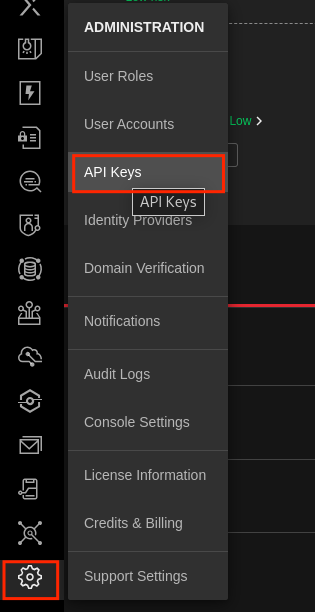
The API Keys page lists the keys the organisation already holds, with Name, Role and Description columns and a Role type filter. Click Add API Key.

2. Create the key
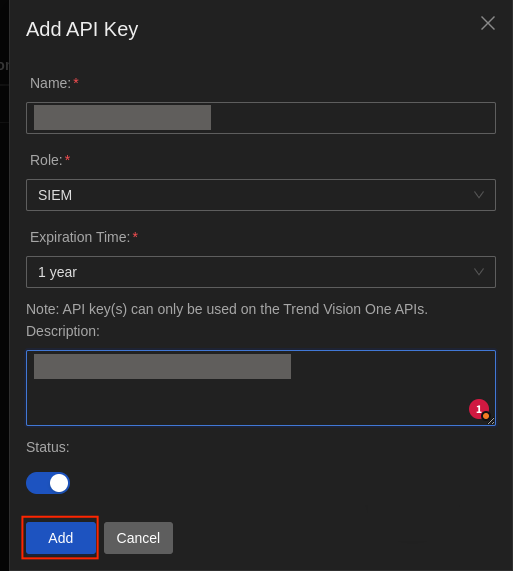
- Name: anything you will recognise in two years.
ingext-visiononeis the name Fluency's own onboarding tooling uses, and is a good default. - Role: SIEM. See the note below; this is the field worth getting right.
- Expiration Time: a drop-down that opens on 1 year, which is also Trend's documented default for authentication tokens. Longer terms are offered. Pick one your credential-rotation policy allows and write the date down; a lapsed key stops collection with no warning on the Fluency side.
- Description: free text. Say which Fluency instance holds it, so a later reader of this list knows what revoking it would break.
- Status: leave the toggle enabled.
Click Add.
Trend publishes two role lists. The first holds the general user roles: Master Administrator, Operator, Auditor, Senior Analyst, Analyst. The second holds roles built for integrations, and SIEM is one of them; Trend describes it as "Has necessary access rights for SIEM integrations".
Auditor reads like the least-privilege answer and is the wrong pick. It is a general read-only console role, Trend does not document which API endpoints it reaches, and a role that turns out too narrow does not fail when you create the key; it fails as 403 responses after the application is installed, which is a much more expensive place to discover it. The SIEM role is narrower than an administrator, purpose-built for this, and maintained by Trend as the API surface changes.
The dialog carries the reminder "API key(s) can only be used on the Trend Vision One APIs." An API key is not a console login and cannot be used to sign in.
3. Copy the API key value
Vision One shows the generated key once, in a second dialog.

The dialog says it plainly: "Copy and save the API key value below. You will not be able to retrieve it later." Once you click Close the value is gone, and there is no regenerate. If you lose it, delete the key on the API Keys page and create a new one.
You should now be holding two values:
| Value | Where it came from |
|---|---|
| API endpoint URL | The regional domain from Before you begin, with a scheme: https://api.xdr.trendmicro.com |
| API key value | The API Key Value field in the dialog above |
The console, the Fluency form and Trend's own code samples each use a different word for the same secret:
| Value in the Vision One console | Fluency parameter | Trend's API samples call it |
|---|---|---|
| API Key Value | API Token | TMV1_TOKEN, sent as Authorization: Bearer <token> |
Verify before you leave Trend Vision One
One request confirms the key, the role and the region together. Substitute your own regional domain:
curl -s -w '\n%{http_code}\n' \
  -H "Authorization: Bearer <API Key Value>" \
  "https://api.xdr.trendmicro.com/v3.0/workbench/alerts?startDateTime=$(date -u -d '1 day ago' +%Y-%m-%dT%H:%M:%SZ)"
On macOS, date -u -d '1 day ago' is date -u -v-1d; the rest is unchanged.
| Response | What it means |
|---|---|
200 with a populated items array | Key, role and region are all correct, and the tenant raised alerts in the last day. |
200 with "items": [] | Key, role and region are all correct. Vision One simply raised no Workbench alerts in that window; see Confirm it is running before treating this as a fault. |
401 | The token is wrong, expired, disabled, or was issued in a different region. Back to step 2, and re-check the domain against the region table. |
403 | The key authenticated but its role does not reach this endpoint. Create a new key with the SIEM role. |
429 with Too many API requests | The rate limit was hit. Wait a minute and try again. |
curl: (6) Could not resolve host | The domain is mistyped. Copy it from the region table. |
Part 2: Fluency
Install the Application
- v2 interface
- Classic v1 interface
In the navigation rail, open Applications and click Install Application, then choose TrendMicro VisionOne from the Endpoint Management category of the Application Catalog.
Go to Platform → Applications → Install Application From Template and choose TrendMicro VisionOne from the Endpoint Management category.
Both parameters are required:
| Parameter | Notes |
|---|---|
| API Endpoint URL (Regional domains) | The regional domain for the tenant, with its scheme: https://api.xdr.trendmicro.com. The label's parenthetical is the interface's own reminder that this is region-specific. |
| API Token | The API Key Value from step 3. Masked once the application is installed. |
The field is empty on a fresh form; there is no default region. Trend's documentation lists the regional domains as bare host names, so add https:// yourself; that is the form Fluency's own onboarding tooling supplies.
The destination is set by two more fields, datalake, pre-filled managed, and datalake index name, pre-filled TrendMicroVisionOne. To see where the data actually lands, open the installed application's details and read its Actions list, which records every object the install created.
- v2 interface
- Classic v1 interface
datalake and datalake index name sit in the collapsed Advanced configuration section below Configuration; click its heading to reach them.
Leave Instance name and Display name at default / Default unless you are installing a second instance (collecting from two Vision One tenants, for example), in which case give each one a name you will recognise on the applications list.
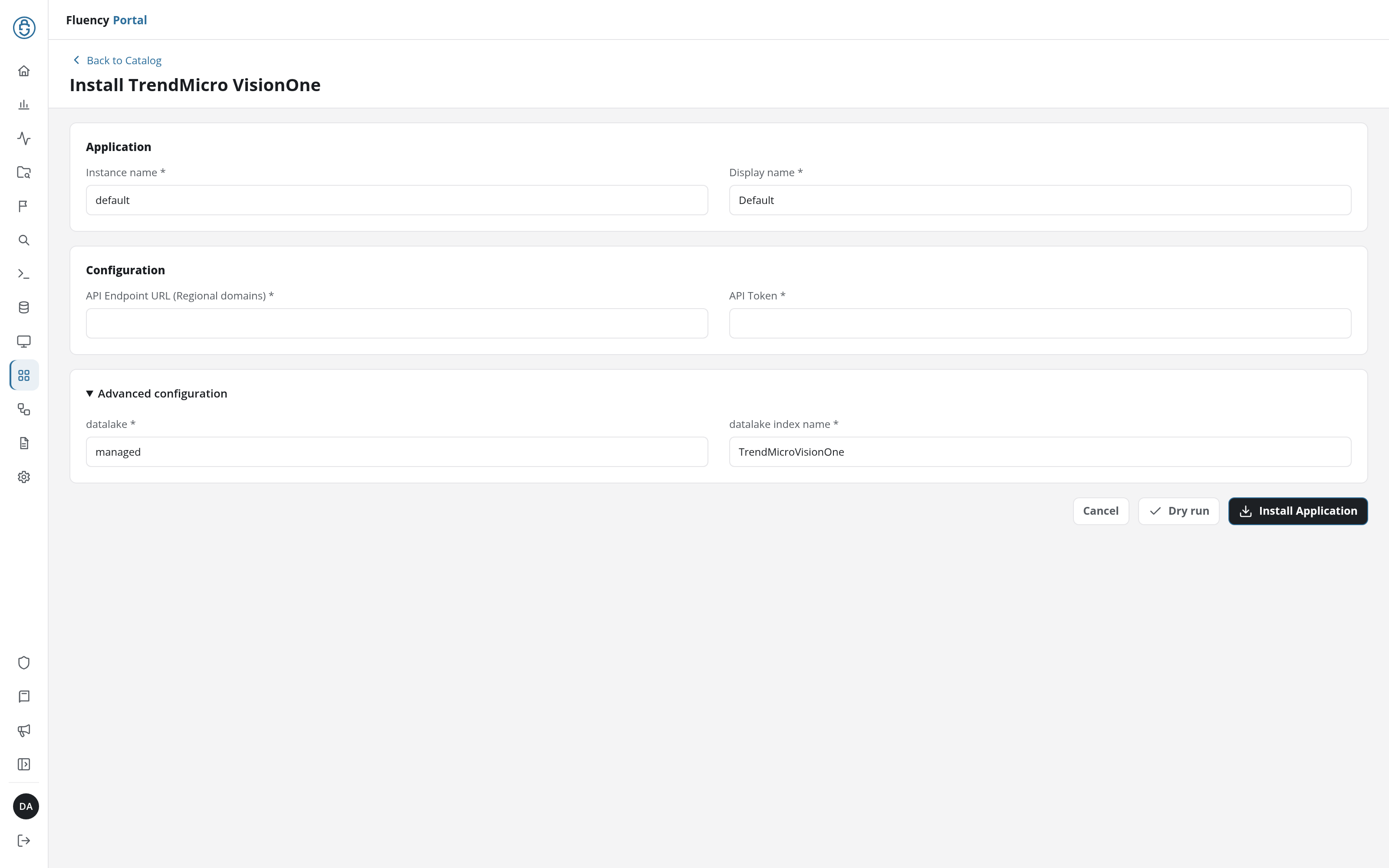
Click Dry run first to have the platform check the endpoint URL and the token before anything is installed, then click Install Application. The Applications page opens with the notice Default is launching., and the new application is listed with a green Running badge once the pipeline is up.
datalake and datalake index name sit in the collapsed Advanced Configurations row below the parameters; expand it to reach them.
Leave Name and Display Name at default / Default unless you are installing a second instance (collecting from two Vision One tenants, for example), in which case give each one a name you will recognise on the applications list.
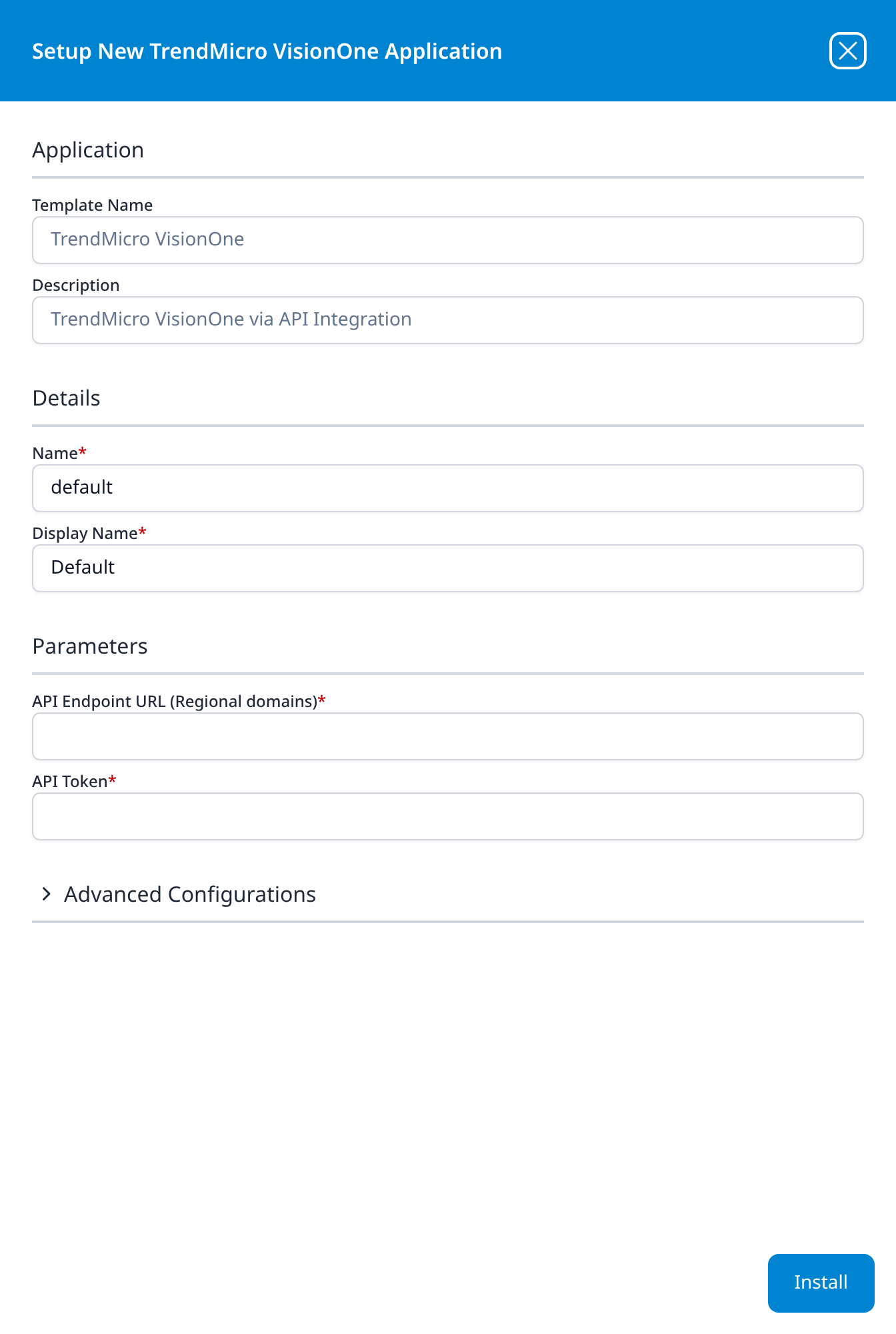
Press Install. The application then appears in the Installed Applications view, where its badge reads Running once the pipeline is up.
Confirm it is running
- v2 interface
- Classic v1 interface
The application is listed on Applications as TrendMicro VisionOne, with the display name Default beneath it. Its badge should read Running in green within a few seconds; a red Error badge means the pipeline aborted or reported errors in the last hour, and the details page shows the error message beneath the summary figures.
Click its row to open the application details page: the summary card carries the status and the traffic in and out, Parameters shows the values back with the token masked, and Actions lists the setup steps the install carried out.
The application appears under Installed Applications as TrendMicro VisionOne: Default. Its badge should read Running in green within a few seconds; Aborted in red means the pipeline stopped on an error, and the details panel will carry the message.
Every field in that panel is read-only.
Nothing an install records can be edited afterwards. Changing the token or the region means uninstalling the application and installing it again.
An empty index shortly after install is not by itself evidence of a fault. Vision One only produces Workbench alerts when its detection models fire, and a well-run estate can go days without one. Before treating silence as a failure, work down this list:
- Open XDR Threat Investigation → Workbench in Vision One for the same time window. If Trend's own queue is empty, so is the feed, and nothing is wrong.
- Check that a Trend product is actually connected to the tenant. Vision One with no sensors reporting into it raises nothing, whatever the key can read.
- Only then go to Troubleshooting.
See Confirm data is arriving for how to check that events are landing.
Maintenance
Rotating the API key
API keys expire (one year by default) and Trend gives no warning on the Fluency side when one does. Collection simply stops. Rotate before the date you recorded in step 2:
- In Vision One, go to Administration → API Keys and Add API Key with the same SIEM role. Leave the old key in place for now.
- Copy the new API Key Value.
- In Fluency, uninstall the TrendMicro VisionOne application and install it again with the new token. Template parameters are read-only after install, so reinstalling is the supported way to change a credential. To uninstall, click Uninstall at the top right of the application's details page (v1: the red Uninstall button at the foot of its details panel on Platform → Applications).
- Once data is flowing again, delete the old key in Vision One.
If you only need to stop a key temporarily (while investigating a suspected exposure, say), set its Status toggle to disabled rather than deleting it. That stops the key without destroying the record of its existence.
Removing the integration
Uninstall the application in Fluency first, with the Uninstall button at the top right of its details page (v1: the red Uninstall button at the foot of its details panel on Platform → Applications), so the pipeline stops cleanly before its credentials stop working. Then delete the key on the Vision One API Keys page.
Troubleshooting
| Symptom | Likely cause | Fix |
|---|---|---|
| The application shows Error (v1: Aborted) immediately after install | The token was mistyped (it is shown exactly once, so a bad paste is easy) or the endpoint URL is missing its https:// | Uninstall, then reinstall. If the value was never captured, delete the key and create a new one; it cannot be recovered. |
Every call returns 401 although the token was pasted correctly | The key was issued in a different region from the domain in the form, or its Status was toggled off, or it expired | Check the domain against the region table, then check the key's row on the Vision One API Keys page. |
Authentication succeeds but calls return 403 | The key's role is too narrow, most often Auditor rather than SIEM | Create a new key with the SIEM role and reinstall. |
| Collection worked, then stopped around the one-year mark | The key hit its expiry; one year is the default | Rotate the key. |
| Collection stops with no expiry due | A Master Administrator deleted or regenerated the key | Check the API Keys page; create a fresh key and reinstall. |
429 Too many API requests in the logs | Another integration or script is sharing the same key, or a second Fluency instance is polling the same tenant | Give each consumer its own key. Two Fluency applications polling one tenant double the API load for no benefit. |
| The application is Running but no Vision One events appear | The tenant genuinely raised nothing, or no Trend product is connected to it | Work through Confirm it is running. |
| The customer runs Apex One, Deep Security or Cloud One and has no Vision One console | Those are Trend's earlier products, not Vision One | This template does not apply. They can be connected into Vision One as sensors, after which their detections reach Fluency through this integration. |
Data reference
The API behind each stream, what its records hold, and how long Trend keeps them.
Streams, endpoints and retention
A Vision One API key inherits its permissions from the role you assign it, and the SIEM role is the permission set Trend maintains for exactly this kind of log-forwarding integration. What that role reaches is therefore the ceiling of what this integration can collect:
| Stream | Endpoint | Contents | Trend keeps it for |
|---|---|---|---|
| Workbench alerts | GET /v3.0/workbench/alerts | Correlated detections: severity score, the detection model that fired, investigation status, and the impact scope: the endpoints, accounts and mailboxes involved, with the indicators behind them. | 180 days |
| Detection data | GET /v3.0/search/detections | Individual file, web and endpoint detections from the connected Trend products, before correlation. Far higher volume than alerts. | 30 days, by default |
| Audit logs | GET /v3.0/audit/logs | Console activity: sign-ins, policy changes, response actions, API key creation. | not bound by the XDR retention licence |
Those three are the endpoints Trend's own SIEM-forwarding reference implementation uses, and Workbench alerts are the stream it leads with. Observed Attack Techniques events are not on that list because they are not a simple poll; they are retrieved through Trend's separate datalake pipeline API, which requires registering a pipeline and then pulling packages from it.
The template decides which of these it polls; the form does not
TrendMicro VisionOne takes two parameters, and neither of them selects a stream. To see what your installation actually created, open the installed application's details and read its Actions list, which records every object the install made. Confirm it is running covers what to look for.
Under the hood
Engineering reference: the API surface behind this integration
The Fluency template's internal polling schedule and output format are not exposed on the form. What follows is Trend's side of the contract, which bounds anything the template can do.
Authentication
A single static bearer token, sent as Authorization: Bearer <token> against the tenant's regional host. There is no token exchange and no refresh: the key created in the console is the credential, until it expires or is deleted. The key's permissions come entirely from the role assigned at creation and cannot be edited afterwards.
Endpoints and paging
Trend's own SIEM-forwarding sample uses three list endpoints:
GET /v3.0/workbench/alerts   ?startDateTime= &endDateTime=
GET /v3.0/search/detections  ?startDateTime= &endDateTime= &top=   (header: TMV1-QUERY)
GET /v3.0/audit/logs         ?labels=all &startDateTime= &endDateTime= &top=
All three return { "items": [...], "nextLink": "..." }. Paging is by following the absolute nextLink URL until the field is absent; there is no page number and no offset. Timestamps are ISO 8601 in UTC (2026-07-30T00:00:00Z).
Observed Attack Techniques are reached differently: GET /v3.0/oat/detections for a direct query, or the datalake pipeline API (register a pipeline, then pull packages from it on a loop) for continuous capture.
Limits
Trend does not publish per-endpoint numbers, and says the limits are subject to change. What is documented:
| Limit | Behaviour |
|---|---|
| Rate | Measured as requests received within a rolling 60 seconds. Exceeding it returns 429 with Too many API requests, and Vision One stops processing requests until the rate falls back under the limit. |
| Request body | 1 MB maximum; larger requests get 413. |
| Request timeout | 60 seconds; a slower response returns 504. |
Because the throttle is per-token, a key shared between Fluency and another consumer can throttle both.
Retention, and what it bounds
An outage longer than Trend's retention window is unrecoverable: the data is gone from Trend's side, not merely un-collected.
| Data | Default retention | Extendable |
|---|---|---|
| Workbench alerts | 180 days | Fixed; not bound by the XDR retention licence |
| XDR Data Explorer logs and Observed Attack Techniques events | 30 days | 90 days, 180 days or one year with the applicable data-retention licence |
| Email and Collaboration Security, Mobile Security, Zero Trust Secure Access detections | 180 days | Fixed |
| Container Security, TippingPoint SMS, Web Security detections | 30 days | Fixed |
The 30-day default on Data Explorer is the one worth knowing: an organisation that has not bought a retention licence has one month of searchable detection history on the Trend side, whatever it keeps in Fluency.
References
Trend Micro
- First steps toward using the APIs: creating an API key, the roles it can take, and the bearer-token header
- Regional domains: the nine API domains and which region each serves
- API request limits: the rate window, body size and timeout
- Predefined roles: the user roles and the integration roles, including SIEM
- XDR data retention licenses: what the 30-day default covers and what it excludes
- Trend Vision One API cookbook: Trend's own reference implementations, including the SIEM-forwarding sample
Fluency
- Applications: what the Applications page does (v1: Platform → Applications)
- TrendMicro VisionOne install form: the template's fields and defaults (v1: Install Application From Template)
- Confirm data is arriving
- Endpoint Management: the rest of this category