Login
The Profile page reached after signing in is documented at Profile (v1: Page Functionality → Settings → Profile).
For reference, this is what you land on once you have signed in, the Home dashboard:
- v2 interface
- Classic v1 interface
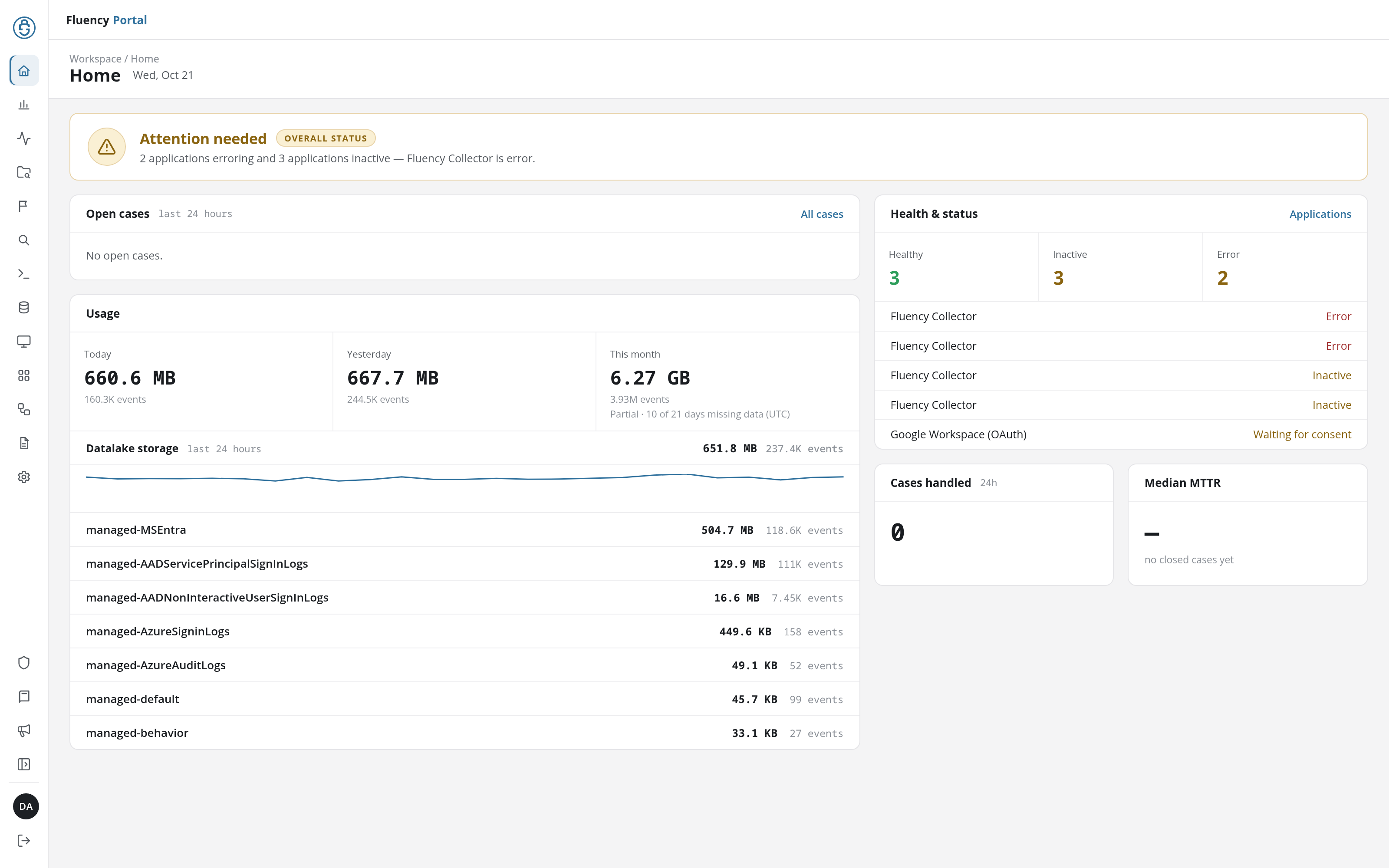
The navigation rail runs down the left edge of the screen. Your account, including your profile, is behind the account avatar with your initials near the bottom of the rail, just above Sign out. Account and user administration is in the Admin console, a little higher up the rail; its shield icon is shown only to users whose role gives them access to it.
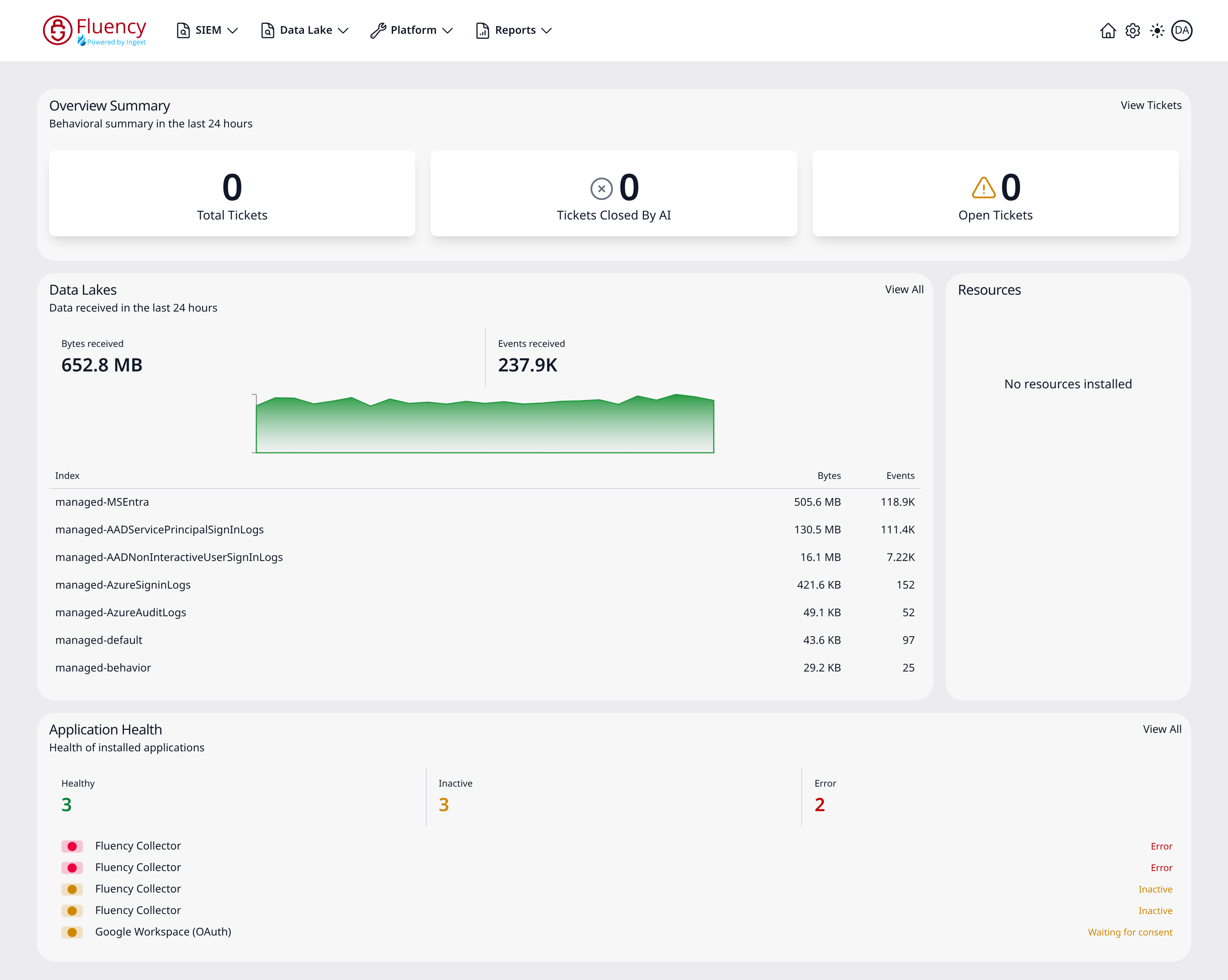
The navigation bar runs across the top of the page. On the right side of that bar are the Home icon, the Settings (gear) icon, a light/dark theme toggle, and the account avatar. The account menu, including your profile, is behind the avatar, not behind a name in the upper-right corner.
Navigate to the unique URL assigned to your Fluency Portal. It will typically be in the following format (For standard deployments):
- v2 interface
- Classic v1 interface
https://<companyname>.app.ingext.io/v2/
https://<companyname>.app.ingext.io
Both interfaces are served from the same address, sign in with the same account, and offer the same sign-in options.
OAuth Login
The preferred method of authentication is via an OAuth provider. Fluency supports authenticating with either Microsoft or Google.
The OAuth provider is normally configured during the initial setup process (if you are the first user), or determined by the existing Admin account that created your user.
- v2 interface
- Classic v1 interface
The login page is headed Sign in to Fluency and asks you to Choose your organization's identity provider. Click Continue with Microsoft or Continue with Google to be taken to a new page to authenticate directly with that provider.
The line By logging into Fluency, you are accepting the Terms Of Use. links to the product license terms, at /v2/terms; Back to sign in returns to the sign-in page.
On the login page, either select one of the two OAuth options to be taken to a new page to authenticate directly with the selected OAuth provider (Microsoft or Google). The Terms Of Use link beneath opens the product license terms, at /terms.
Beside the sign-in options, a Meet the new v2 interface panel (Our new interface is now available. Sign in to v2 to get started.) has a Go to v2 login button that opens the v2 interface's sign-in page.
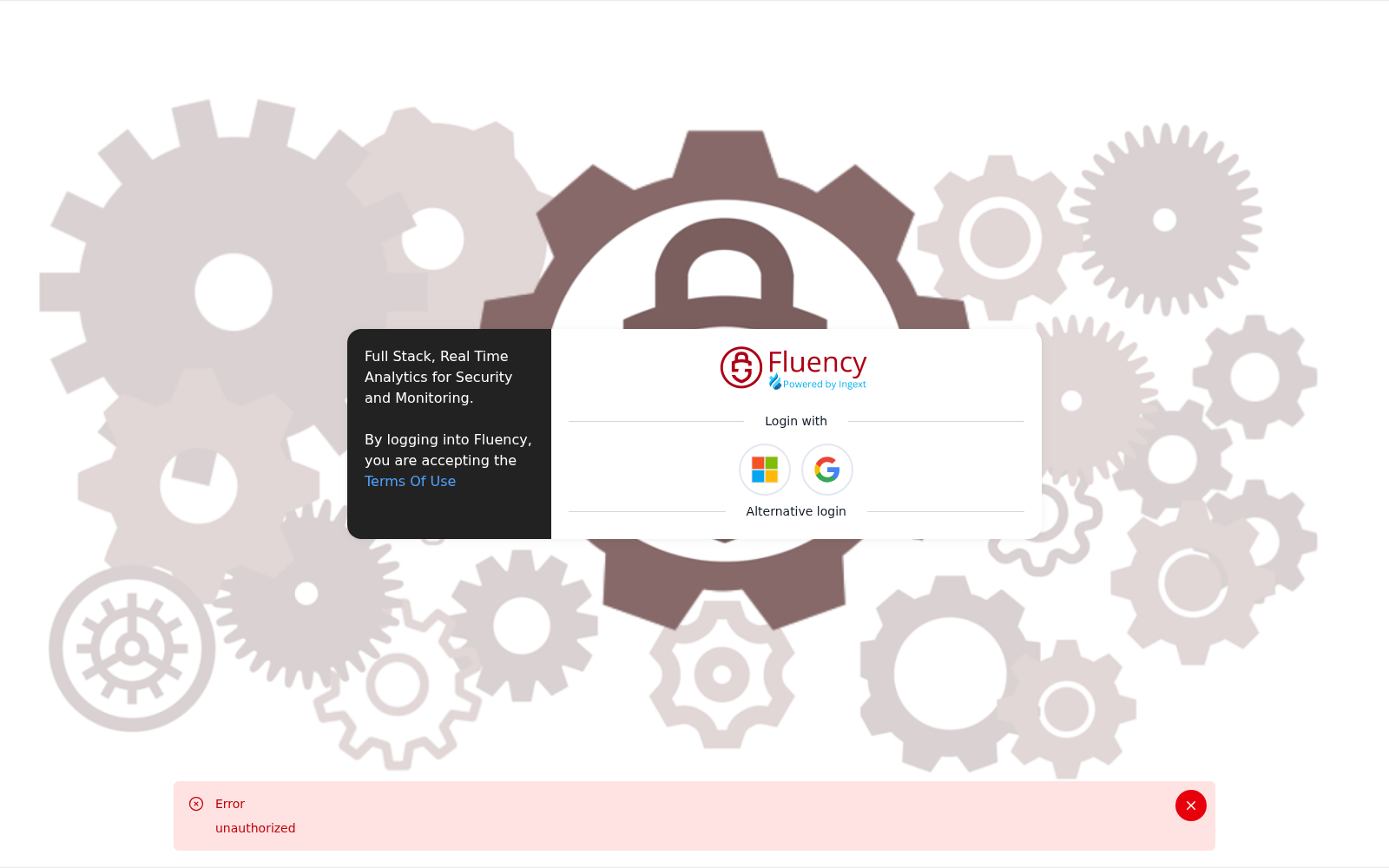
You will not need to type in your email/password credentials directly in Fluency to use OAuth, and will instead authenticate with the OAuth provider.
OAuth App permissions
If this is the first time your organization has used Fluency, you may be asked to accept certain Application Permissions by the OAuth provider before you are allowed to proceed.
Microsoft
The following permissions are required in order to enable Fluency Cloud to login via Azure.
- Sign you in and read your profile
- Maintain access to data you have given it access to
You will see the following page after successful redirect to Microsoft for the first time:
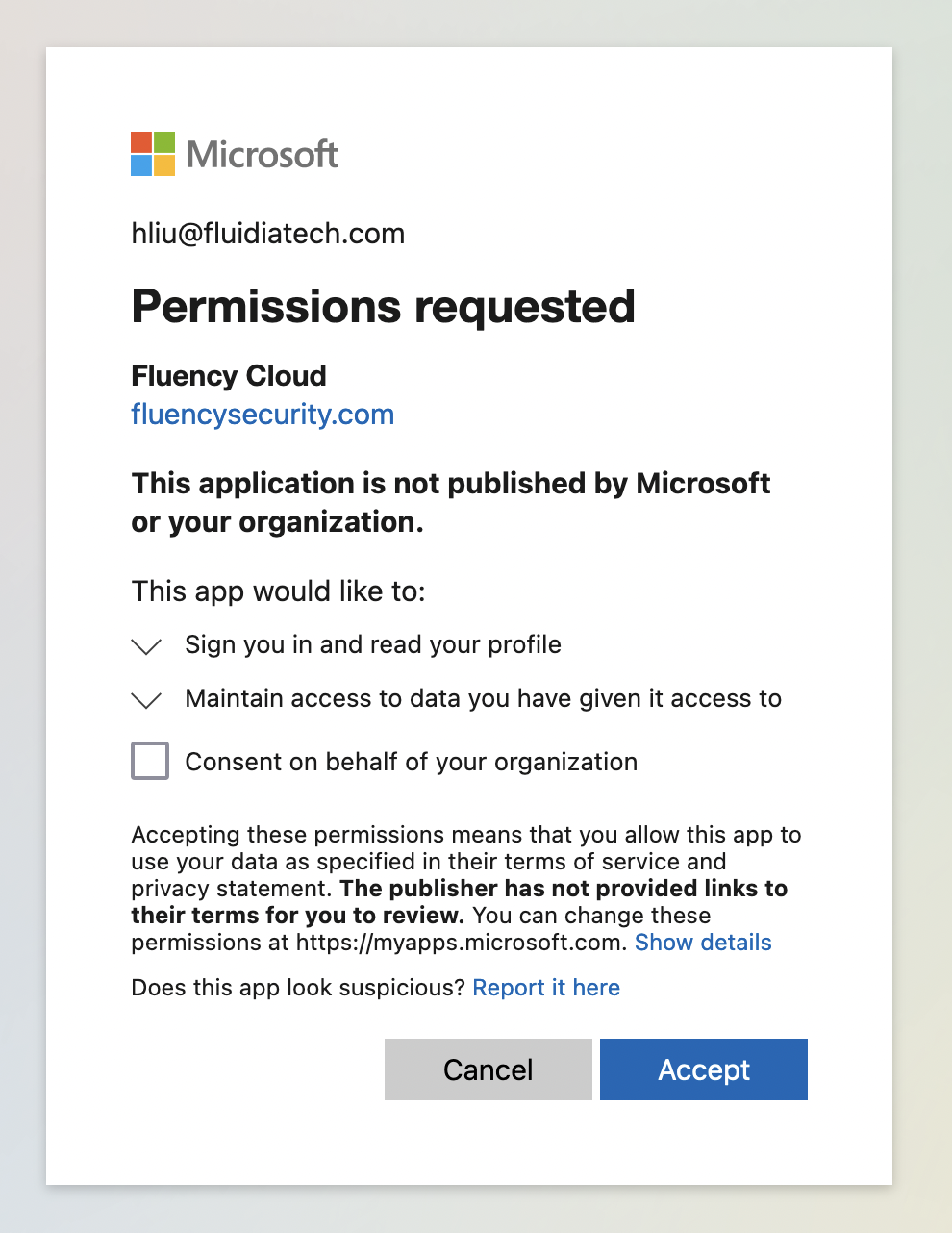
Upon granting consent, you will be redirected back to the Fluency portal, and will proceed with the OAuth authentication.
Alternative Login
If your organization does not use one of the above providers for OAuth, or if you would simply like to use your username(email) / password credentials to log in, use the alternative login:
- v2 interface
- Classic v1 interface
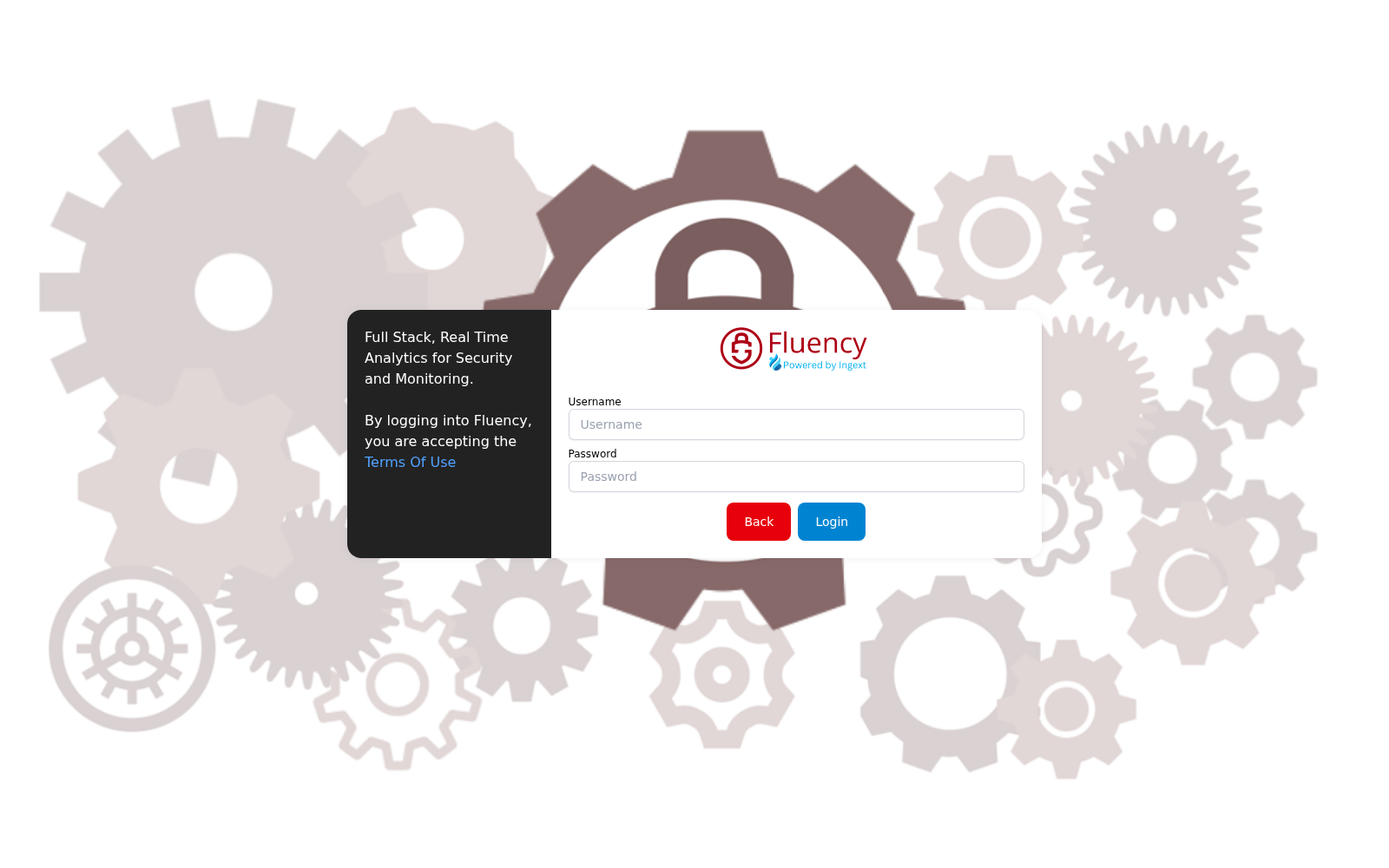
Click Alternative login below the provider buttons. The page changes to Enter your Fluency credentials., with Username and Password fields. Click Login to sign in, or Back to return to the identity providers.
Choose the "Alternative Login" option.
Changing your password
After using the username / password option to log in, your password is changed from your own Profile page.
- v2 interface
- Classic v1 interface
Click the account avatar with your initials near the bottom of the navigation rail; the Profile page opens at URL path /v2/profile.
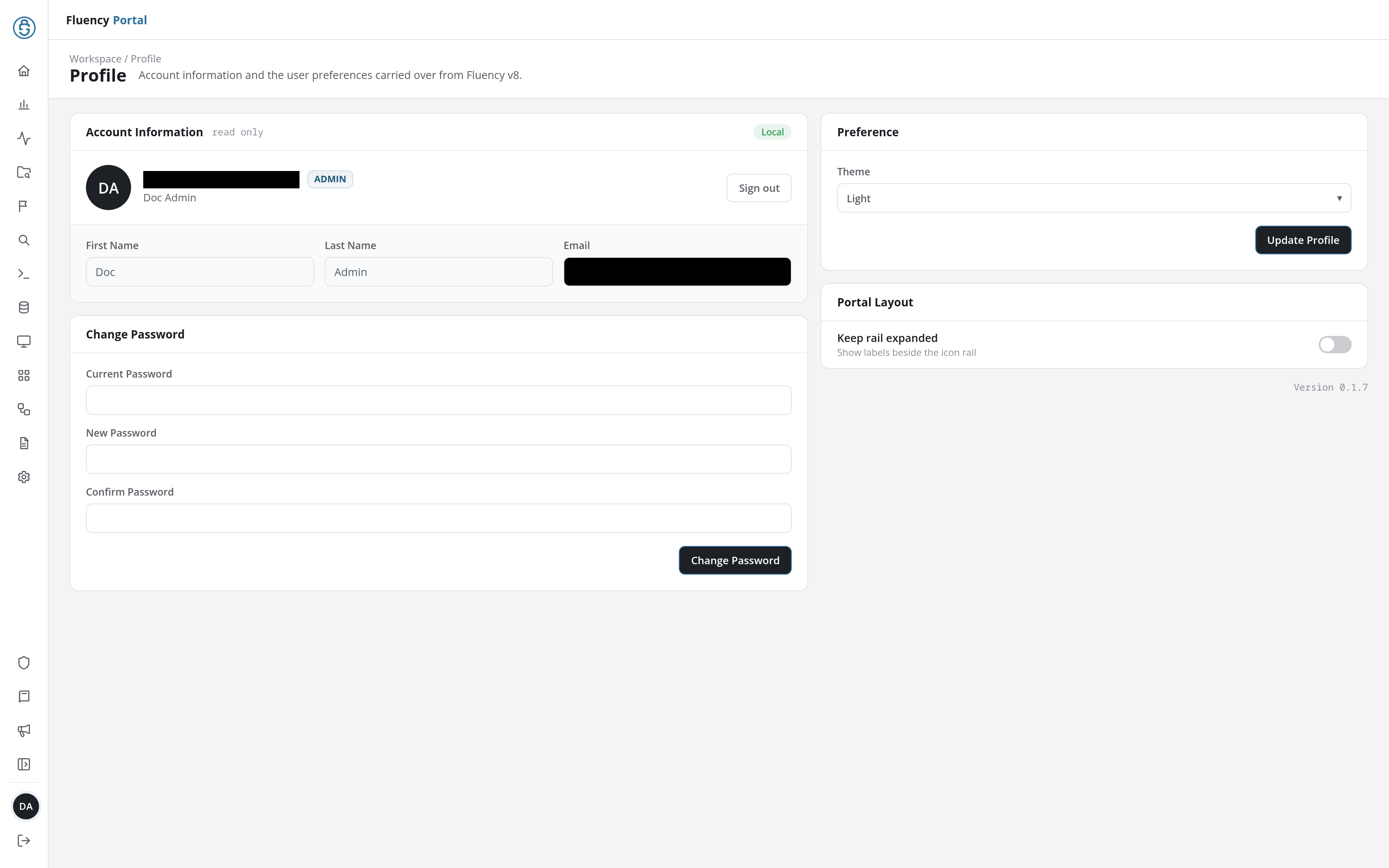
Fill in the Change Password card on the left (Current Password, New Password, and Confirm Password), then click the Change Password button. Leaving Current Password empty produces the message Please enter your current password.; a new password shorter than eight characters, or one that does not match its confirmation, is refused with a message saying so.
The other cards:
- Account Information: First Name, Last Name, and Email, marked read only. A badge in the card's upper-right corner shows how you sign in, Local for a username and password. These details are changed by an administrator, on Admin console → Users.
- Preference: Theme (Light, Dark, or System, which follows your operating system's setting) and Text size (such as Normal or Large), saved with the Update Profile button. A successful save reports Profile updated successfully.
- Portal Layout: Keep rail expanded, a switch that shows each page's name beside its icon in the navigation rail.
The portal's version number is printed beneath the Preference and Portal Layout cards.
Open the account avatar at the right end of the navigation bar and choose your email address; the Profile page opens at URL path /user/profile.
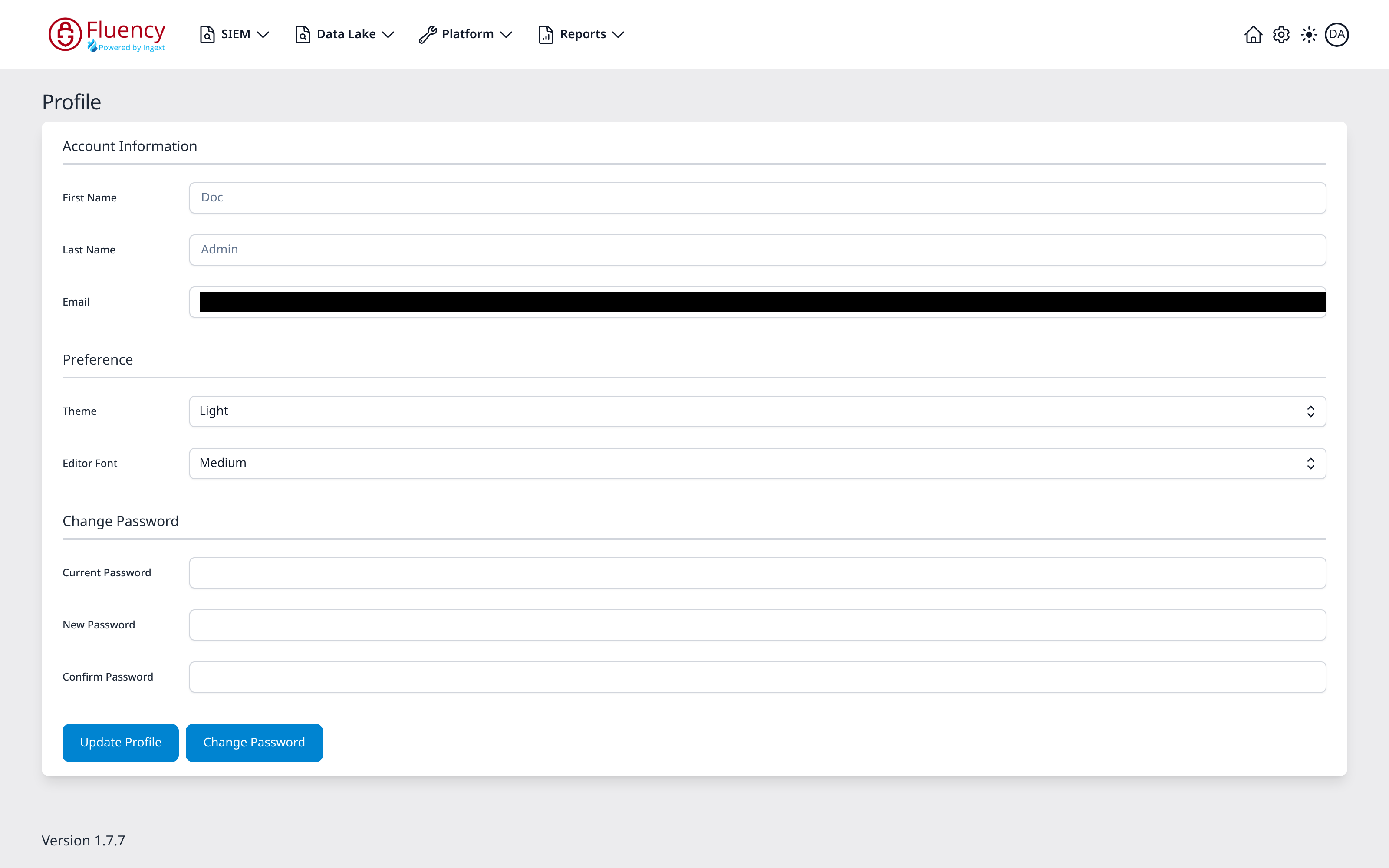
The page is a single card in three sections. Fill in the Change Password section at the bottom (Current Password, New Password, and Confirm Password), then click the Change Password button. Leaving Current Password empty produces a red error toast reading Please enter your current password.
The two sections above it:
- Account Information: First Name, Last Name, and Email, read-only.
- Preference: Theme (Light or Dark) and Editor Font (Small, Medium, or Large), saved with the Update Profile button.
A successful save shows a green Profile updated successfully toast. The application version is printed in the lower-left corner of the page.
If your account signs in through an OAuth provider, password management belongs to that provider and this section does not apply.
Additional User Access
Additional accounts can be added and configured by an administrator (Refer to the Managing Users page for details).
- v2 interface
- Classic v1 interface
Open Admin console near the bottom of the navigation rail. It opens on the Users page, with its own side navigation in place of the rail.
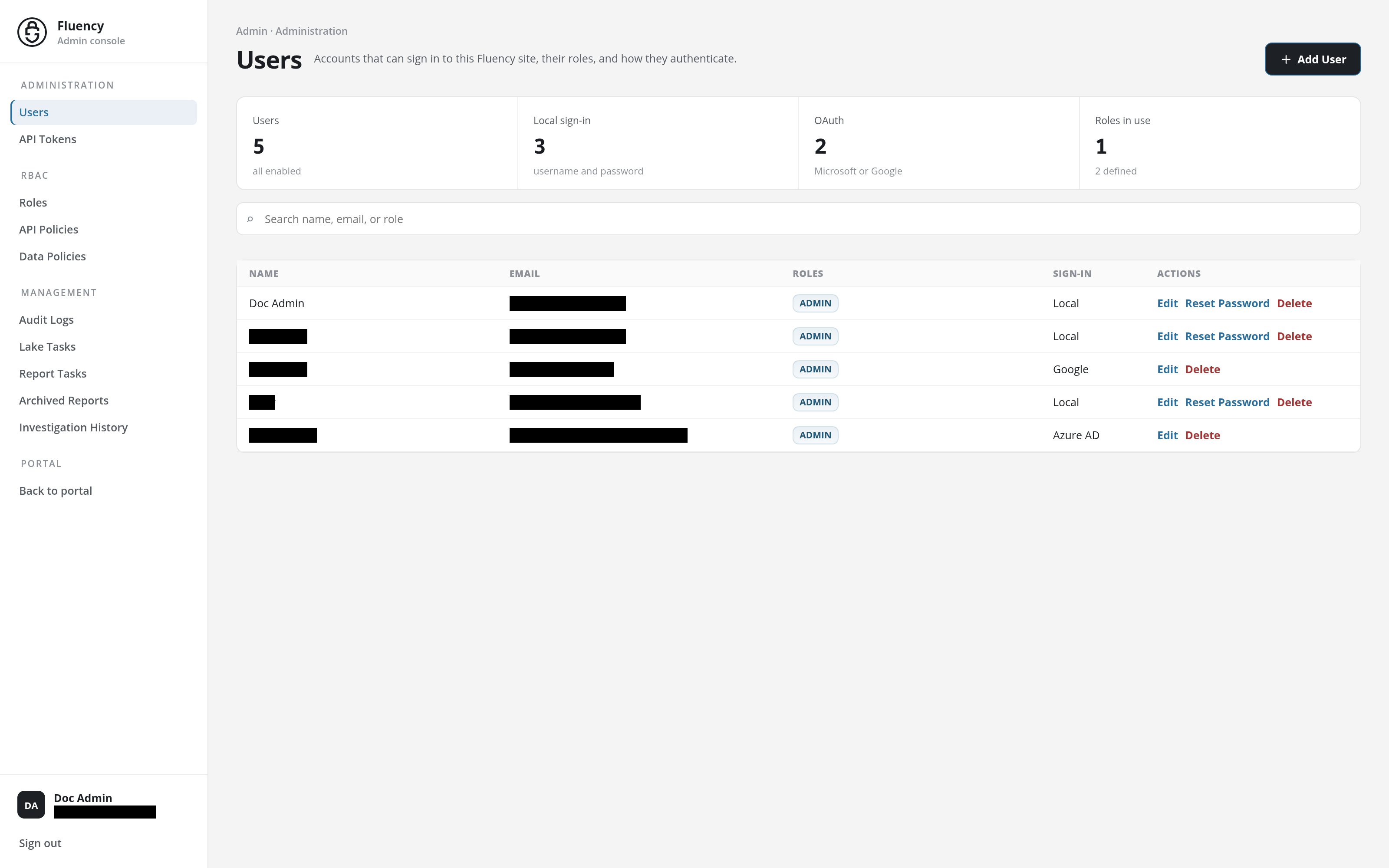
The page is subtitled Accounts that can sign in to this Fluency site, their roles, and how they authenticate., with the + Add User button in its upper-right corner, four summary tiles, a search field, and a table of Name, Email, Roles, Sign-In, and Actions. Add User opens the Add User dialog, which asks for First Name, Last Name, Username, Email, Company, and Roles (all required) plus an OAuth switch under User Authentication. Turning it on signs that user in through an identity provider, chosen from the Provider drop-down that appears: Azure AD or Google.
Accounts are managed in the Users area of the Settings page, opened with the gear icon in the navigation bar.
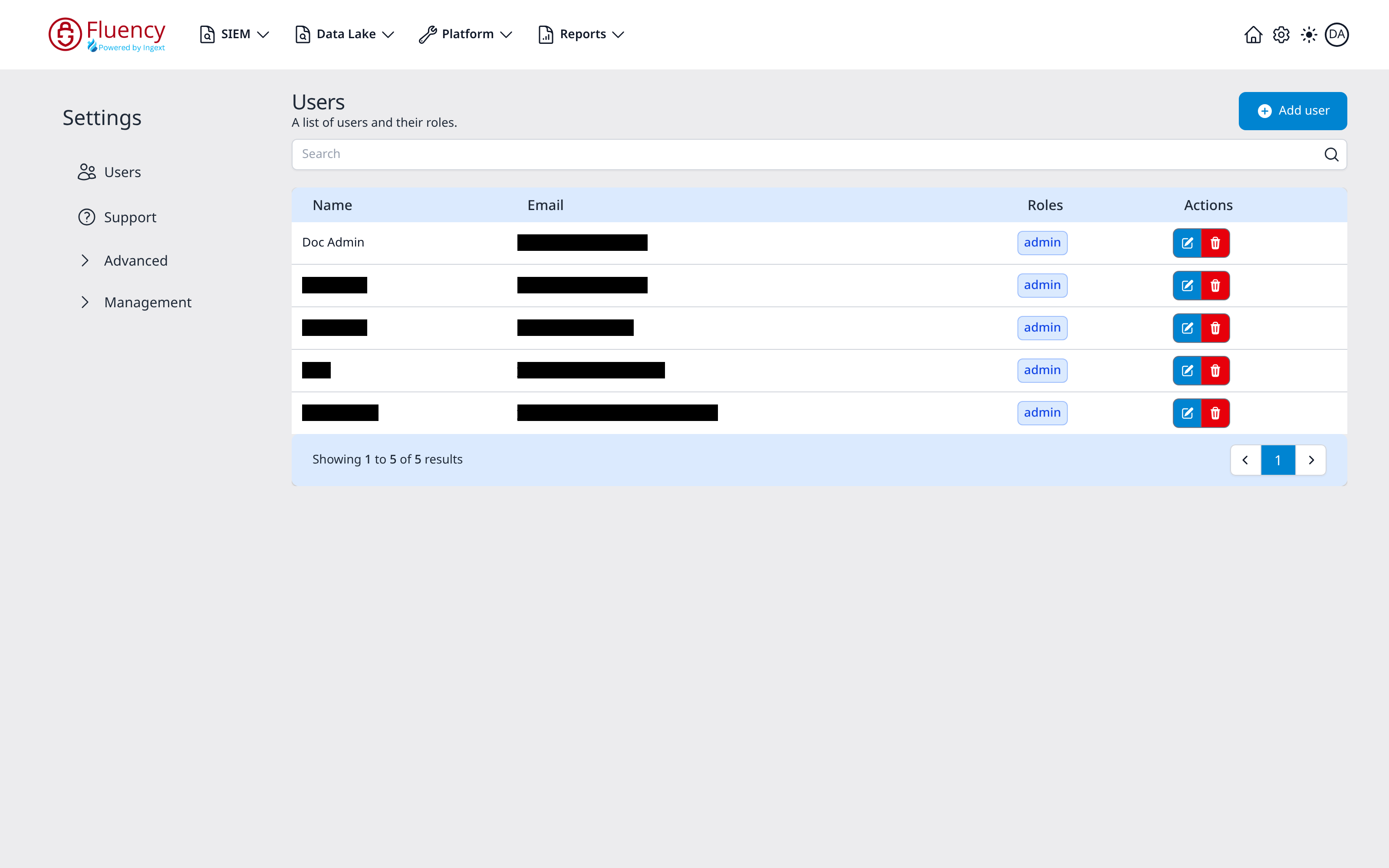
Settings opens on the Users area, subtitled "A list of users and their roles.", with an Add user button in its upper-right corner and a Search box above a table of Name, Email, Roles, and Actions. Add user opens the Add User dialog, which asks for First Name, Last Name, Username, Email, Company, and Roles (all required) plus an OAuth checkbox under User Authentication that enables OAuth sign-in for that user.