Notification Delivery
A detection that fires but never reaches anyone is indistinguishable, operationally, from a detection that never fired. This page covers the chain between a rule matching and a human seeing the message (the rule, the action behind it, the endpoint configuration, and the downstream service that has to accept the delivery) and how to find which link broke. As with the rest of this section, work down the chain in order.
The Delivery Chain
An ordered checklist, mirroring the layer method:
- The event or ticket exists.
- For a behavior summary, its score is above the notification threshold.
- The rule matched it.
- The rule is wired to an action.
- The action executes without error.
- The endpoint is configured and reachable.
- The downstream service accepts and displays the message.
Below the Notification Threshold
A behavior summary sends a notification only once its Risk Score is above 3000, the middle of the Serious band. A Low or Medium summary that never reached your endpoint is working as intended; find it on Cases Search instead (v1: SIEM → Behavior Summary). The threshold is the same for every rule.
A summary can also cross the threshold late. Its score accumulates through the day, so the notification goes out with the update that takes the score past 3000, not when the summary first appeared. See Notification Threshold.
Endpoint Configuration
Where Endpoints Are Configured
- v2 interface
- Classic v1 interface
Endpoints live on Configuration → Notifications (/v2/configuration/notifications), titled Notifications on screen. Two tabs switch the page between Endpoints (shown by default) and Rules; on Endpoints, the Email and Slack buttons in the header add an endpoint of each type. Each configured endpoint appears as a card headed by its name, with a red Delete, and its body lists its properties: Type, the FPL Action that sends the notification, and the delivery target (for an Email endpoint, the recipient addresses shown as tags).
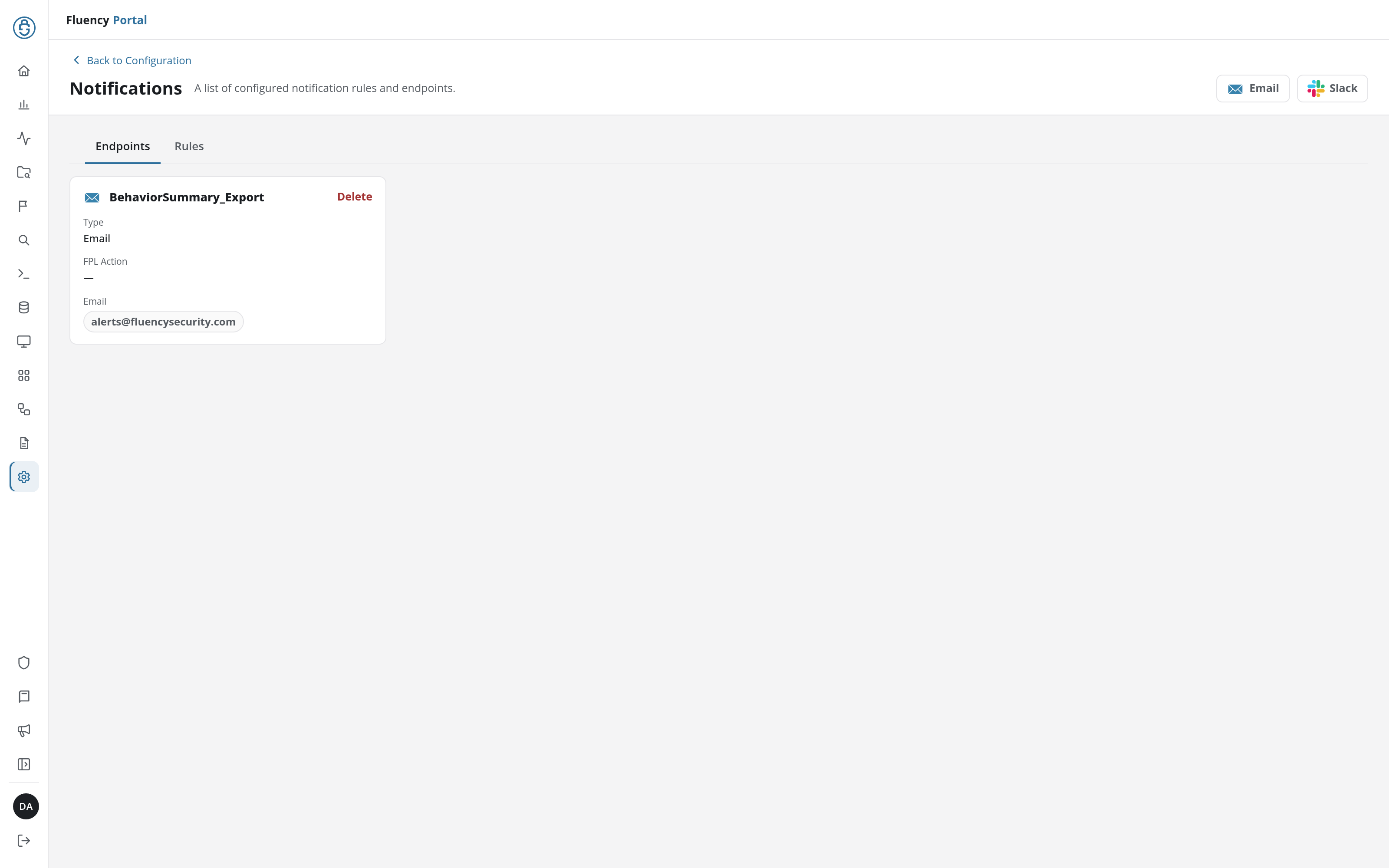
Correcting an endpoint is done by clicking the card's body, which opens the Edit Notification Endpoint dialog filled in with its current values. Name and Type are read-only and the FPL Action drop-down, which shows the endpoint's action, is disabled; only the delivery configuration (for an Email endpoint, the To and CC recipients) can be changed and saved in place. That is the fix path for a wrong recipient or a stale channel name. An endpoint bound to the wrong action cannot be corrected in place: create a new endpoint with the right FPL Action, make sure a rule delivers to it (see Endpoint Rules), and delete the old one.
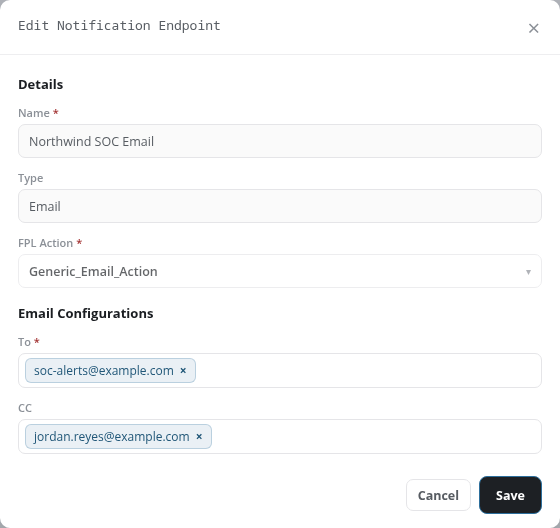
The card's header carries only Delete. Because there is no edit button (the edit action is the card body itself), it is easy to conclude the endpoint cannot be edited at all and rebuild it when only its recipients needed changing.
Endpoints live on Platform → Administration → Notifications (/platform/notifications), titled Platform Notifications on screen. An Endpoints / Rules tab selector sits on the left (Endpoints is shown by default), and two round add-endpoint icon buttons, an envelope and a Slack mark, sit on the right. Each configured endpoint appears as a card whose body lists its properties: Type, the FPL Action that sends the notification, and the delivery target (for an Email endpoint, the recipient address shown as a tag).
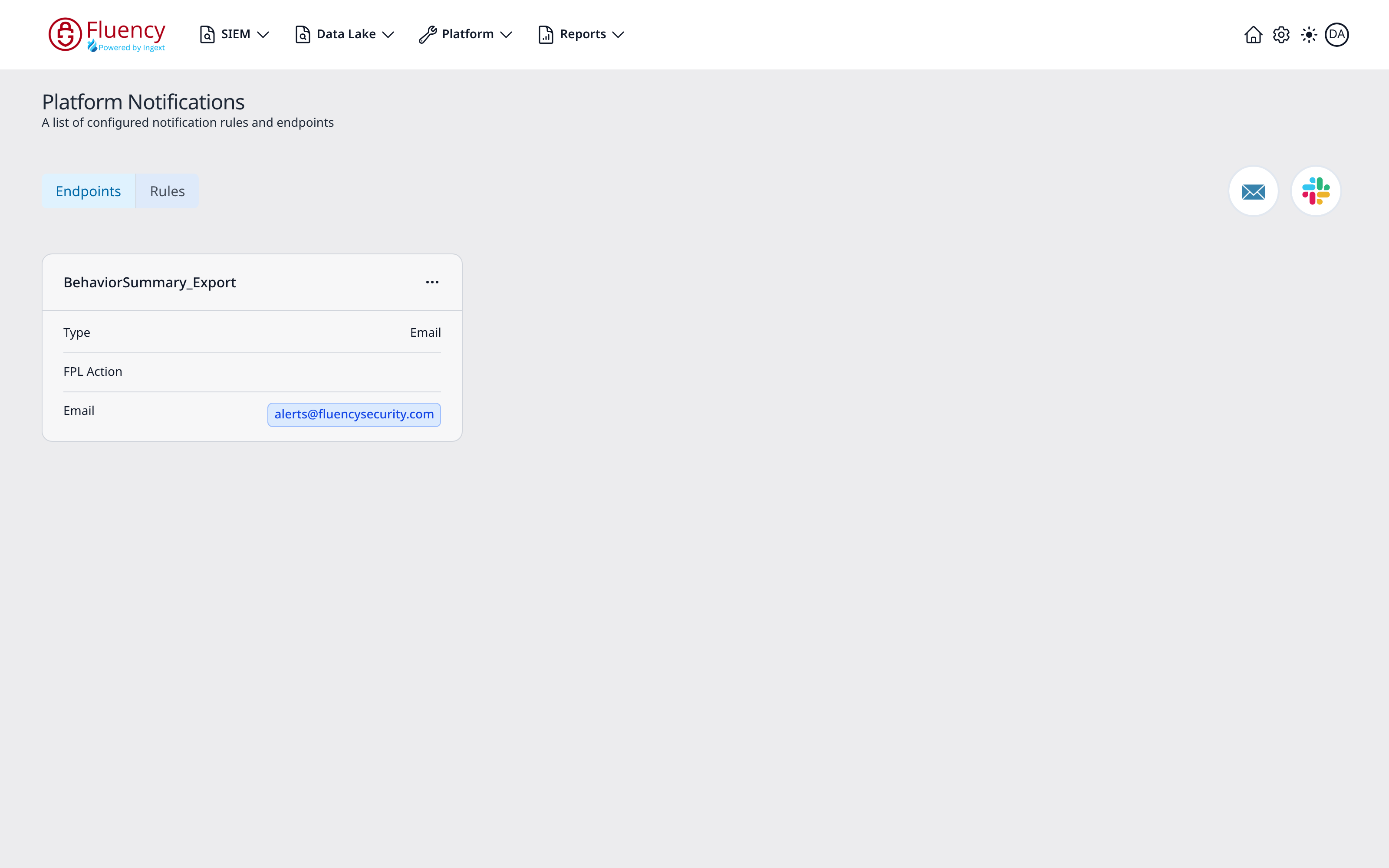
Correcting an endpoint is done by clicking the card's body, which opens the Edit Notification Endpoint dialog filled in with its current values. Name and Type are read-only and the FPL Action drop-down is disabled; only the delivery configuration (for an Email endpoint, the To and CC recipients) can be changed and saved in place. That is the fix path for a wrong recipient or a stale channel name. An endpoint bound to the wrong action cannot be corrected in place: create a new endpoint with the right FPL Action, make sure a rule delivers to it (see Endpoint Rules), and delete the old one.
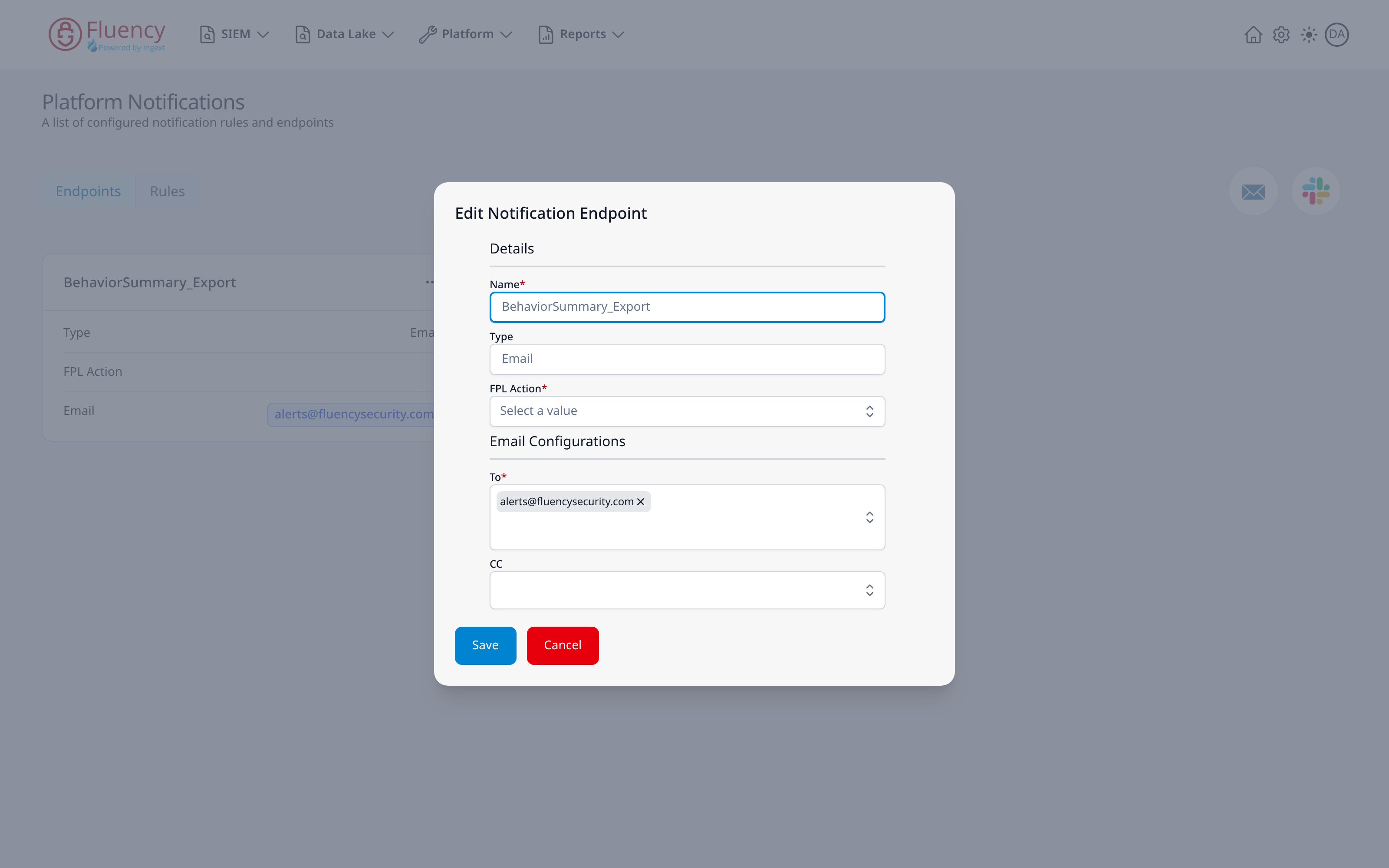
The ... button in a card's header opens a separate options menu offering a single choice, Delete, behind a confirmation dialog. Because the edit action lives on the card body rather than in that menu, it is easy to conclude the endpoint cannot be edited at all and rebuild it when only its recipients needed changing.
Endpoint Type Checks
Email
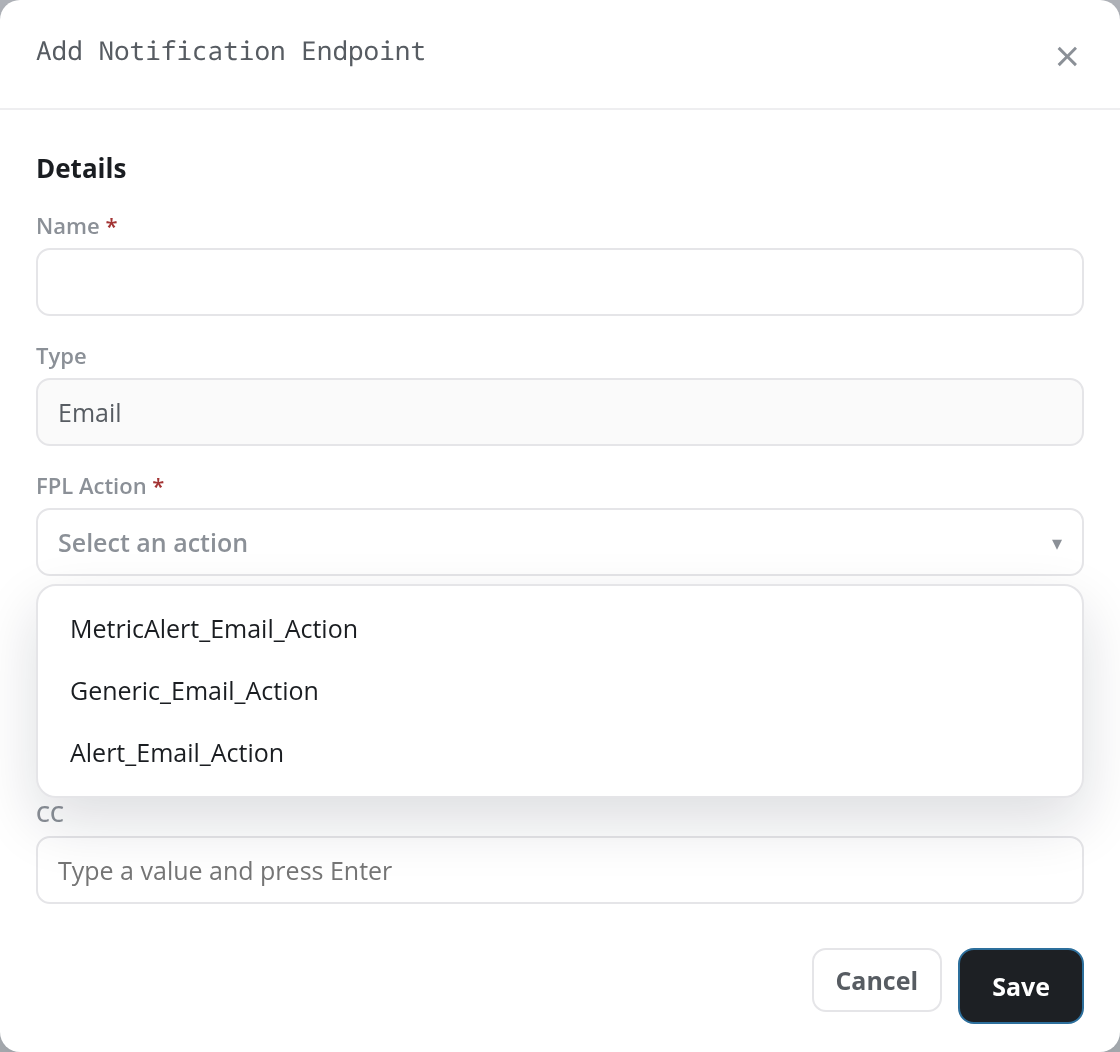
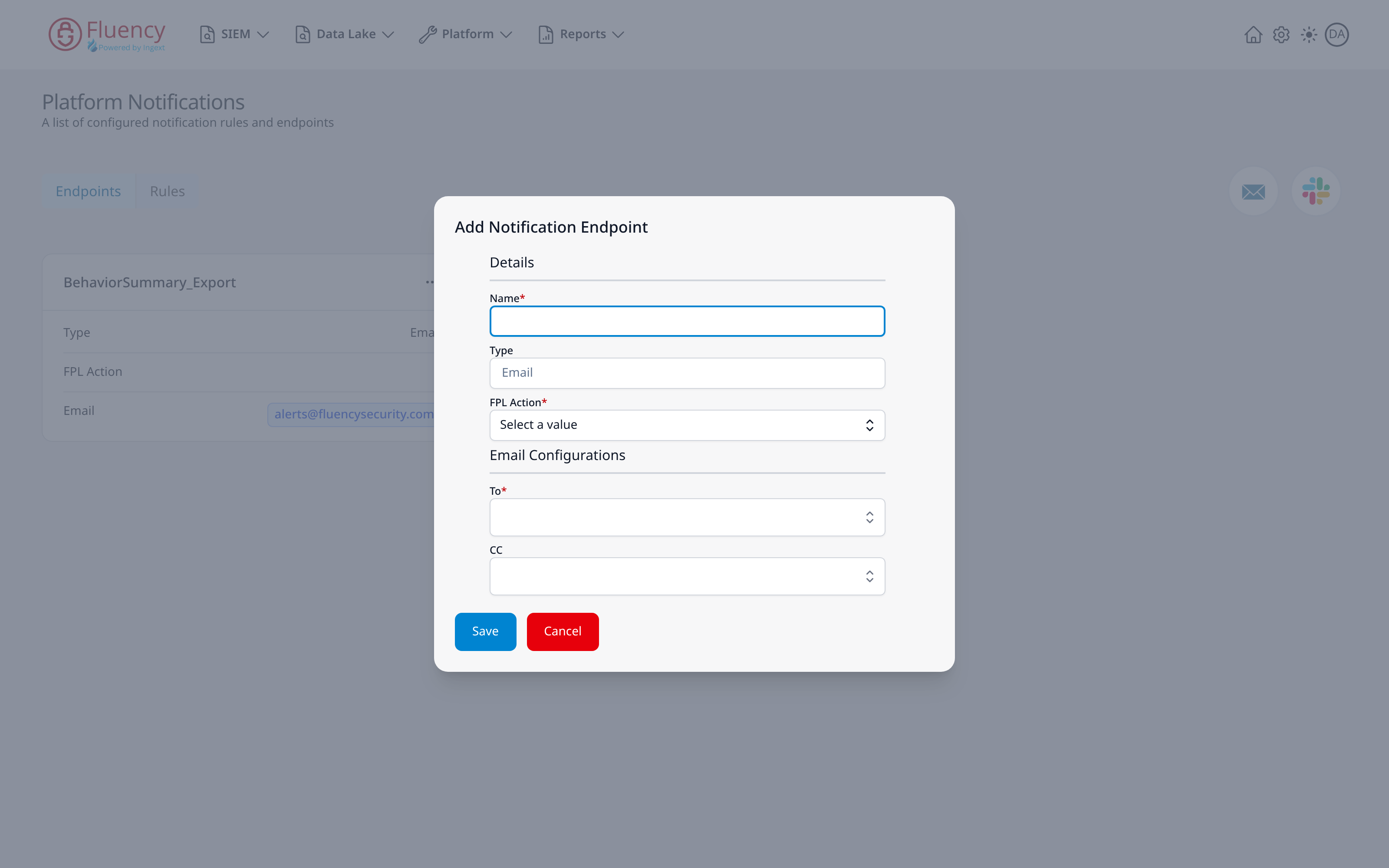
An Email endpoint is defined by a Name, a Type fixed to Email, a required FPL Action, and an Email Configurations section holding To (required) and CC. Check the To list before anything downstream: a recipient dropped during a team change looks identical to a delivery failure. Spam quarantine on the receiving side is the single most common cause of "email notifications stopped".
- v2 interface
- Classic v1 interface
Slack
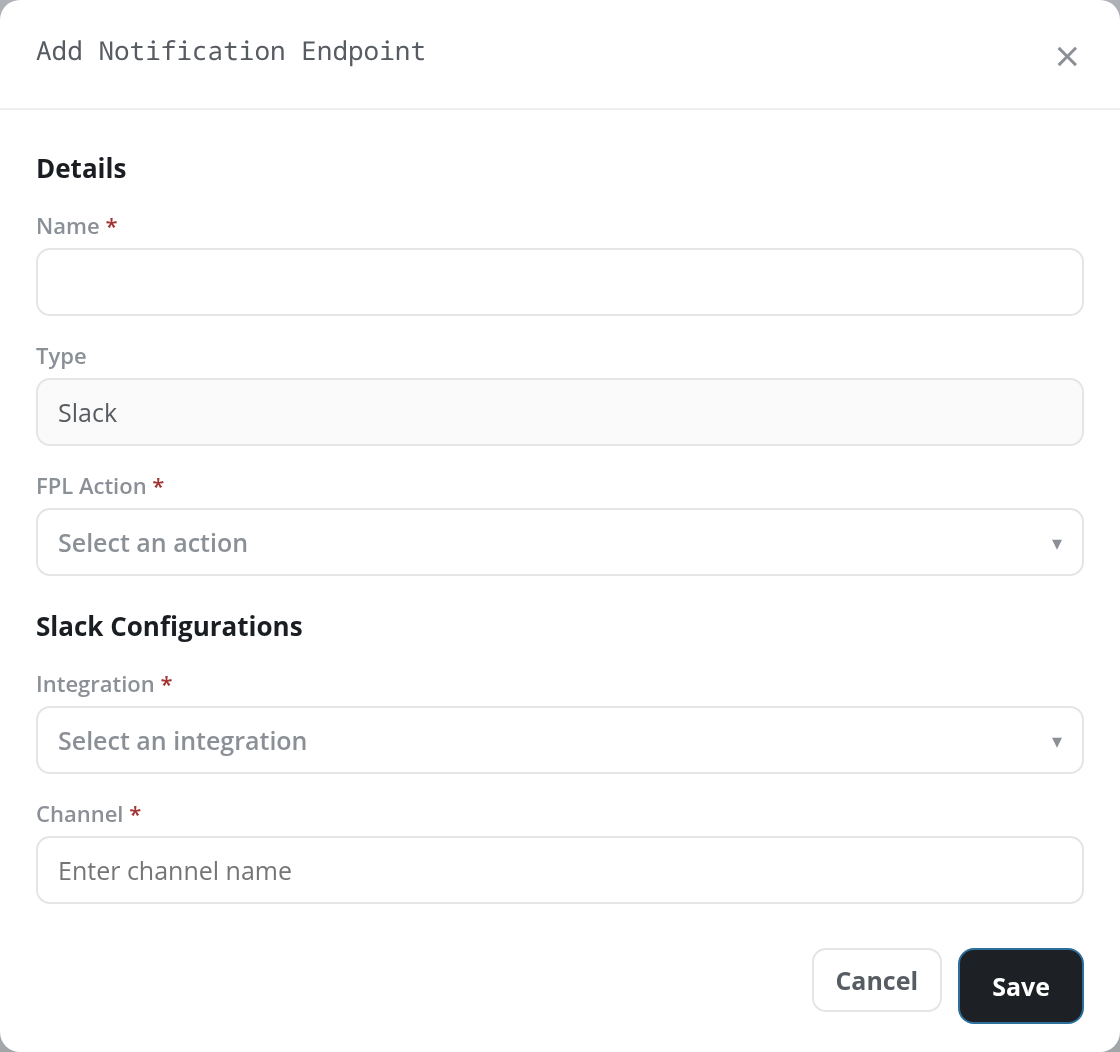
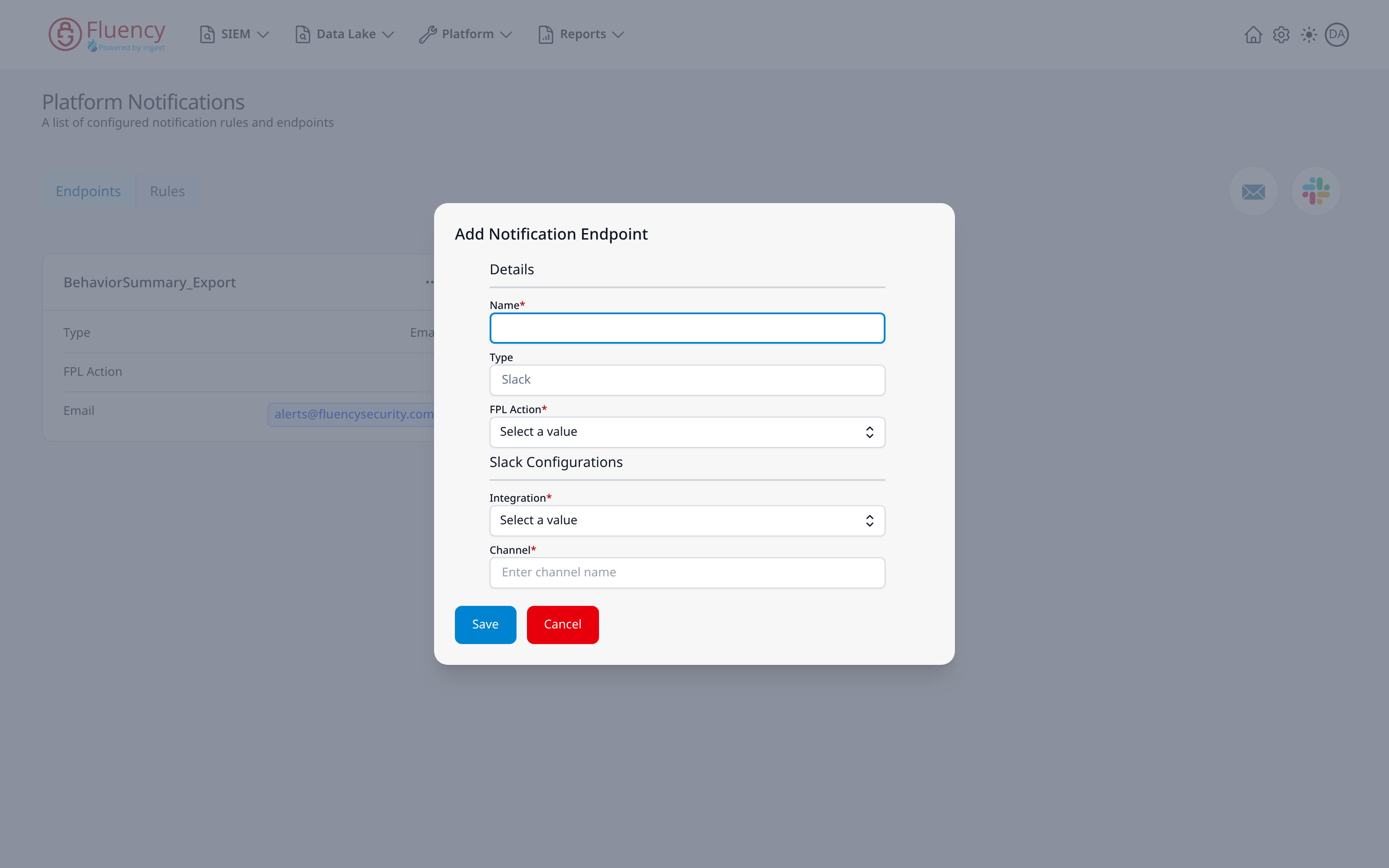
A Slack endpoint is defined by a Name, a Type fixed to Slack, a required FPL Action, and a Slack Configurations section holding Integration (a drop-down of the configured Slack integrations) and Channel, a free-text field. Because Channel is typed rather than picked, a renamed or archived channel leaves the endpoint looking correct while nothing is delivered. Check too that the credential is still valid and the app still installed in the workspace; see Slack Integration.
- v2 interface
- Classic v1 interface
Endpoint Rules
The Rules tab determines which notifications go to which endpoint.
- v2 interface
- Classic v1 interface
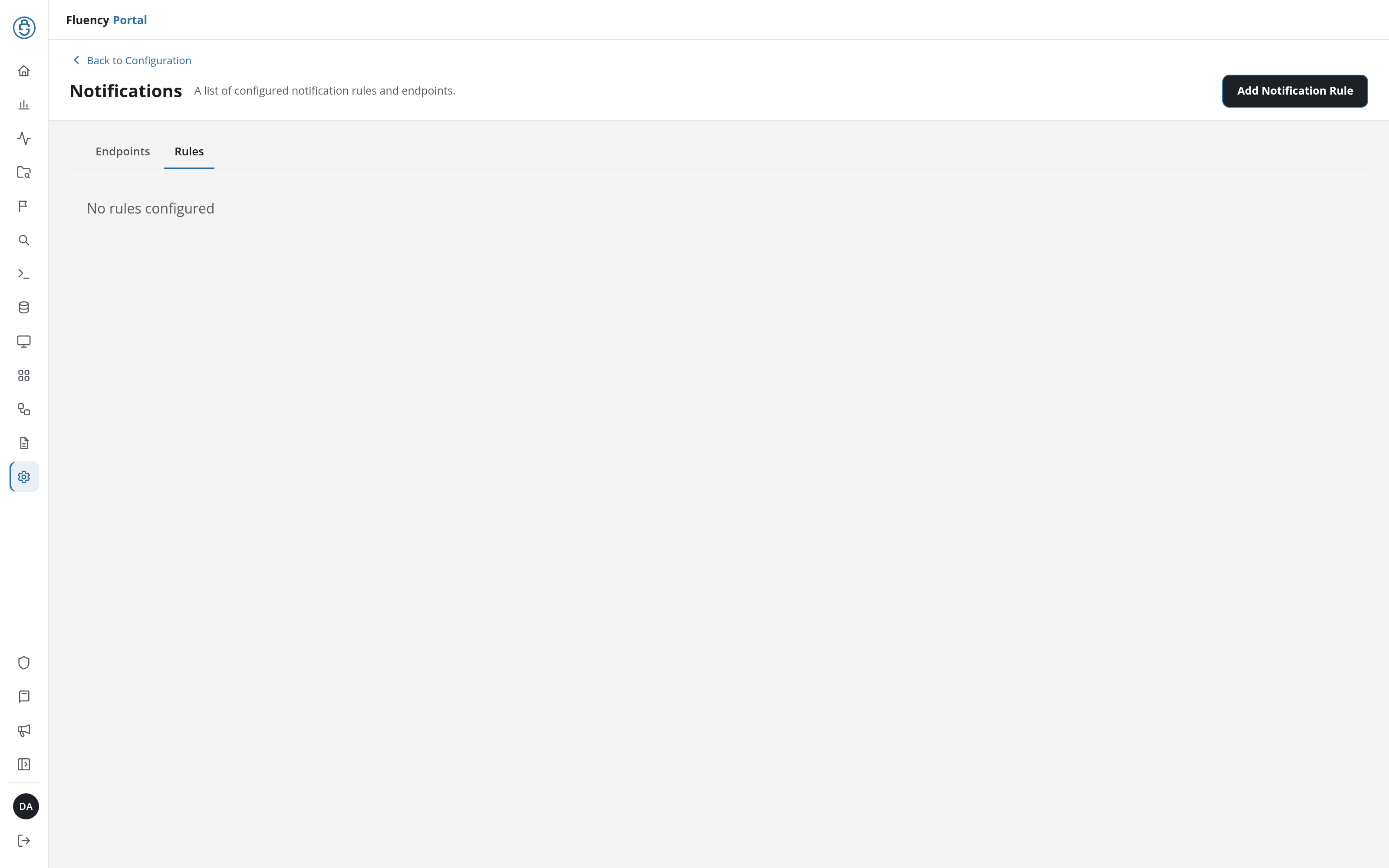
Switch to it with the Rules tab below the header; the Email and Slack buttons are replaced by an Add Notification Rule button, and an instance with nothing configured reads No rules configured.
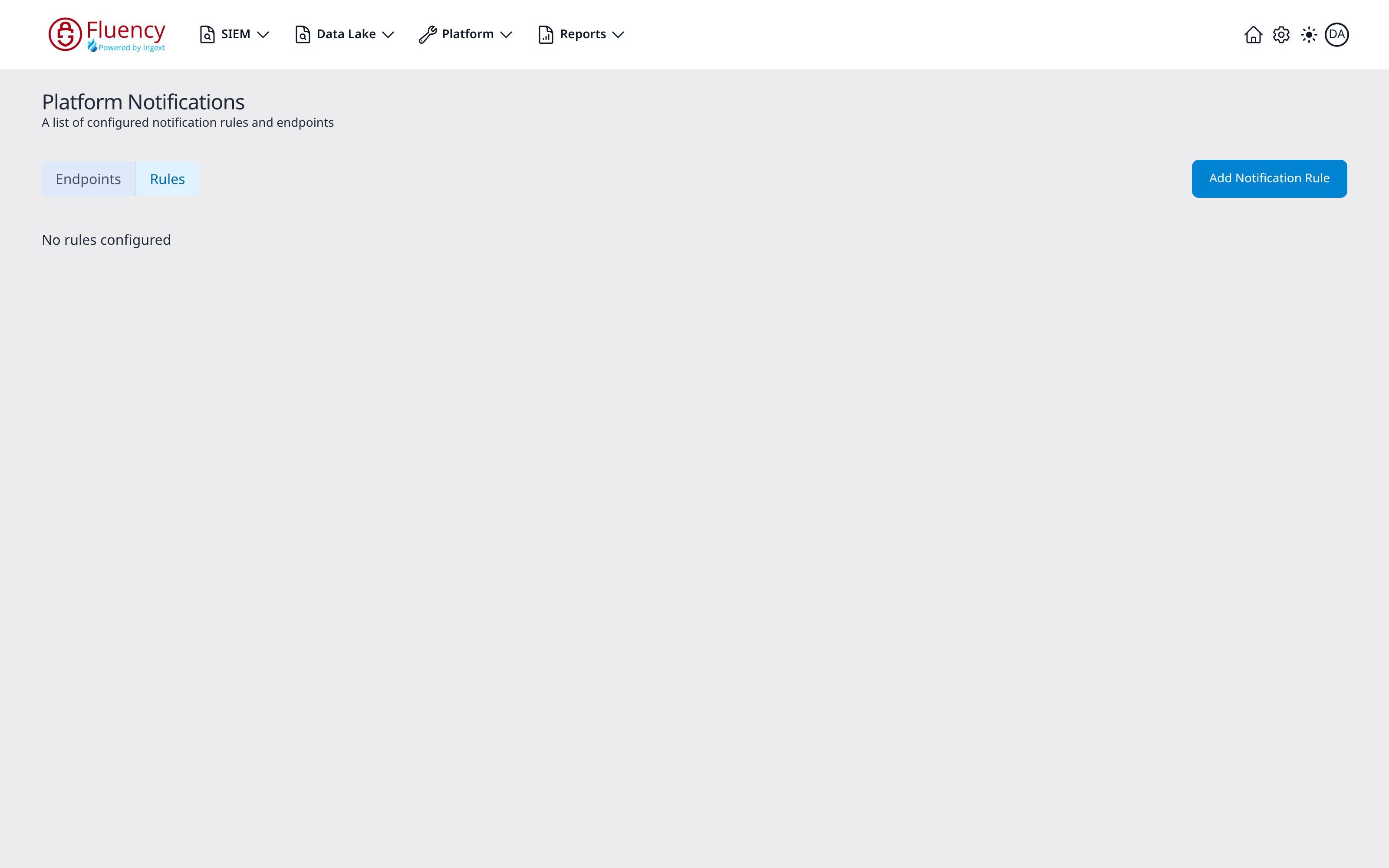
Switch to it from the Endpoints / Rules selector on the left of the header; the two round add-endpoint icons are replaced by an Add Notification Rule button, and an instance with nothing configured reads No rules configured.
A rule has three required parts: a Name, the Patterns that trigger it, and the Endpoints it delivers to. All three matter to this diagnosis:
- No rule at all. A correctly configured endpoint with nothing pointing at it delivers nothing. No rules configured on this tab is the whole answer to "the endpoint looks fine but nothing arrives"; check here before touching the endpoint or the downstream service.
- Patterns that no longer match. A rule whose patterns stopped matching sends nothing and reports no error anywhere. This is the quietest failure mode in the chain: nothing is broken, so nothing is logged.
- The wrong endpoint selected. Endpoints is a multi-select, so a rule can be delivering correctly to one destination while the one being watched was never in the list.
- v2 interface
- Classic v1 interface
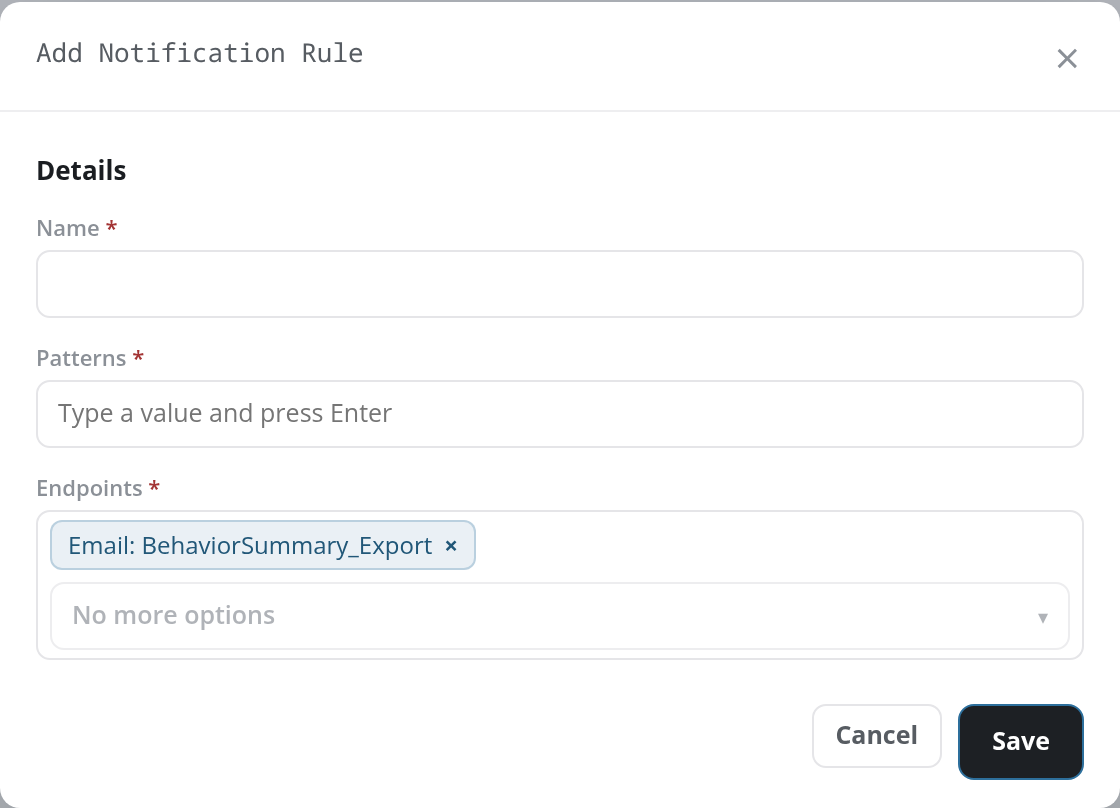
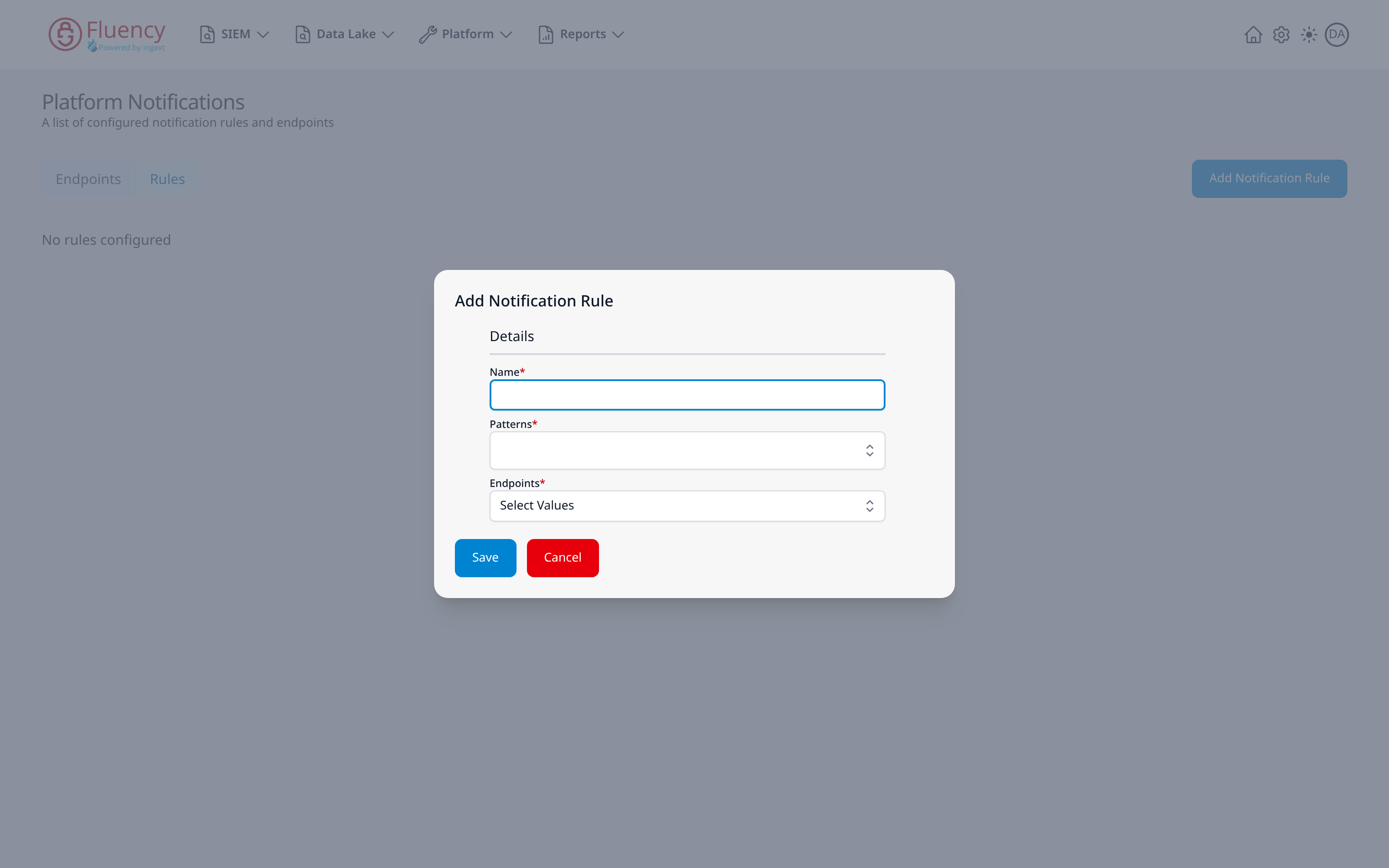
Compare the rule's Patterns against what the source actually produces now, not against what it produced when the rule was written: a parser or normalization change on the ingest side is a common reason a pattern silently stops matching.
Related
- Troubleshooting: the method and the diagnostic surfaces
- Alerts & Actions: how notifications and actions are meant to be configured
- Actions: the FPL actions behind endpoints
- Notifications: the endpoints page (v1: Platform → Administration → Notifications)
- Detections: the rules that trigger notifications