Actions
The API Actions page (under the legacy EventWatch menu), its Actors, and its API Configs do not exist in the current interface; the walkthrough under The older API Actions page applies to the legacy interface only. Start with Where alert delivery is configured now.
Where alert delivery is configured now
Three pages between them do what the old API Actions page did:
- v2 interface
- Classic v1 interface
-
Configuration → Notifications: the delivery destinations. The page is titled Notifications, subtitled A list of configured notification rules and endpoints, and carries Endpoints and Rules tabs, with Email and Slack buttons in the header for adding an endpoint. Endpoints appear underneath as cards.
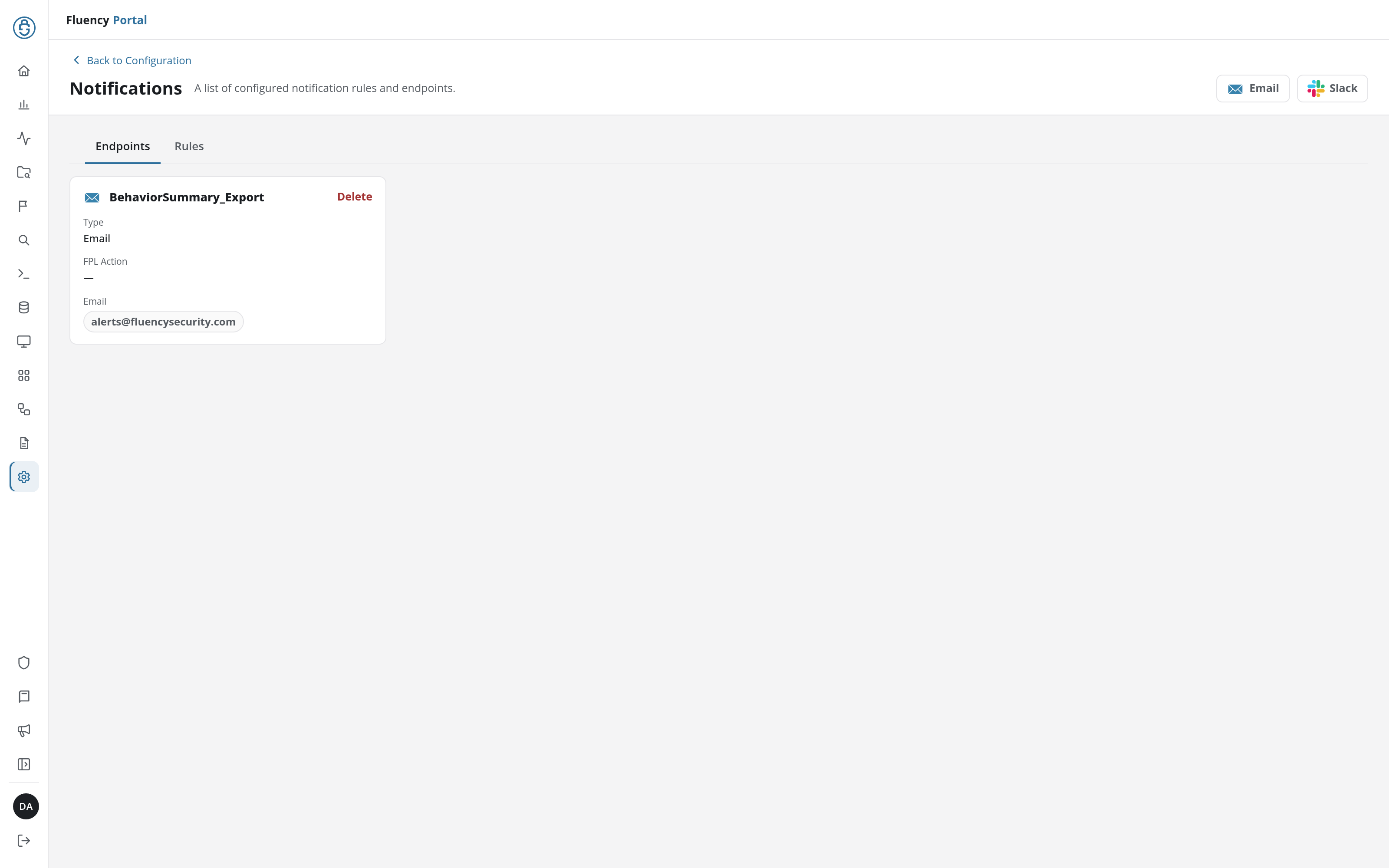
Either button opens the Add Notification Endpoint dialog with Type preset. An Email endpoint takes a Name, an FPL Action, and To / CC recipients; a Slack endpoint takes a Name, an FPL Action, the Slack Integration, and a Channel. Full field lists are on Notifications.
-
Configuration → Processors, under its Actions tab, where the FPL Actions that back those endpoints are written and managed, with Add Action. They replace the old lambdas. See Processors.
-
Configuration → Integrations: where the external service itself (Slack, ServiceNow, PagerDuty) is connected, from + Create Integration, before an endpoint can point at it. See Integrations.
-
Platform → Administration → Notifications: the delivery destinations. The page is titled Platform Notifications, subtitled A list of configured notification rules and endpoints, and carries an Endpoints / Rules tab selector on the left with two round add-endpoint icon buttons (an envelope and a Slack mark) on the right. Endpoints appear underneath as cards.
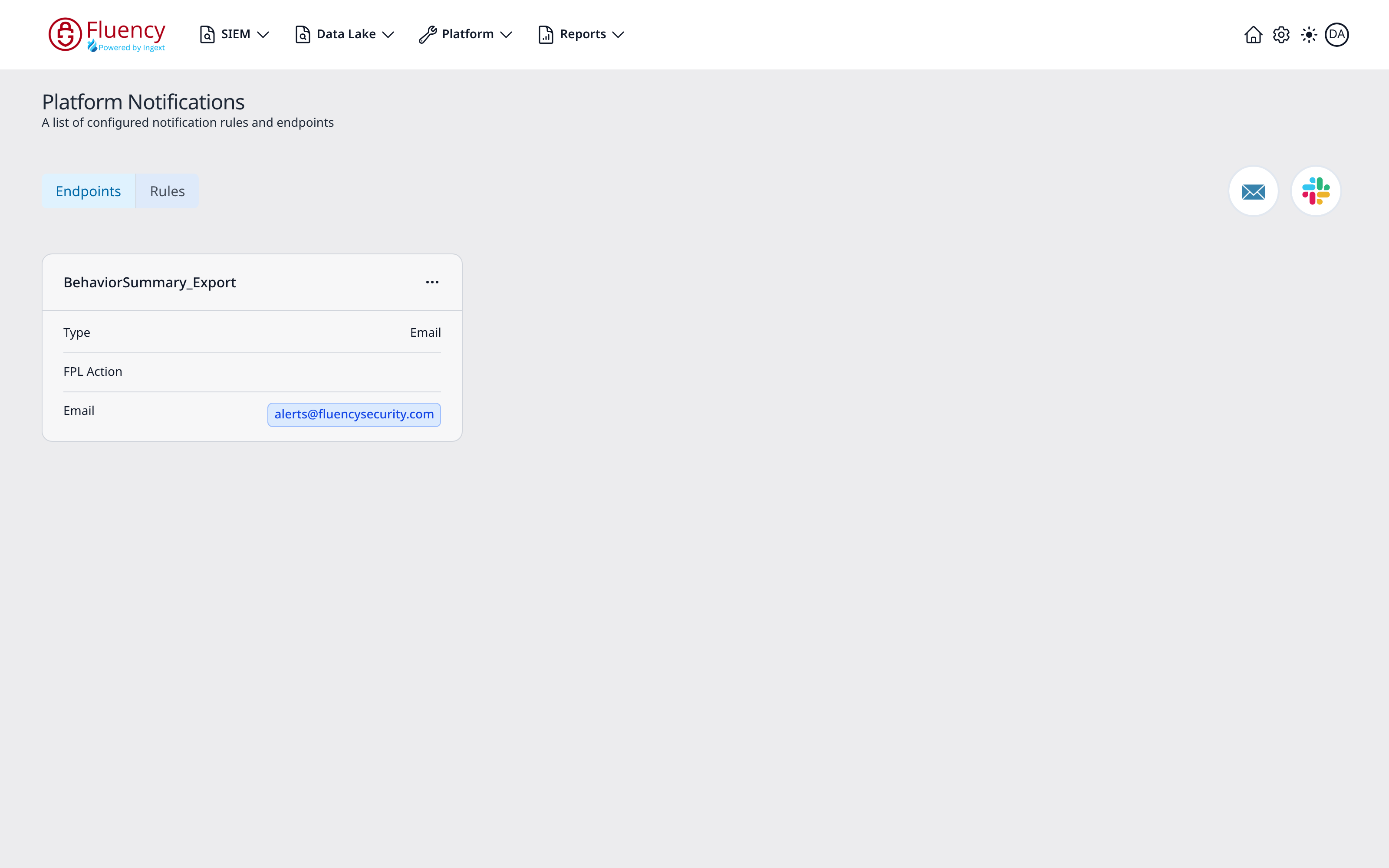
Either icon button opens the Add Notification Endpoint dialog with Type preset. An Email endpoint takes a Name, an FPL Action, and To / CC recipients; a Slack endpoint takes a Name, an FPL Action, the Slack Integration, and a Channel. Full field lists are on Notifications.
-
Platform → Processors, under its Actions tab: where the FPL Actions that back those endpoints are written and managed. They replace the old lambdas.
-
Platform → Applications → View Integrations: the Integrations page, where the external service itself (Slack, ServiceNow, PagerDuty) is connected, before an endpoint can point at it.
The older API Actions page
Sign in to your Fluency portal at https://<companyname>.app.ingext.io; see Fluency Web Interface for the URL formats.
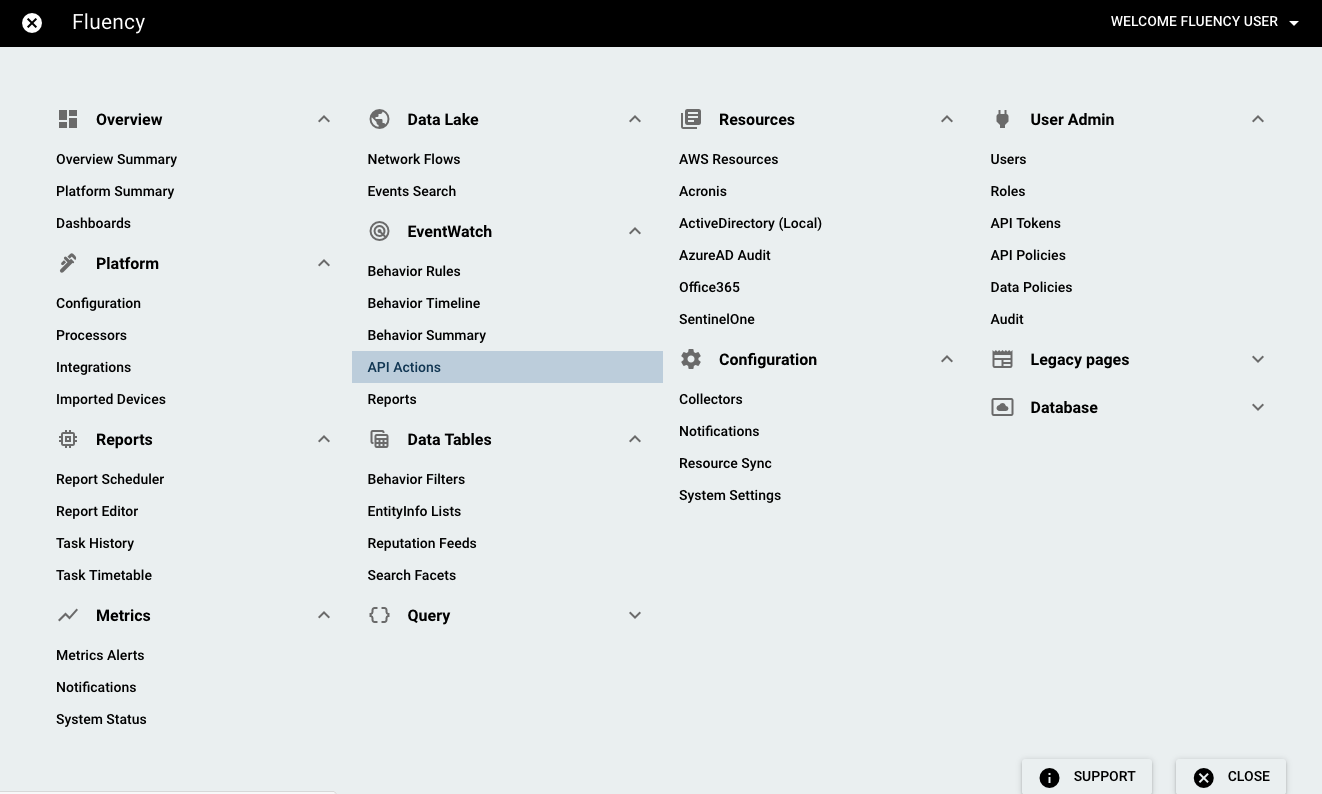
Open the Main Menu from the upper left-hand corner and choose the API Actions option under the EventWatch section.
On the following page, you'll see behavior actions displayed. The actions page allows you to set up an automatic workflow that occurs when behavior models are triggered. Actions can be assigned to specific behavior models in order to specify when alerts should be forwarded to any desired users. Behavior actions define what actions should be performed when a certain behavior alert is triggered. Actions can be defined for multiple behavior models, and multiple actions can be defined for a set of behavior models.
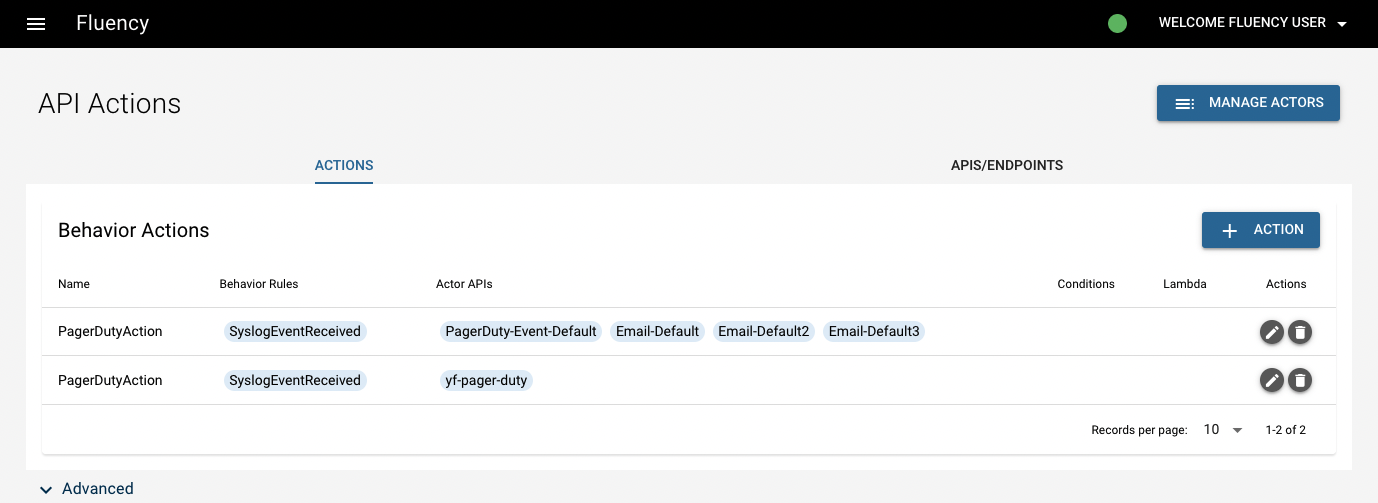
Click the pencil button on the right side of each action if you'd like to edit it.
Click "+ ACTION" button in the upper right corner of the list to add new behavior event action in the pop-up window.
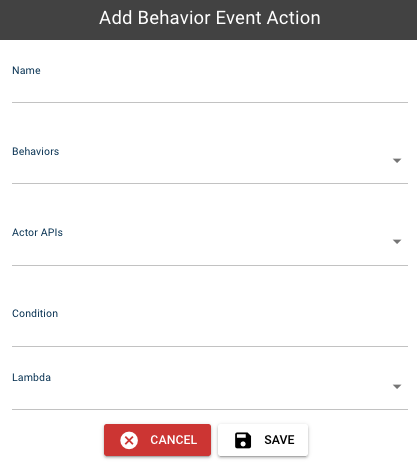
The first field in this form is a name to describe what the action does. Next, select the behavior model(s) that this behavior action should apply to. Next, select the actions you want to apply to the behavior model(s). Lastly, select any desired lambdas. Lambdas can be used to perform more complex functions on an action.
In the second tab, APIs/endpoints information are given. You can also configure new action API by clicking the "+API CONFIG" button on the right side.
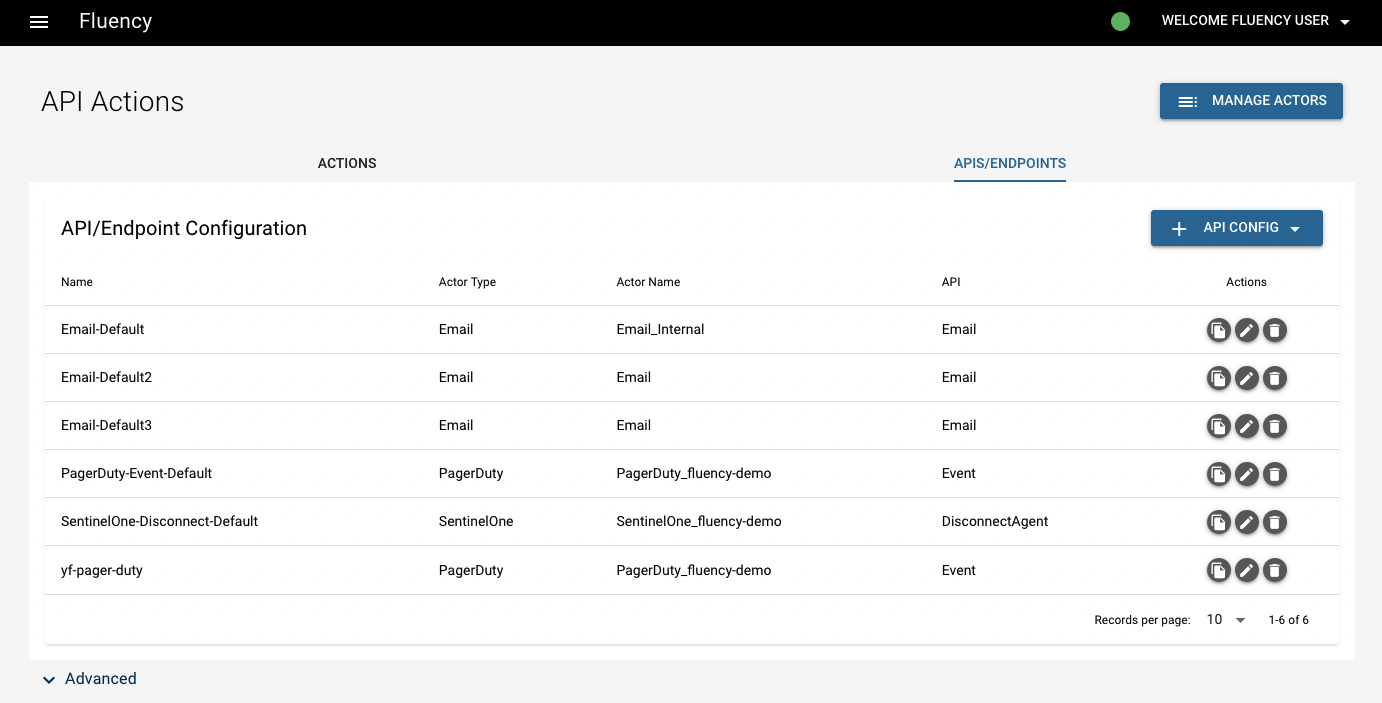
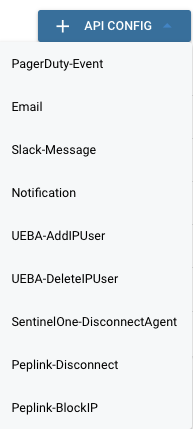
API configurations allow you to define an action. For example, an action with actor type “Email” will send an email to specified users when something occurs. An action with actor type “Slack” will send a Slack message to a specified channel when something occurs.
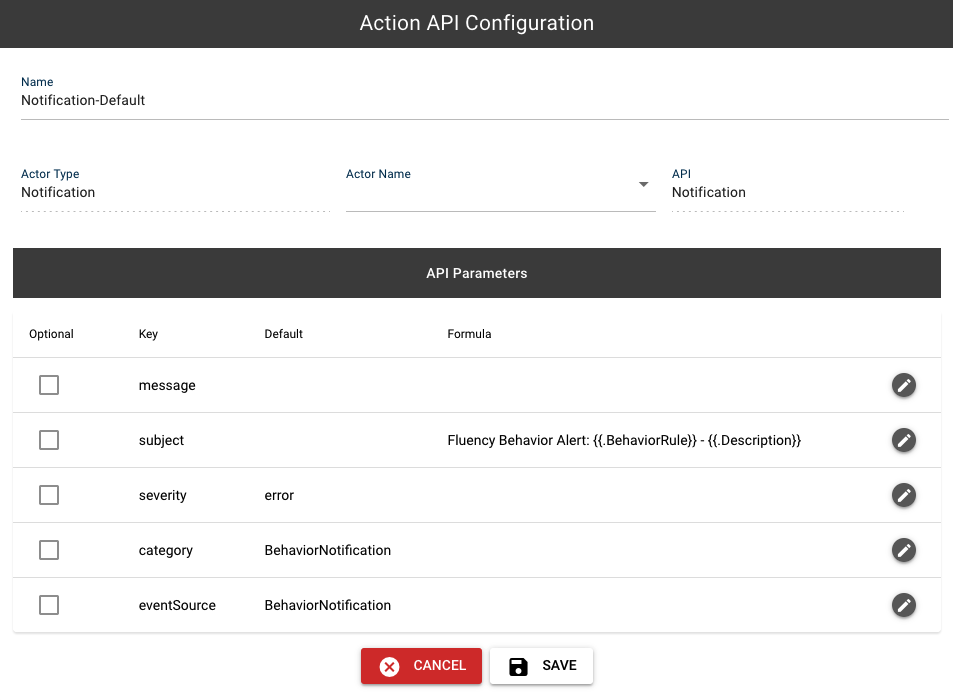
Above is an example of a “Notification” actor type. These are the default settings that appear when you select the "Notification" action type from the drop-down menu. The default name is “Notification-Default.” If desired, select an "Actor Name".
Going back to API Actions page, in the upper right corner, there's a button called "Manage actors". In the pop-up window, you can delete certain actors in the list by clicking the trash button.
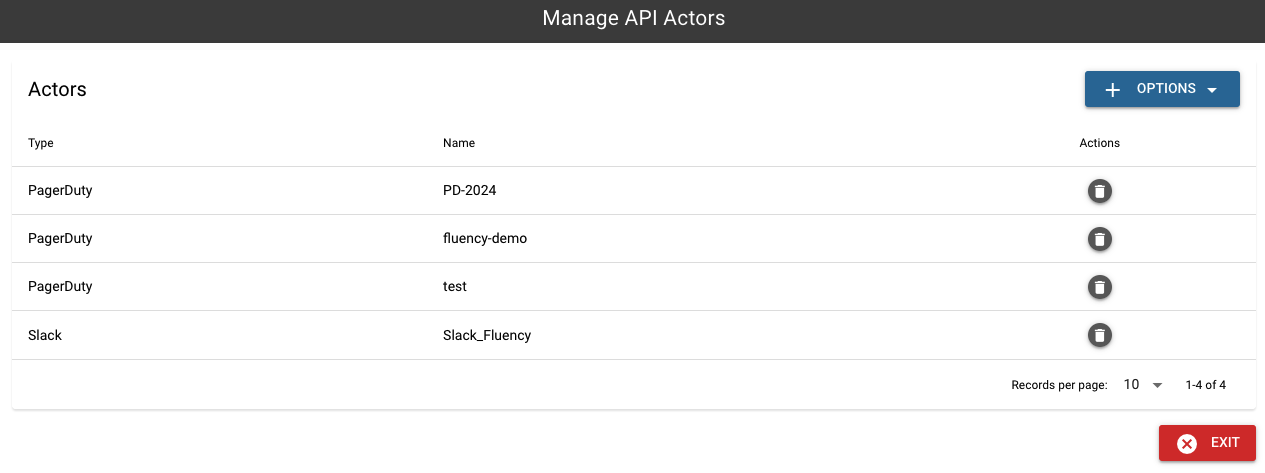
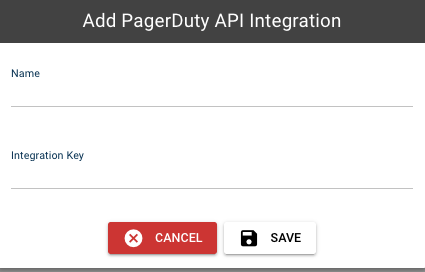
On the other side, to add actor, click "+ OPTIONS" button in the upper right corner to open a drop-down menu listing all the available actors. Actors are external systems that can receive Fluency alerts and tickets. For some of these systems, Fluency is able to sync the status of tickets so that when tickets are closed or acknowledged on those sites, they are also closed or acknowledged on Fluency, or vice versa. Fluency currently supports PagerDuty, Slack, SentinelOne, and Peplink integration.
Example: PagerDuty
In this section
- Slack Integration: creating the Slack app and connecting it as a notification destination.