Audit
The Activity Review Page section at the end belongs to the legacy interface. The Audit Logs page (v1: Audit) has no User Activity button; its only header action is Download Audit Logs.
Separate from the Fluency RiskScore, there is a dedicated audit for reviewing users of the Fluency system. It records the platform's own interface and API usage, which is distinct both from the customer events flowing through the pipeline and from risk scoring.
Opening the Audit area
- v2 interface
- Classic v1 interface
Open the Admin console (shield icon near the bottom of the navigation rail) and choose Audit Logs under Management in its side navigation (URL path /v2/admin/audit). The Management group lists Audit Logs alongside Lake Tasks, Report Tasks, Archived Reports, and Investigation History.
Open the Settings page (gear icon in the navigation bar), expand the Management group in the sidebar, and choose Audit (URL path /settings/audit). Clicking Management expands the group in place, without leaving the page, to reveal three entries (Audit, Reports, and Lake Tasks):
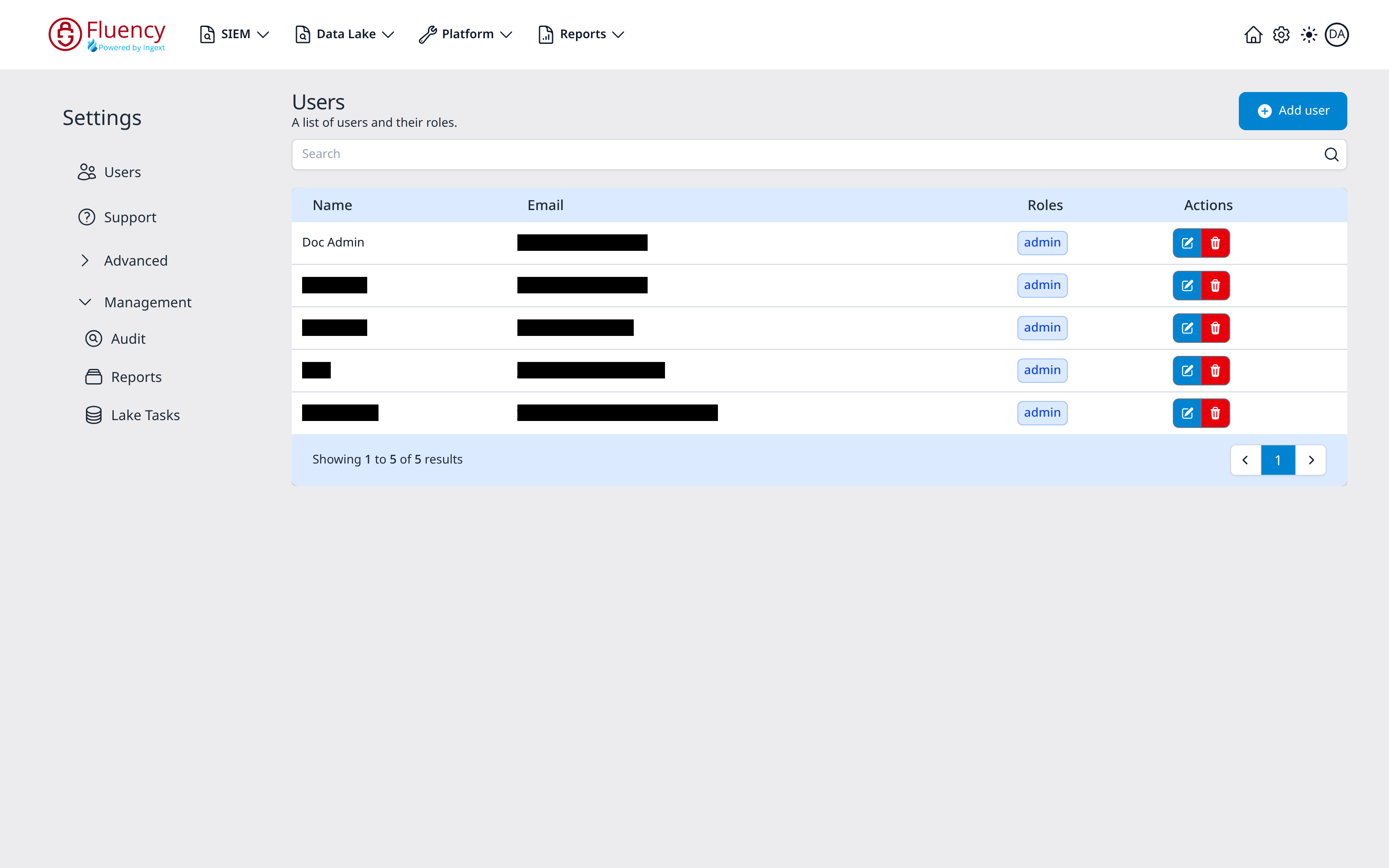
The Audit page
- v2 interface
- Classic v1 interface
The page is titled Audit Logs, subtitled Audit logs of user activities in the Fluency portal., with a Download Audit Logs button in the upper-right corner. Below the header a Search audit logs field with a Search button filters the log by text, and a record count gives the number of records that match. The rest of the page is split into a Filters panel on the left and the log table on the right. Clicking a row opens the record in a details panel, with its full JSON behind Show under Raw JSON.
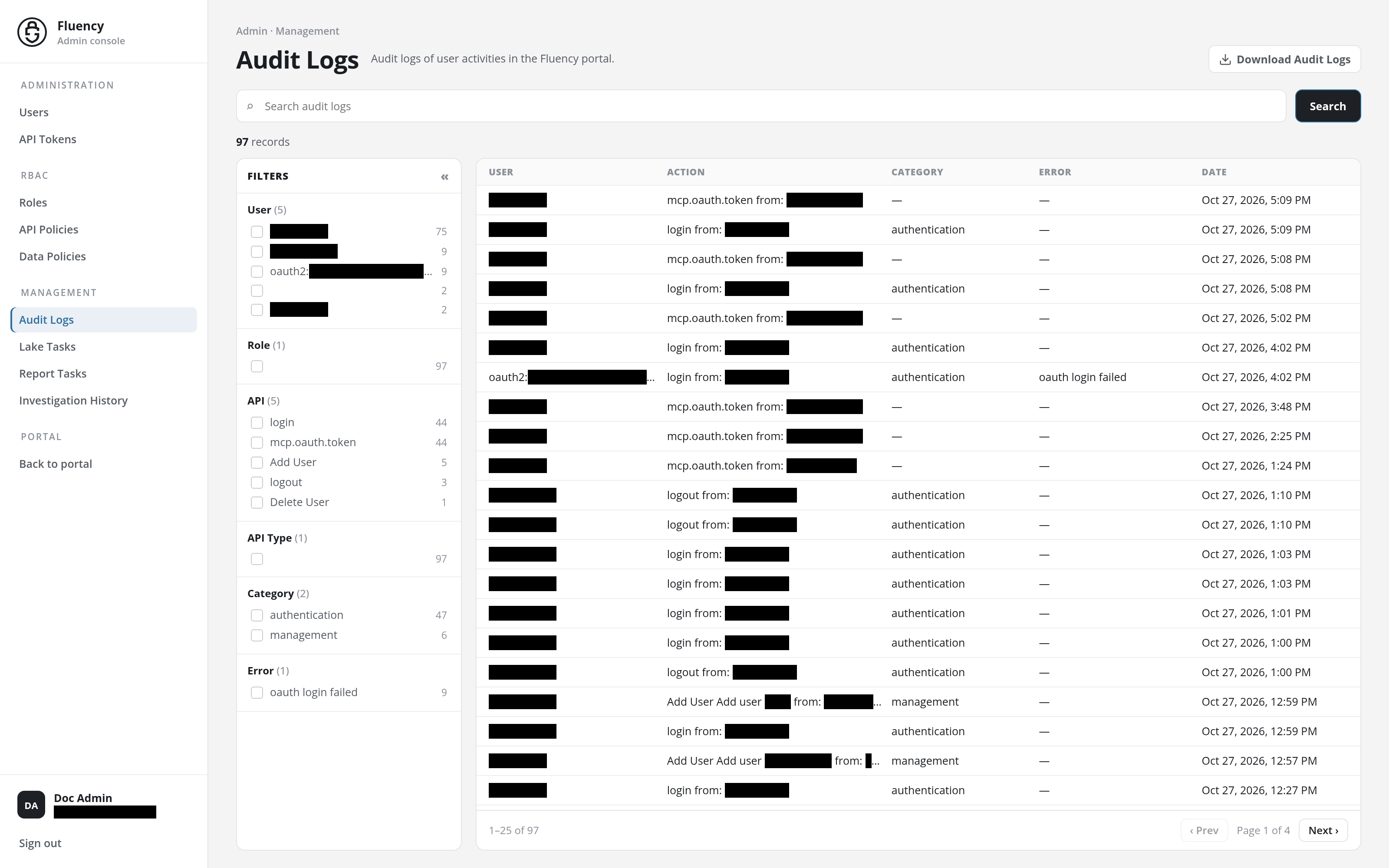
The page is titled Audit, subtitled Audit logs of user activities in the Fluency portal, with a Download Audit Logs button in the upper-right corner. Below the header a Search field with a Search button filters the log by text. The rest of the page is split into a faceted filter panel on the left and the log table on the right.
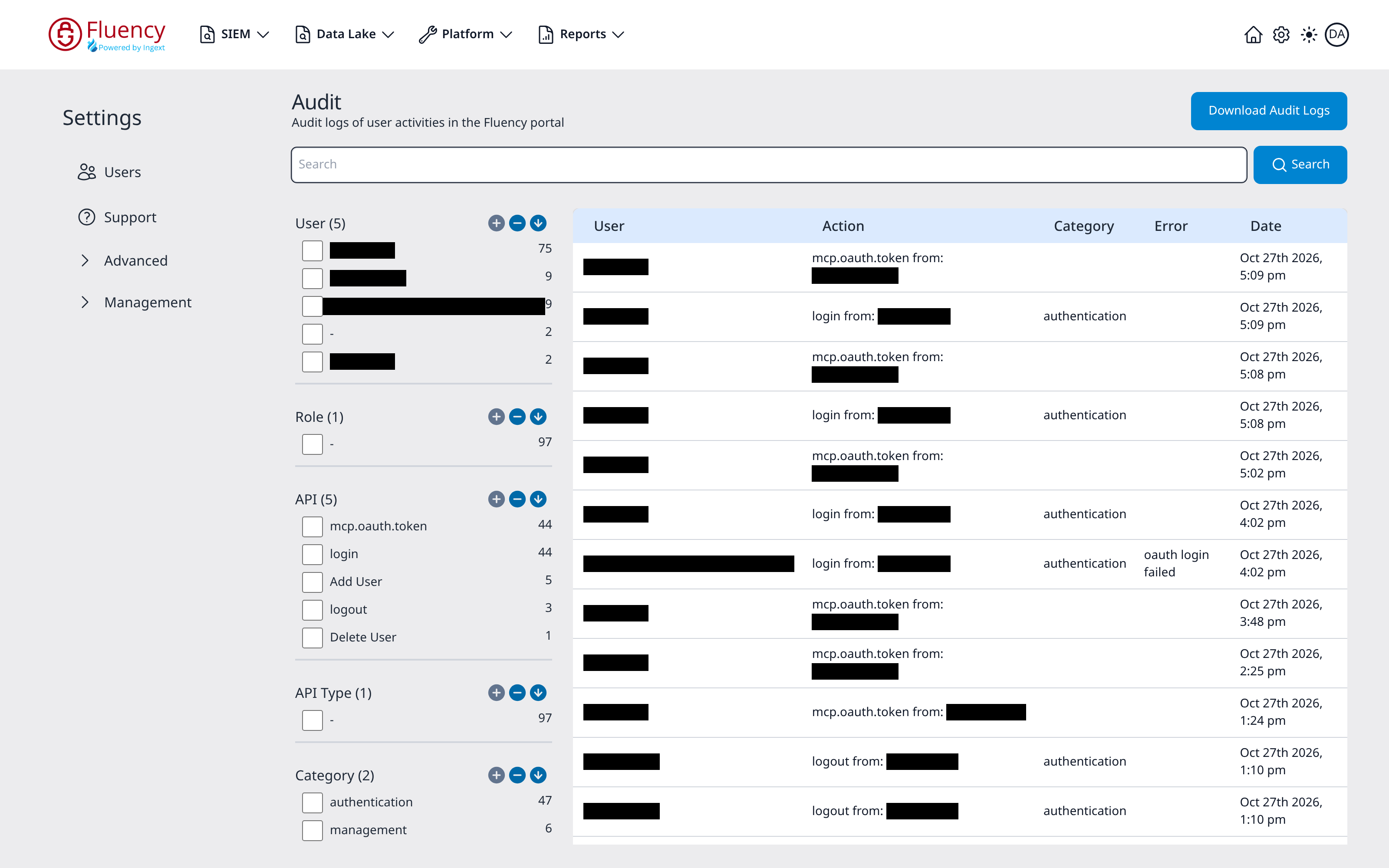
The audit table
The table has five columns:
- User: the actor that performed the action. Both successful and failed actions appear; failed sign-ins are attributed to the identity they were attempted with, such as an
oauth2:address, rather than to a named account. - Action: what was done, with the source IP appended, for example login from: 198.51.100.24, mcp.oauth.token from: 203.0.113.45, or Delete User Delete user Elena Petrova from: 198.51.100.24.
- Category: the action's category, such as authentication or management.
- Error: any error associated with the entry, such as oauth login failed. Successful entries leave it blank (v2 shows –).
- Date: when the action occurred.
A pagination bar below the table pages through the results (v2: ‹ Prev and Next ›, 25 records to a page).
Filtering
The panel on the left is a faceted filter. Each field the log can be narrowed by appears as a group; every value in a group shows the number of matching records and a checkbox that filters the table to it. The groups are User, Role, API, API Type, Category, and Error.
- v2 interface
- Classic v1 interface
Each click on a value moves it through three states: the first click includes it (the records narrow to those with that value), the second excludes it (marked −; the records narrow to those without it), and the third clears the filter. Each active filter appears as a chip below the record count (an excluded value's chip starts with NOT), with an × that removes it, and Clear all removes every filter at once. The other groups recount as the records narrow, and filters in different groups combine.
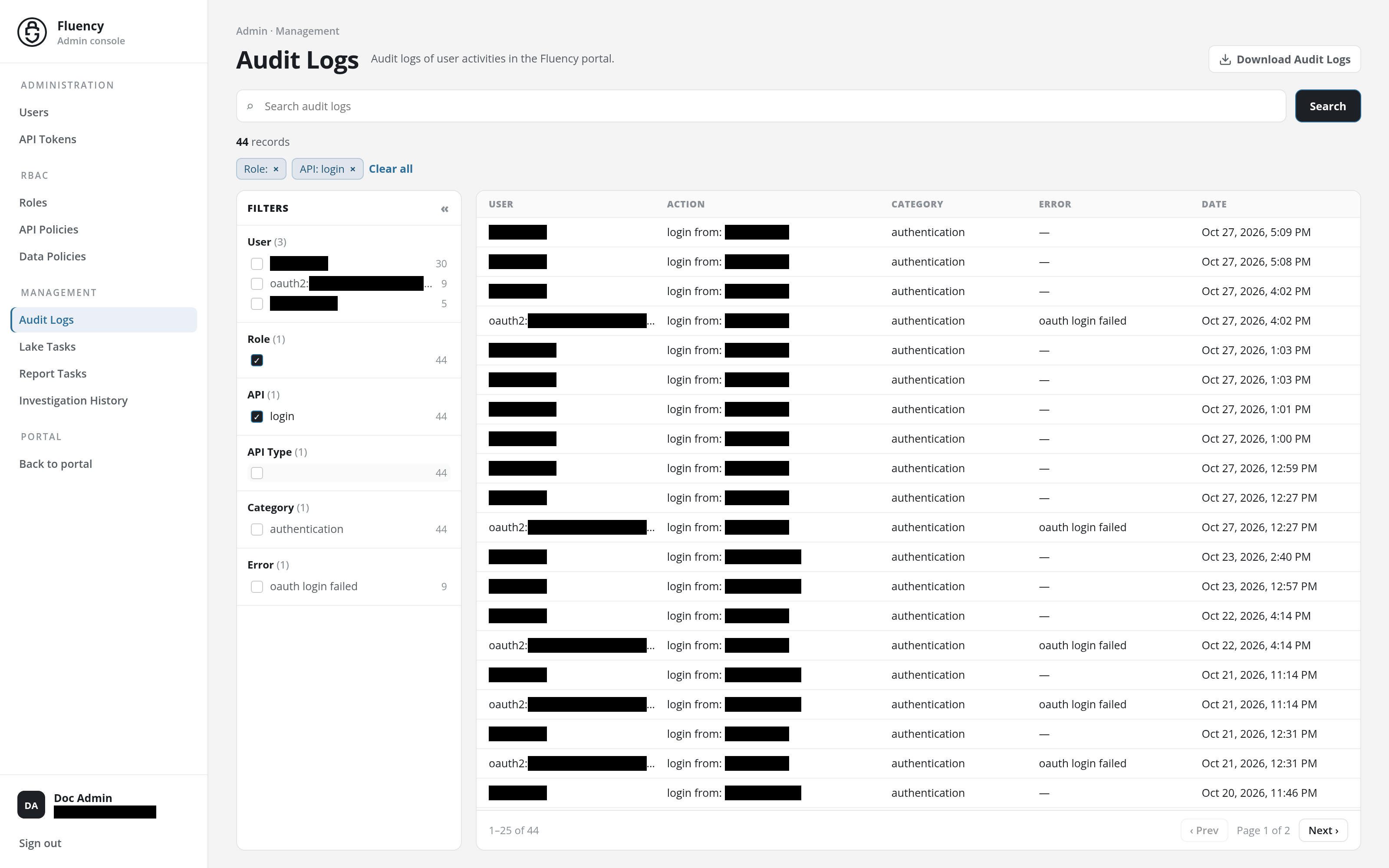
Each group header carries controls to expand it, collapse it, and sort its values.
The count beside a group name is the number of distinct values it holds, so API (4) on a quiet instance means only four kinds of action were recorded in the period.
Two facets carry most of the weight in a review:
- API: the action itself, such as login, mcp.oauth.token, Add User, or Delete User. Use it to answer "what changed?".
- Error: combine it with Category: authentication to isolate failed sign-ins.
Exporting
Download Audit Logs, in the upper-right corner, exports the audit log for an access review or an auditor request.
Activity Review Page
The User Activity button and the three summaries below belong to the legacy interface. On the current Audit page, the only header action is Download Audit Logs.
In the upper right corner of the table, there is a button User Activity. Clicking this button will show the summary of users.
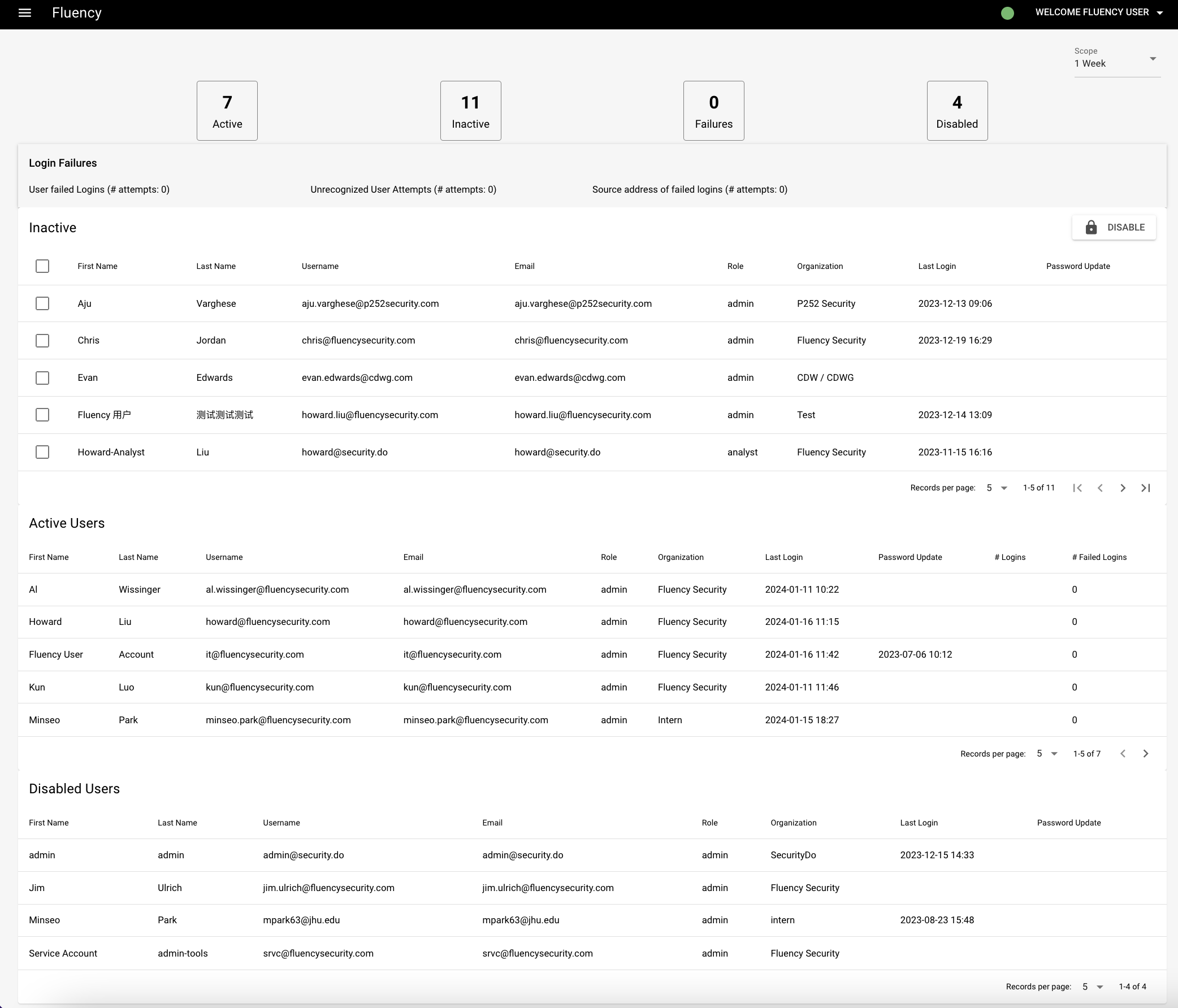
Inactive Users
The first table on the page highlights users that have not logged into the system for thirty (30) days. In this case, it is recommended to disable such users. To do so, check the select box next to users to disable, and then click the disable button (lock icon).
Active Users
This table provides a list of users that have recently logged into the system. The table shows the last login and any failed login attempts.
Disabled Users
This is a list of disabled users. If the users are no longer required, go to the Users page and delete them.
Demo
An interactive demo of the user audit page is available here: User Audit (Storylane)
Related
- Audit Logs: the page reference (v1: Settings → Audit).
- What Is an Audit Log: what is recorded, retention, and using audit data in a review.
- Managing Users: the actions that produce management category entries.