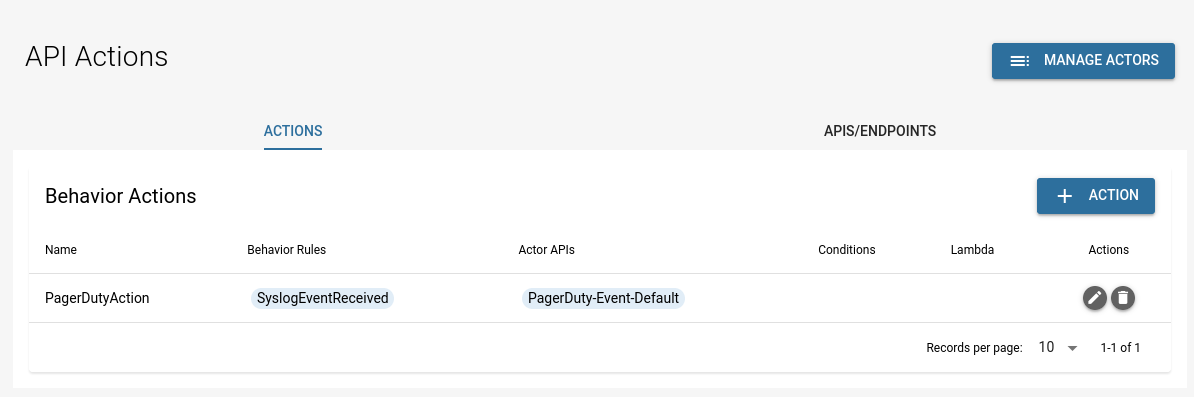
API Integration
The API Actions page (under the old EventWatch menu) used in this guide does not exist in the current interface. Alert delivery is now configured with notification endpoints and rules on Platform → Administration → Notifications, and external services are connected on Platform → Integrations — see Actions → Where alert delivery is configured now for what those pages look like. The PagerDuty-specific steps below need to be rewritten for the current interface.
PagerDuty Configuration
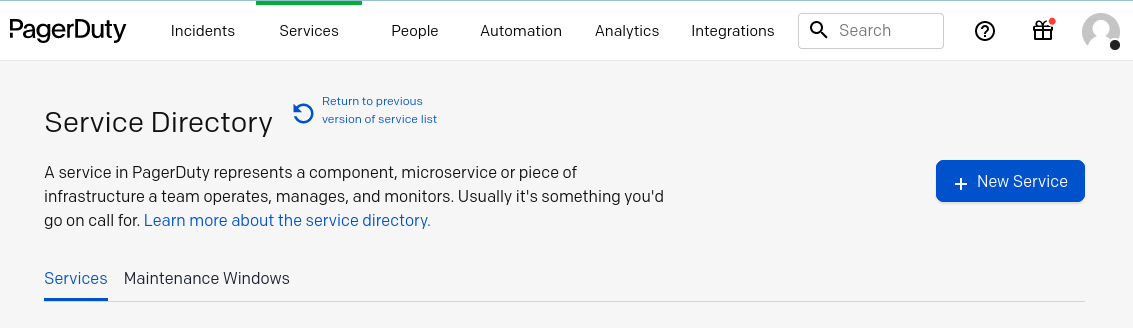
Login to your PagerDuty management portal. Navigate to the Service Directory page by selecting the Services tab in the top menu bar.
Use the "+ New Service" button to create a new service.
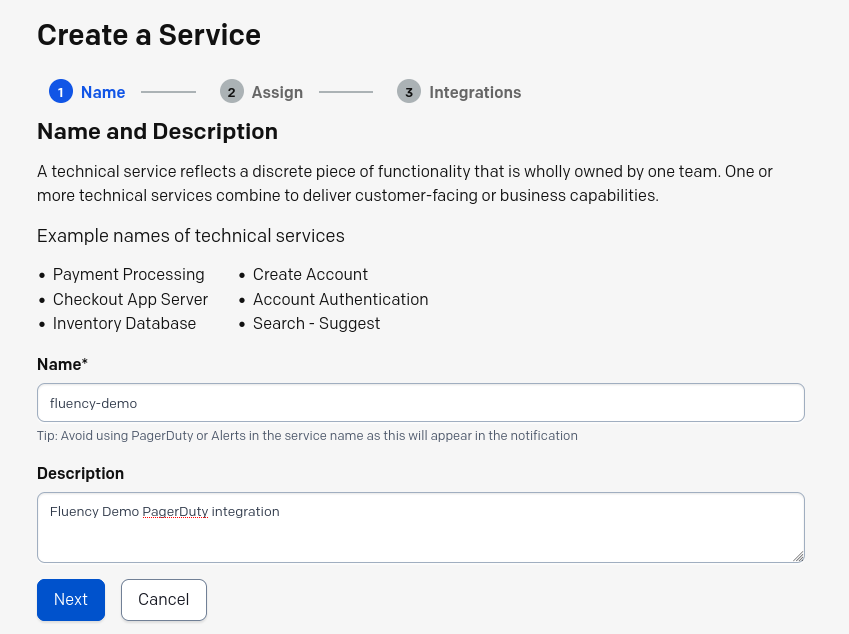
Provide a Name and Description for the service, and select "Next".
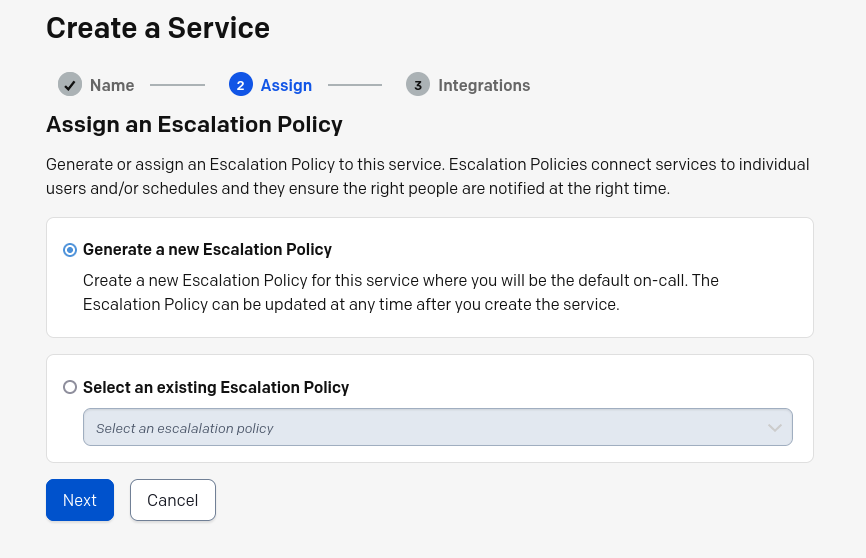
Configure the Escalation Policy, if applicable. Select "Next" to proceed.
For Integrations, choose the "Events API V2".
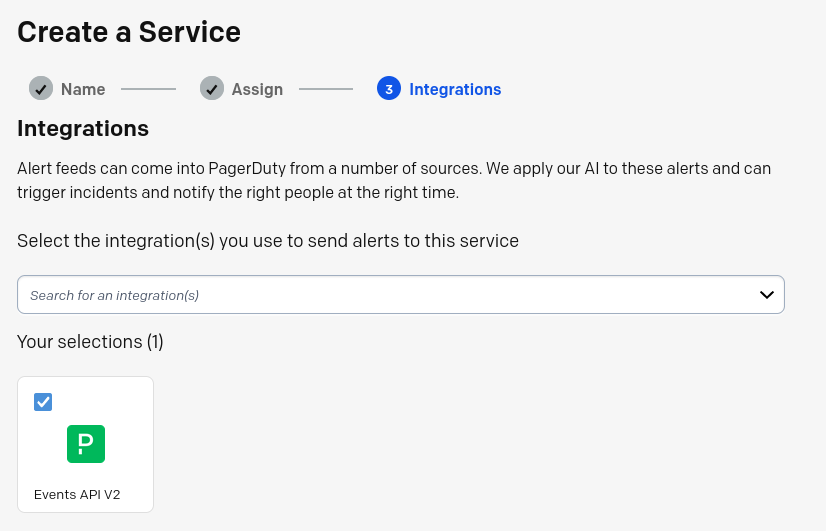
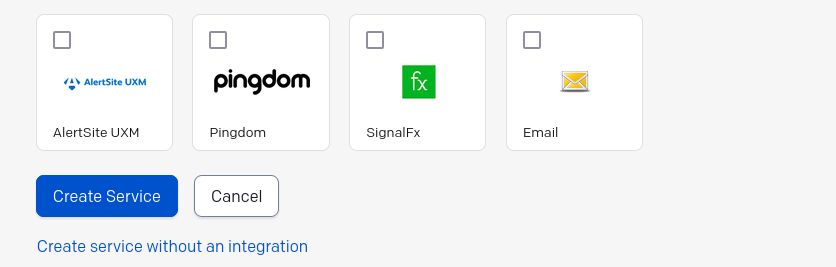
Then select "Create Service" to complete the service creation.
Obtain the Integration Key from the PagerDuty management portal
If not already on the service configuration page, navigate to the Service Directory page under the "Services" tab in the top menu bar, then select the service to configure.
Choose the Integration tab on the service configuration page.
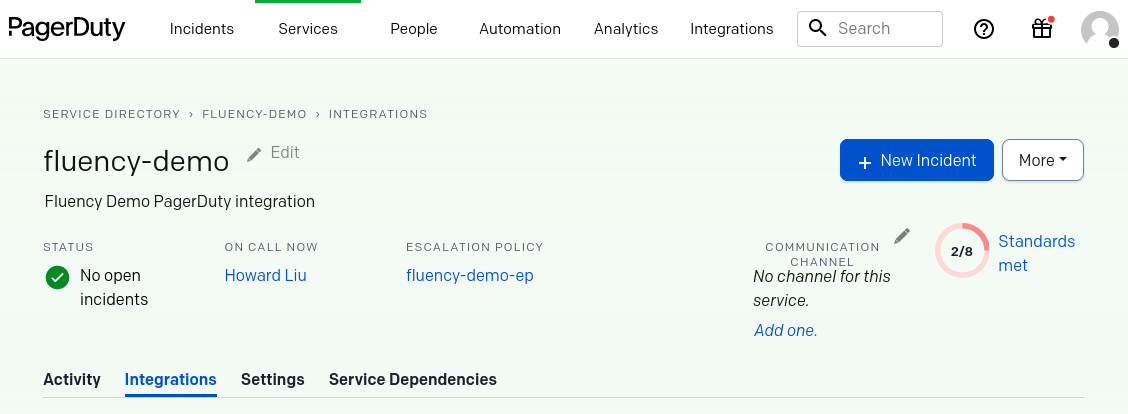
Select/expand the "Events API V2" integration to reveal the Integration Key. Make a note of key, as it will be used in the Fluency interface in the following step.
Fluency Configuration
Sign in to your Fluency portal at https://<companyname>.app.ingext.io — see Fluency Web Interface for the URL formats.
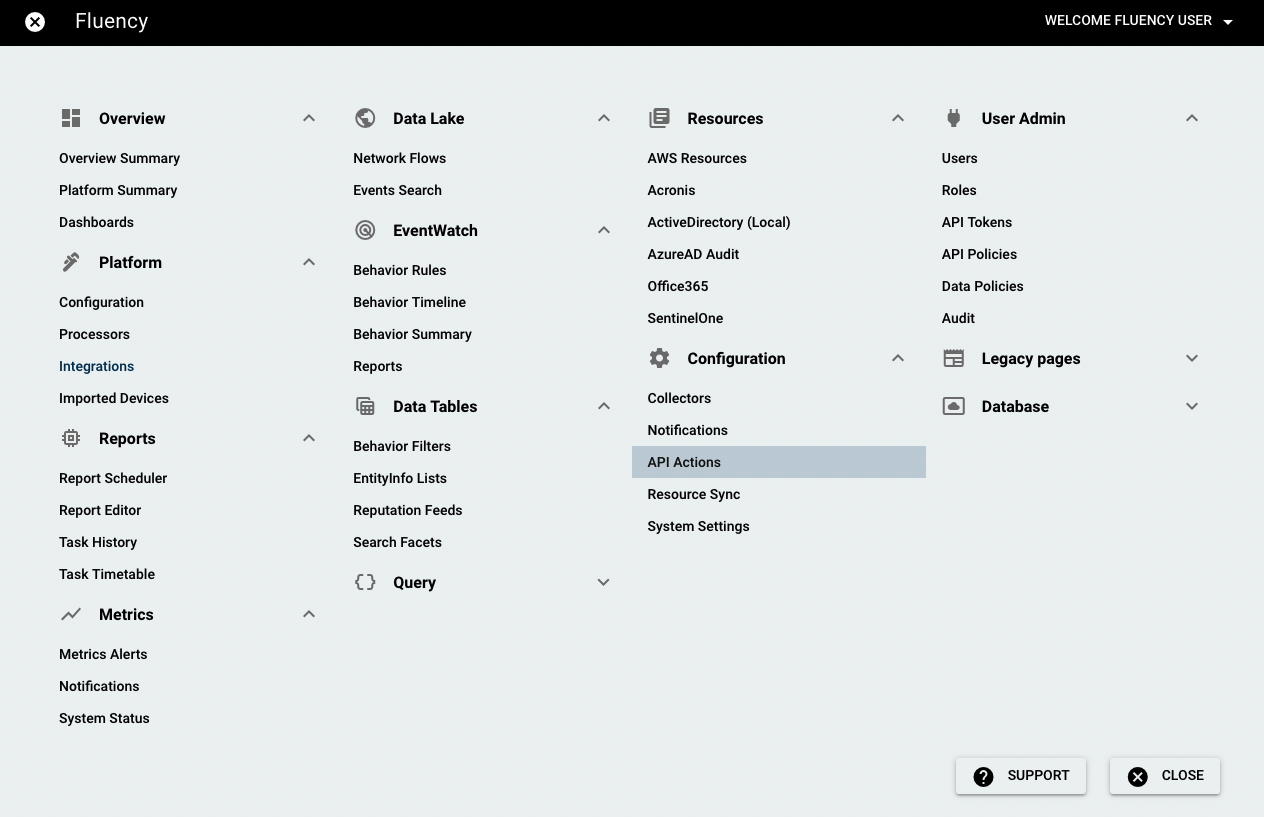
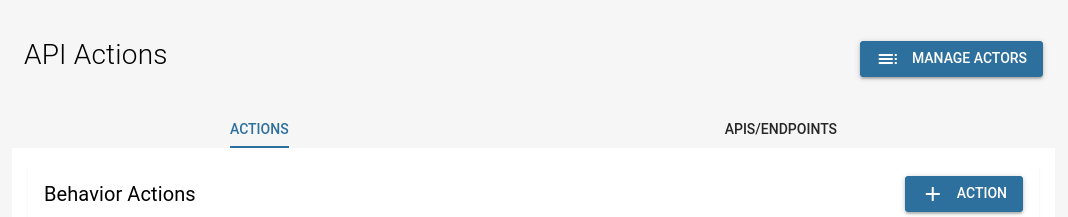
From the Fluency Main menu, navigate to the API Actions page under the EventWatch tab.
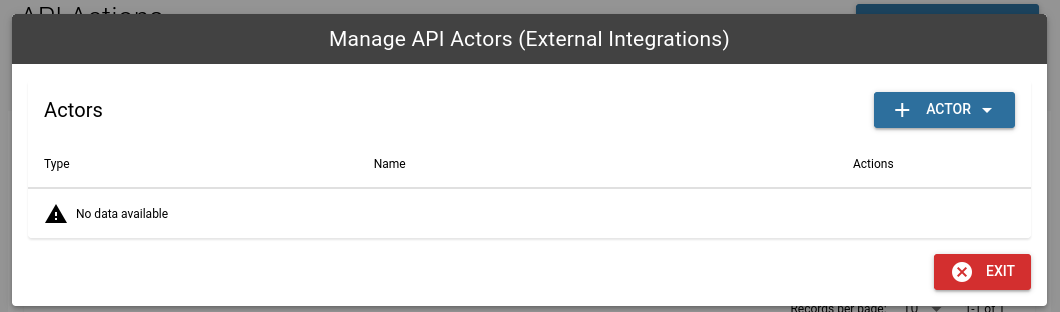
Select the "Manage Actors" button from the top right corner.
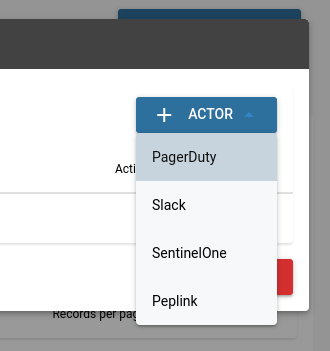
Click "+ ACTOR" to open a dropdown menu and select PagerDuty.
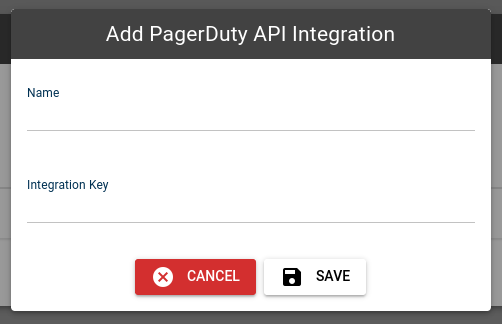
Add the Integration Key from the earlier step.
Give the integration a name. Click "SAVE".
The PagerDuty API Actor named "test" has been added.
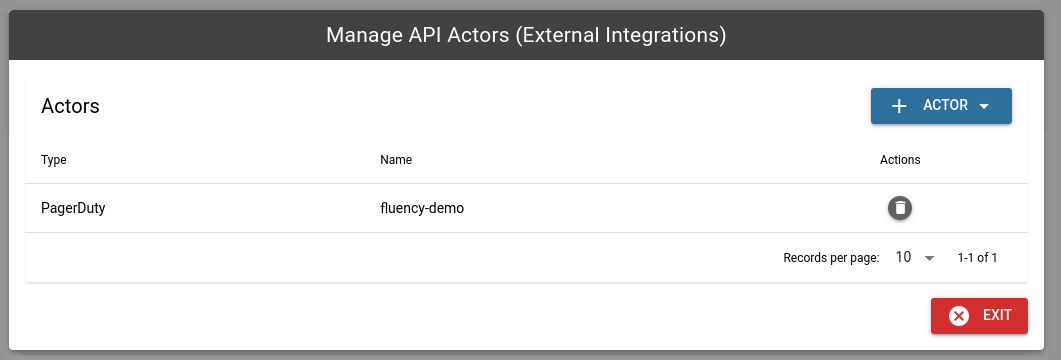
Next, exit the Actor manager and navigate to the "APIs/Endpoints" tab.

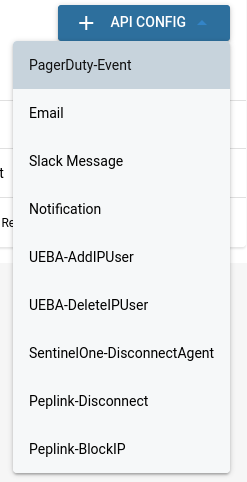
Click "+ API CONFIG" to open a dropdown menu and select "PagerDuty Event".
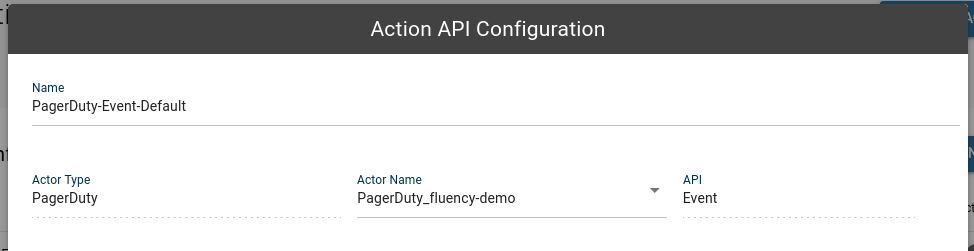
A default name is entered and can be changed. Choose the PagerDuty action created in the previous step for the "Actor Name".
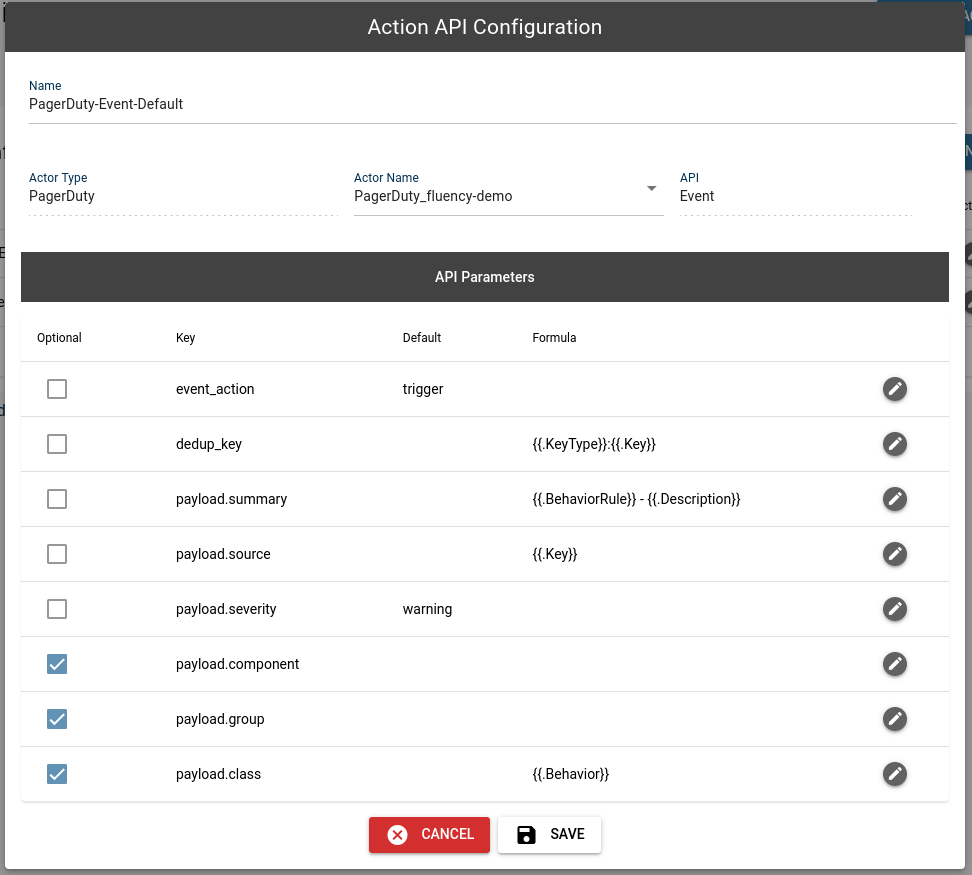
Select additional API parameters you would like to include and click "SAVE".
Next, navigate back to the "Actions" tab.

Click "+ ACTION" to add a behavior action.
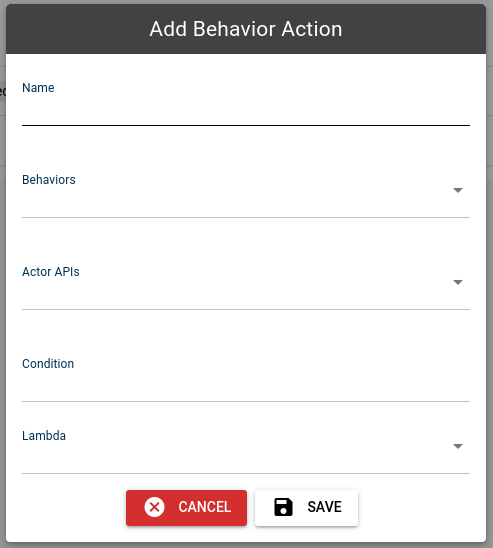
Add the name, any desired behaviors and the Actor API you configured in the last step. Fill in a condition to trigger this action.
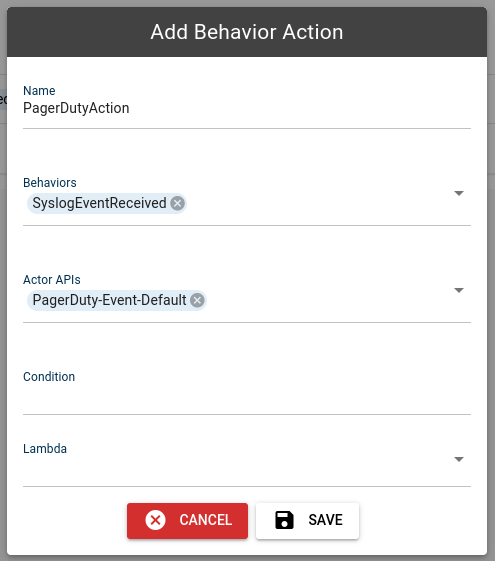
Click "SAVE" to complete the configuration.