Mimecast (Legacy API 1.0)
The Mimecast Events (Legacy) template polls Mimecast's SIEM logs over API 1.0, for tenants still running on API 1.0 keys. It collects the same message, delivery and threat-protection events that Mimecast Cloud Gateway collects over API 2.0.
Authentication is a request signature rather than a token: each call is signed with HMAC-SHA1 using keys issued to a Mimecast administrator account, which is why five values are collected where the Cloud Gateway template needs two (see Under the hood).
The setup has two halves:
- In Mimecast: turn on Enhanced Logging, register an API application, and create keys against a service account. This produces five values: a Base URL, an Application ID, an Application Key, an Access Key and a Secret Key.
- In Fluency: install the Mimecast Events (Legacy) application template and paste those five values into its form.
| Template | Mimecast API | Credentials |
|---|---|---|
| Mimecast CG Events | API 2.0 | Client ID, Client Secret |
| Mimecast Events (Legacy) (this page) | API 1.0 | Base URL, Application ID, Application Key, Access Key, Secret Key |
Mimecast's published end-of-life plan removed the API 1.0 tiles from the Cloud Gateway Administration Console, so no new API 1.0 applications can be created. Existing ones keep working while their service-account user, access key and secret key stay valid; Mimecast intends to start expiring them once most integrations have moved, on a date it has not published. A first-time connection, or a console without the API 1.0 tile, belongs on Mimecast Cloud Gateway; existing setups should plan the migration.
What arrives
| Stream | What it holds | Lands in |
|---|---|---|
| Receipt | Messages the gateway accepted: sender, recipient, sending IP, subject, initial verdict. | The template's fixed index |
| Process | The policies each message matched, and their decisions. | The template's fixed index |
| Delivery | Hand-off to the destination, or its failure. | The template's fixed index |
| Journal | Journaled copies of internal mail. | The template's fixed index |
| AV / Spam | Malware and spam verdicts. | The template's fixed index |
| URL Protect | Clicks on rewritten links, and whether each was blocked. | The template's fixed index |
| Attachment Protect | Attachment sandboxing and safe-file conversion outcomes. | The template's fixed index |
| Impersonation Protect | Display-name, domain-similarity and internal-name impersonation hits. | The template's fixed index |
| Internal Email Protect | Threats found in internal and outbound mail. | The template's fixed index |
The message streams need Enhanced Logging on for each mail direction. The protection streams need their Mimecast subscription and, for URL, Attachment and Impersonation Protect, read access for the keys' administrator account.
What each event type records and depends on is in Data reference.
Before you begin
An existing API 1.0 application, or a console that still offers one. Check Services → API and Platform Integrations → Your Application Integrations before working through Part 1. If there is no Add API Application button and no API 1.0 card under Available Integrations, the tenant is past the cutoff and the only path is Cloud Gateway.
Enhanced Logging, switched on. Mimecast only generates the SIEM data this integration reads for log types enabled in Enhanced Logging. With it off, every step below succeeds, the application installs, the pipeline reads Running, and nothing ever arrives.
A Mimecast administrator account in the Basic Administrators group, with Gateway → Tracking → Read granted. Key creation authenticates as that account, so it has to be a real, usable login, and it is worth using a dedicated service account rather than a person's, because the credential dies with the user.
Access to the Fluency portal with permission to install applications.
Mimecast serves SIEM logs for roughly seven days from the current date, so a gap in collection longer than that is a permanent gap. Enhanced Logging is also not retroactive: it starts generating data when you save it, not before.
Part 1: Mimecast
Work through this half in the Mimecast Administration Console, signed in as the administrator account described above.
1. Turn on Enhanced Logging
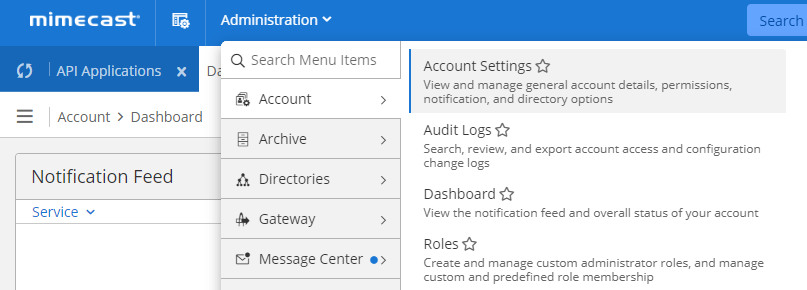
Open the Administration menu and go to Account → Account Settings.
Expand the Enhanced Logging section at the foot of the page and tick all three options (Enhanced inbound email logging, Enhanced outbound email logging and Enhanced internal email logging), then Save.
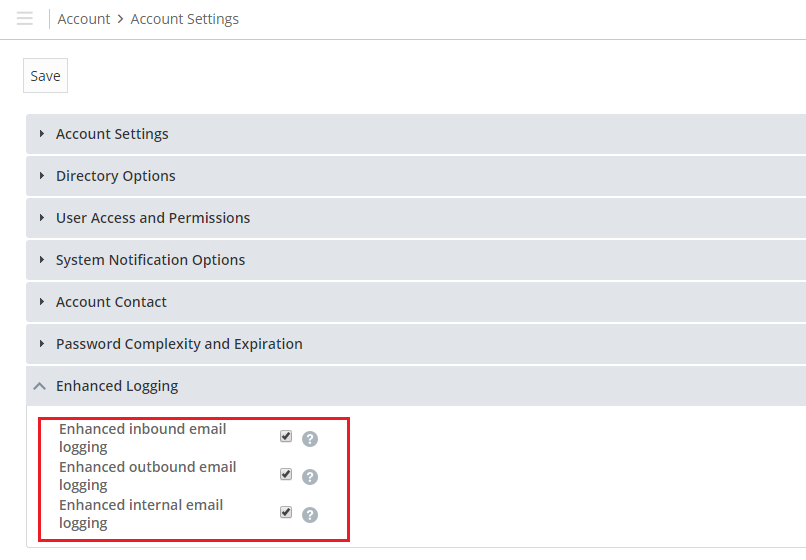
Leaving one unticked silently removes that direction of mail from the feed. Outbound and internal are the ones people skip, and they are what data-exfiltration and internal-phishing detections run on.
Mimecast begins logging when you save, and the logs become available to SIEM integrations about thirty minutes later.
2. Register the API application
Go to Services → API and Platform Integrations.
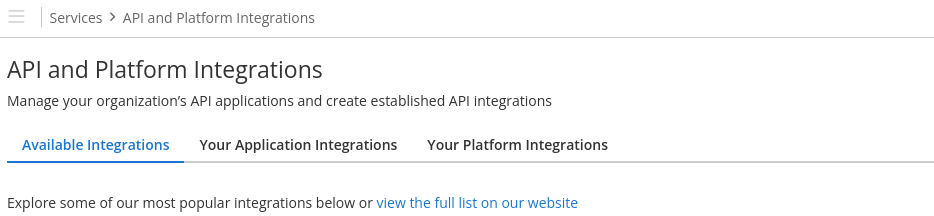
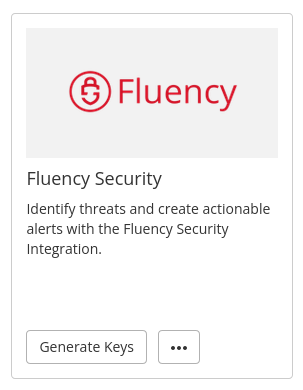
Under Available Integrations, scroll to the Fluency Security card and click Generate Keys. This is Mimecast's own listing for the Fluency SIEM integration and pre-fills the application category; on a console where the card is absent, Your Application Integrations → Add API Application produces the same result.
On the Details step:
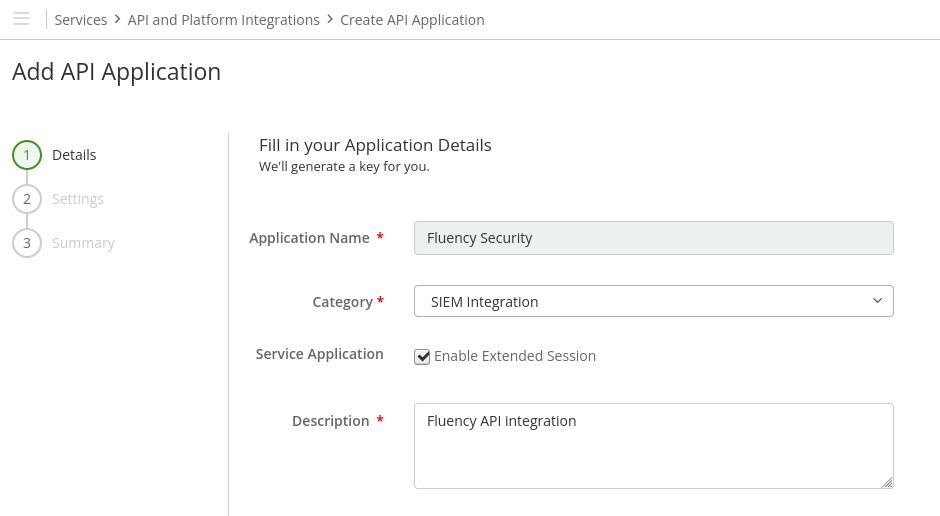
- Application Name: anything recognisable.
Fluency Securityis the default. - Category: SIEM Integration.
- Service Application: tick Enable Extended Session.
- Description: free text.
Without it, the access and secret keys this application issues are subject to the account's ordinary session lifetime and stop working without warning. Collection then fails quietly, and the fix is a full key regeneration. This checkbox is the single most consequential setting on the form.
The Settings step asks for a developer name and contact address. Any value is accepted; use something a future administrator can trace.
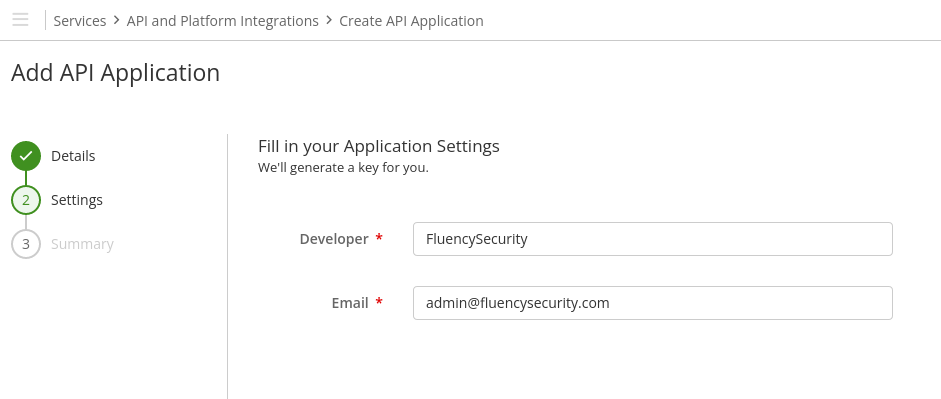
Review the Summary and click Add. Mimecast returns to the integrations page with a summary panel for the new application.
3. Record the Application ID and Application Key
Open the application from Your Application Integrations to see its details. The Application ID is shown in full; the Application Key is masked behind an eye icon. Both have a copy button.
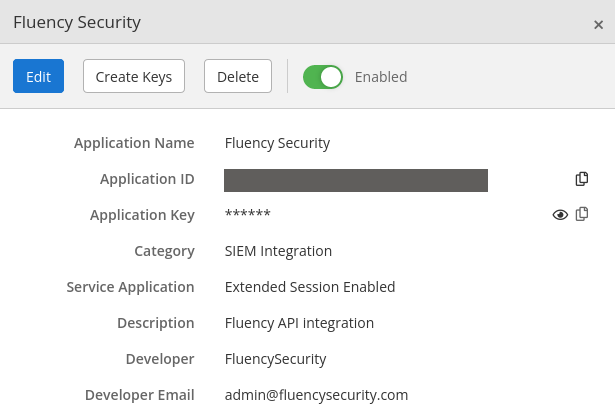
Unlike the access and secret keys in the next step, these two can be read again at any time from this panel.
A newly added API application cannot issue access and secret keys immediately. If Create Keys fails or is unavailable, come back in half an hour; this is expected behaviour, not a fault.
4. Create the access key and secret key
Return to Your Application Integrations. At the end of the application's row, open the ⋯ menu and choose Create Keys.

The wizard runs Account → Authentication → Verification → Keys, and it authenticates as the administrator account the keys will belong to:
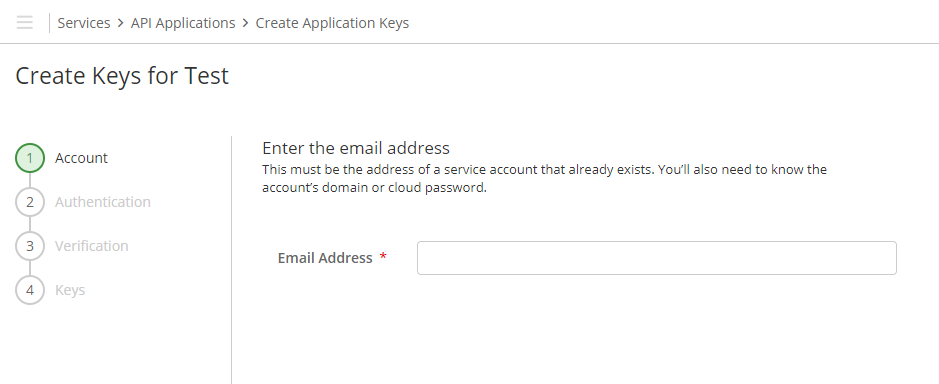
- Account: the email address of the Basic Administrator service account. In most cases this is the address shown in the top-right corner of the console.
- Authentication: the account type (Cloud for a Mimecast cloud password) and that account's password.
- Verification: complete multi-factor authentication if the account requires it.
- Keys: Mimecast issues the pair.
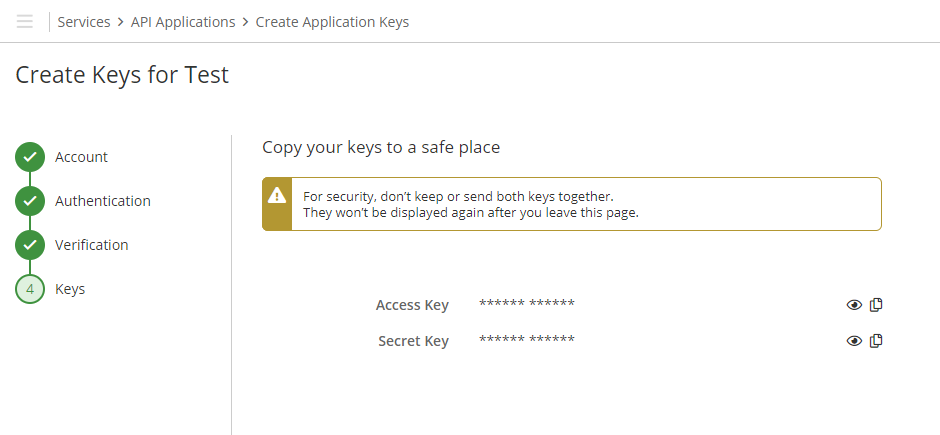
Once you navigate away from this page the access key and secret key cannot be recovered; the only remedy is to create a new pair. Mimecast's own warning on this screen also asks that the two are not stored or sent together.
You should now be holding all five values:
| Value | Where it came from |
|---|---|
| Base URL | Your tenant's region (see step 5) |
| Application ID | The application details panel |
| Application Key | The application details panel, behind the eye icon |
| Access Key | The Create Keys wizard, shown once |
| Secret Key | The Create Keys wizard, shown once |
5. Find the Base URL
API 1.0 is served regionally, and the wrong region fails authentication rather than redirecting. The base URL follows the pattern https://<region>-api.mimecast.com: for example https://us-api.mimecast.com for the United States, https://eu-api.mimecast.com for Europe, https://de-api.mimecast.com for Germany. Mimecast's global base URLs list is authoritative; the tenant's region is also visible in the console URL you are signed in to.
API 2.0 is served from a single global gateway that routes to the tenant's region on its own, which is why the Cloud Gateway template takes two parameters where this one takes five.
Part 2: Fluency
Install the Application
- v2 interface
- Classic v1 interface
In the navigation rail, open Applications and click Install Application, then choose Mimecast Events (Legacy) from the Email Audit and Protection category of the Application Catalog.
Go to Platform → Applications → Install Application From Template and choose Mimecast Events (Legacy) from the Email Audit and Protection category.
| Parameter | Notes |
|---|---|
| Base URL | The regional endpoint from step 5, for example https://us-api.mimecast.com. |
| Application ID | From the application details panel. |
| Application Key | From the application details panel, behind the eye icon. |
| Access Key | From the Create Keys wizard. |
| Secret Key | From the Create Keys wizard. |
- v2 interface
- Classic v1 interface
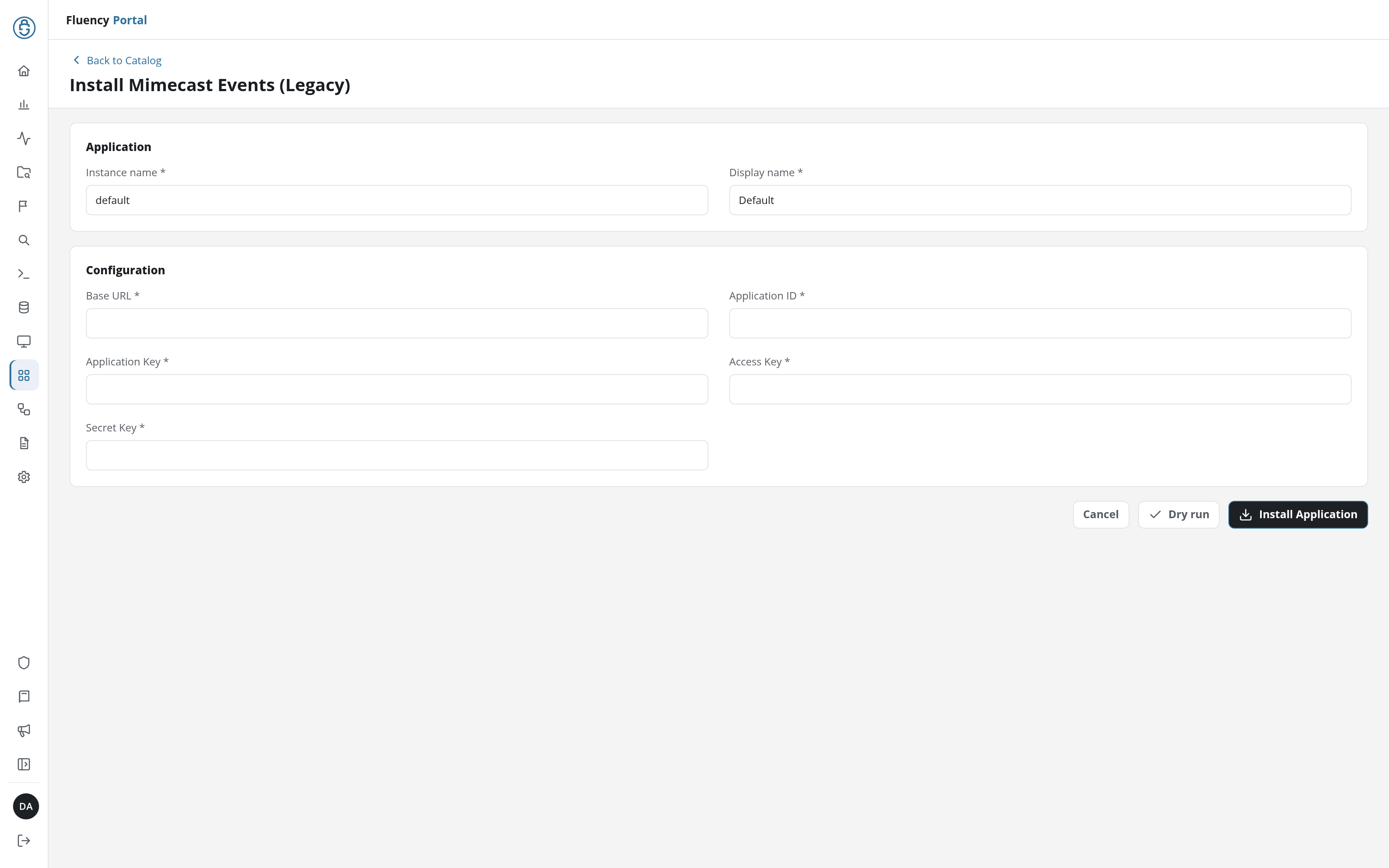
Click Dry run first to have the platform check the five values before anything is installed, then click Install Application. The Applications page opens with the notice Default is launching., and the new application is listed with a green Running badge once the pipeline is up.
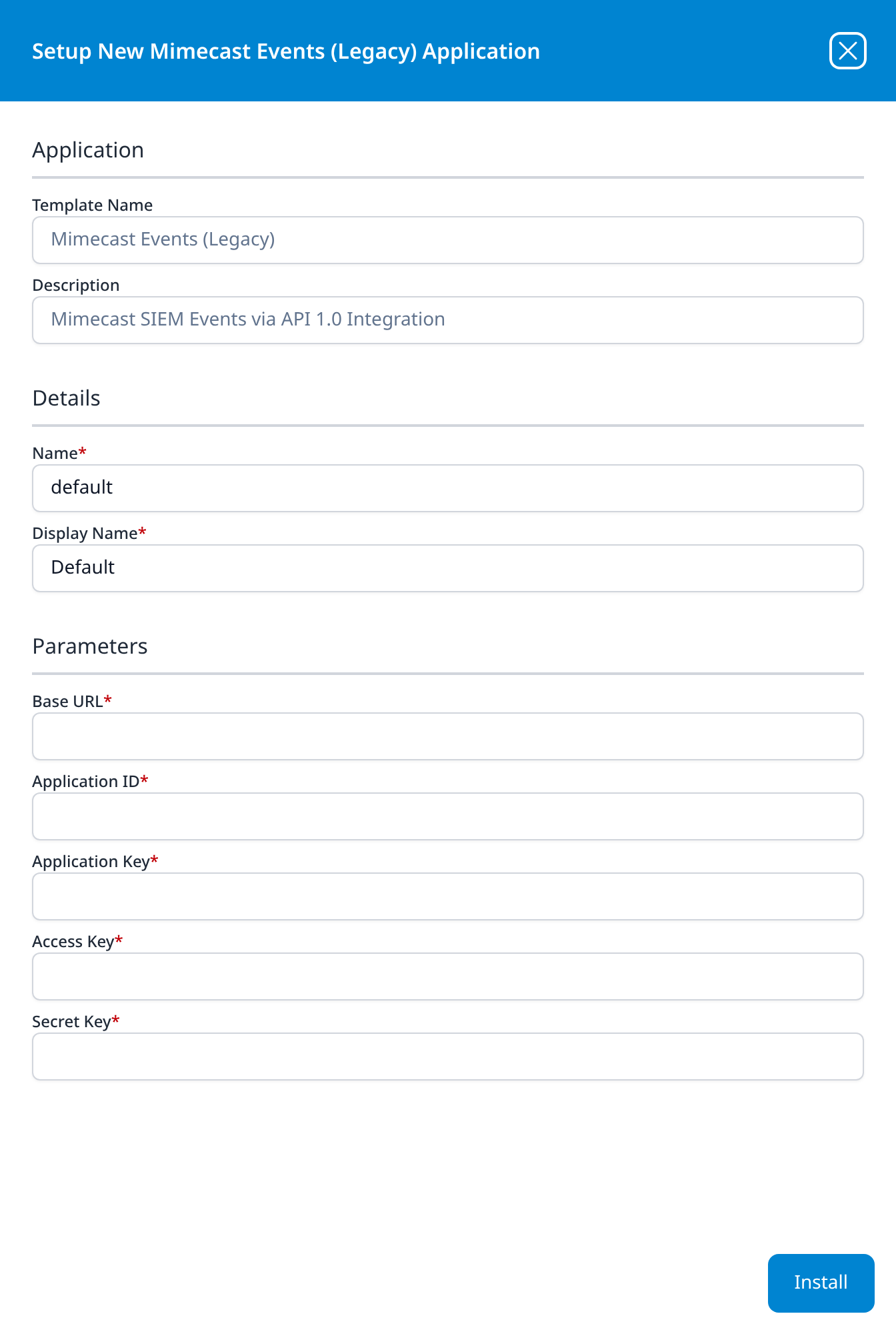
Press Install. The application then appears in the Installed Applications view, where its badge reads Running once the pipeline is up.
Unlike most templates, Mimecast Events (Legacy) takes no datalake or datalake index name parameter: the destination is fixed by the template rather than chosen on the form, so there is nothing here to collide with another application. To see where the data actually lands, open the installed application's details and read its Actions list, which records every object the install created.
Confirm it is running
- v2 interface
- Classic v1 interface
The application is listed on Applications as Mimecast Events (Legacy), with the display name Default beneath it. Its badge should read Running in green within a few seconds; a red Error badge means the pipeline aborted or reported errors in the last hour, and the details page shows the error message beneath the summary figures. Click its row to open the application details page.
The application appears under Installed Applications as Mimecast Events (Legacy): Default. Its badge should read Running in green within a few seconds; Aborted in red means the pipeline stopped on an error, and the details panel will carry the message.
Give the first collection 15 to 30 minutes with normal mail flow. Once data is arriving, the FACET selector on Datalake Search (v1: the Data Lake → Search facet selector) carries per-source configurations for the Mimecast streams (Default-Mimecast_MTA_Receipt, Default-Mimecast_URL_Protect, Default-Mimecast_Attachment_Protect and Default-Mimecast_Impersonation_Protect), which is a quick way to confirm which streams are actually populated. See Confirm data is arriving.
Migrating to Cloud Gateway
Moving to API 2.0 replaces the credential, not the data. The streams, the Enhanced Logging dependency and the seven-day retention window are identical; what changes is that five values become two and the regional base URL disappears.
- Register an API 2.0 application and collect its client ID and secret (Mimecast Cloud Gateway, Part 1). Enhanced Logging is already on, so that step is a check rather than a change.
- Install Mimecast CG Events alongside the legacy application. Give it a datalake index name the legacy application is not already writing to; check the legacy application's Actions list first, because its destination is not shown on the install form.
- Confirm the new application is collecting, then uninstall the legacy one in Fluency, from the Uninstall button at the top right of its details page (v1: the red Uninstall button at the foot of its details panel on Platform → Applications).
- Delete the API 1.0 application in Mimecast, which revokes the access and secret keys outright.
Running both for a few days is cheap insurance and, because Mimecast serves seven days of logs, a short overlap costs nothing in duplicated retention. Do not leave both running indefinitely: two applications polling the same tenant double the API load for no benefit.
Maintenance
Rotating the keys
The access and secret keys cannot be re-displayed, so rotation means issuing a new pair:
- In Mimecast, open the application from Your Application Integrations, then ⋯ → Create Keys, and complete the wizard as the same service account.
- Copy the new Access Key and Secret Key.
- In Fluency, uninstall the Mimecast Events (Legacy) application and install it again with the new pair. Template parameters are read-only after install, so reinstalling is the supported way to change a credential. To uninstall, click Uninstall at the top right of the application's details page (v1: the red Uninstall button at the foot of its details panel on Platform → Applications).
The Application ID and Application Key do not change. Given that API 1.0 is at end of life, a forced rotation is a good moment to migrate rather than reissue.
Removing the integration
Uninstall the application in Fluency first, with the Uninstall button at the top right of its details page (v1: the red Uninstall button at the foot of its details panel on Platform → Applications), so the pipeline stops cleanly before its credentials stop working. Then delete the API application in Mimecast.
Troubleshooting
| Symptom | Likely cause | Fix |
|---|---|---|
| Create Keys fails or is missing right after adding the application | The thirty-minute wait after registration has not elapsed | Wait and retry. |
| The API 1.0 card and Add API Application button are gone | The tenant is past Mimecast's cutoff for new API 1.0 applications | There is no way back; use Cloud Gateway. |
| The application shows Error (v1: Aborted) immediately after install | Wrong Base URL for the tenant's region, or a mistyped key | API 1.0 does not redirect across regions; confirm the region first, then re-copy the keys. |
| Authentication worked, then stopped for no apparent reason | Enable Extended Session was not ticked when the application was created, or the service account was disabled or had its password reset | Check the account first. If Extended Session is off, the application has to be recreated, which is no longer possible on a post-cutoff console. |
| Running, but nothing arrives | Enhanced Logging is off, or was switched on less than half an hour ago | Administration → Account → Account Settings → Enhanced Logging; tick all three, save, wait thirty minutes. |
| MTA events arrive but no URL/Attachment/Impersonation events | The account's role lacks the Monitoring Menu read permissions, or the tenant has no Targeted Threat Protection subscription | Check the role first, then the subscription. |
| Only inbound mail is logged | Only Enhanced inbound email logging was ticked | Tick outbound and internal as well. |
Data reference
What each SIEM event type records, and what Mimecast needs in place to produce it.
Event types and what each depends on
The MTA types describe the life of a message through the gateway; the Targeted Threat Protection types describe what Mimecast's inspection services found.
| Stream | What it records | Depends on |
|---|---|---|
| Receipt | The MTA accepting a connection for a message: sender, recipient, sending IP, subject, initial verdict. | Enhanced Logging |
| Process | Mimecast policy evaluation of that message. | Enhanced Logging |
| Delivery | The MTA handing the message to its destination, or failing to. | Enhanced Logging |
| Journal | Journaled copies of internal mail. | Enhanced Logging (internal) |
| AV / Spam | Malware and spam verdicts raised during processing. | Enhanced Logging |
| URL Protect | Rewritten-link click verdicts. | Targeted Threat Protection: URL Protect |
| Attachment Protect | Attachment sandboxing and safe-file conversion outcomes. | Targeted Threat Protection: Attachment Protect |
| Impersonation Protect | Display-name, domain-similarity and internal-name impersonation hits. | Targeted Threat Protection: Impersonation Protect |
| Internal Email Protect | Threats found in internal and outbound mail. | Internal Email Protect |
Under the hood
Engineering reference: the API 1.0 request signature and why it needs five values
This section describes the Mimecast API 1.0 mechanics behind the five parameters. Administrators connecting Mimecast do not need it.
API 1.0 has no token exchange. Every request is signed on the spot, which is why the credential is four secrets plus an endpoint rather than an ID and a secret:
| Value | Role in the request |
|---|---|
| Base URL | The regional host. There is no global gateway and no cross-region redirect. |
| Application ID | Sent as the x-mc-app-id header; identifies the registered application. |
| Application Key | Mixed into the string that gets signed, never sent on the wire. |
| Access Key | The public half of the credential, sent in the Authorization header. |
| Secret Key | Base64-decoded and used as the HMAC-SHA1 key. Never sent. |
Each call sets x-mc-date (the request timestamp), x-mc-req-id (a fresh GUID) and x-mc-app-id, then builds the string to sign by concatenating:
<x-mc-date>:<x-mc-req-id>:<request URI>:<application key>
That string is signed with HMAC-SHA1 using the Base64-decoded secret key, and the result goes out Base64-encoded as:
Authorization: MC <access key>:<signature>
SIEM logs come from POST <base URL>/api/audit/get-siem-logs, which returns log file metadata and then the files themselves. Retention is about seven days.
Why the migration matters beyond end-of-life dates. The 1.0 credential is bound to a user account: key creation authenticates as that administrator, and the keys die with the account, its password reset, or its session policy. API 2.0's client credentials are bound to the application and a role, so a departing administrator no longer takes the integration down with them.
References
Mimecast
- API 1.0 End of Life, Mar 2025: the end-of-life stages and the June 2025 cutoff
- API 1.0 to 2.0 migration guide: endpoint-by-endpoint mapping
- Global base URLs: the regional endpoint list
- Managing API applications: the application and key lifecycle
- Authorization: the request-signing scheme in full
Fluency
- Mimecast Cloud Gateway: the API 2.0 template, and where new setups go
- Mimecast Events (Legacy) install form: the template's fields and defaults (v1: Install Application From Template)
- Confirm data is arriving
- Email Security integrations: the rest of this category